Ansible Facts Playbook
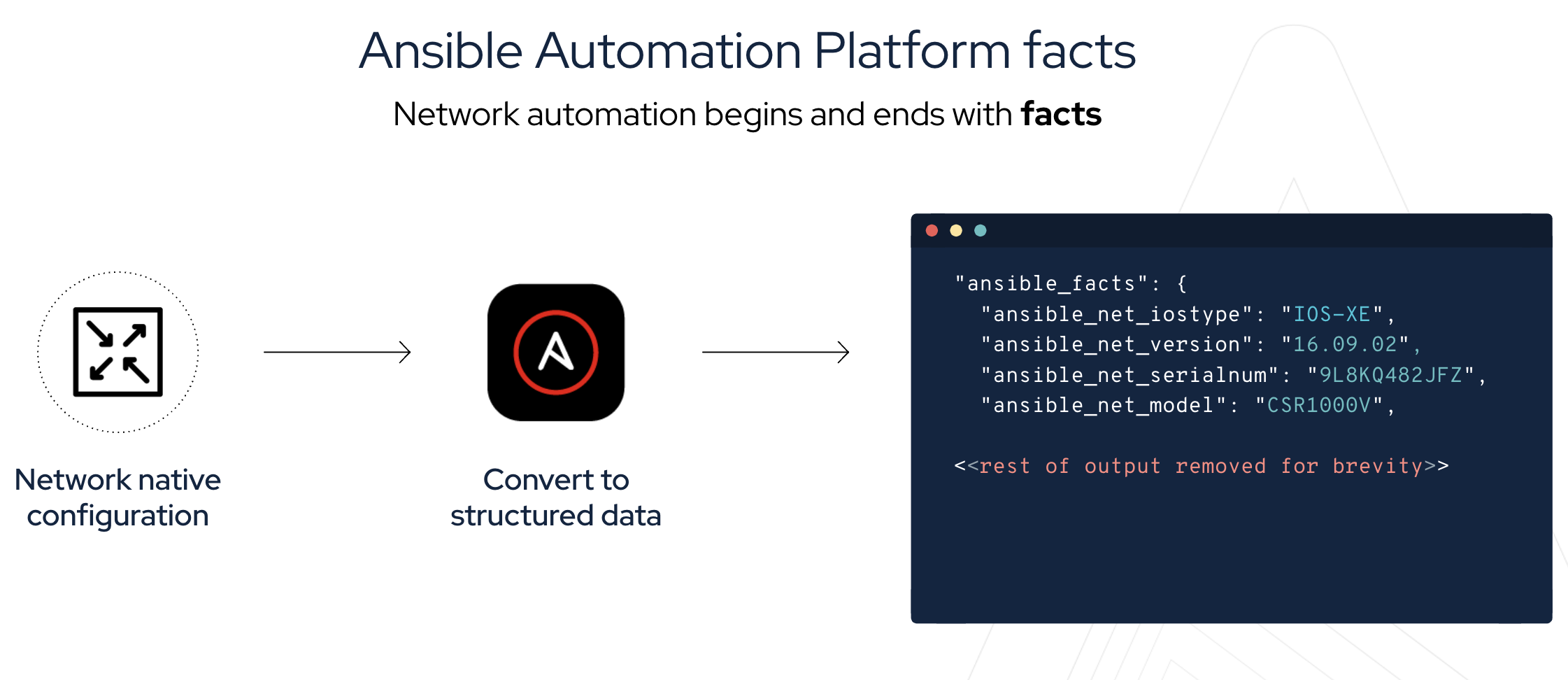
Everything begins and starts with facts
More about Modules
-
Modules do the actual work in Ansible, they are what gets executed in each playbook task.
-
Typically written in Python (but not limited to it)
-
Modules can be idempotent
-
Modules take user input in the form of parameters
-
Network modules
-
Ansible modules for network automation typically references the vendor OS followed by the module name.
-
namename.collection.module -
namespace.collection.
facts -
namespace.collection.
command -
namespace.collection.
config -
namespace.collection.
resource
For example:-
Arista EOS =
arista.eos. -
Cisco IOS/IOS-XE =
cisco.ios. -
Juniper Junos =
junipsnetworks.junos.
-


Lets get started
That is the end of of your lab briefing!
Step 1 - Creating the play
Ansible Playbooks are YAML files. YAML is a structured encoding format that is also extremely human readable (unlike it’s subset - the JSON format)
-
Click on the code-server tab
-
Create a new file in Visual Studio code. Click on the File Top Nav bar then click New File
-
For simplicity please name the playbook:
facts.yml -
Enter the following play definition into facts.yml:
---
- name: gather information from routers
  hosts: cisco
  gather_facts: no
Here is an explanation of each line:
-
The first line,
---indicates that this is a YAML file. -
The
- name:keyword is an optional description for this particular Ansible Playbook. -
The
hosts:keyword means this playbook against the group cisco defined in the inventory file. -
The
gather_facts: noturns of auto-fact gathering, we are going to use a module instead.
-
Step 2 - Create the facts task
-
Append the following to your playbook:
  tasks:
    - name: gather router facts
      cisco.ios.facts:
A play is a list of tasks. Modules are pre-written code that perform the task.
Step 3 - Executing the playbook
-
Click on the terminal tab. Execute the Ansible Playbook by running ansible-navigator:
ansible-navigator run facts.yml -
This will open an interactive session while the playbook interacts.
-
To zoom into the playbook output we can press 0 which will show us a host-centric view. Since there is only one host, there is just one option.
-
To see the verbose output of cisco press 0 one more time to zoom into the module return values.
-
You can scroll down to view any facts that were collected from the Cisco network device.
-