Create a survey
Challenge 2 - Creating the Survey
In this challenge you will create a "survey" of user input form to collect input from the user and populate the values for the variables net_banner and banner_type
-
Examine the playbook
---
- name: set router banners
  hosts: routers
  gather_facts: no

  tasks:
    - name: load banner onto network device
      vars:
        - network_banner:  "{{ net_banner | default(None) }}"
        - banner_type: "{{ net_type | default('login') }}"
      include_role:
        name: "../roles/banner"
You can also view this Ansible Playbook here -
The role banner has a very simple main.yml file:
- name: configure banner
  include_tasks: "{{ ansible_network_os }}.yml"
The
ansible_network_osvariable is being used to parameterize the network OS and create a vendor neutral playbook. -
If you are working with a junos device, this playbook would call for a task file called junos.yml. If you are using an IOS-XE device, this playbook would call for a task file called ios.yml. This file will in turn contain the platform specific tasks:
--- - name: add the junos banner junos_banner: text: "{{ network_banner }}" banner: "{{ banner_type }}" -
Also note that we are passing in 2 variables to the task file.
-
network_banner: This variable is populated using thenet_bannervariable -
banner_type: This variable is populated by a variable namednet_type
-
-
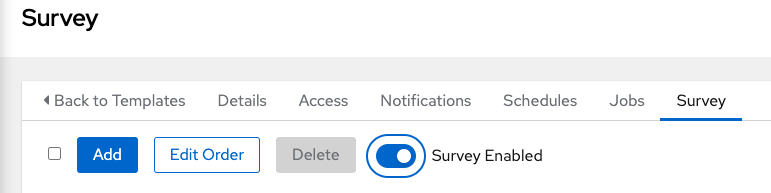
Make sure to enable the survey
Lets get started
That is the end of of your lab briefing!
Login to automation controller
-
If you have been logged out, login back into automation controller. Select the
Automation controller WebUItab at the top of your screen. -
Login with the following credentials:
username
admin
password
ansible123!
Step 1 - Navigate to the Network-Banner Job Template
-
In the left navigation menu, expand Automation Execution and then click on Templates.
-
You will see any created Job Templates.
-
Click on the Network-Banner Job template
Step 2 - Create the survey
In this step you will create a survey of user input form to collect input from the user and populate the values for the variables net_banner and net_type
-
Click on the Survey tab within the Network-Banner Job Template
-
Click the blue
Create survey question. -
Fill out the fields
Parameter Value Question
Please enter the banner text
Description
Please type into the text field the desired banner
Answer Variable Name
net_banner
Answer type
Textarea
Required
Checkmark ✅
-
Click Create survey question button.
-
Click the blue Create survey question button back in the Survey tab to create another question.
-
Next we will create a survey prompt to gather the banner_type. This will either be
motdorloginand will default to "login" per the playbook above.Parameter Value Question
Please enter the banner type
Description
Please choose an option
Answer Variable Name
net_typeAnswer type
Multiple Choice(single select)
Multiple Choice Options
-
login
-
motd
Default option
login
Required
Checkmark ✅
-
-
Click Create survey question button.
-
Ensure the toggle switch is set to Survey Enabled
