Automation with Pipelines
In addition to the OpenShift built-in components, OpenShift Pipelines provide additional triggers and automation to pipelines thanks to Tekton Triggers.
Background: Web Hooks
Most Git repository servers support the concept of web hooks — calling to an external source via HTTP(S) when a change in the code repository happens. OpenShift provides an API endpoint that supports receiving hooks from remote systems in order to trigger builds. By pointing the code repository’s hook at the OpenShift Pipelines resources, automated code/build/deploy pipelines can be achieved.
Adding Triggers to your Pipeline
Tekton Triggers enable us to configure Pipelines to respond to external events (Git push events, pull requests etc) such as Web Hooks.
Adding triggering support requires the creation of a TriggerTemplate, TriggerBinding, and an EventListener in our project.
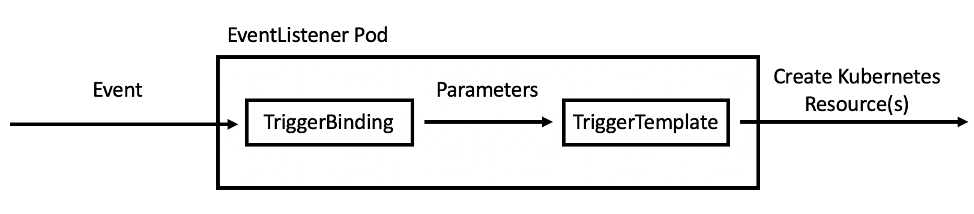
Let’s see each component in detail:
-
TriggerTemplate: a trigger template is a template for newly created resources. It supports parameters to create specific
PipelineResourcesandPipelineRuns. -
TriggerBinding: validates events and extracts payload fields
-
EventListener: connects
TriggerBindingsandTriggerTemplatesinto an addressable endpoint (the event sink). It uses the extracted event parameters from each TriggerBinding (and any supplied static parameters) to create the resources specified in the corresponding TriggerTemplate. It also optionally allows an external service to pre-process the event payload via the interceptor field.
Now let’s create them all together for our Pipeline.
oc create -f https://gitea.apps.cluster.example.com/userX/nationalparks/raw/branch/master/pipeline/nationalparks-triggers.yaml -n wksp-userXThis will create a new Pod with a Route that we can use to setup our Webhook on GitHub to trigger the automatic start of the Pipeline.
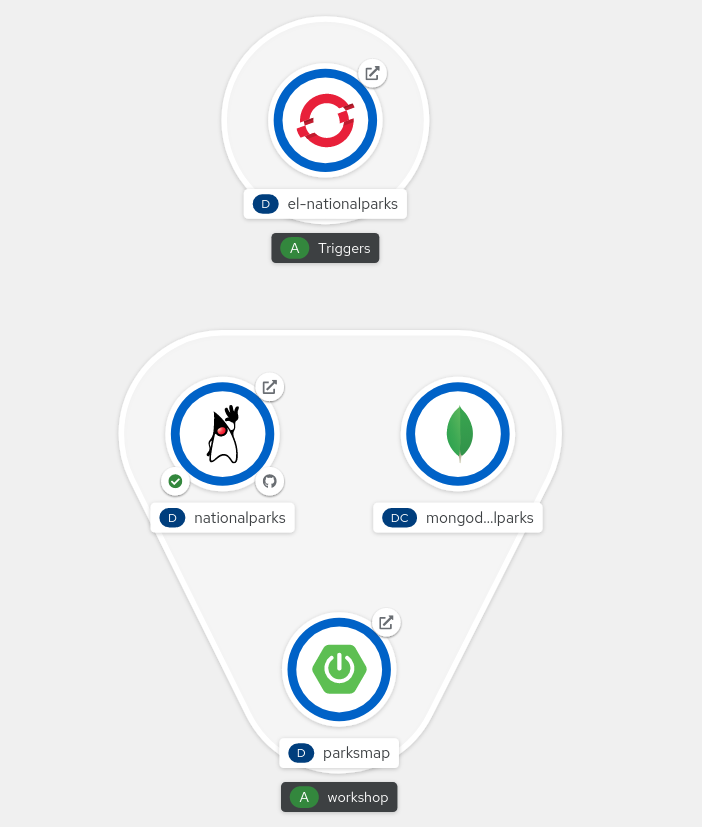
In the Topology view, verify if a new Deployment el-nationalparks for the EventListener has ben created:
Exercise: Configuring Gitea Web Hooks
In this section you can use a build webhook to trigger a pipeline execution every time there is a change in the nationalparks Gitea repository.
Once you have the URL copied to your clipboard, navigate to the code repository
that you have on Gitea by clicking the Gitea tab on the right side of this page, then open the nationalparks repository.
Sign in using the button on the top right of the screen.
If you prefer link to open it in a new browser tab Gitea Repository
Your Gitea credentials are:
username: userX
password: password
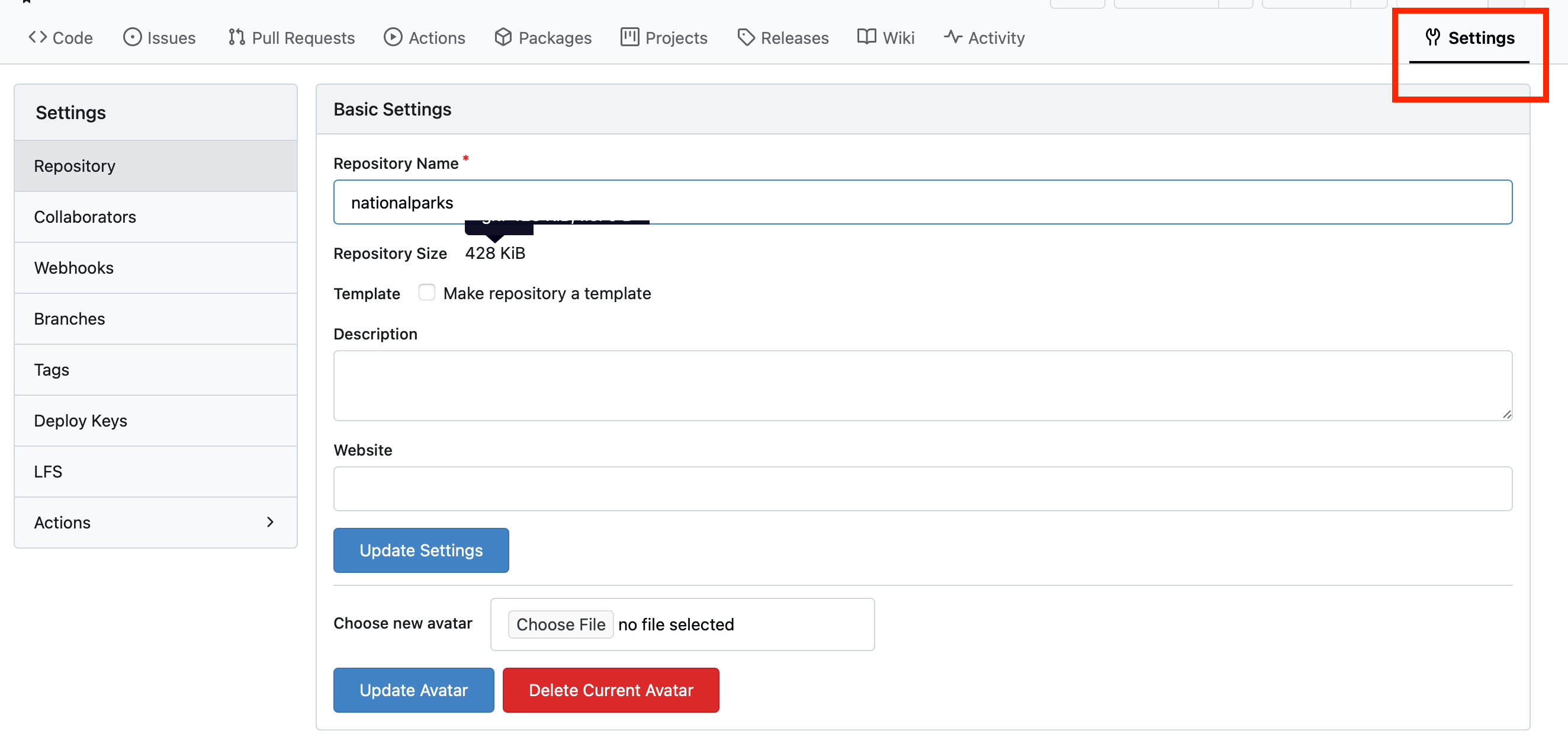
Click the Settings link on the top right of the screen:
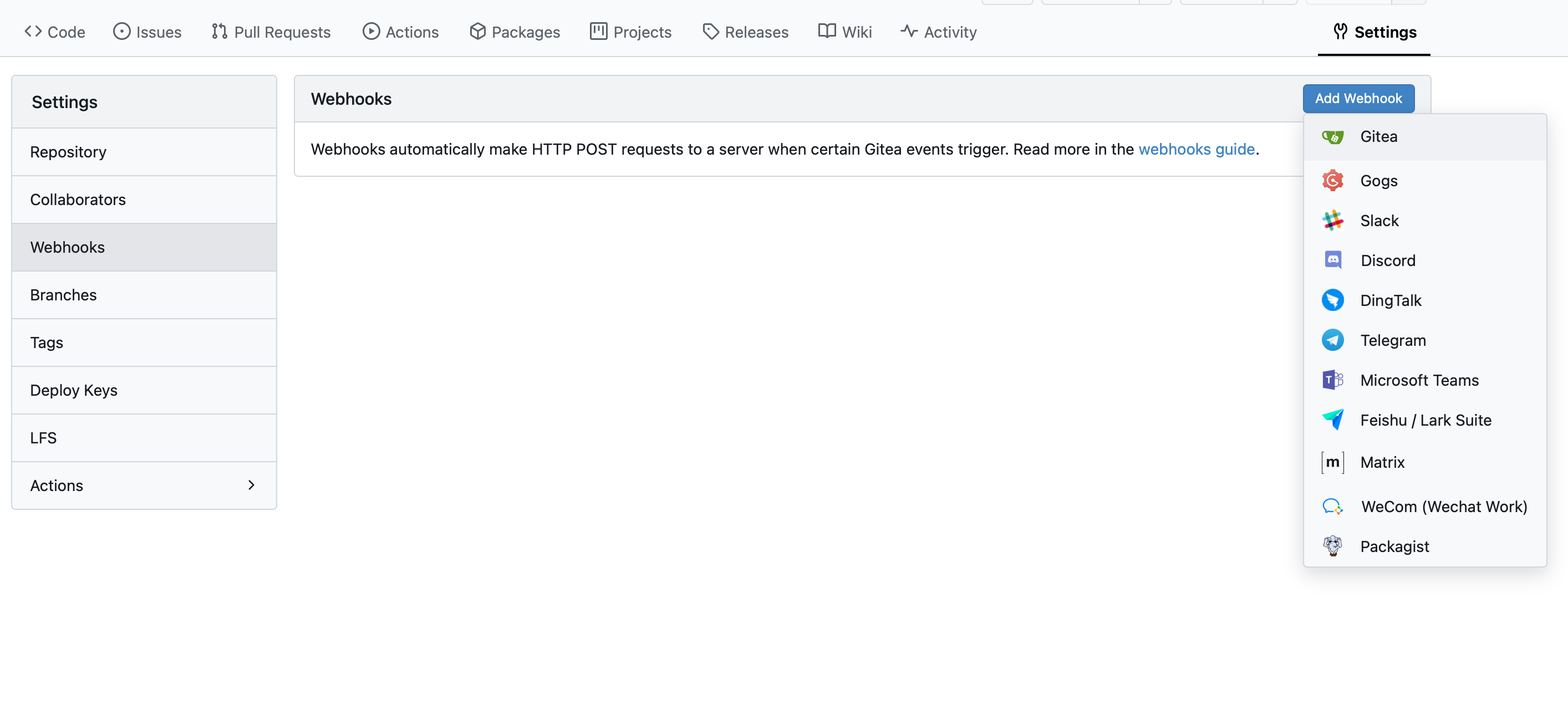
Click on Webhooks, then the Add Webhook button, and finally select Gitea.
We will use the EventListener we created in the previous section to configure a webhook in Gitea.
The EventListener has an OpenShift Route exposed that we are going to use as the URL for the webhook.
http://el-nationalparks-wksp-userX.apps.cluster.example.com/Paste your link into the "Payload URL" field.
Change the Content Type to application/json.
Finally, click on Update Webhook.
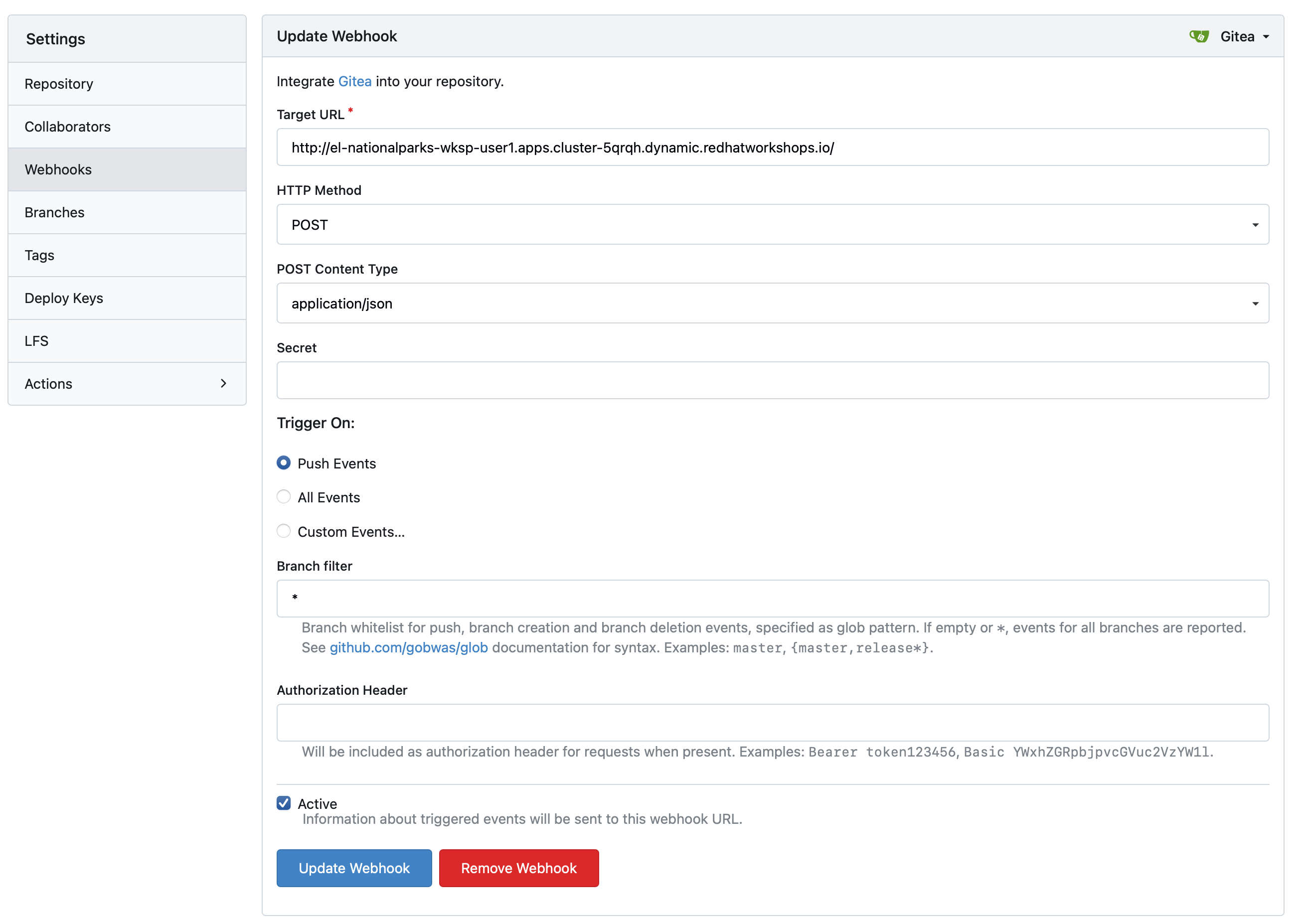
Boom! From now on, every time you commit new source code to your Gitea repository, a new build and deploy will occur inside of OpenShift. Let’s try this out.
Exercise: Using Gitea Web Hooks
Next, we will use Gitea to edit a file, commit and push the changes.
In the Gitea tab, open the nationalparks repository and navigate to src/main/java/com/openshift/evg/roadshow/parks/rest to find the BackendController.java file.
Once you have the file on the screen, click the edit button in the top right hand corner as shown here:
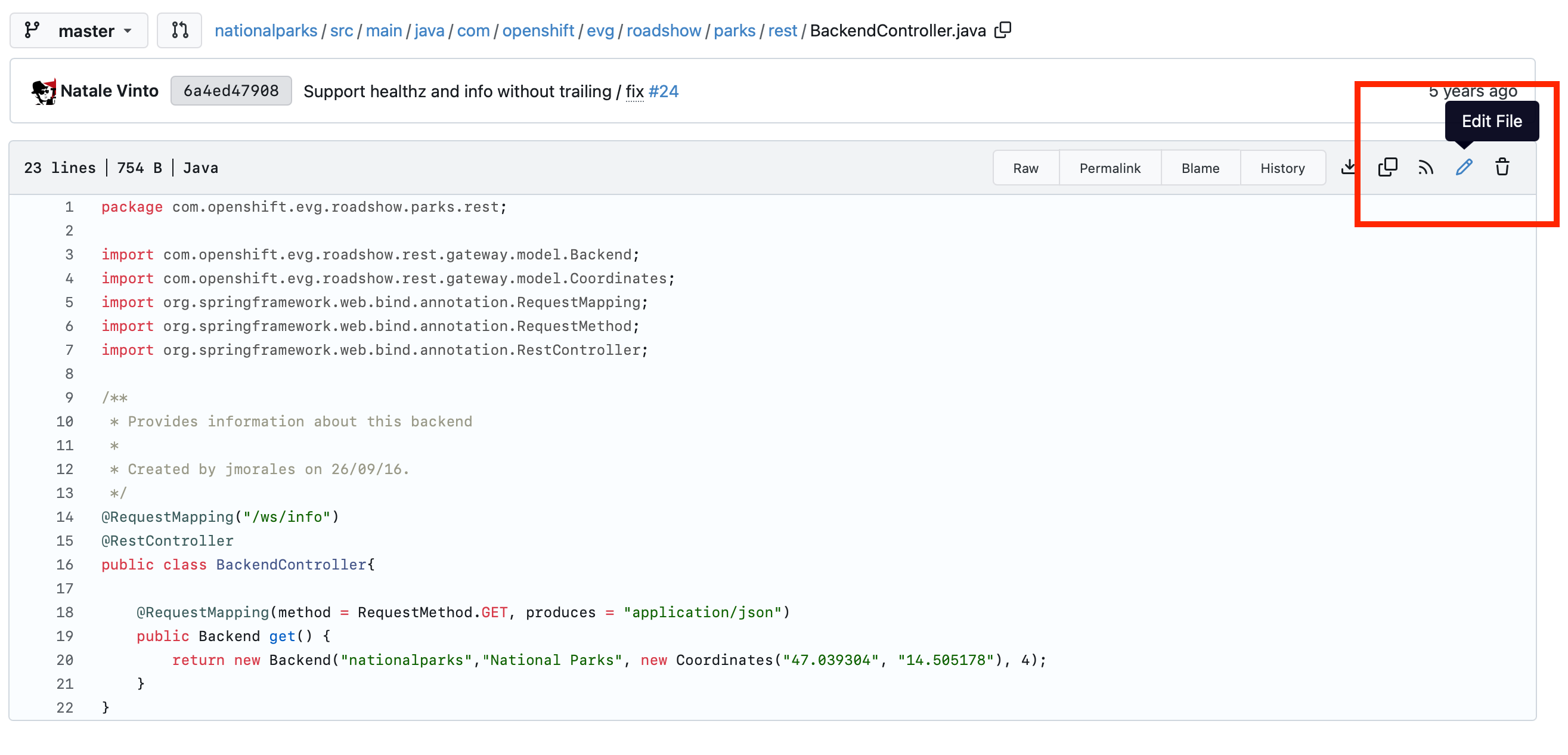
Change line number 20:
return new Backend("nationalparks","National Parks", new Coordinates("47.039304", "14.505178"), 4);To
return new Backend("nationalparks","Amazing National Parks", new Coordinates("47.039304", "14.505178"), 4);Click on Commit changes at the bottom of the screen. Feel free to enter a commit message.
Once you have committed your changes, a new PipelineRun should be triggered automatically.
You have seen the PipelineRun in the previous exercise. It creates a new Build and deploys the application to OpenShift. Let’s check this!
From the Topology view, click nationalparks and look at the Builds section of the Resources tab, or, run the
following command to verify:
oc get buildsYou should see that a new build is running:
NAME              TYPE      FROM          STATUS     STARTED          DURATION
nationalparks-1   Source    Git@b052ae6   Complete   18 hours ago     36s
nationalparks-2   Source    Git@3b26e1a   Running    43 seconds ago
Once the build and deploy has finished, verify your new image was automatically deployed by viewing the application in your browser:
You should now see the new name you have set in the JSON string returned.
| To see this in the map’s legend itself, you will need to scale down your parksmap to 0, then back up to 1 to force the app to refresh its cache. |