Module 1: Prerequisites and migration workflow
- Learning objectives
- Section 1: Explore infrastructure components
- Section 2: Review AAP configuration
- Section 3: Walkthrough migration job template
- Hands-on exercise: Launch the migration job template
- Hands-on exercise: Verify the migration job template
- Troubleshooting
- Learning outcomes checkpoint
- Module summary
ACME Corp’s CTO has asked you to evaluate the Red Hat OpenStack VMware migration toolkit. The business requirement is to migrate production VMs within standard 2-4 hour maintenance windows, reducing downtime by 60-75% compared to traditional migration approaches that require 8-12 hour outages. With the VMware licensing renewal due in 120 days, you need to validate that Red Hat’s solution meets ACME Corp’s operational constraints.
Your goal in this module: Validate that all migration infrastructure components are production-ready and properly configured. By the end, you’ll be able to confidently report to the CTO that the Red Hat solution uses enterprise-grade automation (AAP) and includes all necessary infrastructure for efficient migrations.
In this module, you’ll explore the pre-deployed migration infrastructure and review an existing migration workflow that’s already configured in Ansible Automation Platform. This hands-off walkthrough will help you understand how all the pieces fit together before you configure your own seeding and cutover workflow in Module 2.
Learning objectives
By the end of this module, you’ll be able to:
-
Identify and explain the role of each infrastructure component in the migration architecture (vCenter, Conversion Host, OpenStack, AAP)
-
Navigate pre-deployed OpenStack resources including the Conversion Host, networks, and security groups
-
Review and understand an existing Ansible Automation Platform job workflow configured for VM migration
-
Locate migration logs and diagnostic information for troubleshooting
-
Verify that all migration prerequisites are properly configured and ready for use
Section 1: Explore infrastructure components
Time estimate: 15 minutes
ACME Corp’s infrastructure team has pre-deployed all the migration components in your lab environment. Your first task is to understand the architecture and verify each component is properly configured.
Understanding the migration architecture
The VMware to OpenStack migration process involves several specialized components working together. Let’s explore each one.
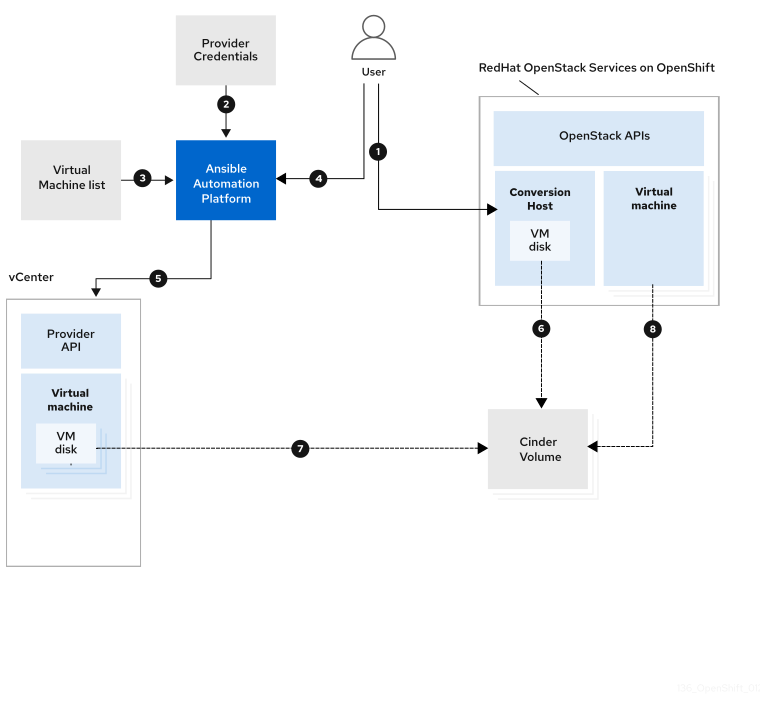
The migration flow:
-
You (the infrastructure engineer) initiate the migration workflow through Ansible Automation Platform
-
AAP reads provider credentials and configuration from its secure vault
-
AAP receives the list of virtual machines to migrate based on the job template configuration
-
AAP orchestrates the migration workflow, connecting to both vCenter and OpenStack
-
vCenter (VMware environment) provides VM metadata and disk data using its Provider API
-
Conversion Host (running in OpenStack) performs the actual data transfer from VMware to OpenStack storage
-
VM disk data is streamed directly from vCenter to Cinder volumes, bypassing the AAP controller for efficiency
-
Virtual machine is recreated in OpenStack with proper network configuration and metadata
Why this architecture matters for ACME Corp: The Conversion Host architecture allows VM data to transfer directly from VMware to OpenStack without routing through the Ansible controller. This reduces migration time and network load by eliminating controller bottlenecks - critical factors for fitting migrations within ACME Corp’s 2-4 hour maintenance windows.
The infrastructure components
Let’s examine each component in your lab environment:
vCenter source hypervisor
The VMware vCenter environment acts as the source hypervisor, hosting the virtual machines to be migrated.
vCenter provides VM management, snapshot capabilities, and Changed Block Tracking (CBT) data used for incremental synchronization - a feature you’ll use extensively in Module 2 for the seeding workflow.
Your environment: {vcenter_console}
OpenStack target cloud
Red Hat OpenStack Services on OpenShift serves as the destination cloud platform, where migrated virtual machines will be recreated and managed.
It leverages OpenStack-native services:
-
Cinder for storage volumes
-
Nova for compute instances
-
Neutron for networking
This ensures seamless VM operation post-migration using industry-standard cloud infrastructure.
Your environment: OpenStack is deployed on {openshift_console_url}
Ansible Automation Platform
The Migrator Host is responsible for running the Ansible collection that orchestrates the migration. In enterprise environments, this is typically Ansible Automation Platform (AAP), which provides centralized management, workflow automation, and seamless integration with CI/CD pipelines.
Using AAP makes large-scale migrations more efficient and maintainable compared to running individual ansible-playbook CLI commands.
Your environment: {aap_controller_web_url}
Conversion Host
To transfer virtual machine data efficiently, the migration process utilizes a specialized virtual machine known as the Conversion Host, which is deployed in the OpenStack environment.
Instead of routing VM and volume data through the AAP controller, the Conversion Host allows direct transfer from the VMware environment to OpenStack. This approach:
-
Optimizes network bandwidth
-
Improves performance
-
Significantly accelerates the migration process
-
Reduces unnecessary resource consumption on the AAP controller
For ACME Corp: This architecture is why you can achieve migration times that fit within maintenance windows - the bottleneck of routing all VM data through a central controller is eliminated.
Hands-on exercise: Verify pre-deployed infrastructure
In this exercise, you’ll actively verify the Conversion Host and network infrastructure. You’ll execute OpenStack commands and validate the results against expected outputs.
Time estimate: 10 minutes
Prerequisites: Bastion host access
Set up OpenStack CLI access
In the Bastion tab, configure your environment to use the OpenStack CLI:
oc project openstack
alias openstack="oc exec -t openstackclient -- openstack"
Verify the Conversion Host
Check that the Conversion Host is deployed and running:
openstack server listExpected output:
You should see a server named rhel-ch in ACTIVE status with IP address {rhoso_conversion_host_ip}.
+--------------------------------------+---------+--------+----------------------------------+------------+---------+
| ID                                   | Name    | Status | Networks                         | Image      | Flavor  |
+--------------------------------------+---------+--------+----------------------------------+------------+---------+
| UUID                                 | rhel-ch | ACTIVE | private=10.0.0.X, {rhoso_conversion_host_ip} | rhel-image | migrate |
+--------------------------------------+---------+--------+----------------------------------+------------+---------+
✓ Conversion Host status is "ACTIVE"
✓ Conversion Host has both private and public IP addresses
✓ Conversion Host is using the "migrate" flavor with sufficient resources
Verify networking infrastructure
Check that the required networks and security groups are configured:
openstack network list
openstack security group list
Expected networks:
-
public- External network for floating IPs -
private- Internal network for VM connectivity
Expected security group:
-
basic- Security group allowing SSH, ICMP, and DNS traffic
Verify the Conversion Host is accessible
In the Bastion tab, test SSH connectivity to the Conversion Host:
ssh -i /home/lab-user/.ssh/{guid}key.pem cloud-user@{rhoso_conversion_host_ip}If successful, you’ll connect to the Conversion Host. Type exit to return to the bastion.
What you’ve confirmed:
-
✓ Conversion Host is deployed and running in OpenStack
-
✓ Networks and security groups are properly configured
-
✓ SSH access to the Conversion Host is working
-
✓ The migration infrastructure is ready for use
ACME Corp context: You can now confidently report that the target OpenStack environment has all necessary infrastructure components deployed and verified. The Conversion Host is ready to facilitate high-speed VM data transfers.
Section 1 verification checkpoint
Before proceeding to Section 2, verify you can complete these tasks:
Infrastructure verification:
-
In the bastion tab, you are directly connected to the bastion host
-
Execute OpenStack commands:
openstack server list -
Identify the Conversion Host by name:
rhel-ch -
SSH to Conversion Host:
ssh -i /home/lab-user/.ssh/{guid}key.pem cloud-user@{rhoso_conversion_host_ip}
Conceptual understanding:
-
Explain in one sentence why the Conversion Host improves migration performance
-
List the four main infrastructure components in the migration architecture
If any checkpoint fails, return to the relevant section and retry the steps. If issues persist, consult with the instructor.
Section 2: Review AAP configuration
Time estimate: 15 minutes
Now that you’ve verified the OpenStack infrastructure, let’s explore how Ansible Automation Platform is configured to orchestrate migrations.
Explore credentials
Navigate to: Automation Execution → Infrastructure → Credentials
Look for the credential named Bastion key.
What to observe:
-
Name: Bastion key
-
Credential Type: Machine
-
Username: cloud-user
-
SSH Private Key: The private key from
/home/lab-user/.ssh/{guid}key.pem(content is masked for security)
Purpose: This credential allows AAP to authenticate to the Conversion Host to orchestrate migration tasks.
Click on the credential to view its details (the private key content will be masked).
Explore the inventory
Navigate to: Automation Execution → Infrastructure → Inventories
Select the Conversion Host Inventory.
What to observe:
-
Name: Conversion Host Inventory
-
Inventory contains two hosts:
conversion_hostandmigrator
Click on Hosts to view the individual host configurations:
Conversion Host
-
Name: conversion_host
-
Variables: ansible_host variable set to {rhoso_conversion_host_ip} and ansible_ssh_user variable set to cloud-user
-
Purpose: This host definition allows AAP to connect to the Conversion Host VM in OpenStack to execute migration tasks.
Migrator Host
-
Name: migrator
-
Variables:
ansible_connection: local
ansible_python_interpreter: '{{ ansible_playbook_python }}'
Purpose: This localhost definition allows AAP to execute OpenStack API calls and orchestration tasks directly on the AAP execution environment without SSH.
ACME Corp context: This inventory structure follows Red Hat best practices for migration workflows - separating the orchestration host (migrator) from the data transfer host (conversion_host) for optimal performance and security.
Explore the execution environment
Navigate to: Automation Execution → Infrastructure → Execution Environments
Look for VMware Migration toolkit execution environment.
What to observe:
-
Image:
aap-hub-aap.apps.cluster-{guid}.dynamic.redhatworkshops.io/rhospvmt-ee:latest
Purpose: This is a specialized container image that includes:
-
Red Hat OpenStack VMware Migration Toolkit Ansible collection
-
Python libraries for VMware and OpenStack API interaction
-
Required system dependencies
Execution environments ensure consistent, reproducible automation by packaging all dependencies together.
Explore the project
Navigate to: Automation Execution → Projects
Select the vmware migration toolkit project.
What to observe:
-
Source Control Type: Git
-
Source Control URL:
https://github.com/os-migrate/vmware-migration-kit -
Source Control Branch/Tag/Commit:
stable
Click the cloud icon (sync button) to verify the project can synchronize successfully.
Purpose: This Git repository contains the Ansible playbooks and roles that implement the migration workflow. AAP automatically synchronizes the latest version from Git before executing jobs.
Section 2 verification checkpoint
Before proceeding to Section 3, verify you can complete these tasks:
AAP navigation:
-
Log in to Ansible Automation Platform console
-
Navigate to Credentials and locate "Bastion key"
-
Navigate to Inventories and view "Conversion Host Inventory"
-
Navigate to Execution Environments and find "VMware Migration toolkit execution environment"
-
Navigate to Projects and verify "vmware migration toolkit project" status is "Successful"
Conceptual understanding:
-
Explain the purpose of the execution environment
-
Identify the two hosts in the Conversion Host Inventory (conversion_host and migrator)
If any checkpoint fails, return to the relevant section and retry the steps. If issues persist, consult the Troubleshooting section.
Section 3: Walkthrough migration job template
Time estimate: 10 minutes
Now let’s examine how a complete migration workflow is configured as an AAP job template.
Understanding the migration variables
The migration workflow requires several configuration variables that define:
-
Which VMs to migrate
-
VMware connection details
-
OpenStack connection details
-
Migration behavior (seeding vs cutover)
Before reviewing the job template, let’s understand the key variables by examining a reference configuration file.
Review the job template configuration
Navigate to: Automation Execution → Templates
You should see a job template named HAProxy VM Migration (or similar).
Click on the template name to view its configuration.
What to observe:
-
Job Type: Run
-
Inventory: Conversion Host Inventory
-
Project: vmware migration toolkit project
-
Playbook:
playbooks/migration.yml -
Execution Environment: VMware Migration toolkit execution environment
-
Credentials: Bastion key
Scroll down to the Extra Variables section. You’ll see the migration configuration variables similar to what you reviewed above, but with actual values populated from your lab environment.
This is the configuration file that is used to launch the migration job template.
os_migrate_tear_down: false
runner_from_aee: true
os_migrate_vmw_data_dir: /tmp/os-migrate
copy_openstack_credentials_to_conv_host: false

# Re-use already deployed Conversion Host
already_deploy_conversion_host: true

# Network configuration
openstack_private_network: private

# Security groups and flavor
security_groups:
use_existing_flavor: false

# Network settings for OpenStack
os_migrate_create_network_port: true
copy_metadata_to_conv_host: true
used_mapped_networks: false
os_migrate_configure_network: true

# VMs to migrate
vms_list:
  - haproxy-{guid}

# VMware parameters
vcenter_hostname: {vcenter_console}
vcenter_username: {vcenter_full_user}
vcenter_password: {vcenter_password}
vcenter_datacenter: RS01

# OpenStack authentication
os_cloud_environ: demo.redhat.com
dst_cloud:
  auth:
    auth_url:
    username: admin
    project_id:
    project_name: admin
    user_domain_name: Default
    password: openstack
  region_name: regionOne
  interface: public
  insecure: true
  identity_api_version: 3
Key variables explained:
-
vms_list: Array of VM names to migrate from VMware
-
vcenter_hostname: vCenter server address
-
vcenter_username/password: Credentials for accessing vCenter API
-
already_deploy_conversion_host:
truemeans we’re using the pre-deployed Conversion Host -
openstack_private_network: Target network name in OpenStack for migrated VMs
-
dst_cloud: OpenStack authentication details (auth_url, credentials, project)
For ACME Corp: These variables make the migration workflow highly configurable. You can easily adapt the same playbook for different VM sets, networks, or target projects without modifying the underlying automation code.
Purpose: This job template ties together everything you’ve explored:
-
The inventory defines where tasks run (Conversion Host and migrator)
-
The project provides the migration playbooks
-
The execution environment provides all required dependencies
-
The credentials allow secure authentication
-
The extra variables customize the migration for specific VMs and infrastructure
ACME Corp context: This is a production-ready migration workflow. Once you validate it works for pilot VMs, you can easily create additional job templates for different application tiers (web servers, databases, etc.) by duplicating the template and adjusting the vms_list variable.
Understanding the migration playbook
The job template executes playbooks/migration.yml. While you don’t need to review the playbook code in detail, it’s helpful to understand the high-level workflow:
-
Validate prerequisites - Verify vCenter and OpenStack connectivity
-
Create Conversion Host resources (if not using pre-deployed host)
-
Transfer VM metadata - Retrieve VM configuration from vCenter
-
Create OpenStack resources - Networks, ports, volumes
-
Transfer VM disk data - Stream data from vCenter to Cinder via Conversion Host
-
Create OpenStack instance - Boot the VM in OpenStack
-
Configure networking - Assign appropriate networks and IPs
-
Verify migration - Check that the VM is accessible and functional
Each step includes error handling and rollback capabilities - critical for ACME Corp’s requirement that migrations must be low-risk and reversible.
Hands-on exercise: Verify job template readiness
Time estimate: 5 minutes
Let’s actively verify the job template configuration through the AAP interface.
Steps:
-
Navigate to Automation Execution → Templates
-
Locate the HAProxy VM Migration template
-
Click on the template name (not the rocket icon)
-
Verify the following configuration:
-
Inventory: Should show "Conversion Host Inventory"
-
Project: Should show "vmware migration toolkit project"
-
Execution Environment: Should show "VMware Migration toolkit execution environment"
-
Credentials: Should include "Bastion key"
-
-
Scroll to the Extra Variables section
-
Verify the
vms_listvariable contains:haproxy-{guid} -
Return to the Templates list
-
Check that the rocket icon is enabled (not greyed out)
Expected results:
-
✓ All required fields are populated with valid resources
-
✓ The template shows no "MISSING RESOURCE" warnings
-
✓ The rocket icon is clickable (indicating readiness)
What you’ve confirmed:
This job template is production-ready and can execute migrations when triggered. All dependencies (inventory, credentials, execution environment) are properly linked.
Hands-on exercise: Launch the migration job template
Time estimate: 5 minutes
Let’s launch the migration job template to verify it works.
Steps:
-
Navigate to Automation Execution → Templates
-
Locate the HAProxy VM Migration template
-
Click on the template name (not the rocket icon)
-
Click on the Launch button
-
Wait for the job to complete
-
Check the job output
-
Check the Conversion Host logs
-
Check the OpenStack logs
Expected results:
-
✓ The job completed successfully
-
✓ The VM is accessible in OpenStack
-
✓ The VM is functional
What you’ve confirmed:
This job template is production-ready and can execute migrations when triggered. All dependencies (inventory, credentials, execution environment) are properly linked.
Hands-on exercise: Verify the migration job template
Time estimate: 20 minutes
As we are using a virtualized environment, the migration job template will take a while to complete.
Steps:
-
Navigate to Automation Execution → Jobs
-
Locate the HAProxy VM Migration job
-
Click on the job name
-
Check the job output
Expected results:
-
✓ The job completed successfully
-
✓ The VM is accessible in OpenStack
-
✓ The VM is functional
What you’ve confirmed:
Troubleshooting
While exploring the pre-deployed infrastructure, you might encounter these common issues:
Issue: Cannot access AAP console - browser shows "This site can’t be reached"
Solution:
-
Verify the AAP URL is correct: {aap_controller_web_url} and you are logged in with the credentials: {aap_controller_admin_user} and {aap_controller_admin_password}
-
Check for typos in the URL (common mistake: http vs https)
-
If you see a certificate warning, this is expected for self-signed certificates - click "Advanced" and proceed anyway
-
Try accessing from a different browser or incognito window to rule out cache issues
Issue: AAP job template shows "MISSING RESOURCE" for execution environment or project
Solution:
-
Navigate to Automation Execution → Projects
-
Find the vmware migration toolkit project
-
Click the cloud/sync icon to manually trigger a project update
-
Wait for the sync to complete (status will show "Successful")
-
Return to the job template and verify the issue is resolved
Issue: Cannot SSH to Conversion Host from bastion
Solution:
-
Verify the Conversion Host is in ACTIVE status:
openstack server list -
Check the SSH key exists on the bastion:
ls -la /home/lab-user/.ssh/{guid}key.pem -
Ensure the key has correct permissions (should be 600):
chmod 600 /home/lab-user/.ssh/{guid}key.pem -
Test network connectivity:
ping -c 3 {rhoso_conversion_host_ip}
Learning outcomes checkpoint
Before proceeding to Module 2, verify you can:
Explain the migration architecture:
-
Describe the role of vCenter, Conversion Host, OpenStack, and AAP in the migration process
-
Explain why the Conversion Host architecture improves migration performance
-
Identify the data flow from VMware to OpenStack
Navigate the infrastructure:
-
Access the bastion host via SSH
-
Use the OpenStack CLI to list servers, networks, and security groups
-
Verify the Conversion Host is deployed and accessible
Explore AAP configuration:
-
Log in to Ansible Automation Platform
-
Locate and review credentials, inventories, and execution environments
-
Find the migration project and verify it’s synchronized
Understand the migration workflow:
-
Review a migration job template configuration
-
Identify key migration variables (vms_list, vCenter details, OpenStack auth)
-
Explain the purpose of extra variables in job templates
Troubleshoot common issues:
-
Locate migration logs in AAP job output
-
Access Conversion Host logs via SSH for detailed diagnostics
If you can confidently check all these items, you’re ready for Module 2!
Module summary
Excellent work! You’ve successfully explored ACME Corp’s pre-deployed migration infrastructure and reviewed a complete migration workflow in Ansible Automation Platform.
What you accomplished:
-
Verified all migration infrastructure components are deployed and operational
-
Reviewed the Conversion Host, networks, and security groups in OpenStack
-
Explored AAP configuration including credentials, inventories, execution environments, and projects
-
Walked through a complete migration job template and understood its configuration
-
Located troubleshooting resources and log files for diagnosing migration issues
Key takeaways:
-
The Conversion Host architecture enables fast, efficient VM data transfers by bypassing the AAP controller - critical for meeting ACME Corp’s maintenance window requirements
-
Ansible Automation Platform provides a production-grade orchestration layer with centralized credential management, workflow automation, and audit trails
-
Migration workflows are highly configurable through extra variables, making it easy to adapt the same playbooks for different VM sets and infrastructure configurations
-
Pre-deployed infrastructure reduces migration complexity by eliminating manual setup of core components - all resources are ready to use immediately
Business impact for ACME Corp:
-
✓ Confirmed that migration infrastructure is production-ready
-
✓ Validated that workflows integrate with enterprise automation platforms
-
✓ Verified that all security and authentication components are properly configured
Next steps:
Module 2 will guide you through configuring a two-phase migration workflow with data seeding and final cutover - the approach that enables migrations within ACME Corp’s strict maintenance windows. You’ll create workflow job templates that separate the time-consuming data transfer phase from the final cutover, proving that production workloads can migrate with minimal downtime.