Template and InstanceType Management
Introduction
Pre-configured Red Hat virtual machine templates are listed under Virtualization on the Templates page. These templates are available for different versions of Red Hat Enterprise Linux, Fedora, CentOS, Microsoft Windows Desktop, and Microsoft Windows Server editions. Each Red Hat associated virtual machine template is preconfigured with an operating system image (boot source), the default settings for the operating system, the flavor (CPU and memory), and the workload type (server). The templates for other operating systems do not include OS images, but are preconfigured as recommended for their operating system.
The Templates page displays four types of virtual machine templates:
-
Red Hat Supported templates are fully supported by Red Hat.
-
User Supported templates are Red Hat Supported templates that were cloned and customized by users.
-
Red Hat Provided templates have limited support from Red Hat.
-
User Provided templates are Red Hat Provided templates that were cloned and customized by users.
Prepare for the lab
-
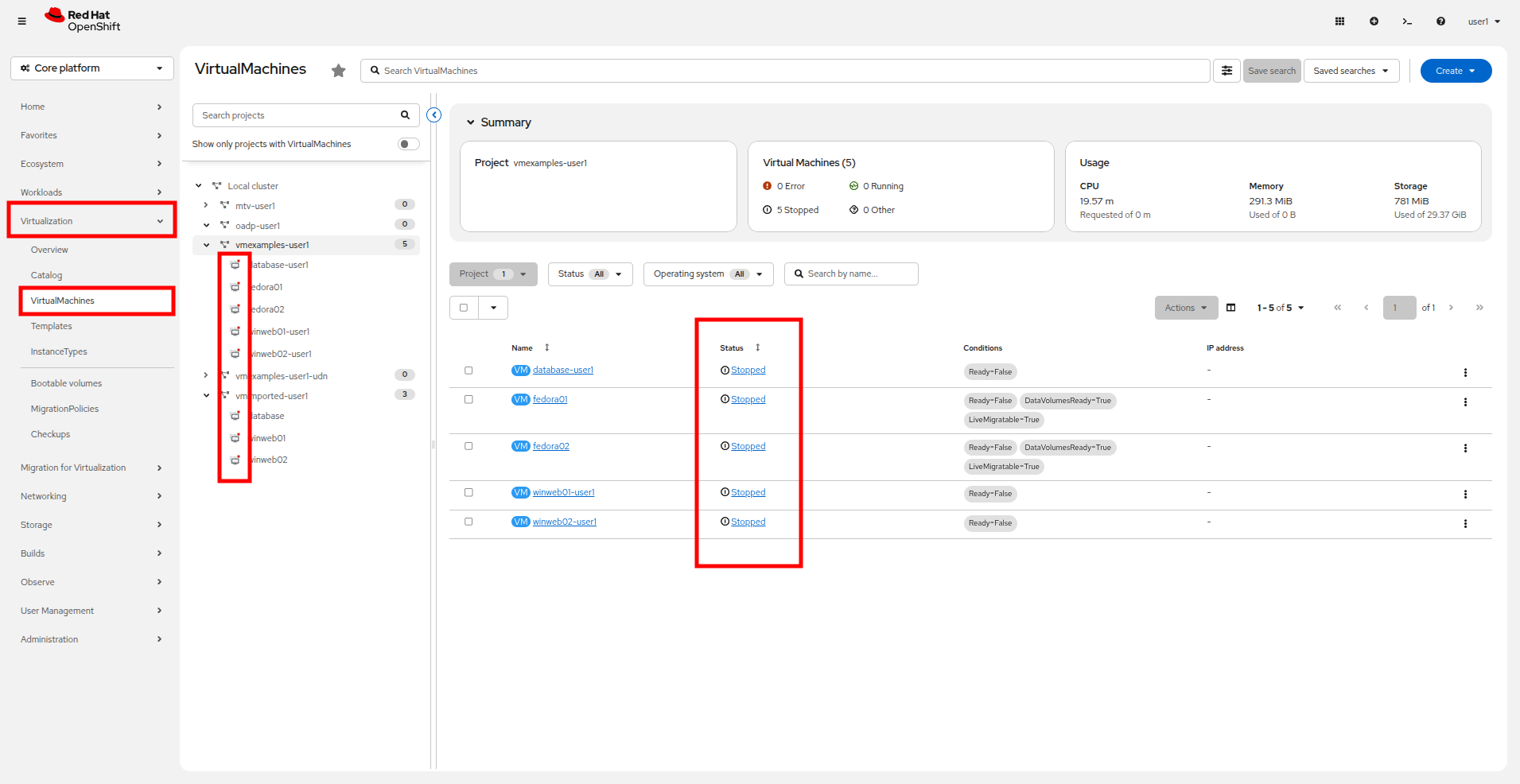
The tasks that we are about to perform will require us to provision a few additional VMs. In preparation we are going to ask that you shut down the existing fedora01 and fedora02 virtual machines to ensure that your shared environment has enough resources to complete the lab.
-
Navigate to Virtualization perspective in the left-side menu and then click on Virtualmachines.
-
Each project that you have access to that is hosting VM workloads will be listed in the center column treeview. (At a minimum you should expand projects vmimported-{user} and vmexamples-{user} to check virtual machine status.)
-
If any VMs are showing a status of Running, highlight the VM in the center tree column, and select the Stop button or option from the Actions dropdown menu..
Now all VMs should be in Stopped state.
Clone and Customize a Template
By default the pre-configured templates provided by Red Hat OpenShift Virtualization cannot be customized. However you can clone a template and make adjustments to it for your particular workload in order to make it easier to request specific types of virtual machines for specific workloads. In this section of the lab we are going to do just this, by creating a template that will provide a preconfigured database server on demand for our end users.
-
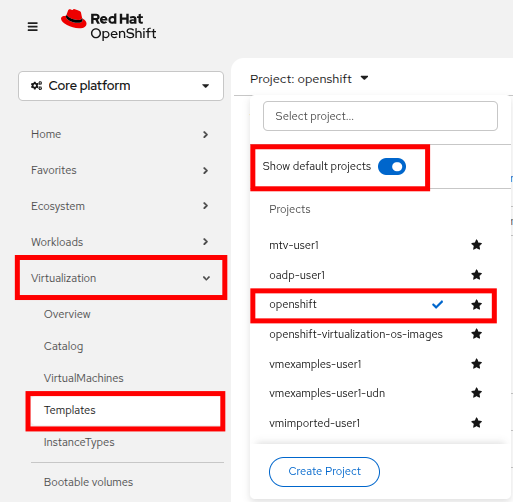
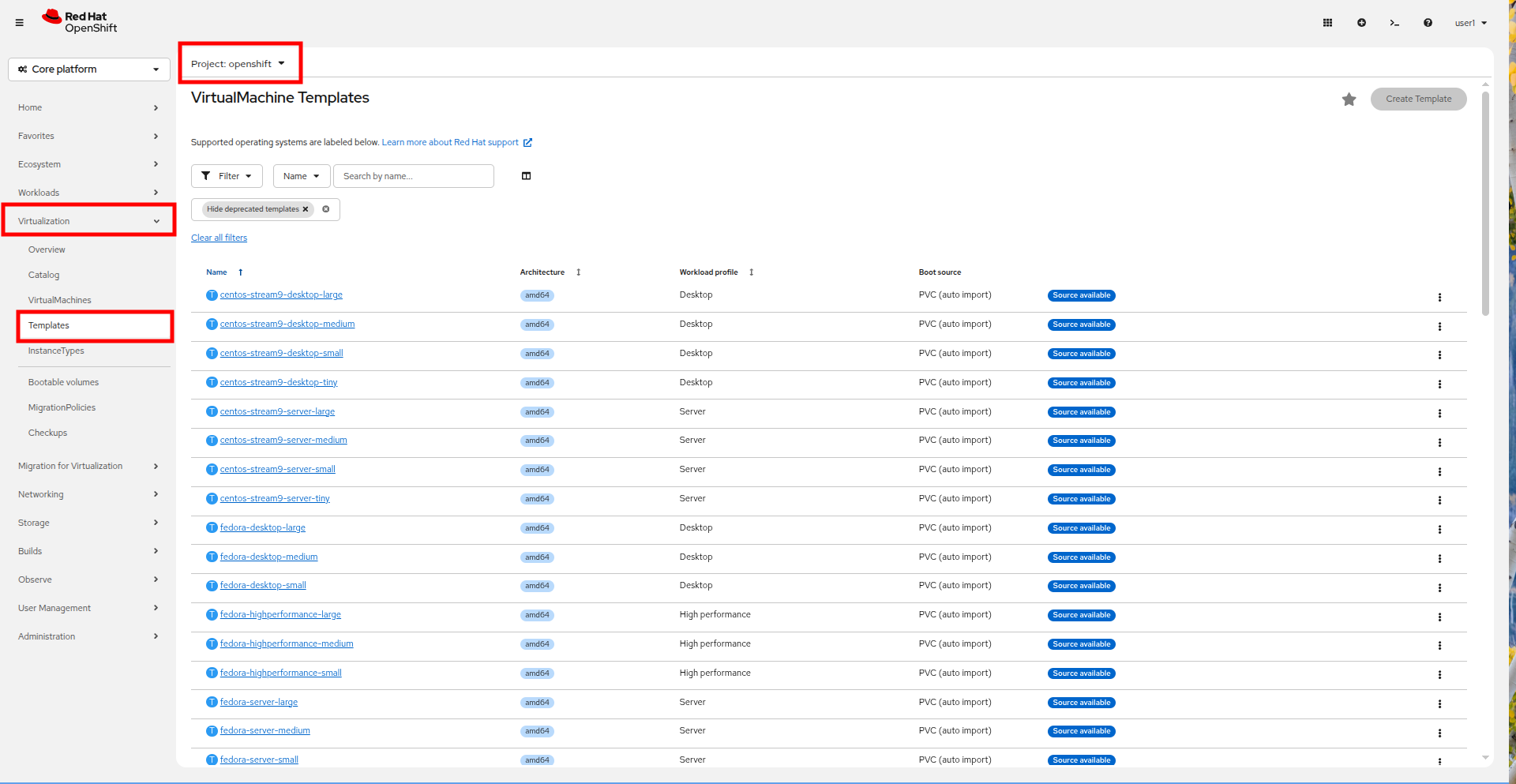
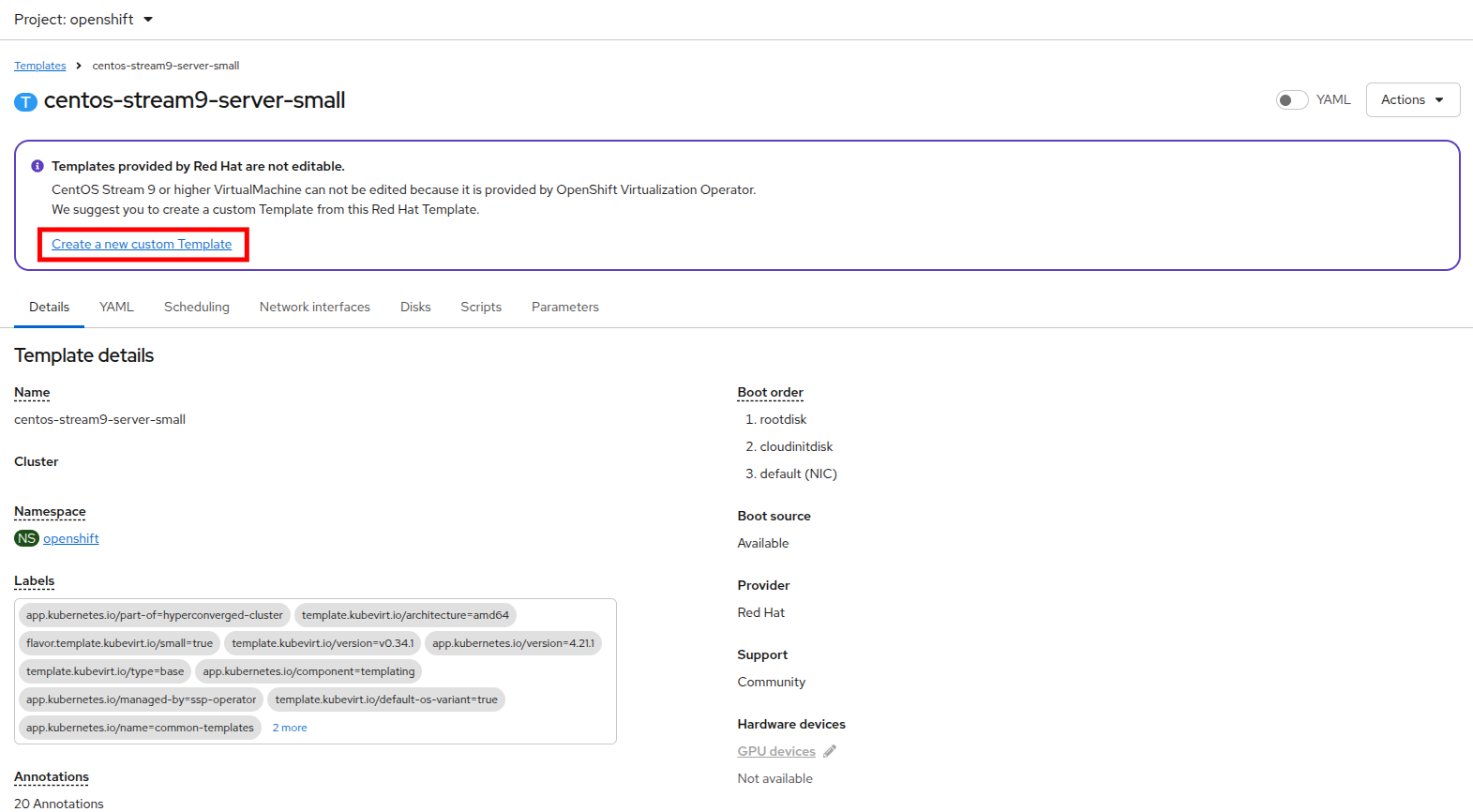
To begin, click on Templates in the left-side menu, and select openshift for your project. You may need to toggle the Show default projects button in order for the openshift project to appear.
-
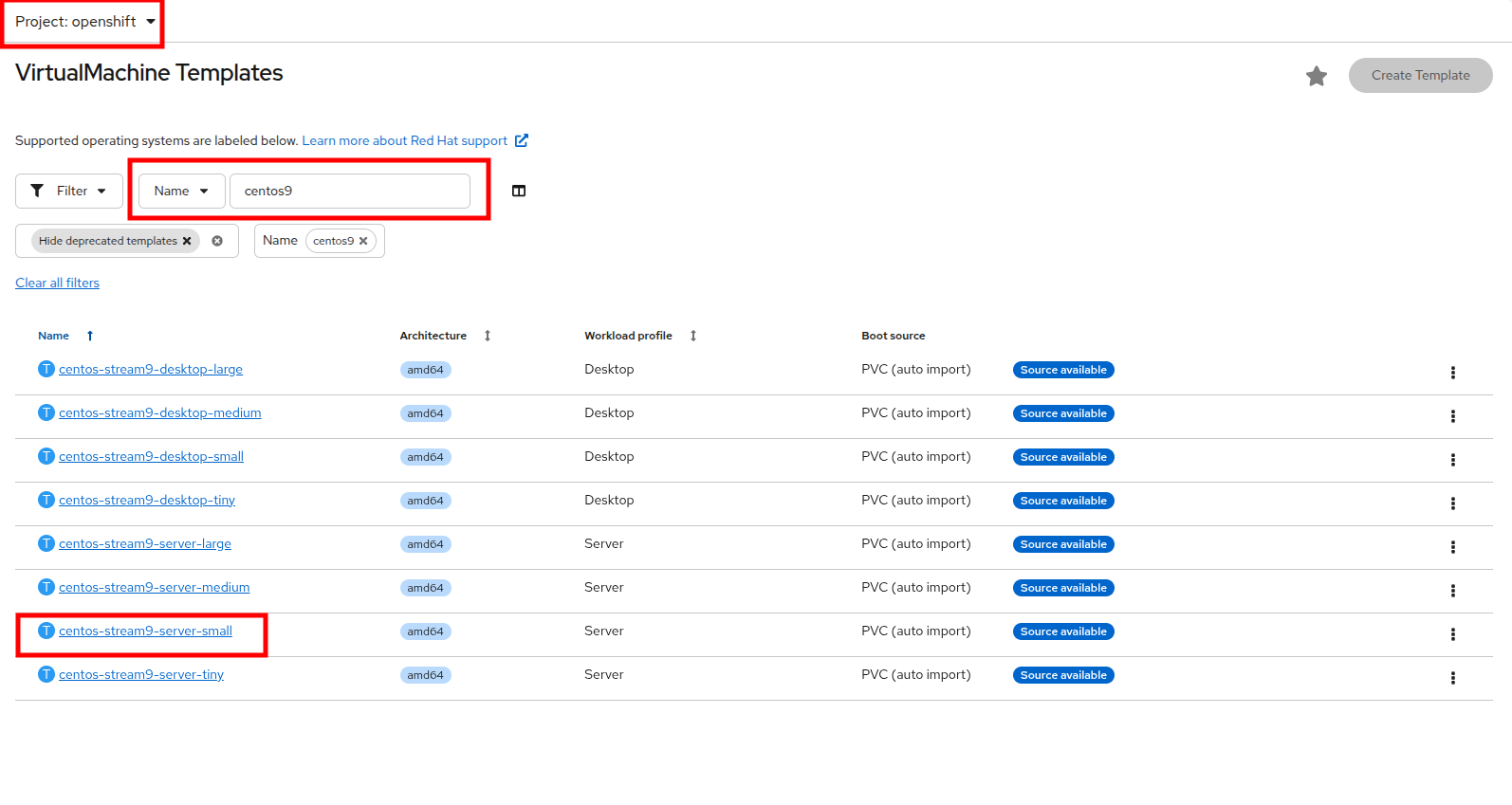
In the search bar type in centos9 and press Enter. In the list of templates that appear find the template for centos-stream9-server-small.
-
Click on the template name for centos-stream9-server-small, you will be prompted with a message that default templates cannot be edited and asked if you’d like to clone. Click the Create a new custom Template option.
-
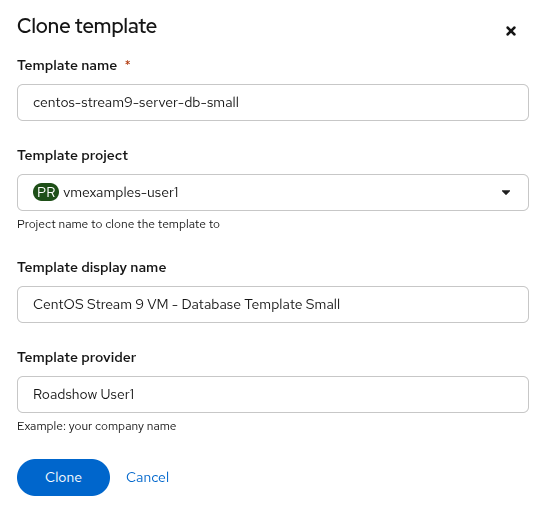
A new menu called Clone template will appear, fill in the the following values, and when finished click on the Clone button.
-
Template name: centos-stream9-server-db-small
-
Template project: vmexamples-{user}
-
Template display name: CentOS Stream 9 VM - Database Template Small
-
Template provider: Roadshow {user}
-
-
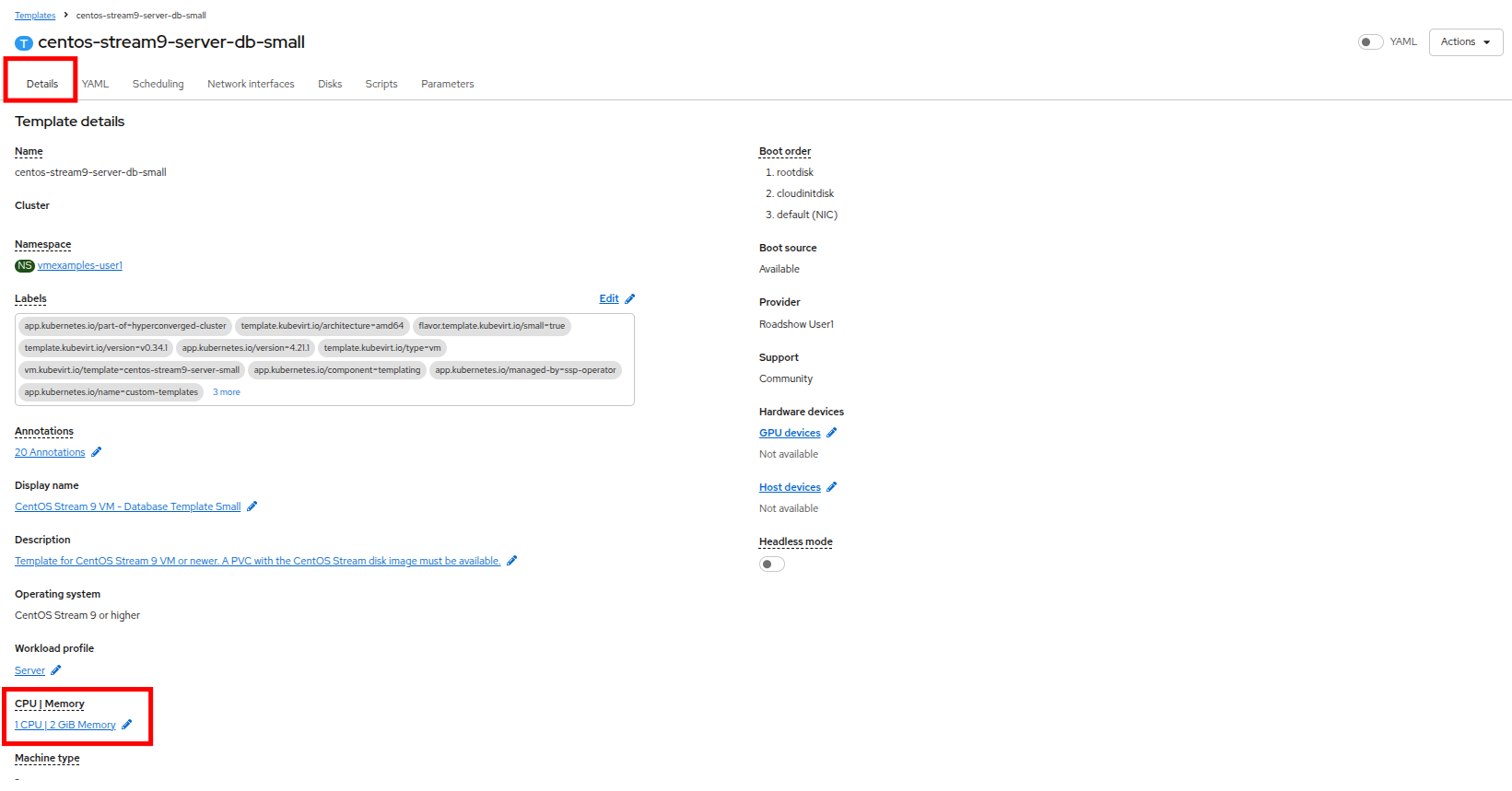
This will take you to the Details page for the template where we will be able to customize some options. Start by finding the CPU and Memory near the bottom of the page, and click on the pencil icon to edit it.
-
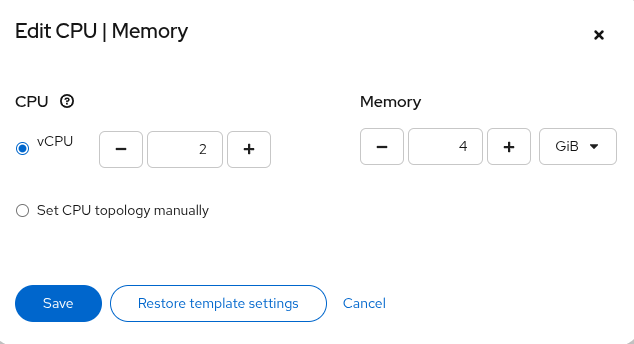
A new window will pop out where you can edit the amount of CPU and Memory. For our custom template set the value of CPUs to 2, and Memory to 4 GiB, and click the Save button.
-
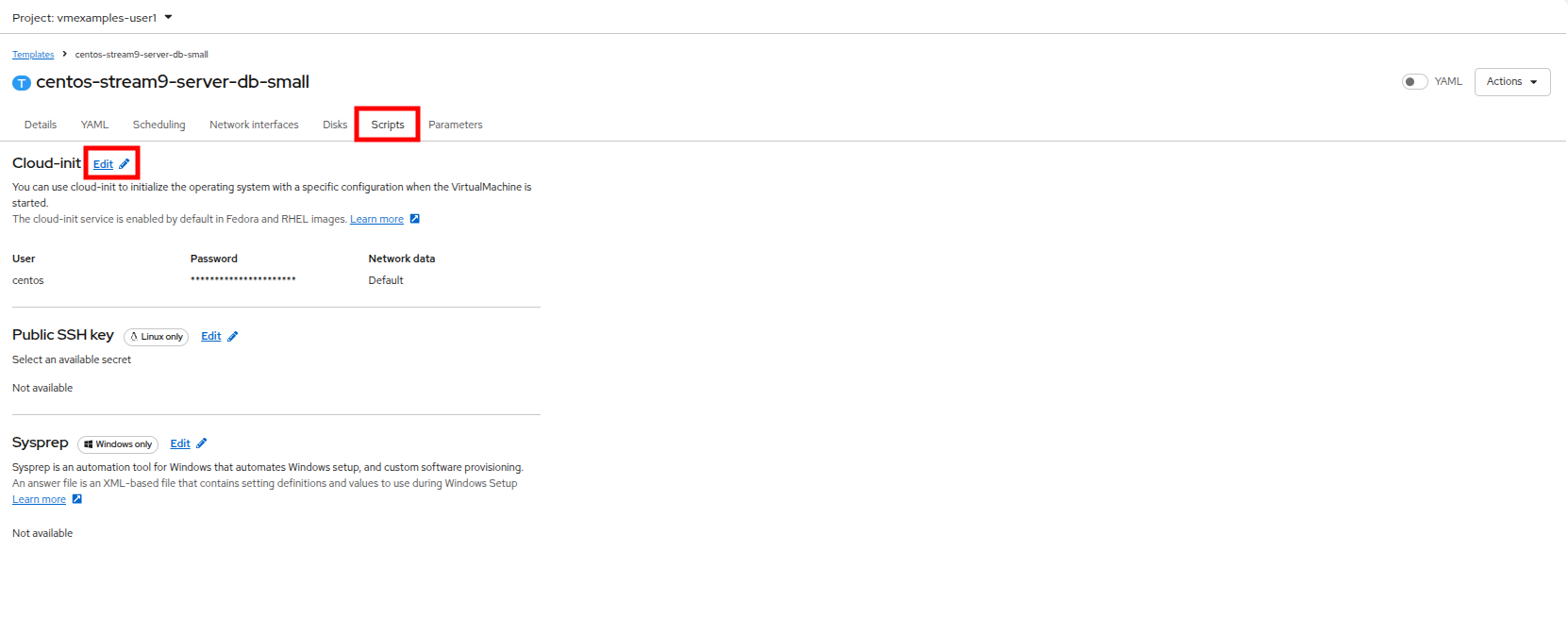
Next click on the Scripts tab at the top, and in the section called Cloud-init click the Edit button.
-
When the Cloud-init dialog opens, click the radio button to Configure via: Script then replace the YAML with the following YAML snippet.
userData: |-
  #cloud-config
  user: centos
  password: ${CLOUD_USER_PASSWORD}
  chpasswd: { expire: False }
  packages:
    - mariadb-server
  runcmd:
    - systemctl enable mariadb
    - systemctl start mariadb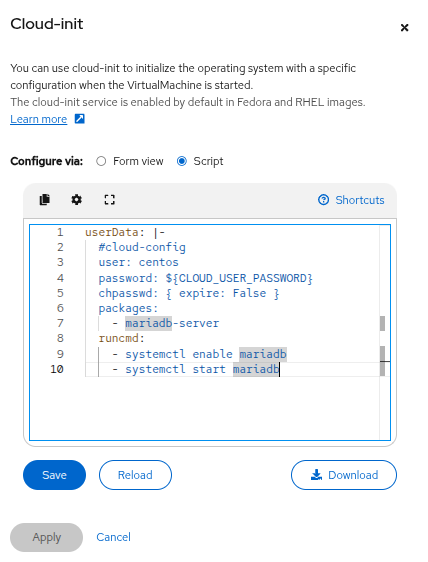
-
Click the Save button, you will see a green Saved prompt, then follow that by clicking the Apply button.
-
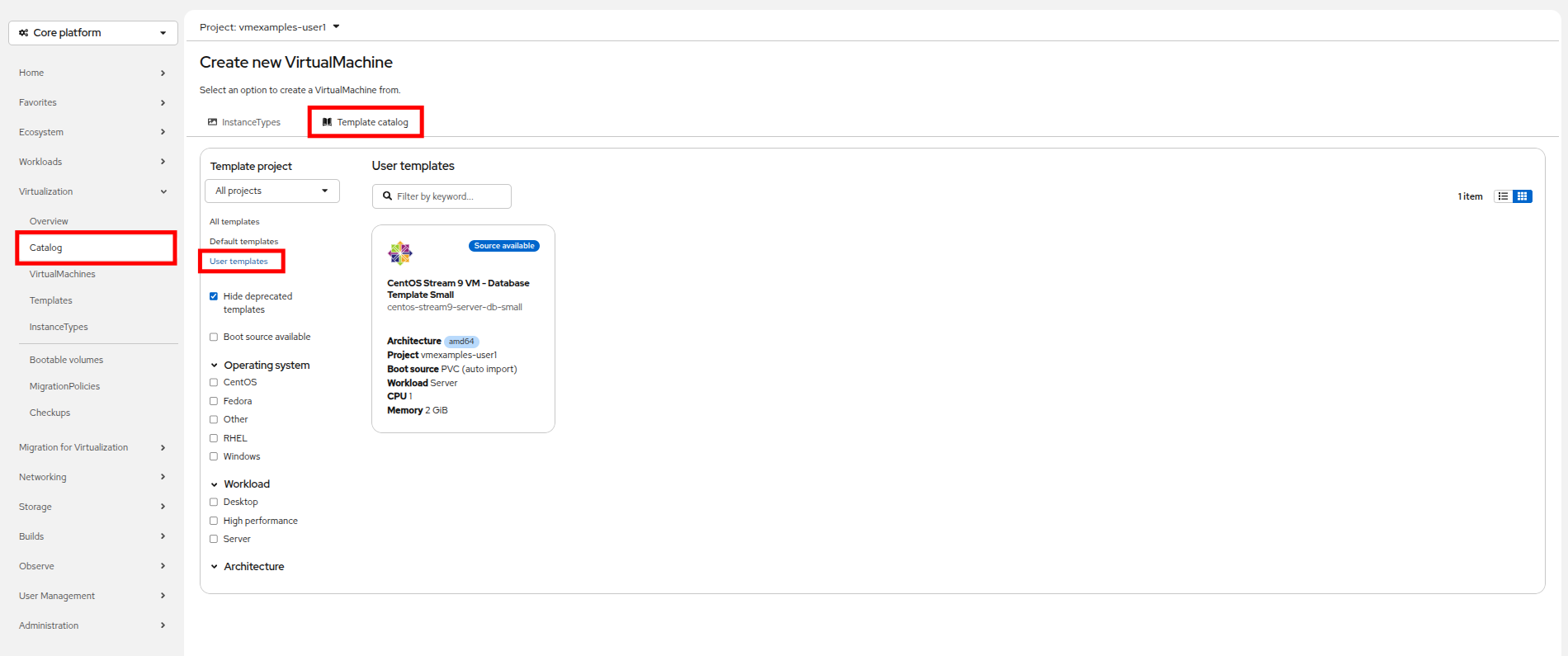
Now click on the Catalog item on the left-side menu, select the Template catalog option, followed by User templates. You should see your created template available as a tile.
-
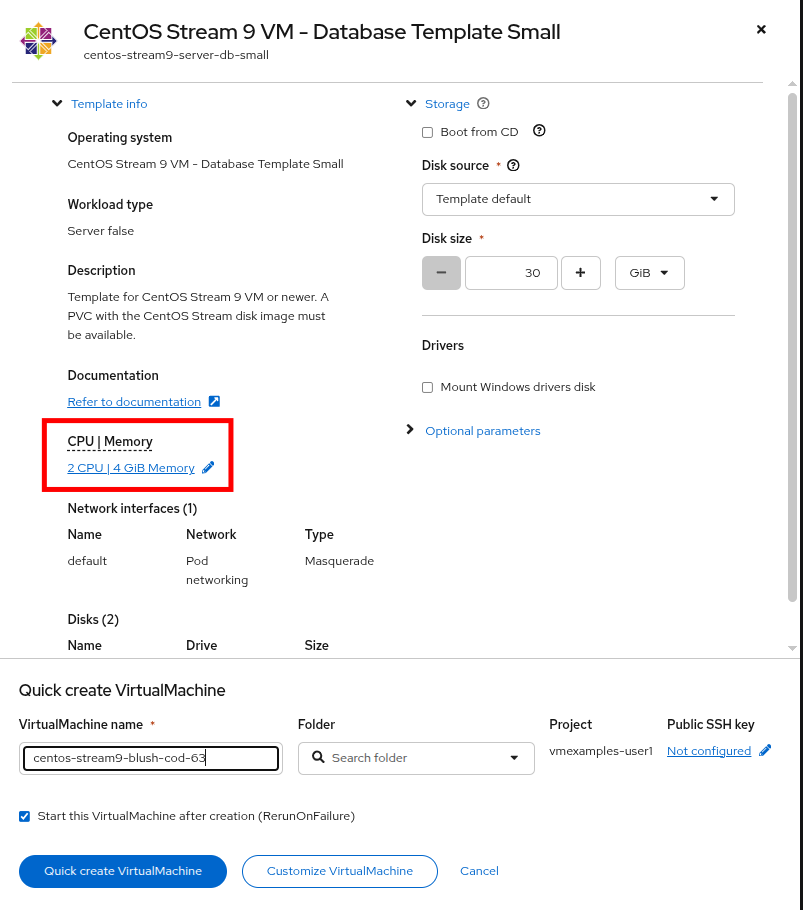
Click on the tile and you will be prompted with the VM startup screen. Click the Quick create VirtualMachine button.
-
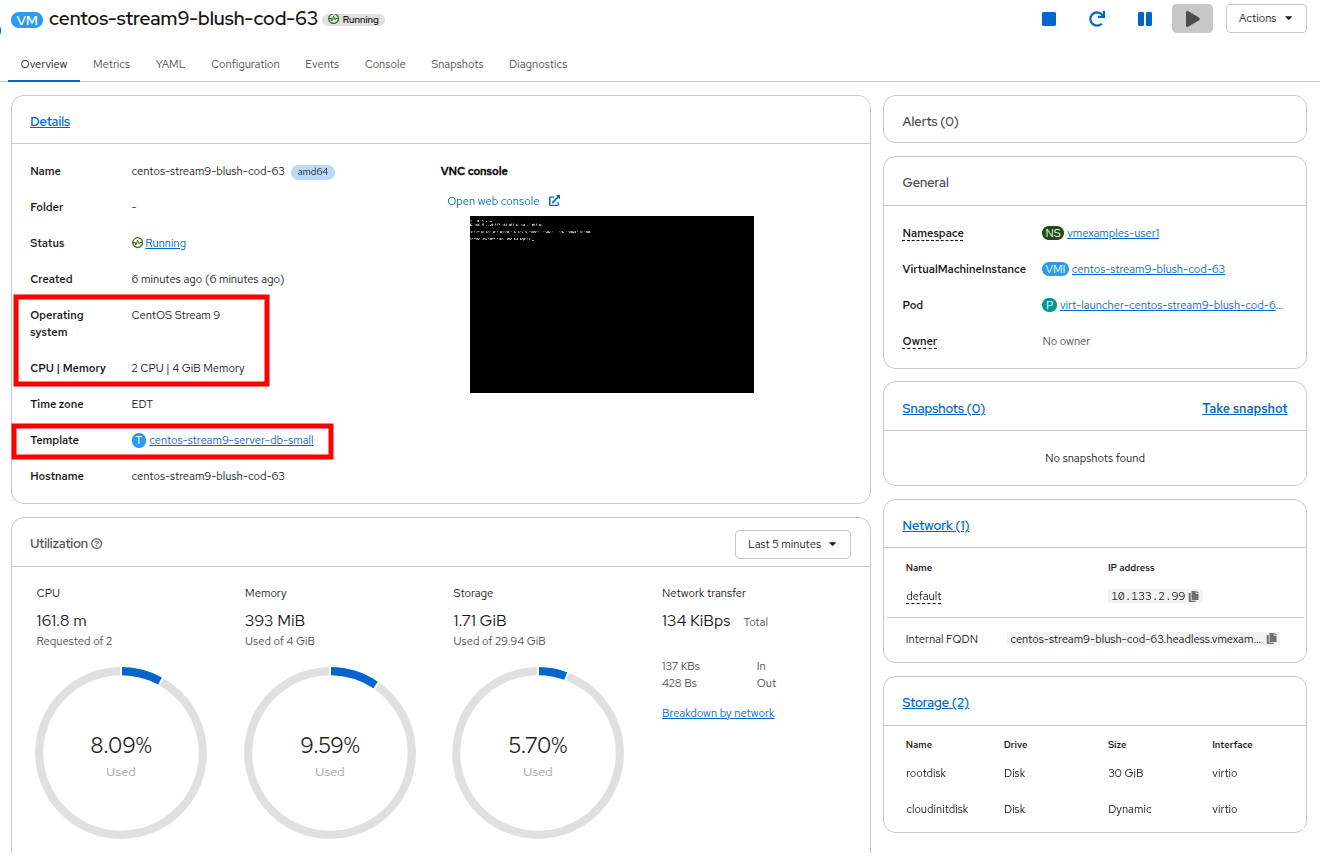
When the virtual machine boots you can see on the Overview page that it was created from our template, and has the additional resources we defined. We just need to verify that it installed MariaDB for us.
-
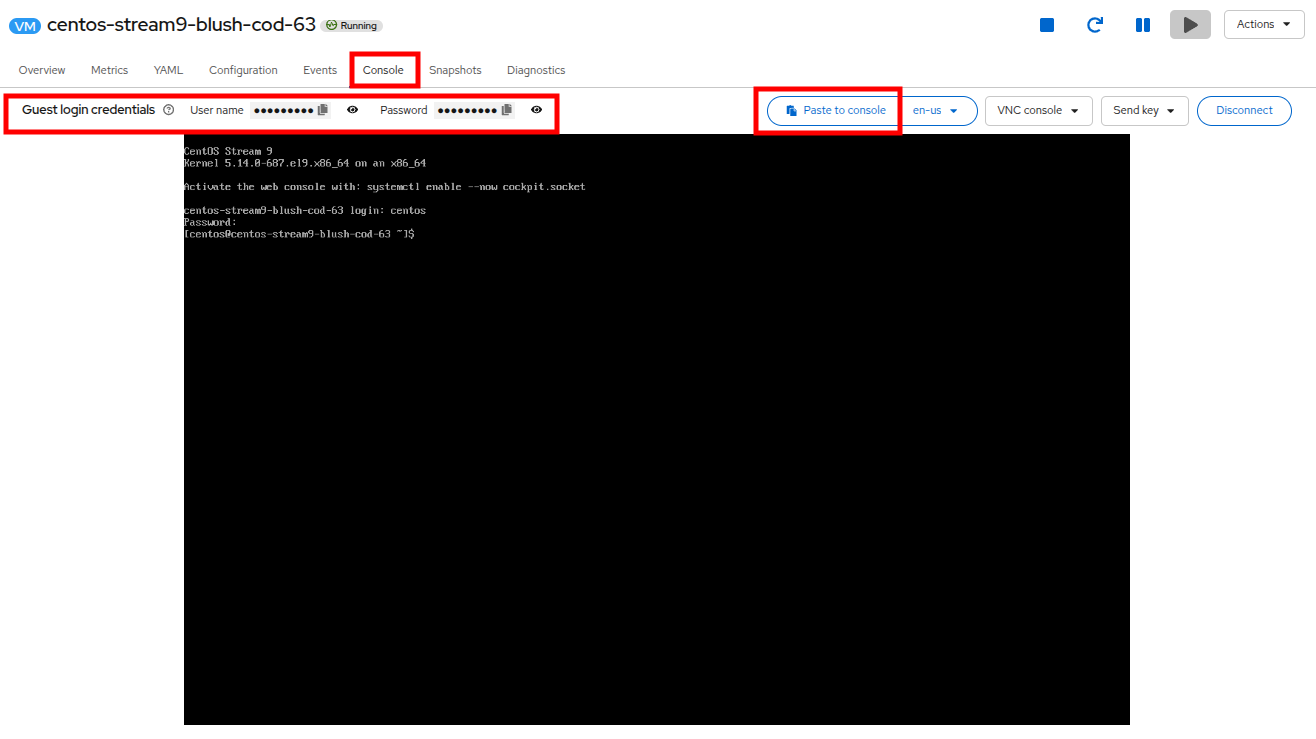
Click on the Console tab at the top and use the Guest login credentials that are provided and the Copy and Paste to console buttons to log into the console of the virtual machine.
-
Once you are logged into the virtual machine, run the following command to test the install of MariaDB.
sudo mysql -u root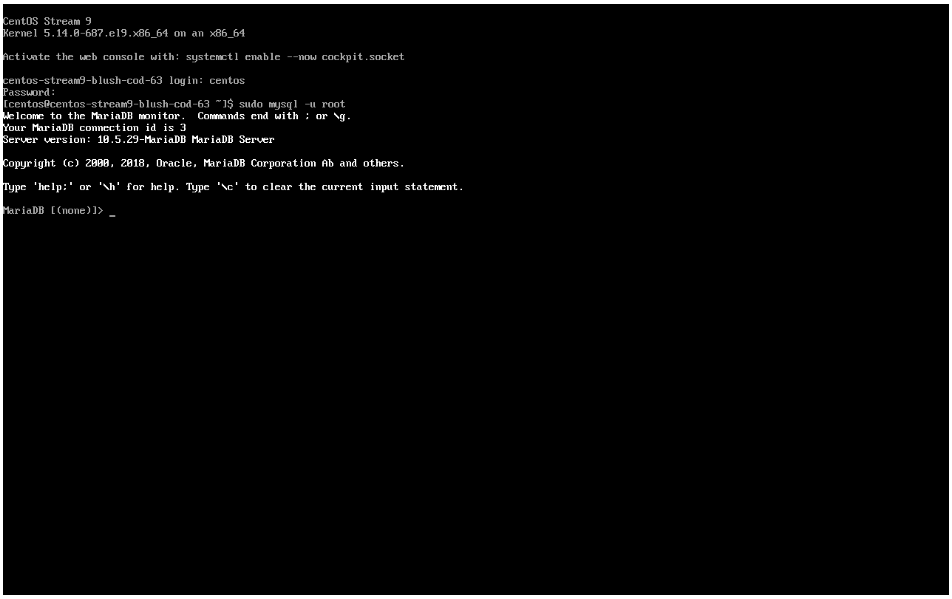
-
Hit Ctrl-D twice to log out of the VM.
Create a Windows VM Template
In this segment of our lab, we will install Microsoft Windows Server 2022 using an ISO hosted on a web server. This represents one way to install an operating system to a virtual machine that takes advantage of the ability to source disks from many locations, including a web server, object storage, or other persistent volumes in the cluster.
This process can be streamlined after the initial operating system installation by creating a cloned root disk from a sysprepped virtual machine to use with other templates.
| The specific process for preparing the guest operating system to be used as a template will vary, be sure to follow your organization’s guidelines and requirements when preparing a template OS. |
-
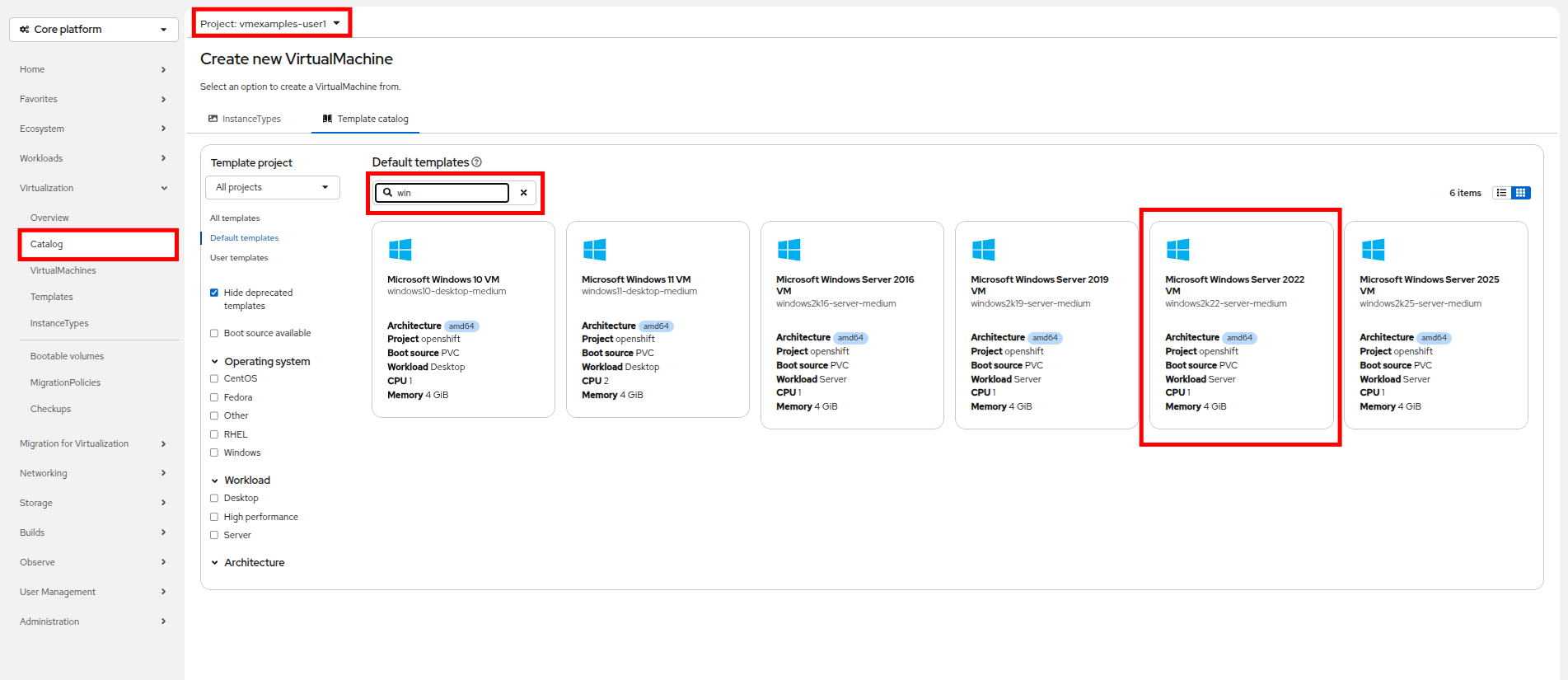
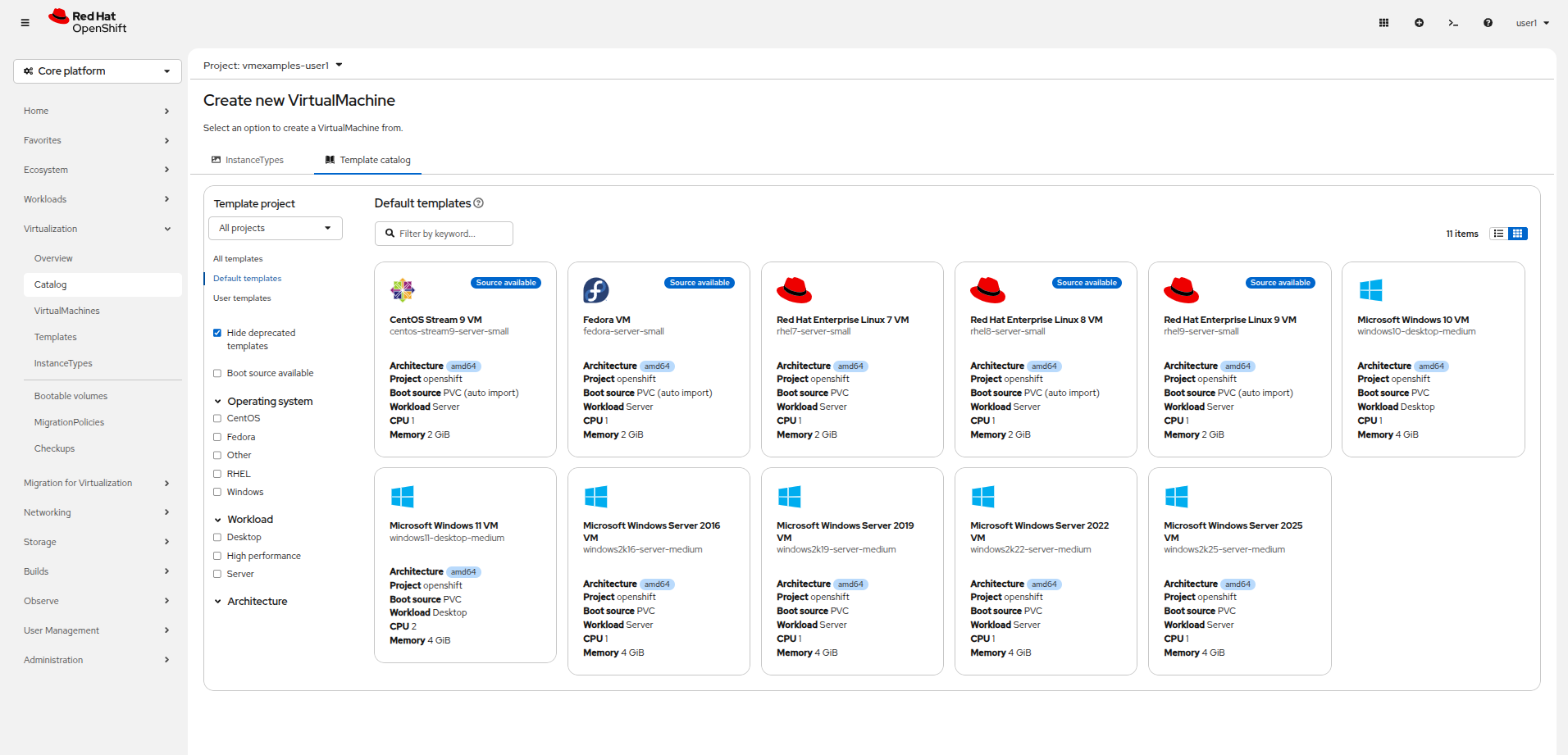
From the left menu, navigate to Catalog, and click on the Template catalog tab near the top..
-
Type the word win in the search bar, or scroll down until you find the Microsoft Windows Server 2022 VM tile.
-
A dialog will appear showing the default configuration related to the template.
Notice that there is initially no option to quick create this VM because there is no provided boot source. We must customize the VM to fit our needs. 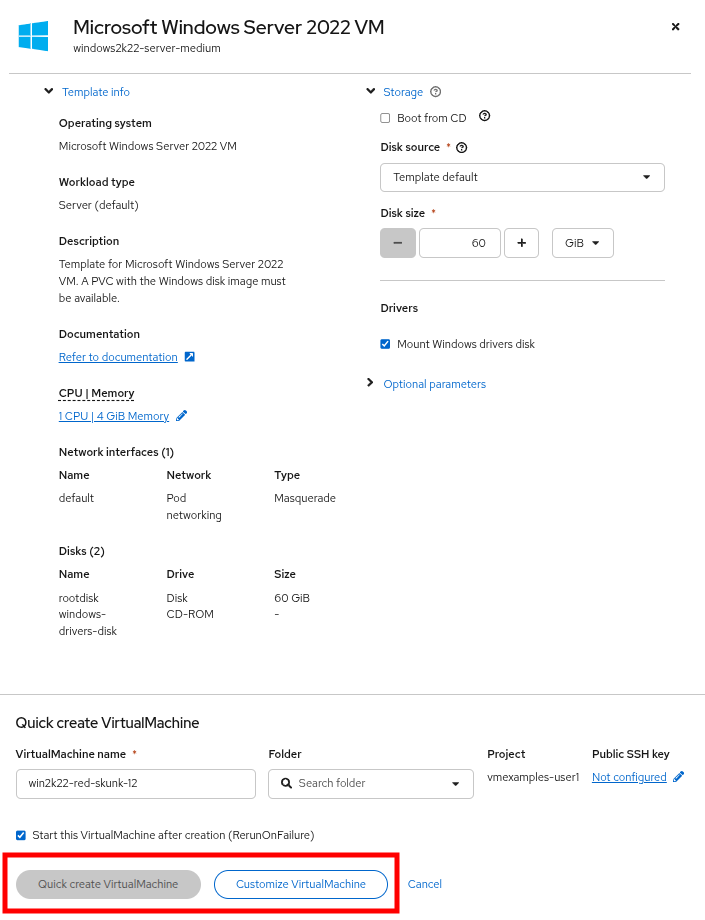
-
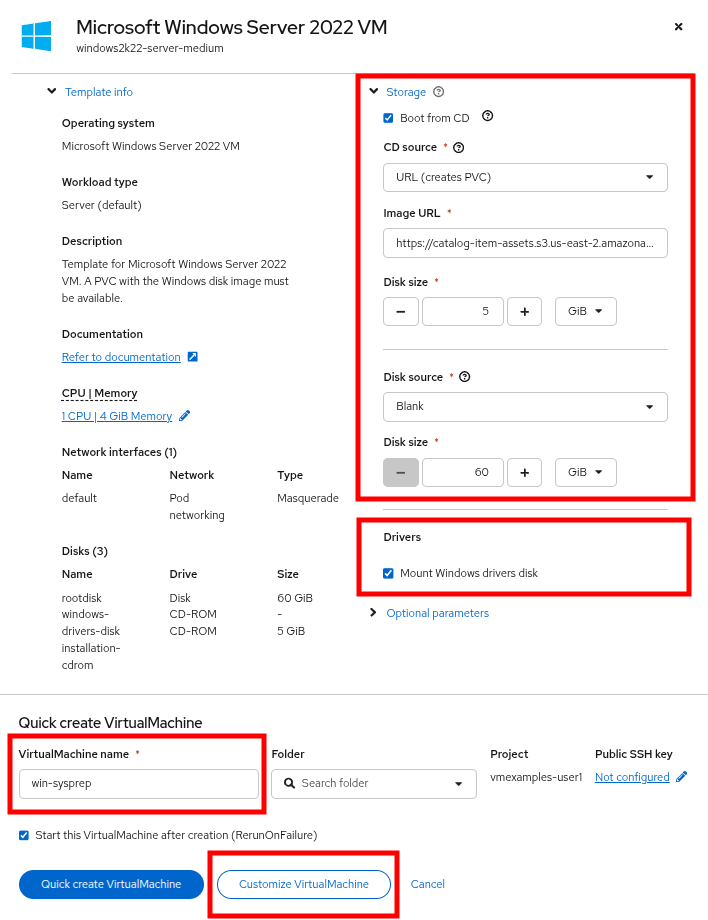
In this dialog:
-
Specify the name win-sysprep
-
Enable the checkbox Boot from CD
-
Choose URL (creates PVC) from the drop-down menu
-
Specify the image URL: https://catalog-item-assets.s3.us-east-2.amazonaws.com/qcow_images/WINSERV22.iso
-
Reduce the CD disk size to 5 GiB
-
Keep the Disk source as Blank and the size set to the default value 60 GiB
-
Ensure the Mount Windows drivers disk checkbox is enabled. This is required to install Windows systems, which will provide the drivers for VirtIO.
-
-
With the options filled out, we want to click on the Customize VirtualMachine button at the bottom to continue configuring our Template.
-
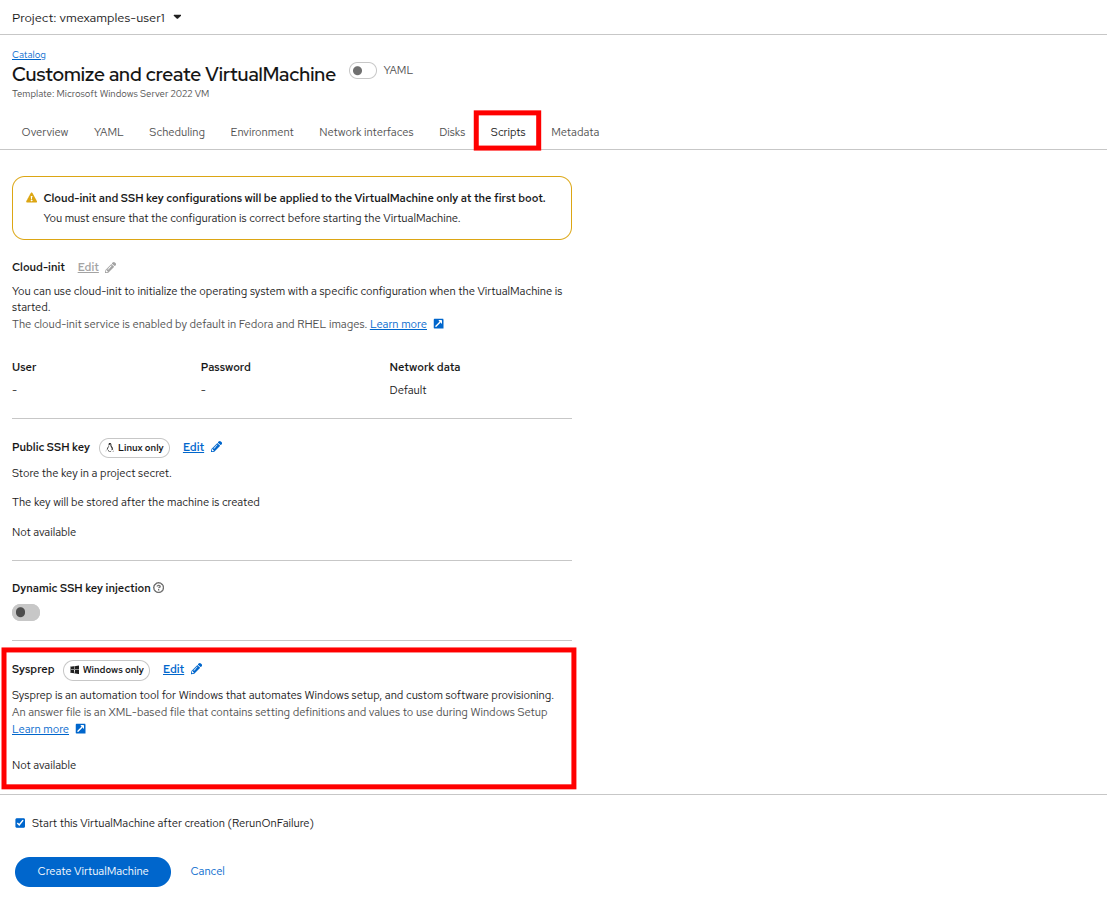
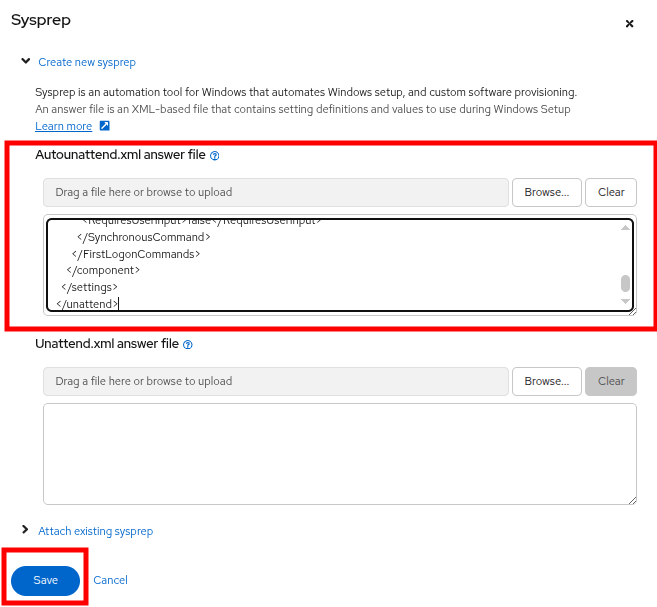
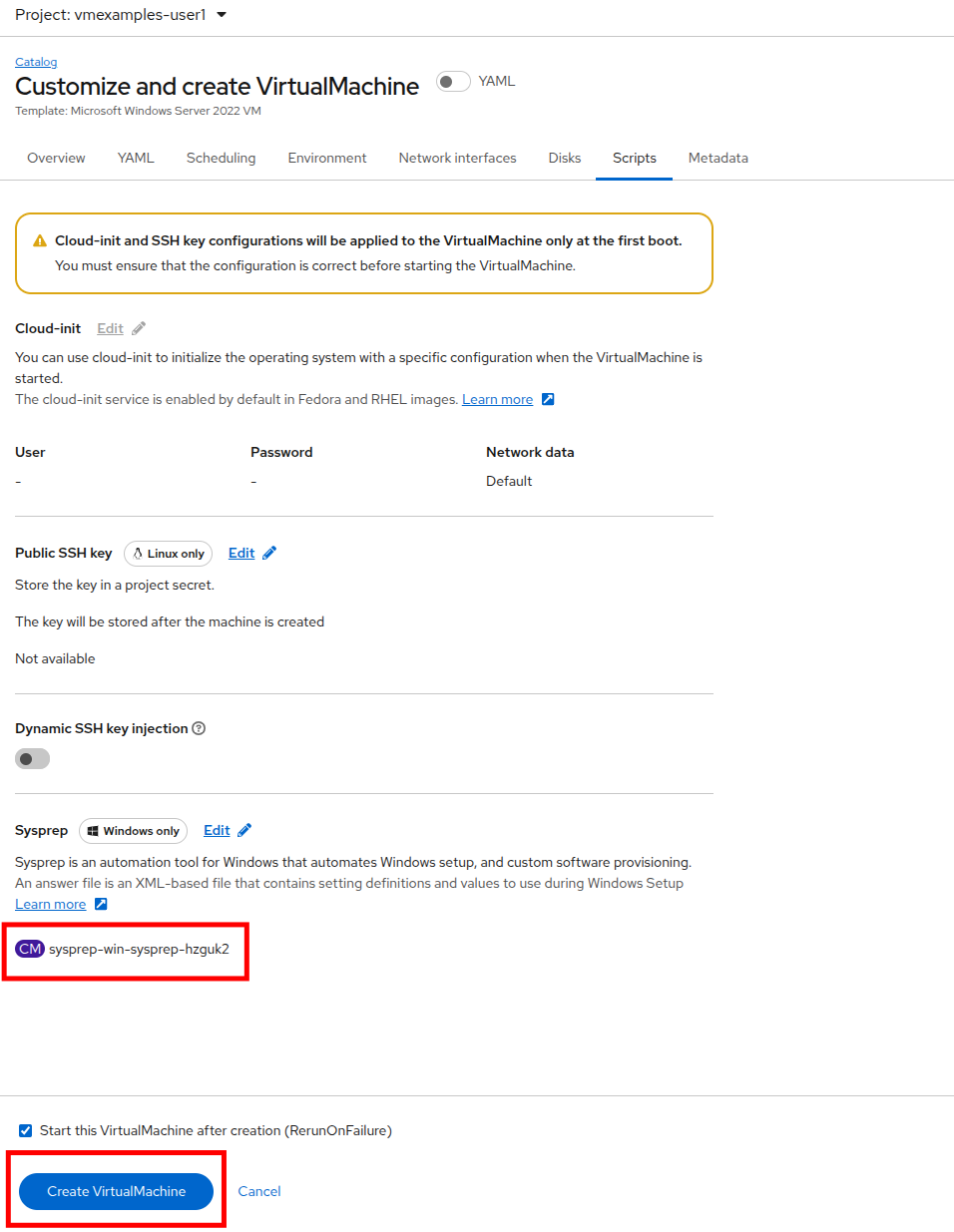
On the Customize and create VirtualMachine screen, click on the Scripts tab, and then scroll down to the Sysprep section and click on the Edit button.
-
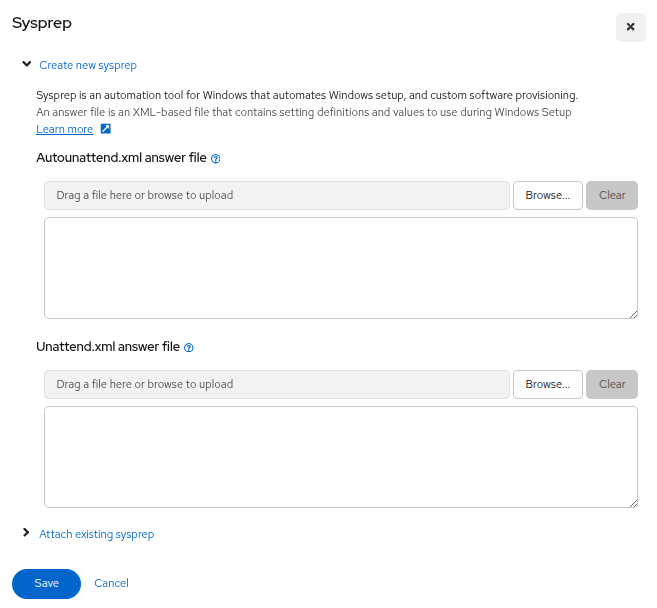
A new window will pop up for you to create Sysprep actions for your new template.
-
Copy and paste the following code block, which helps to automate the installation and configuration of the Windows server into the Autounattend.xml section:
<?xml version="1.0" encoding="utf-8"?> <!-- Windows Server 2022 Unattended Installation Configured for: UEFI Boot, WinRM/Ansible, Compliance Automation Usage: Paste this into OpenShift Virtualization VM Sysprep configuration --> <unattend xmlns="urn:schemas-microsoft-com:unattend" xmlns:wcm="http://schemas.microsoft.com/WMIConfig/2002/State" xmlns:xsi="http://www.w3.org/2001/XMLSchema-instance" xsi:schemaLocation="urn:schemas-microsoft-com:unattend"> <!-- ============================================================ WINDOWS PE PASS - Disk Configuration and OS Installation ============================================================ --> <settings pass="windowsPE"> <component name="Microsoft-Windows-Setup" processorArchitecture="amd64" publicKeyToken="31bf3856ad364e35" language="neutral" versionScope="nonSxS"> <!-- GPT Disk Configuration for UEFI Boot --> <DiskConfiguration> <Disk wcm:action="add"> <DiskID>0</DiskID> <WillWipeDisk>true</WillWipeDisk> <CreatePartitions> <!-- EFI System Partition (ESP) - Required for UEFI --> <CreatePartition wcm:action="add"> <Order>1</Order> <Size>100</Size> <Type>EFI</Type> </CreatePartition> <!-- Microsoft Reserved Partition (MSR) --> <CreatePartition wcm:action="add"> <Order>2</Order> <Size>16</Size> <Type>MSR</Type> </CreatePartition> <!-- Windows OS Partition - Uses remaining space --> <CreatePartition wcm:action="add"> <Order>3</Order> <Extend>true</Extend> <Type>Primary</Type> </CreatePartition> </CreatePartitions> <ModifyPartitions> <!-- Format EFI Partition --> <ModifyPartition wcm:action="add"> <Order>1</Order> <PartitionID>1</PartitionID> <Format>FAT32</Format> <Label>System</Label> </ModifyPartition> <!-- Format Windows Partition --> <ModifyPartition wcm:action="add"> <Order>2</Order> <PartitionID>3</PartitionID> <Format>NTFS</Format> <Label>Windows</Label> <Letter>C</Letter> </ModifyPartition> </ModifyPartitions> </Disk> </DiskConfiguration> <!-- Windows Edition Selection --> <ImageInstall> <OSImage> <InstallFrom> <MetaData wcm:action="add"> <Key>/IMAGE/NAME</Key> <!-- Options: Windows Server 2022 SERVERSTANDARD Windows Server 2022 SERVERDATACENTER Windows Server 2019 SERVERSTANDARD Windows Server 2019 SERVERDATACENTER --> <Value>Windows Server 2022 SERVERSTANDARD</Value> </MetaData> </InstallFrom> <InstallTo> <DiskID>0</DiskID> <PartitionID>3</PartitionID> </InstallTo> </OSImage> </ImageInstall> <!-- User Data --> <UserData> <AcceptEula>true</AcceptEula> <FullName>Administrator</FullName> <Organization>Compliance Team</Organization> </UserData> </component> <!-- Locale Settings for PE --> <component name="Microsoft-Windows-International-Core-WinPE" processorArchitecture="amd64" publicKeyToken="31bf3856ad364e35" language="neutral" versionScope="nonSxS"> <SetupUILanguage> <UILanguage>en-US</UILanguage> </SetupUILanguage> <InputLocale>en-US</InputLocale> <SystemLocale>en-US</SystemLocale> <UILanguage>en-US</UILanguage> <UserLocale>en-US</UserLocale> </component> </settings> <!-- ============================================================ SPECIALIZE PASS - Machine-Specific Configuration ============================================================ --> <settings pass="specialize"> <component name="Microsoft-Windows-Shell-Setup" processorArchitecture="amd64" publicKeyToken="31bf3856ad364e35" language="neutral" versionScope="nonSxS"> <!-- Computer Name - Will be changed after cloning --> <ComputerName>WIN-TEMPLATE</ComputerName> <!-- Timezone - Adjust as needed --> <TimeZone>UTC</TimeZone> <!-- Initial Auto-Logon for Setup --> <AutoLogon> <Enabled>true</Enabled> <LogonCount>5</LogonCount> <Username>Administrator</Username> <Password> <Value>R3dH4t1!</Value> <PlainText>true</PlainText> </Password> </AutoLogon> </component> <!-- Disable IE Enhanced Security for initial setup --> <component name="Microsoft-Windows-IE-ESC" processorArchitecture="amd64" publicKeyToken="31bf3856ad364e35" language="neutral" versionScope="nonSxS"> <IEHardenAdmin>false</IEHardenAdmin> <IEHardenUser>false</IEHardenUser> </component> <!-- Server Manager - Don't show at logon --> <component name="Microsoft-Windows-ServerManager-SvrMgrNc" processorArchitecture="amd64" publicKeyToken="31bf3856ad364e35" language="neutral" versionScope="nonSxS"> <DoNotOpenServerManagerAtLogon>true</DoNotOpenServerManagerAtLogon> </component> </settings> <!-- ============================================================ OOBE SYSTEM PASS - First Boot Configuration ============================================================ --> <settings pass="oobeSystem"> <!-- Locale Settings --> <component name="Microsoft-Windows-International-Core" processorArchitecture="amd64" publicKeyToken="31bf3856ad364e35" language="neutral" versionScope="nonSxS"> <InputLocale>en-US</InputLocale> <SystemLocale>en-US</SystemLocale> <UILanguage>en-US</UILanguage> <UserLocale>en-US</UserLocale> </component> <!-- Shell Setup and First Logon Commands --> <component name="Microsoft-Windows-Shell-Setup" processorArchitecture="amd64" publicKeyToken="31bf3856ad364e35" language="neutral" versionScope="nonSxS"> <!-- Skip all OOBE screens --> <OOBE> <HideEULAPage>true</HideEULAPage> <HideLocalAccountScreen>true</HideLocalAccountScreen> <HideOnlineAccountScreens>true</HideOnlineAccountScreens> <HideWirelessSetupInOOBE>true</HideWirelessSetupInOOBE> <NetworkLocation>Work</NetworkLocation> <ProtectYourPC>3</ProtectYourPC> <SkipMachineOOBE>true</SkipMachineOOBE> <SkipUserOOBE>true</SkipUserOOBE> </OOBE> <!-- Administrator Account Setup --> <UserAccounts> <AdministratorPassword> <Value>R3dH4t1!</Value> <PlainText>true</PlainText> </AdministratorPassword> <LocalAccounts> <LocalAccount wcm:action="add"> <Name>Administrator</Name> <DisplayName>Administrator</DisplayName> <Group>Administrators</Group> <Description>Built-in Administrator Account</Description> </LocalAccount> </LocalAccounts> </UserAccounts> <!-- Auto-Logon for First Boot Commands --> <AutoLogon> <Enabled>true</Enabled> <LogonCount>5</LogonCount> <Username>Administrator</Username> <Password> <Value>R3dH4t1!</Value> <PlainText>true</PlainText> </Password> </AutoLogon> <!-- ============================================================ FIRST LOGON COMMANDS - WinRM and Ansible Setup These run automatically on first boot ============================================================ --> <FirstLogonCommands> <!-- 1. Set Execution Policy for PowerShell --> <SynchronousCommand wcm:action="add"> <Order>1</Order> <CommandLine>powershell.exe -Command "Set-ExecutionPolicy RemoteSigned -Force"</CommandLine> <Description>Set PowerShell Execution Policy</Description> <RequiresUserInput>false</RequiresUserInput> </SynchronousCommand> <!-- 2. Enable WinRM Service --> <SynchronousCommand wcm:action="add"> <Order>2</Order> <CommandLine>powershell.exe -Command "Enable-PSRemoting -Force -SkipNetworkProfileCheck"</CommandLine> <Description>Enable PowerShell Remoting</Description> <RequiresUserInput>false</RequiresUserInput> </SynchronousCommand> <!-- 3. Configure WinRM Service --> <SynchronousCommand wcm:action="add"> <Order>3</Order> <CommandLine>powershell.exe -Command "Set-Service WinRM -StartupType Automatic"</CommandLine> <Description>Set WinRM to Auto Start</Description> <RequiresUserInput>false</RequiresUserInput> </SynchronousCommand> <!-- 4. Configure WinRM for Ansible - Basic Auth --> <SynchronousCommand wcm:action="add"> <Order>4</Order> <CommandLine>powershell.exe -Command "Set-Item WSMan:\localhost\Service\Auth\Basic -Value $true"</CommandLine> <Description>Enable Basic Authentication</Description> <RequiresUserInput>false</RequiresUserInput> </SynchronousCommand> <!-- 5. Configure WinRM for Ansible - Allow Unencrypted (set to false for production with HTTPS) --> <SynchronousCommand wcm:action="add"> <Order>5</Order> <CommandLine>powershell.exe -Command "Set-Item WSMan:\localhost\Service\AllowUnencrypted -Value $true"</CommandLine> <Description>Allow Unencrypted Traffic (for initial setup)</Description> <RequiresUserInput>false</RequiresUserInput> </SynchronousCommand> <!-- 6. Configure WinRM Listener for HTTP (5985) --> <SynchronousCommand wcm:action="add"> <Order>6</Order> <CommandLine>powershell.exe -Command "if (!(Get-WSManInstance -ResourceURI winrm/config/Listener -SelectorSet @{Transport='HTTP'; Address='*'} -ErrorAction SilentlyContinue)) { New-WSManInstance -ResourceURI winrm/config/Listener -SelectorSet @{Transport='HTTP'; Address='*'} }"</CommandLine> <Description>Create HTTP Listener</Description> <RequiresUserInput>false</RequiresUserInput> </SynchronousCommand> <!-- 7. Create Self-Signed Certificate for HTTPS --> <SynchronousCommand wcm:action="add"> <Order>7</Order> <CommandLine>powershell.exe -Command "$cert = New-SelfSignedCertificate -DnsName $env:COMPUTERNAME, localhost -CertStoreLocation Cert:\LocalMachine\My -NotAfter (Get-Date).AddYears(5); New-Item -Path WSMan:\localhost\Listener -Transport HTTPS -Address * -CertificateThumbprint $cert.Thumbprint -Force"</CommandLine> <Description>Create HTTPS Listener with Self-Signed Cert</Description> <RequiresUserInput>false</RequiresUserInput> </SynchronousCommand> <!-- 8. Configure WinRM Memory and Timeouts --> <SynchronousCommand wcm:action="add"> <Order>8</Order> <CommandLine>powershell.exe -Command "Set-Item WSMan:\localhost\Shell\MaxMemoryPerShellMB 2048"</CommandLine> <Description>Increase WinRM Memory Limit</Description> <RequiresUserInput>false</RequiresUserInput> </SynchronousCommand> <!-- 9. Open Firewall for WinRM HTTP (5985) --> <SynchronousCommand wcm:action="add"> <Order>9</Order> <CommandLine>netsh advfirewall firewall add rule name="WinRM HTTP" dir=in action=allow protocol=TCP localport=5985</CommandLine> <Description>Open Firewall Port 5985</Description> <RequiresUserInput>false</RequiresUserInput> </SynchronousCommand> <!-- 10. Open Firewall for WinRM HTTPS (5986) --> <SynchronousCommand wcm:action="add"> <Order>10</Order> <CommandLine>netsh advfirewall firewall add rule name="WinRM HTTPS" dir=in action=allow protocol=TCP localport=5986</CommandLine> <Description>Open Firewall Port 5986</Description> <RequiresUserInput>false</RequiresUserInput> </SynchronousCommand> <!-- 11. Restart WinRM to Apply Changes --> <SynchronousCommand wcm:action="add"> <Order>11</Order> <CommandLine>powershell.exe -Command "Restart-Service WinRM"</CommandLine> <Description>Restart WinRM Service</Description> <RequiresUserInput>false</RequiresUserInput> </SynchronousCommand> <!-- 12. Enable Remote Desktop (optional, useful for troubleshooting) --> <SynchronousCommand wcm:action="add"> <Order>12</Order> <CommandLine>powershell.exe -Command "Set-ItemProperty -Path 'HKLM:\System\CurrentControlSet\Control\Terminal Server' -Name 'fDenyTSConnections' -Value 0"</CommandLine> <Description>Enable Remote Desktop</Description> <RequiresUserInput>false</RequiresUserInput> </SynchronousCommand> <!-- 13. Open Firewall for RDP --> <SynchronousCommand wcm:action="add"> <Order>13</Order> <CommandLine>netsh advfirewall firewall add rule name="Remote Desktop" dir=in action=allow protocol=TCP localport=3389</CommandLine> <Description>Open Firewall Port 3389 for RDP</Description> <RequiresUserInput>false</RequiresUserInput> </SynchronousCommand> <!-- 14. Install VirtIO Guest Agent (if available) --> <SynchronousCommand wcm:action="add"> <Order>14</Order> <CommandLine>powershell.exe -Command "if (Test-Path 'E:\virtio-win-guest-tools.exe') { Start-Process -FilePath 'E:\virtio-win-guest-tools.exe' -ArgumentList '/install /passive /norestart' -Wait }"</CommandLine> <Description>Install VirtIO Guest Tools</Description> <RequiresUserInput>false</RequiresUserInput> </SynchronousCommand> <!-- 15. Create marker file indicating setup is complete --> <SynchronousCommand wcm:action="add"> <Order>15</Order> <CommandLine>powershell.exe -Command "New-Item -Path 'C:\setup-complete.txt' -ItemType File -Value 'WinRM and Ansible setup completed at: ' + (Get-Date)"</CommandLine> <Description>Create Setup Complete Marker</Description> <RequiresUserInput>false</RequiresUserInput> </SynchronousCommand> </FirstLogonCommands> </component> </settings> </unattend> -
Once the code is pasted, click the Save button on the dialog.
-
With the Sysprep in place, click the Create VirtualMachine button at the bottom of the screen.
-
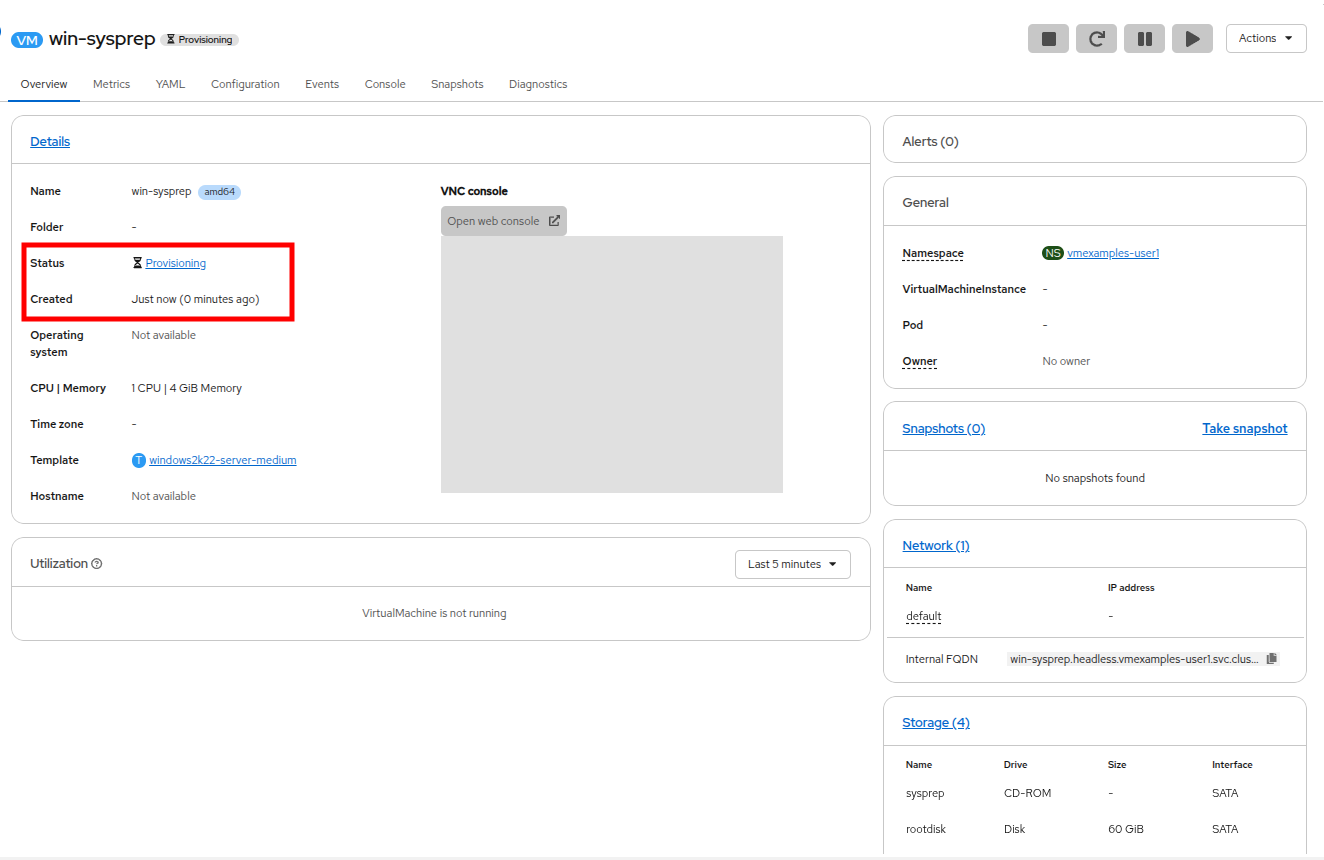
The Virtual Machine will start the provisioning process by downloading the ISO image, configuring, and starting the instance.
-
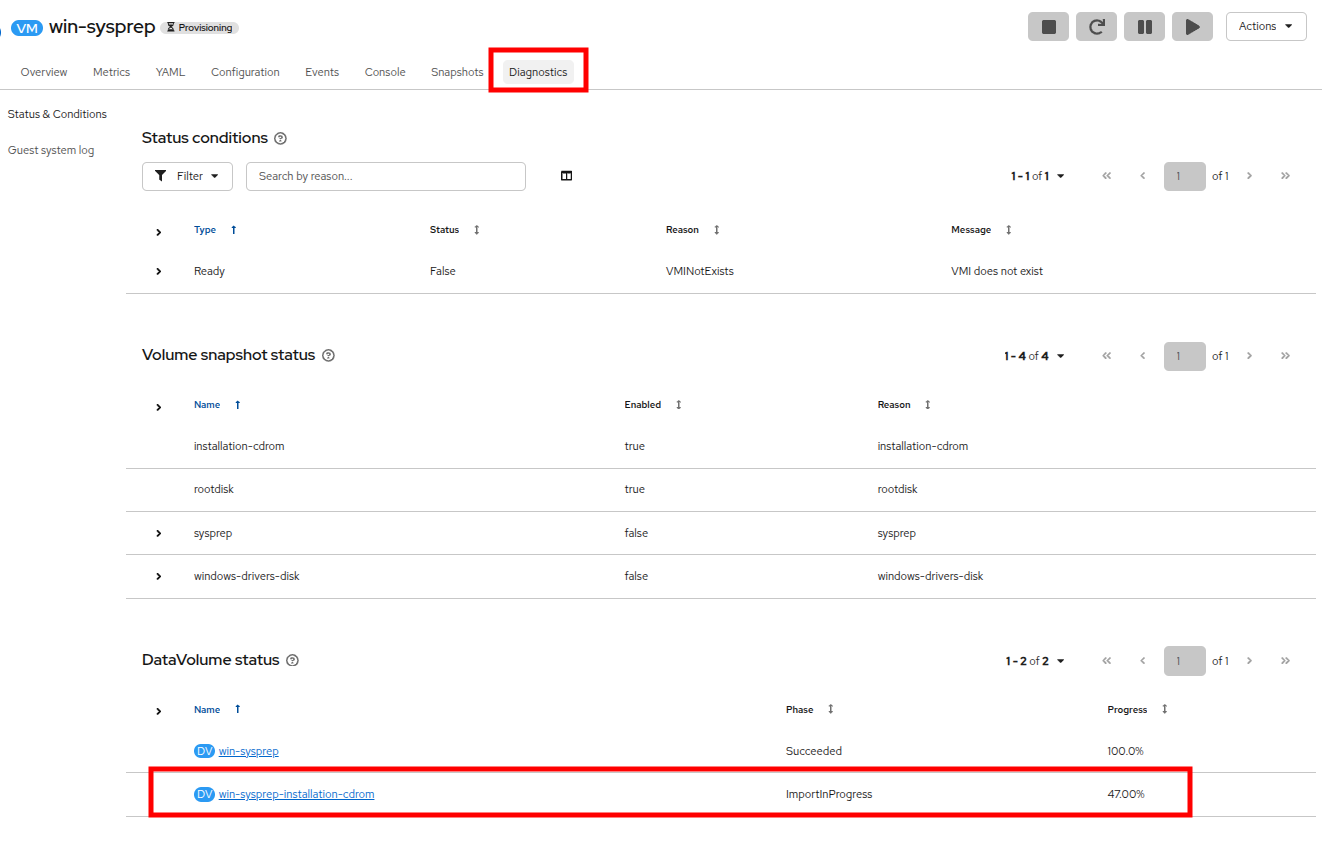
This process may take a few minutes due to needing to download the boot ISO image. You can check on the progress of the download by clicking the Diagnostics tab.
-
After a few moments, the virtual machine will enter the Starting state, and the status will change to Running. When you see this, click to the Console tab and press the Enter key when prompted to boot to CD. Watch the unattended installation process complete.
If you miss your chance to 'Press Enter to Boot to CD/DVD', you can retry by force-stopping the machine and starting it back up. The restart button does not work for this process as it skips the initial boot stage. 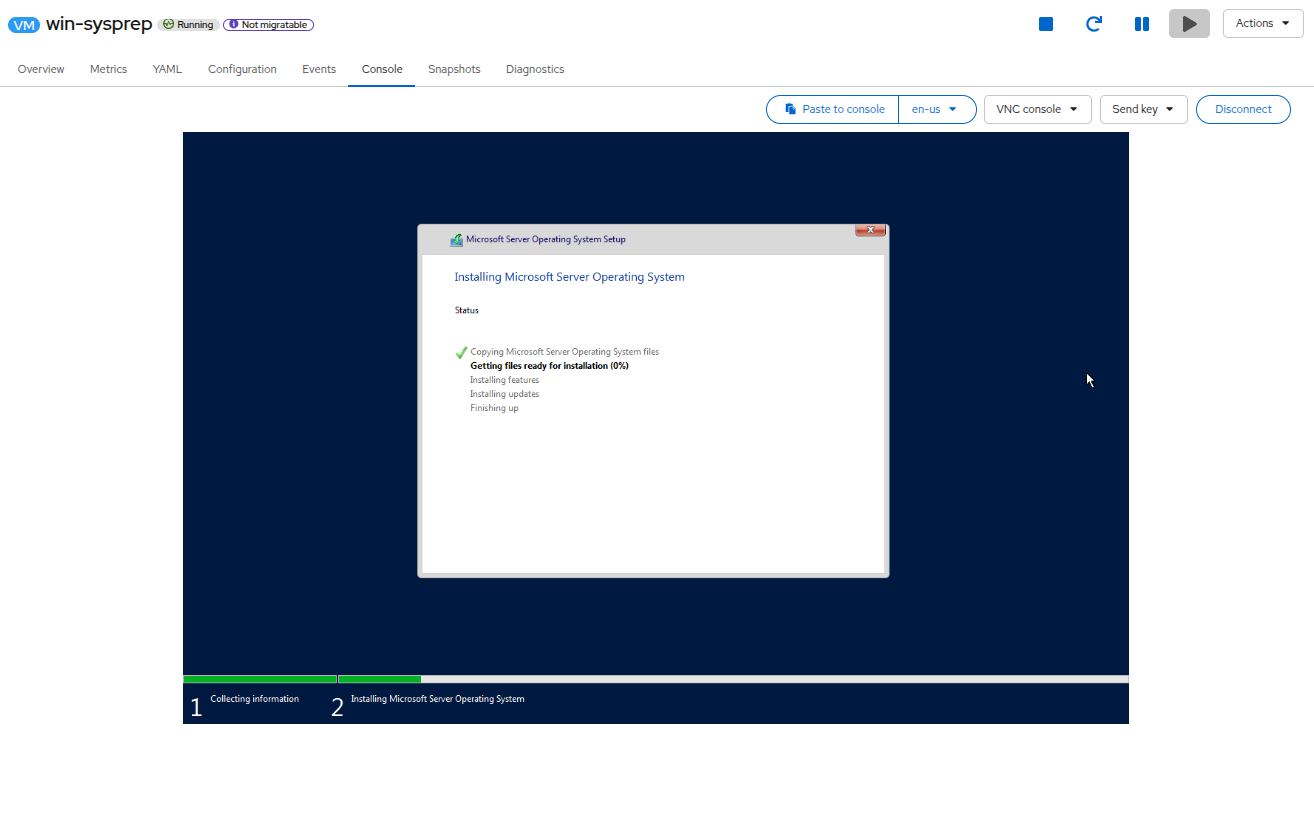
-
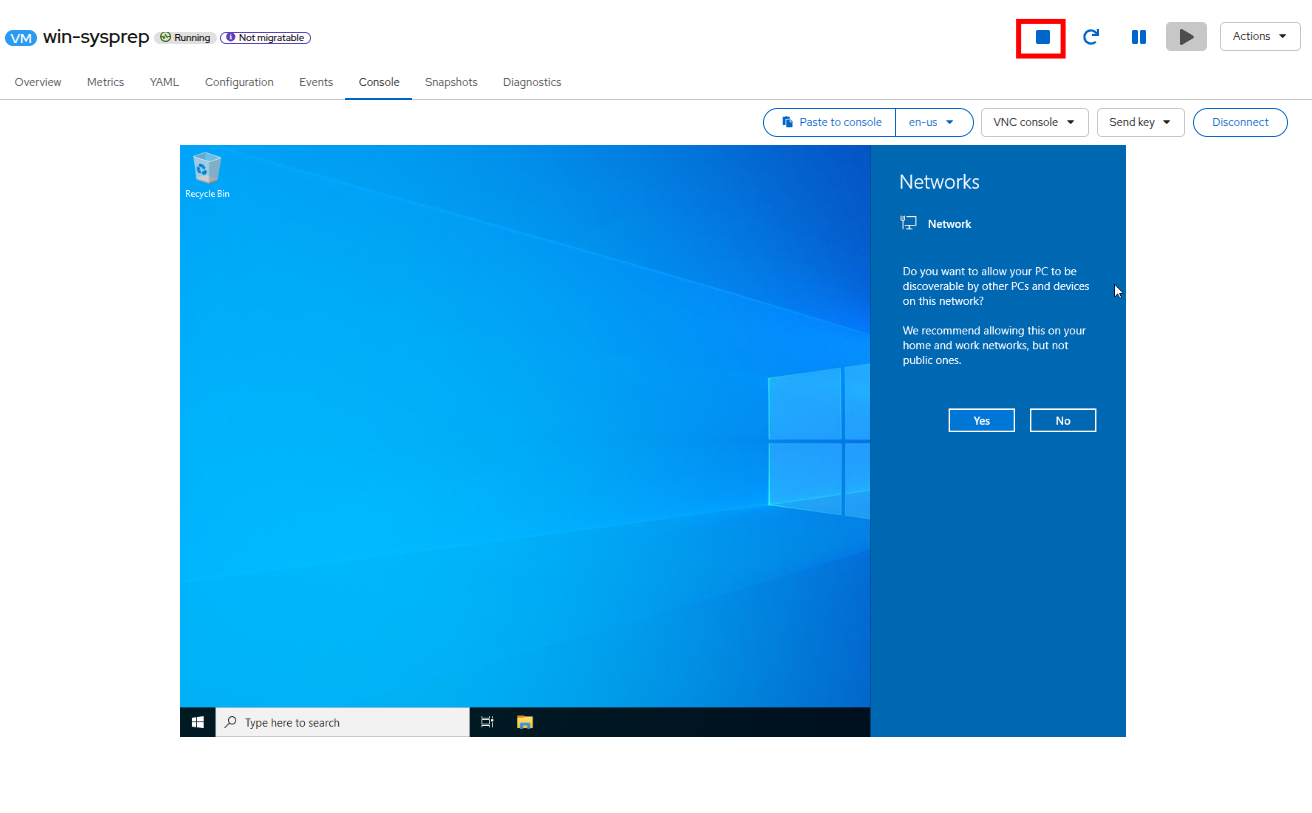
Once the VM installation process is complete (provisioning will take 3-5 minutes, starting and configuring will take about 10 minutes), go ahead and power it off with the stop button.
-
With the machine powered down we want to make a clone of the root volume that we can use for future Windows template-based installs, without having to run through the customization process each time.
Having a dedicated clone of the original installation disk to use for future deployments is helpful so that the original disk does not get accidentally deleted if the machine it is connected to does. -
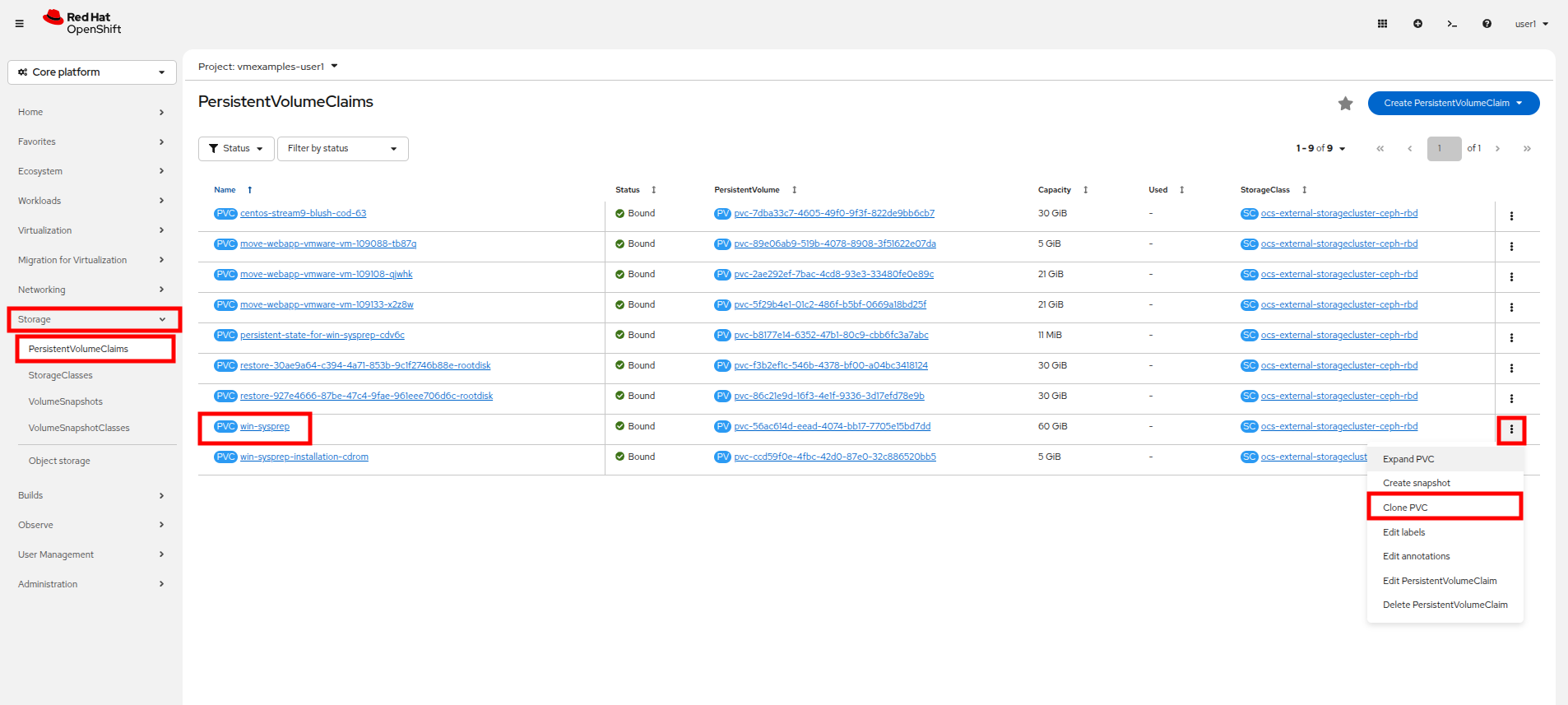
On the left-side menu, click on Storage and then PersistentVolumeClaims to see a list of PVCs available in the vmexamples-{user} namespace.
-
Find the win-sysprep PVC created with our installation, and using the three-dot menu on the right select Clone PVC.
-
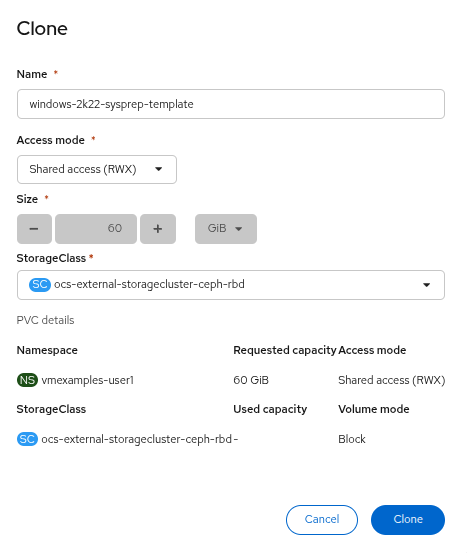
On the menu that pops up, fill in the following options, then click the Clone button:
-
Name: windows-2k22-sysprep-template
-
Access mode: Shared access (RWX)
-
StorageClass: ocs-external-storagecluster-ceph-rbd
-
-
Once this is saved, you can use it to quickly create Windows VMs in the future.
-
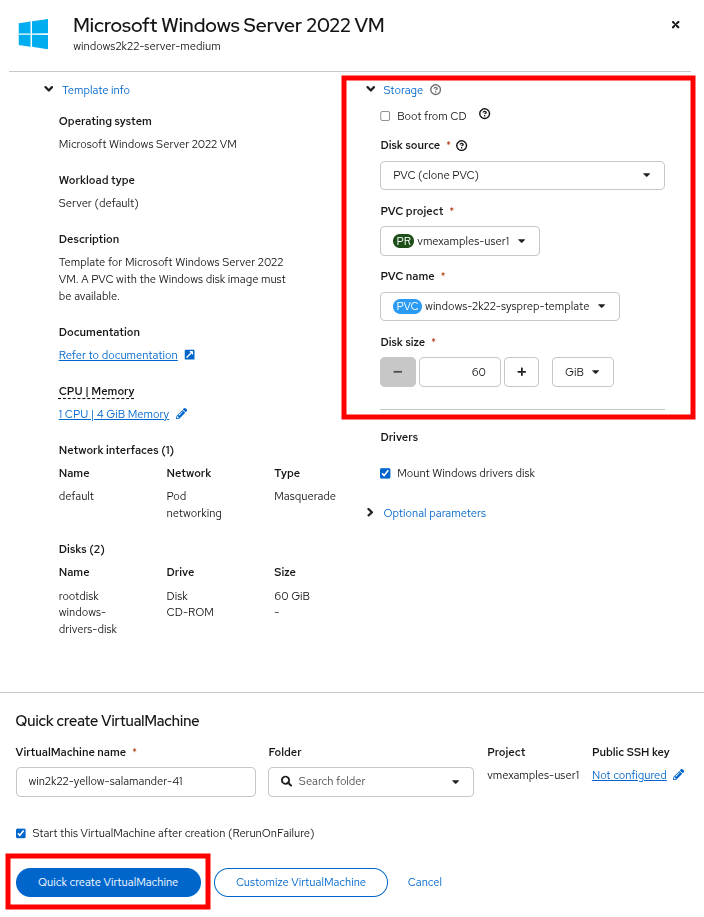
Return to the Virtualization → Catalog menu item, and use this cloned PVC as a boot source for quick-creating new virtual machines by selecting the option for PVC (clone PVC) as the Disk source, and selecting the Windows-2k22-Sysprep-Template PVC as the PVC name to clone, and click the Customize VirtualMachine button to configure boot mode BIOS instead UEFI.
-
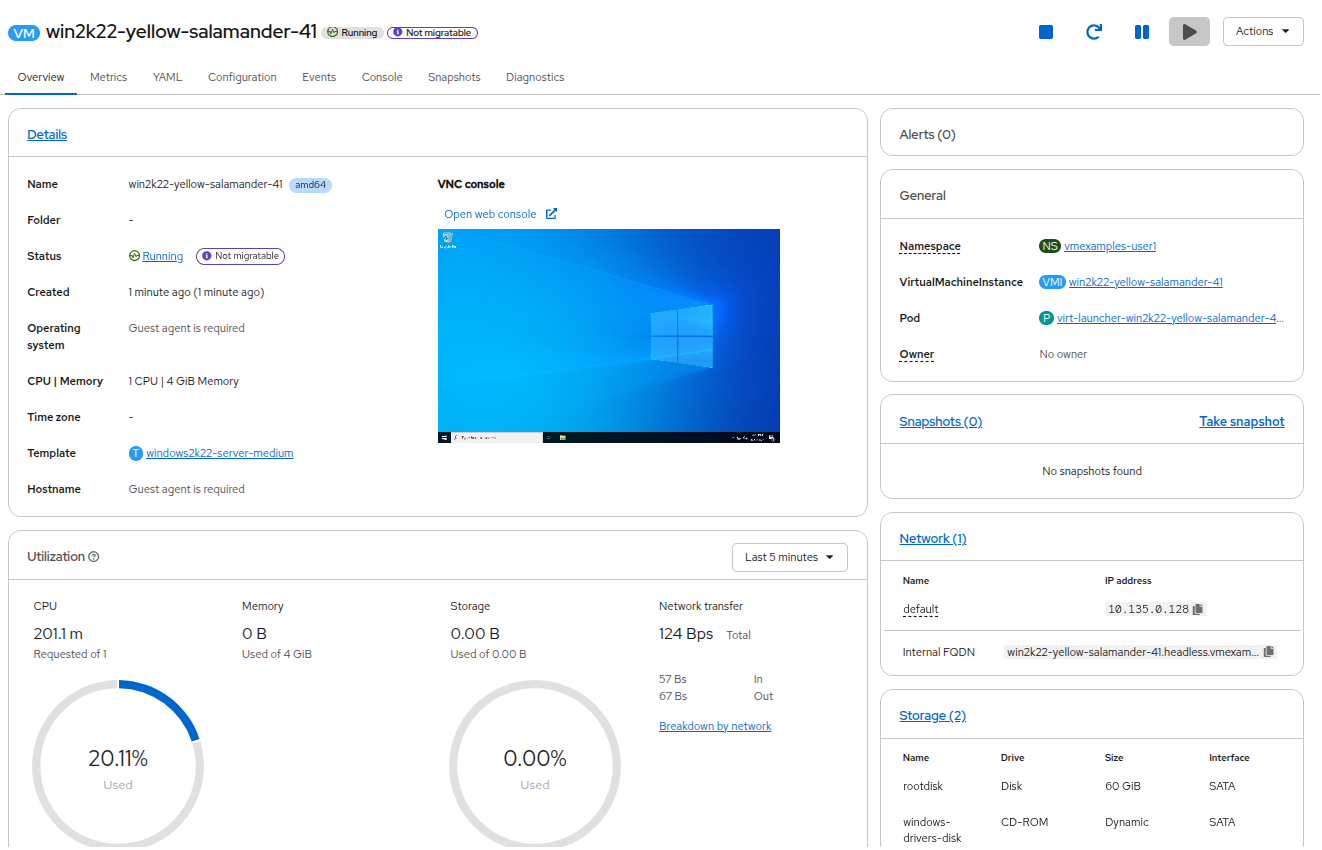
In a few moments the new Windows Server 2022 virtual machine will boot up from our cloned PVC.
Introduction to Instance Types
In order to simplify the deployment process for virtual machines, starting with OpenShift 4.14 the default configuration mechanism was changed to emphasize the use of Instance Types. An instance type is a reusable object where you can define resources and characteristics to apply to a new VM. You can define custom instance types or use the variety that are included when you install OpenShift Virtualization when provisioning your own VM. This is much more akin to what users experience when using a self-service catalog in popular cloud providers.
This section explores provisioning a VM using an instance type.
-
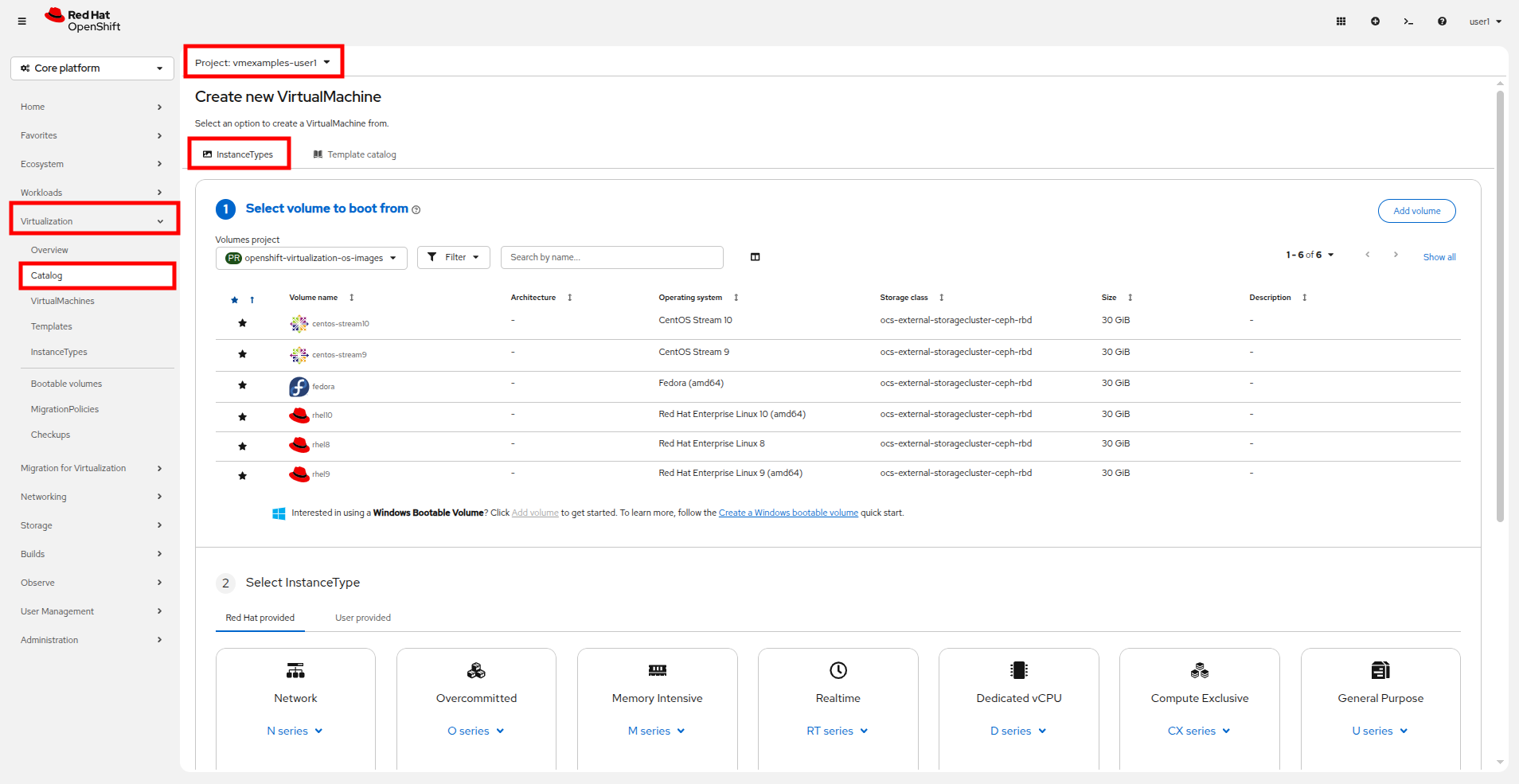
To get started click on Catalog on the left-side menu. You will see the default catalog item is InstanceType.
-
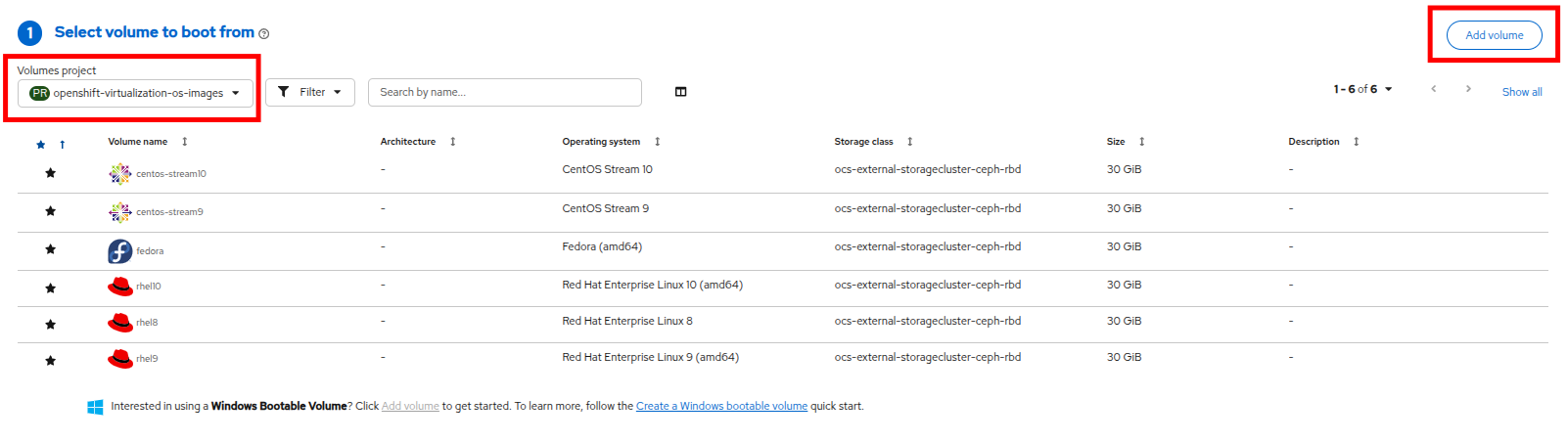
The first step in using an instance type is to select a volume to boot from. Similar to the templates that provide boot sources, these boot sources are available to use for guests provisioned with an InstanceType. You can see the included volumes by selecting the openshift-virtualization-os-images project, or you can upload your own with the Add volume button.
-
Click on the rhel10 boot volume to select it as the volume type to boot from. Selecting it will be denoted by the line being changed to a bold font.

-
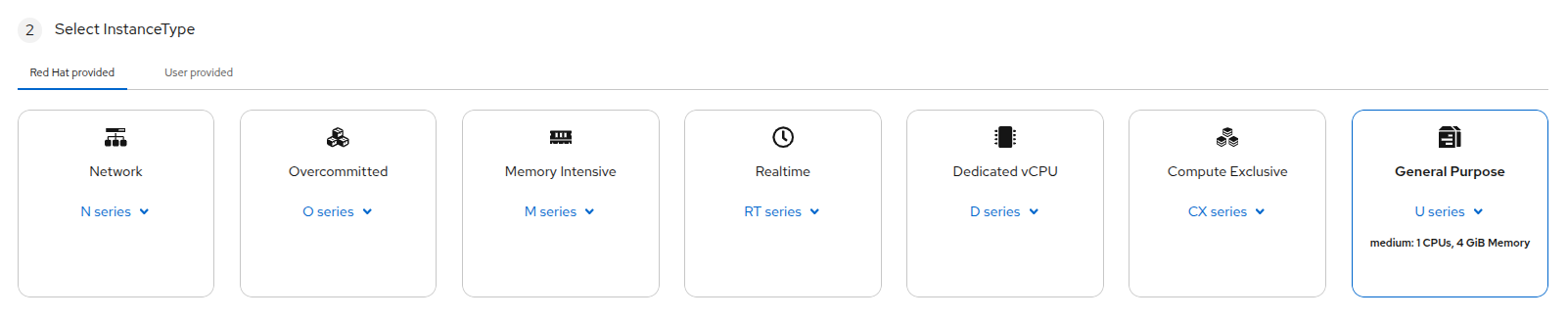
Next you can select the instance type you would like to use. There are Red Hat provided instance types by default, or you can create your own for your specific use case. If you hover over a provided instance type you can see a description of its intended use.
-
The Red Hat provided instance types are intended for the following uses:
-
N series: Designed for network intensive DPDK workloads like VNFs.
-
O series: Specialized general purpose instance type with memory overcommit preconfigured.
-
M series: Designed for memory intensive workloads.
-
RT series: Designed for realtime virtualization use cases.
-
D series: Designed to be used with dedicated or pinned CPU workloads.
-
CX series: Designed for compute intensive workloads by requesting additional dedicated CPUs for additional function offload.
-
U series: The most general purpose or "universal" instance type.
-
-
-
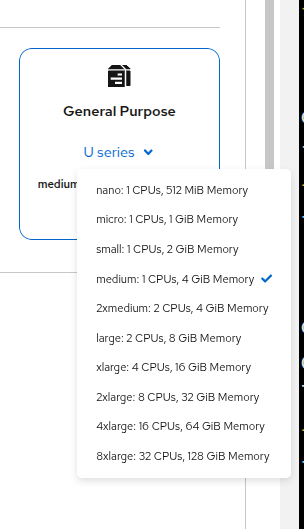
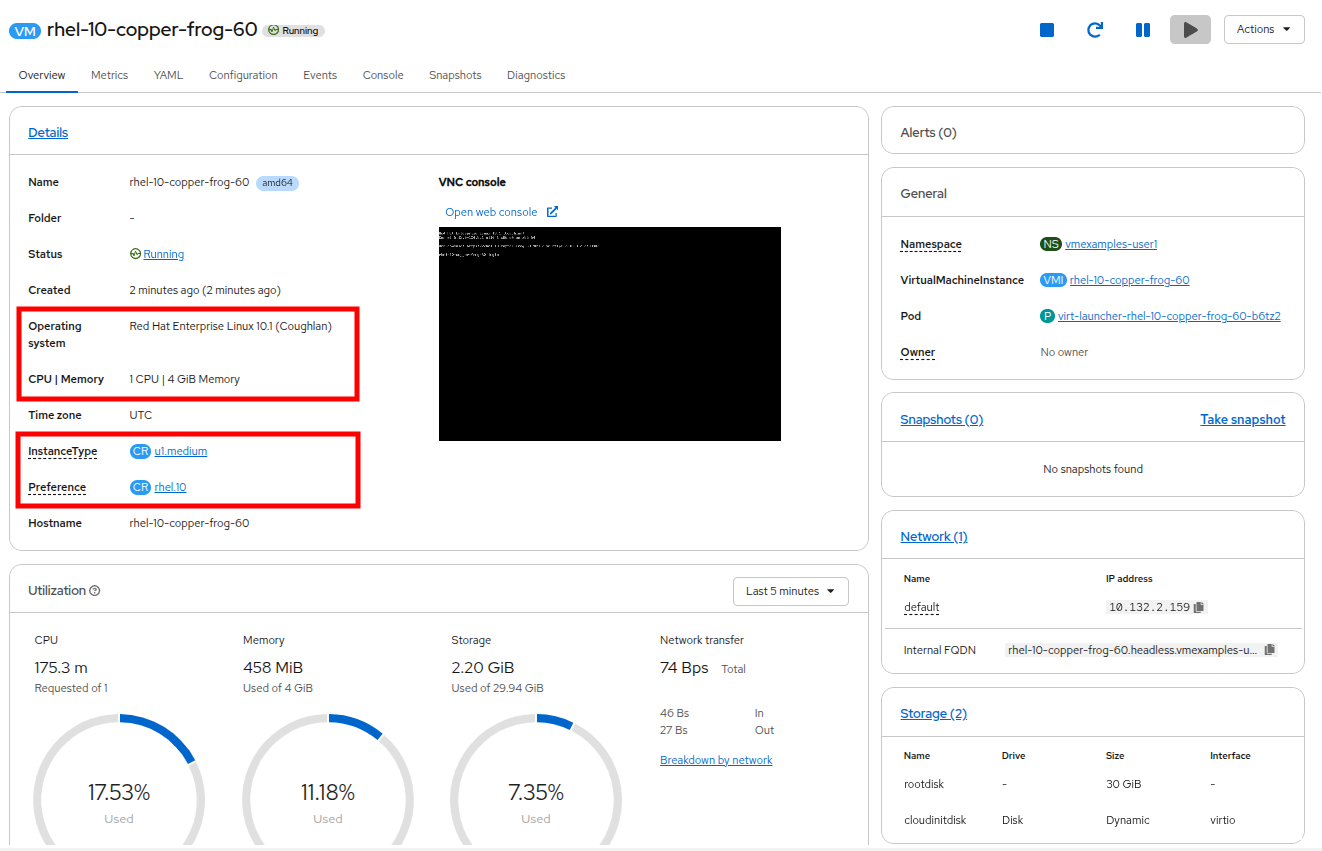
Click on the U series tile to see a dropdown list of defined resources for general instance types. The default option here is medium: 1 CPUs, 4 GiB Memory. Select it. Again selection will be indicated by a blue line, and a bolding of the font for the instance type.
-
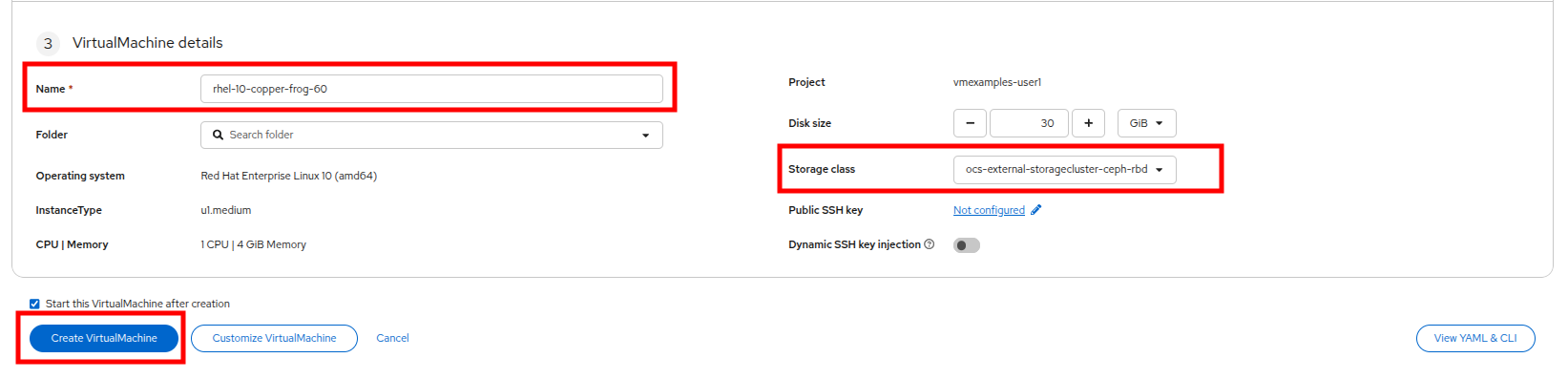
The last section that needs to be completed when provisioning using an instance type is similar to the template section. You need to provide a name for the virtual machine, and select the storage class to be used for a backing disk. By default, a name will be generated for the VM, and the default storage class will be selected. When you are satisfied, click the Create VirtualMachine button.
-
You will be directed to the virtual machine overview page, and see that the VM provisioned using an instance type is now up and running.
Cleanup
To save resources for the next lab, please stop any VMs that you created in this module.
-
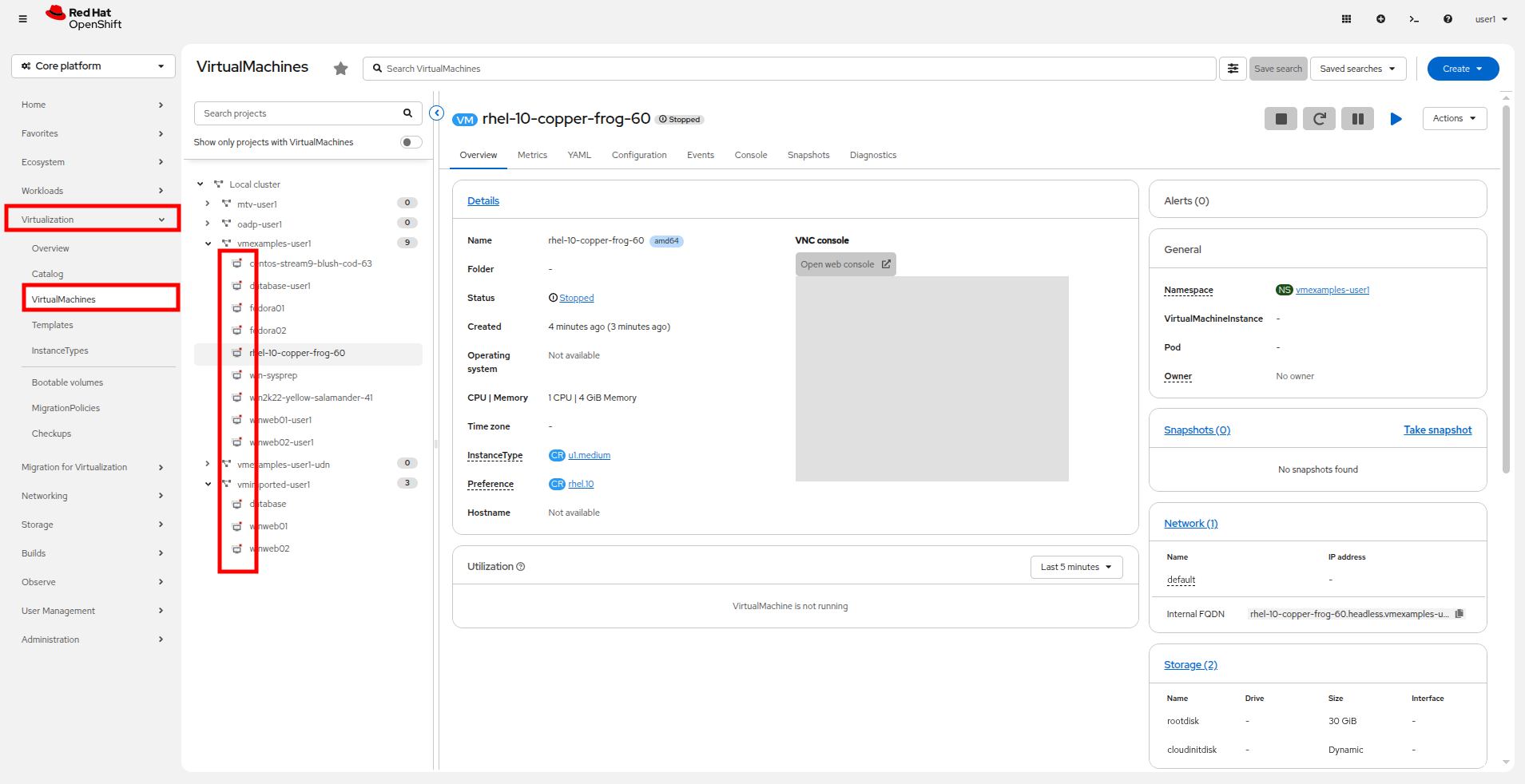
Click on Virtualization → VirtualMachines.
-
Each project that you have access to that is hosting VM workloads will be listed in the center column treeview. (At a minimum you should expand the projects vmexamples-{user} and vmimported-{user} to check virtual machine status.)
-
If any VMs are showing a status of Running, highlight the VM in the center tree column, and select the Stop button or option from the Actions dropdown menu.
Now all VMs should be in Stopped state.
Summary
In this section we learned how to clone and customize an existing template to create one that can be used for specific workloads like databases. We also learned how to configure one of the existing Windows templates that exists without a boot source, and automate it’s installation process, so we can create future deployments easily by cloning the installation PVC that was created with that VM. We also introduced how to make use of instance types to further customize our virtual machines for specific workloads for a more cloud-like experience.