Lab Guide: Integrating AAP with Red Hat Insights
A guide to using Ansible Automation Platform to connect to Red Hat Insights, remediate vulnerabilities, and report on CVEs.
Scenario: Operational Efficiency
Vulnerability and compliance management can be tedious, especially at scale. In this lab, you will integrate Ansible Automation Platform with Red Hat Insights to streamline this process.
| Ansible Automation Platform | ServiceNow |
|---|---|
|
|
| An active Red Hat account (such as a Developer account from the pre-work) is required to access Red Hat Insights. |
Remediating Vulnerabilities with Insights and AAP
Your first task is to connect a RHEL server to Red Hat Insights and then use an Insights-generated playbook to remediate a CVE.
-
Update the Insights credential in AAP.
Navigate to Automation Execution → Infrastructure → Credentials. Find and edit the credential named
Insights. Update this credential with your personal Red Hat account username and password.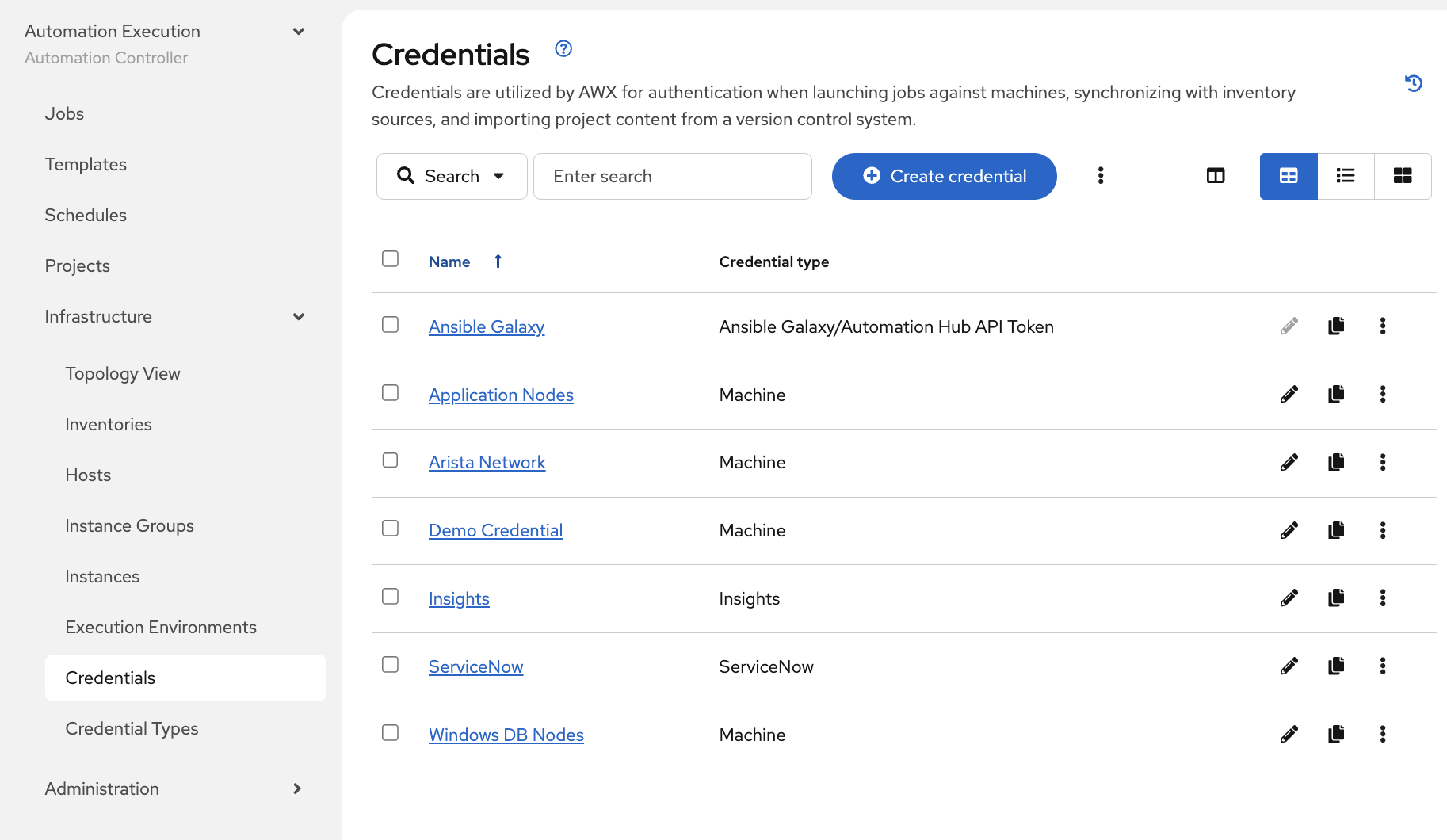
-
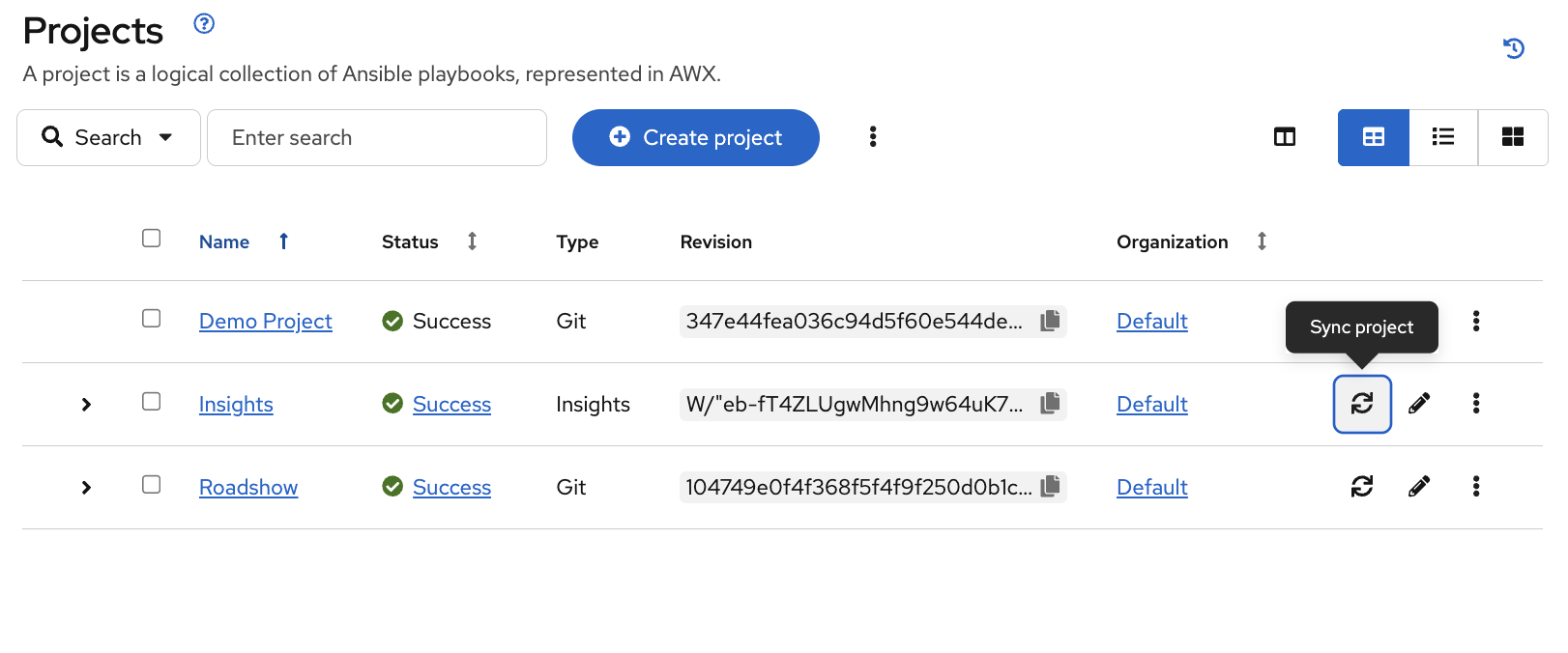
Synchronize the Insights project.
Once the credential is saved, navigate to Automation Execution → Projects and click the sync icon for the Insights project. The project should now synchronize successfully.
-
Register a server with Red Hat Insights.
Navigate to Automation Execution → Templates and launch the Insights for RHEL job template. When prompted by the survey, enter your Red Hat account credentials again.
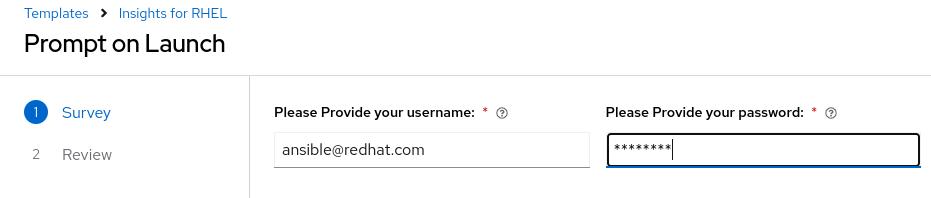
This template will register the server with Red Hat Subscription Manager, install the Insights client, and perform the initial system scan and upload.
-
Create a remediation playbook in Insights.
Once the job completes, navigate to the
console.redhat.comtab in your lab environment and log in. Go to Red Hat Insights.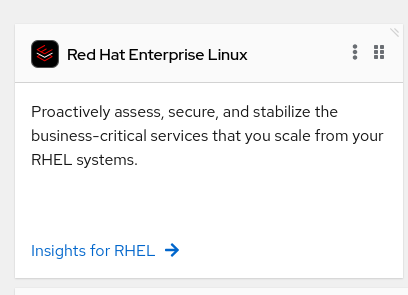
From the left menu, navigate to Content → Advisories. This page lists all applicable CVEs for your registered node. Select an advisory (e.g.,
RHSA-2024:10274) and click the Remediate button.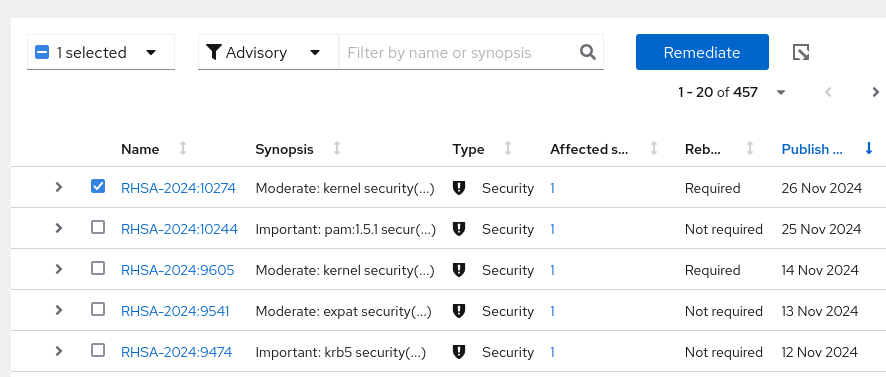
Name the new remediation playbook
cve-rhsa-2024-10274and proceed through the review steps to create it.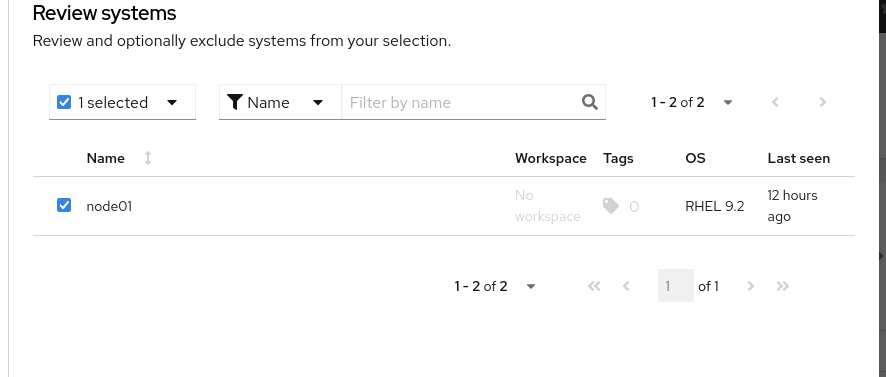
-
Create and launch the remediation job in AAP.
Return to the
aaptab. Go to Automation Execution → Projects and sync the Insights project again. This will pull the new remediation playbook you just created.Now, go to Automation Execution → Templates and create a new job template with the following details:
-
Name:
CVE-2024-1074 -
Project:
Insights -
Inventory:
Video Platform Inventory -
Playbook: Select the
cve-rhsa-2024-10274…playbook. -
Execution Environment:
RHEL EE -
Credentials:
Application NodesSave the template and launch it.
-
-
Verify the remediation.
Once the job completes successfully, return to the
console.redhat.comtab. Navigate to Automation Toolkit → Remediations. You should see that the status of your remediation plan is now complete.
Gathering CVE Data with the Insights API
Red Hat Insights provides a vast API that you can use to gather data and build self-healing infrastructure. In this task, you will use the API to gather data for your security team.
-
Choose a CVE Advisory ID.
From the
console.redhat.comtab, navigate back to Content → Advisories and copy an Advisory ID (e.g.,RHSA-2024:9474). -
Launch the "CVE Advisory" job template.
Return to the
aaptab. Navigate to Automation Execution → Templates and launch the CVE Advisory job template. When prompted by the survey, enter your Red Hat credentials and the Advisory ID you just copied.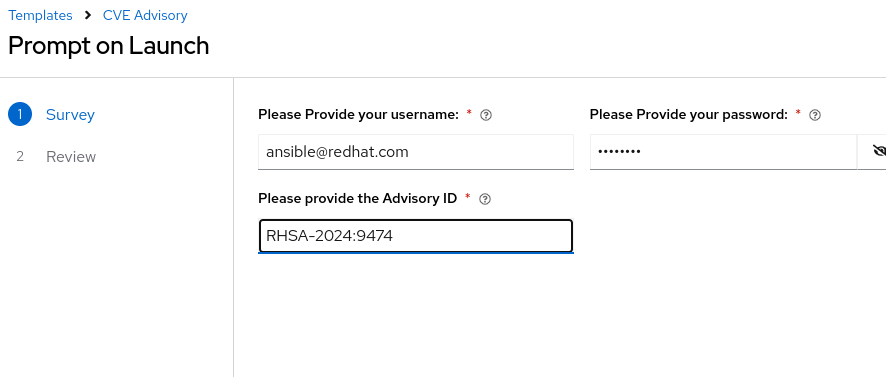
-
Review the ServiceNow incident.
This job is configured to connect to Insights, gather all relevant data about the specified CVE, and automatically open an incident in ServiceNow. Once the job completes, take note of the incident number in the output.
Navigate to the
servicenowtab in your lab environment and log in. Click on All, then Incidents. Find the new ticket (titled "Advisory CVE Type") and open it to view all the data gathered from the Insights API.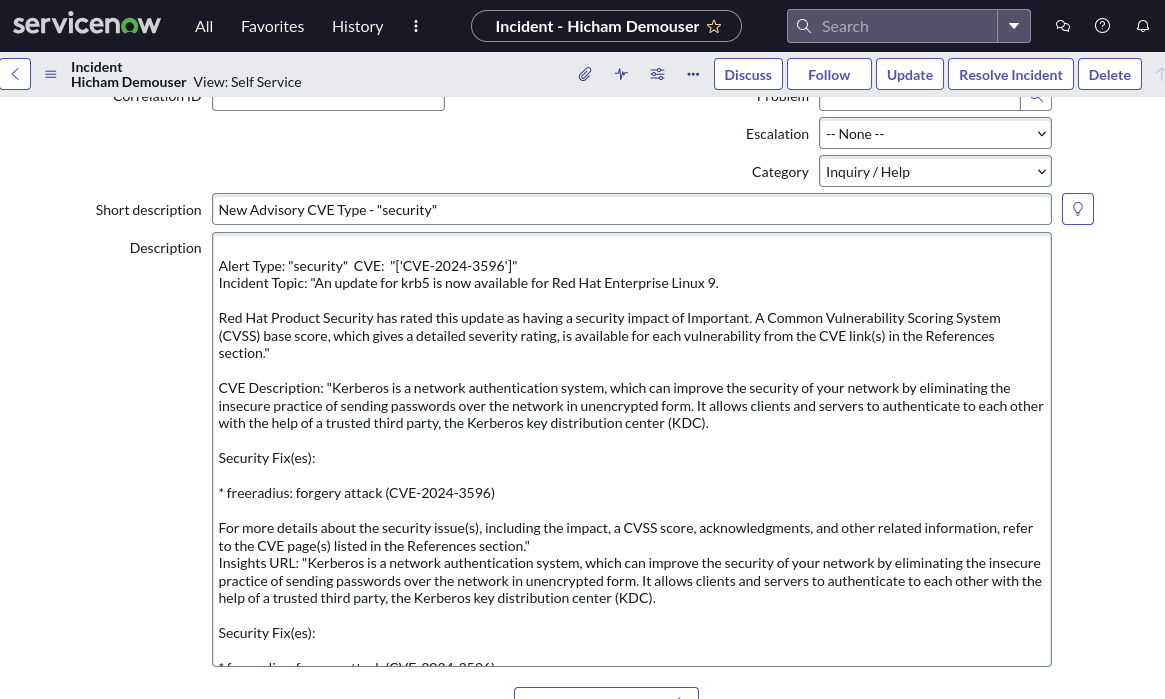
Your security team now has all the relevant data about the CVE and can proceed with remediation.
Appendix: Code Snippets
If you’re interested, here are some key code snippets from the Insights registration playbook.
tasks:
- name: Install subscription manager
  ansible.builtin.package:
    name: subscription-manager
    state: present

- name: Install insights client
  ansible.builtin.package:
    name: insights-client
    state: present

- name: Register RHEL server with subscription manager
  community.general.redhat_subscription:
    state: present
    username: "{{ rhsm_username }}"
    password: "{{ rhsm_password }}"
    auto_attach: true

- name: Register insights client
  ansible.builtin.command: insights-client --register

- name: Perform initial Insights upload
  ansible.builtin.command: >
    /bin/insights-client
  register: __insights_scan
  changed_when: __insights_scan.rc == 0