Introduction
Welcome!
This lab focuses on using Ansible to automate Active Directory and some of the administration tasks performed on Active Directory. If this is your first Windows automation lab, we would suggest trying the "Getting Started with Windows Automation" lab before trying this one.
☑️ Promoting a Windows Server
Our Windows server is currently in a default workgroup state. For this lab we need to first promote it to a domain controller. Navigate to your vscode tab, we already have a repo configured and we should have a look at the contents. Select Terminal and select New Terminal. This will open a new terminal at the bottom of your vscode.
Let us grab the repo:
git clone http://gitea:3000/student/aap_active_directory.gitNow we navigate in the explorer on the top left in vscode and you should have your local repo aap_active_directory. Select the playbook ad_promote.yml in your local repo
---
- name: Configure Windows Server as Domain Controller
  hosts: windows
  gather_facts: false

  vars_files:
    - windows_auth

  tasks:
    - name: Ensure local Administrator account has a password
      ansible.windows.win_user:
        name: "{{ username }}"
        password: "{{ user_password }}"

    - name: Promote system to a domain Controller
      microsoft.ad.domain:
        dns_domain_name: active-directory-lab.ansible
        safe_mode_password: "{{ safe_password }}"
        domain_mode: Win2012R2
        domain_netbios_name: ANSIBLE
        forest_mode: Win2012R2
      register: domain_install

    - name: Reboot system after promoting to domain Controller
      ansible.windows.win_reboot:
      when: domain_install.reboot_required
This playbook uses two certified collections: ansible.windows and microsoft.ad. In this playbook we reset the local Administrator account password and we then promote the system to a domain controller.
| It’s important to note that we are not showing our credentials in this playbook but we are grabbing them from an ansible-vault which is encrypted. This vault is called windows_auth. |
In your terminal window we can view the contents of the vault:
cd aap_active_directory/
ansible-vault view windows_auth
When asked to provide the vault password you can enter: ansible You will then see the contents of the vault:
username: Administrator
user_password: Ansible123!
safe_password: Ansible123!
☑️ Create the template and execute
Now that we have had a look at the playbook and the vault, let us configure this playbook as a template in AAP. Navigate to the AAP tab and login.
Username: admin
Password: ansible123!
Select the Automation Execution dropdown and navigate to Infrastructure > Credentials. We will need to create a credential to open our vault.
Select Create credential, and fill in the following details
Name: Windows Vault
Description: Key to open windows authentication vault
Organization: Default
Credential Type: Vault
Vault Password: ansible
Vault Identifier:
Save and navigate to Automation Execution > Templates, select Create template and choose Create job template.
Create a template with the following details:
Name: Promote Server to Domain Controller
Inventory: Servers
Project: Active-Directory AAP
Playbook: ad_promote.yml
Execution Environment: Windows_ee
Credentials: Windows Host & Windows Vault
| It’s important to note that we are using two credential types for this example. With the automation controller we can add a number of credentials to our templates and in this example we are using the credential for the host machine as well as a credential to unlock the vault. |
Save the template and we can launch it!
We will be waiting for a few minutes as the system reboots…
The system will be promoted and the system will be rebooted. Our ansible.windows.win_reboot module allows for the system to reboot and we wait for it to come back up. Congratulations we have a new domain controller!
We can confirm this by navigating to the windows tab. After a few moments, you will see the system rebooting.

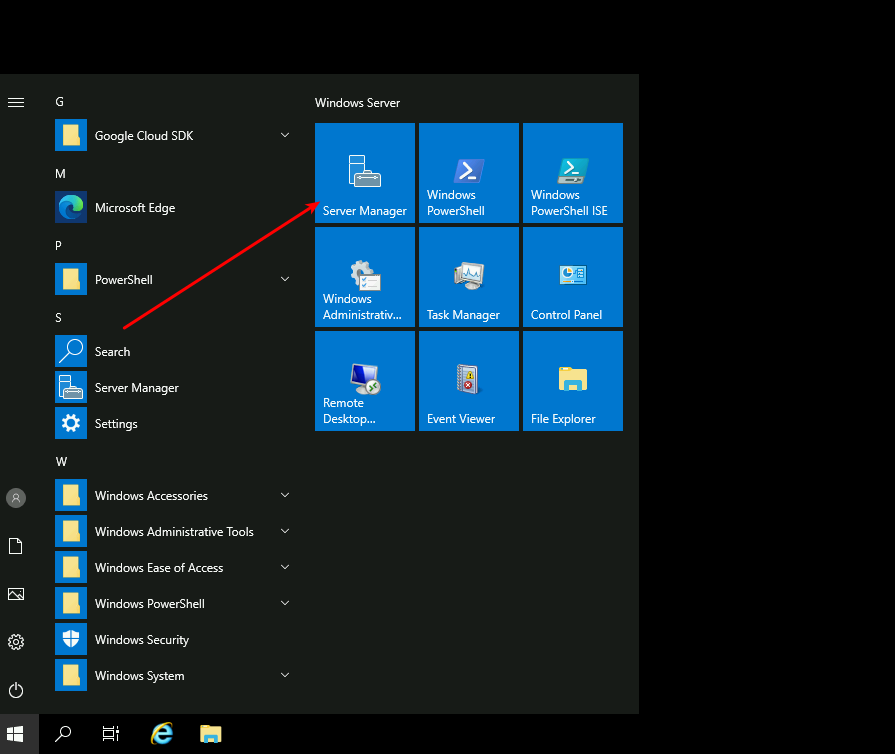
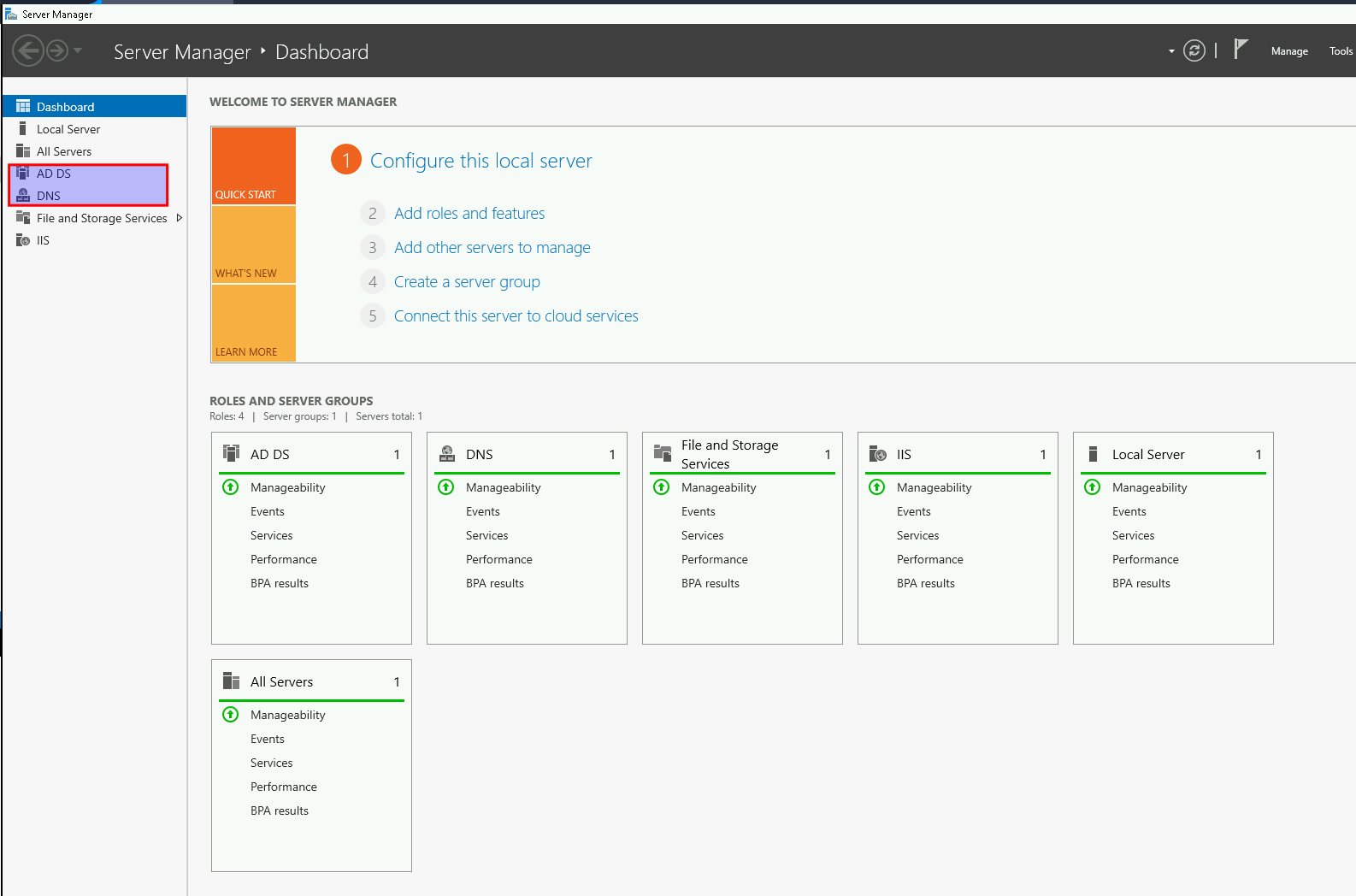
Once logged in you can navigate to Server Manager and confirm.