Module 2: CONTAIN — Patch and Enforce
- Learning objectives
- Exercise 1: Examine the Patch Policy
- Exercise 2: Write the Pre-Patch Policy Check Playbook
- Exercise 3: Build the Patching Workflow in AAP
- Exercise 4: Policy-as-Code Execution Gate
- Exercise 5: Execute the Patching Workflow
- Exercise 6: Review the Compliance Report
- Exercise 7: Test Policy Violation (Optional)
- Module summary
Red Hat has published RHSA-2024:5138 — a security advisory addressing CVE-2024-38476 in Apache HTTP Server. A patched httpd package is now available in your repositories.
However, Parasol Finance’s change management policy requires that patches pass several gates before application: backup verification, maintenance window check, approval, and post-patch compliance validation.
In this module you will build and execute a policy-gated patching workflow in AAP Controller.
Learning objectives
By the end of this module, you’ll be able to:
-
Write an Ansible playbook that queries OPA for policy decisions
-
Configure an AAP execution policy that enforces role-based access via OPA
-
Construct a multi-node AAP workflow with approval gates
-
Execute a patching workflow with policy enforcement
-
Generate compliance evidence as a workflow artifact
Exercise 1: Examine the Patch Policy
|
Why we do this: In regulated environments, you can’t just apply patches whenever you want. Change management policies exist because rushed patches cause outages. OPA (Open Policy Agent) codifies these policies so they can be evaluated automatically: Is there a recent backup? Are we in a maintenance window? Is there enough disk space? Is the service healthy? Policy-as-code means the rules are version-controlled, auditable, and consistently enforced — no more "I thought it was OK to patch during business hours." |
Before writing the playbook, understand the policies that govern patching at Parasol Finance.
-
Open the Gitea tab and navigate to
lab/policies/patch-policy.ymlto review the patch policy definition.Note the four automatable gates: maintenance window, backup verification, disk space, and service health. The fifth gate (change approval) is enforced by an AAP approval node.
-
Navigate to Terminal and simulate a recent backup on the app server by creating the backup marker:
ssh rhel01 sudo touch /var/log/last-backup-timestampThis simulates a successful backup completing within the policy window.
-
Verify OPA is running and the patch policy is loaded:
curl -s http://central:8181/v1/policies | python3 -c "
import sys, json
data = json.load(sys.stdin)
for p in data.get('result', []):
    print(f\"  {p['id']}\")
"
Exercise 2: Write the Pre-Patch Policy Check Playbook
|
Why we do this: Ansible gathers the facts, OPA makes the decision. The playbook collects real system state — backup age, disk space, service health — and sends it to OPA for evaluation against the organization’s patch policy. If any gate fails, patching is blocked with a clear reason. This separation of concerns means security teams own the policy (in OPA), platform teams own the automation (in Ansible), and neither can override the other without a visible audit trail. |
You will write a playbook that gathers system facts, sends them to OPA for evaluation, and blocks patching if any policy gates fail. A skeleton file with detailed instructions has been provided.
-
Go to the Gitea tab, navigate to
lab/policies/patch-policy.ymland read through the Rego policy. The company policy will check for:-
Maintenance Window
-
Backup Verification
-
Disk Space
-
Service Health
-
Change Approval in AAP
-
-
In the Gitea tab, navigate to
lab/playbooks/contain/pre-patch-check.ymland read through the playbook. Uncomment the Query OPA patch policy task. -
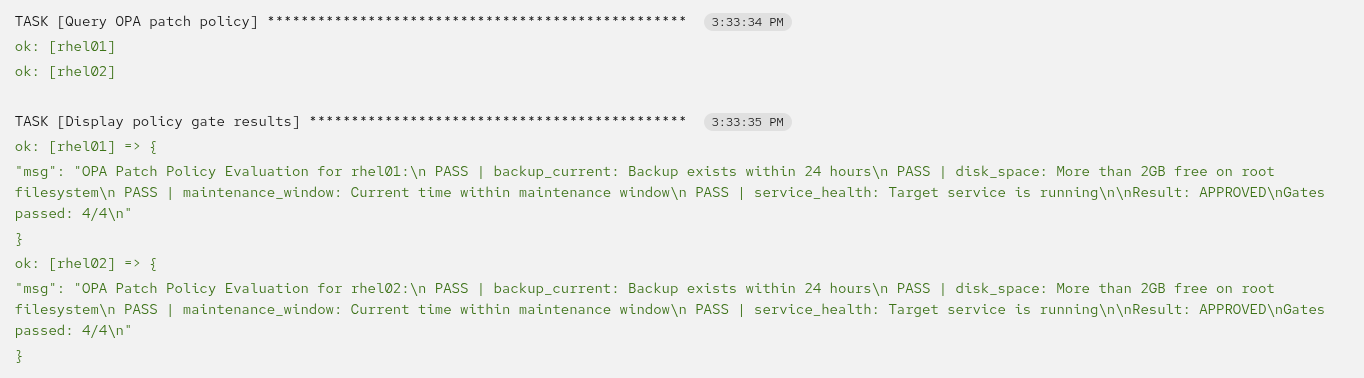
Commit your changes in Gitea, then sync the project in AAP Controller (Automation Execution → Projects → DCC Workshop → Sync). Test by launching the CONTAIN - Pre-Patch Check job template and check the output of the Display policy gate results task
Exercise 3: Build the Patching Workflow in AAP
|
Why we do this: The workflow enforces a sequence that can’t be shortcut: policy check → human approval → patch → verify → report. The approval node is the Change Advisory Board in code — it pauses the workflow until an authorized person explicitly approves. Automation handles the tedious parts (gathering evidence, applying patches, running verification) while humans stay in the loop for the decision that carries risk. If the policy check fails, the workflow never reaches the approval node. |
Now construct the workflow that chains the policy check, approval, patching, and reporting.
-
In AAP, navigate to Automation Execution → Templates.
-
Click the Edit on the Policy-Gated Patching workflow.
-
Confirm the workflow template details:
-
Name:
Policy-Gated Patching -
Organization:
Default -
Inventory:
DCC Workshop -
Leave all other settings at their defaults
-
Click Create Workflow Template
-
-
After saving, you’ll be taken to the workflow details page. Click the view worklfow visualizer button.
-
You’ll see an empty canvas with a Add step node. Click the Add step node to add the first step.
-
Add Node 1 — Pre-Patch Check:
-
In the dialog that appears, select Job Template as the node type
-
Search for and select CONTAIN - Pre-Patch Check
-
Click Next and Finish
-
-
Add Node 2 — Approval Gate:
-
Hover over the CONTAIN - Pre-Patch Check node and click the three dots/options icon and select add step and link
-
Select Approval as the node type
-
Name:
Approve Patch Application -
Description:
Security team approval required before applying RHSA-2024:5138 -
Timeout:
900seconds (15 minutes) -
Select Run on success on the Status field.
-
Click Next and Finish.
-
-
Add Node 3 — Patch System:
-
Hover over the Approve Patch Application node and click the three dots/options icon and select add step and link
-
Select On Success as the link type
-
Select Job Template as the node type
-
Search for and select CONTAIN - Patch System
-
Click Save
-
-
Add Node 4 — Post-Patch Verify:
-
Hover over the CONTAIN - Patch System node and click the three dots/options icon and select add step and link
-
Select Job Template → CONTAIN - Post-Patch Verify
-
Select On Success for the status field.
-
Click Next and Finish
-
-
Add Node 5 — Report Compliance:
-
Hover over the CONTAIN - Post-Patch Verify node and click the three dots/options icon and select add step and link
-
Select Job Template → CONTAIN - Report Compliance
-
Select Run on success on the Status field.
-
Click Next and Finish
-
-
Review the completed workflow. The visualizer should show:
CONTAIN - Pre-Patch Check → Approve Patch Application → CONTAIN - Patch System → CONTAIN - Post-Patch Verify → CONTAIN - Report Compliance
-
Click Save in the Visualizer to persist the workflow.
Exercise 4: Policy-as-Code Execution Gate
|
Why we do this: Policy-as-code isn’t just about system state — it’s about who can execute critical operations. In regulated environments, a general administrator shouldn’t be able to apply security patches; that’s the security team’s responsibility. AAP Controller’s Policy feature integrates directly with OPA to enforce this at the platform level — before a job even starts. This is stronger than RBAC alone: RBAC controls what you can see and click, but an execution policy controls what the platform is allowed to run. Even a superuser can be blocked by policy. |
AAP Controller can enforce OPA policies as execution gates. You will configure a policy that blocks the patching workflow unless it’s launched by an authorized security engineer.
-
First, examine the execution policy. Open the Gitea tab and navigate to
lab/setup/files/opa-policies/dcc-execution-policy.rego. You will see that the policy specifies the authorized user issecurity_engineer. -
We can configure the Policy as code integration into OPA on the platform to ensure policy is checked when we launch a template.
-
In AAP Controller, navigate to Settings → Automation Execution → Policy and click on the pencil to edit the settings.
-
Click Edit and configure:
-
OPA Server hostname:
192.168.1.11 -
Click Save
-
-
Next navigate to Access Management → Organizations, and click on the pencil to edit Default. Configure the Policy Enforcement path to be:
aap/gateway/decision. Click Next and Finish.
This means AAP will query OPA before the workflow starts. If OPA returns allow: false, the workflow is blocked at the platform level — no playbook code runs at all.
-
Test as
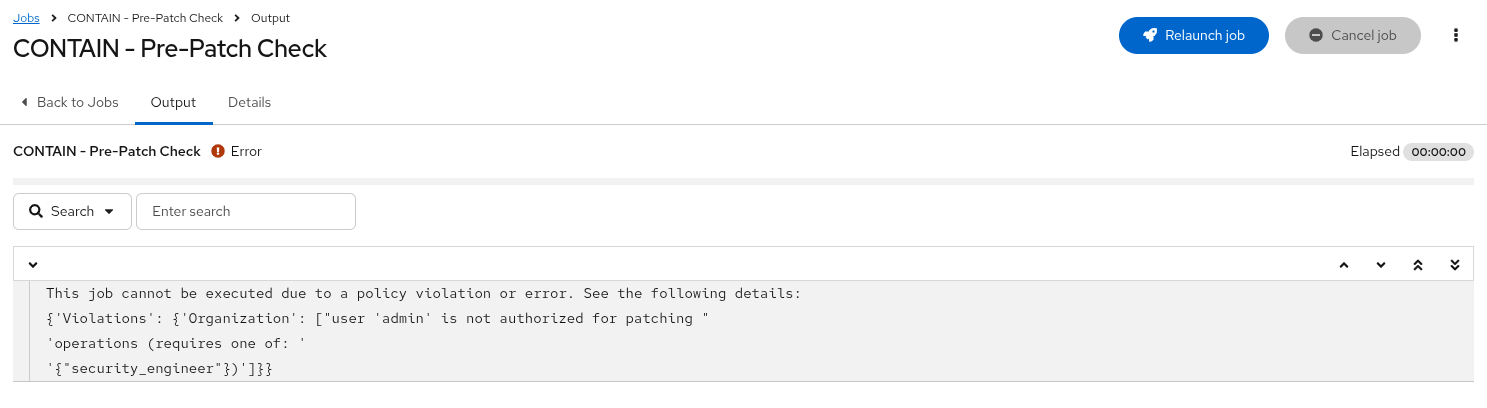
admin: navigate to Automation Execution → Templates and try to launch the Policy-Gated Patching workflow. The job will fail, if you select the failed template you will see the authorization error.
+
AAP blocks the launch — the policy gate denies admin. Note the difference from Exercise 2: the pre-patch check playbook evaluates system state (backup, disk, service). The execution policy evaluates who is requesting the action. Two layers, two concerns.
+
|
This is the key insight: even though |
-
We should set the password of the security_engineer, navigate to Access Management → Users, and click on the pencil to edit the user. Set the password to:
-
Username:
security_engineer -
Password:
ansible123!
-
-
Log out of AAP Controller (click the user icon in the top right → Log out).
-
Log back in as the security engineer
Exercise 5: Execute the Patching Workflow
|
Why we do this: Running the workflow end-to-end proves the full chain works: policy evaluation, human approval, patch application, post-patch verification, and compliance reporting — all as a single auditable unit of work. The |
Stay logged in as security_engineer — the execution policy you configured in Exercise 4 has already verified your identity. Now the workflow’s pre-patch check will evaluate system readiness.
-
Navigate to Automation Execution → Templates and launch the Policy-Gated Patching workflow
-
Look at the first node (CONTAIN - Pre-Patch Check) execute. It will:
-
Gather system facts (backup age, disk space, service health)
-
Send the data to OPA for system-level policy evaluation
-
Display PASS/FAIL for each gate
If the maintenance_window gate fails (because the current hour is outside the 6:00–22:00 window), you can adjust it using the CONTAIN - Update Maintenance Window job template in AAP. It has a survey that lets you set the start and end hours. This updates the OPA policy in real time without restarting any services.
-
-
The workflow will pause at the Approve Patch Application node. You’ll see a notification banner in AAP.
-
Navigate to Bell in the top right of the platform.
-
You should see the Workflow Approval waiting
-
Click on the Approve Patch Application node
-
Click Approve to authorize the patch
This simulates the Change Advisory Board sign-off. In production, this would typically be a different person or team.
-
-
Navigate back to Jobs and Watch the workflow proceed through the remaining nodes:
-
CONTAIN - Patch System — installs
httpd-2.4.62-1.el9from the errata repository -
CONTAIN - Post-Patch Verify — confirms CVE-2024-38476 is resolved by checking
yum updateinfo -
CONTAIN - Report Compliance — generates an HTML compliance report with patch evidence
-
-
Wait for all nodes to complete with green checkmarks.
-
Verify from the terminal that the patch was applied on rhel01:
ssh rhel01 rpm -q httpdExpected:
httpd-2.4.62-1.el9(or newer). -
Confirm the CVE is no longer pending:
ssh rhel01 'yum updateinfo list cves 2>/dev/null | grep CVE-2024-38476 || echo "CVE-2024-38476: RESOLVED"' -
Check that httpd is still running with the patched version:
ssh rhel01 sudo systemctl status httpd --no-pager
Verify
-
The workflow completed all five nodes successfully (all green checkmarks)
-
httpdis upgraded to the patched version (httpd-2.4.62-1.el9or newer) -
CVE-2024-38476 no longer appears in pending advisories
-
The approval gate paused the workflow until you explicitly approved
-
The execution policy allowed
security_engineerto launch the workflow
Exercise 6: Review the Compliance Report
The final workflow node generated an HTML compliance report.
-
The compliance report is automatically published to the central compliance portal. Click the Compliance Portal tab in the workshop sidebar to view it.
You should see the report listed on the portal index page. Click the report link to view the full HTML report.
-
You can also check the report directly on rhel01:
ssh rhel01 ls -la /tmp/compliance-reports/You should see the report file with today’s date.
-
View the report content — check for the advisory and remediation evidence:
ssh rhel01 'cat /tmp/compliance-reports/compliance-report-$(date +%Y-%m-%d).html | grep -A2 "Advisory Applied"' -
Check the package version recorded in the report:
ssh rhel01 'cat /tmp/compliance-reports/compliance-report-$(date +%Y-%m-%d).html | grep -E "httpd|CVE|RHSA|SELinux" | head -10' -
In AAP, go back to Automation Execution → Jobs and click on the completed Policy-Gated Patching workflow job. Click on the Pre-Patch Check
On the job details look at the Artifacts panel. The
set_statsdata from each job shows the complete audit trail:-
pre_patch_policy_passed: 2
-
policy_check_timestamp: 2026-09-02T19:56:42Z2026-09-02T19:56:43Z
-
policy_gates_passed: '44'
This data is machine-readable and flows between workflow nodes — compliance teams can query it programmatically.
-
Exercise 7: Test Policy Violation (Optional)
|
Why we do this: A policy gate is only valuable if it actually blocks. Removing the backup marker simulates a real scenario — someone tries to patch a system that hasn’t been backed up recently. The pre-patch check fails with a specific, actionable message. This demonstrates that the automation is safe by default: it won’t take a risky action just because someone clicked "run." |
Demonstrate what happens when policy gates fail.
-
First, verify the backup marker currently exists on rhel01:
ssh rhel01 ls -la /var/log/last-backup-timestamp -
Remove the backup marker to simulate a stale or missing backup:
ssh rhel01 sudo rm -f /var/log/last-backup-timestamp -
In AAP Controller, navigate to Resources → Templates and launch just the CONTAIN - Pre-Patch Check job template (not the workflow — we want to see the policy check in isolation).
-
Watch the job output carefully. The playbook will:
-
Attempt to check the backup marker file — it won’t exist
-
Report backup age as exceeding the allowed threshold
-
Send the data to OPA
-
OPA will return
allow_patch: false -
The playbook will fail with a clear message identifying which gate was violated
This is the policy working as designed — it prevents patching a system that hasn’t been recently backed up.
-
-
Now restore the marker so subsequent exercises work correctly:
ssh rhel01 sudo touch /var/log/last-backup-timestamp -
Optionally, re-run the pre-patch check to confirm it passes again — launch the CONTAIN - Pre-Patch Check job template from AAP Controller.
Module summary
You’ve successfully completed the CONTAIN module.
What you accomplished:
-
Wrote an Ansible playbook that queries OPA for policy-as-code decisions
-
Configured an AAP execution policy that queries OPA to enforce separation of duties
-
Built a multi-node AAP workflow with an approval gate
-
Executed policy-gated patching end-to-end as an authorized security engineer
-
Generated compliance evidence automatically
-
Demonstrated policy violation detection (missing backup)
Key takeaways:
-
OPA evaluates policy gates — Ansible gathers facts and enforces the decision
-
AAP execution policies enforce separation of duties at the platform level — OPA decides who can run what, before any playbook code executes
-
Approval nodes provide human-in-the-loop without slowing automation
-
set_statsprovides a machine-readable audit trail across workflow nodes -
Compliance reporting as a workflow step eliminates manual evidence gathering
Next steps: Module 3 will validate and harden the system’s compliance posture — proving the remediation meets organizational policy.