User Persona Testing in Self-Service Automation Portal
Learning objectives
By the end of this module, you’ll be able to:
-
Test the Self-Service Automation Portal from different user perspectives
-
Validate that RBAC policies correctly control what each user can see and execute
-
Understand the self-service experience for non-automation experts
-
Run automation jobs as domain-specific users (cloud, network, RHEL administrators)
-
Verify that users can only access credentials and inventories they’re authorized to use
In the first part of this workshop, we configured Ansible Automation Platform for Self-Service Portal and configured RBAC in AAP 2.6 that will be used for Self-Service Portal. In this part of the workshop, we will test the Self-Service Automation Portal with the different user personas we created in the previous section.
The 3 user personas we will test are a Cloud Administrator, a Network Administrator, and a Red Hat Enterprise Linux (RHEL) Administrator, all with different expertise but with limited knowledge of automation and Ansible Automation Platform. They just need to be able to run automation jobs that are relevant to their IT domains.
User |
Password |
clouduser1 |
|
networkuser1 |
|
rheluser1 |
|
| FOR BEST RESULTS… When logging in and out of Ansible Automation Platform AND Self-Service portal as different users, PLEASE CLOSE AND RE-OPEN YOUR BROWSER IN PRIVATE MODE (New Incognito Window) to ensure you are logged in / logged out as the correct user. |
Test as user clouduser1
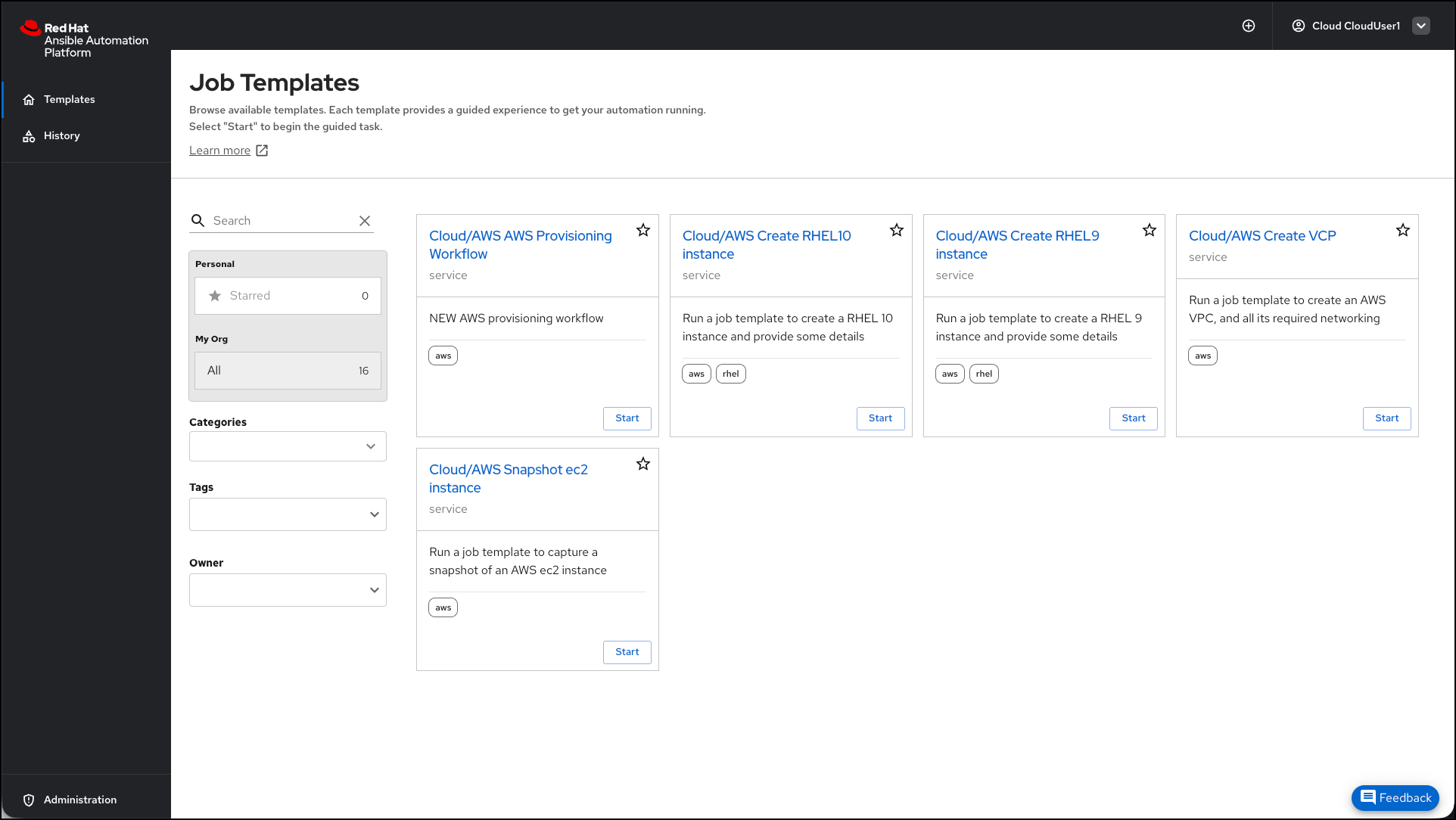
Log in to the Self-Service Portal as clouduser1 with password {aap_admin_password}. You should see the Cloud job templates.
Test cloud automation execution
Let’s run a cloud job template to validate permissions:
Select a job template to run
Scroll through the available templates and click Start on any Cloud/AWS job template (example: Cloud/AWS Create VPC)
Review the job launch form
Notice you can see and select:
-
✅ Inventory: AWS Inventory (you have "Use" permission)
-
✅ Credentials: AWS Credential (you have "Use" permission)
-
❌ Other credentials: Network or GCP credentials may NOT be visible (correctly restricted by RBAC)
Monitor job execution
You’ll see the job progress in the Portal. The job will connect to AWS and execute the automation.
✅ Success indicator: Job completes with status "Successful" (green)
Review job output
Click View Job Details to see: - Execution time - Job output and results - Any warnings or errors
Expected behavior: The job should complete successfully, demonstrating that clouduser1 can execute cloud automation without full AAP access.
Try a few more cloud job templates to explore different automation capabilities available to cloud team users.
|
Key learning: Notice how you can execute cloud automation without knowing Ansible syntax or accessing the full AAP interface. This is the self-service experience that broadens automation adoption. |
Test as user networkuser1
Log in to the Self-Service Portal as networkuser1 with password {aap_admin_password}. You should see the Network job templates.
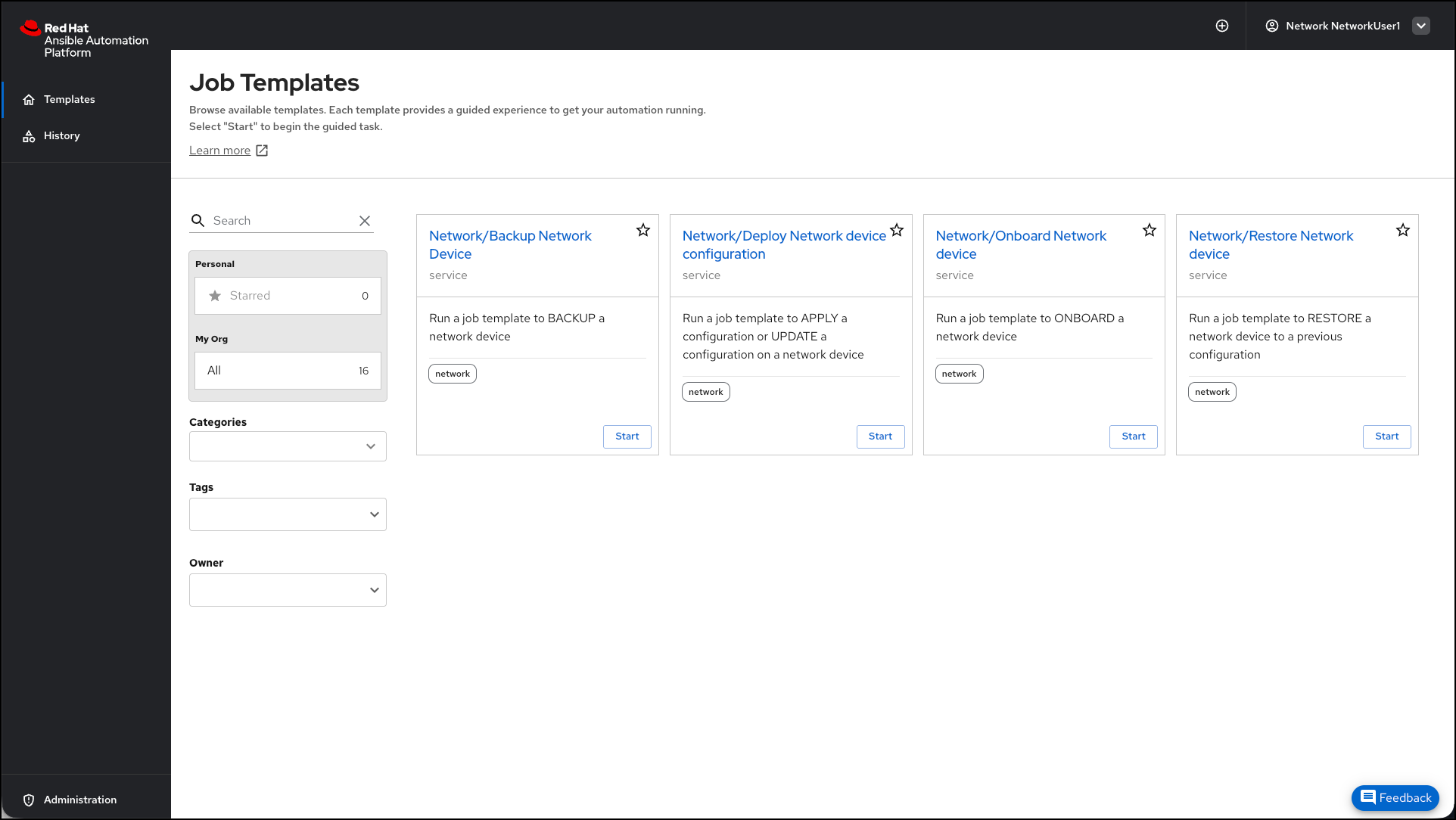
Take a moment and run some of the network job templates to see the results. Notice the user can select / change things like credentials and inventories, as they were granted access to use the credentials and inventories.
Test as user rheluser1
Log in to the Self-Service Portal as rheluser1 with password {aap_admin_password}. You should see the RHEL job templates.
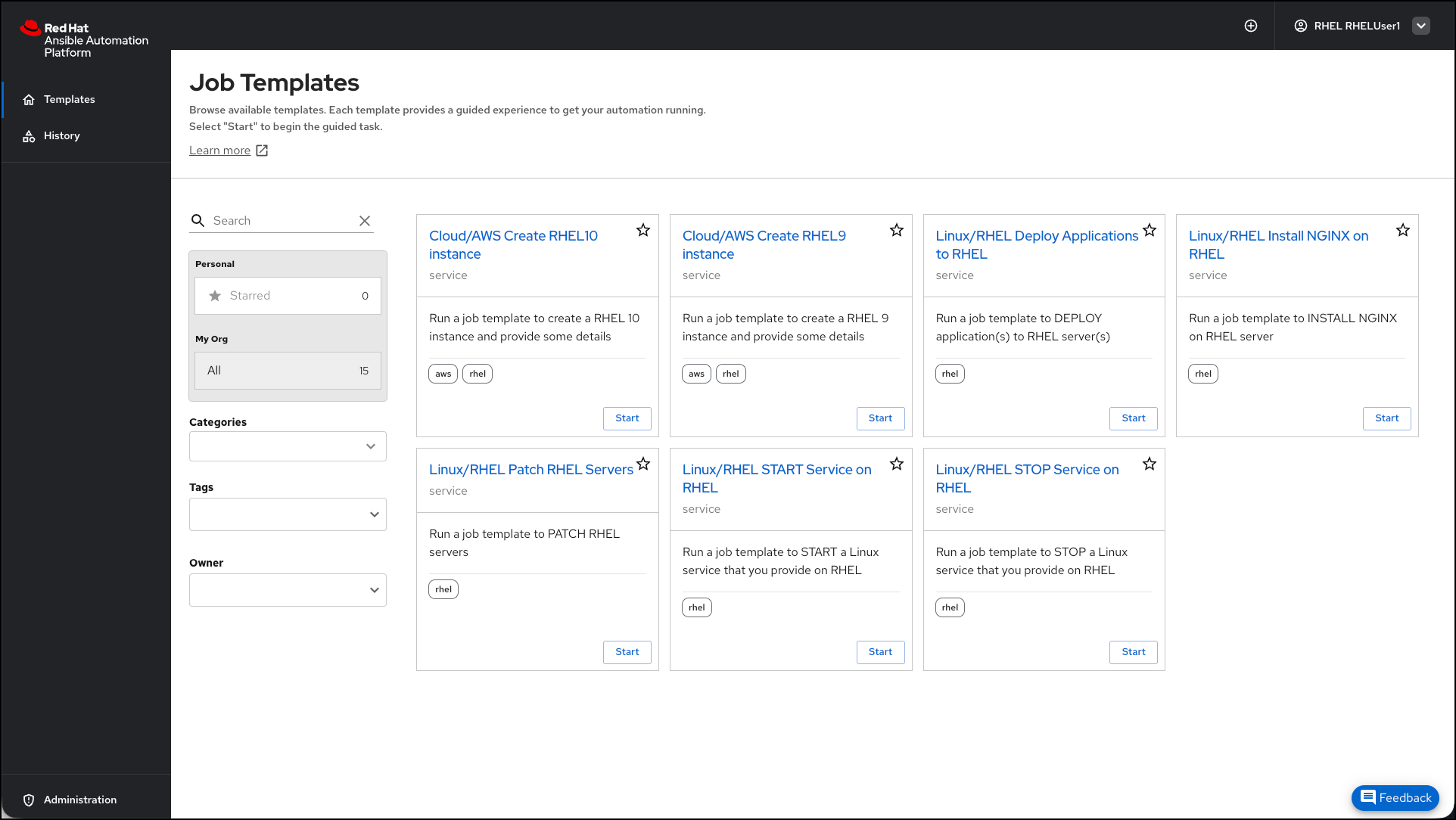
Take a moment and run some of the RHEL job templates to see the results. Notice the user can select / change things like credentials and inventories, as they were granted access to use the credentials and inventories.
Learning outcomes
By completing this module, you should now understand:
-
How RBAC controls the user experience - Different users see only the automation they’re authorized to access based on team membership and permissions
-
The self-service portal user perspective - How non-automation experts experience running automation without needing to understand Ansible or complex platform concepts
-
How permissions affect automation execution - Users can select and modify resources (credentials, inventories) they have "use" permissions for, but cannot see resources outside their scope
-
The value of persona-based access control - Domain experts (cloud, network, RHEL) can focus on their specific automation needs without being overwhelmed by unrelated templates
-
Validation of RBAC configuration - Testing as different users confirms that your permission policies work as intended
You’ve successfully validated that each user persona sees only their authorized automation templates and can execute jobs with appropriate credentials and inventories. The RBAC configuration you created in Module 1 is working correctly. Let’s move on to the next module where you will modify surveys in AAP and see the results in Self-Service Automation Portal, then import a custom dynamic template.