Surveys and Custom Templates
Learning objectives
By the end of this module, you’ll be able to:
-
Understand how surveys work in Ansible Automation Platform job templates
-
Modify surveys on job templates to enhance the user experience
-
Trigger synchronization between AAP and Self-Service Portal
-
Import custom dynamic templates from Git repositories
-
Launch and use custom dynamic templates to provide advanced automation experiences
-
Understand the difference between surveys and custom dynamic templates
In the previous section, you experienced the Self-Service Automation Portal with the different user personas. In this section, you will modify surveys on some job templates. See the results in Self-Service portal. Then you will import a custom dynamic template.
| FOR BEST RESULTS… When logging in and out of Ansible Automation Platform AND Self-Service portal as different users, PLEASE CLOSE AND RE-OPEN YOUR BROWSER IN PRIVATE MODE (New Incognito Window) to ensure you are logged in / logged out as the correct user. |
What are surveys in Ansible Automation Platform?
In Ansible Automation Platform (AAP), surveys are interactive forms within Job/Workflow Templates that prompt users for input (like text, choices, passwords, etc.) at launch, capturing these answers as extra variables to dynamically customize automation playbook runs. Surveys are a powerful way to make automation more user-friendly and adaptable without editing code.
Modify the survey on a job templates. Then see the results in Self-Service portal (auto synchronization)
Log in to the Ansible Automation Platform with the {aap_admin_username} user and password {aap_admin_password}.
Modify the surveys on a job template for the RHEL team
-
Expand the
Automation Executionmenu on the left.-
Automation Execution→Job Templates.
-
-
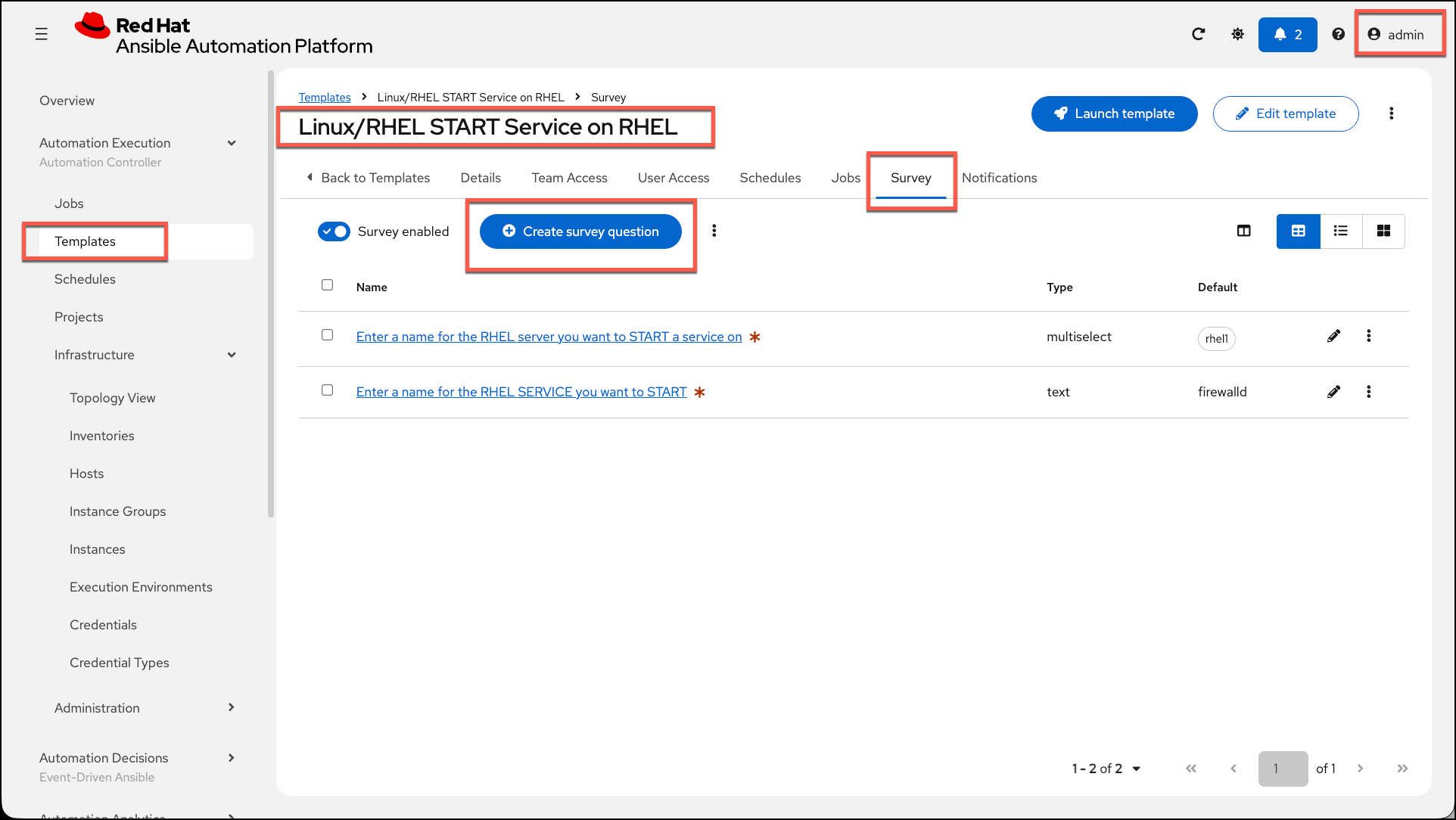
Select the job template
Linux/RHEL START Service on RHEL.
-
Click on the
Surveystab.-
Click on the
+Create survey questionbutton. -
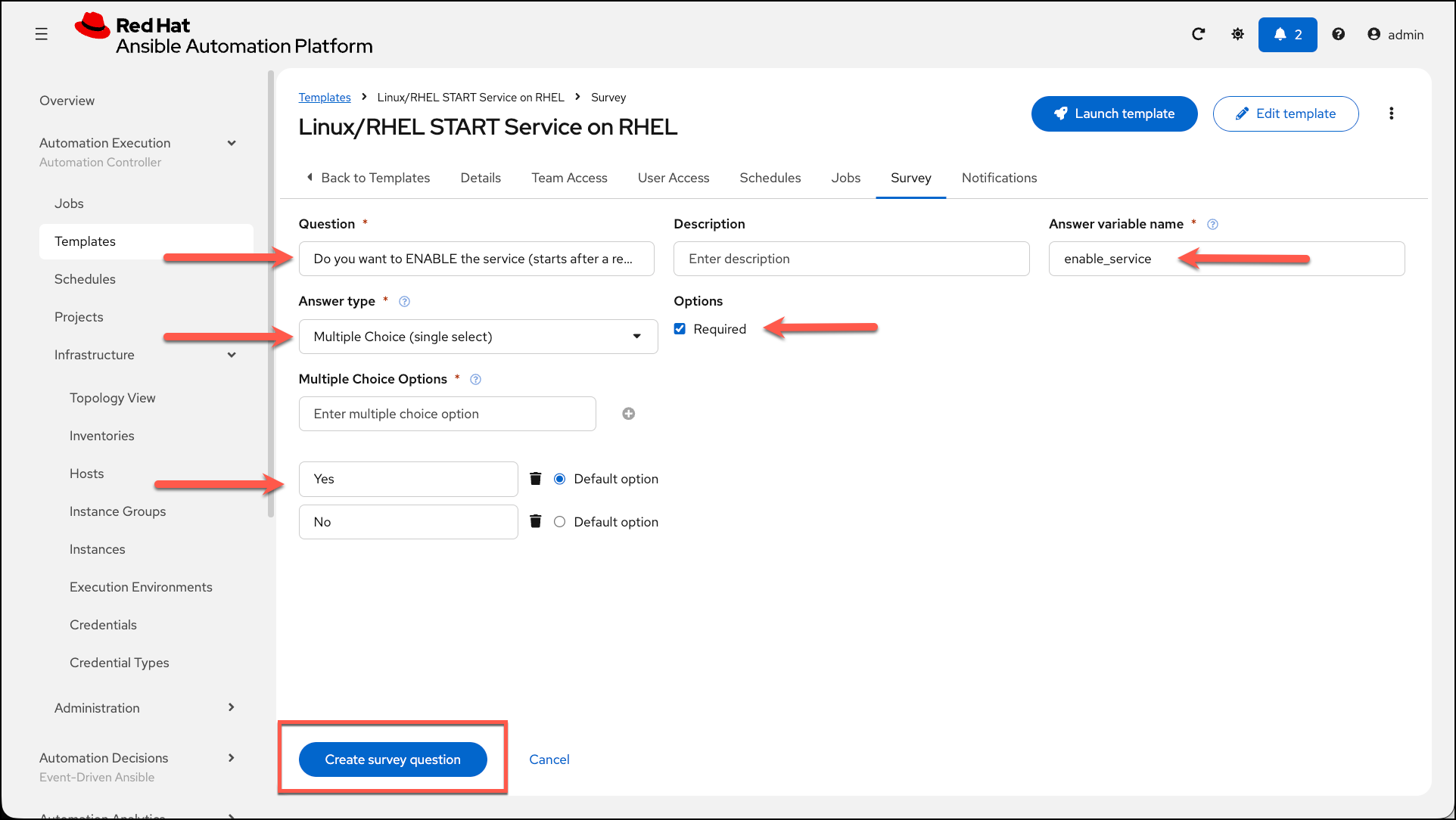
In the
Questionfield typeDo you want to ENABLE the service (starts after a reboot)?. -
In the
Answer variable namefield typeenable_service. -
Change the
Answer typetoMultiple Choice (single select). -
Add the following options:
-
Yes(Check theDefault Optioncheckbox) -
No
-
-
Scroll down and click on
Create survey questionto save the survey question.
-
-
You will now see the 3 survey questions in the job template.
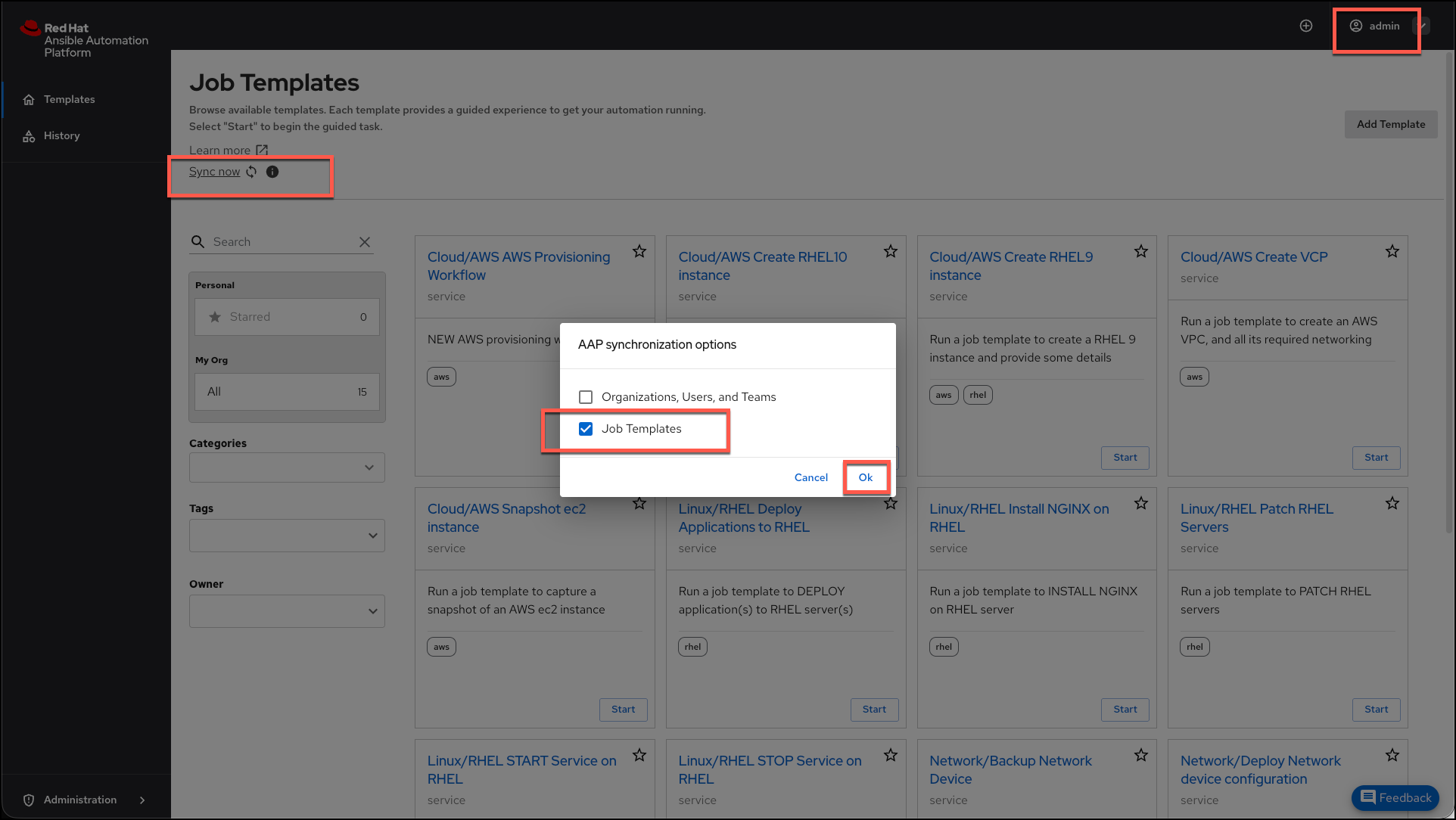
Modifications to the job template are automatically synchronized to the Self-Service portal on a regular interval (configurable in the Self-Service Portal Helm chart). However, you can also trigger an instant synchronization of the job templates manually by clicking on the Sync now button while logged in as the {aap_admin_username} user in the Self-Service portal.
-
Log in to the Self-Service Portal as
{aap_admin_username}with password{aap_admin_password}. You will see all the job templates.-
Use the
Sync nowbutton to synchronize the Job Templates from Ansible Automation Platform to the Self Service automation portal. This will take a few seconds to complete. -
When prompted for the AAP synchronization options, select
Job Templatesand click onOk.
-
-
Log out of the
Self-Service portalas{aap_admin_username}. -
Log in to the Self-Service Portal as
rheluser1with password{aap_admin_password}. You should see the RHEL job templates.-
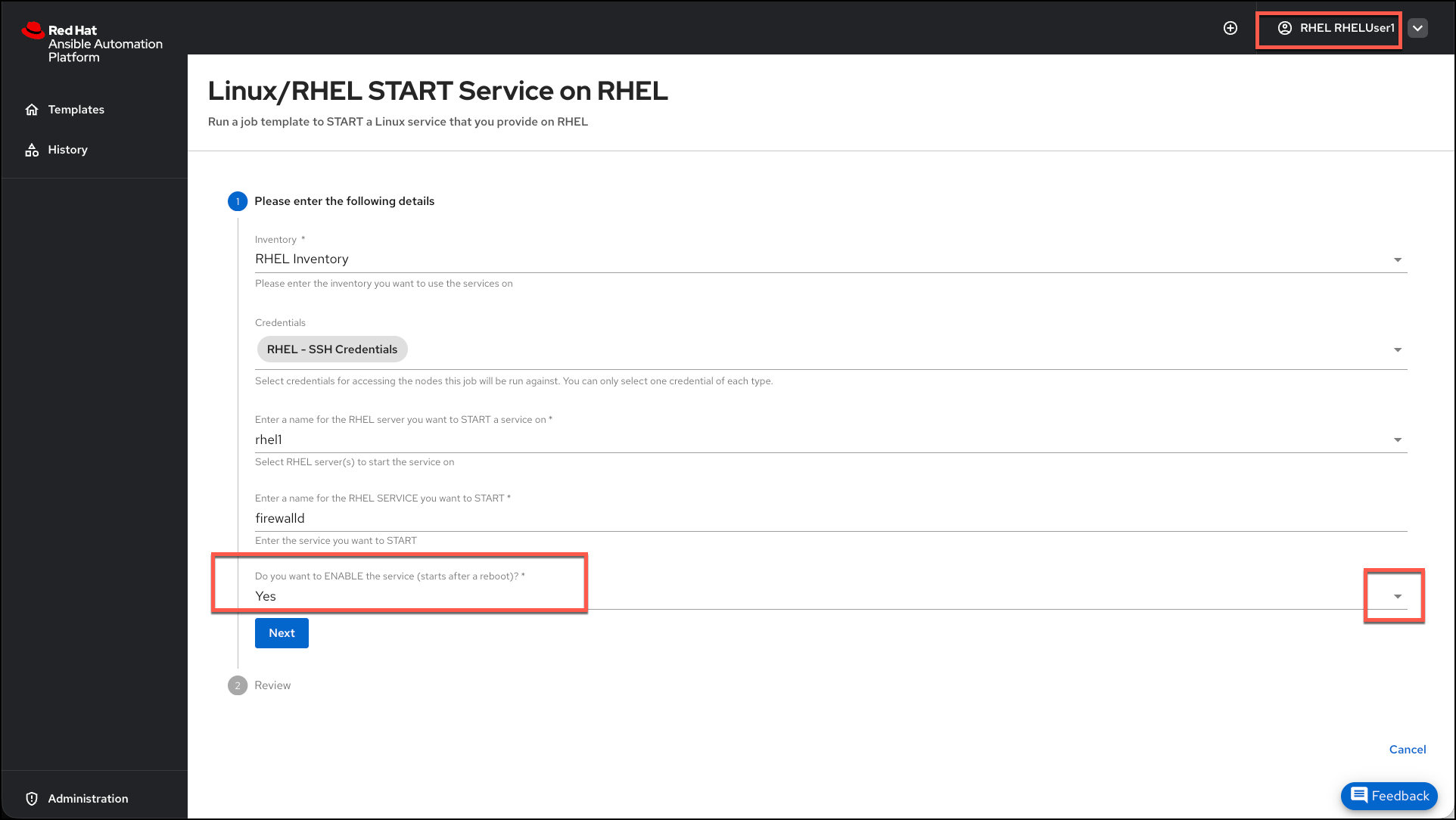
Run the job template
Linux/RHEL START Service on RHELby clikingStarton that job template tile.
-
-
You will see the survey question
Do you want to ENABLE the service (starts after a reboot)?in the job template. -
Select
Nextand click onCreateto run the automation job.
That was a quick look at how survey modifications to a job template are automatically synchronized to the Self-Service portal. Now let’s move on to the next section where you will import a custom dynamic template.
Import a custom dynamic template
Custom dynamic templates are templates that are stored in a Git repository and are imported into the Self-Service portal by an administrator. They are used to create new sophisticated, enterprise-ready templates that provide more advanced options than what surveys can offer.
Let’s go ahead and import a custom dynamic template.
-
Log in to the Self-Service Portal as
{aap_admin_username}with password{aap_admin_password}. -
In the top right corner, click on the
Add Template. -
You will be prompted to
Select URL. This will upload the custom dynamic template from a URL.-
Copy and paste the following URL into the
Select URLfield.
-
https://raw.githubusercontent.com/ansible-tmm/ssap-lab/main/customtemplate/rhel_dynamic.yml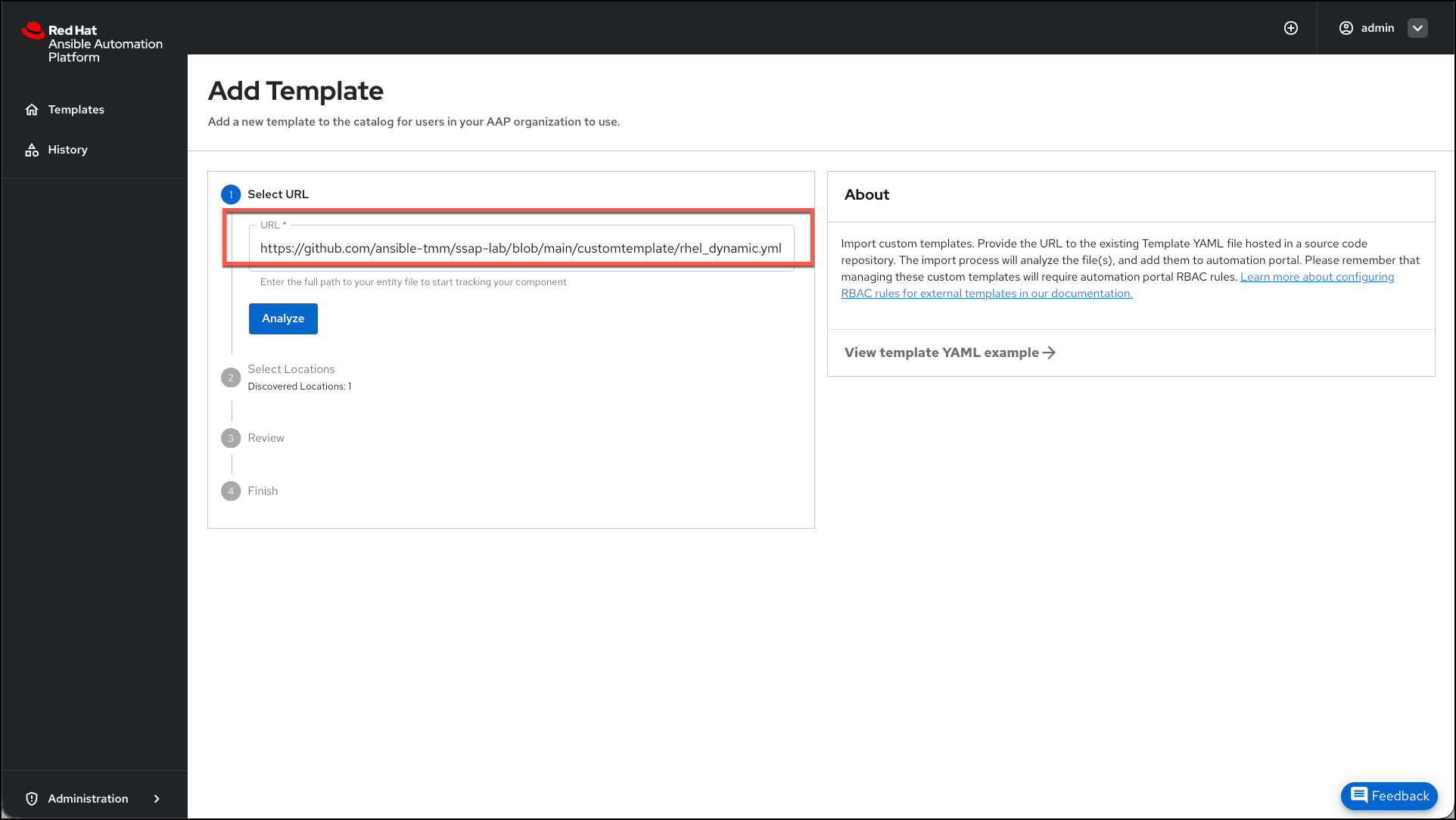
-
Select
Analyzeto analyze the custom dynamic template. -
You will see the
Reviewdetails. -
Click on
Importto import the custom dynamic template.
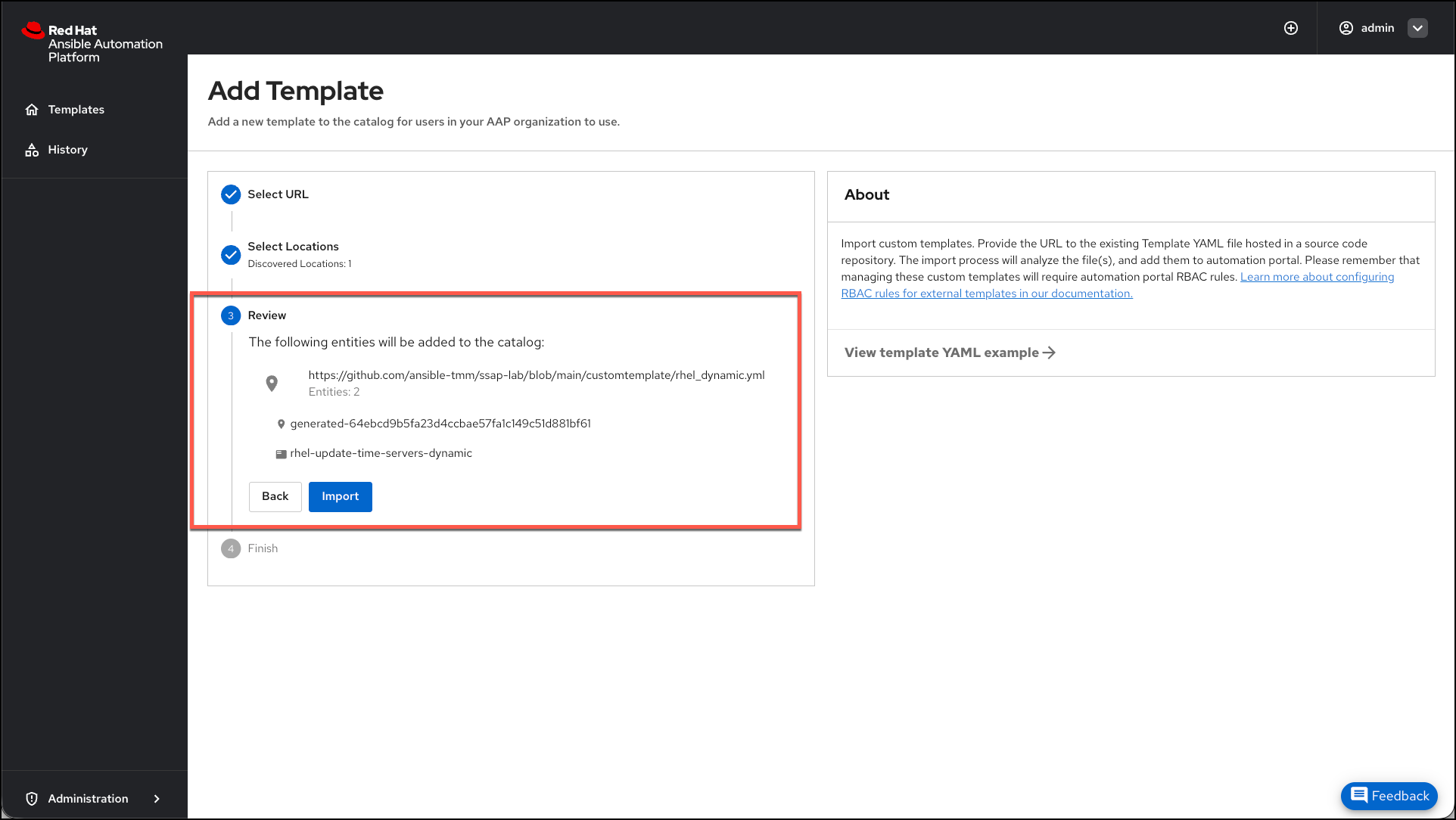
-
When you see
Step 4 Finishthe custom dynamic template will be imported successfully.
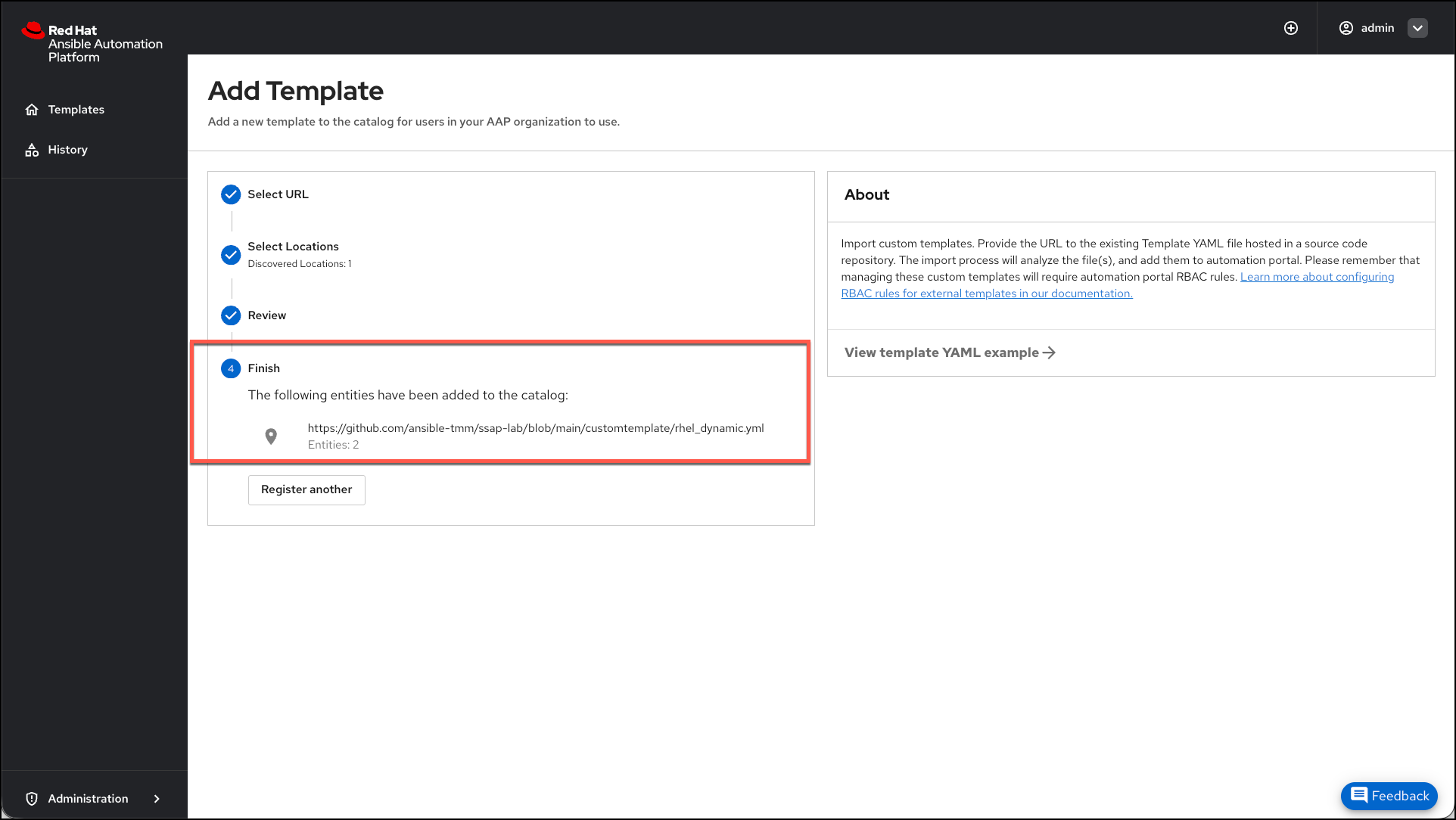
-
You will now see the custom dynamic template in the Templates list with a title of "Manage RHEL Time Servers" (may include clock emoji icon in the UI)
Launch the custom dynamic template from the Self-Service portal
Log in to the Self-Service Portal as rheluser1 with password {aap_admin_password}. You should see the RHEL job templates and the new custom dynamic template you imported titled "Manage RHEL Time Servers"
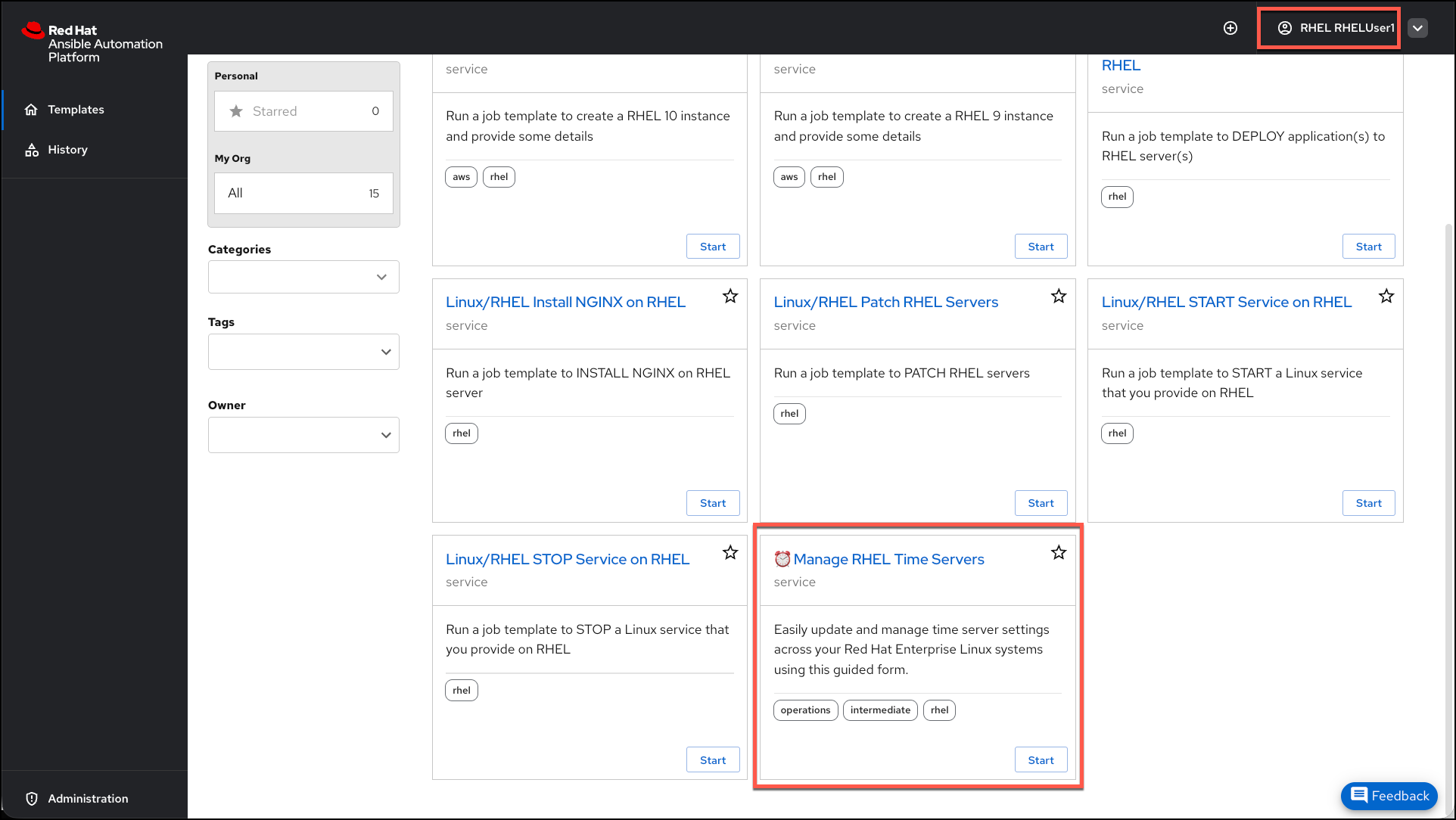
This custom template, is backed by another job template in Ansible Automation Platform. If you look at the URL of the yaml template you imported you will see the job template it is launching. In that yaml template there’s a section that looks like this:
    - id: launch-job
      name: Update Time Servers
      action: rhaap:launch-job-template
      input:
        token: ${{ parameters.token }}
        values:
          template: RHEL / Update RHEL Time Servers
          inventory: ${{ parameters.inventory }}
So this custom template is launching the job template RHEL / Update RHEL Time Servers. However the user will see many more options to choose from when they launch the custom template!
-
Launch the custom template (as the rheluser1 user) by clicking on the
Startbutton. -
Examine the options available to the user.
-
Enable the
Show Advanced Options?checkbox. Notice this provides many more options to the user. -
Select the options you like. Then advance to the last step and click on
Createto run the custom dynamic template automation job.
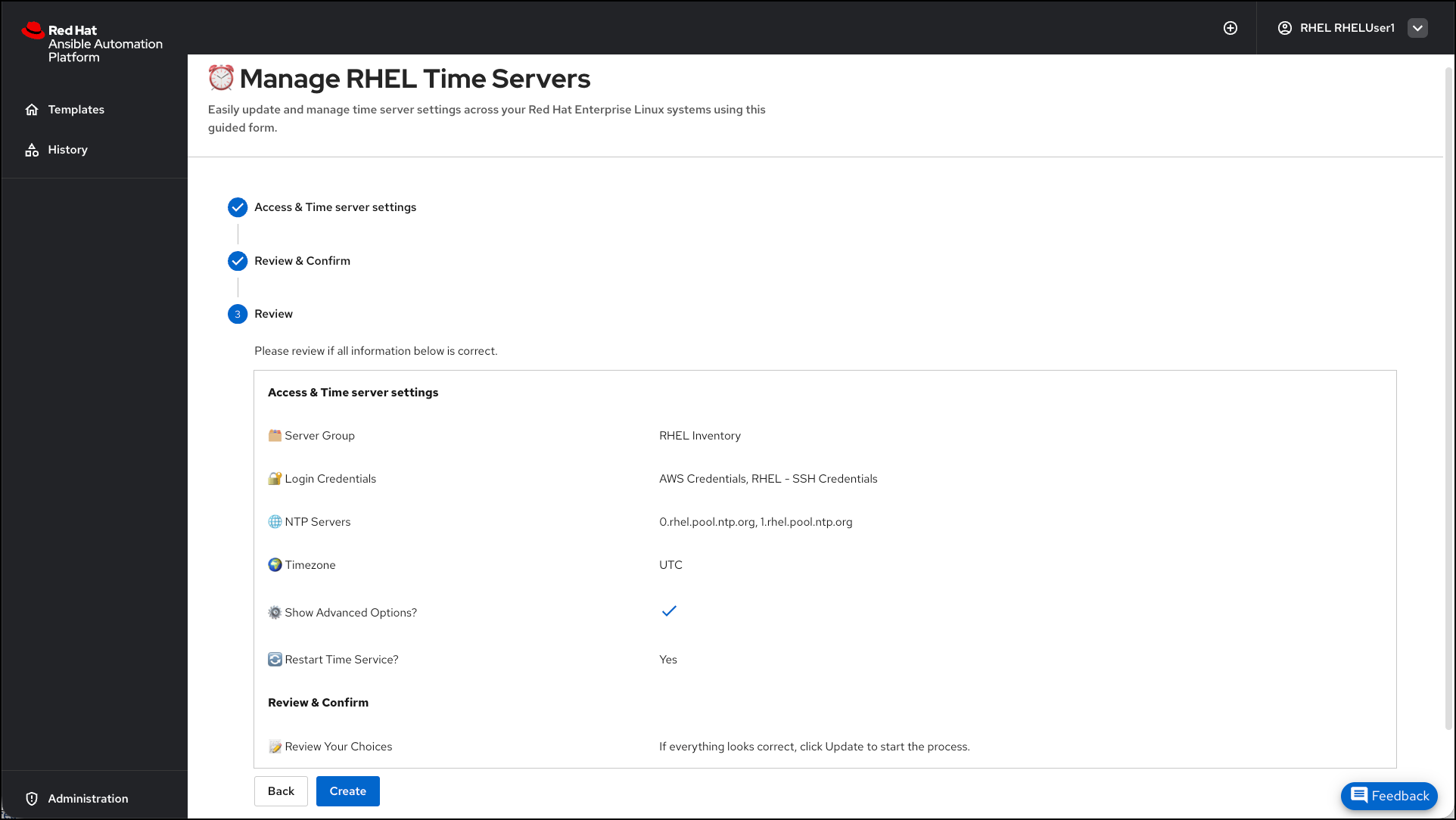
As you can see, custom dynamic templates provide a lot of flexibility to the user.
Learning outcomes
By completing this module, you should now understand:
-
How surveys work in Ansible Automation Platform - Surveys are interactive forms that prompt users for input at job launch time, making automation more user-friendly without requiring code changes
-
The synchronization workflow between AAP and Self-Service Portal - Changes to job templates and surveys in AAP automatically sync to the portal at regular intervals, or can be triggered manually
-
How to enhance the user experience with surveys - Adding survey questions provides dynamic input options while maintaining simplicity for end users
-
What custom dynamic templates are - Git-backed templates that provide sophisticated, enterprise-ready automation experiences beyond what surveys can offer
-
How to import and use custom templates - Custom templates can be imported from Git repositories and provide advanced options, conditional logic, and rich user interfaces
You have now completed this module. You’ve learned how to modify surveys on a job template, synchronize changes to the Self-Service Portal, and import and launch custom dynamic templates from Git repositories.