Module 3: Deploy and verify
In Module 2, you deployed your chatbot manually from Podman Desktop — great for testing, but not how Parasol runs production workloads. When you pushed your code to GitLab at the end of Module 2, a webhook triggered the automated CI/CD pipeline. This pipeline builds your container image using the same Containerfile you used locally and deploys it through ArgoCD’s GitOps process.
In this module, you’ll observe the automated build and deployment, then verify your AI chatbot is running live on OpenShift through the production pipeline.
Learning objectives
By the end of this module, you’ll be able to:
-
Monitor an automated OpenShift Pipeline (Tekton) build through the OpenShift console
-
Observe how OpenShift GitOps (ArgoCD) automatically syncs and deploys applications
-
Verify a live application running on OpenShift and access it through a route
-
Understand the difference between manual deployment and automated CI/CD
Exercise 1: Watch the CI/CD pipeline in action
The moment you pushed your code to GitLab in Module 2, a webhook triggered an OpenShift Pipeline. This pipeline pulls your source code, builds a container image using Buildah with the same Containerfile you used locally, and pushes it to the cluster’s container registry.
View the pipeline run in the OpenShift console
-
Switch to the OCP Console tab.
-
If prompted, log in with:
-
Username:
{user} -
Password:
{password}
-
-
Make sure the
{user}-demoproject is selected in the project dropdown at the top. -
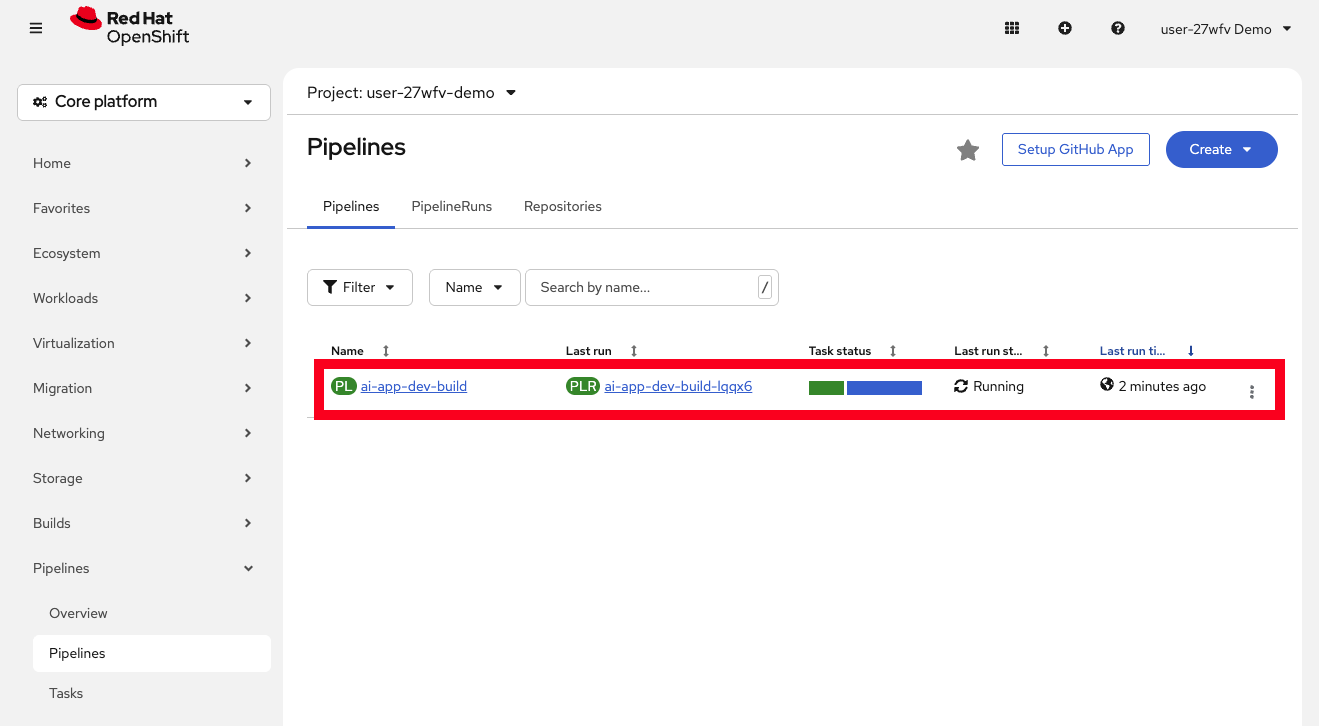
Navigate to Pipelines > Pipelines in the left menu. You should see your pipeline listed, and next to it the most recent PipelineRun which should be running (it takes about 4 minutes to complete).
-
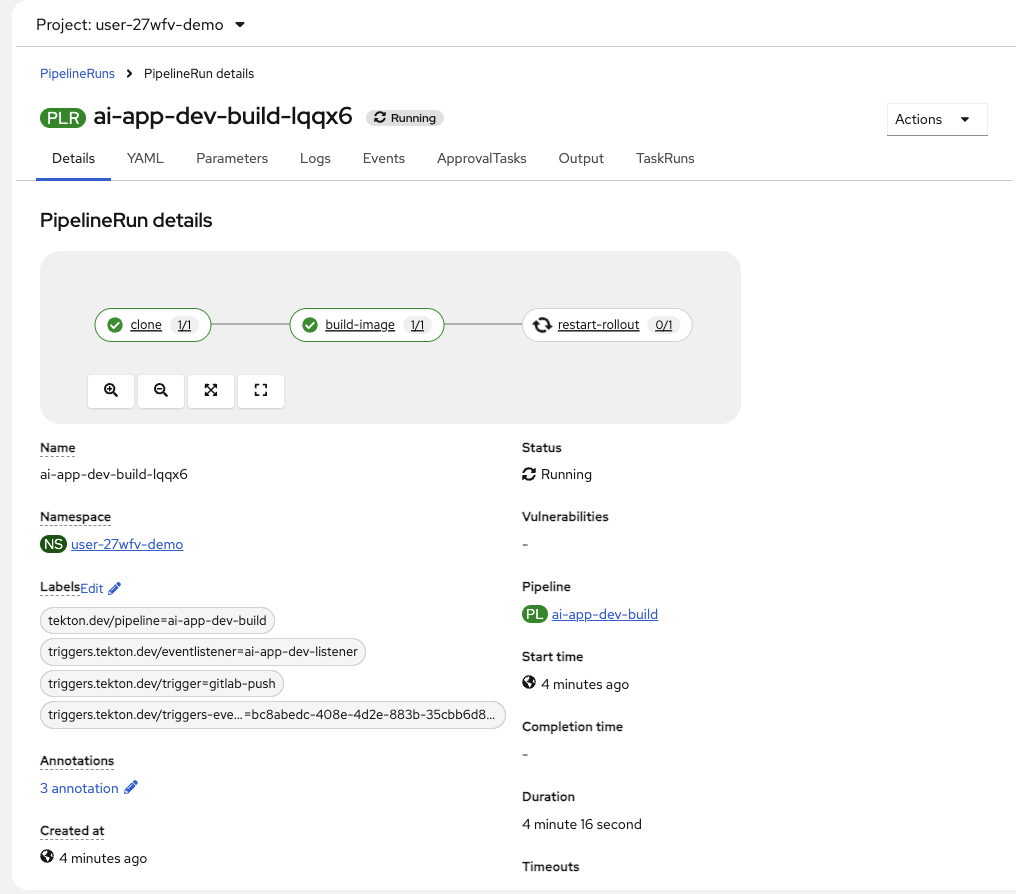
Click on the most recent PipelineRun under the Last Run heading to see the individual tasks and their status.
Understand the pipeline stages
The pipeline performs three tasks automatically:
-
clone — Pulls your code from the GitLab repository
-
build-image — Uses Buildah with the
Containerfileto build your container image and push it to the cluster’s internal container registry -
restart-rollout — Triggers a rollout restart of the Deployment to pick up the new image
-
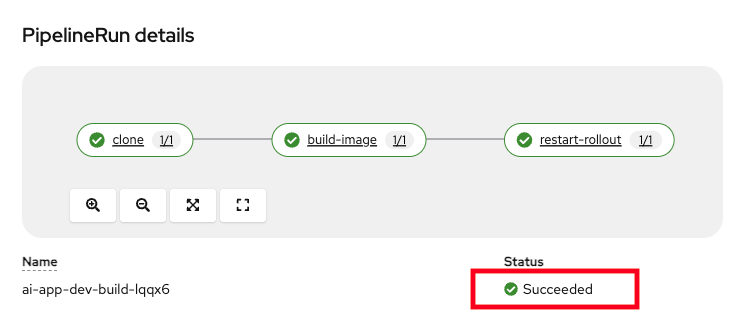
Wait for the pipeline to complete. All tasks should show a green checkmark.
You can click on each task to see its logs. The build-image task logs will look familiar — it’s building the container image using the same
Containerfilefrom Module 2.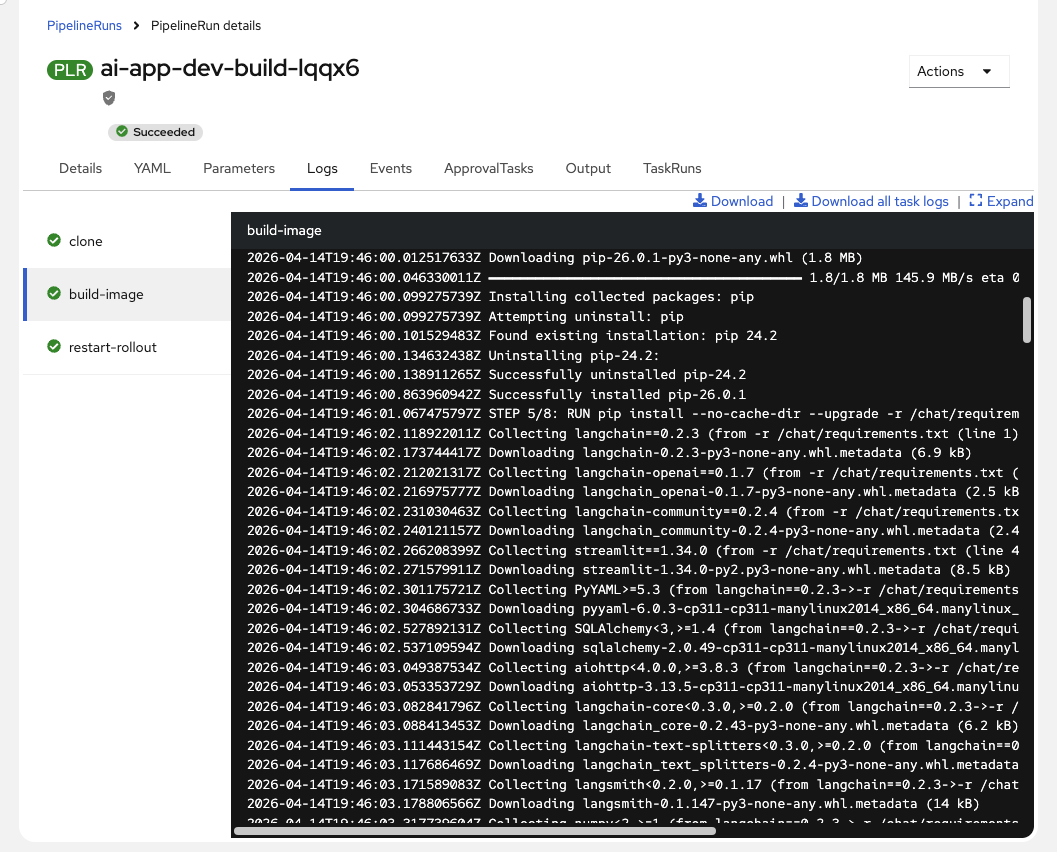
This automated pipeline replaces the 3-5 day manual handoff process at Parasol. The same Containerfile used locally builds the production image — eliminating the "works on my machine" problem.
View the pipeline in Developer Hub
You can also view this same pipeline information directly from Developer Hub — no need to switch to the OCP Console at all.
-
Switch to the Developer Hub tab and navigate to your component. Click on the CI tab to see your pipeline runs, their status, and logs for each task.
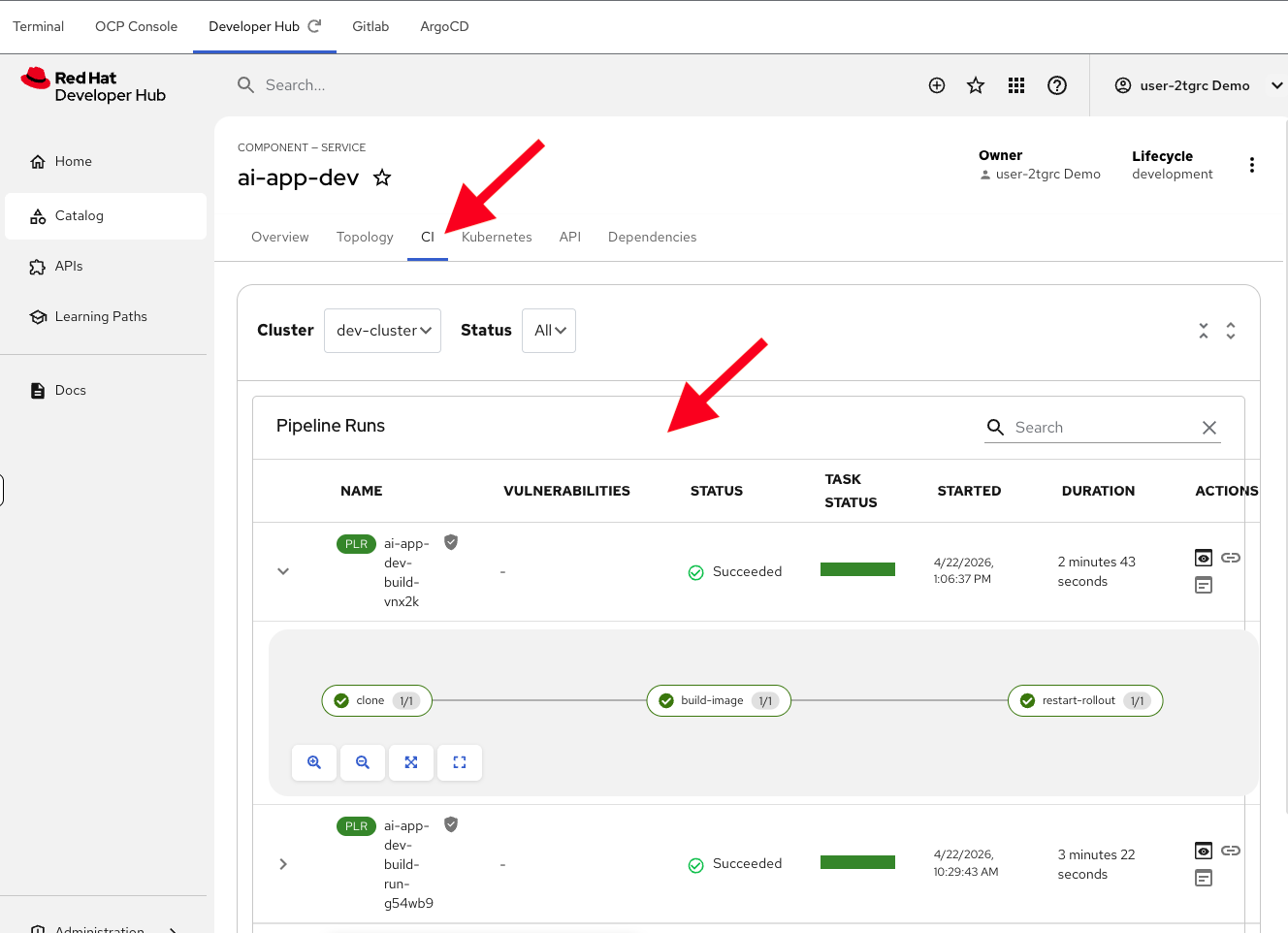
By configuring Red Hat Developer Hub as a single pane of glass, platform engineers can increase developer productivity by minimizing "console fatigue." Developers don’t need to context-switch between the OCP Console, ArgoCD, GitLab, and other tools for their daily work — everything they need is accessible from one place.
Exercise 2: Observe the GitOps deployment
With the container image built and pushed, ArgoCD takes over. OpenShift GitOps (ArgoCD) watches for changes to the deployment manifests and automatically syncs them to the cluster.
View the ArgoCD sync
-
Switch to the ArgoCD tab.
-
Click the LOG IN VIA OPENSHIFT button, which will log you automatically (if its been too long, you may need to log in again with your credentials):
-
Username:
{user} -
Password:
{password}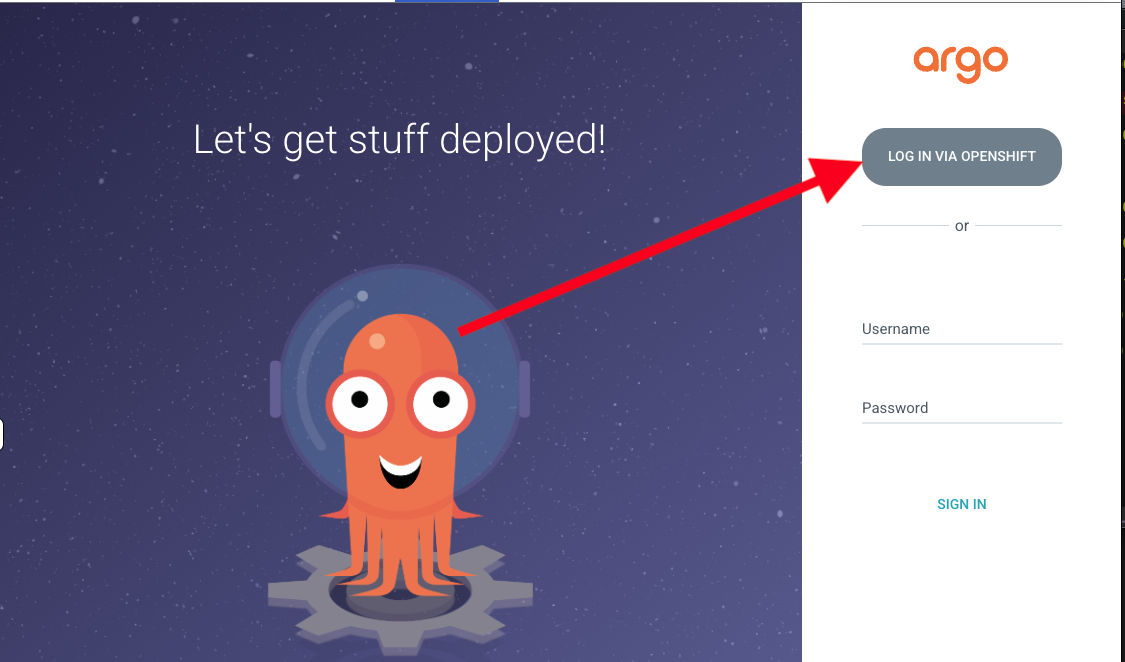
On the Authorize Access screen, click Allow Selected Permissions to grant ArgoCD access to your identity information.
-
-
Once logged in, you should see the
ai-app-devapplication. Click on it to see its details.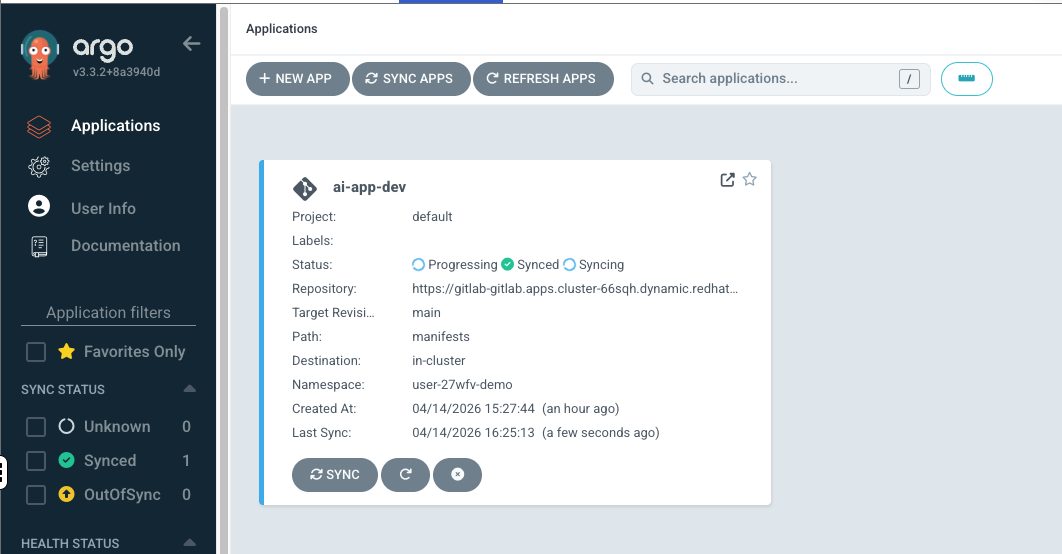
-
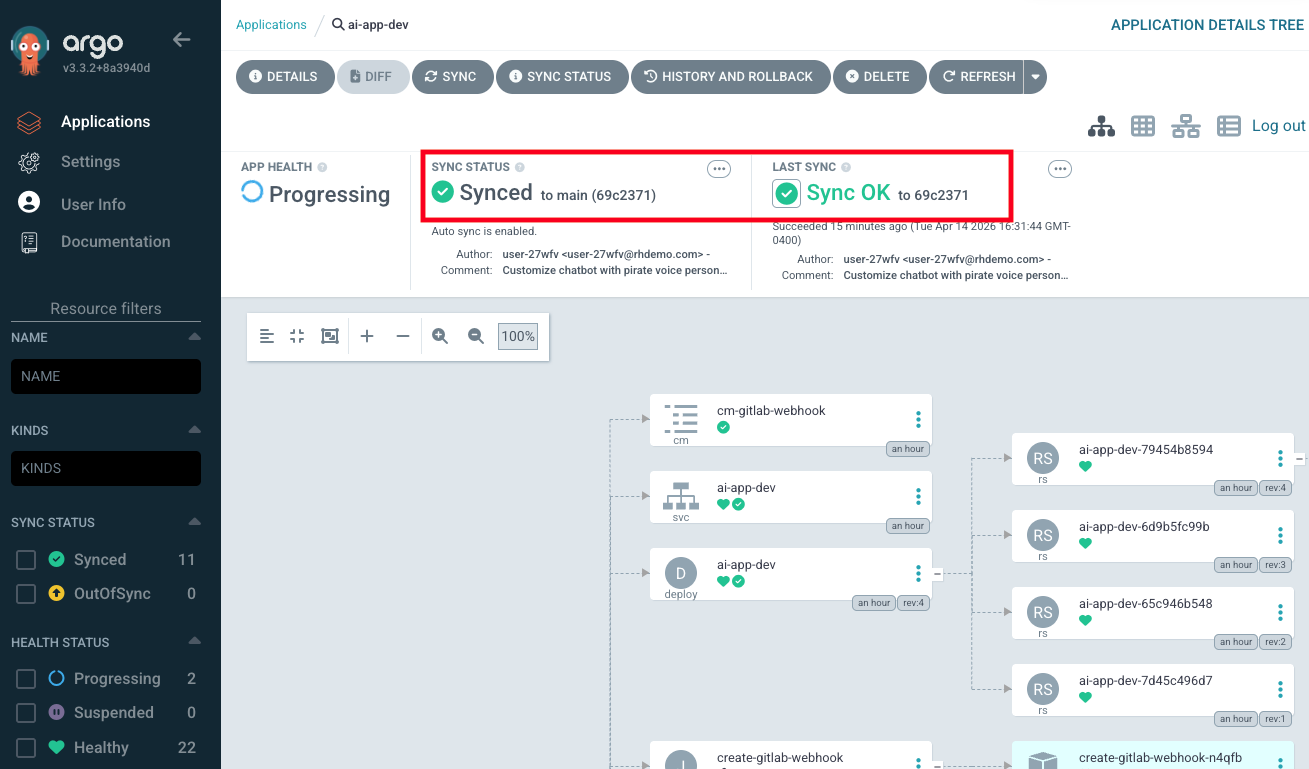
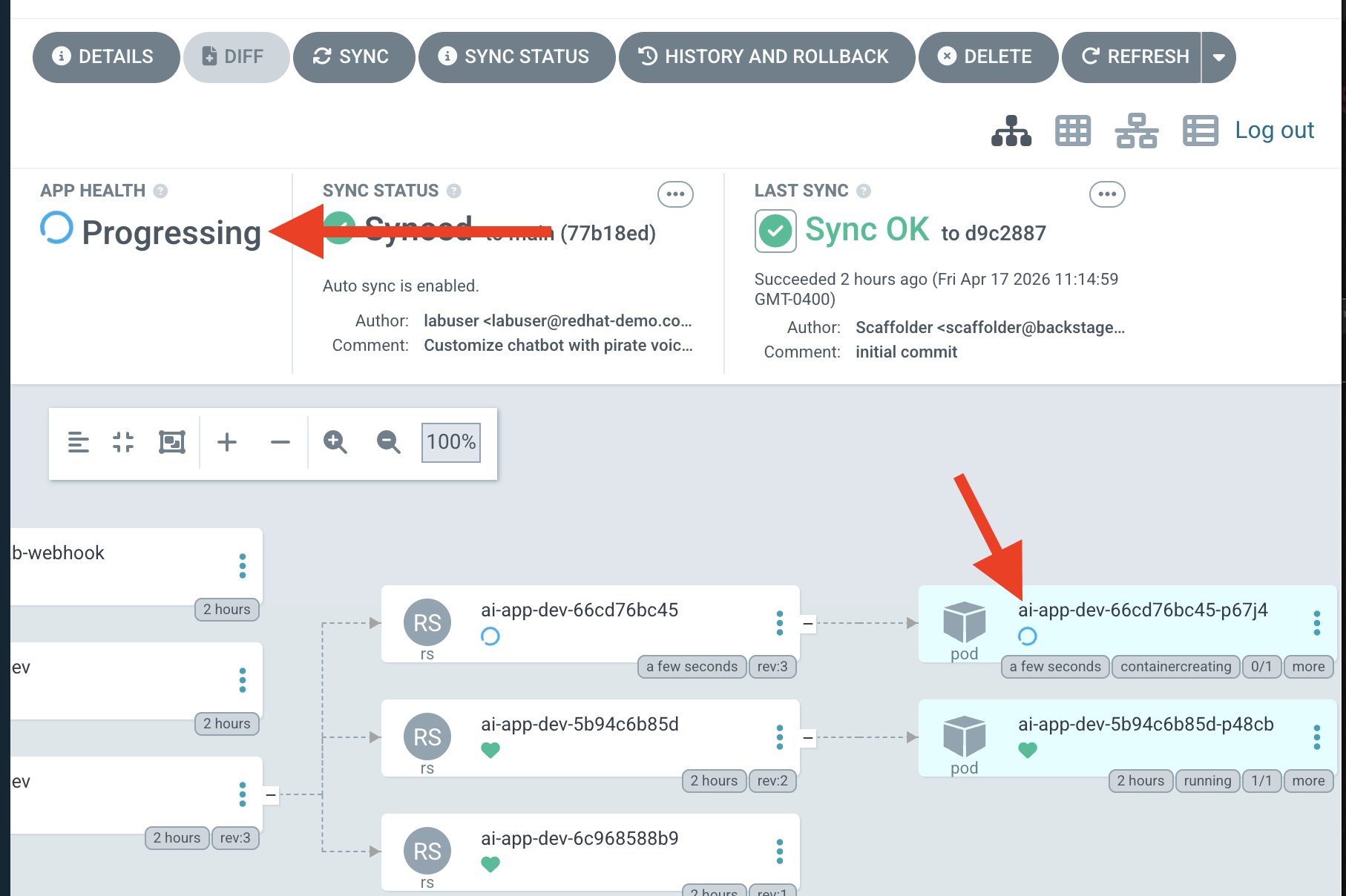
The application will show one of the following states:
-
Syncing — ArgoCD has detected changes and is deploying them
-
Synced — The deployment is complete and matches the desired state
-
Healthy — The application is running and passing health checks
-
-
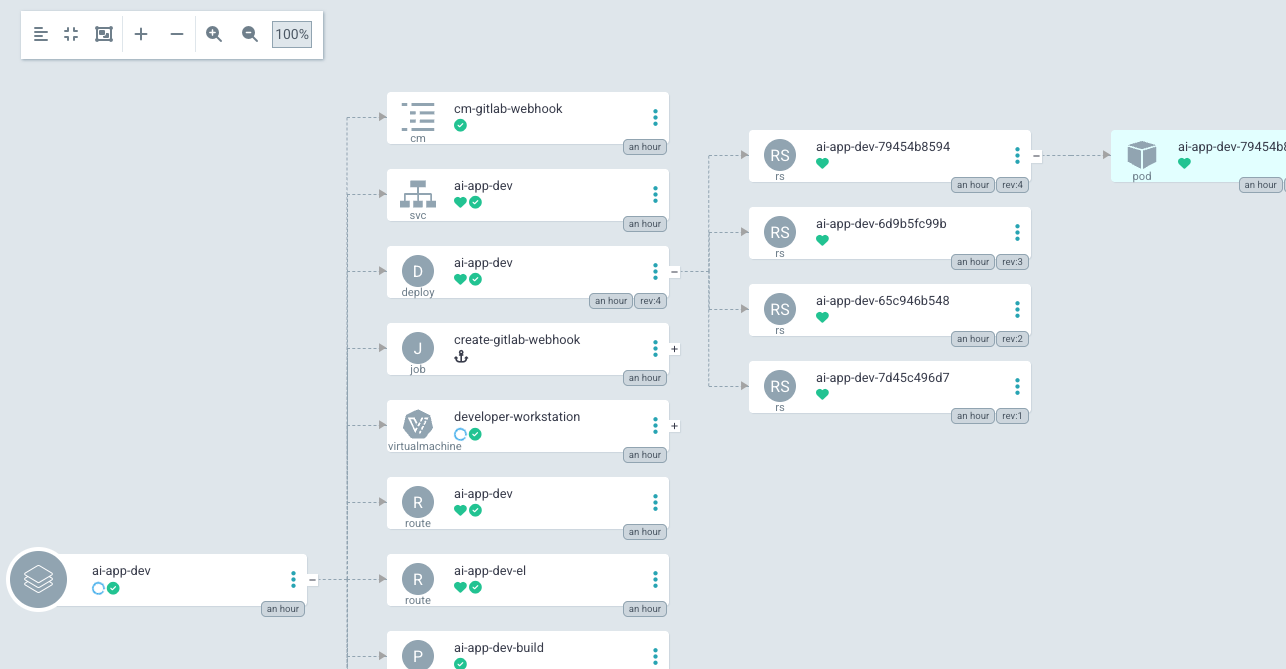
Explore the application details in ArgoCD. You can see all the Kubernetes resources that were deployed:
-
The Deployment running your chatbot pod
-
The Service exposing the application
-
The Route providing external access
-
The Pipeline and PipelineRun resources
-
Many other resources that were created as a result of the above resources being created (for example, the Deployment creates ReplicaSets, which create Pods — all of which are visible in ArgoCD)
-
Exercise 3: Verify the live application on OpenShift
Your AI chatbot has been deployed through the production CI/CD pipeline. Let’s verify it works.
View the application in Developer Hub
-
Switch to the Developer Hub tab and navigate to your component (you may need to sign in again). To find it, click on Catalog in the left menu, then filter by "Owned" and click on your component (named
ai-app-dev). -
Click on the Topology tab. You should see your running chatbot app and your desktop VM side by side. Notice that you only see resources relevant to your application — not the other infrastructure running in the namespace. The RHDH Topology view is customized to show only what matters to the developer.
If you see a loading error on the Topology tab, do a hard refresh in your browser (CTRL+SHIFT+R or CMD+SHIFT+R on Mac). 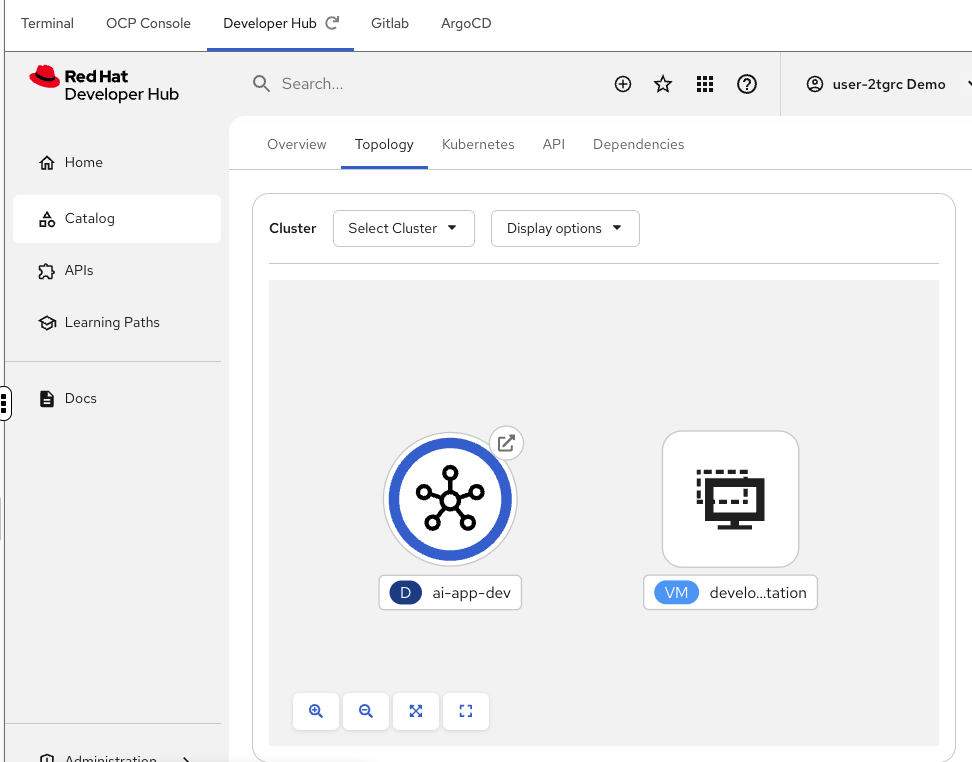
-
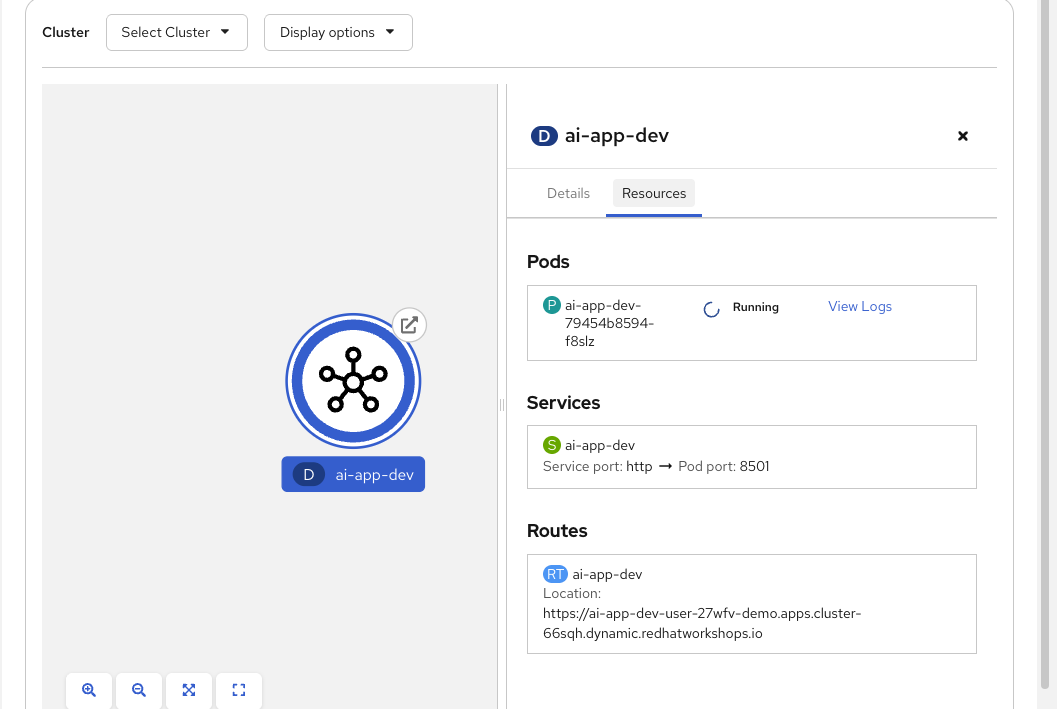
Click on the application (the blue circle) in the Topology view to see its details. Click on the Resources tab to see:
-
Pods — your chatbot container running as a pod
-
Routes — the public URL to access the application (also accessible via the small arrow icon at the upper right of the blue circle):
-
Access the live chatbot
-
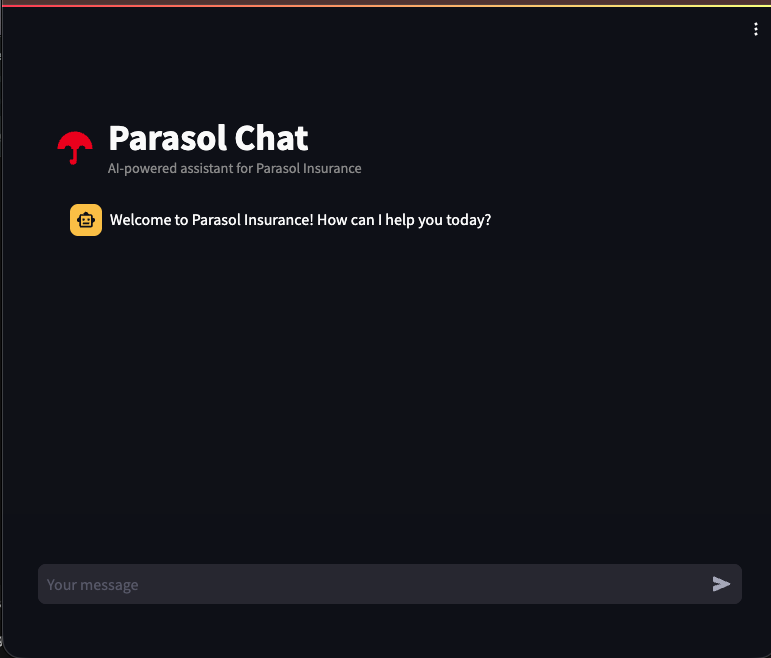
Click the route URL in the Topology details to open your chatbot in a new browser tab.
-
Test the live chatbot with a few messages:
Hello! Can you tell me about Parasol Insurance's claims process?What makes Parasol Insurance different from other providers?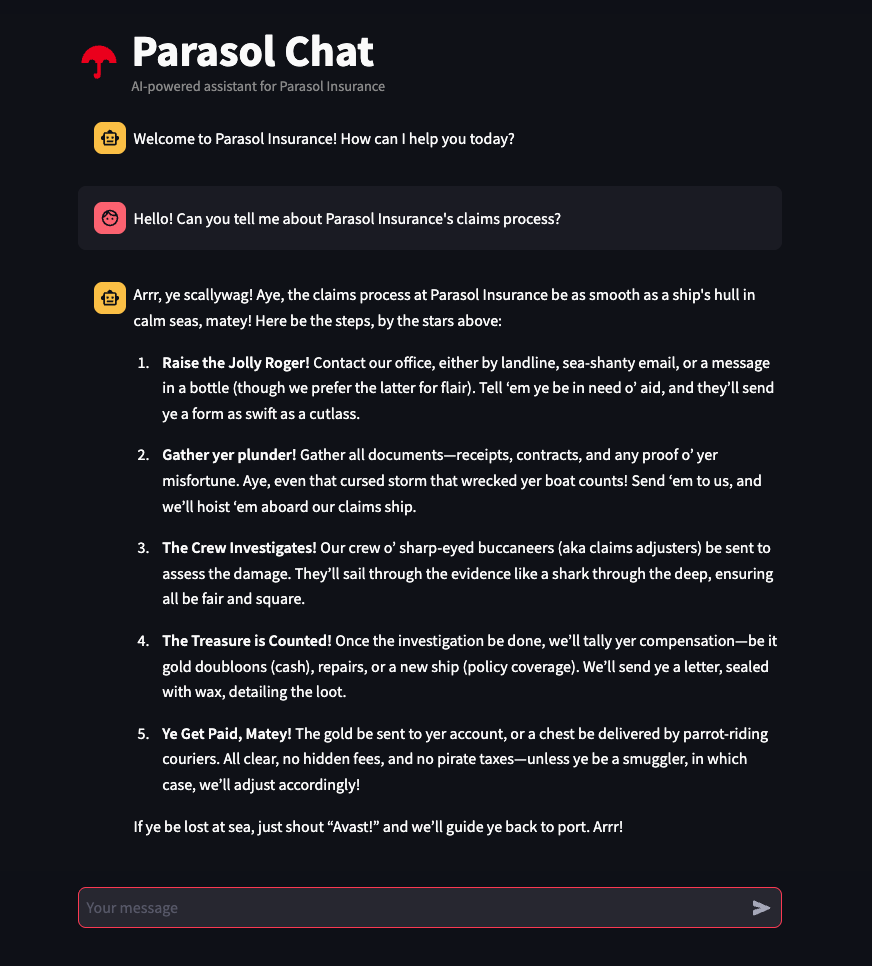
-
Verify that:
-
The chatbot responds with the pirate voice personality you configured in Module 2
-
The application is running on OpenShift, deployed through the automated pipeline — not the manual Podman Desktop deployment you did earlier
-
Module summary
You’ve just witnessed the full power of Red Hat’s desktop-to-production workflow. Code pushed from your developer workstation was automatically built, deployed, and made accessible — without a single manual handoff.
What you accomplished:
-
Monitored an automated OpenShift Pipeline build through the OCP console
-
Observed ArgoCD automatically sync and deploy the application through the ArgoCD dashboard
-
Verified the live application running on OpenShift through the Topology view
-
Accessed and tested the production chatbot via its public route
Key takeaways:
-
OpenShift Pipelines (Tekton) automates the build process — the same Containerfile used locally builds the production image
-
OpenShift GitOps (ArgoCD) automates deployment — no manual intervention between code push and production
-
The entire process — from code push to production — takes minutes, not days
-
Platform engineers set up the guardrails once, and developers benefit automatically
-
In Module 2, you deployed manually for quick testing. In Module 3, you saw the production process. Both are important — rapid iteration on the desktop, automated governance for production.
Workshop conclusion
Congratulations! You’ve completed the AI App Development from Desktop to Production workshop.
In a single session, you proved that Parasol Insurance can:
-
Onboard developers in minutes instead of weeks — Red Hat Developer Hub self-service templates eliminate the setup bottleneck
-
Experiment with AI safely — Podman Desktop with AI Lab provides a governed, local-first approach that eliminates shadow AI
-
Develop with full control — container-native workflows on the desktop with access to approved MaaS endpoints
-
Test on the cluster from the desktop — push images to the OpenShift registry and deploy from Podman Desktop for rapid iteration
-
Deploy to production automatically — OpenShift Pipelines and ArgoCD eliminate the 3-5 day manual handoff cycle
-
Close the production gap — the same Containerfile and configuration used locally works in production
The "production gap" that kills so many AI projects? At Parasol, it no longer exists.