Scenario 6: ALIA — Ansible Lightspeed issues
| Difficulty | Components | Break Type |
|---|---|---|
Hard |
Ansible Lightspeed Intelligent Assistant (ALIA) |
Wrong LLM model configuration |
Objectives
-
Log in to the AAP Gateway UI successfully.
-
Observe that the ALIA chat icon is missing from the interface.
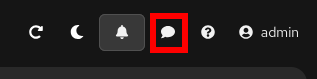
-
Diagnose the underlying issue preventing the ALIA UI component from activating.
-
Resolve the issue to restore the assistant.
Your ALIA configuration
The correct LLM connection details for your environment are:
| Field | Value |
|---|---|
Model API URL |
{alia_url} |
Model Name |
granite-3-2-8b-instruct |
API Token |
{alia_token} |
Troubleshooting
Step 1: Run the Break Scenario job
Log into AAP using the Ansible Automation Platform tab. Navigate to Automation Execution → Templates and launch the Break Scenario job template. Wait for it to complete before proceeding.
Step 2: Confirm the ALIA icon is missing
Log into AAP and confirm the chat icon is not visible in the interface.
Step 3: Inspect Lightspeed pod logs
Open the OpenShift Console and navigate to Workloads → Pods. Filter by your namespace.
Identify the lightspeed-api and chatbot pods and review their Logs tabs for connection errors related to the LLM backend.
Step 4: Identify the misconfiguration
Compare what the pods are trying to connect to against the correct ALIA configuration values above. The issue will be visible in the pod logs or in the Lightspeed configuration secret.
Navigate to Workloads → Secrets in the OpenShift Console to inspect the chatbot configuration secret.
Step 5: Fix the issue
Once you have identified the misconfiguration, apply the fix through the OpenShift Console.
Refer to the solution page if needed: Solution: ALIA Lightspeed issues