Module 2: Quick Win — Automated Dependency Updates
Duration: 25 minutes
Lab access and credentials (click to expand)
Everything below is already running. The tabs on the right of this Showroom window open each component in place, which is easier to follow than switching browser windows — the links are there if you prefer your own tab.
| Component | Credentials |
|---|---|
OpenShift Console — Pipelines, Topology |
|
|
|
admin / |
|
|
|
|
|
|
|
|
|
(no login required) |
Your GUID is %GUID%, and it appears in most of the names you will meet:
the GitLab group acme-%GUID%, the running applications in {user}-app, and
the build pipelines in build-%GUID%.
This module walks through the simplest way to automate Lightwell remediations. No AI, no orchestration. A dependency management tool watches Lightwell for new .rhlw versions and creates merge requests to bump your dependencies. Standard CI/CD handles the build and deploy.
In this lab we use Renovate as the dependency management tool, but the same pattern works with any tool that can scan Maven repositories for updates — Dependabot, OWASP Dependency-Check, or even a custom script. In the real world, these tools can manage dozens or hundreds of repositories simultaneously. Enterprises commonly configure them to:
-
Auto-merge patch-level updates for low-risk internal services
-
Group related dependency bumps into a single merge request
-
Schedule scans during off-hours to avoid disrupting development
-
Apply different policies per repository or dependency type (e.g. auto-merge test dependencies, require review for production frameworks)
For this workshop we are not enabling auto-merge, so you can inspect every result before it lands. See the Renovate documentation for the full set of configuration options.
Setup
Understanding the Lightwell Preset
The key integration point is the java-remediated preset from lightwell-experience/renovate-config. This preset:
-
Disables the standard Maven manager (so Renovate does not propose random upstream bumps)
-
Adds a custom regex manager that reads
pom.xmland looks up versions in the Lightwell repository -
Uses a versioning scheme that only bumps the
.rhlw-NNNNNsuffix — keeping the upstream version the same-
Switch to the GitLab tab on the right (or open it in a new tab). Log in with
{user}/{password}if needed.If you don’t see the left navigation panel, click the menu button (☰) in the upper-left corner to reveal it. -
Navigate to the
acme-%GUID%/report-generator-apprepository and openrenovate.json. You will see it extends the Lightwell preset:{ "extends": ["github>lightwell-experience/renovate-config:java-remediated"] }The preset defaults to
packages.redhat.com(the production Lightwell registry). In this lab your dedicated artifact manager acts as a local Lightwell mirror, so the RenovateJob you create next will supply your artifact manager URL and credentials at runtime — keeping them out of the source repository.
-
Logging In to OpenShift
The commands in this module use oc (the OpenShift CLI) to interact with your cluster. Log in as your tenant user by running the following command in the terminal on the right:
oc login -u {user} -p {password} https://kubernetes.default.svc:443 --insecure-skip-tls-verifyYou should see Login successful and your user name displayed. This gives you access to your dedicated namespaces on the cluster.
Creating the Scan Job
Renovate is already installed on the cluster. A renovate-runner service account and its credentials are provisioned in your namespace. Create a RenovateJob custom resource to tell Renovate what to scan — run the following command in the terminal on the right:
cat <<'EOF' | oc apply -f -
apiVersion: renovate-operator.mogenius.com/v1alpha1
kind: RenovateJob
metadata:
  name: renovate-%GUID%
  namespace: {user}-renovate
spec:
  schedule: "*/5 * * * *"
  parallelism: 1
  secretRef: renovate-token
  serviceAccount:
    name: renovate-runner
  provider:
    name: gitlab
    endpoint: https://gitlab-gitlab.{openshift_cluster_ingress_domain}/api/v4
  discoveryFilters:
    - "acme-%GUID%/report-generator-app"
  image: ghcr.io/renovatebot/renovate:44.145.1
  access:
    adminUsers:
      - "{user}@demo.redhat.com"
  renovateConfig:
    fileName: config.json
    inline: |
      {
        "onboarding": false,
        "requireConfig": "optional",
        "branchConcurrentLimit": 0,
        "prConcurrentLimit": 0,
        "prHourlyLimit": 0,
        "commitMessagePrefix": "[Lightwell]",
        "commitMessageExtra": "({{{newVersion}}})",
        "hostRules": [
          {
            "matchHost": "nexus-lightwell-nexus-%GUID%.{openshift_cluster_ingress_domain}",
            "hostType": "maven",
            "username": "admin",
            "password": "{password}"
          }
        ],
        "customManagers": [
          {
            "customType": "regex",
            "managerFilePatterns": ["/(^|/)pom\\.xml$/"],
            "matchStringsStrategy": "any",
            "matchStrings": [
              "<groupId>(?<groupId>[^<]+)</groupId>\\s*<artifactId>(?<artifactId>[^<]+)</artifactId>\\s*<version>(?<currentValue>[^<${}]+)</version>"
            ],
            "depNameTemplate": "{{{groupId}}}:{{{artifactId}}}",
            "datasourceTemplate": "maven",
            "registryUrlTemplate": "https://nexus-lightwell-nexus-%GUID%.{openshift_cluster_ingress_domain}/repository/maven-public",
            "versioningTemplate": "regex:^(?<compatibility>.*?)([.-]rhlw-(?<major>\\d+)(\\.n(?<minor>\\d+))?)?$"
          }
        ],
        "packageRules": [
          {
            "matchPackageNames": ["com.acme.*:*"],
            "enabled": false
          }
        ],
        "dockerfile": { "enabled": false },
        "github-actions": { "enabled": false }
      }
EOF
Here is what the key fields do:
-
schedule — scan every 5 minutes (you can also trigger runs on demand from the web UI)
-
secretRef — GitLab personal access token for the
renovate-botuser (pre-provisioned) -
provider — connects to your dedicated GitLab instance. The operator also supports
github,bitbucket-server,gitea, and other providers — the RenovateJob spec is the same, just change theprovider.nameandendpoint. -
discoveryFilters — scopes Renovate to only scan
report-generator-app. In production you would list all repositories, use wildcards (e.g.acme-/), or omit this field entirely to scan every repository the bot user can access. -
access.adminUsers — restricts visibility in the Renovate web UI to your user only
-
renovateConfig — inline Renovate config that merges with (and overrides) the
renovate.jsonin each repository. Key settings:-
hostRules— credentials for your artifact manager’s Maven registry. In this lab the password is inline for simplicity; in production you would store credentials in a secrets manager such as HashiCorp Vault or use the External Secrets Operator to sync them into Kubernetes Secrets, then reference them via environment variables using Renovate’sdetectHostRulesFromEnvfeature -
customManagers— redefines the Lightwell pom.xml manager so itsregistryUrlTemplatepoints at your artifact manager’smaven-publicgroup. The shared preset hardcodes the public Lightwell registry, which your tenant cannot reach, and apackageRulesentry cannot displace a manager’s ownregistryUrlTemplate— so the manager has to be redefined rather than patched -
packageRules— disables scanning of internalcom.acme.*packages -
dockerfile/github-actions— disabled for this lab. Renovate supports over 100 package ecosystems including npm, pip, Go modules, Helm charts, Terraform providers, and container images. You enable or disable each manager independently — for example,"npm": { "enabled": true }would add JavaScript dependency scanning alongside the Java Lightwell preset. You can also configure auto-merge for low-risk dependency classes (e.g. test-only updates, patch-level bumps) so they land without human review.
-
Under the hood, Renovate manages Kubernetes RenovateJob and RenovateProject custom resources. You can inspect them with oc get renovatejobs and oc get renovateprojects. In a production environment, these resources would typically be managed by ArgoCD alongside your other GitOps-managed infrastructure.
|
Viewing Your Scan Job
-
Switch to the Renovate tab on the right (or open it in a new tab) and log in with your OpenShift credentials (
{user}/{password}). If you do not seeacme-%GUID%/report-generator-applisted yet, click Run Discovery to force Renovate to scan for your newly created RenovateJob. After a few seconds, refresh the page and your project should appear.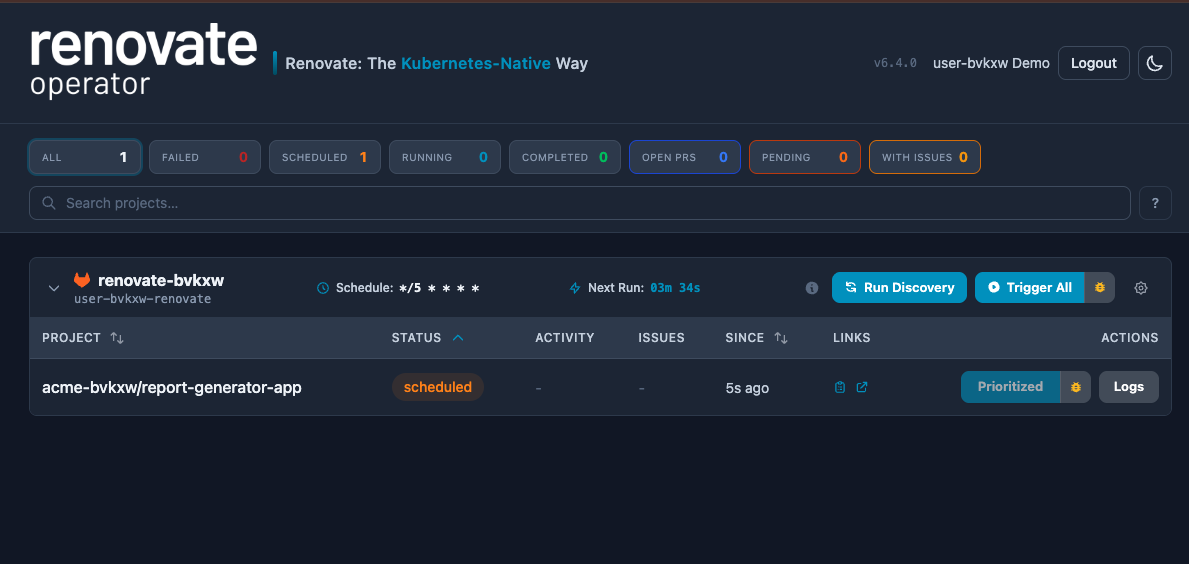
-
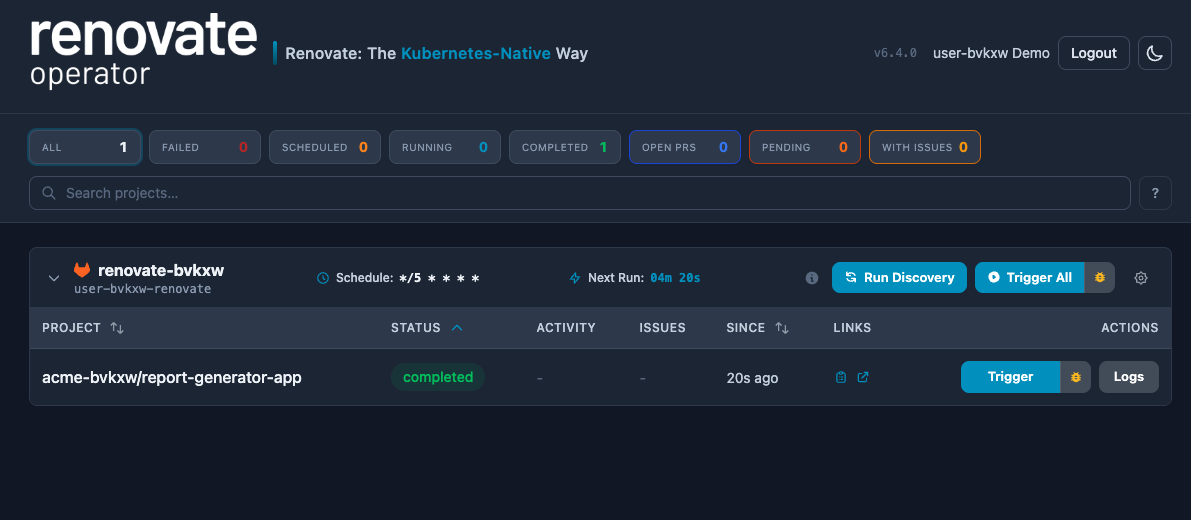
Since there is no Lightwell remediation in the artifact manager yet, the first run will find nothing to update. Click Trigger or Trigger All to force an immediate run.
-
Click the Logs button to view the running log or the log from a completed run. You will see Renovate discover your repository, scan
pom.xml, query the artifact manager for each dependency, and find no Lightwell updates available. Expand the Printing report log item to see details on which packages were scanned and their current versions.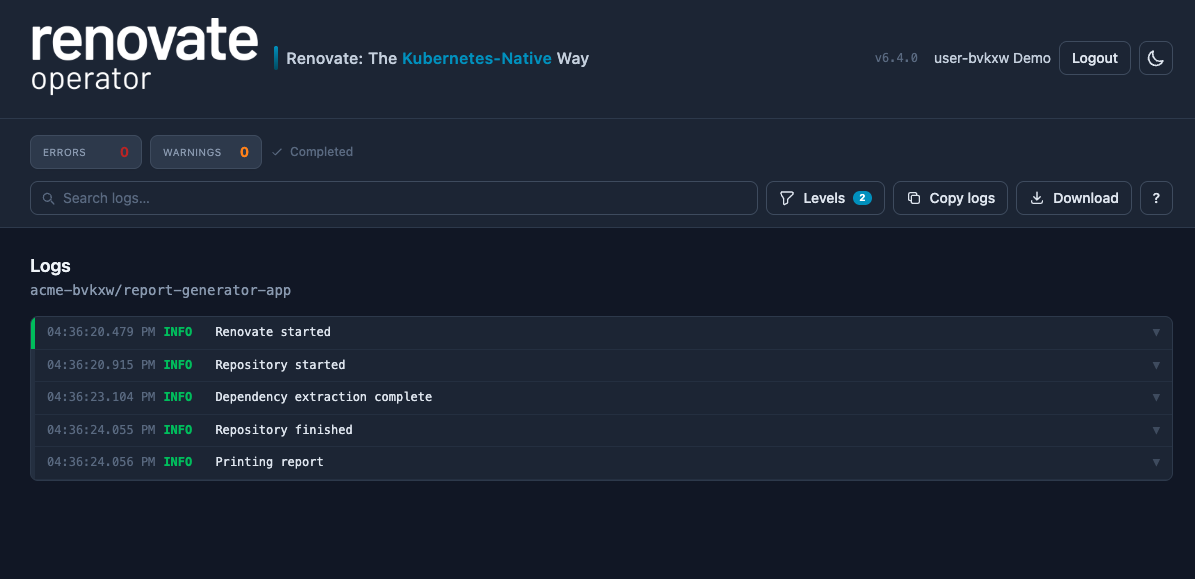
Publish and Detect
A New Lightwell Remediation Becomes Available
When Red Hat publishes a new Lightwell remediation, two things happen:
-
A remediated Maven artifact is published to the Lightwell registry — a rebuilt JAR with the
.rhlwversion suffix that preserves API compatibility with the original -
OSV advisories are published describing the vulnerabilities that the remediation fixes
The OSV metadata is key: Red Hat publishes machine-readable OSV vulnerability data for every Lightwell remediation. This allows security scanners, SBOMs, and platforms like TPA to automatically recognize which CVEs a given .rhlw version resolves — closing the loop between remediation and verification without manual triage.
For this step, you will briefly play the role of a Lightwell release engineer and publish a new remediation for Jackson Databind (one of the vulnerable dependencies in report-generator-app). Run the following command in the terminal on the right:
curl -sSL https://showroom-{user}-showroom.{openshift_cluster_ingress_domain}/modules/_attachments/publish-remediation.sh \
  | bash -s -- \
  com.fasterxml.jackson.core:jackson-databind:2.13.5 \
  rhlw-00001 \
  "Jackson Databind"
The script discovers your artifact manager and TPA instances automatically, publishes the remediated artifact, and publishes OSV advisories to TPA. It should succeed and end with:
=== Remediation published ===

  Nexus:  com.fasterxml.jackson.core:jackson-databind:2.13.5.rhlw-00001
          https://<nexus-host>/repository/lightwell-remediated

  TPA:    3 advisories published
          https://<tpa-host>
Verifying the Remediation in the Artifact Manager
-
Switch to the Nexus tab on the right (or open it in a new tab). Log in with
admin/{password}. If the left navigation is hidden, click the menu button (☰) in the upper-left corner, then click Browse. -
Select the
lightwell-remediatedrepository. Navigate tocom/fasterxml/jackson/core/jackson-databind/2.13.5.rhlw-00001/— you should see the POM and JAR that the publish script uploaded.You are logging in as adminbecause this is your dedicated artifact manager — each workshop participant gets their own. In a production environment, this would be your organization’s artifact repository administrator.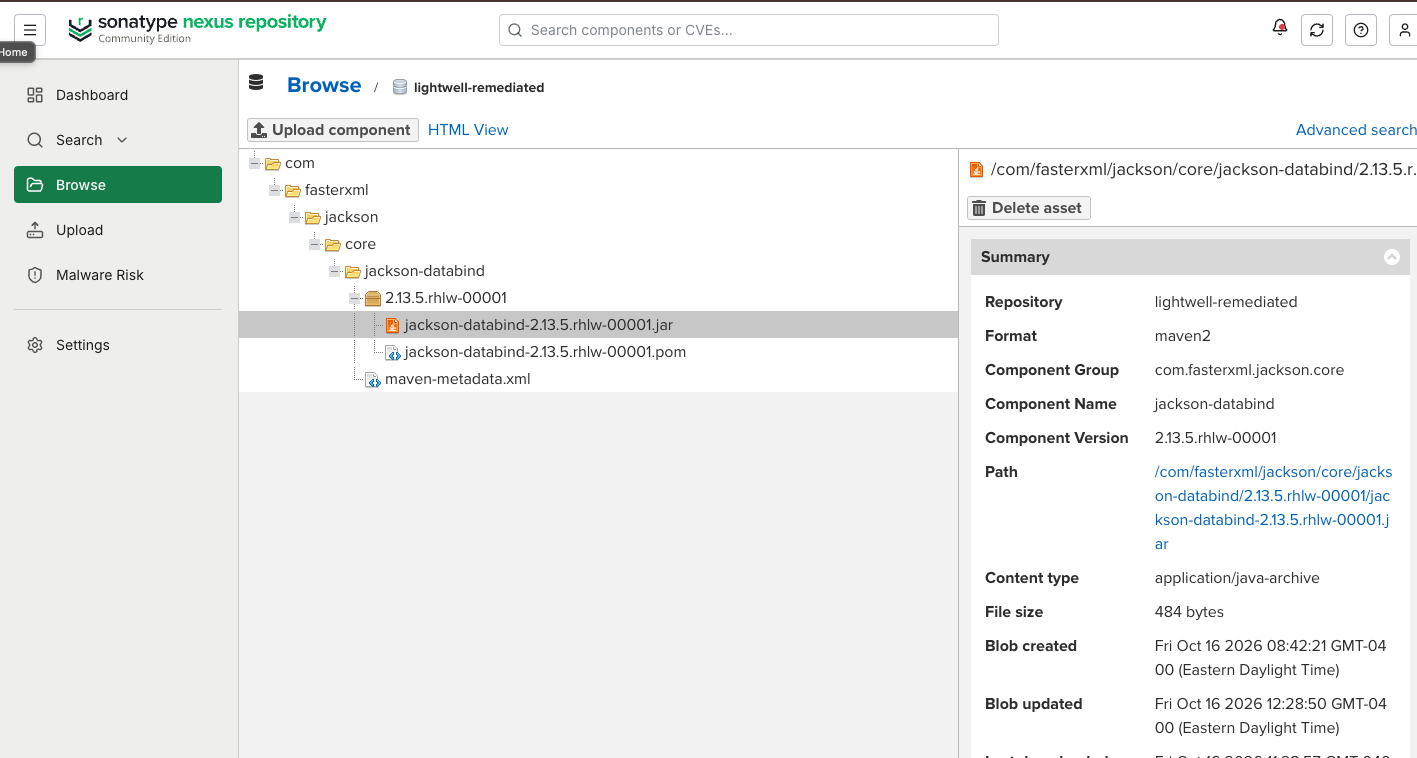
This is the artifact that Renovate will discover when it scans for new Lightwell versions. In production, these artifacts are published by Red Hat to the Lightwell registry; here your artifact manager acts as a local mirror.
Confirming the Vulnerability
While Renovate works in the background to detect the new remediation, verify that TPA has received the advisories and linked them to your application.
-
Switch to the TPA tab on the right (or open it in a new tab). Log in via SSO with
{user}/{password}. -
Navigate to Advisories. Type
RHLWin the search box (or sort by date — the Lightwell advisories will be at the top). You should see the newly publishedRHLW-advisories forjackson-databind.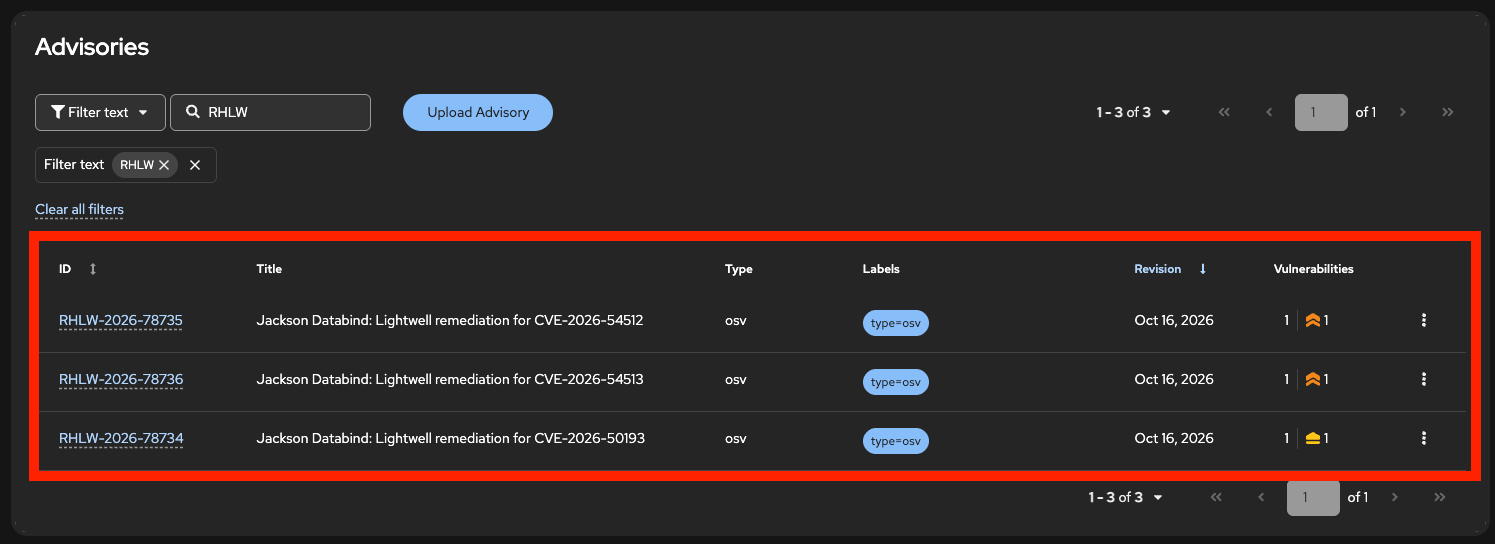
-
Click on one of the RHLW advisories, then click the Vulnerabilities tab. You will see the CVE that this remediation addresses. Click the CVE for details — severity, description, and affected versions.
-
Near the bottom under the Related SBOMs section, it shows every application whose SBOM contains the affected package, including
report-generator-app(sort by date to see the most recent SBOM first). This is how TPA automatically flags vulnerable applications — it matches the OSV advisories against the SBOMs you have uploaded.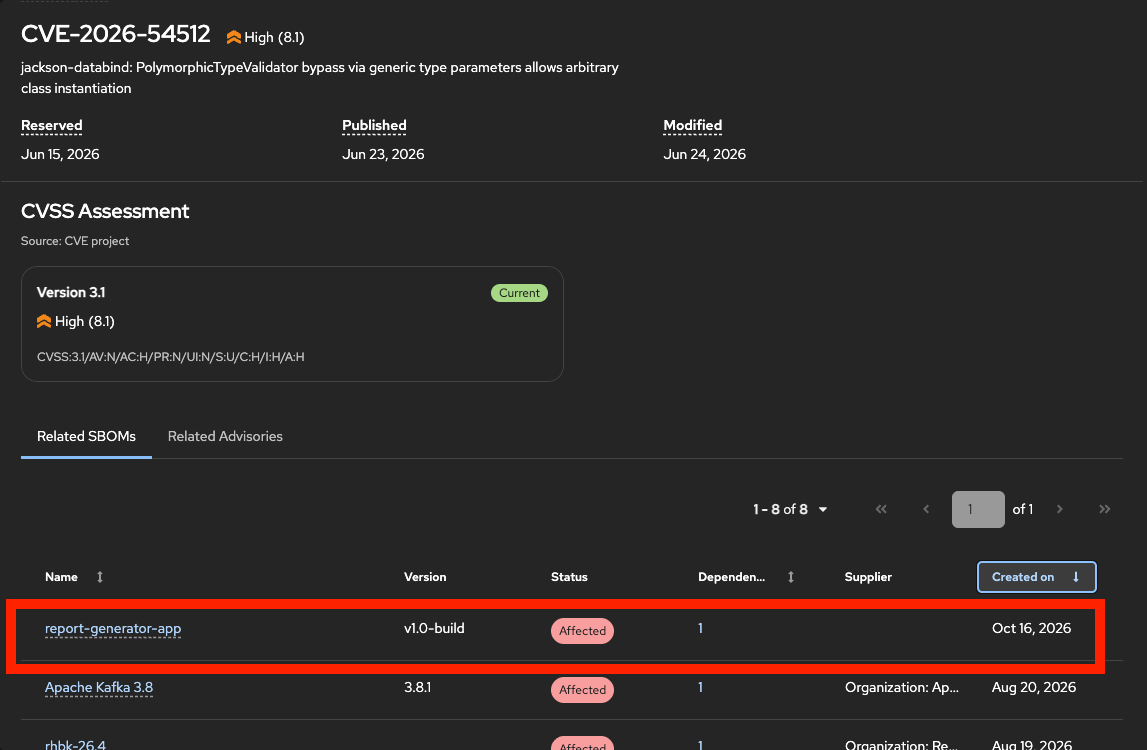
-
Click on the
report-generator-appSBOM, then click the Vulnerabilities tab. This shows the full list of known vulnerabilities in the application — you should see well over 100 vulnerabilities. Take note of this number — after applying the Lightwell remediation, some of these will be resolved.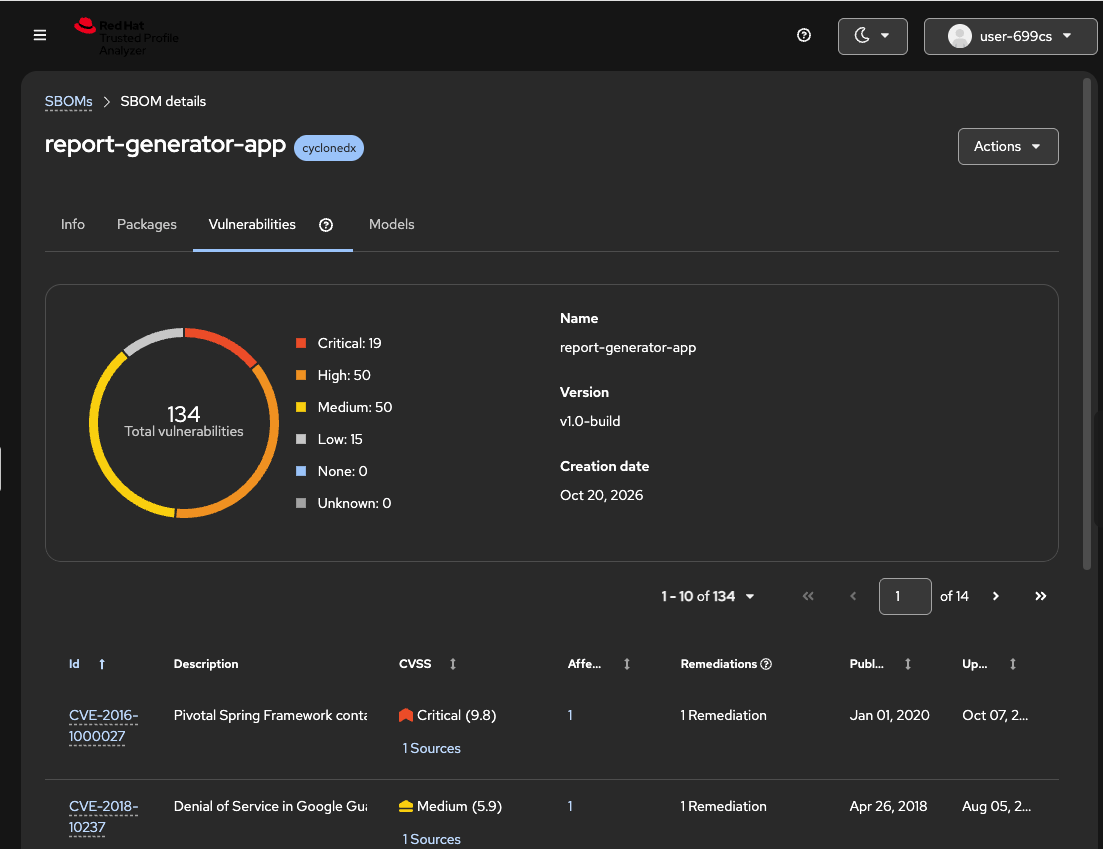
Detecting the Remediation
-
Return to the Renovate tab and click Trigger or Trigger All to force an immediate run (or it may have already automatically run if you waited long enough.)
-
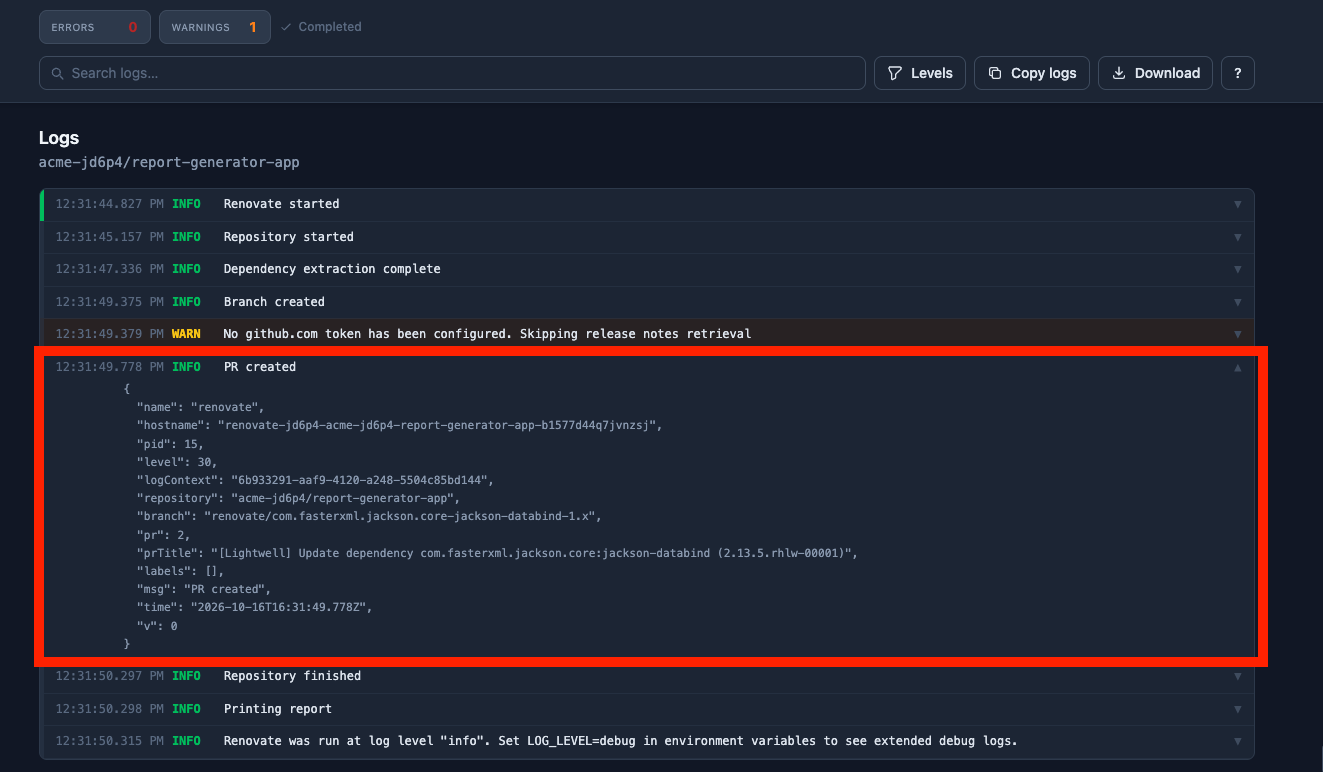
Once the execution starts or has completed, click Logs to see what it did (you can expand each log entry to see details). This time you will see Renovate:
-
Discover your repository
-
Scan
pom.xmland extract all dependencies -
Query the artifact manager for each dependency via the
maven-publicgroup -
Find
jackson-databindhas a new version:2.13.5.rhlw-00001 -
Create a merge request (MR) in GitLab (future runs will not make a new MR if the previous one is still open)
You may see package lookup failure warnings in the log for other dependencies. This is expected — the workshop’s artifact manager only contains the remediation you just published, not the full Lightwell catalog. In production, the Lightwell registry would have remediations for many more packages.
-
-
Once the run completes, the UI updates to show the created merge request with the
[Lightwell]prefix in the title. Click the small PR link to open the MR in GitLab (login with{user}and{password}if needed):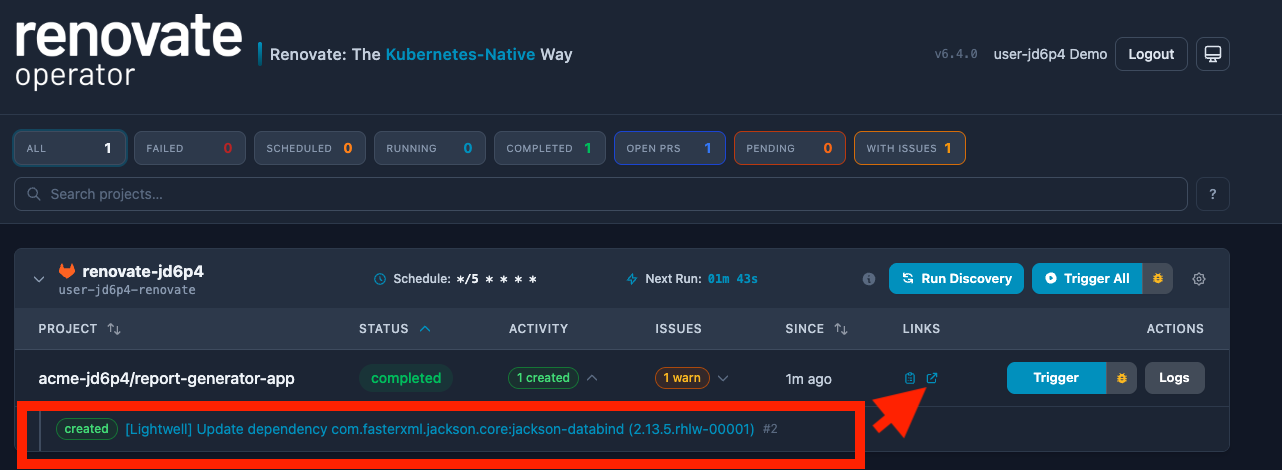
Review and Build
Reviewing and Approving the MR
-
You should see a new merge request from
Renovate Botwith the[Lightwell]prefix in the title. Click to open the[Lightwell]merge request: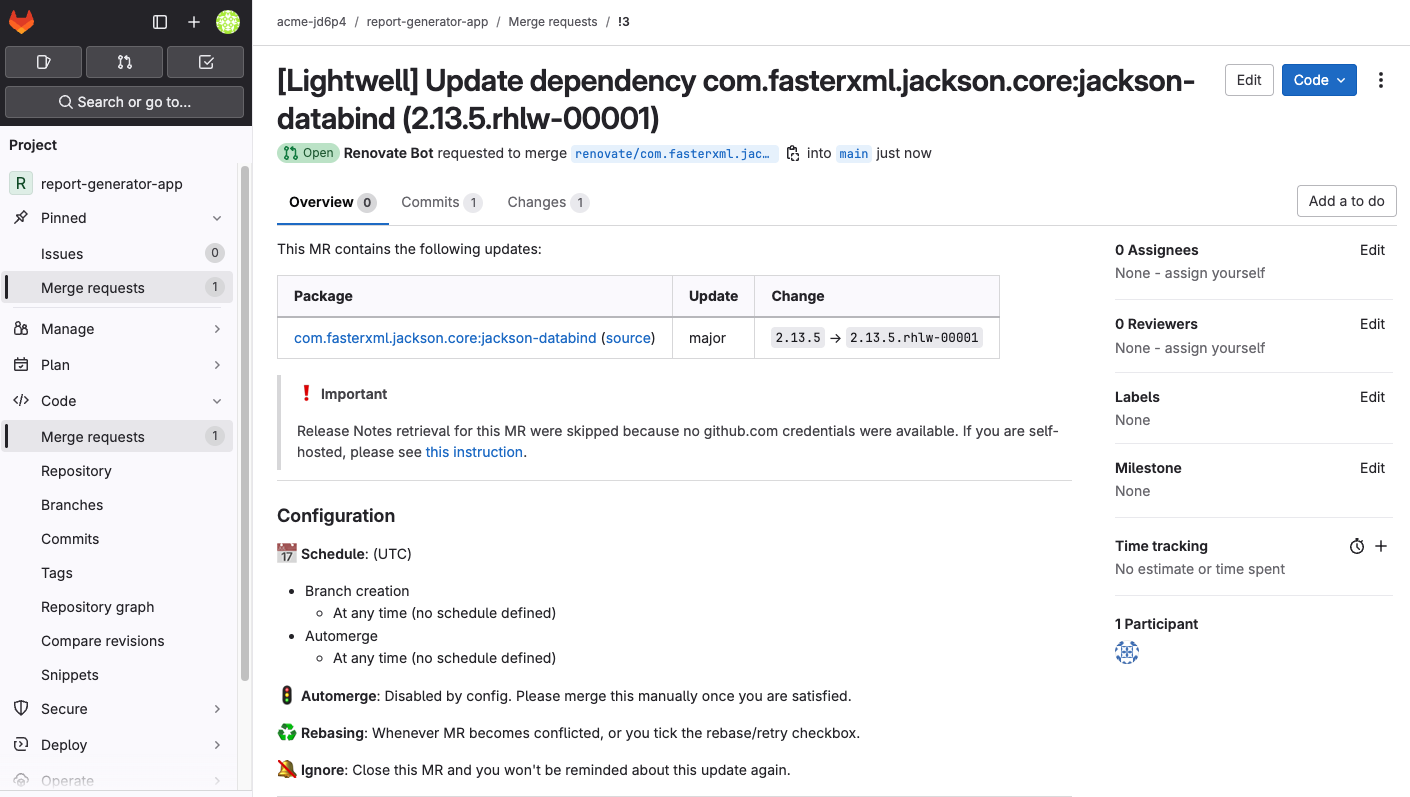
-
Inspect the diff in the Changes tab. You will see a single change in
pom.xml— thejackson-databindversion bumped to the remediated build:<artifactId>jackson-databind</artifactId> - <version>2.13.5</version> + <version>2.13.5.rhlw-00001</version>This is the Lightwell pattern: the upstream version stays the same (
2.13.5), and the.rhlw-00001suffix indicates this is a remediated rebuild that preserves API compatibility.In this lab, jackson-databindwas explicitly pinned inpom.xmlso Renovate’s regex manager could detect it. In production, the Lightwell Renovate config includes apin-transitivesscript that automatically discovers all transitive dependencies with available Lightwell remediations — including BOM-managed ones — and generates a pinning BOM you import intodependencyManagement. This means you do not need to manually pin every dependency; the script handles discovery across the full dependency tree. -
Before you can merge, a Pipelines-as-Code pipeline must finish and report success. Scroll to the bottom of the merge request — if you see Merge blocked: Pipeline must succeed, the pipeline is still running. This is expected and usually takes about 90 seconds.
While you wait, you can follow the pipeline: click Pipeline #<n> in the merge request widget, then click the Pipelines as Code CI / build-pull-request link to open the running pipeline in the OpenShift Console. This pipeline runs basic tests against the remediated dependency to make sure nothing is broken before you merge.
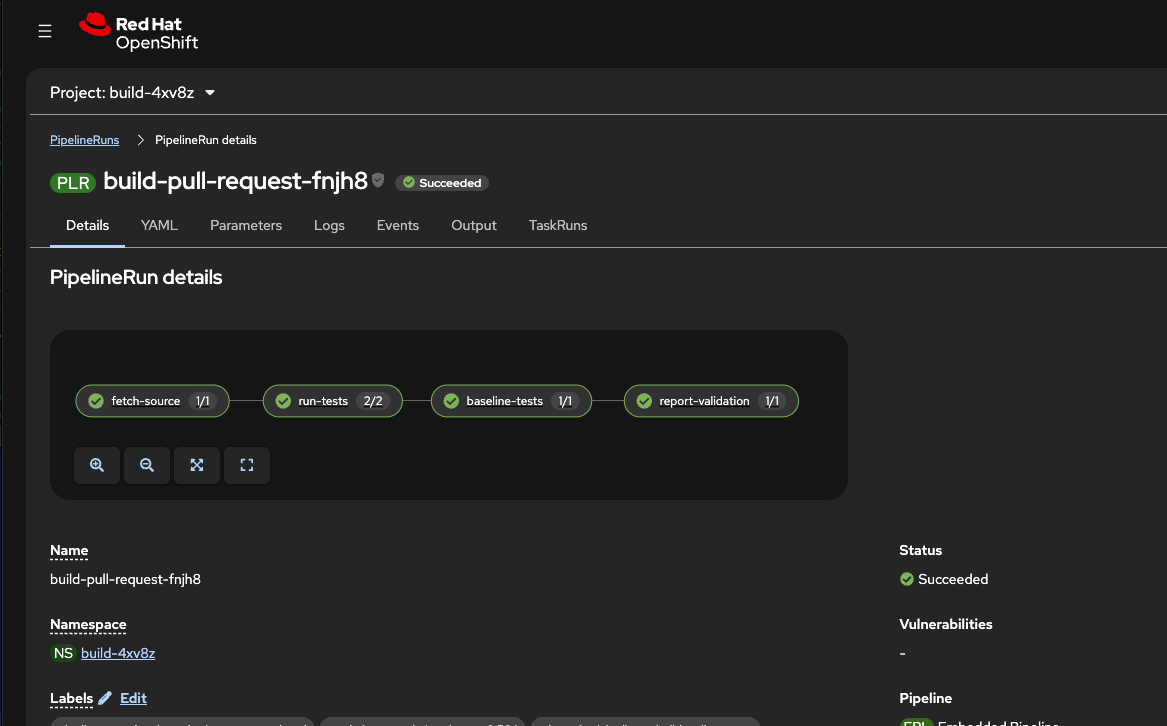
You cannot merge until the pipeline passes. This is enforced by GitLab — the Merge button is disabled until all checks are green. This ensures that even a simple version bump is validated before it reaches your main branch. -
Once the pipeline reports success and the Merge button is available, click Merge to approve the merge request and update the source.
Watching the Pipeline
-
Merging the MR triggers a Tekton CI pipeline run. Switch to the OpenShift Console tab on the right (or open it in a new tab). Log in with
{user}/{password}if needed. -
Expand the left-side navigation menu, then navigate to Pipelines → Pipelines and click the PipelineRuns tab.
-
Ensure that the
build-%GUID%namespace is selected in the namespace dropdown (this is your dedicated CI namespace where pipelines run). -
You should see a new pipeline run for the remediated application either running or completed very recently. Click on it to view the details. The pipeline typically takes about 2 minutes to complete.
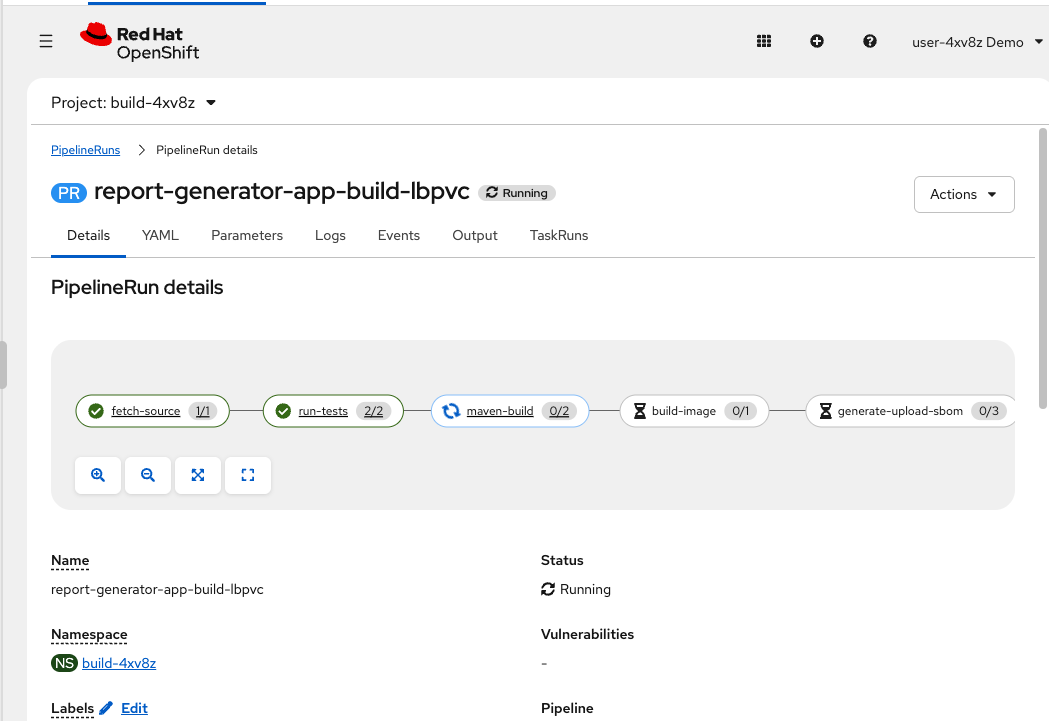
-
Watch the pipeline steps:
-
Clone — fetches the updated source from GitLab
-
Build — compiles the application with the remediated dependency
-
Generate SBOM — produces a CycloneDX SBOM for the new build
-
Sign — signs the container image using Trusted Artifact Signer
-
Push — pushes the signed image to the registry
At this point, the application is remediated and the new container image is built, signed, and ready to go into production or other environments (e.g. using OpenShift GitOps / ArgoCD). We’ll explore how remediated builds are deployed to production in the next module. But for now, it’s enough to verify that the vulnerabilities are resolved, which we’ll do next.
-
Verify
Comparing SBOMs — Proving the Fix
This exercise demonstrates that quick wins with Lightwell are real — a remediation can go from publication to verified, signed production build with minimal effort. But a single app and a single dependency is the easy case. For true automation and enterprise integration at scale — dozens of apps, hundreds of dependencies, change management, approvals, audit trails — more is needed. We will get there in the next module. For now, let’s verify the fix.
-
Switch to the TPA tab on the right (or open it in a new tab). Log in via SSO with
{user}/{password}if needed. -
Click SBOMs → All SBOMs in the left navigation. If the search box is not visible, click the filter button (funnel icon) to reveal it.
-
Type
report-generatorinto the search box. You should see two SBOMs in the list — the originalv1.0-buildand the new build from the Lightwell merge request. -
Compare the vulnerability counts: the remediated build should show fewer vulnerabilities than the original — the exact number depends on which CVEs the advisories matched, but you should see several Critical and Medium vulnerabilities resolved by a single dependency bump.
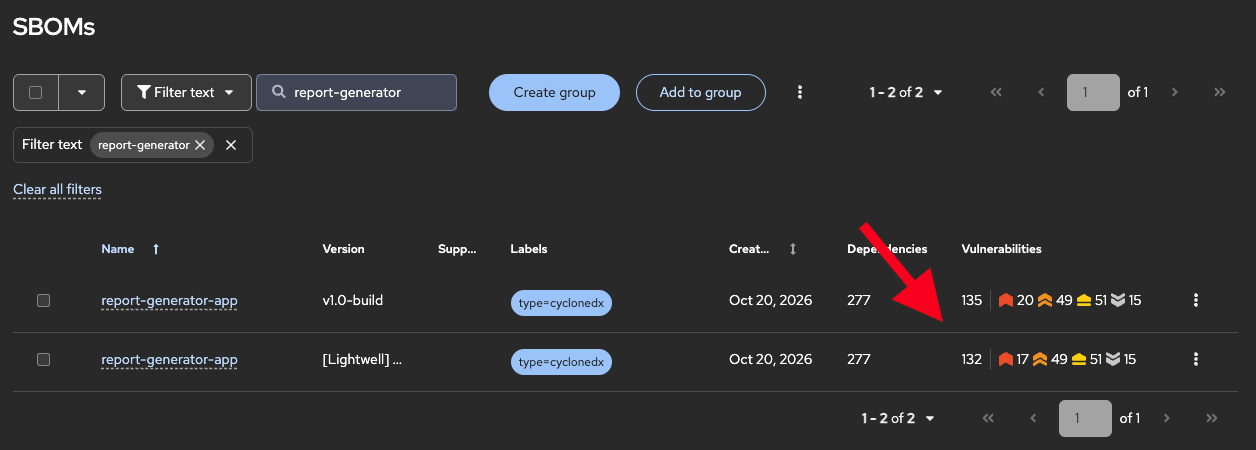
That is the Lightwell value in one screenshot: the same application, the same upstream version of
jackson-databind, but the remediated.rhlw-00001build eliminates known CVEs without changing your application code or upgrading to an untested major version. A handful of resolved CVEs from a single dependency is a modest win — but the real value emerges at scale, when Lightwell is continuously remediating dozens, hundreds, or thousands of libraries across your entire application portfolio, integrated with your change management and approval workflows. That is what the next module is about.
Summary
You have just completed the Quick Win path:
-
A remediated artifact and its OSV vulnerability metadata arrived from Lightwell
-
TPA immediately flagged the unpatched dependency as vulnerable based on the published advisories
-
The dependency management tool detected the new
.rhlwversion and created a merge request -
You reviewed and approved the change
-
Tekton built and signed the patched application with a SLSA Level 3 compliant software supply chain
-
The remediated application was rolled out into production (in a real environment, this would progress through dev, test, and staging first)
-
TPA confirms the vulnerabilities are resolved — the OSV advisories that flagged the old version no longer match the remediated build
This is the lowest-effort way to start automating Lightwell remediations — no AI, no orchestration, no ticket management. The OSV metadata published alongside every remediation means your existing security tooling (TPA, Grype, Trivy, or any OSV-compatible scanner) automatically recognizes the fix without manual CVE-to-patch mapping. And because the pipeline uses Tekton Chains for signing and attestation, every build meets SLSA Level 3 compliance out of the box.
Tradeoffs
The Quick Win path works well for a handful of applications and a manageable volume of remediations. But it has limits:
-
Scale — when Lightwell publishes dozens or hundreds of remediations per week across your portfolio, the merge request volume becomes unmanageable for human reviewers.
-
Context — dependency management tools create merge requests mechanically. They do not assess business risk, check whether the affected application is customer-facing or internal, or correlate with your ITSM system.
-
Auto-merge helps, but only so far — auto-merge is great for updates where you would click "merge" anyway: lock file maintenance, dev-only dependencies, patch-level bumps with good test coverage. But for production frameworks, compliance-sensitive services, or anything without strong test coverage, human review remains essential — and at scale, that review needs context that a dependency scanner alone cannot provide.
For organizations that need to handle volume, assess risk, and maintain an audit trail, the next module introduces the Full Automation path. OpenShift provides the hybrid cloud platform for running and securing applications at scale. Ansible provides enterprise IT automation at scale. Together with AI agents and your ITSM systems, they triage, assess, and route remediations based on business context.
Continue to Module 3: Full Automation — AI-Assisted Remediation.