Lab Guide: Infrastructure Introspection and Reporting
A guide to using Ansible Automation Platform to gather data and generate dynamic reports about your infrastructure.
1. Scenario: Introspection
Sometimes you just need data about your systems. Ansible excels at gathering infrastructure data at scale, making it easy to audit your servers, network devices, and more. This is a great, low-risk way to begin your automation journey.
First, log into the Ansible Automation Platform instance using the credentials below.
Username |
|
Password |
|
2. Gathering Server Facts with Ad-Hoc Commands
Let’s start by gathering detailed information, or "facts," from a single server using an ad-hoc command.
-
Navigate to the inventory.
In the lab’s
aaptab, log in and navigate to Automation Execution → Infrastructure → Inventories. Select the Video Platform Inventory, then click the Hosts tab.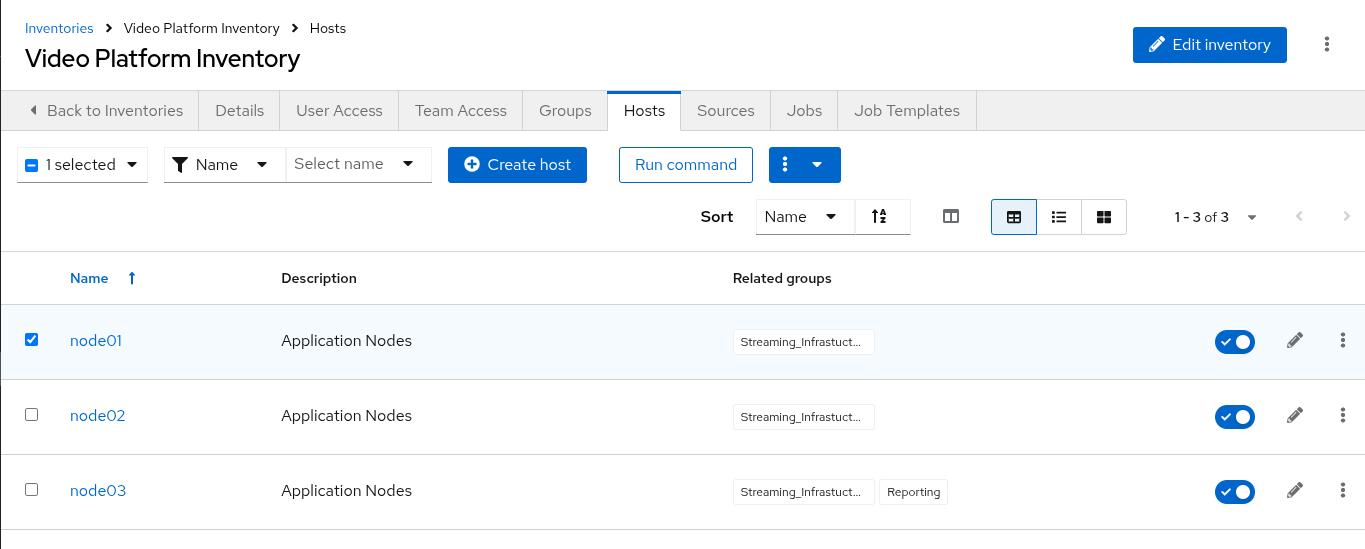
-
Run an ad-hoc command on
node01.Select the checkbox next to the host
node01and click the Run command button. A wizard will appear to guide you through the configuration. -
Configure the ad-hoc command.
Fill out the wizard prompts as follows:
-
Module: From the dropdown list, select the
setupmodule. This module gathers facts about a remote host. Click Next.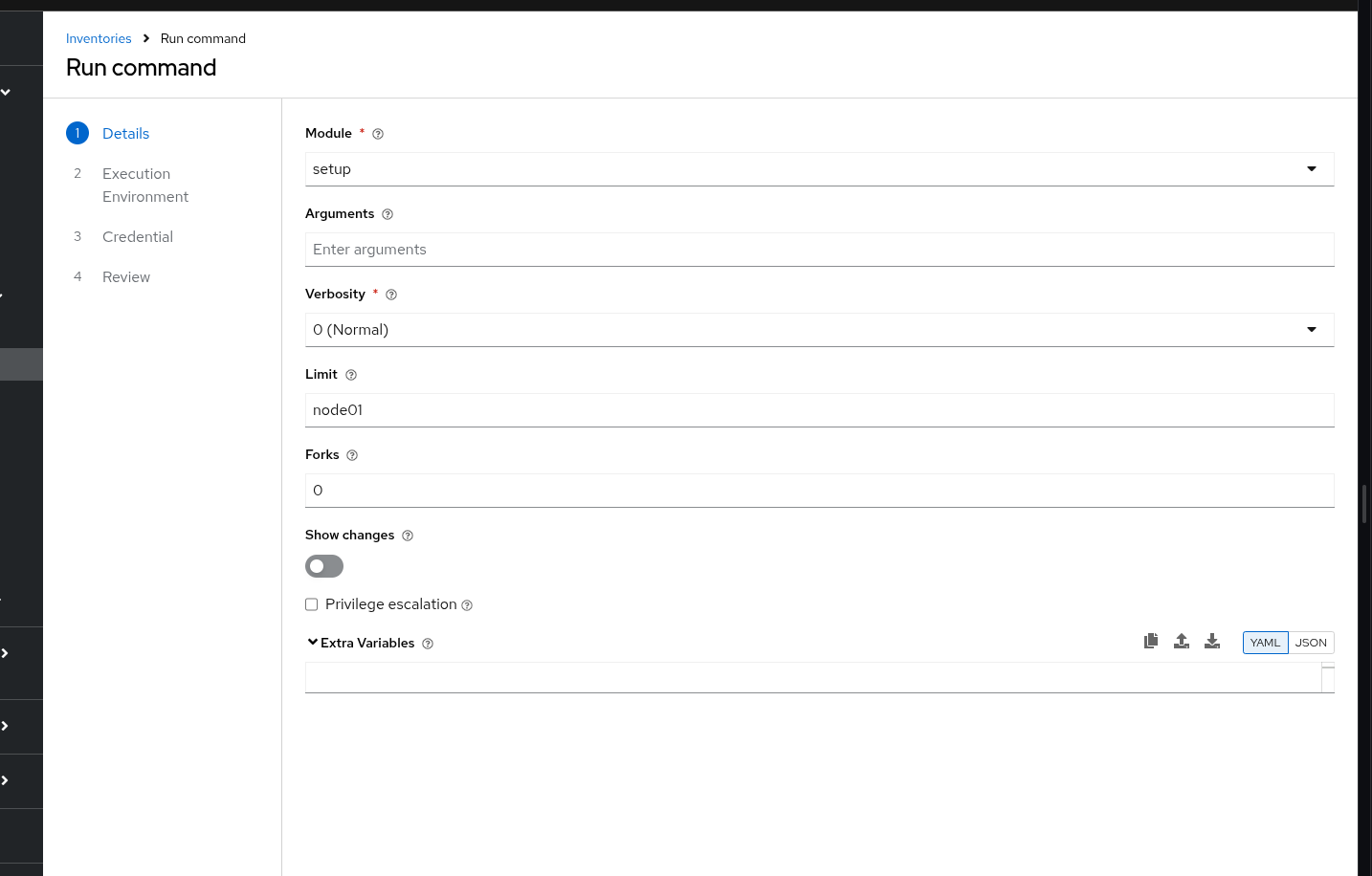
-
Execution Environment: Select the Default execution environment. Click Next.
-
Credential: From the Select credential dropdown, choose the Application Nodes credential. Click Next.
-
Review: Verify your selections and click Finish.
-
-
Review the output.
Once the command finishes, the output will display a large JSON object containing all the system facts Ansible was able to gather from
node01.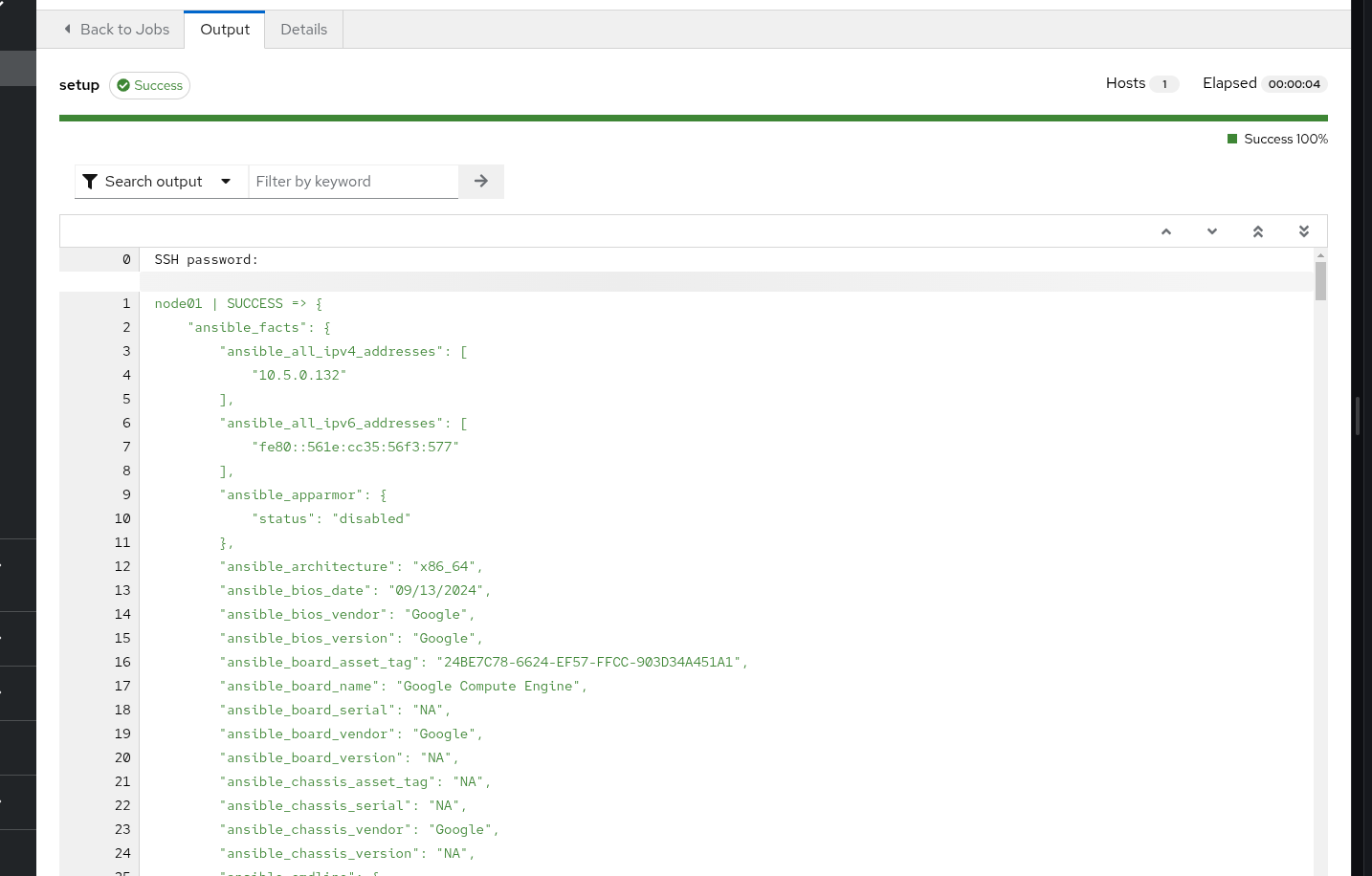
3. Generating Dynamic Infrastructure Reports
Gathering raw facts is useful, but we can also use Ansible and Jinja2 templates to create dynamic, easy-to-read HTML reports.
-
Generate the application server report.
Navigate to Automation Execution → Templates and launch the Application Server Report job template.
-
Select a report filter.
The template will prompt you with a survey. For now, select All to generate a report for all servers.
-
View the report.
Once the job completes, navigate to the Report Server tab in your lab environment and refresh the page. You will see a newly generated report.
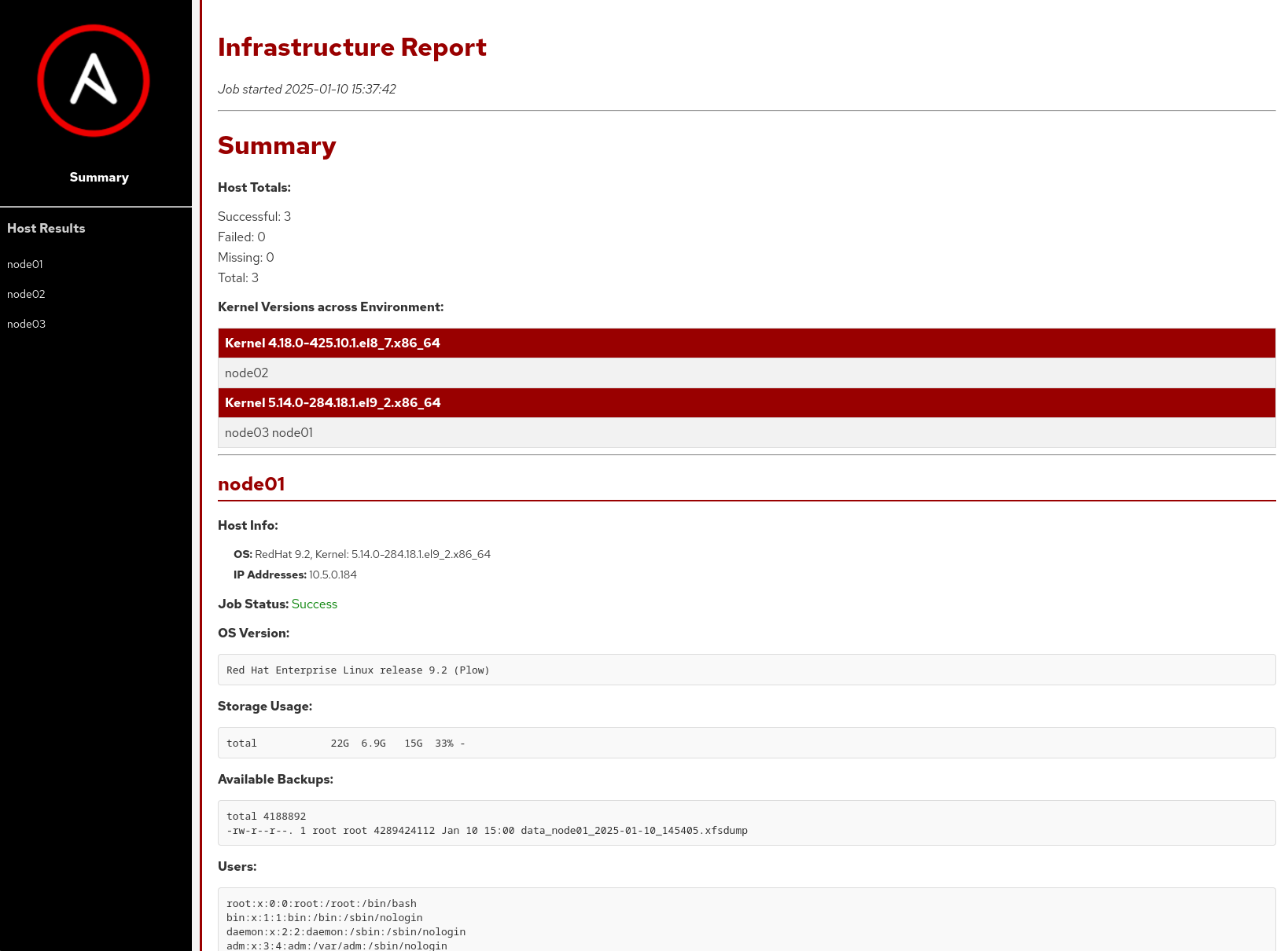
Notice that the report can combine information from multiple sources, including the backup status of the servers.

4. Running a Security Compliance (OpenSCAP) Report
Automation is a powerful tool for security and compliance. Let’s run a pre-configured job that uses OpenSCAP to generate a compliance report for one of our servers.
-
Generate the OpenSCAP report.
Navigate to Automation Execution → Templates and launch the OpenSCAP Report job template. Security has requested a report for
Node02, which this template is configured to scan. -
View the report summary.
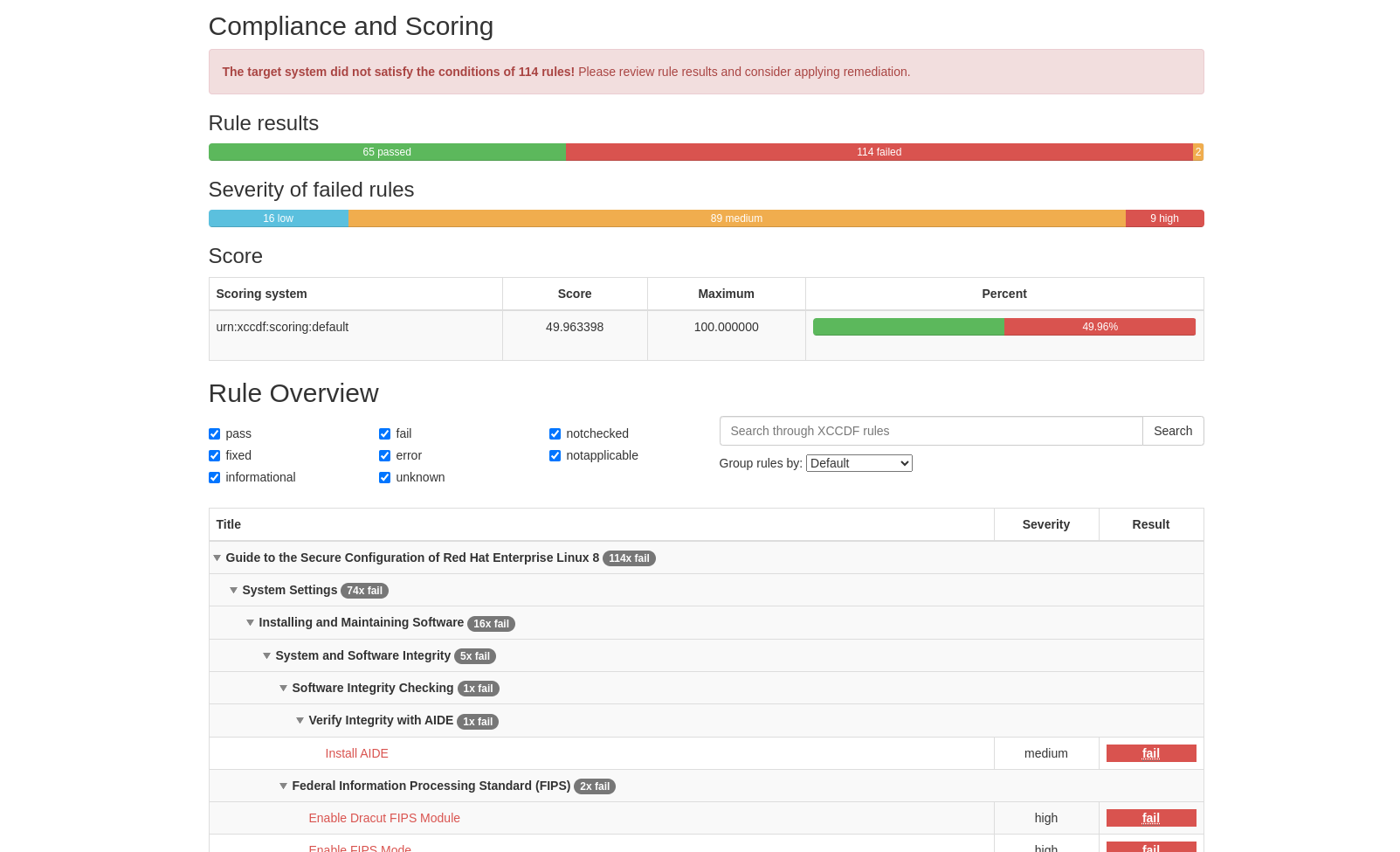
Once the job completes, navigate to the Compliance Report tab. You will see a folder containing the newly generated report.

-
View the detailed report.
Click on the HTML file to open the full OpenSCAP report and view the detailed compliance results.
5. Appendix: OpenSCAP Code Snippets
If you’re interested, here are some key code snippets from the OpenSCAP playbook.
tasks:
- name: Check if the system is RHEL 8
  ansible.builtin.debug:
    msg: "This playbook is not compatible with {{ inventory_hostname }} (not RHEL 8)"
  when: ansible_distribution != "RedHat" or ansible_distribution_major_version != "8"
  failed_when: false

- name: Run compliance tasks on RHEL 8 systems only
  when: ansible_distribution == "RedHat" and ansible_distribution_major_version == "8"
  block:
    - name: Get our facts straight
      ansible.builtin.set_fact:
        _profile: '{{ compliance_profile | replace("pci_dss", "pci-dss") }}'
        _report_dir: /tmp/oscap-reports

    - name: Ensure OpenSCAP tools are installed
      ansible.builtin.dnf:
        name: '{{ openscap_packages }}'
        state: present

    - name: Configure httpd
      when: use_httpd | bool
      block:
        - name: Install httpd
          ansible.builtin.dnf:
            name: httpd
            state: present
          notify: Restart httpd
        # ... (additional httpd and firewalld configuration)

    - name: Create report on Report Server
      block:
        - name: Ensure report directory exists
          ansible.builtin.file:
            path: '{{ _report_dir }}/{{ _profile }}'
            state: directory
            mode: 0755

        - name: Generate compliance report
          ansible.builtin.command: >-
            oscap xccdf eval --profile {{ _profile }} --report {{ _report }}
            /usr/share/xml/scap/ssg/content/ssg-rhel{{ ansible_distribution_major_version }}-ds.xml
          args:
            creates: '{{ _report }}'
          register: _oscap
          failed_when: _oscap.rc not in [0, 2]
6. Troubleshooting
If you have encountered an issue or have noticed something not quite right, please open an issue on GitHub.