Lab Guide: Generating a Windows Patch Report
A guide to using Ansible Automation Platform to generate a patch report for a Windows Server.
1. Scenario: Introspection
Another great use case for introspection is generating a patching report. Imagine your Windows server is sure to need some patches, but you don’t have direct access to the system. You can use Ansible to query the server for required patches and provide a clean report back to the Windows team.
First, log into the Ansible Automation Platform instance using the credentials below.
Username |
|
Password |
|
2. Generating a Windows Patch Report
We can gather all the required update details from the Windows host and then use a Jinja2 template to create a report. We will even host the report as a web page directly on the Windows server!
-
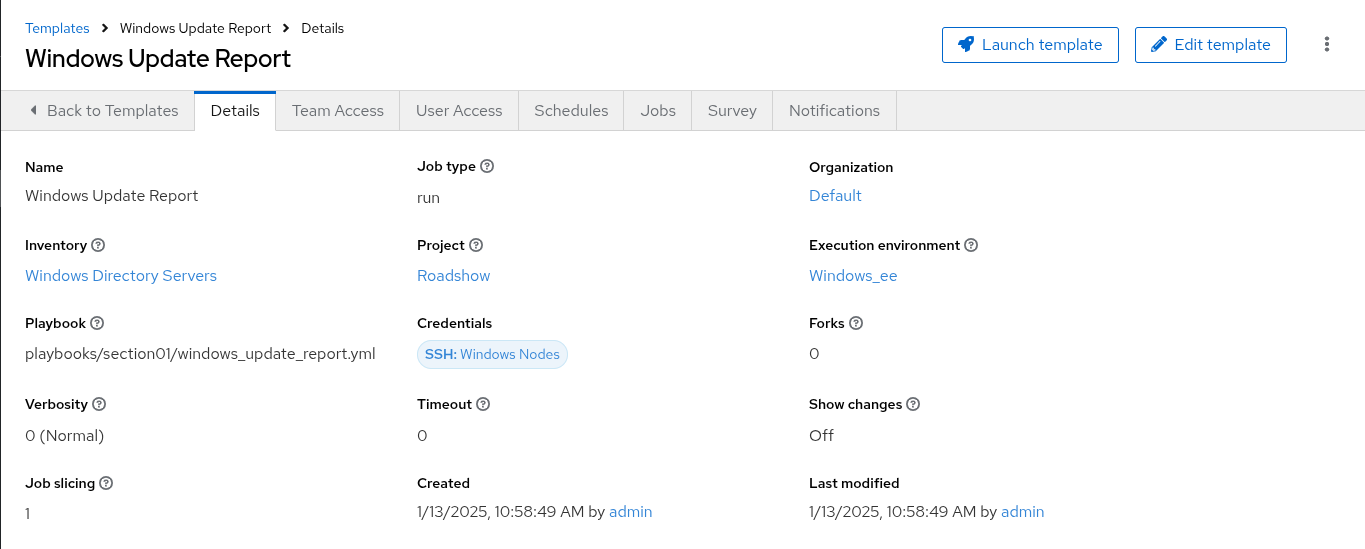
Navigate to the job template.
Go to Automation Execution → Templates and click on the name of the Windows Update Report job template. Before launching, you need to create a survey to choose which type of updates to search for.
-
Create a survey for the update category.
Go to the Survey tab and click Create survey question. Configure it with the following details:
-
Question:
Which update category are you wanting to search for? -
Description:
Windows Update Category -
Answer variable name:
update_category -
Answer type:
Multiple Choice (single select) -
Multiple Choice Options:
Security Updates,Critical Updates,Tools,Definition Updates,UpdatesTo add each multiple choice option, you will need to type it in the field and then click the + icon to add it to the list. 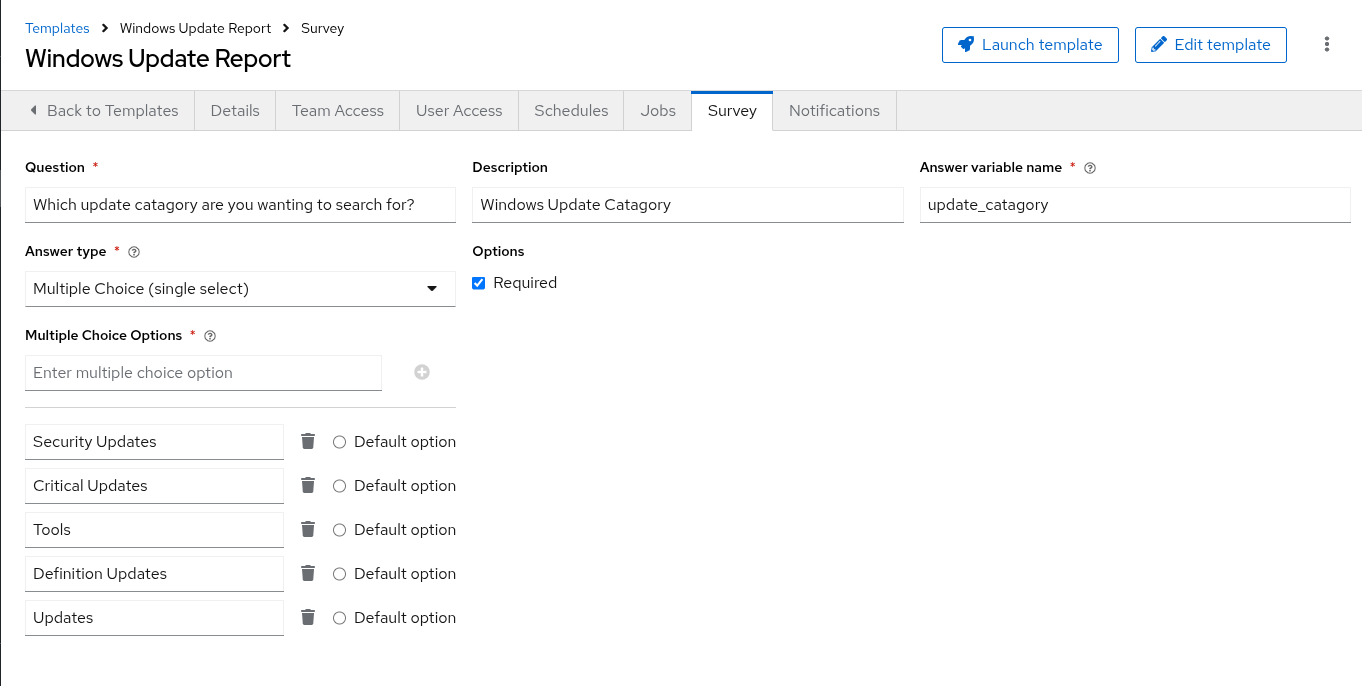
-
-
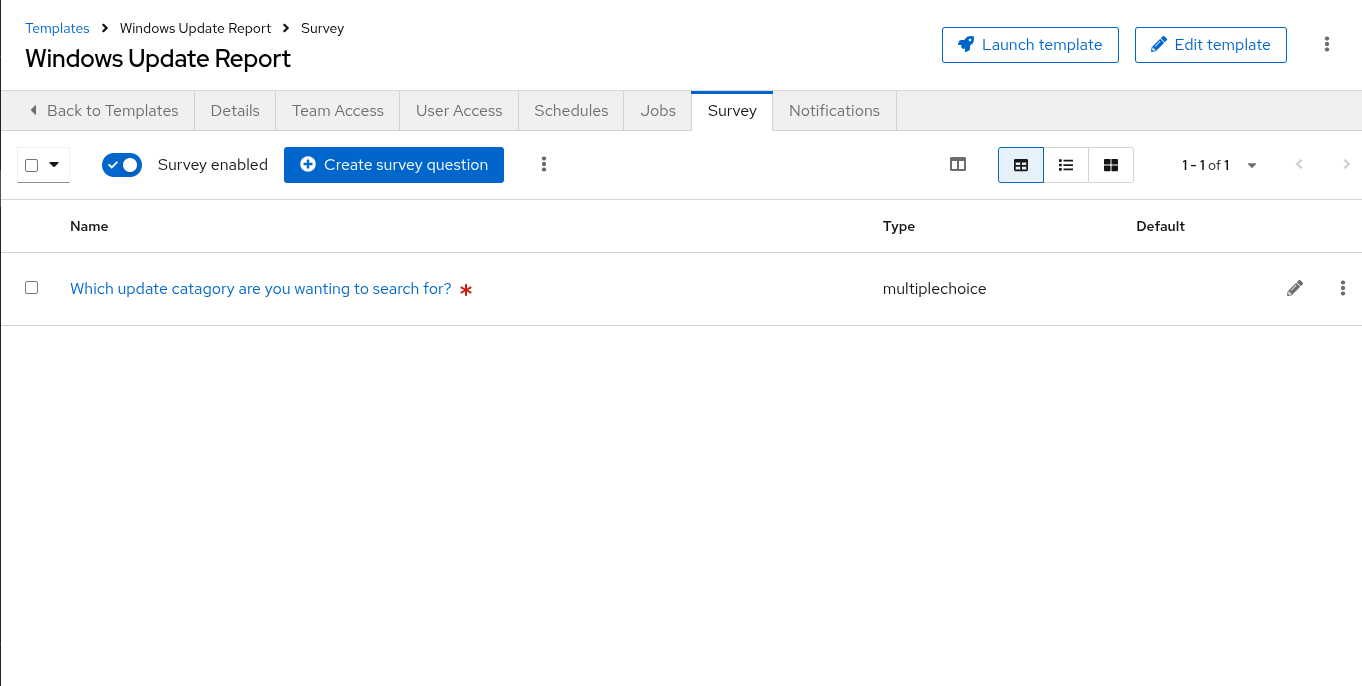
Save and enable the survey.
Click Create survey question to save your changes. Then, you must enable the survey by clicking the toggle switch at the top of the survey page.
-
Launch the template and generate the report.
Navigate back to the main Templates list and launch the Windows Update Report template. You will now be prompted with the survey. Select Security Updates from the dropdown list and launch the job.
-
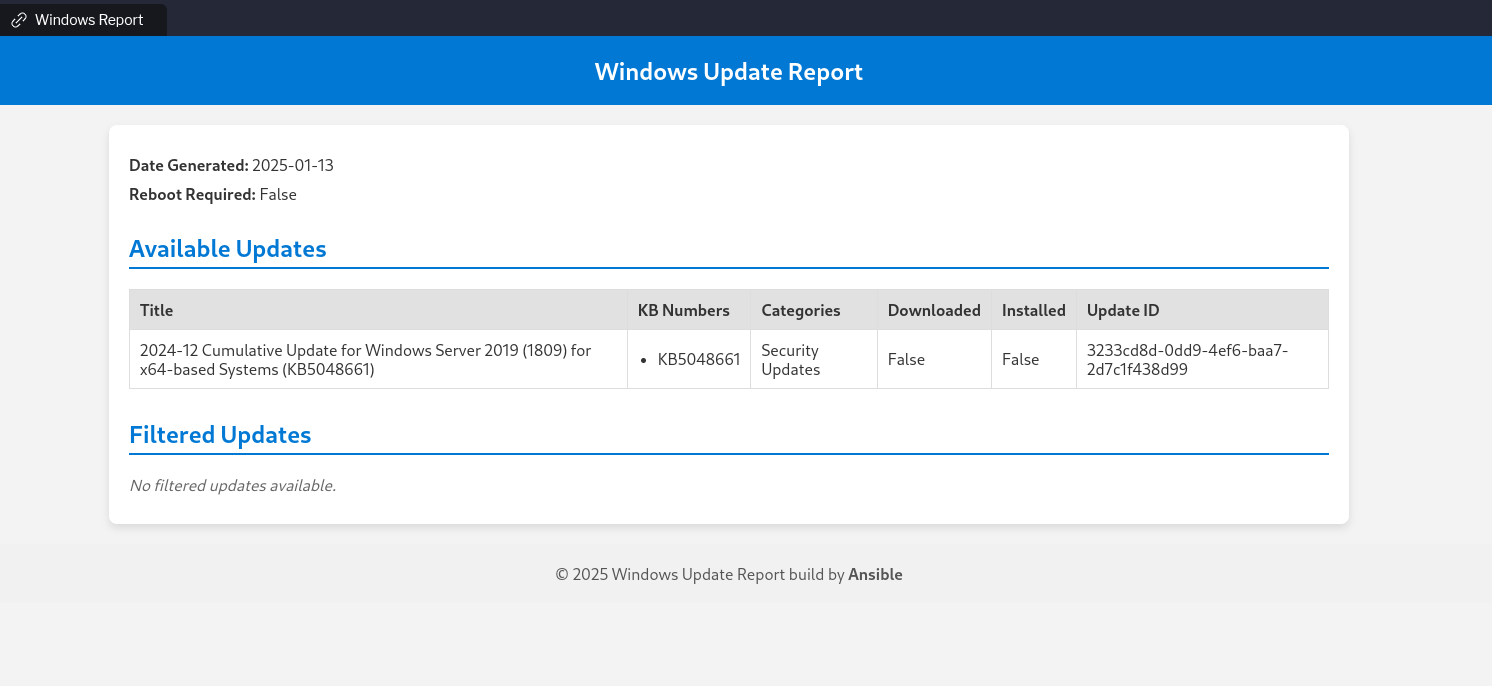
View the generated report.
Once the job has completed, navigate to the Windows UI tab in your lab environment. You should see the report detailing the outstanding security update needed for the system.
3. Final Check: Verifying Scheduled Jobs
Before finishing, let’s verify that the VSS snapshot schedule you created earlier is working as expected.
-
Check the job history.
Navigate to Automation Execution → Jobs. You should see that the Server Backup - VSS/Windows jobs have been running automatically based on the schedule.
-
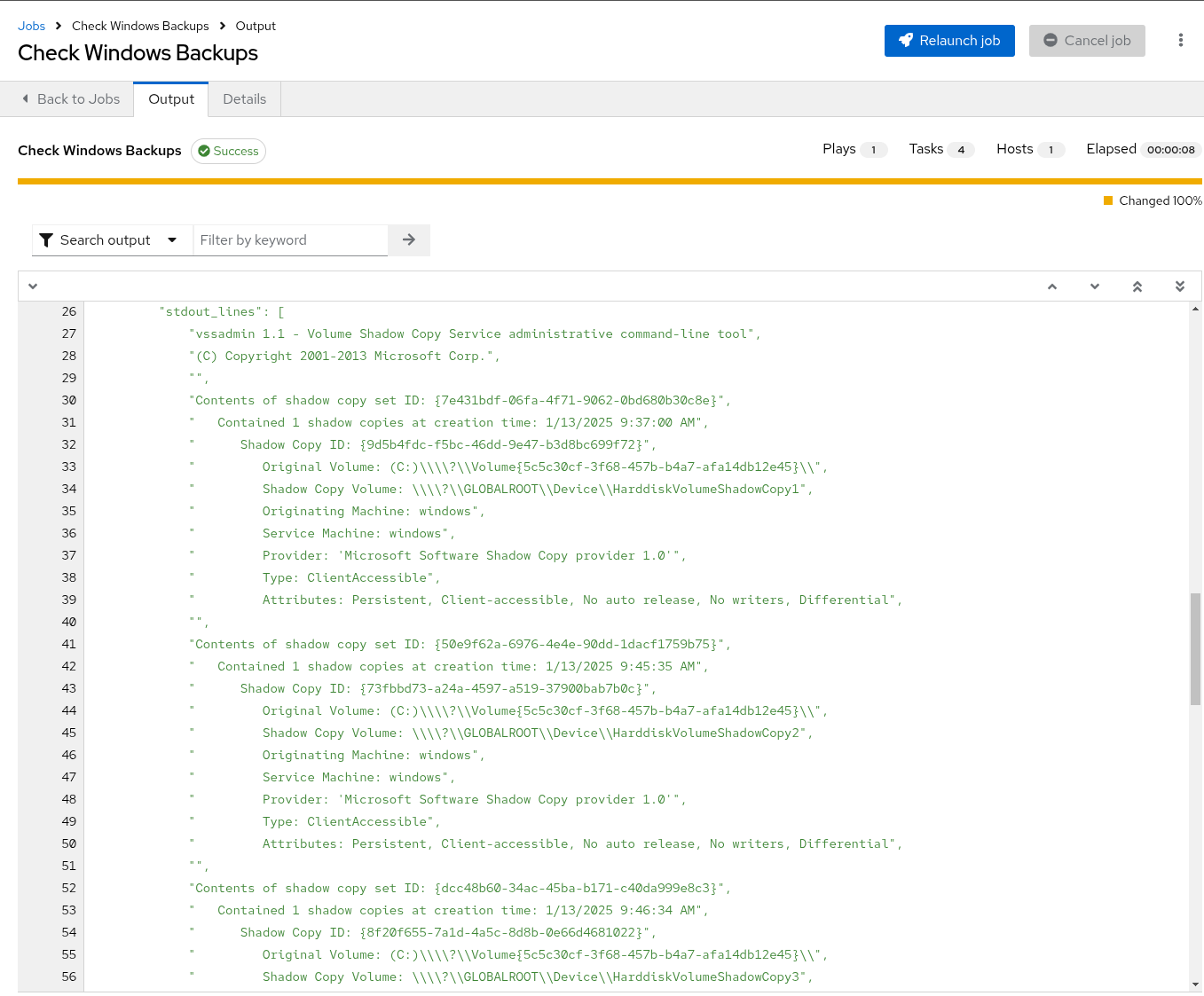
Verify the snapshots.
You can also run the Check Windows Backups template again to see the list of VSS snapshots that have been created by the scheduled job.
4. Conclusion
Well done! 🎉 You have successfully used Ansible to automate a number of backup and introspection tasks. You gathered data from both Linux and Windows systems and presented it as a clean, actionable report for your team—all without impacting production systems.
5. Appendix: Windows Report Code Snippets
If you’re interested, here are some key code snippets from the Windows update report playbook.
tasks:
  - name: Create site directory structure
    ansible.windows.win_file:
      path: "{{ report_path }}"
      state: directory

  - name: Show us the updates
    debug:
      msg: "{{ update_catagory }}"

  - name: Check available updates
    ansible.windows.win_updates:
      category_names:
       - "{{ update_catagory | default(omit) }}"
      state: searched
    register: update_result

  - name: Generate HTML report
    ansible.windows.win_template:
      src: templates/win_patch_report.html.j2
      dest: C:\inetpub\wwwroot\index.html
      force: true
    notify: restart_iis
    vars:
      updates: "{{ update_result.updates }}"

handlers:
  - name: restart_iis
    ansible.windows.win_service:
      name: W3Svc
      state: restarted
      start_mode: auto
6. Troubleshooting
If you have encountered an issue or have noticed something not quite right, please open an issue on GitHub.