Section 5 - Network Workflow
Scenarios
The essence of the following scenarios is to empower a network expert to translate their manual OSPF troubleshooting rationale into intelligent, automated playbooks. Using a development pipeline, the expert creates and refines prompts for Ansible Lightspeed to generate the necessary automation code. To ensure safety and accuracy, a workflow allows the expert to first run each AI-generated playbook in check mode. This provides an opportunity to review and approve the proposed changes before they are applied to production. If a playbook doesn’t work as intended, the expert can simply continue to refine their prompt in this iterative cycle until the desired outcome is achieved.
-
Scenario-1: OSPF neighbor down due to interface shut
-
Scenario-2: OSPF neighbor down due to incorrect OSPF network type
-
Scenario-3: OSPF neighbor down due to hello timer mismatch
Scenario-1: OSPF neighbor down due to interface shut
In this first scenario we will cause an OSPF neighbor down by intentionally shutting down the OSPF interface (Tunnel0 on cisco-rtr1).
Step 1: Review the playbook (network_aiops.yml)
The playbook can be reviewed in its entirety here: network_aiops.yml on GitHub
💡 Tip: All playbooks and rulebooks used in this lab are available in the GitHub repository at github.com/ansible-tmm/aiops-summitlab. You can review the complete source code there at any time.
Note: The following snippets explain how this playbook uses the uri module and prompt variable to interact with Ansible Lightspeed AI to create an effective playbook for OSPF remediation. Not every task is explained in detail.
AIOps.yml - Vars
---
- name: Interact with Ansible Lightspeed API
hosts: localhost
gather_facts: false
vars:
lightspeed_prompt: |
"Create a playbook and name it 'OSPF Fix'
host == cisco-rtr1
create a task that shows the status of Tunnel0 and register the output
run a new task that administratively enables interface for parent interface tunnel0 when stdout contains 'administratively down'
In the above playbook snippet the network engineer is articulating the requirements for the playbook as a multi-line variable named lightspeed_prompt. This portion of the prompt is focused on scenario-1. Here we are asking for a playbook to identify when the OSPF interface is down and remediate with a no shut
=== AIOps.yml - Tasks
- name: Send request to AI API
ansible.builtin.uri:
url: "https://c.ai.ansible.redhat.com/api/v0/ai/generations/"
method: POST
headers:
Content-Type: "application/json"
Authorization: "Bearer {{ lightspeed_token }}"
body_format: json
body:
text: "{{ lightspeed_prompt }}"
register: response
This above snippet is using the URI module to send the prompt to the lightspeed API
- name: Set fact for Ansible Lightspeed generated playbook
ansible.builtin.set_fact:
lightspeed_playbook: "{{ response.json.playbook | from_yaml }}"
- name: Save formatted YAML response to file
ansible.builtin.copy:
content: "{{ lightspeed_playbook | to_nice_yaml(sort_keys=False) }}"
dest: "{{ repository['path'] }}/playbooks/lightspeed-response.yml"
mode: '0644'
- name: Publish the changes
ansible.scm.git_publish:
path: "{{ repository['path'] }}"
user:
name: lab-user
email: lab-user@example.org
delegate_to: localhost
run_once: true
The preceding tasks convert the AI response into a YAML playbook named lightspeed-response.yml. The final task then pushes this file to the Gitea repository, making the new playbook available for execution within the workflow.
Step 2: Access the terminal to Shut the OSPF interface
This portion of the lab will trigger the Closed loop operation.
-
SSH password=
ansible123! -
SSH into cisco-rtr1 and add the following commands
ssh admin@cisco-rtr1
config t
int tu 0
shut
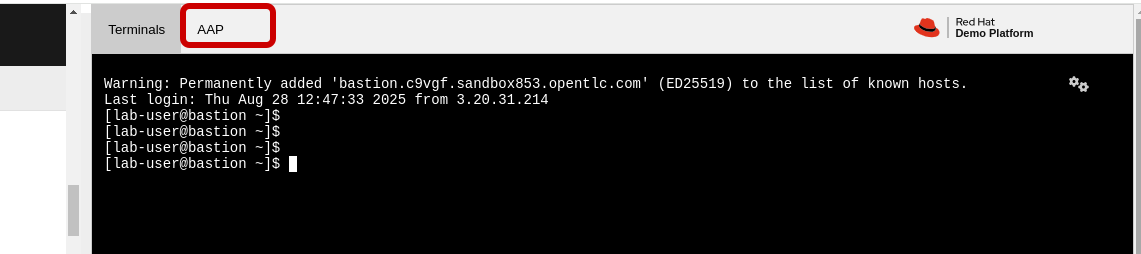
Step 3: Open the AAP tab and verify a running job for the Network-AIOps-Workflow
Step 4: Review the Create Playbook AI job-template
You can click on the icon and glean from the output the proposed playbook created by Ansible Lighspeed AI.
The tasks shown above were generated by Ansible Lightspeed in response to our prompt for remediating an OSPF down issue for scenario-1. The logic is straightforward: when a conditional task confirms the interface is administratively down, a subsequent task is run to re-enable it with the no shutdown command. The rest of the playbook has been truncated for brevity, as it pertains to later scenarios.
Step 5: Review the lightspeed_response playbook in the Gitea repository
You should see a recently updated file for lightspeed-response.yml in the lightspeed-playbooks repository. Now that this playbook is updated in the Gitea repo it becomes available to run in subsequent workflow steps.
Accessing Gitea
| Component | Value |
|---|---|
Gitea URL |
|
Username |
|
Password |
|
💡 Important: The AI-generated playbook content may vary from run to run based on how Ansible Lightspeed interprets the prompt. If the playbook in your Gitea repository doesn’t exactly match what you expected, this is normal behavior. The key is to verify that the logic and tasks align with the remediation goal (bringing up the Tunnel0 interface when it’s administratively down). You can review the playbook content before proceeding with the workflow execution.
Step 6: Review the Playbook-Check-Mode job-template in the workflow.
Click into the changed output to review. Note, this job-template and playbook is set to check-mode so the fix is not applied to cisco-rtr1 at the moment.
The following data output displays the when the playbook is run again in run mode it would Change the configuration by applying the following CLI configuration.
Step 7: Return to Splunk to verify the OSPF neighbor is still down === Accessing Splunk
| Component | Value |
|---|---|
Splunk URL |
|
Username |
|
Password |
|
Step 8: Human Review The Network-AIOps-Workflow Should be in a paused state until we approve, deny or cancel. If your workflow has succeeded thus far, it’s okay to approve the workflow, at this time.
Step 9: Review the Playbook-Run-Mode job-template in the workflow.
Click into the changed output to review. This time the job-template and playbook was set to run-mode so the fix is applied to cisco-rtr1.
The following data output displays the CLI configuration that was applied to cisco-rtr1.
Step 10: Return to Splunk to verify the OSPF neighbor is now up with a full adjacency.
Scenario-2: OSPF neighbor down due to incorrect OSPF network type
For scenario two, we’ll break OSPF by misconfiguring the network type on cisco-rtr1’s Tunnel0 interface. This creates a subtle failure where the OSPF neighbor goes down while the interface itself stays up. Therefore, our AI prompt must be more detailed to account for this protocol-level issue, not just a simple interface status change.
Step 1: Review the playbook (aiops.yml) The playbook can be reviewed in its entirety here: network_aiops.yml on GitHub
user=lab-user
password="{{ common_password }}"
Note: The following snippets explain how this playbook uses the uri module and prompt variable to interact with the Ansible Lightspeed AI to create an effective playbook for OSPF remediation. Not every task is explained in detail.
AIOps.yml
---
- name: Interact with Ansible Lightspeed API
hosts: localhost
gather_facts: false
vars:
lightspeed_prompt: |
"Create a playbook and name it 'OSPF Fix'
host == cisco-rtr1
create a task that shows the status of Tunnel0 and register the output
run a new task that administratively enables interface for parent interface tunnel0 when stdout contains 'administratively down'
Additions for Scenario-2--->
run a new task when the previous output contains 'line protocol is up' in stdout[0] in this task do a 'show ip ospf interface tunnel0' and register as new_output
run a new task with a list of two conditionals. The first condition is output contains 'line protocol is up' in stdout[0] and second condition is when new_output doesn't contain 'Network Type POINT_TO_POINT' This task would then configure interface tunnel0 with the command 'ip ospf network type point_to_point'
In the above playbook snippet the network engineer has additional requirements to the multi-line variable named lightspeed_prompt. This portion of the prompt is focused on scenario-2. Here we are asking for a playbook to identify when the OSPF interface is up but missing the correct OSPF Network Type POINT_TO_POINT.
Step 2: Change the OSPF Network Type
-
SSH password=
ansible123! -
SSH into cisco-rtr1 and add the following commands
ssh admin@cisco-rtr1
config t
int tu 0
ip ospf network non-broadcast
end
Step 3: Verify that the interface Tunnel0 is up but the OSPF neighbor is down
show ip int br tu0
Expected output:
Interface IP-Address OK? Method Status Protocol Tunnel0 10.100.100.1 YES manual up up
show ip ospf neighbor
Expected output when neighbor is down:
(no output)
Step 4: Open the AAP tab and verify a running job for the Network-AIOps-Workflow
Step 4: Review the Create Playbook AI job-template
You can click on the icon and glean from the output the proposed playbook created by Ansible Lighspeed AI.
Click here in AAP to review the playbook
For brevity, the previous scenario(1-2) tasks were truncated. The specific tasks shown above were generated by Ansible Lightspeed specifically for remediating an OSPF down issue for scenario-3. The logic is straightforward: when a conditional task confirms the interface is administratively up and the network type is correct, but the OSPF Hello timer (interval) is incorrect, a subsequent task is run to determine if the OSPF network type is correct. If Network type Point-to-Point is not configure it will correct the configuration.
Step 5: Review the Playbook-Check-Mode job-template in the workflow.
Click into the changed output to review. Note, this job-template and playbook is set to check-mode so the fix is not applied to cisco-rtr1 at the moment.
The following data output displays the when the playbook is run again in run mode it would Change the configuration by applying the following CLI configuration.
Step 6: Return to Splunk to verify the OSPF neighbor is still down === Accessing Splunk
| Component | Value |
|---|---|
Splunk URL |
|
Username |
|
Password |
|
Step 8: Human Review The Network-AIOps-Workflow Should be in a paused state until we approve, deny or cancel. If your workflow has succeeded thus far, it’s okay to approve the workflow, at this time.
Step 9: Review the Playbook-Run-Mode job-template in the workflow.
Click into the changed output to review. This time the job-template and playbook was set to run-mode so the fix is applied to cisco-rtr1.
The following data output displays the CLI configuration that was applied to cisco-rtr1.
Step 10: Return to cisco-rtr1 to verify the OSPF adjacency is full. This time we will check the status from the router to ensure the OSPF network type == POINT-TO-POINT
-
SSH password=
ansible123! -
SSH into cisco-rtr1 and add the following commands
ssh admin@cisco-rtr1
sh ip ospf neighbor
Output:
Neighbor ID Pri State Dead Time Address Interface 192.168.2.2 0 FULL/ - 00:00:33 10.100.100.2 Tunnel0
sh ip ospf int tu0 | s Type
Output:
Process ID 1, Router ID 192.168.1.1, Network Type POINT_TO_POINT, Cost: 1000
Scenario-3: OSPF neighbor down due to hello timer mismatch
For scenario three, we’ll break OSPF by misconfiguring the hello timer on cisco-rtr1’s Tunnel0 interface. This creates a subtle failure where the OSPF neighbor goes down while the interface itself stays up. Therefore, our AI prompt must be more detailed to account for this protocol-level issue, not just a simple interface status change.
Step 1: Review the playbook (aiops.yml) The playbook can be reviewed in its entirety here: network_aiops.yml on GitHub
user=lab-user
password="{{ common_password }}"
Note: The following snippets explain how this playbook uses the uri module and prompt variable to interact with the Ansible Lightspeed AI to create an effective playbook for OSPF remediation. Not every task is explained in detail.
AIOps.yml
---
- name: Interact with Ansible Lightspeed API
hosts: localhost
gather_facts: false
vars:
lightspeed_prompt: |
"Create a playbook and name it 'OSPF Fix'
host == cisco-rtr1
create a task that shows the status of Tunnel0 and register the output
run a new task that administratively enables interface for parent interface tunnel0 when stdout contains 'administratively down'
run a new task when the previous output contains 'line protocol is up' in stdout[0] in this task do a 'show ip ospf interface tunnel0' and register as new_output
run a new task with a list of two conditionals. The first condition is output contains 'line protocol is up' in stdout[0] and second condition is when new_output doesn't contain 'Network Type POINT_TO_POINT' This task would then ⚙️ configure interface tunnel0 with the command 'ip ospf network type point_to_point'
Additions for Scenario-3--→
run a new task with a list of three conditionals. The first condition is output contains 'line protocol is up' in stdout[0] and second condition is when new_output does contain 'Network Type POINT_TO_POINT' the third condition is when new_output doesn't contain 'Hello 10' This task would then ⚙️ configure interface tunnel0 with the command 'ip ospf hello-interval 10'"
In the above playbook snippet the network engineer has additional requirements to the multi-line variable named lightspeed_prompt. This portion of the prompt is focused on scenario-3. Here we are asking for a playbook to identify when the OSPF interface is up, has the correct network type, but the Hello timer is misconfigured.
Step 2: Change the OSPF Hello Timer
-
SSH password=
ansible123! -
SSH into cisco-rtr1 and add the following commands
ssh admin@cisco-rtr1
config t
int tu 0
ip ospf hello-interval 30
end
Step 3: Verify that the interface Tunnel0 is up but the OSPF neighbor is down
show ip int br tu0
Expected output:
Interface IP-Address OK? Method Status Protocol Tunnel0 10.100.100.1 YES manual up up
show ip ospf neighbor
Expected output when neighbor is down:
(no output)
💡 Note: In some cases, you may still see OSPF neighbor output even after changing the hello timer. This can happen if the OSPF adjacency hasn’t fully timed out yet (dead interval is typically 40 seconds). If you see neighbor output, wait a few moments and check again. The neighbor state should eventually transition to down once the dead timer expires.
Step 4: Open the AAP tab and verify a running job for the Network-AIOps-Workflow
Step 4: Review the Create Playbook AI job-template
You can click on the icon and glean from the output the proposed playbook created by Ansible Lighspeed AI.
Click here in AAP to review the playbook
For brevity, the previous scenario-1 tasks were truncated. The specific tasks shown above were generated by Ansible Lightspeed specifically for remediating an OSPF down issue for scenario-2. The logic is straightforward: when a conditional task confirms the interface is administratively up but the OSPF neighbor is down, a subsequent task is run to determine if the OSPF network type is correct. If Network type Point-to-Point is not configured, the task will correct the configuration.
Step 5: Review the Playbook-Check-Mode job-template in the workflow.
Click into the changed output to review. Note, this job-template and playbook is set to check-mode so the fix is not applied to cisco-rtr1 at the moment.
The following data output displays the when the playbook is run again in run mode it would Change the configuration by applying the following CLI configuration.
Note: We know the playbook was run in check-mode from the previous scenarios, so this time we skip the Splunk dashboard step.
Step 7: Human Review The Network-AIOps-Workflow Should be in a paused state until we approve, deny or cancel. If your workflow has succeeded thus far, it’s okay to approve the workflow, at this time.
Step 9: Review the Playbook-Run-Mode job-template in the workflow.
Click into the changed output to review. This time the job-template and playbook was set to run-mode so the fix is applied to cisco-rtr1.
The following data output displays the CLI configuration that was applied to cisco-rtr1.
Step 10: Return to cisco-rtr1 to verify the OSPF adjacency is full. This time we will check the status from the router to ensure the OSPF hello interval == 10
-
SSH password=
ansible123! -
SSH into cisco-rtr1 and add the following commands
ssh admin@cisco-rtr1
sh ip ospf neighbor
Output:
Neighbor ID Pri State Dead Time Address Interface 192.168.2.2 0 FULL/ - 00:00:33 10.100.100.2 Tunnel0
sh ip ospf int tu0 | s Hello
Output:
Timer intervals configured, Hello 10, Dead 40, Wait 40, Retransmit 5
oob-resync timeout 40
Hello due in 00:00:05
Summary
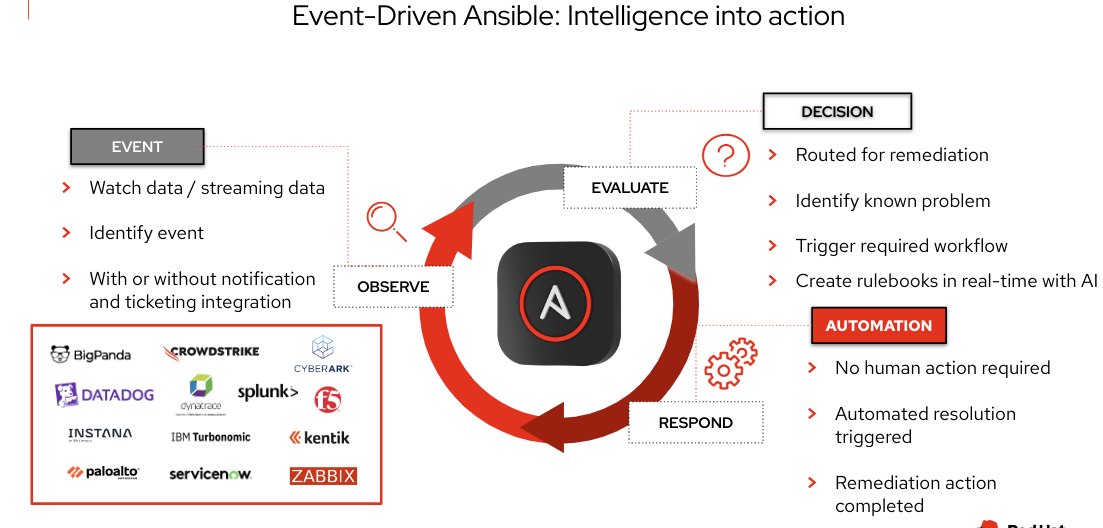
This Lab successfully implemented a closed-loop, AI-driven network automation workflow. We began by integrating Cisco OSPF monitoring with Splunk alerting. Subsequently, an Event-Driven Ansible (EDA) rulebook was configured to act on these alerts, establishing an operational feedback loop. This final module leveraged that loop to trigger an AI workflow, which dynamically generates a remediation playbook. This powerful new capability allowed us to successfully stage, test, and automate troubleshooting for three distinct OSPF failure scenarios.
By leveraging Ansible Lightspeed, our network expert could focus on codifying their troubleshooting knowledge in plain language, rather than getting bogged down in low-level syntax like playbook conditionals, operators, or regular expressions. This same process could easily be leveraged to iterate additional trouble shooting scenarios into the same playbook or refactored as roles.