Verifying connectivity to the MCP Servers
To start out your experience with Infinicorp, we need to validate that the setup is working properly.
This module will get you into Goose, validate that the MCP servers are connected, and run a couple of test prompts.
Expand a section below to complete the tasks in that section.
Please complete each section in order.
Start Goose
You will be using the MCP Server Terminal for most of these exercises. You should see that in the showroom on the right pane beside these instructions.
The terminal is connected to:
lab-user@mcp-{guid}
| Hosts in your environment all contain {guid}. In a shared environment like the inventory at the Hybrid Cloud Console, you might see similarly named hosts, but this unique identifier is for your systems. |
Goose also has a graphical user interface (GUI), but you’ll be using the command line interface (CLI).
In the MCP terminal window, start a tmux session by running:
tmux|
When you see green "play" buttons like above in this lab environment, notice that you can send the command directly into the terminal window. If you choose to copy/paste, depending on your computer configuration you may need to use the keyboard command ctrl-shift-v or right click menu to paste. |
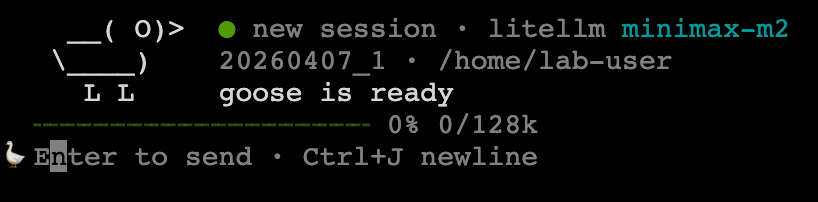
Then, start a Goose session by running:
goose sessionThis will start the Goose session.
|
Without running tmux the environment will appear to enter strange spaces if you are manually typing commands. That is to be expected. Running tmux first gives a smoother experience for the lab - this isn’t something you would need to do outside of Infinicorp’s virtual environment that was provisioned for you. |
Verify MCP Server connectivity
With Goose started, the next thing you should do is verify that the various MCP servers are connected. You have 3 different MCP servers installed on the same host, so we need to check that they are all connected. As a reminder, the three MCP servers are:
-
Red Hat Lightspeed (formerly known as Red Hat Insights) MCP
-
Red Hat Satellite MCP
-
Red Hat Enterprise Linux MCP
Make sure you are in the Goose session, and run the following prompt:
Give me a simple list of the MCP servers you are currently connected to.The output will include a variety of MCP extensions and tools. Review the output and make sure that you see the following listed:
-
Lightspeed MCP Server
-
Satellite MCP Server
-
RHEL MCP Server
It should appear similar to the image below:

|
Due to the nature of AI models and agents, the output you see on screen may not exactly match what you see in screenshots in this lab. That is to be expected. |
Query Hybrid Cloud Console inventory
Goose says you’re connected, but to be completely sure, you should run a prompt to verify. Start with asking how many systems are connected to Red Hat Lightspeed at the Hybrid Cloud Console (also known as console.redhat.com) by running the following prompt:
How many systems are connected to Red Hat Lightspeed?The output should look similar to:

| The number of systems you see in the response will be different from the image above. This is expected. |
The returned result is the number of systems connected to Red Hat Lightspeed. This confirms that Goose is able to communicate with the APIs over at the Hybrid Cloud Console using the Red Hat Lightspeed MCP server..
Query Satellite inventory
Now to check the Satellite MCP server, ask Goose what systems are connected to the Satellite.
What hosts are connected to my Satellite?The results will list the servers connected to your Satellite.
The output should look similar to:

Unlike the Hybrid Cloud Console inventory which is shared, the Satellite inventory is a private environment - you will not see other people’s systems and you will only see your hosts.
This confirms that Goose is able to communicate with your Satellite server using the Satellite MCP server.
Query RHEL specifics
The RHEL MCP server looks in more detail at specific systems - to test it out you’ll need to ask about a specific RHEL system.
Check the current CPU load and memory usage for rhel-3-{guid}This will return basic information about CPU type and utilization along with memory utilization.
The output should look similar to:
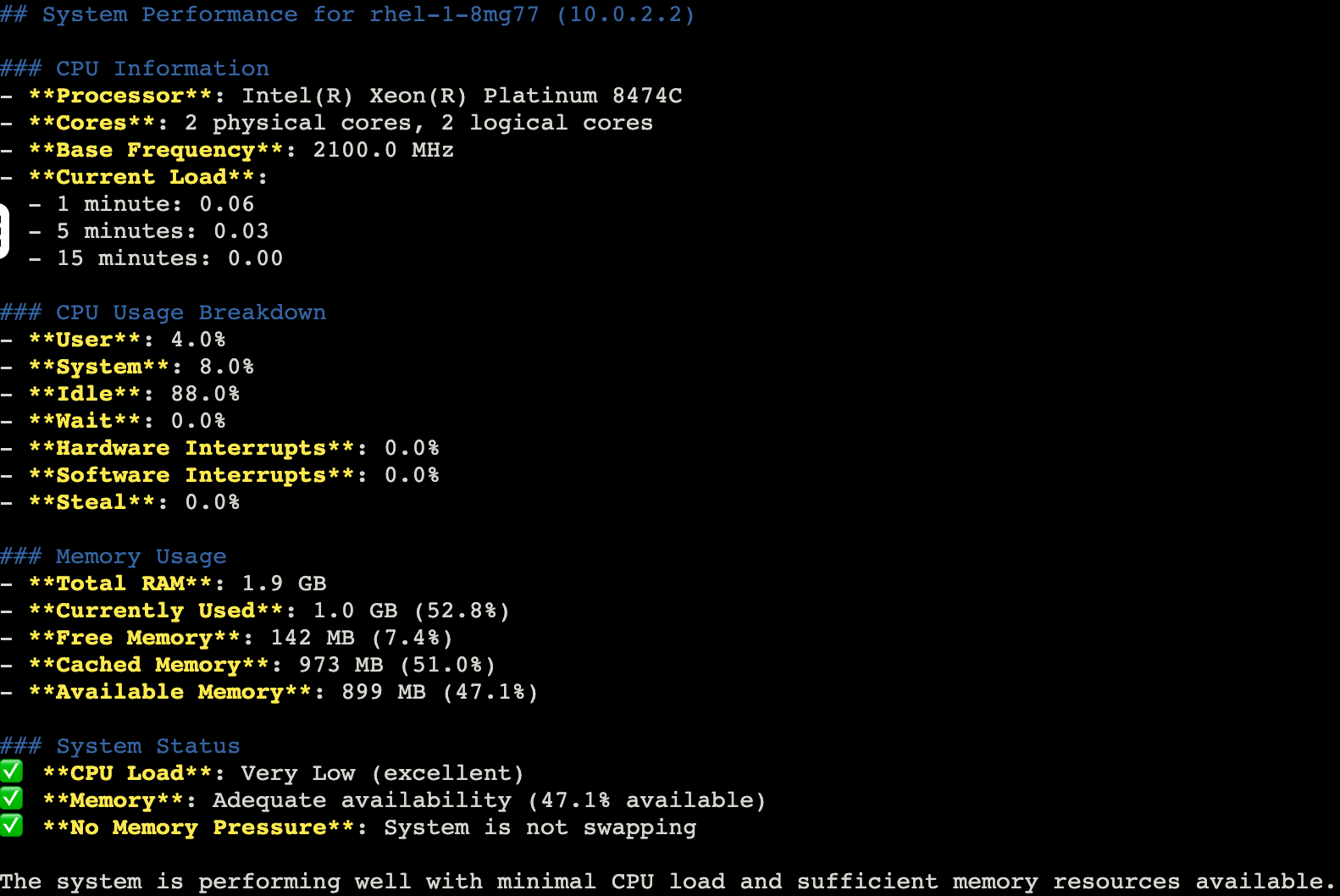
This confirms that Goose is able to communicate with your RHEL hosts using the RHEL MCP server.
Exit Goose
The lab environment has limited context available.
To help make sure that you have as consistent of a lab experience as possible, you will exit Goose at the end of each module and restart it in the next module.
In the Goose session enter:
/quitAnd hit enter.
This will end the Goose session and return you to the terminal prompt.
Access to Hybrid Cloud Console and Satellite UI
The primary interface for this lab is the mcp host with the Goose terminal.
You do not need to access the Hybrid Cloud Console or the Satellite UI for any reason in this lab.
However - we know you may want to do so.
The credentials are shared at the bottom of this module for convenience.
|
NONE of the exercises in this lab require logging into the Hybrid Cloud Console or Red Hat Satellite. This is purely optional in the event you wish to explore more. The Hybrid Cloud Console user has read only access and cannot do more than what the MCP calls can do. |
Hybrid Cloud Console
Use a web browser to navigate to the Hybrid Cloud Console ←- Click to open in a new tab.
Log into the Hybrid Cloud Console with the following credentials:
| Username | Password |
|---|---|
rhpd-lightspeed-lb1305 |
rhdp*lightspeed2026! |
Satellite
To log into the Satellite UI, use a web browser to navigate to the {satellite_url}[Satellite UI^].
To log in, you’ll need the following credentials to log into the Satellite Web UI.
You can copy and paste each of them below.
| Username | Password |
|---|---|
admin |
{satellite_password} |
Now click Log In.
After running this series of checks you now know that the various MCP servers are working in your environment and you’re ready to dig in a little deeper. Continue to the next module.