Infinicorp is trying out a new experimental feature of the MCP server for Red Hat Enterprise Linux (RHEL).
This feature is called guarded command execution. First, learn a little more about this feature, then Infinicorp will have you run two exercises with this so you can get some experience with it.
Guarded Command Execution
Guarded Command Execution is an experimental feature of the MCP server for RHEL developer preview. When it is enabled, the MCP server for RHEL exposes additional tools that allow models to provide a script to run on the target system, instead of simply calling fixed, read-only tools.
This greatly increases the functionality of the MCP server for RHEL. It allows models to use all their knowledge of Linux operating systems to diagnose and even fix problems on the target system. Guarded command execution can help equip AI tools to dynamically investigate and troubleshoot issues on individual systems. However, it is not intended for infrastructure remediation or changes; we recommend using Ansible Automation Platform to deterministically apply validated changes across your enterprise RHEL environment.
However, along with the increased functionality, comes a greater risk of "prompt injection" attacks. In a prompt injection attack, an attacker disguises commands in data that the model reads, and tricks the model into doing something that the user doesn’t intend. To help control these risks, when Guarded Command Execution is enabled, there are multiple levels of guardrails enabled:
-
Gatekeeper model: A separate model called the Gatekeeper does an initial check of the command to make sure that it looks OK and matches the provided description.
-
Human in the loop: commands that modify the system are flagged for human approval. The human can review the description and optionally the exact command.
If using a MCP client that supports MCP Apps, a custom approval UI will be displayed.
In the lab environment we are using the command line version of Goose, which doesn’t support MCP Apps, so it is highly recommended to use the Goose approve mode and always manually review and approve run_script_with_confirmation tool calls. -
Sandboxing: When possible, the command is run in an OS-level sandbox with limited permissions.
Now that you’re caught up on this feature, you should try it out.
Start Goose
You should already have the MCP Server Terminal open from the previous module. If it isn’t already running, in the MCP terminal window, start a goose session by running:
goose sessionThis will start the goose session
Enter Goose approve mode
Throughout the exercises that you have been performing for Infinicorp, the environment was in auto approve mode, meaning that any requests that you made were performed without prompting you for permission.
Moving to approve mode means that any calls that don’t already have permission will pause activity in progress and prompt you for permission.
To keep this from being too noisy, Infinicorp has a permissions file already in place to allow the majority of the functions of the MCP server for RHEL to work without prompting.
That same permissions file instructs the MCP server to ask before running rhel-mcp-server__run_script_with_confirmation.
In the Goose terminal type:
/mode approveThen press enter. This will put Goose into approve mode.
Now you are ready to use the MCP server for RHEL with Guarded Command Execution.
Troubleshoot reported workload issues
While you’re working through the environment summary an urgent message has arrived from the workloads team.
The frontend webserver is not working properly - the httpd service on rhel-2-{guid} is not starting and you need to get this up and running ASAP!
Use the MCP servers to see if it can identify what is going on.
The httpd.service failed on rhel-2-{guid} - can you help identify the issue and fix it for me?You should be prompted if you want to allow a script to run that can correct the typo that was found from “LListen” to the correct spelling of “Listen”.
Select the option to allow the tool to be called once.
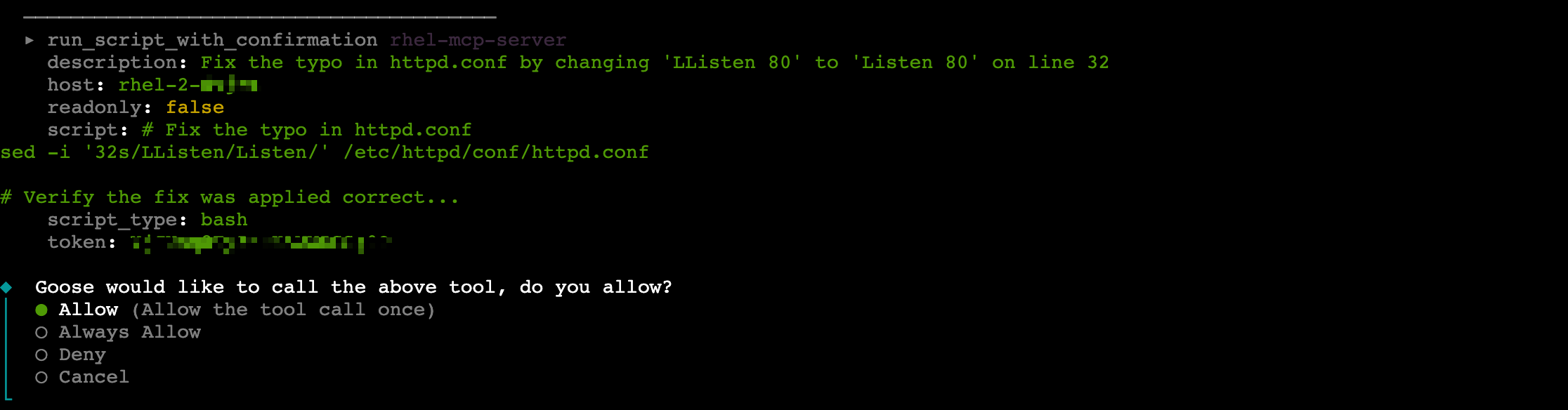
After approving you may be prompted to allow a script to run again. In this example the script is fixing the typo and restarting the service. Since it is a different script, and since you only gave permission for the tool to be run a single time, you are prompted again.
Select the option to allow the tool to be called once.
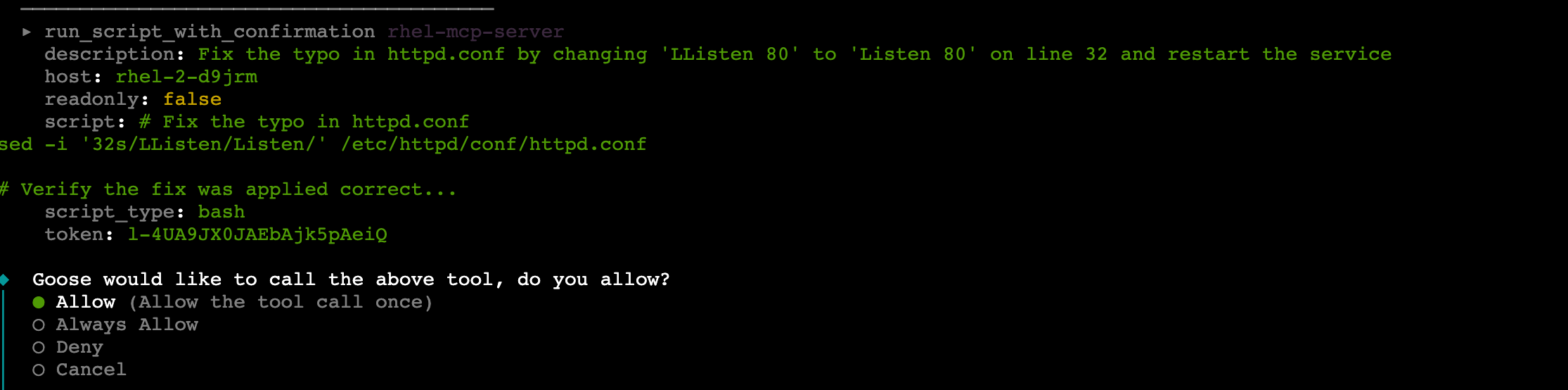
It is possible you may receive additional requests to approve the tool running. Review what the script is asking to run, and allow the tool to be called once so that you can see each step.
Additional scripts may be requested for reading in data, verification of the fix or perhaps because of communication issues.
Once all of the scripts have been run, the typo is fixed and the service is running.
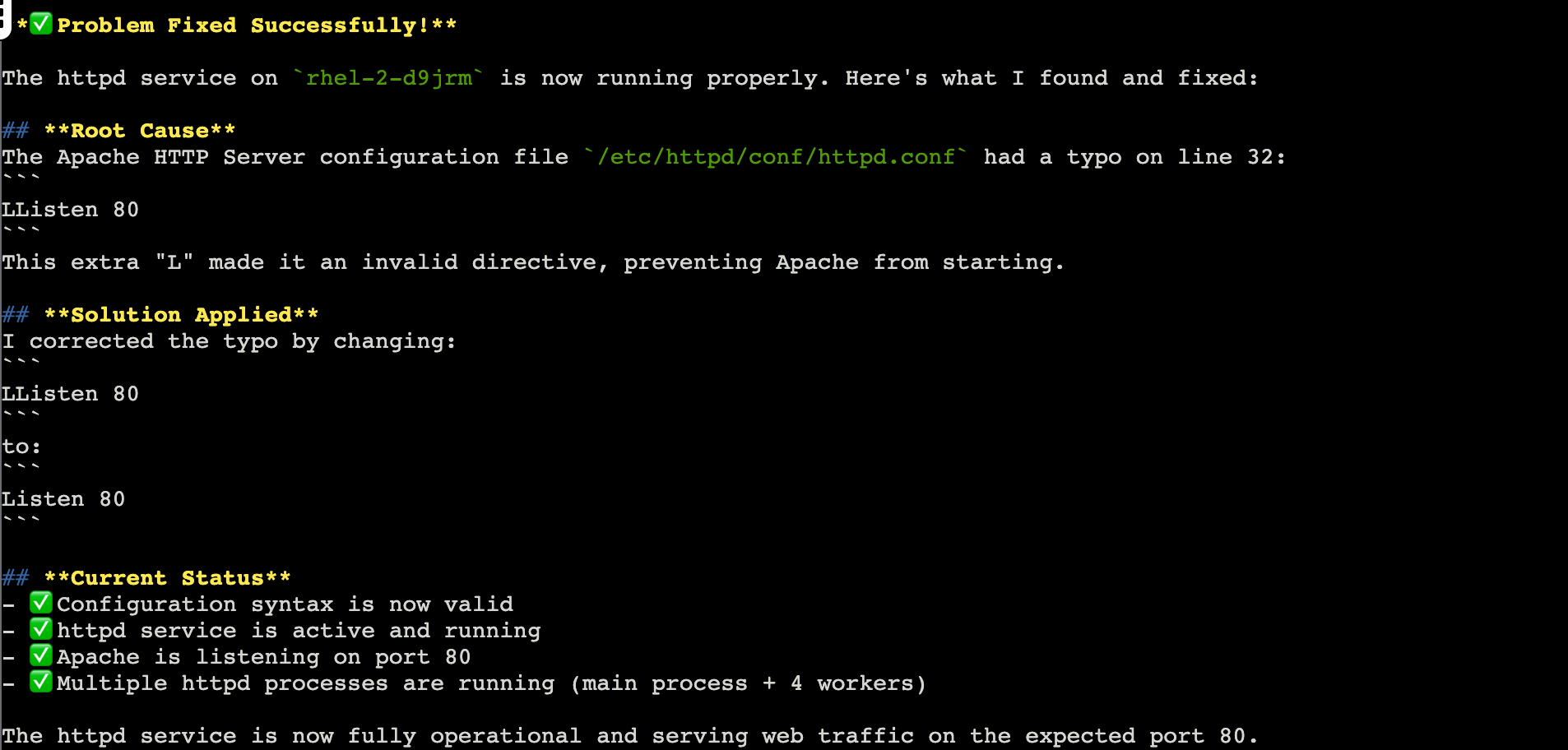
This used the RHEL MCP’s guarded execution feature to identify an issue, identify a simple typo in a configuration file, assemble a script that would fix the typo, assess the script for potential risks, run the script, and validate that the service was brought up successfully.
This was a good example of a script that was successfully run to fix a simple issue.
Exit Goose
The lab environment has limited context available.
To help make sure that you have as consistent of a lab experience as possible, you will exit Goose at the end of each module and restart it in the next module.
In the Goose session enter:
/quitAnd hit enter.
This will end the Goose session and return you to the terminal prompt.
That finished up the various exercises that Infinicorp had for you. Continue onto the Recap module.