Introduction to your environment
Our first step is to get accustomed to our environment and its components.
Our home base will be our OpenShift cluster web console:
Login Credentials:
-
User: user1
-
Password: openshift
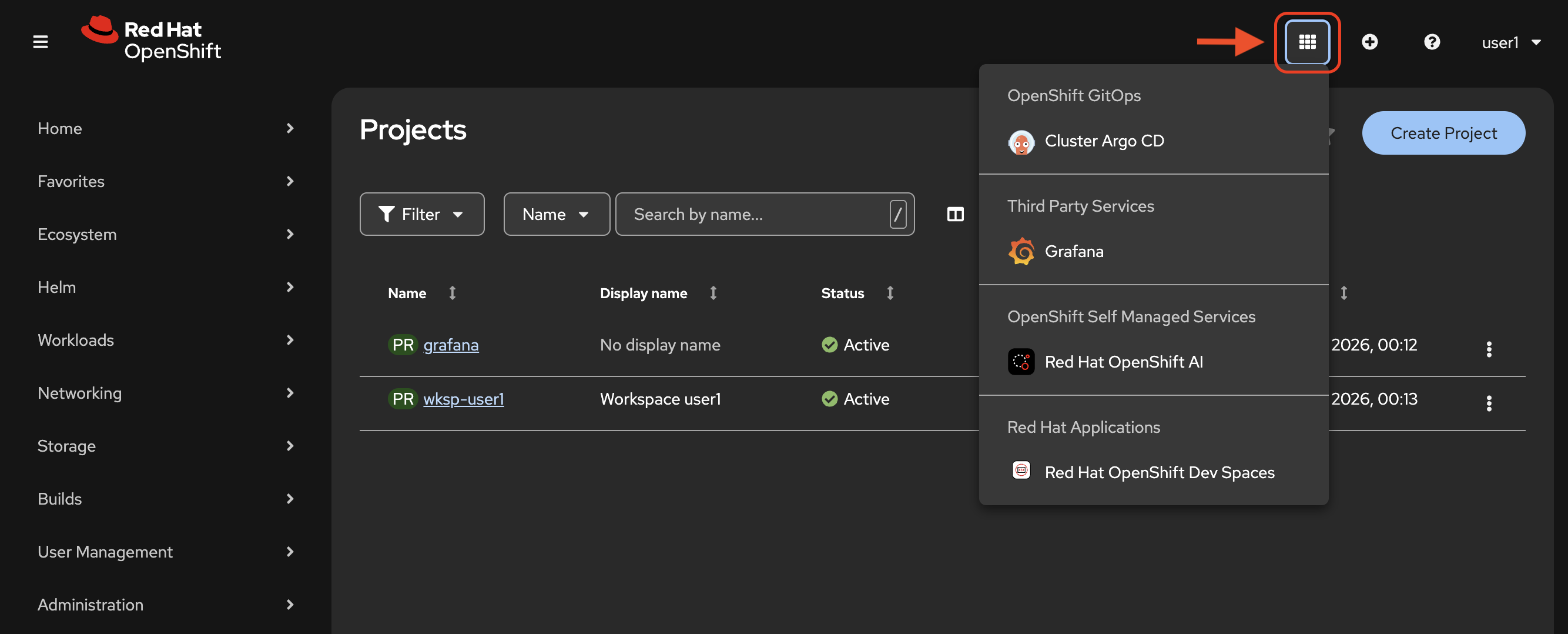
From here, we will navigate to and between the following environments throughout our workshop:
-
Cluster Argo CD
-
We may use this app to view our GitOps application deployments. This may be useful if you need to check the health of any of our apps.
-
-
Grafana
-
A dashboard interface that will show us model usage metrics.
-
-
Red Hat OpenShift AI
-
Where we will view and manage our model deployments and other MLOps/LLMOps tasks and agentic resources.
-
-
Red Hat OpenShift Dev Spaces
-
Where we will go into our developer persona and leverage our model as a service setup for coding tasks.
-
You may find and go to these applications via our navigation button in the web console:
Now that you know how to get around, your adventure begins!
View model deployment
OpenShift AI provides a web-based dashboard interface to deploy and manage models with ease, at scale and in conjunction with other critical AI assets like MCP servers or evaluation tooling.
Let’s get connected.
Open the OpenShift AI Dashboard
Click the navigation button and select Red Hat OpenShift AI from the drop-down menu.
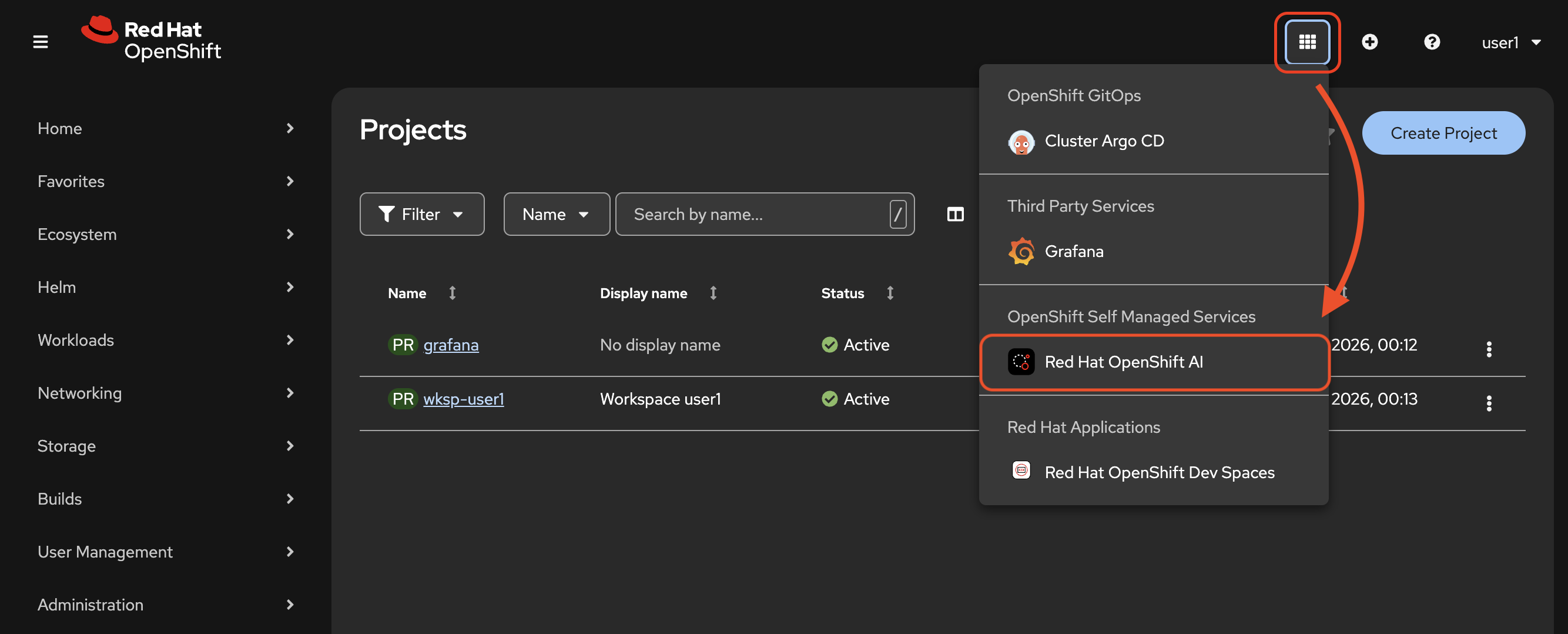
If prompted, login again with your user credentials to the OpenShift AI dashboard.
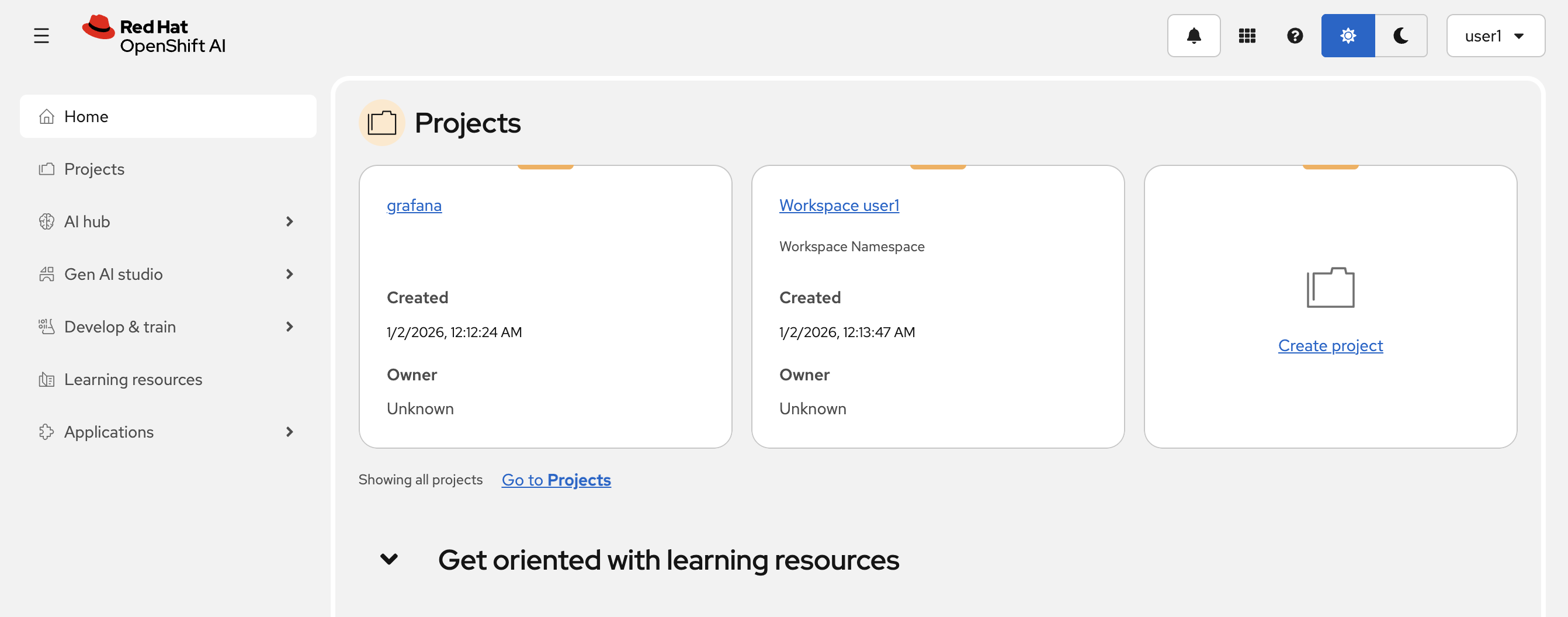
Once authenticated you will see the following home page:
Now, go to the Gen AI Studio section of the dashboard and select AI asset endpoints.
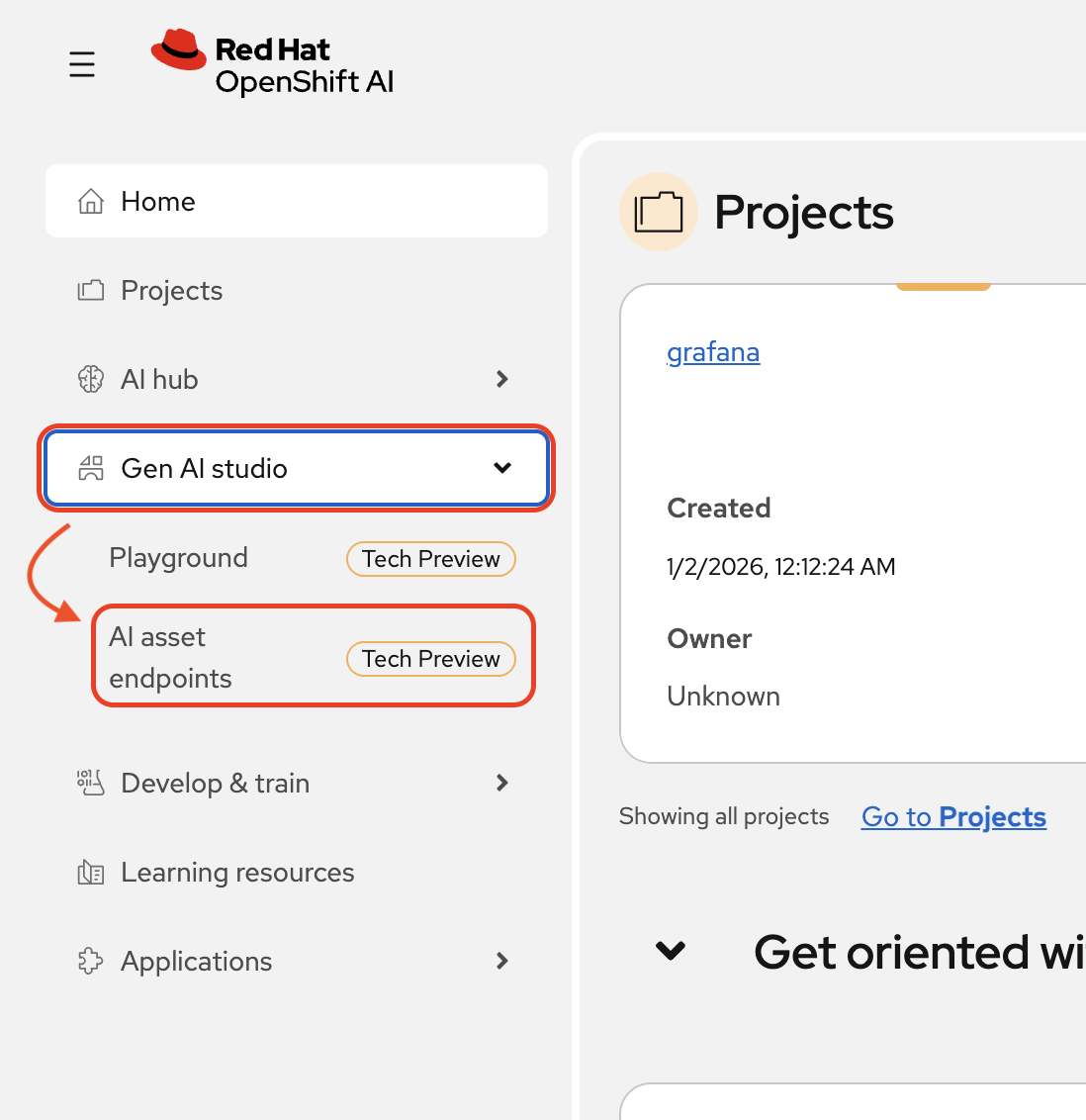
In the AI asset endpoints page, change the project from grafana to Workspace userx with x equal to your assigned user number.
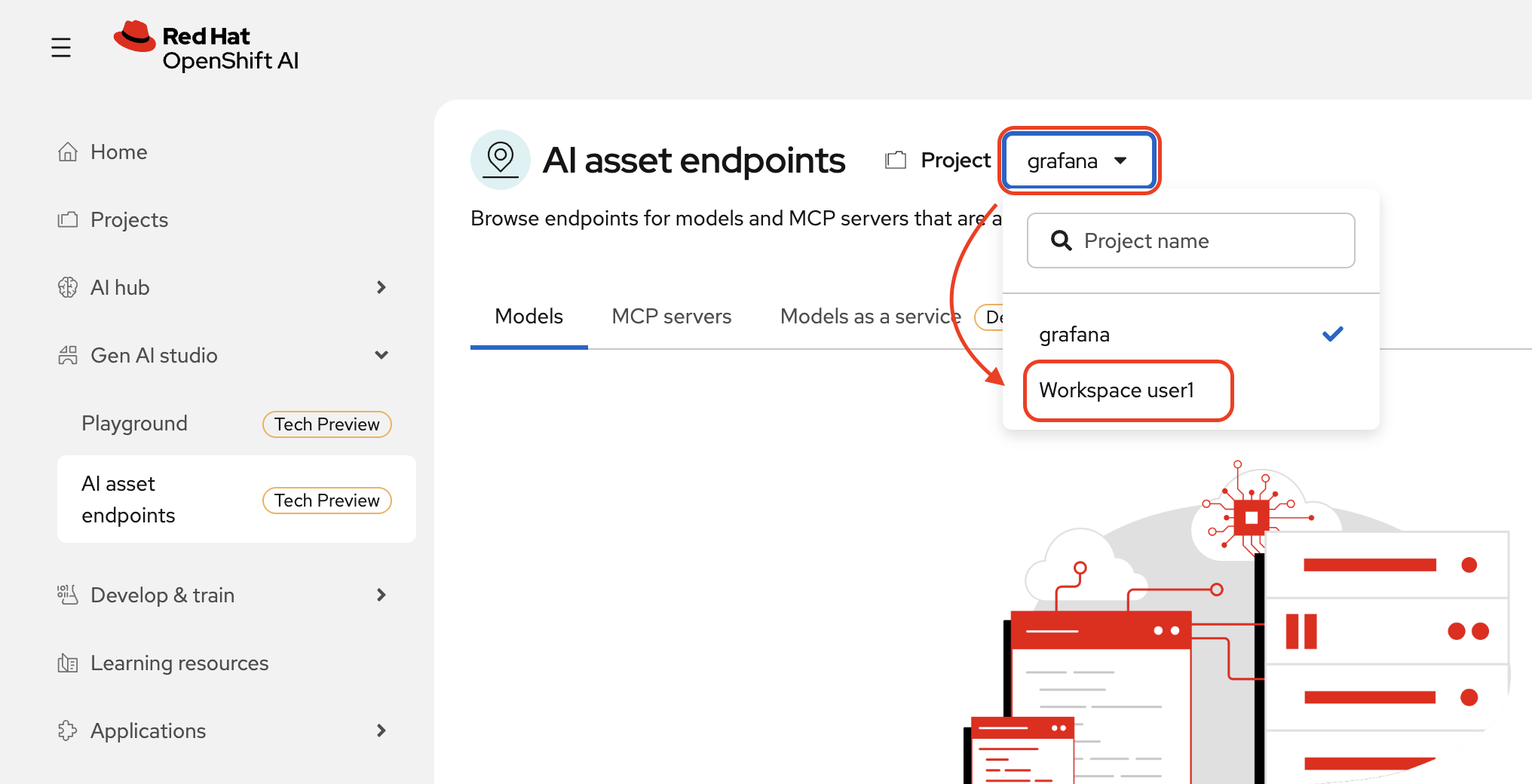
Now you may view your available asset endpoints.
You will not see any available models under the Models tab. Why? Because you do not have a model deployed in this project (project = namespace).
We do, however, have a model deployed in a separate namespace managed by our cluster admin. This admin has set up a Models as a Service architecture for our organization with a central model they have deployed and now manage that is available for use by remote teams across the organization.
We will not be able to manage the model deployment with our simple user privileges, but we can access its endpoint information via the Models as a service tab.
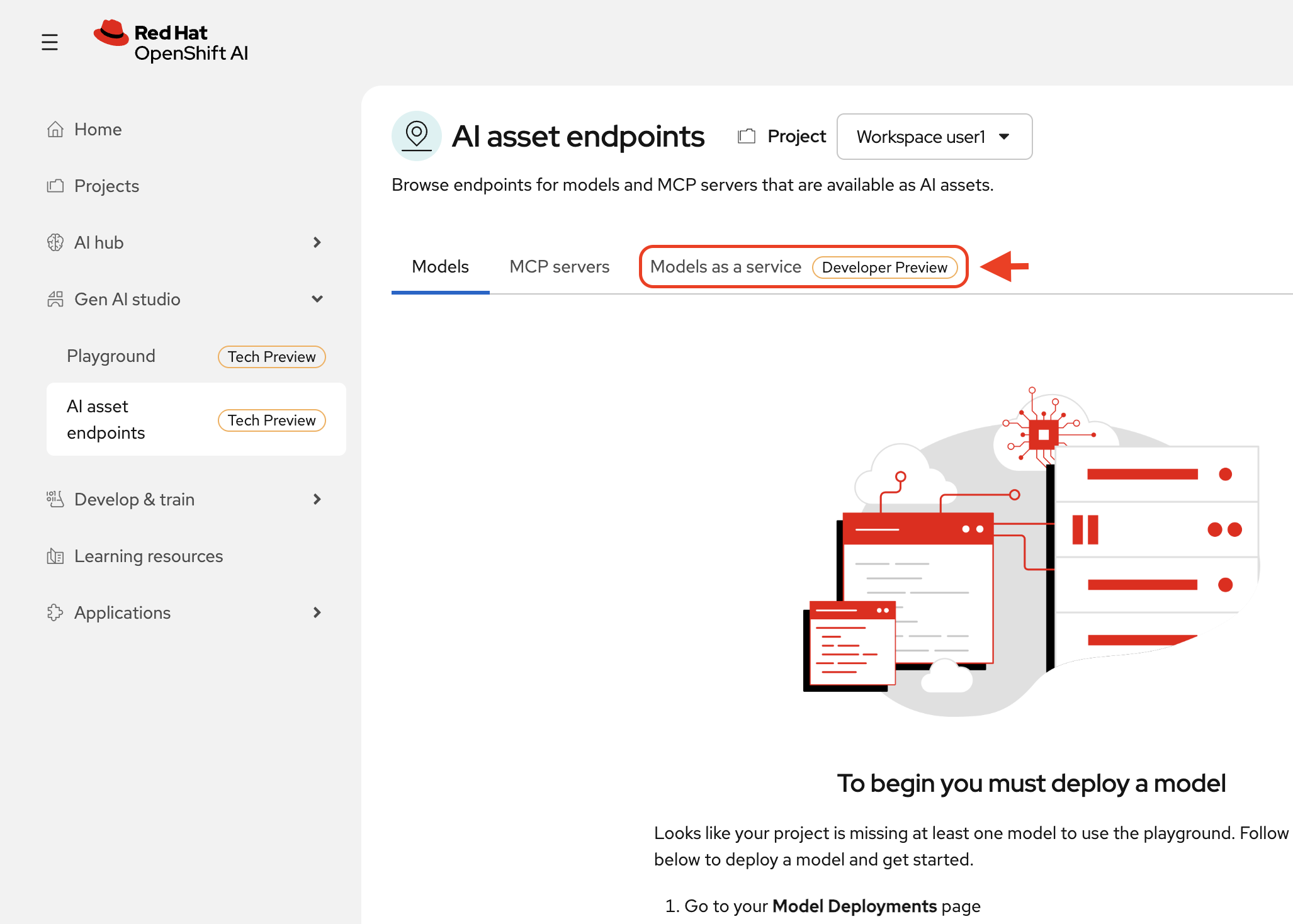
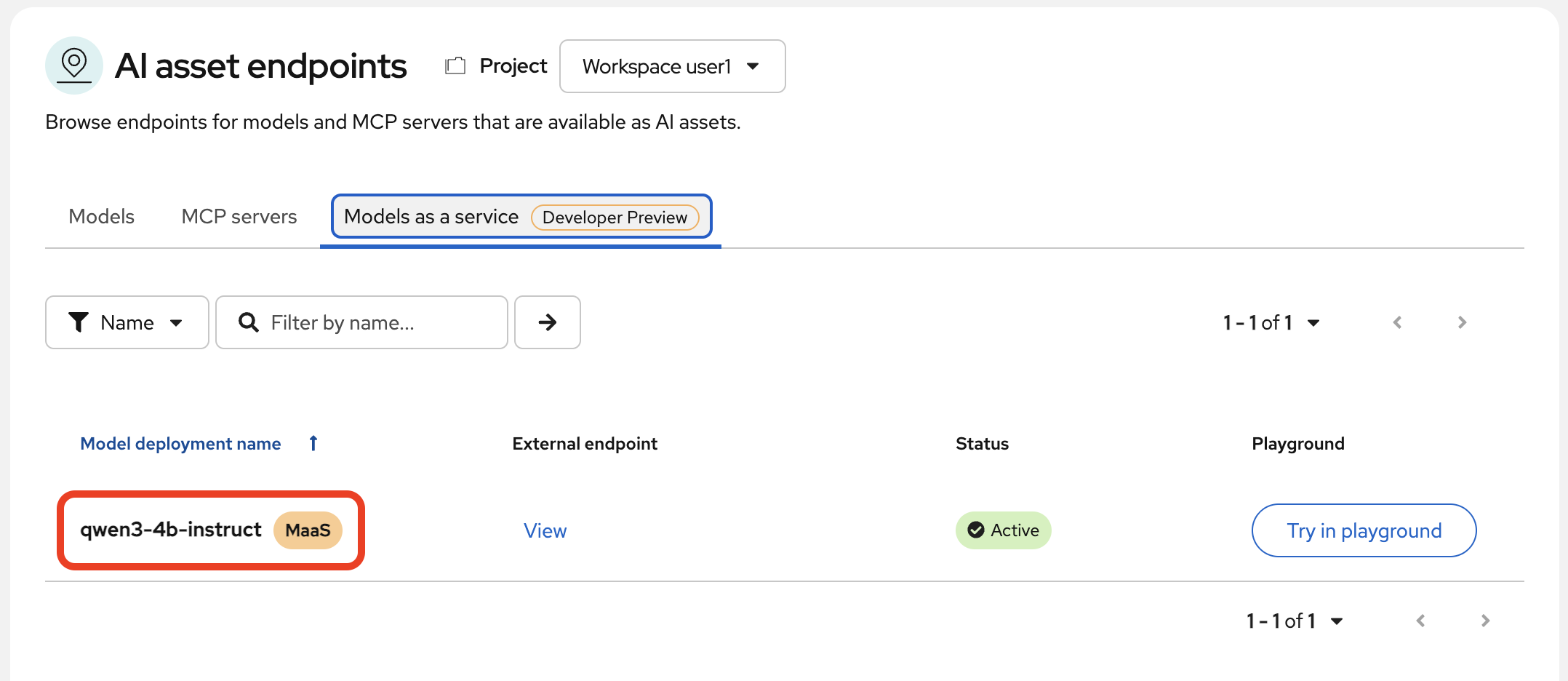
Select the tab. You will see your admin has deployed one model for you to use: qwen-4b-instruct
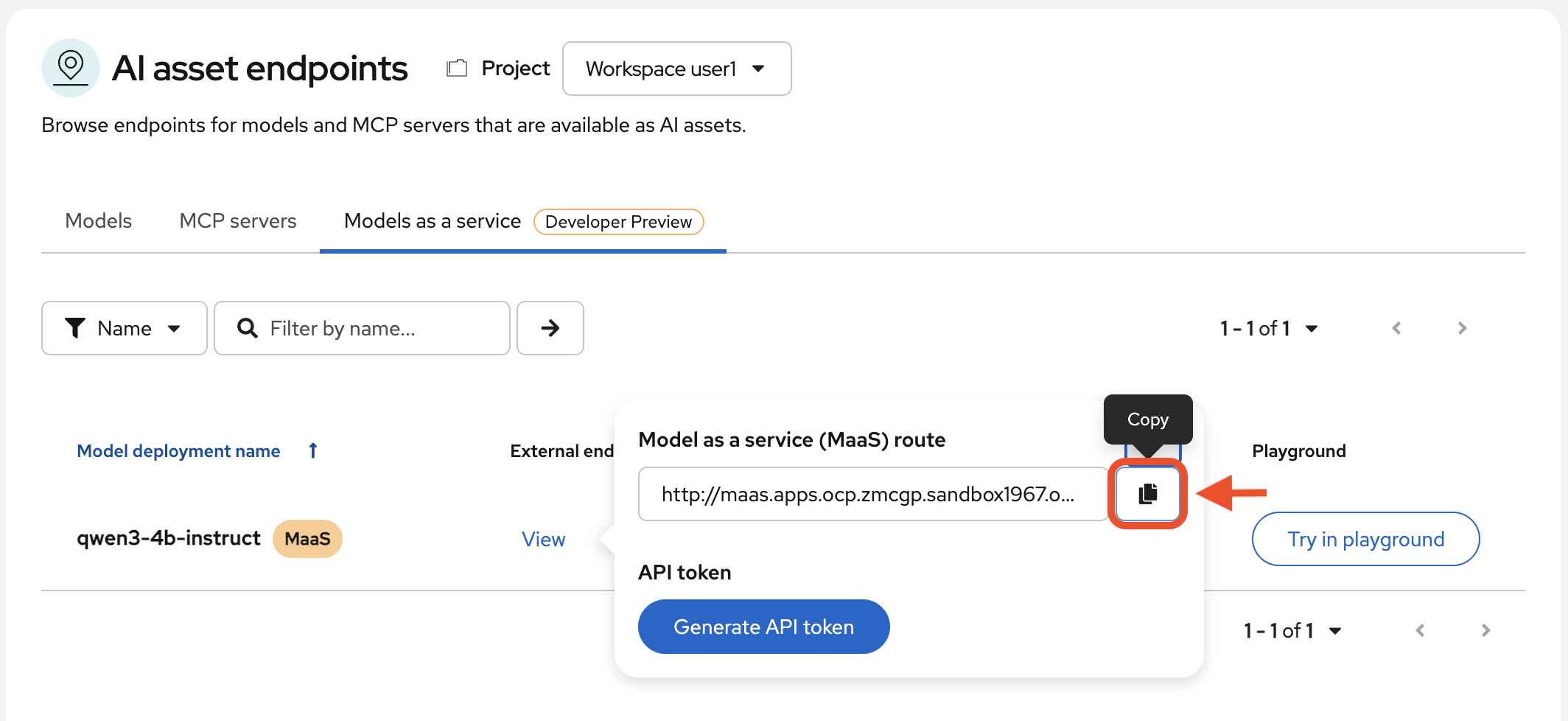
We need the endpoint for the next section. Select View under the External endpoint column:
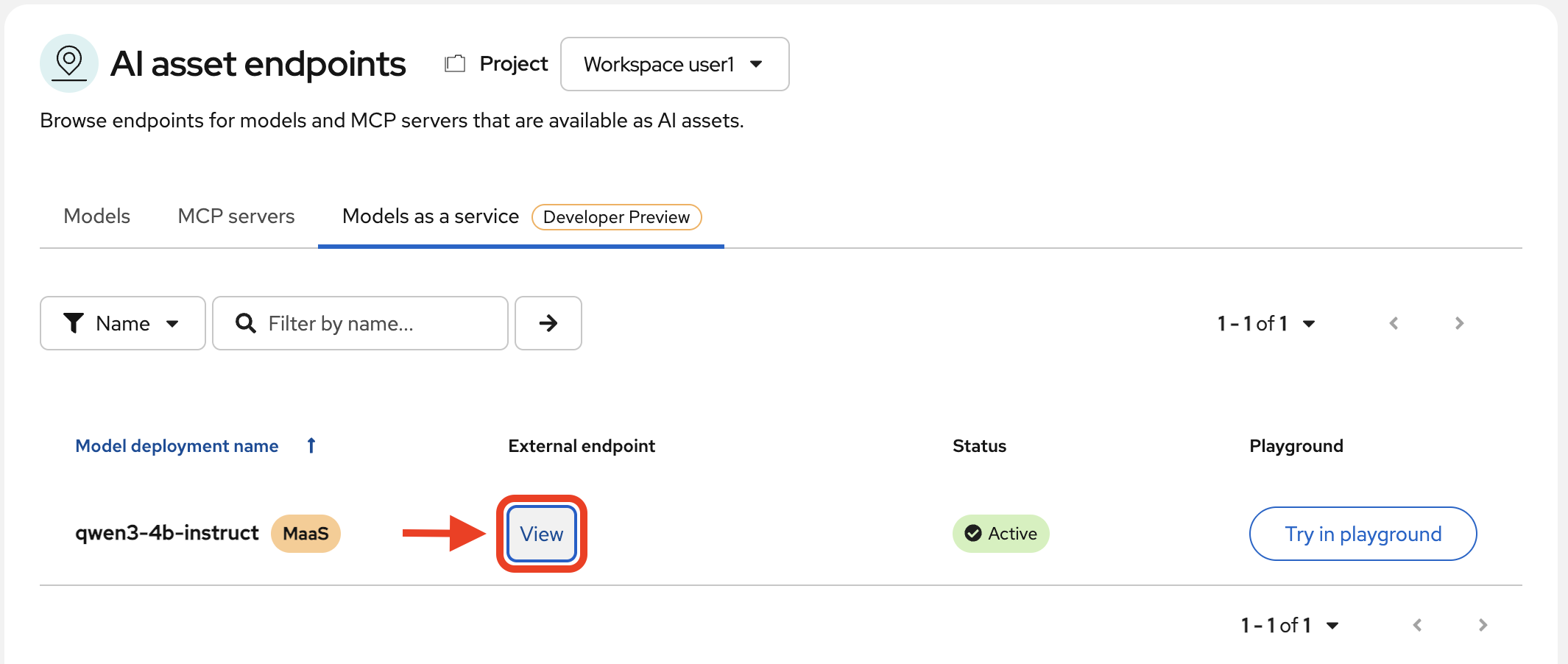
Copy the MaaS route into a separate note file on your computer for safekeeping.
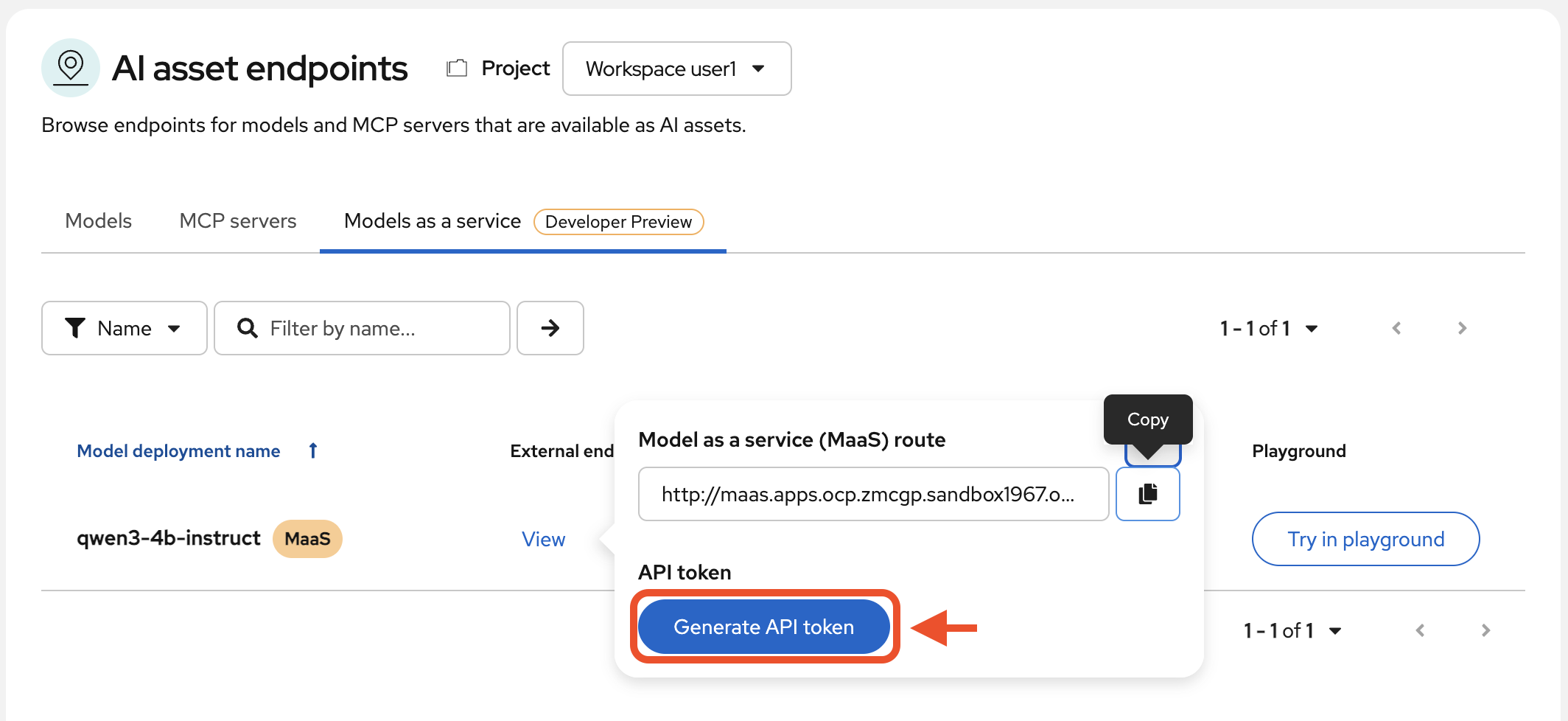
Now, click Generate API token.
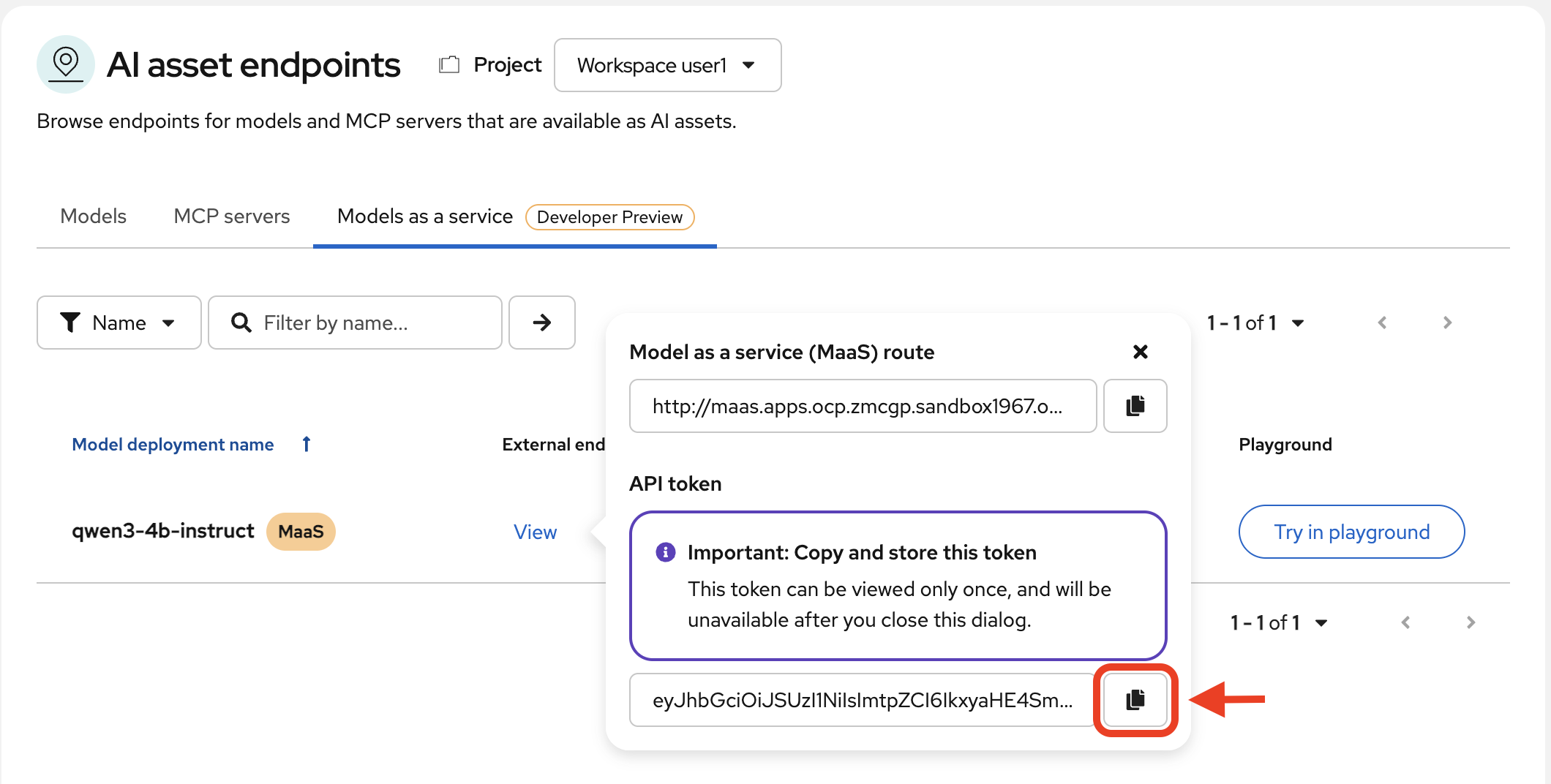
Copy this value along with your route endpoint.
Now that we have our model connection details, we can proceed to our development environment to leverage the model.