System Administration with Agentic AI
In the last module, you stepped into the developer role building applications using private LLM endpoints. Now, you’ll become a site reliability engineer (SRE) or DevOps practitioner focused on observability, diagnostics, and operational scale.
But you won’t go at it alone, you’ll work with agentic AI tooling to navigate your OpenShift environment in real time - just like a modern SRE team building insight-driven automation.
Why Agentic AI for Admins?
Think of agentic AI as your copilot for cluster operations - ready to answer complex infrastructure questions using reasoning and real-time data.
Instead of navigating complex dashboards, YAML, and shell scripts, you’ll try something new:
-
“What’s consuming the most memory in our dev cluster right now?”
-
“Were there any pod crashes in the last 30 minutes?”
-
“Why did that Job fail this morning?”
These natural-language prompts get translated into real queries and results. The outcome? Faster issue resolution, increased system transparency, and lower barrier to operational insights for both technical and non-technical users.
That’s an example of the power of agentic AI.
Meet Your New Toolkit
In this module, we’ll use a preconfigured stack that includes:
-
Llama Stack - a flexible open-source framework developed by Meta to simplify the creation and deployment of advanced AI applications.
-
Llama Stack provides a unified API layer for inference, RAG, agents, tools, safety, evals and telemetry.
-
Why It Matters for Enterprises:
-
Codifies best practices across Gen AI tools
-
Enables reproducible, explainable, and extensible AI workflows
-
In short, it lets you focus on value creation, not toolchain assembly.
-
-
| You may use frameworks like LangChain or CrewAI in conjunction with Llama Stack in OpenShift AI. These tools, together, help you build agentic AI workflows with reasoning, tool use, and orchestration. Llama Stack is Red Hat’s recommended, and supported, framework for standardizing and interweaving disparate pieces of an agentic system into one observable, secure stack. |
-
Kubernetes MCP Server - allows our LLM agent to interact with our live OpenShift cluster and deployed resources.
-
Slack MCP Server - allows our LLM agent to interact with a Slack workspace. We will use it to interact with a specific Slack workspace for which we have authorization configured.
Tying it Back to our MaaS Model Endpoint
You can connect a Llama Stack server deployment to any model endpoint(s) you desire. For our workshop, our Llama Stack server instance is configured with our Qwen model and two MCP servers.
Test model + MCP server functionality in the playground
-
Go back to the Red Hat OpenShift AI dashboard. You cannot navigate there from your workspace or OpenShift Dev Spaces, so get back to the OpenShift web console first:
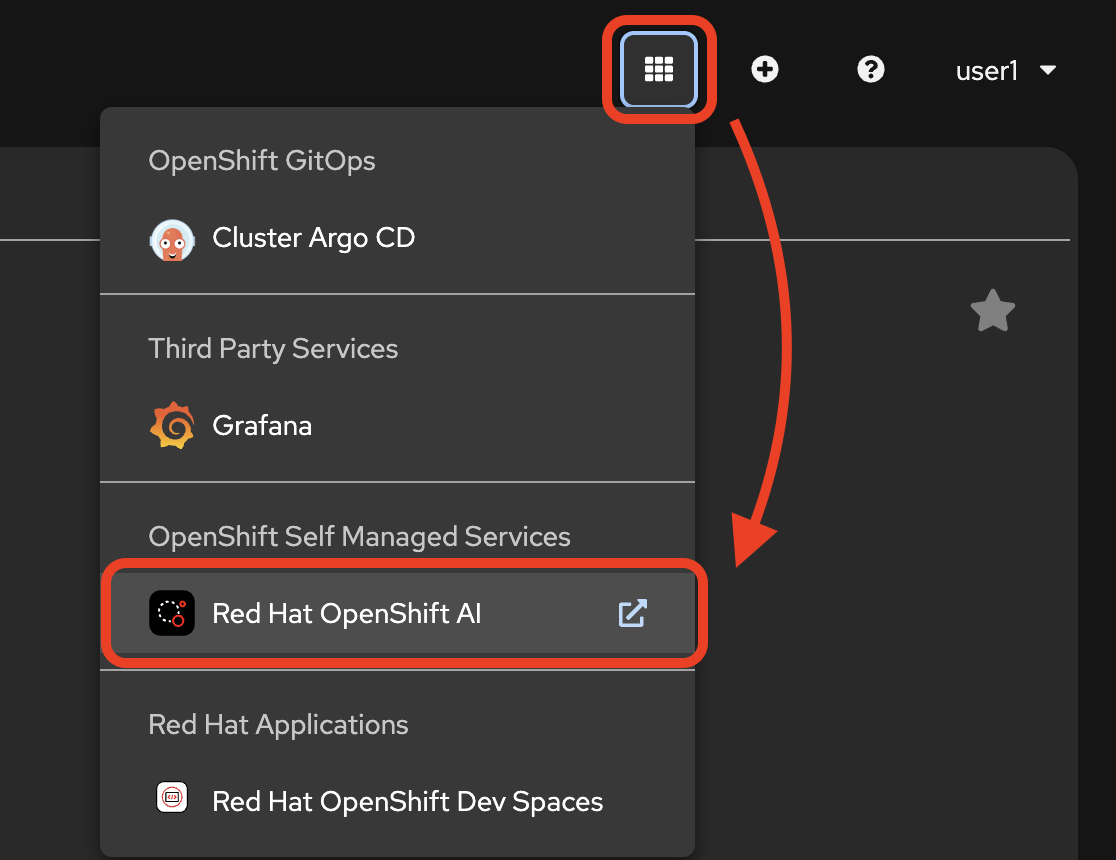
-
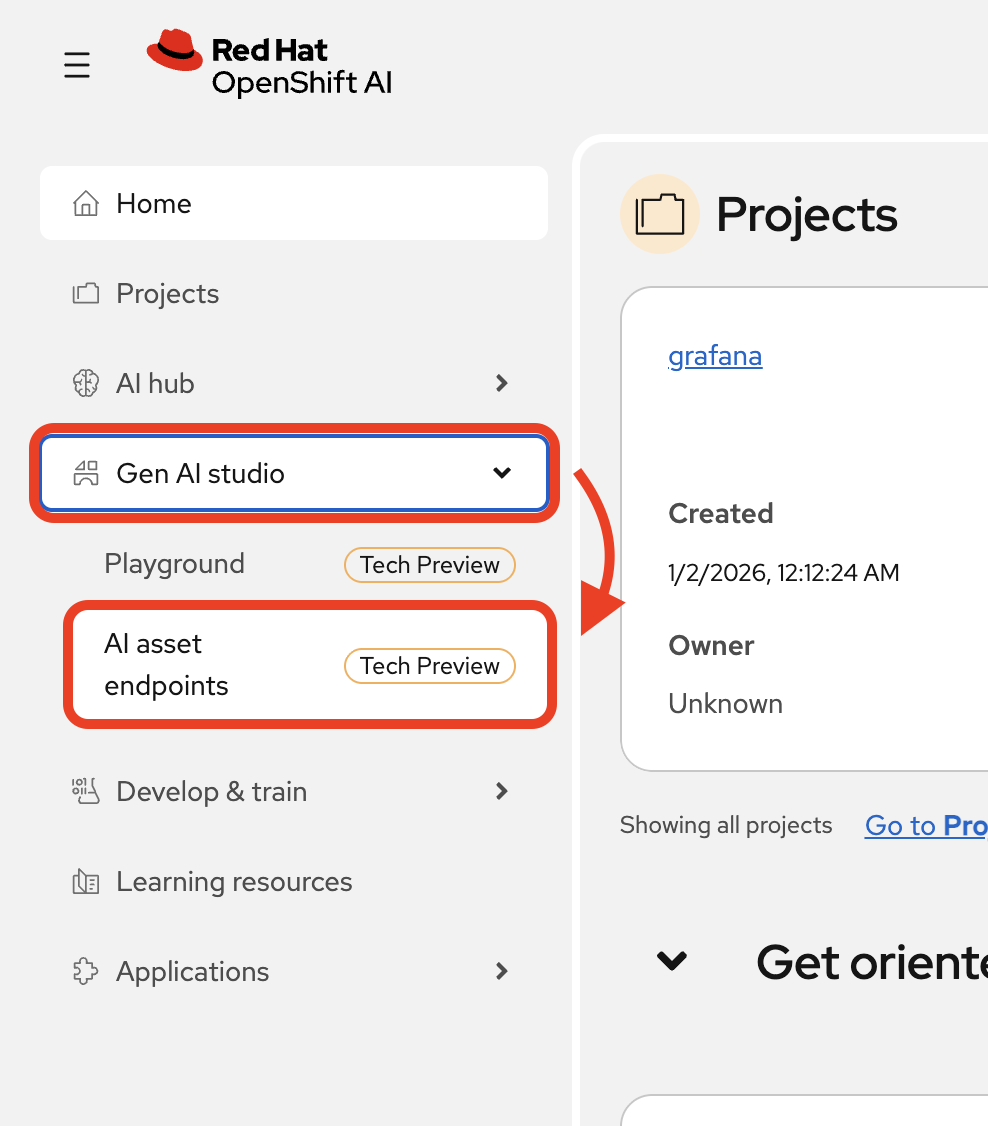
Select
AI asset endpointsfrom the navigation menu.
-
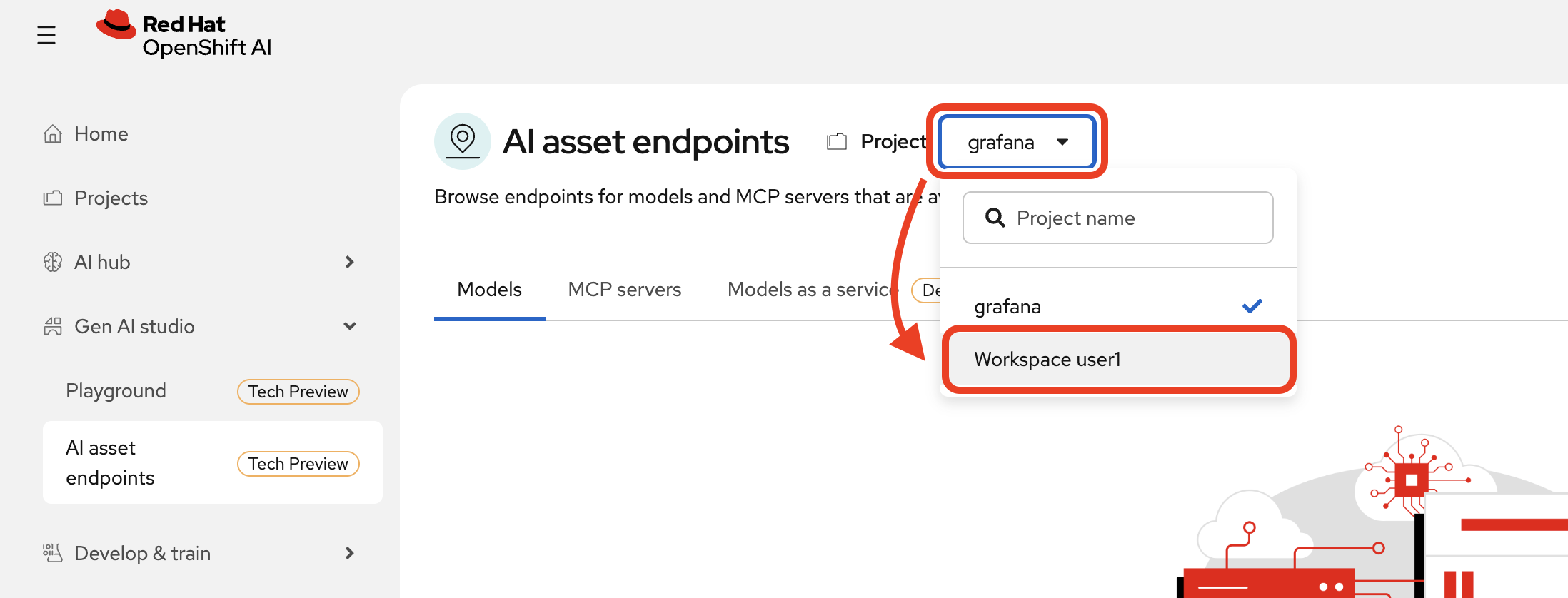
Change project back to
Workspace userxaccordingly.
-
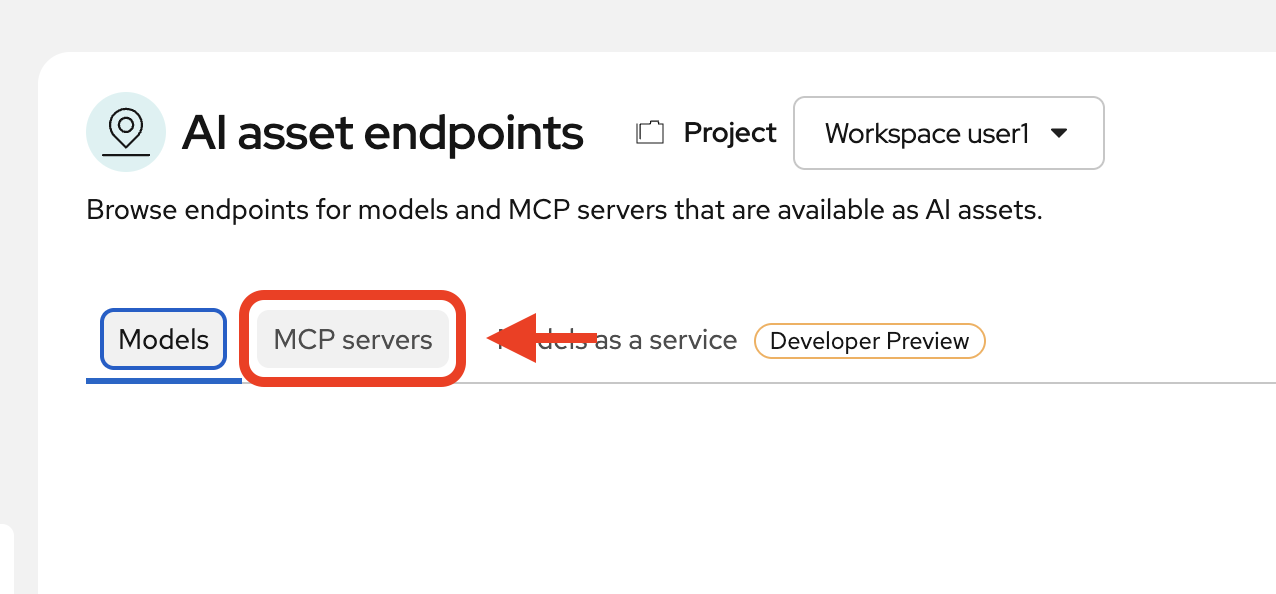
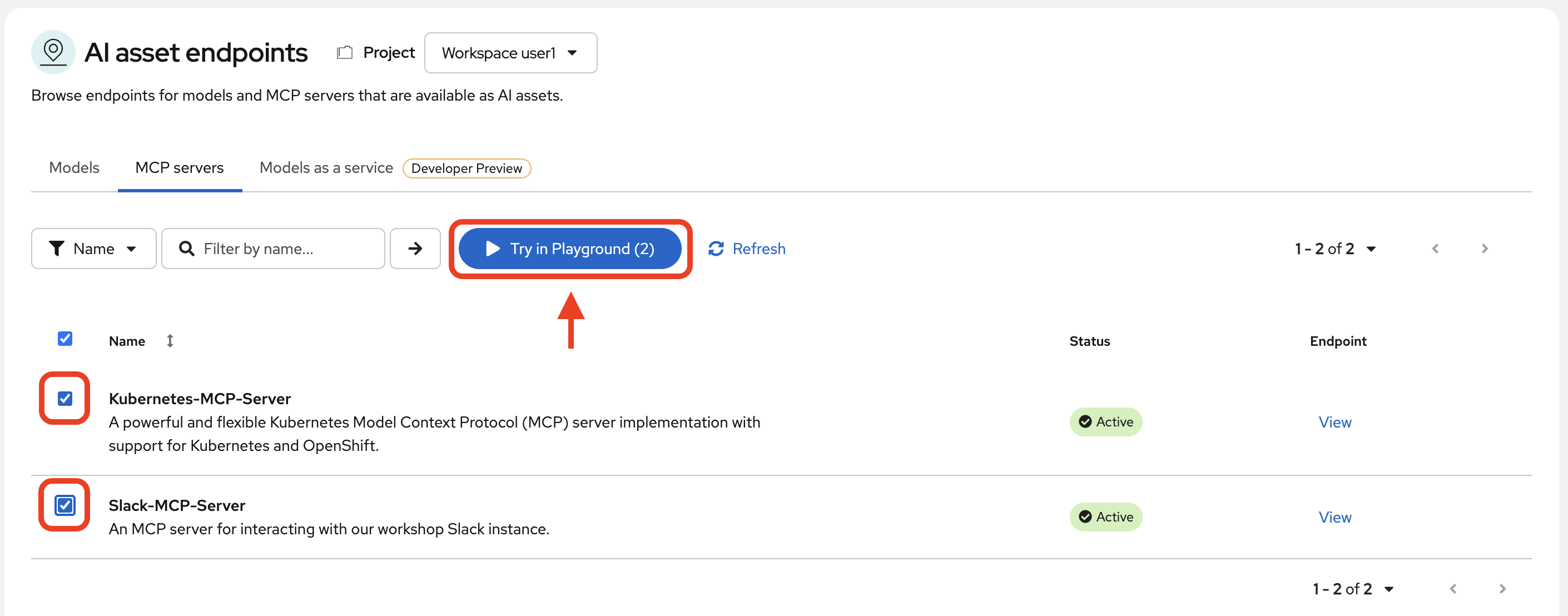
View MCP servers
-
See what is available to you. Select both MCP servers and then click
Try in Playground.
Using the playground
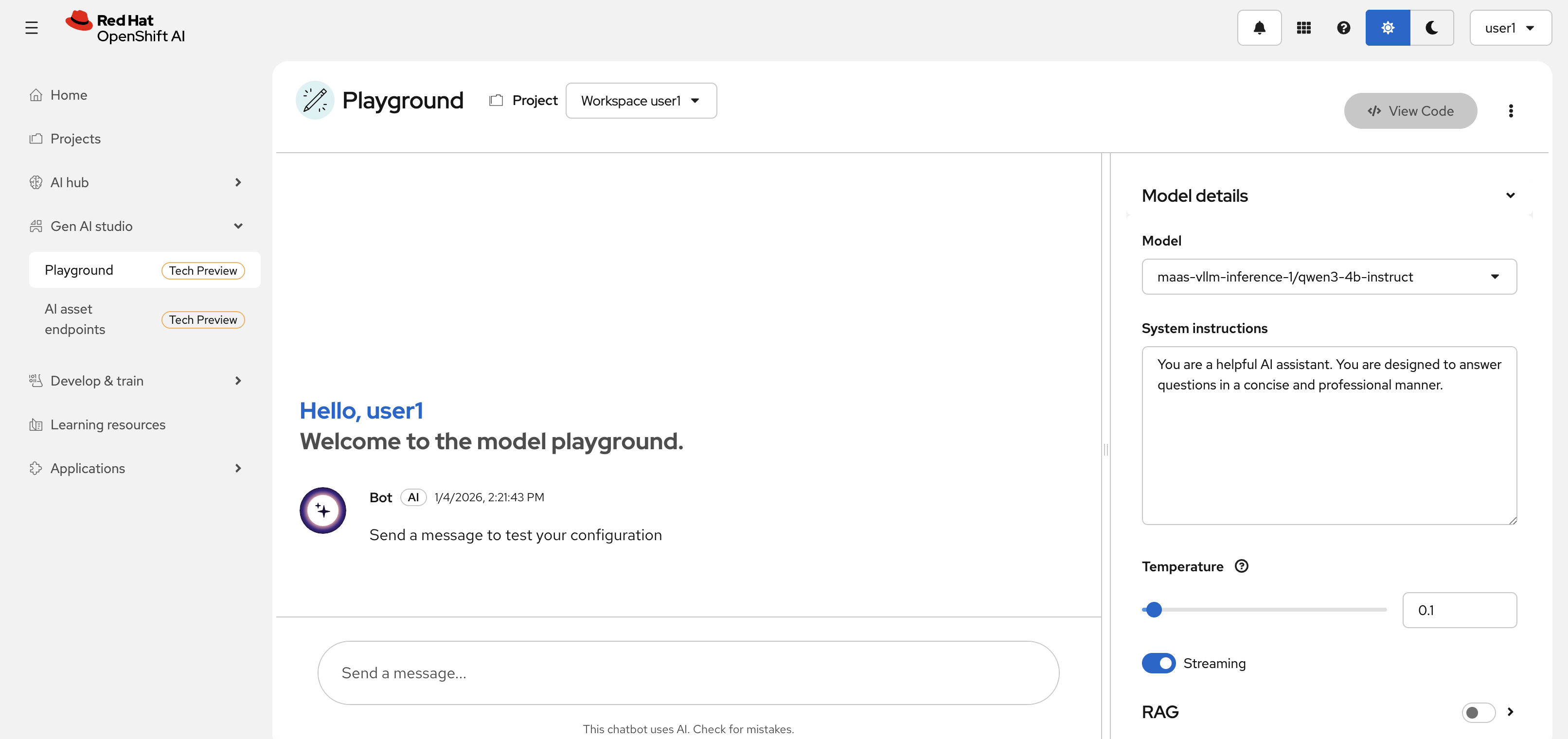
Welcome to the playground, where you can test your models, assets, and other connections in a user-friendly dashboard interface before integrating into your applications directly.
As a developer, you likely aren’t using the playground as your primary way of connecting to your resources. However, it’s a great way to test and validate that the model(s) you selected, the MCP servers you configured, and anything else you are integrating work together properly and as expected before you invest in further development.
In the playground, you will see a chat interface. Our model is preselected along with a default system prompt. If you would like to change or adjust the system prompt or temperature, feel free to do so.
| The temperature setting correlates to how creative the model is permitted to be. It is recommended to keep this setting low to ensure the model is as accurate when answering you as possible, particularly when using in conjunction with MCP servers. |
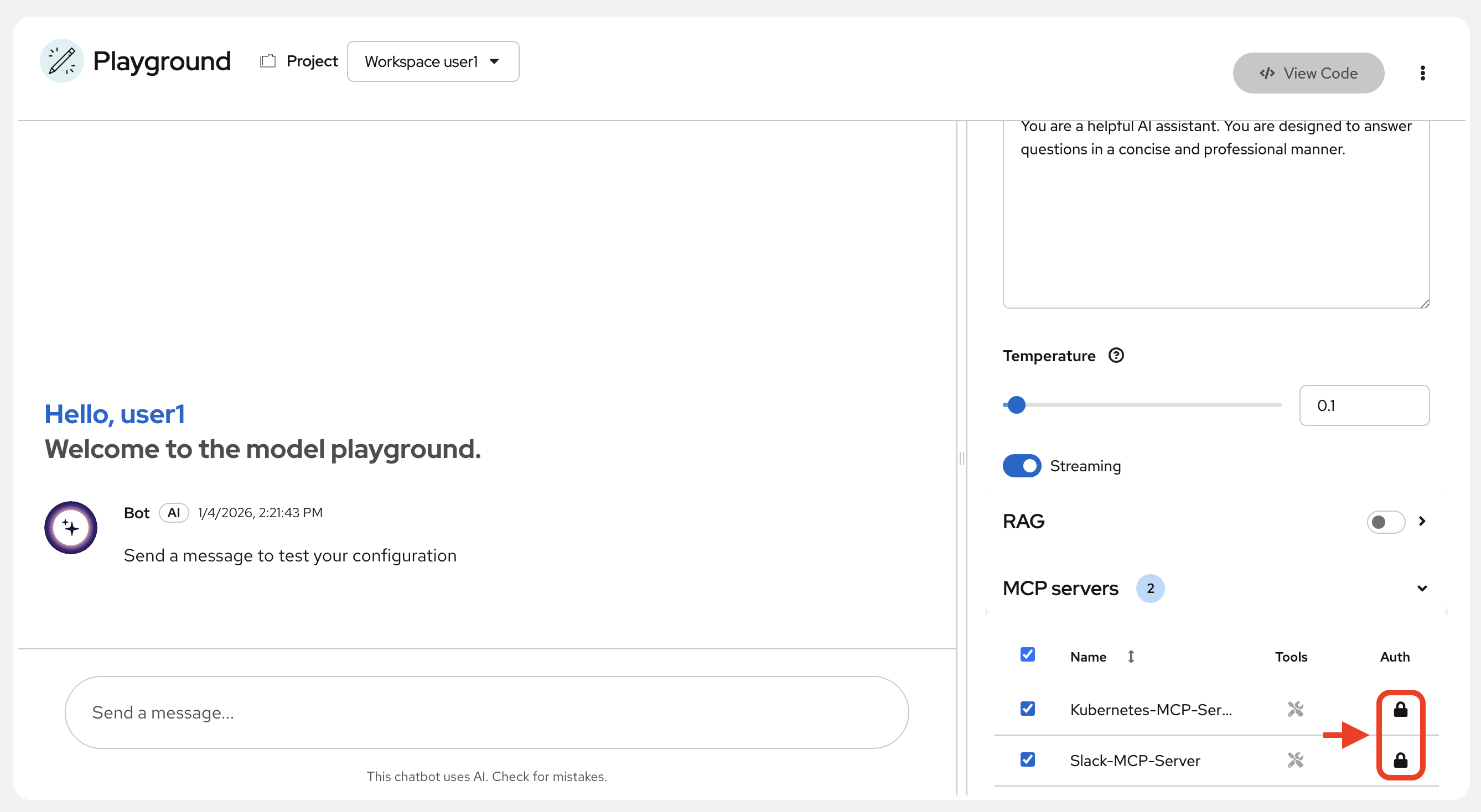
Before we begin chatting with the model and MCP servers, authorize the MCP servers in the playground by clicking the lock buttons:
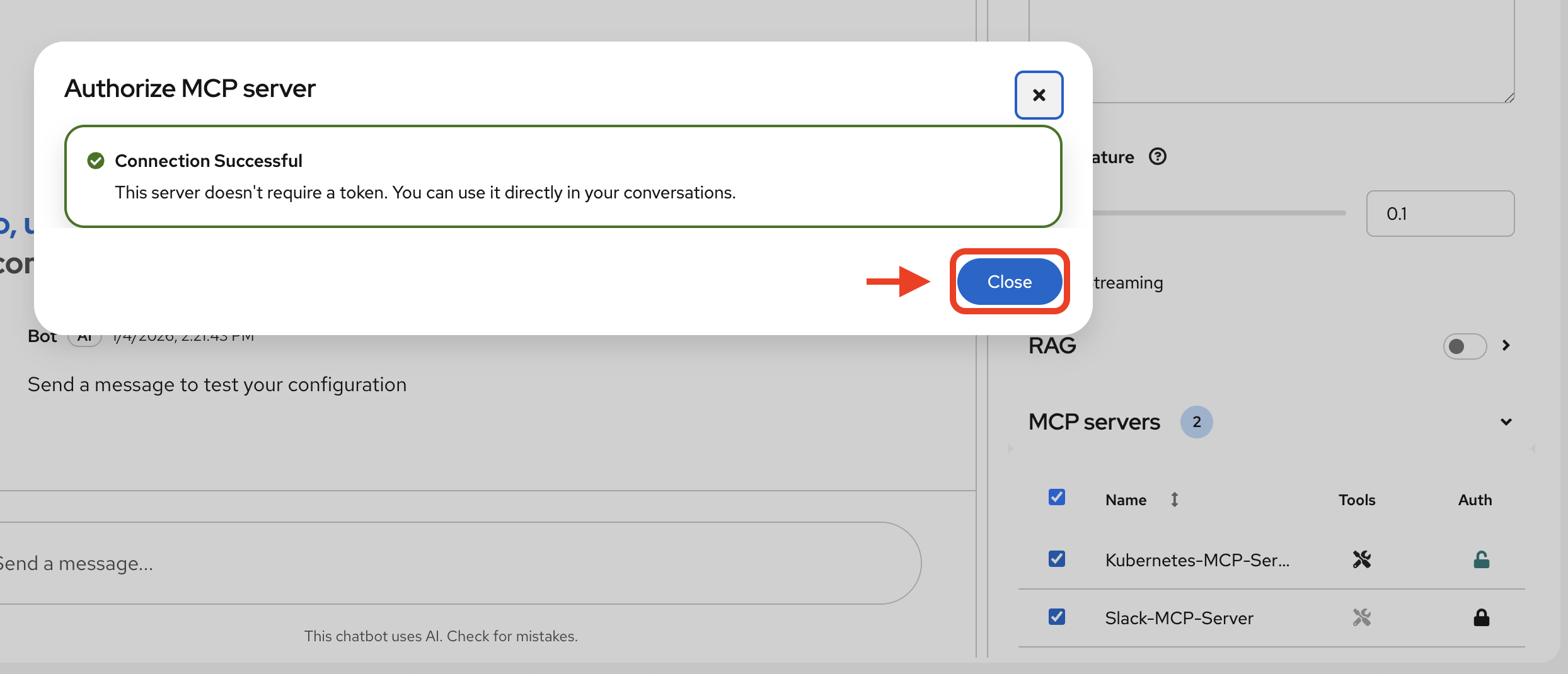
You will see the following pop-up each time you click the lock button. Click Close:
You are now setup to use the chat interface to test the model and its functionality with our MCP servers.
| If you refresh the page or have to access the playground again, you will need to reset your settings as they will have been set back to the defaults. |
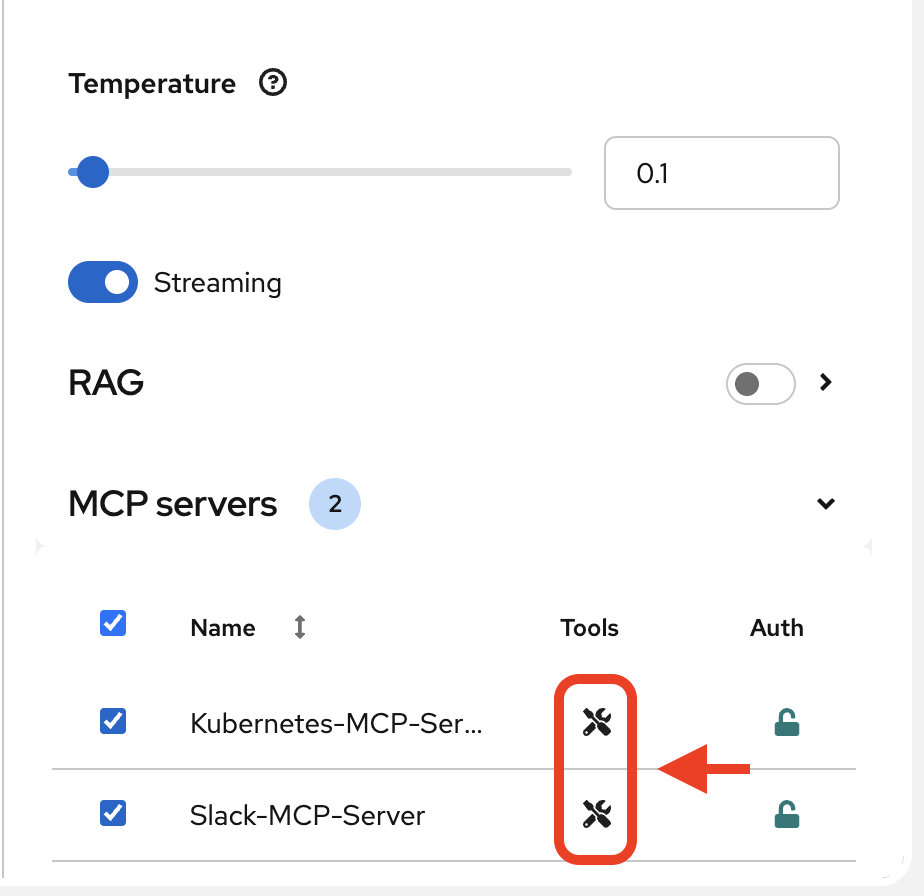
You may view the MCP servers' available tools by clicking on the small tool icons next to the server names:
Investigate our OpenShift Resources
The tool information you just viewed will give you guidance into how to interact with the model in chat to activate the tool calls correctly. You will need to utilize the right keywords so that you’re engaging with the appropriate tools.
In the chat, enter:
List all pods in the wksp-user[x] namespace.
Replace the x with your user number.
|
Response output will vary slightly, but you should see it correctly list out two active pods. One for the Llama Stack playground and the other for the Dev Spaces workspace.
Let’s try something else:
Get logs for the lsd-genai-playground pod in the wksp-user[x] namespace.
You will need to again replace the x with your user number.
|
Feel free to experiment further with the tools available.
Post a Message to our Slack Workspace
With our Slack MCP Server connected to Llama Stack, we can extend our agentic AI experience beyond Kubernetes and into team collaboration tools (among many other possibilities!).
This MCP server bridges your AI agent with a Slack workspace to fetch approved data.
Why this matters:
-
SREs and DevOps teams often work across multiple collaboration channels.
-
By giving your AI visibility into Slack, you can use natural language to check team communication spaces without switching tools.
-
This is a safe, read-only example — no messages are read or posted in this activity.
In the LlamaStack Playground chat interface, type:
List all Slack channels in our Slack workspace.Now, let’s post a message to our Slack workspace:
Post a message to the #rh1-2026 channel: "Hi from <insert name>".Send logs to Slack
Now, let’s try out a very real use case for this! It may not be done through a chat UI like this, but it’s a good example of how you can use agentic AI to help you with your work. In a production environment, you would likely use a more robust automation to send logs or other information from your OpenShift cluster to Slack.
Let’s send the logs for the lsd-genai-playground pod to the #rh1-2026 channel.
Post the logs for the lsd-genai-playground pod in the wksp-user[x] namespace to the #rh1-2026 channel in Slack.Summary: What You Did
In this module, you:
-
Integrated your own LLM with a tool-using agent.
-
Explored OpenShift resources with natural language
-
Interacted with a Slack workspace using natural language
-
Added AI guardrails with input/output shields.
You just used AI to reduce operational complexity and speed up workflows!