Game Time
Now that your AI assistant is wired up, it’s time to get your hands dirty - by building a simple game using Continue’s help. In this module, you’re not solving a business-critical problem… yet! You’re exploring, experimenting, and building confidence with AI-assisted coding through something fun: a simple game.
Choose a Game to Build
Pick one of the following lightweight game projects, available in both Python and Bash:
-
Rock Paper Scissors: Play rock, paper, scissors against the computer!
-
Word Scramble: The program scrambles a word and the user has to guess what it is.
-
Simple Quiz Game: The program asks a few trivia questions and then gives a final score.
You only need to pick one - but feel free to try more if you have time.
Open Your Starter File
From the file explorer, navigate to the game_starters directory:
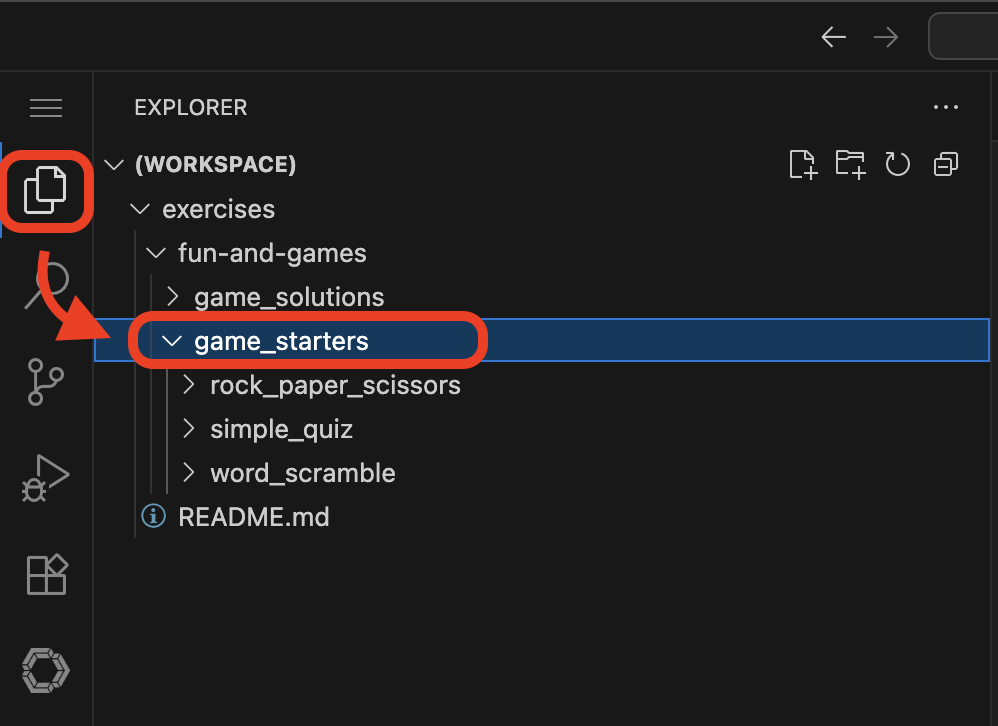
Open the game file of your preference, in the language of your choice.
The game files contain commented out instructions on how to proceed to create the game using the Continue chat interface. Read carefully!
| Ensure any text that does not contribute to the game code stays as a comment. The first section of each file explains how to get started to create the first draft of your code. |
Use Continue to Build and Enhance
Once you have opened the file you wish to work on, click the Continue extension tab again on the left-hand side of the VS Code window. You may toggle between the file Explorer and Continue tabs as you need.
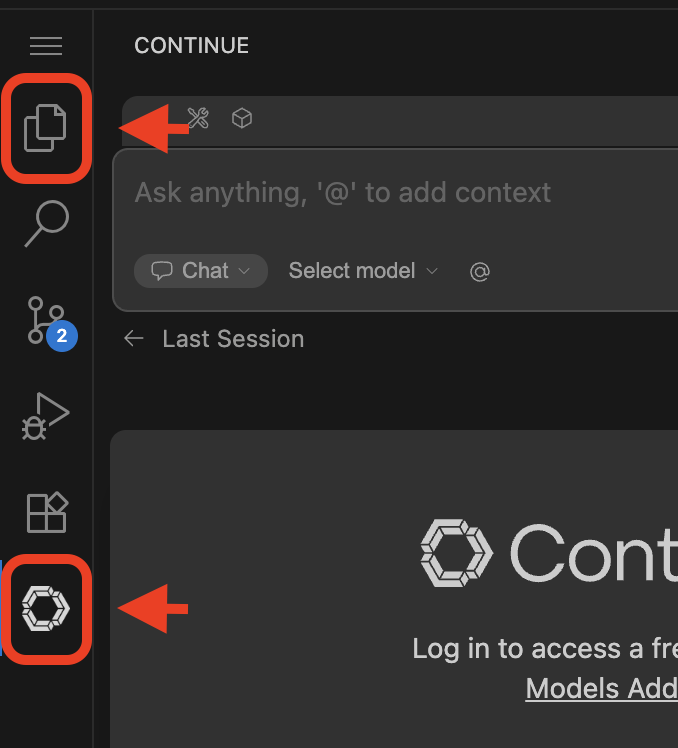
How to Use Continue
You may use the chat interface function to ask any questions about your code. To interact directly with the code itself, you will need to highlight and right-click on whatever parts of the code you’d like to work on. When you right-click, you will then click on Continue in the pop-up menu:
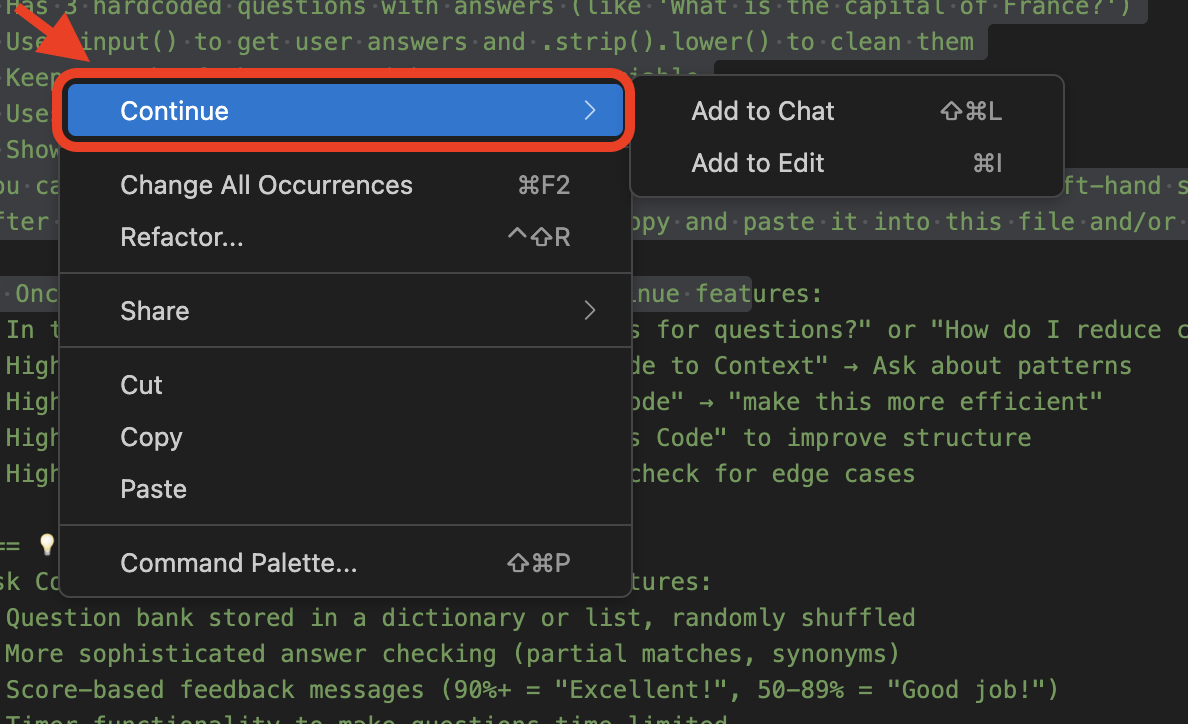
Here is a short description of each of the Continue options so that you will understand how to use them properly:
Add to Chat - Shares the selected code with Continue’s chat interface so you can ask questions about a particular section or recommendations for how to modify a specific piece of code.
Add to Edit - Opens a new Edit-mode chat interface where you can describe how you want the selected code modified (e.g., "make this function async" or "add error handling")
Run (and Play) Your Game
Once complete, save your file(s) that you wish to test.
We will use the Terminal capability within VSCode to test our applications. To open a terminal session navigate to Terminal → New Terminal from the hamburger menu in the navigation bar of the VSCode app. Or you may press kbd:[CTRL] + kbd:[`].
Navigate to the file’s folder:
Example [substitute the correct path to your file]
cd /home/dev/rhone_code/game_templates/rock_paper_scissors/Follow the instructions for the right code language:
Bash (.sh)
Make the file executable (you only need to do this once). Substitute your filename:
chmod +x your_filename.shRun the following command (substitute your filename):
./your_filename.shTroubleshooting
If you see a "command not found" or "permission denied" error:
-
Double-check the file name is spelled correctly
-
Make sure you’re in the correct directory (ls to list files)
-
For .sh files, try
bash yourfile.shif./yourfile.shdoesn’t work.
Other error or application isn’t working as expected:
-
Use your code assistant to help you debug!
-
Feed the errors or explain any issues in the chat and have the AI help you correct your code (highlight and add entire script to
ChatorEditto have the model evaluate and fix any errors.