Updating Claude Code Skills
Keep your RHDP Skills Marketplace plugins up to date to get the latest features, bug fixes, and improvements.
Claude Code / VS Code
Check Current Version
Step 1: Open Plugin Interface
In Claude Code chat, type:
/plugin
Step 2: View Installed Plugins
Navigate to the Installed tab (use arrow keys or tab to cycle through tabs).
You’ll see your installed plugins with their current versions:
showroom @ rhdp-marketplace
Scope: user
Version: 2.4.3
Red Hat Showroom workshop and demo authoring, verification, and content transformation
Update Plugins
Step 1: Open Plugin Interface
/plugin
Step 2: Navigate to Marketplaces Tab
Use arrow keys or tab to cycle to the Marketplaces tab.
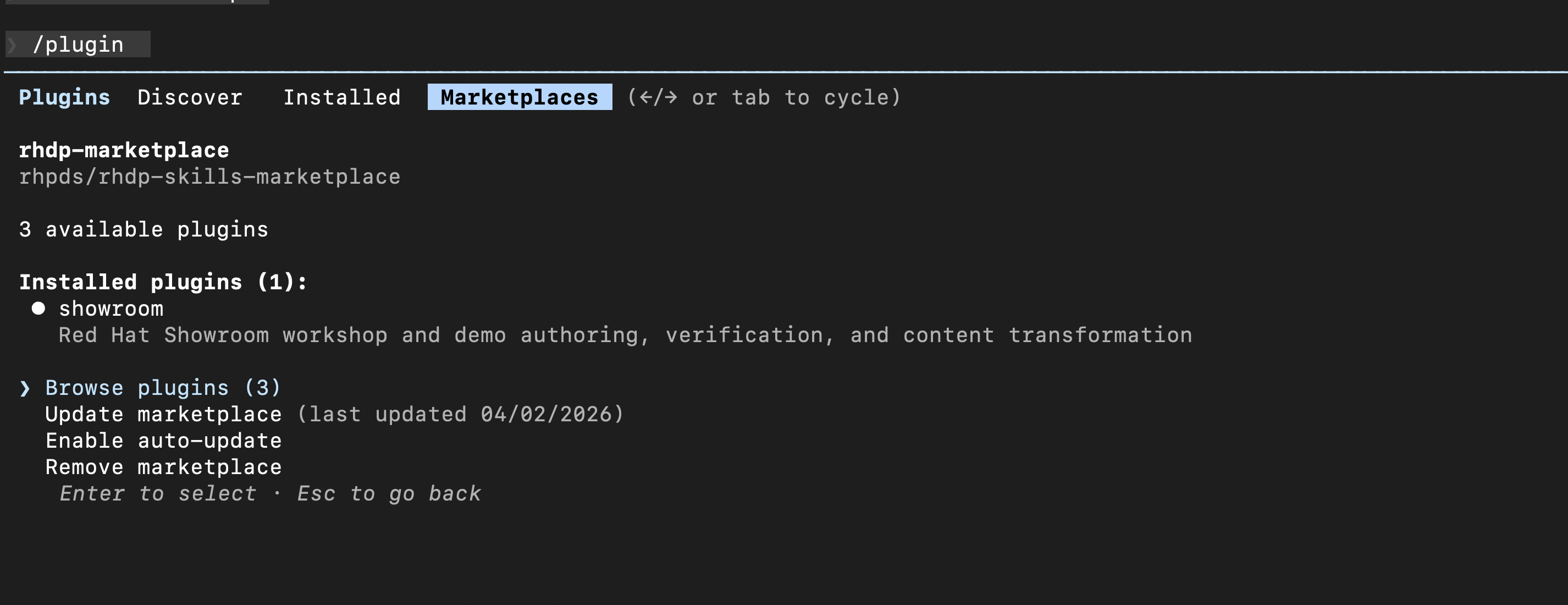 Screenshot: Use arrow keys or Tab to navigate to the Marketplaces tab
Step 3: Update Marketplace (REQUIRED FIRST)
Select Update marketplace from the menu.
Why this step is required:
- The marketplace is a cached copy of the GitHub repository
- When new versions are released, your local cache is outdated
- Updating marketplace syncs from GitHub and pulls latest plugin.json files
- Only AFTER this sync will Claude Code know v2.4.3 (or newer) exists
You’ll see:
- Last updated date
- “✓ Updated 1 marketplace” confirmation after syncing
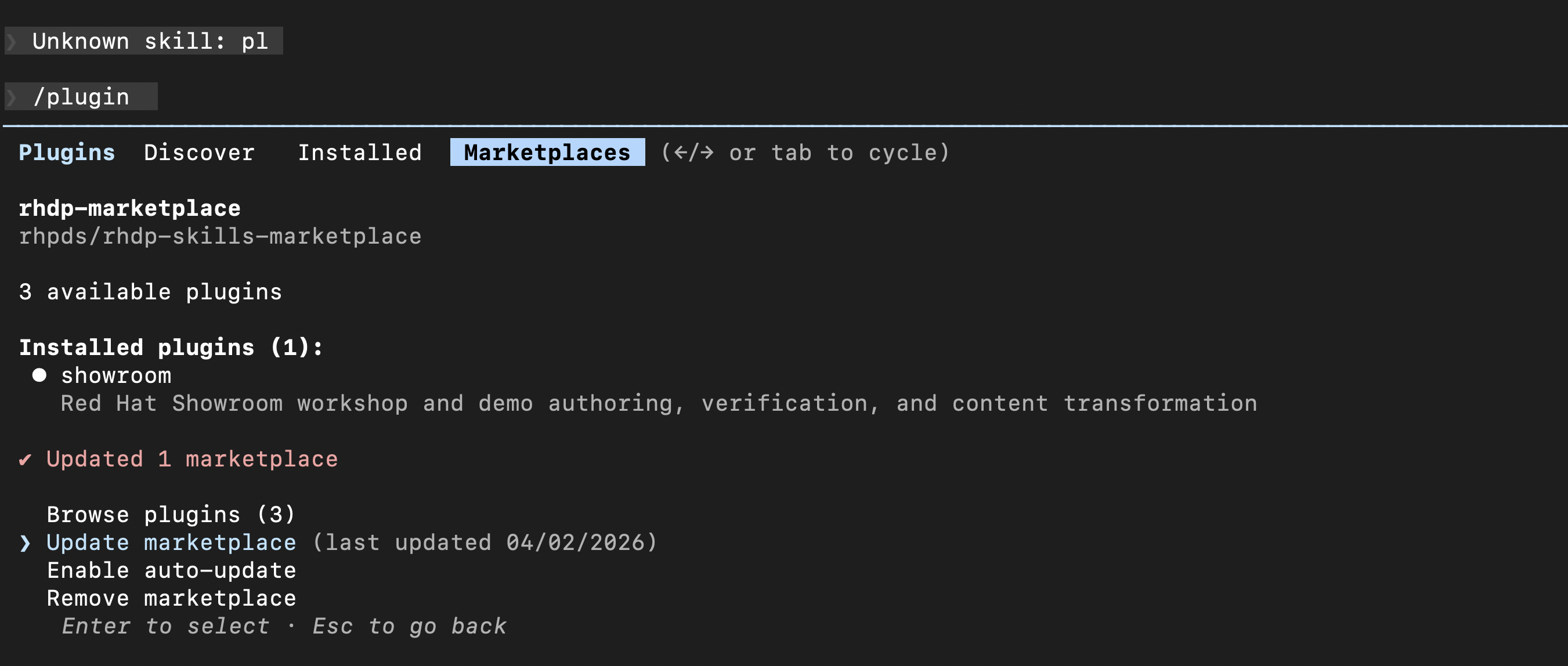 Screenshot: “✓ Updated 1 marketplace” confirmation shows marketplace is synced
Step 4: Check for Plugin Updates
Navigate back to the Installed tab.
For each plugin, you’ll see:
- Current version
- “Update now” option if updates are available
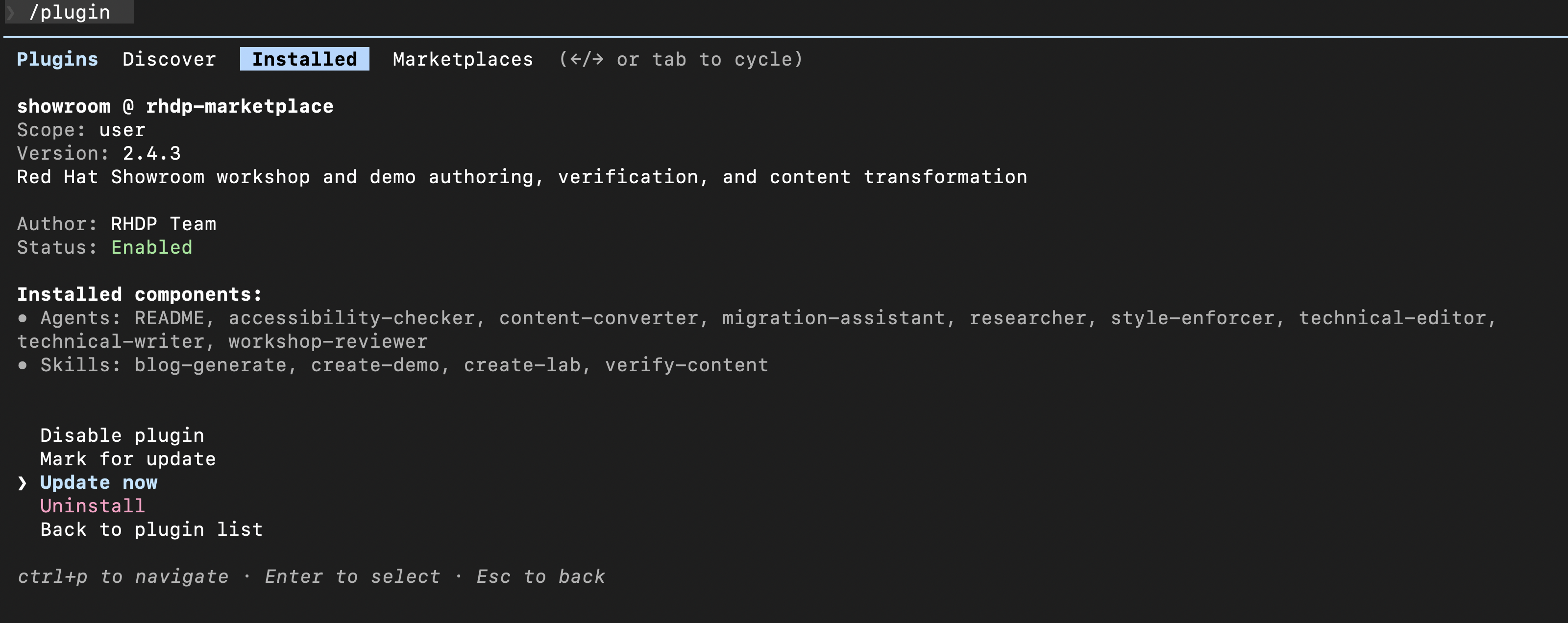 Screenshot: Installed tab shows current version (e.g., Version: 2.4.3)
Step 5: Update Plugins
Select Update now for each plugin that has updates are available.
 Screenshot: Select “Update now” to install the latest version
The plugin will update to the latest version from the marketplace.
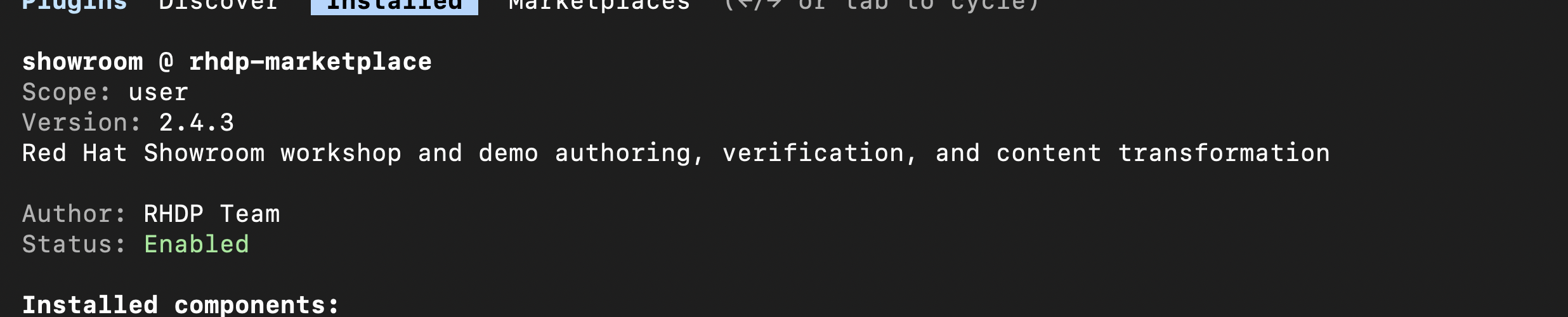 Screenshot: After update, version number shows the latest release (e.g., Version: 2.4.4)
Getting a New Plugin (e.g. /ftl:lab-validator added in v2.8.1)
When the marketplace gains a brand new plugin (not just an update to an existing one), it won’t appear in your installed list automatically — you need to install it explicitly.
Step 1: Update marketplace first
/plugin marketplace update
This pulls the latest marketplace index from GitHub. After this, the new plugin will appear in the Marketplace tab under Browse.
Step 2: Install the new plugin
/plugin install ftl@rhdp-marketplace
Step 3: Restart Claude Code
The new skill /ftl:lab-validator will now be available.
Why is this different from a regular update?
/plugin updateonly updates plugins you already have installed. A brand new plugin has never been installed, so it won’t show up in the update list — you need to explicitly install it once.
Understanding the Update Process
Why two steps?
Step 1: Update Marketplace
- What it does: Syncs the marketplace repository from GitHub
- What changes: Local cache of plugin.json files
- What it learns: New versions are available (e.g., v2.4.3)
- What it does NOT do: Does not update your installed plugins
Step 2: Update Plugins
- What it does: Downloads and installs new plugin versions
- What changes: Your installed skills in
~/.claude/plugins/cache/ - Requires: Marketplace must be updated first (Step 1)
- Why: Can’t install what it doesn’t know exists
Common mistake: Trying to update plugins without updating marketplace first = marketplace still thinks you have the latest version because its cache is outdated.
Quick Update Command
Instead of using the UI, you can update via command:
/plugin marketplace update
This will:
- Sync the marketplace (pulls latest plugin.json from GitHub)
- Check all installed plugins for updates
- Show changelog for available updates
- Prompt you to install updates
This command does both steps automatically - it syncs marketplace THEN shows plugin updates.
Example output:
Checking for updates...

Updates available:
• showroom: v2.4.2 → v2.4.3
• agnosticv: v2.4.2 → v2.4.3
• health: v2.4.2 → v2.4.3

Changelog for v2.4.3:
- Fixed installation documentation
- Fixed code block rendering in setup guides
- Updated migration guide with claude command
- Synced plugin.json versions

Install updates? (y/n)
Verify Updated Version
After updating, verify the new version:
Method 1: Plugin List
/plugin list
Shows all installed plugins with versions:
showroom @ rhdp-marketplace (v2.4.3)
agnosticv @ rhdp-marketplace (v2.4.3)
health @ rhdp-marketplace (v2.4.3)
Method 2: Plugin Interface
/plugin
Navigate to Installed tab, select a plugin to see full details including version number.
Check Latest Available Version
To see what version is currently available in the marketplace:
Step 1: Check GitHub Releases
Visit: https://github.com/rhpds/rhdp-skills-marketplace/releases
The latest release tag shows the current version (e.g., v2.4.3).
Step 2: Compare with Installed Version
Use /plugin list to see your installed version.
If your version is lower than the latest release:
- Run
/plugin marketplace update - Install available updates
Update Frequency
Recommended schedule:
- Check for updates: Monthly
- Critical fixes: Update immediately when announced in Slack
Update notifications:
- Claude Code marketplace checks automatically
- Announcements posted in: #forum-demo-developers
- GitHub releases: https://github.com/rhpds/rhdp-skills-marketplace/releases
Troubleshooting
Marketplace shows outdated versions
Force sync the marketplace: ```bash /plugin marketplace sync ``` Then check for updates: ```bash /plugin marketplace update ```Update command shows "no updates available" but I know there's a new version
**Most common cause:** Marketplace cache is stale. You must update the marketplace FIRST before plugin updates appear. Try: ```bash /plugin marketplace sync /plugin marketplace update ``` If that doesn't work, remove and re-add the marketplace: ```bash /plugin marketplace remove rhdp-marketplace /plugin marketplace add rhpds/rhdp-skills-marketplace ``` Then install the plugins again: ```bash /plugin install showroom@rhdp-marketplace /plugin install agnosticv@rhdp-marketplace /plugin install health@rhdp-marketplace /plugin install ftl@rhdp-marketplace ```Plugin updated but I still see old version
1. Restart Claude Code completely 2. Check version again: `/plugin list` 3. If still showing old version, reinstall: ```bash /plugin uninstall showroom /plugin install showroom@rhdp-marketplace ```Version History
To see all past versions and changes:
- CHANGELOG: https://github.com/rhpds/rhdp-skills-marketplace/blob/main/CHANGELOG.md
- All Releases: https://github.com/rhpds/rhdp-skills-marketplace/releases