Advisor in Satellite while connected.
In this module you will look at the advisor service of Red Hat Lightspeed. Advisor is the original Red Hat Lightspeed service that focuses on predictive and proactive recommendations that can help keep your systems running smoothly. The advisor service is available via the Hybrid Cloud Console or inside of the Satellite user interface. In this module you will use the Satellite user interface to identify and resolve an issue. In this module you are still connected to Red Hat Lightspeed and the analysis is being done in the Hybrid Cloud Console. This module will help you see the difference between the Red Hat Lightspeed section of the Satellite user interface when using the connected services at console.redhat.com versus using the Red Hat Lightspeed section of the Satellite user interface when Red Hat Lightspeed is being used in on premise mode.
Your RHEL hosts are RHEL 9 systems that were created with a few packages pre-installed. One of these is postgresql server, an object-relational database management system. The postgresql server was started on the host, but no other actions have been taken for the postgresql environment.
Viewing system recommendations
-
Please use a web browser to navigate to your Satellite’s user interface.
| The red text above is a clickable link. |
-
Log into the Satellite with the following credentials:
User:
{lb1152_hol_satellite_reconfigure_user_name}Password:
{lb1152_hol_satellite_reconfigure_user_password}-
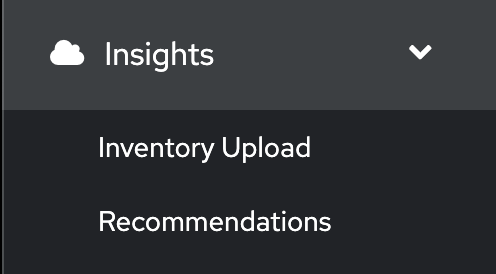
Once logged in, on the left hand navigation bar expand the
Insightsmenu.
| Red Hat Lightspeed was formerly known as Red Hat Insights. In Satellite 6.17 the UI will read Insights. This is expected and will change to Red Hat Lightspeed in Satellite 6.18 and beyond. |
You will see Inventory Upload and Recommendations.
-
Select
Recommendations.
Depending on how long your lab has been running, the page might be empty - We want to sync the Recommendations with the ones on the Hybrid Cloud Console.
-
Locate the Remediate button in the upper right. Next to that are three vertical dots - click the three dots and select
Sync recommendations.
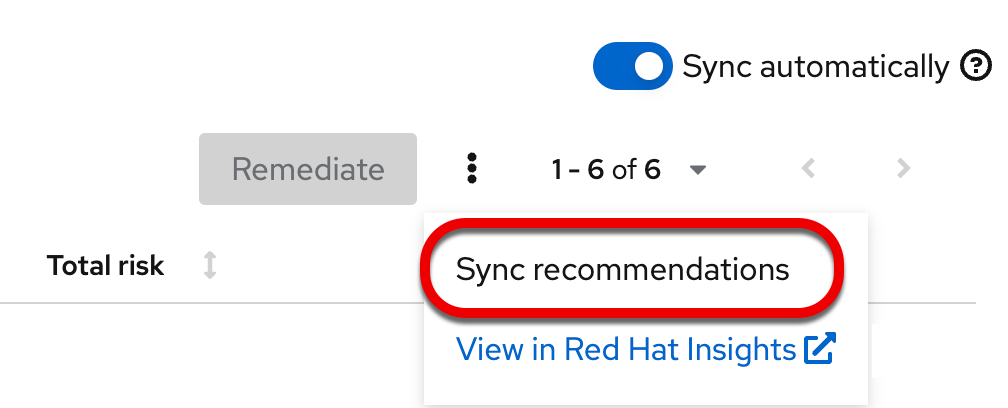
If your page was already populated you may not see any difference. If your page was blank, after a few seconds the view will update and advisor recommendations will be displayed in the Satellite UI.
These are the same ones that you would see in the advisor service on the Hybrid Cloud Console.
In this instance the analysis is being done on the Hybrid Cloud Console and the results are being synchronized with your Red Hat Satellite.
While you see results from both hosts, only work on node-{guid}-1.example.com in this module. You will use node-{guid}-2.example.com in the next module.
|
Recommendations on your system
Let’s look at a host specific view.
-
In the left hand navigation menu of Red Hat Satellite, click Hosts → All Hosts
-
Look at the recommendations column on
node-{guid}-1.example.com. -
You should see a recommendations count listed in the table.

| You will see either 3 or 4 Recommendations listed. This seems to vary depending on the lab deployment. If you see a different number than shown in the image above this is fine and will not impact your lab experience. |
-
Click on
node-{guid}-1.example.com. -
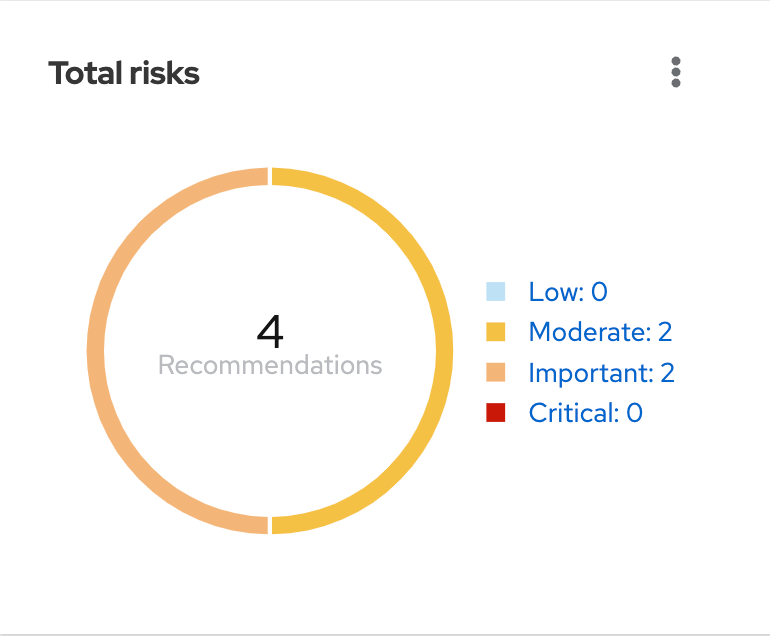
The overview shows you details about the host. Near the bottom of the page (You will likely need to scroll down), one of the widgets shown is called
Total risks.
-
This information is being populated by the Red Hat Lightspeed advisor service.
-
You have moderate and important risks, but no low or critical risks.
-
Observe that the risk levels are hyperlinks - do not click, but you should know that you could select the risk category from this widget to see a filtered view of the risks.
-
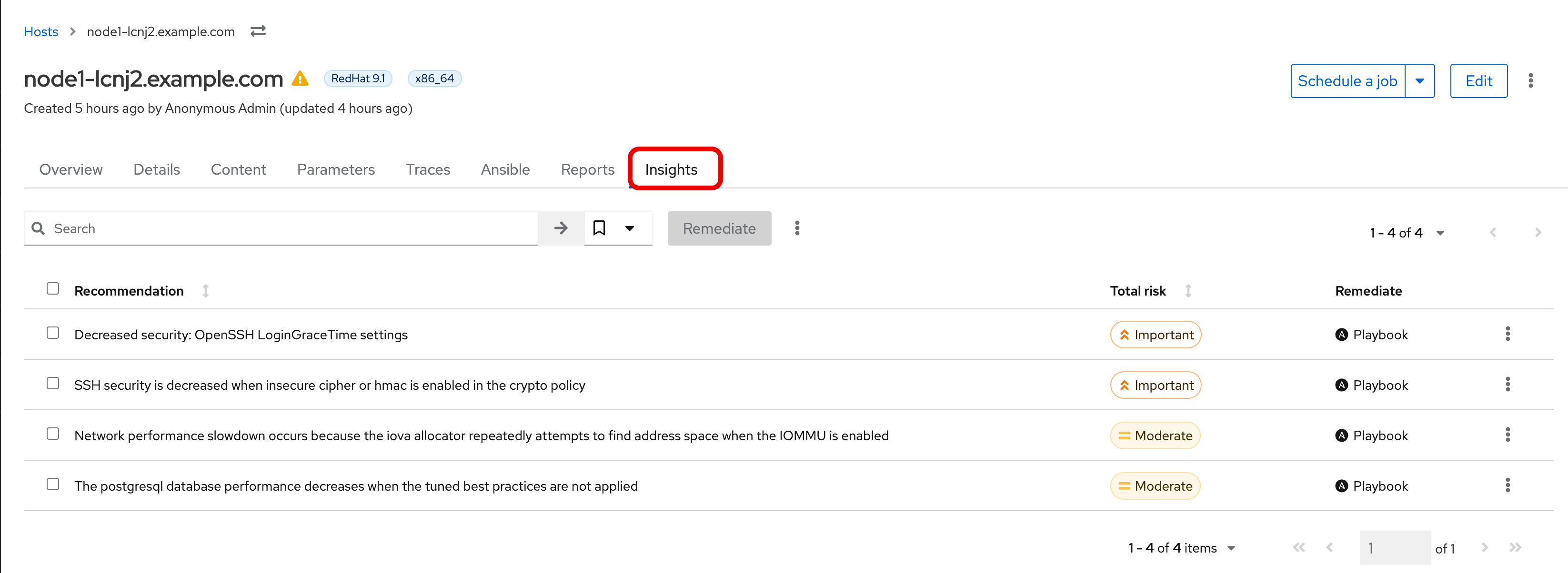
Scroll back to the top of the page, and click the
Insightstab.
-
Here you see the recommendations listed that are specific to this host.
-
You will see a recommendation for postgresql listed:
The postgresql database performance decreases when the tuned best practices are not applied
The Satellite view doesn’t provide much information - the name of the recommendation, the severity of the risk, and if the recommendation has a playbook available to resolve the issue.
Not every recommendation or issue that Red Hat Lightspeed finds has a playbook, but most do.
If you want to see more details you either need to go to Red Hat Lightspeed on the Hybrid Cloud Console or view the associated knowledgebase article.
-
At the end of the row, to the right of
Playbook, you will see three vertical dots - click this then selectView in Red Hat Insights.

-
This will open a new browser tab and prompt you to log in if you are not already logged in.
Once logged in you will see the view of your host in the advisor service in Red Hat Lightspeed.
This looks similar to what you saw in the Satellite UI, but more information is available.
-
Locate the postgresql database recommendation.
-
Click on the arrow to the left of the recommendation name to expand the details.
This will show you:
-
Why the issue was detected
-
What you need to do to resolve the issue
-
Any related knowledge base articles
In this case, the postgresql server was started, but a tuned profile was not applied which means that the performance of the database isn’t optimal.
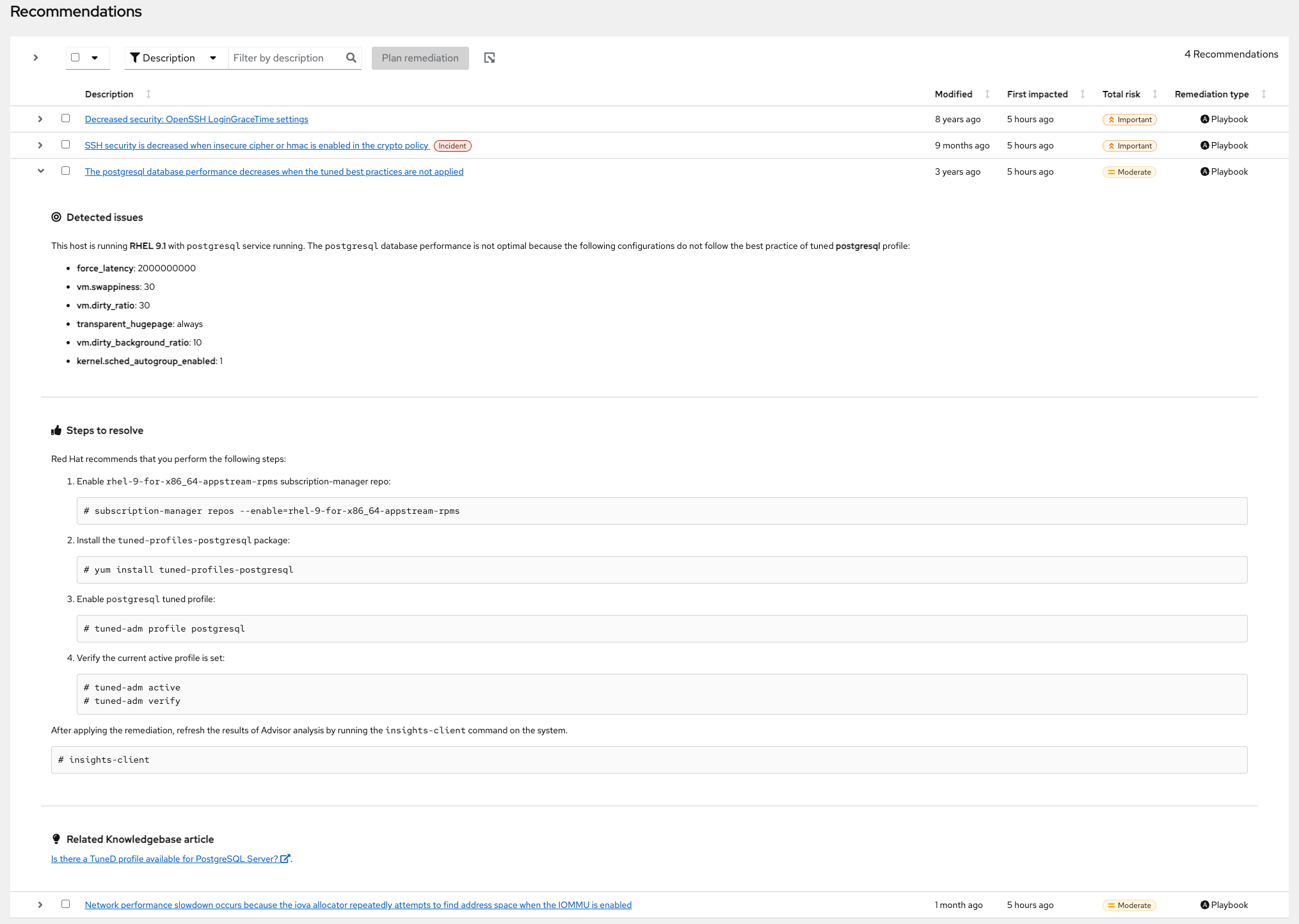
Red Hat Lightspeed tells you that to fix this, you need to install the tuned package then apply the tuned profile for postgresql.
Red Hat Lightspeed includes step by step directions, or you can generate an ansible playbook inside of Red Hat Lightspeed.
You will return to Red Hat Satellite to perform a remediation of this issue.
-
Before leaving, take note of the
Last seentime and date of this system right above the wordRecommendations, near the host name of the system. This was the last time the host checked in with Red Hat Lightspeed. By default this is a systemd process that happens once daily.
Close the Hybrid Cloud Console tab.
Fixing an issue that Red Hat Lightspeed finds
Now we are going to fix the PostgreSQL Server recommendation inside of the Satellite user interface
-
Return to your Satellite UI. This should still be at the Insights tab of the
node-{guid}-1.example.comhost.
If not, repeat the earlier steps of going to Hosts → All hosts then selectingnode-{guid}-1.example.comand then the Insights tab. -
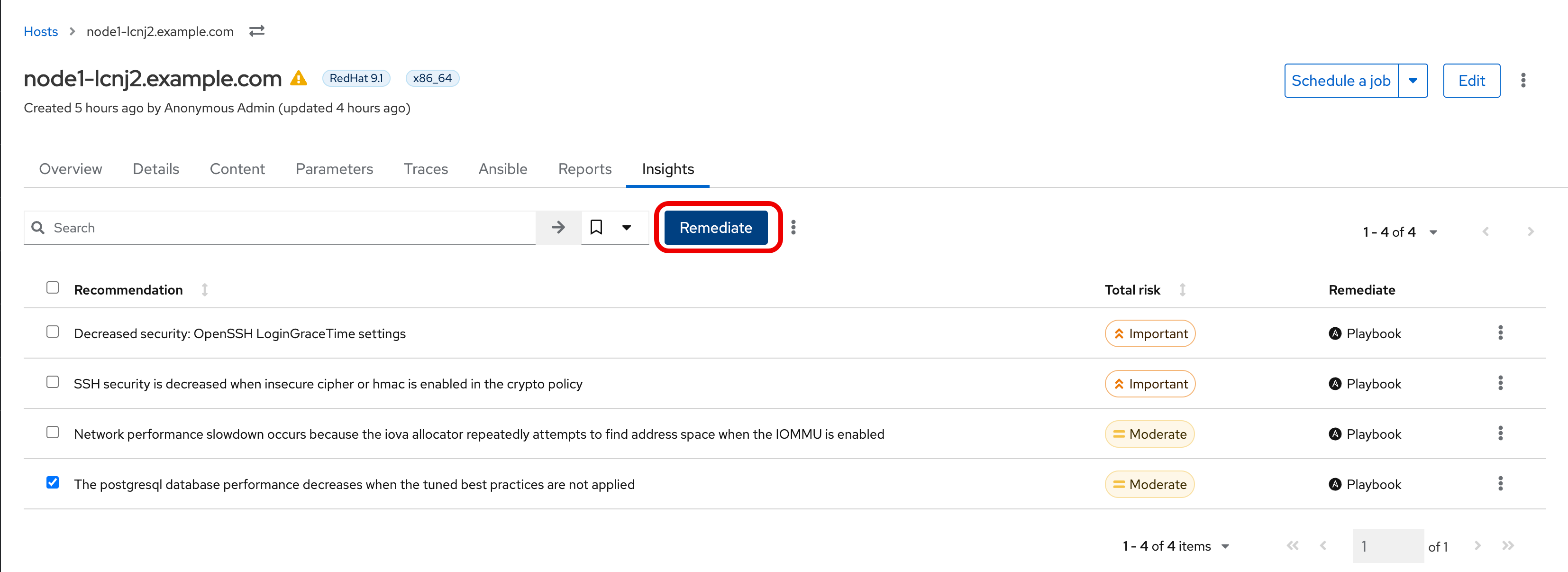
To start the process of fixing an issue, select the checkbox to the left of
The postgresql database performance decreases when the tuned best practices are not applied.
Notice that theRemediatebutton at the top turns blue once a Recommendation is selected. -
Click the
Remediatebutton.
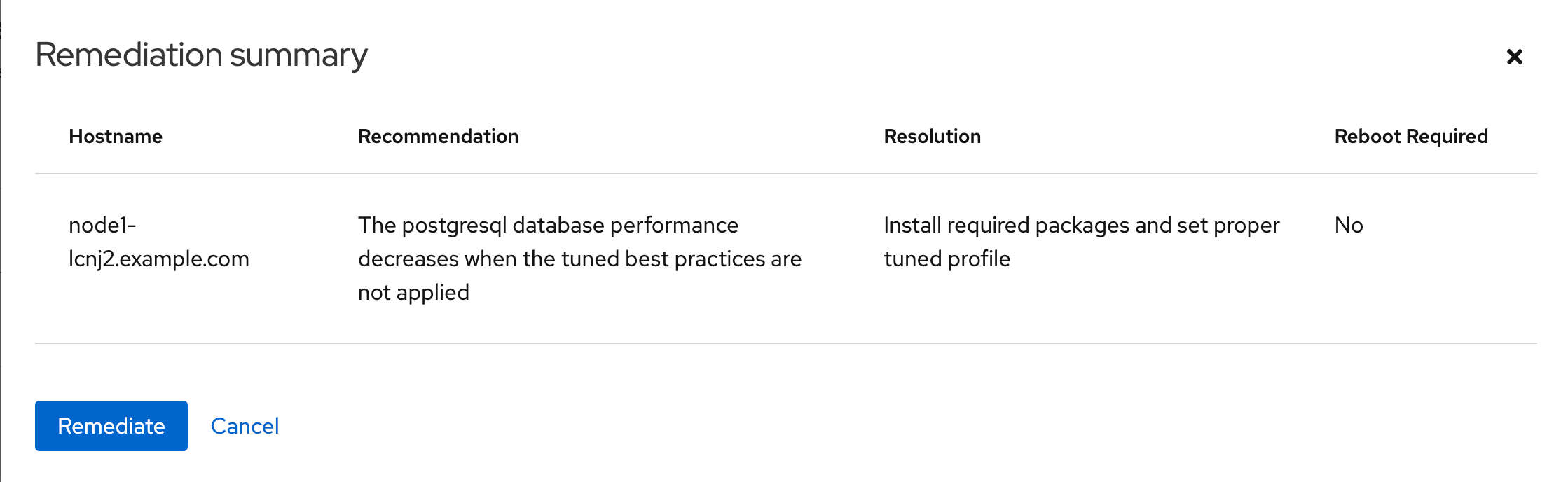
This will open a window that will summarize the recommendation, the resolution, and will let you know if a reboot of the system is needed.
In this case the resolution is to install the tuned package and set the proper tuned profile which does not require a reboot.
-
Click
Remediate.
This will redirect you to Monitor → Jobs where you can see the job running that you just initiated.
This job may take 2-5 minutes to complete. Wait for the results to show success.
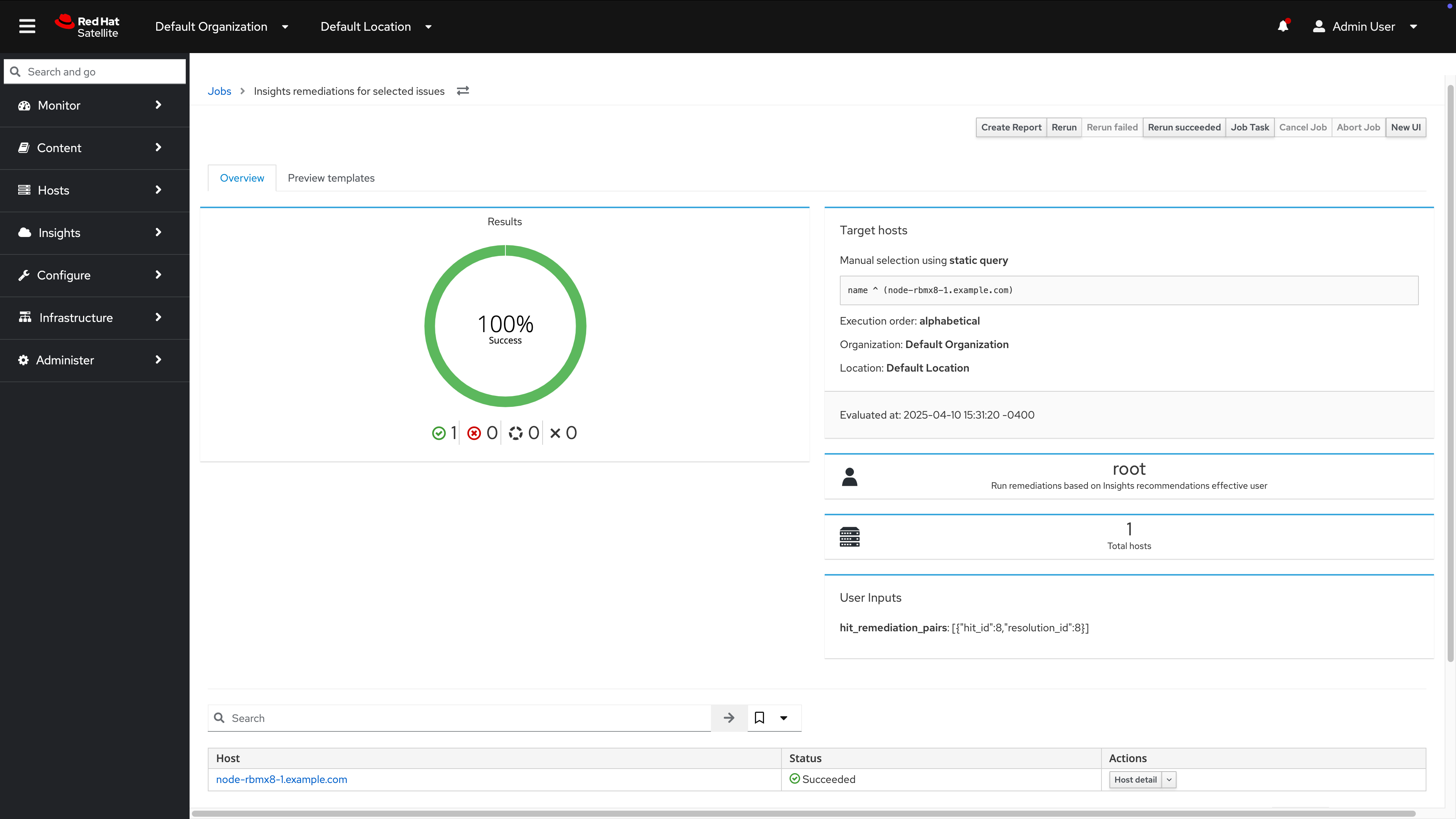
At the bottom of the page you will see a table that lists Host, Status, and Actions.
-
Click the Host name in the Host column. This will show you the Ansible playbook that was run as part of this remote execution job.
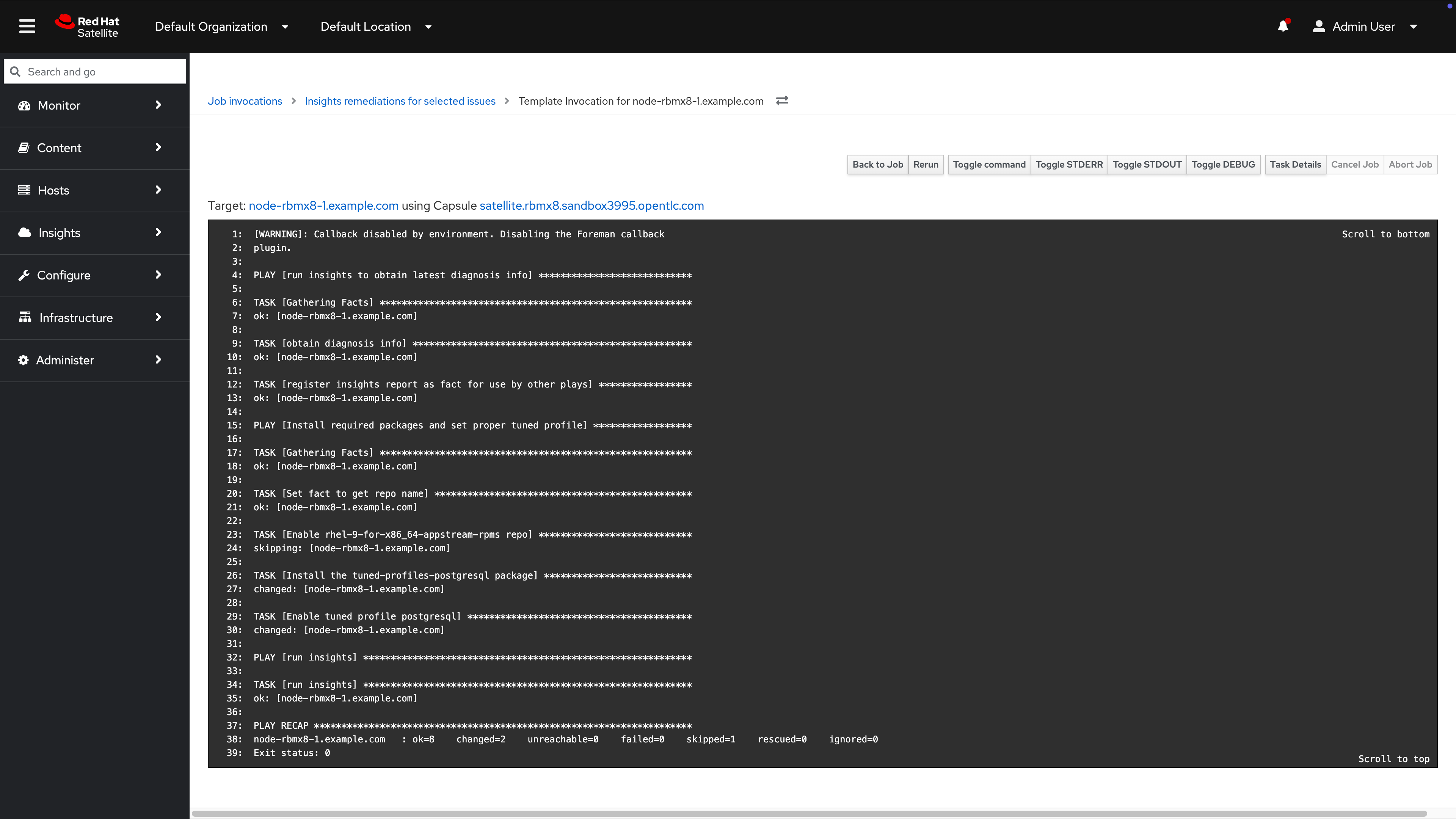
This job made sure the right repo was enabled, it installed the necessary package, it enabled the tuned profile, then it re-ran Red Hat Lightspeed to detect that the issue was resolved.
-
Open a new tab and go to the Systems page in the advisor service. Locate
node-{guid}-1.example.comand look at theLast seencolumn and notice that the time of the last update was very recent. Click the host name to see more details.
| If you have the Hybrid Cloud Console still open from earlier, you should refresh the page just to be sure you are seeing the latest information. |
-
Again, take a look at the
Last seentime. Notice that has been updated and the system has recently checked in with Red Hat Lightspeed. In the remediation playbook the very last step was torun insights.
This had the system check back into Red Hat Lightspeed after making a fix and as a result if you look at the list of Recommendations, the postgresql issue that you resolved is no longer showing. -
Return to the Satellite UI.
-
On the Satellite left hand navigation bar, select Insights → Recommendations.
Look at the number of risks listed - it probably has not changed. The remediation that you just completed is not synchronized from Red Hat Lightspeed, so you need to manually do this by clicking the three dots and selectingSync recommendations.
| Synchronizing data with Red Hat Lightspeed is a scheduled job on the Satellite server that by default only happens once daily. |
After the recommendations have been synchronized the postgresql database performance decreases when the tuned best practices are not applied recommendation that you fixed on the first host is no longer listed. You will still see the issue for the other host which we will resolve in the next module.
You have identified a situation that is outside of the best practices for your workload, you have resolved the issue, and Red Hat Lightspeed no longer reports it as being an issue for node-{guid}-1.example.com.
This module is complete.