Lab Guide: Creating an Execution Environment with ansible-builder
A guide to automating the creation and customization of containerized execution environments using the ansible-builder utility and the integrated Visual Studio Code environment.
Learning objectives
After completing this module, you will be able to:
-
Define an execution environment using
execution-environment.yml -
Package a collection with
ansible-galaxy collection build -
Use
ansible-builder createto inspect the generated Containerfile -
Build and tag a custom execution environment image
-
Test the execution environment with
podmanandansible-navigator
Lab briefing
In previous challenges, you authored, tested, and validated your custom Ansible collection.
This final deployment step requires packaging all content (collections, Python dependencies, and system requirements) into a repeatable, version-controlled Execution Environment (EE) container image using ansible-builder.
This exercise focuses on using the Ansible VS Code extension and Ansible Builder 3 features to efficiently define and build a custom EE directly from the VS Code environment.
Enhanced developer experience
ansible-builder is part of the comprehensive Ansible Development Tools (ADT) suite.
The Ansible VS Code extension is actively providing an Enhanced VS Code integration that simplifies interaction with these tools.
Although new features in the roadmap are coming to simplify the EE building experience, specially for operators and deploying in production, this exercise covers the development and testing.
Lab guide: Hands-on tasks
We will define an Execution Environment configuration file by using the Ansible extension wizard in VS Code, then use ansible-galaxy to package our collection, ansible-builder create to inspect the generated Containerfile, and finally ansible-builder build for building the custom EE image, and finish by testing it using Podman (the default container runtime).
Task 0: Promote your playbook to the playbook project
Now that your playbook and collection are working, it’s time to prepare them for production. In a real workflow, the collection and the playbook project are distributed separately — the collection is packaged into an Execution Environment, while the playbook project is pushed to a Git repository and pulled by Ansible Automation Platform’s Controller.
Copy your working playbook from the collection into the myplaybook project directory you created in Lab 1.1. In VS Code, expand mynamespace.mycollection > playbooks, right-click on mycowsay.yml and select Copy. Then expand the myplaybook folder in the workspace root, right-click on it and select Paste.
Alternatively, you can use the terminal:
cp /projects/ansible-dev-tools-workspace/mynamespace.mycollection/playbooks/mycowsay.yml /projects/ansible-dev-tools-workspace/myplaybook/Task 1: Define the Execution Environment definition file
The EE configuration is defined in execution-environment.yml. To access the features of modern Ansible tooling, we must explicitly declare version: 3 in the definition file.
-
Create the destination directory. The VS Code wizard requires the destination directory to exist before creating the project. In the VS Code file explorer sidebar, right-click on the workspace root (
ansible-dev-tools-workspace) and select New Folder. Name itmycollection-ee. -
Create the Execution environment project in VS Code:
Open the Ansible extension in the VS Code sidebar and click the Execution environment project option under the "INITIALIZE" menu.
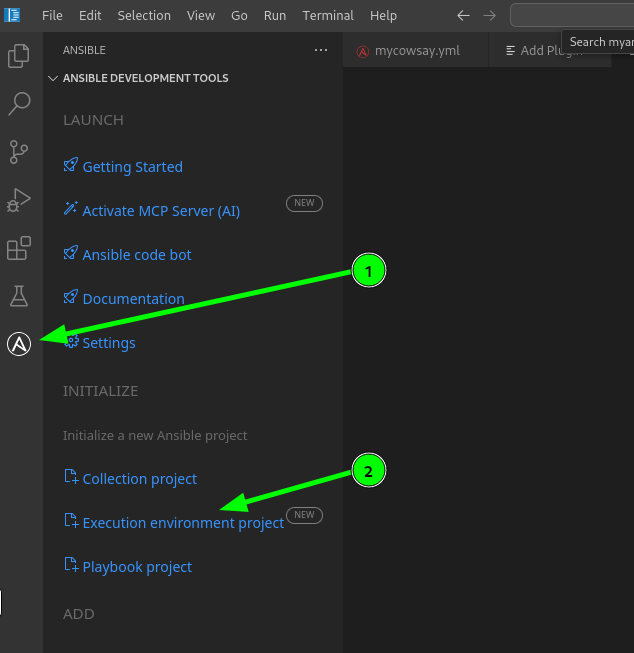
-
Fill out the Execution environment project details. Use the following information:
-
Destination path:
/projects/ansible-dev-tools-workspace/mycollection-ee -
Base image: Leave the dropdown as -- Select Base Image --.
-
Custom base image: Enter the following base image:
image-registry.openshift-image-registry.svc:5000/openshift/ee-minimal-rhel9:latestThis is the Red Hat supported ee-minimalbase image, pre-loaded into the cluster’s internal registry. It is the same image used by Ansible Automation Platform in production. -
Additional collections:
mynamespace.mycollection -
Additional python packages:
cowsay -
Tag:
mycollection-ee -
Leave all the other fields as they are
-
Click the blue Build button. You might need to scroll down to find it.
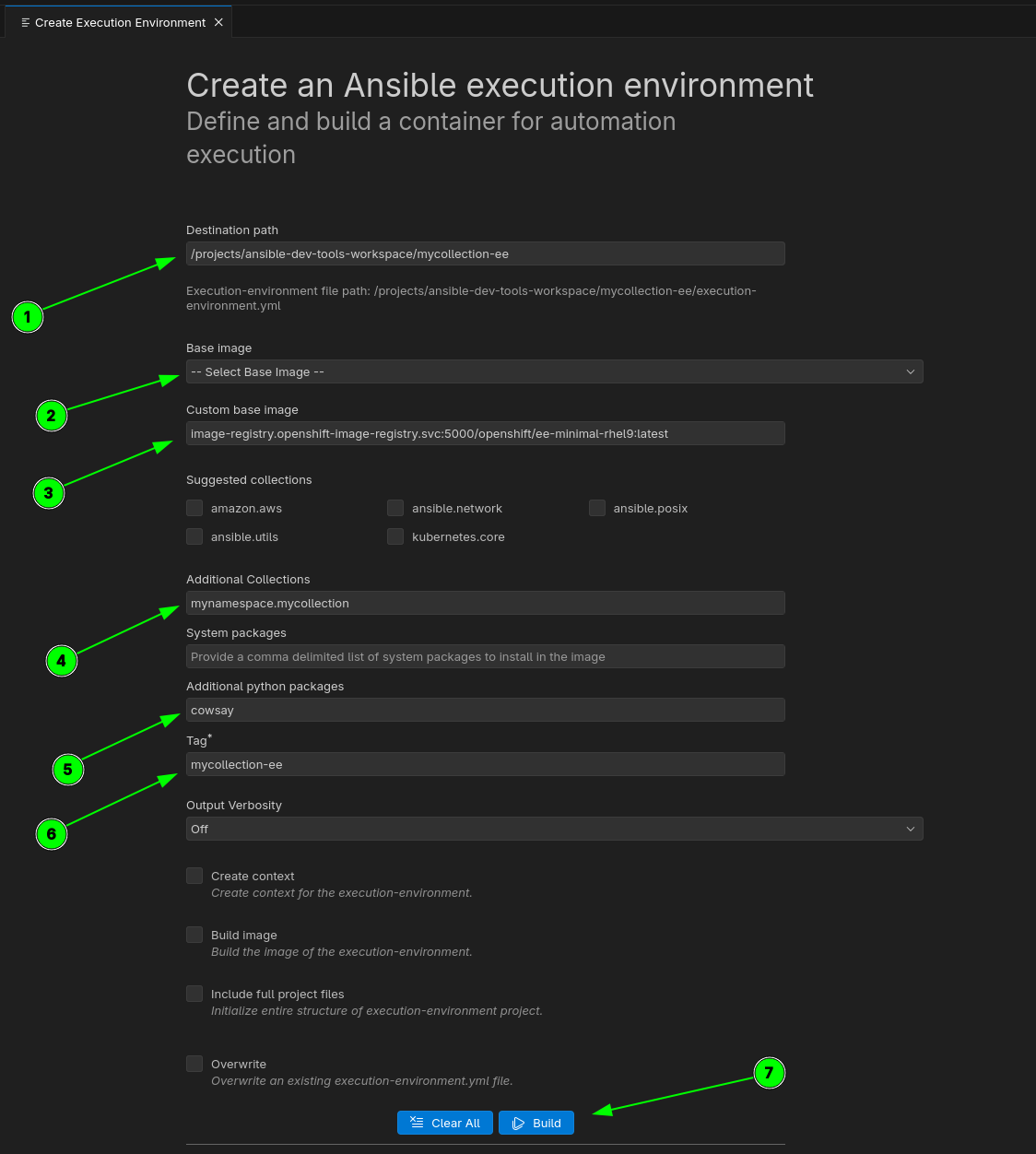
The CLI equivalent of this wizard is: ansible-creator init execution_env --ee-base-image image-registry.openshift-image-registry.svc:5000/openshift/ee-minimal-rhel9:latest --ee-collections mynamespace.mycollection --ee-python-deps cowsay --ee-name mycollection-ee /projects/ansible-dev-tools-workspace/mycollection-ee
-
-
Open the
execution-environment.ymlfile:In the VS Code file explorer, expand the
mycollection-eefolder and openexecution-environment.yml. -
Check the EE blueprint content:
This configuration defines the base image, includes the collection dependencies, and explicitly adds the Python dependency (
cowsay) needed for your custom module. The file should look similar to the one below:--- version: 3 images: base_image: name: image-registry.openshift-image-registry.svc:5000/openshift/ee-minimal-rhel9:latest dependencies: ansible_core: package_pip: ansible-core ansible_runner: package_pip: ansible-runner galaxy: collections: - name: mynamespace.mycollection python: - cowsay options: tags: - mycollection-ee -
Customize the EE blueprint for local development:
Since our collection is not yet published to Ansible Galaxy or Automation Hub, we need to customize the EE definition for local development. We will replace the wizard-generated dependencies with an explicit Python interpreter path, add an
additional_build_filessection to copy the collection tarball into the build context, modify thegalaxysection to point to the tarball path usingtype: file, and set the package manager path tomicrodnf.Replace the contents of
execution-environment.ymlwith:--- version: 3 images: base_image: name: image-registry.openshift-image-registry.svc:5000/openshift/ee-minimal-rhel9:latest dependencies: python_interpreter: python_path: /usr/bin/python3.12 galaxy: collections: # Tell Galaxy to look inside the local folder we created below - name: collection_tarballs/mynamespace-mycollection-1.0.0.tar.gz type: file python: - cowsay # Copy the tarball into a dedicated folder named 'collection_tarballs' additional_build_files: - src: mynamespace-mycollection-1.0.0.tar.gz dest: collection_tarballs options: tags: - mycollection-ee package_manager_path: /usr/bin/microdnfUnderstanding the customizations:
-
python_interpreter.python_path: Uses/usr/bin/python3.12to match the Python version shipped in theee-minimal-rhel9base image. -
additional_build_files: Copies the collection tarball into the build context undercollection_tarballs/. -
type: filein thegalaxysection: Tellsansible-galaxyto install the collection from the local tarball instead of downloading it from Galaxy. -
package_manager_path: Usesmicrodnf, the package manager available in theee-minimal-rhel9base image.
-
-
Save the file.
-
Package the collection as a tarball:
Before building the EE, we need to package the collection. The
build_ignoreentries you added togalaxy.ymlearlier ensure that development directories (.venv,collections,.tox) are excluded from the package.cd /projects/ansible-dev-tools-workspace/mynamespace.mycollectionansible-galaxy collection build --output-path /projects/ansible-dev-tools-workspace/mycollection-ee/
Task 2: Review the generated Containerfile (dry run)
Before executing the full build, we can use the ansible-builder create command to generate the Containerfile and build context directory (context/). This is helpful for debugging the build steps without spending time on the full image assembly.
-
Navigate to the EE project directory:
cd /projects/ansible-dev-tools-workspace/mycollection-ee -
Run the
ansible-builder createcommand in the VS Code Terminal:Execute the following command in the active terminal to generate the build context.
ansible-builder createExpected Output: This creates the
context/directory containing theContainerfileand all necessary build artifacts. -
Inspect the generated Containerfile:
In the VS Code file explorer, locate
context/Containerfileand open it. Review the sequential stages (Base, Galaxy, Builder, Final) generated byansible-builder.
Task 3: Build and tag the custom Execution Environment
Now we will execute the full build process and assign a specific tag to the final container image.
-
Run the
ansible-builder buildcommand:Use the
-tflag to tag your new EE image and the-vvvflag for detailed output.ansible-builder build -t mynamespace/mycollection-ee:latest -vvvVerbosity FlagThe
-vvvflag specifies the verbosity level of the output and is not related to theversionschema defined in your YAML file. -
Verify the image creation:
The build command executes the container build across 4 internal stages: Base, Galaxy, Builder, and Final. After the build completes successfully, you should see a message similar to this one:
[4/4] STEP 22/22: CMD ["bash"] [4/4] COMMIT mynamespace/mycollection-ee:latest --> 6492fc97cd31 Successfully tagged localhost/mynamespace/mycollection-ee:latest 6492fc97cd316aba11934f050e9ff5b8edf52972c80934ca70e122f1965bf62c Complete! The build context can be found at: /projects/ansible-dev-tools-workspace/mycollection-ee/context -
Verify the container image exists:
Use your podman container runtime tool to verify the local image exists.
podman images | grep mynamespaceYou should see
mynamespace/mycollection-eelisted. -
Test the custom Execution environment contains mycollection:
With podman we can run an ansible-galaxy command to list all collections in the execution environment:
podman run mynamespace/mycollection-ee:latest ansible-galaxy collection listThis command should display
mycollectionand its dependencies.# /usr/share/ansible/collections/ansible_collections Collection Version ------------------------ ------- ansible.netcommon 8.2.0 ansible.posix 2.1.0 ansible.utils 6.0.0 mynamespace.mycollection 1.0.0 -
Run the mycowsay.yml playbook with your new EE:
Use
ansible-navigatorto run yourmycowsay.ymlplaybook with your newly created custom execution environment:ansible-navigator run /projects/ansible-dev-tools-workspace/myplaybook/mycowsay.yml --execution-environment-image mycollection-ee --pull-policy never -
Test the cowsay module documentation:
Run a quick test inside the container to verify the custom collection and module dependency were successfully packaged.
podman run mynamespace/mycollection-ee:latest ansible-doc -t module mynamespace.mycollection.cowsayThis command should display the documentation for your custom module, but we didn’t add the corresponding metadata blocks! We will leave it to you as an optional task to research and fix this issue if you have time after finishing the lab. See the Module format and documentation guide for details on how to add DOCUMENTATION,EXAMPLES, andRETURNblocks to your module.
Next steps
You have successfully packaged your automation content into an Execution Environment using ansible-builder and VS Code. This image is now ready for upload to an Automation Hub or deployment via Automation Controller. Please click the Next button below to proceed to Lab 3.2 - Introducing supply chain security with ansible-sign.