Workshop Exercise - Perform Recommended Remediation
Objectives
-
Consider different options for resolving inhibitor risk findings
-
Learn how to use the
leapp_answerfilevariable of theanalysisrole -
Use a remediation playbook to proactively prepare for pre-upgrade
Guide
Step 1 - Explore Options for Resolving Inhibitors
We are now going to look at the remediations step of our automation approach workflow:
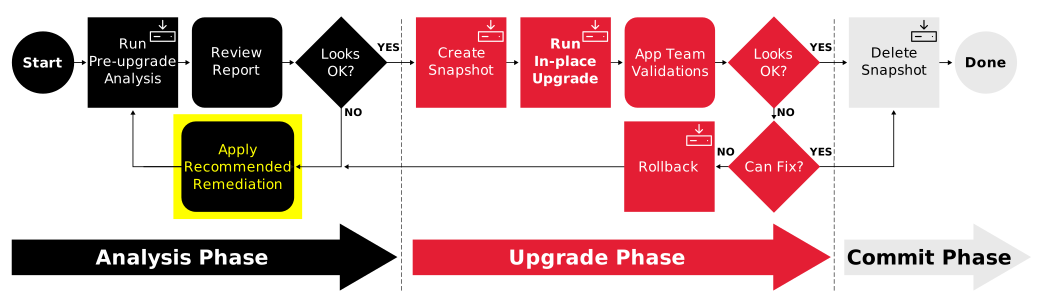
In the previous exercise, we reviewed the Leapp pre-upgrade reports that were generated for our RHEL pet application servers. Our RHEL7 server had a number of inhibitors that will require attention before the RHEL upgrade can proceed.
-
Let’s start by dissecting one of our inhibitor findings:
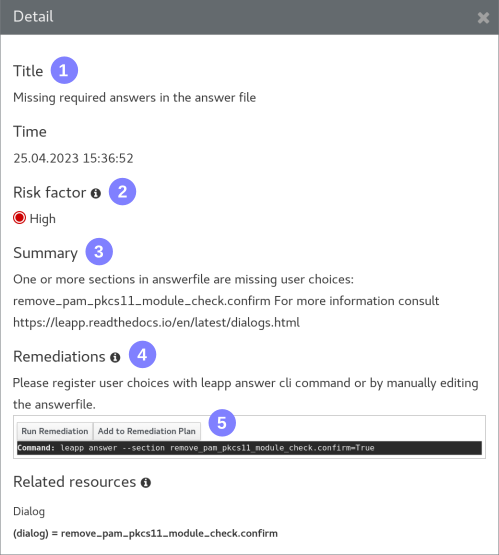
 Each finding has a unique
title.
Each finding has a unique
title. A risk factor is assigned
to each finding, but as we discussed in the previous exercise, this may
be more nuanced than can be indicated by a simple High, Medium, Low or
Info rating.
A risk factor is assigned
to each finding, but as we discussed in the previous exercise, this may
be more nuanced than can be indicated by a simple High, Medium, Low or
Info rating. The summary provides a
detailed explanation of the risk and solution recommendation.
The summary provides a
detailed explanation of the risk and solution recommendation. Under remediation, we are
given a fairly prescriptive recommendation.
Under remediation, we are
given a fairly prescriptive recommendation. Sometimes, the remediation
also includes an exact command like this one.
Sometimes, the remediation
also includes an exact command like this one. -
When a remediation command is given such as with the example above, there are a number of options we can choose from for how to execute the command. Obviously, we could go with the quick and dirty method of getting to a root shell prompt on the host to cut and paste the command or manually edit the answerfile. Of course, going that way is prone to human error and doesn’t scale well. Another option would be to use the "Run Remediation" button shown above the command. Using this option, the RHEL Web Console executes the command for us. While doing this is less prone to human error, it still doesn’t scale well as it’s only going to run on this single host.
-
In the next steps, we’ll look at how we can use the scale of Ansible Automation Platform (AAP) to perform remediations in bulk across a large RHEL estate.
Step 2 - Managing the Leapp Answer File
The Leapp framework uses an answer file as a means of accepting user input choices. This is explained in greater detail in the Asking user questions section of the Leapp developer documentation. The inhibitor finding we dissected in the previous step is looking for us to make a decision or, more specifically, asking us to acknowledge we are aware that Leapp will disable the pam_pkcs11 PAM module during the RHEL upgrade.
-
In Exercise 1.2 - Run Pre-upgrade Jobs, we launched a playbook that runs the pre-upgrade report using the
analysisrole from theinfra.leappAnsible collection. Look at the documentation for this role. Do you see where it supports aleapp_answerfileinput variable? We can set the variable to automatically populate the Leapp answer file. -
Let’s try running the pre-upgrade job again with this variable defined. Launch the "AUTO / 01 Analysis" job template the same as you did under Exercise 1.2, Step 2, except this time, we will add this setting when we get to the Variables prompt:
leapp_answerfile: |
  [remove_pam_pkcs11_module_check]
  confirm: true
For example:
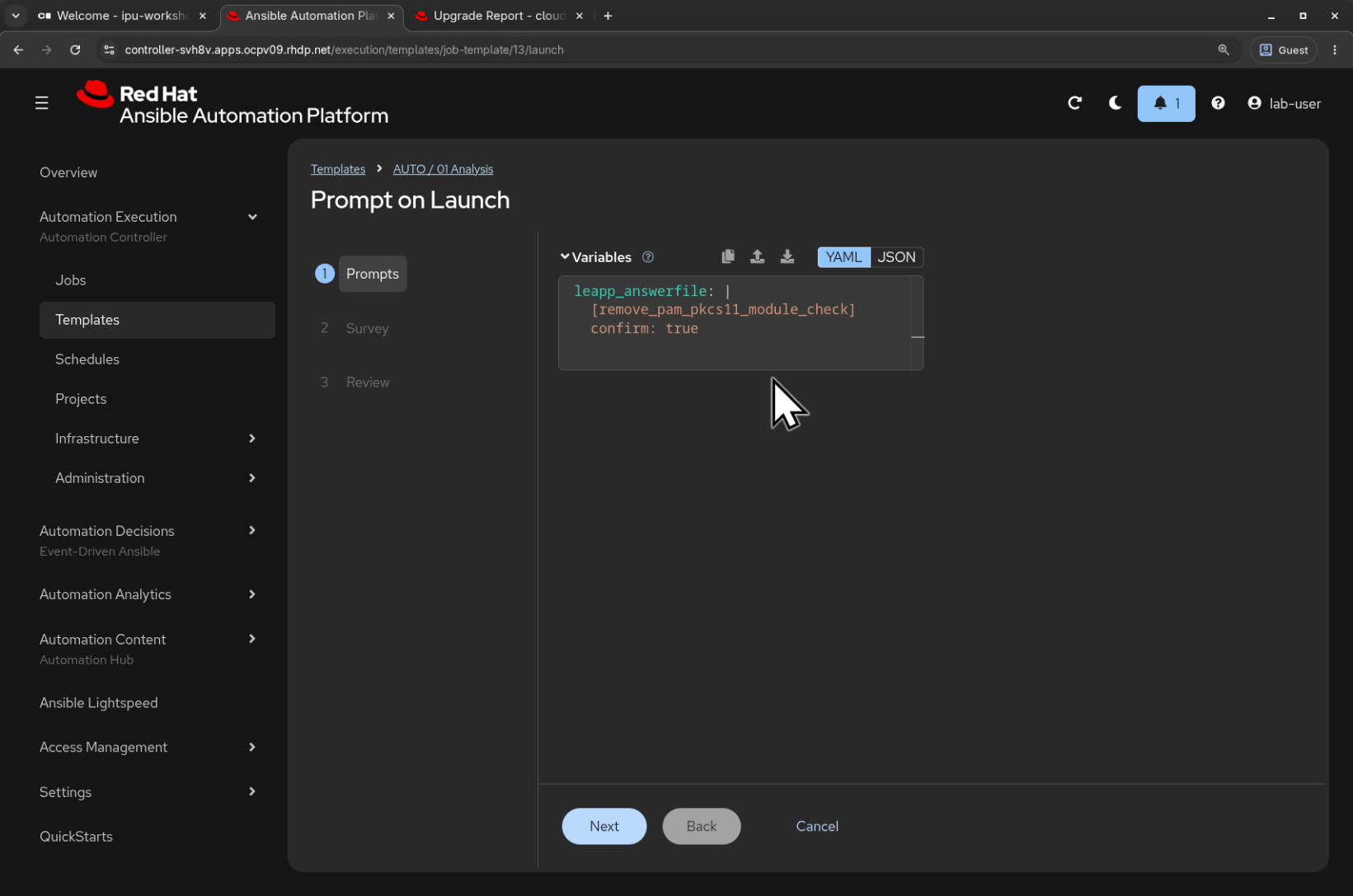
After making the variable setting as shown above, click the "Next" button. This will lead to the job template survey prompt. Previously, we used the "ALL_rhel" option to run the pre-upgrade on all our pet servers. However, our
leapp_answerfilesetting is specific to our RHEL7 hosts, so choose the "rhel7" option this time: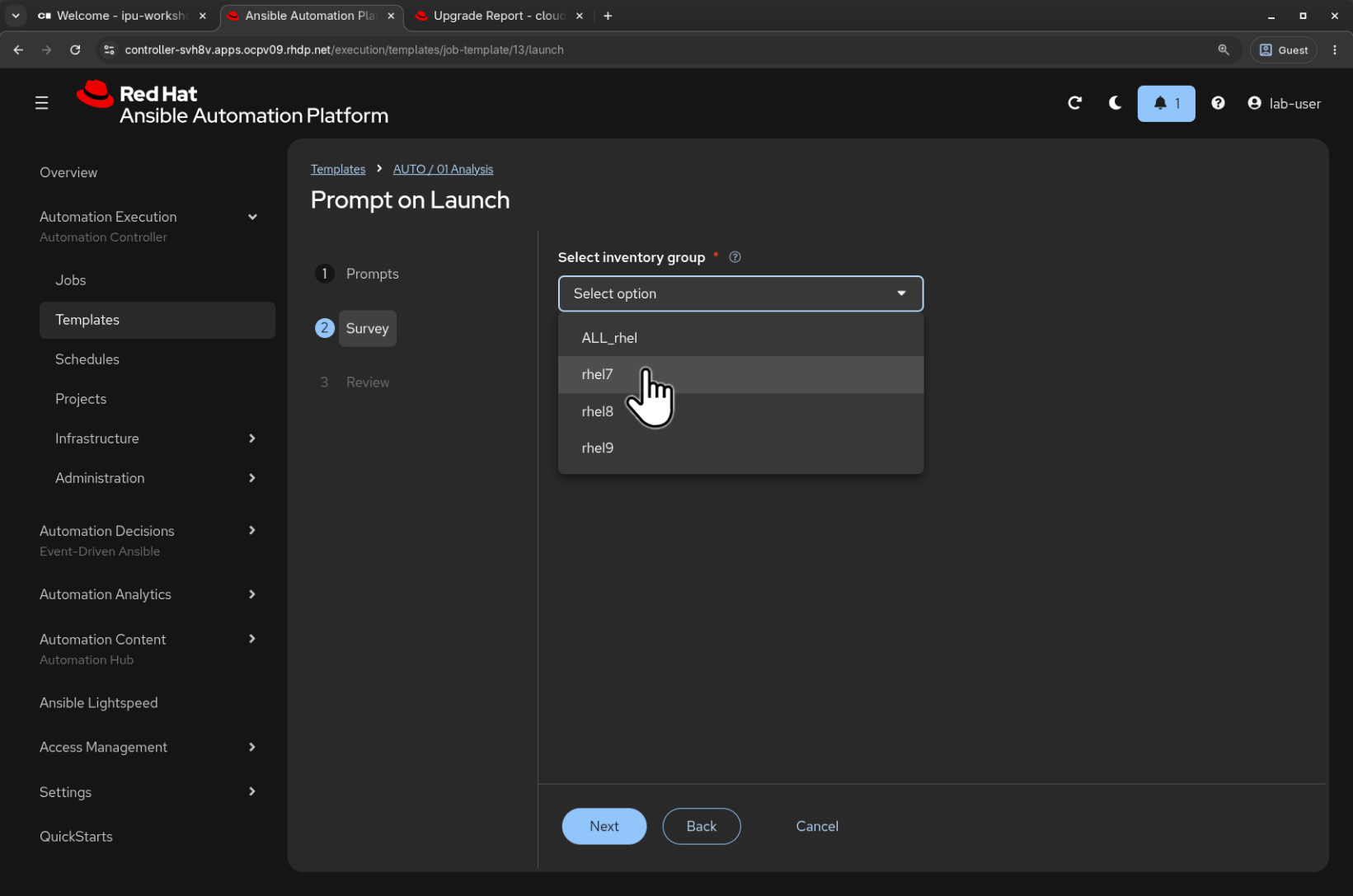
Click the "Next" button to proceed to the preview prompt. If you are satisfied with the job preview, use the "Finish" button to start the job.
-
As before, the AAP Web UI will navigate automatically to the job output page after you start the job. The job will take a few minutes to finish and then you should see the "PLAY RECAP" at the end of the job output.
-
Now go back to your RHEL Web Console browser tab and navigate to the pre-upgrade report of one of the RHEL7 hosts.
Note
You may need to refresh the browser using Ctrl-R to see the newly generated report.
You should see that the "Missing required answers in the answer file" inhibitor finding is no longer being reported.
For example:
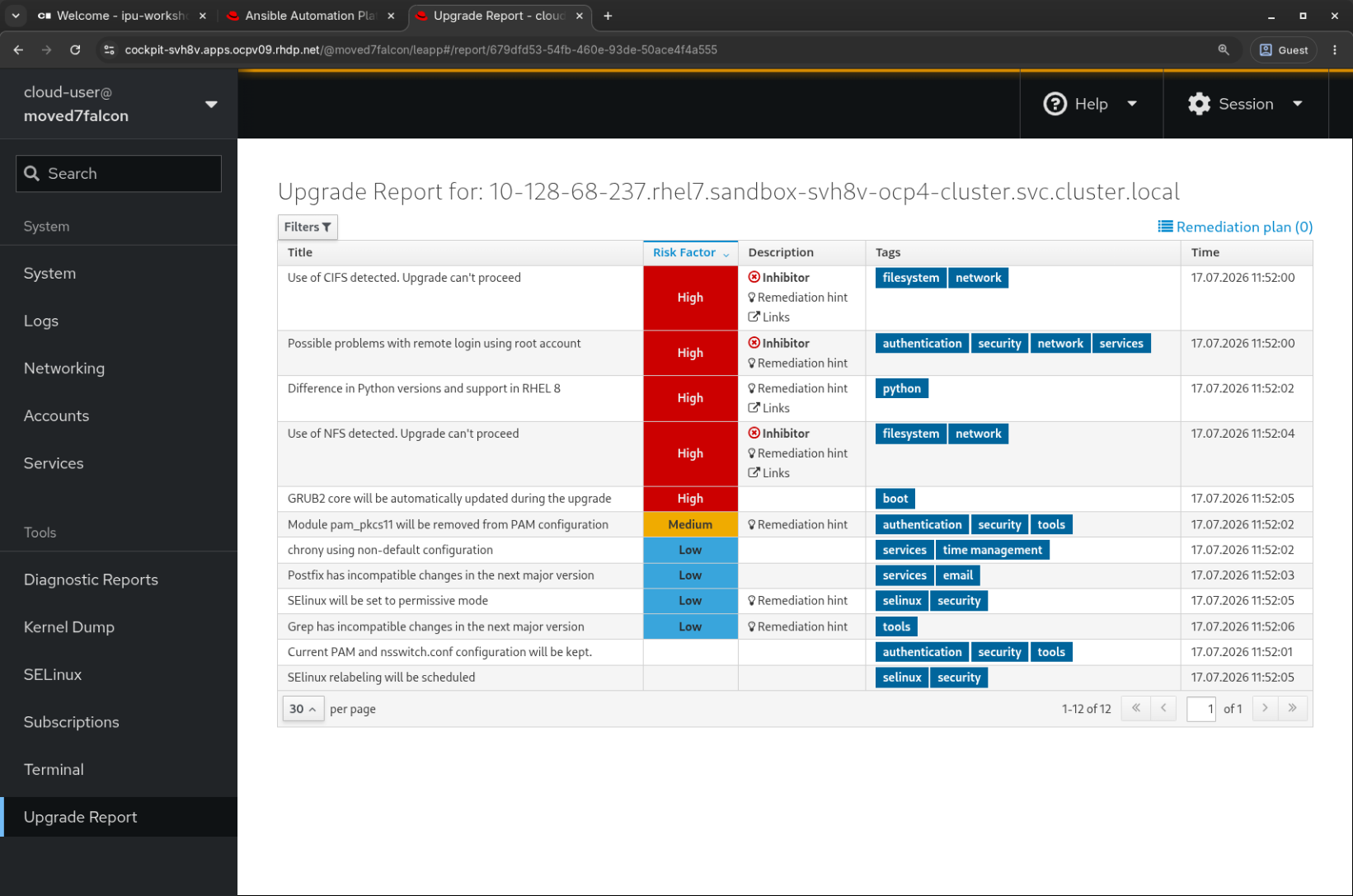
But we still have the "Possible problems with remote login using root account" inhibitor which we need to fix. Let’s look at that next.
Step 3 - Resolving Inhibitors Using a Remediation Playbook
In the previous step, we were able to resolve an inhibitor finding by
simply setting the leapp_answerfile input variable supported by the
infra.leapp Ansible collection analysis role. While that’s a
convenient way to resolve an answerfile inhibitor, our next inhibitor
can’t be resolved that way.
-
Here is our finding:
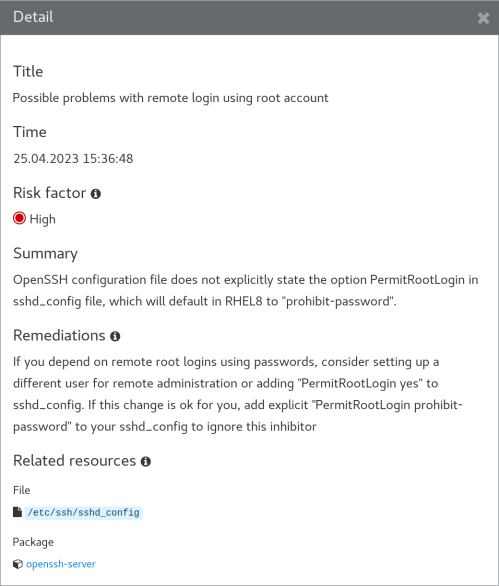
Like the previous inhibitor finding, this one also provides a detailed summary and a fairly prescriptive recommended remediation. However, it does not recommend an exact remediation command. Instead, the remediation recommends making edits to the
/etc/ssh/sshd_configfile. -
Of course, we’re not going to just log in to a root shell and
vithe configuration file, are we? Right, let’s make a playbook to automate the required remediations. Here’s a task that should do the trick:- name: Configure sshd ansible.builtin.lineinfile: path: "/etc/ssh/sshd_config" regex: "^(#)?{{ item.key }}" line: "{{ item.key }} {{ item.value }}" state: present loop: - {key: "PermitRootLogin", value: "prohibit-password"} - {key: "PasswordAuthentication", value: "no"} notify: - Restart sshdWhile we’re at it, let’s also add a task to take care of the answer file inhibitor using the
leapp answercommand. For example:- name: Remove pam_pkcs11 module ansible.builtin.shell: | set -o pipefail leapp answer --section remove_pam_pkcs11_module_check.confirm=True args: executable: /bin/bash -
You will find the tasks above in the playbook
remediate_rhel7.yml. -
However, there’s a lot of other remediation tasks defined in this playbook as well. Lets look at another way of resolving inhibitors using the infra.leapp collection.
    - name: Include the leapp remediate role
      ansible.builtin.import_role:
        name: infra.leapp.remediate
      vars:
        remediation_todo:
          - leapp_corrupted_grubenv_file
          - leapp_missing_efi_bootmgr
          - leapp_nfs_detected
          - leapp_remote_using_root
          - leapp_cifs_detected
This remediation approach uses the
remediaterole from theinfra.leapp. Let’s look at the documentation for this role at infra.leapp remediate role. We can see that this role supports aremediation_todovariable that accepts a list of remediation tasks to perform. Each of the items in the list corresponds to a specific remediation task defined by the role. In our example above, we are including remediation tasks for all the inhibitors we have seen so far in our pre-upgrade reports. -
For our purposes, the "OS / Remediation" job template is already set up to execute this playbook, so let’s use it to remediate our RHEL7 hosts.
-
Return to your AAP Web UI browser tab. Navigate to Automation Execution > Templates on the AAP Web UI and open the "OS / Remediation" job template. Click the "Launch" button to get started.
-
This will bring you to the job template survey prompt. Click "Next" at the variables survey question then choose the "rhel7" option at the "Select inventory group" prompt because our remediation playbook is specific to the pre-upgrade findings of our RHEL7 hosts. Then click the "Next" button. If you are satisfied with the job preview, use the "Finish" button to submit the job. This playbook includes only a small number of tasks and should run pretty quickly.
-
When the "OS / Remediation" job is finished, launch the "AUTO / 01 Analysis" job template one more time, again taking care to choose the "rhel7" option at the "Select inventory group" prompt. When the job completes, go back to the RHEL Web Console of your RHEL7 host and refresh the report. You should now see there are no inhibitors:
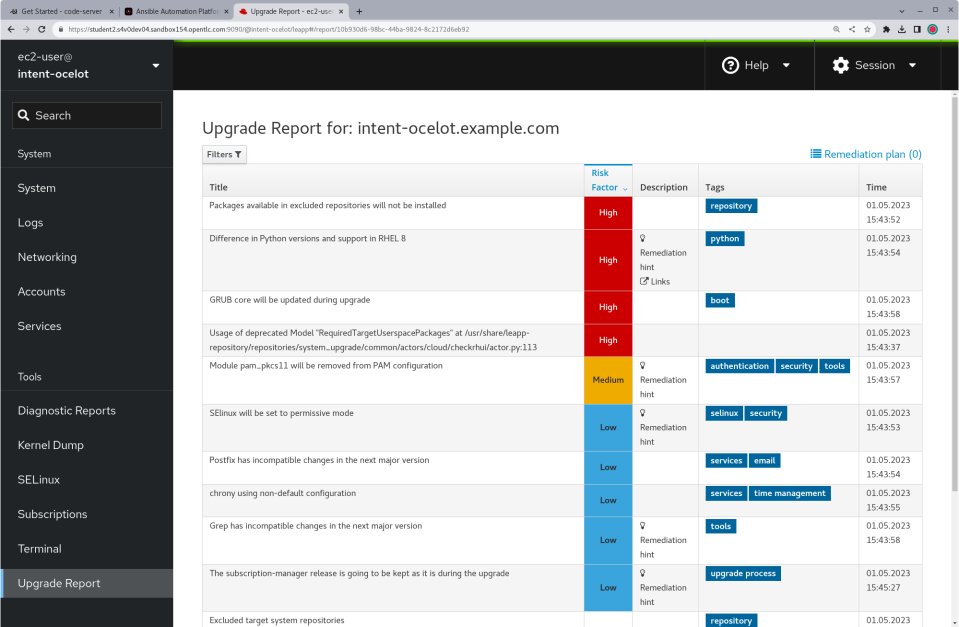
With no inhibitors indicated on our servers, we are ready to try the RHEL upgrade.
Conclusion
In this exercise, we looked at the different ways we can resolve
inhibitor risk findings. We learned how to use the leapp_answerfile
variable of the analysis role to manage the Leapp answer file.
Finally, we used an example remediation playbook to demonstrate how we
could address pre-upgrade inhibitor findings at scale across our RHEL
estate.
Now while we could go ahead and upgrade our servers now (and if time is an issue, you could skip the next task), let’s understand how the leapp process works by creating a custom actor to provide additional pre-upgrade checks and inhibitors.