Workshop Exercise - Check if the Upgrades Worked
Objectives
-
Review the upgrade playbook job log
-
Verify our servers are running the newer RHEL version
Guide
In the previous exercises, we reviewed pre-upgrade reports and performed some recommended remediations. If you tried the optional exercises, you also learned about custom pre-upgrade checks and installed a sample pet application. After all of that, you finally launched the Ansible playbook jobs to run the RHEL in-place upgrades on your servers.
It’s time to verify the result of the upgrades and let our application teams assess if their pet apps are still good. We are here in our RHEL in-place upgrade automation workflow:
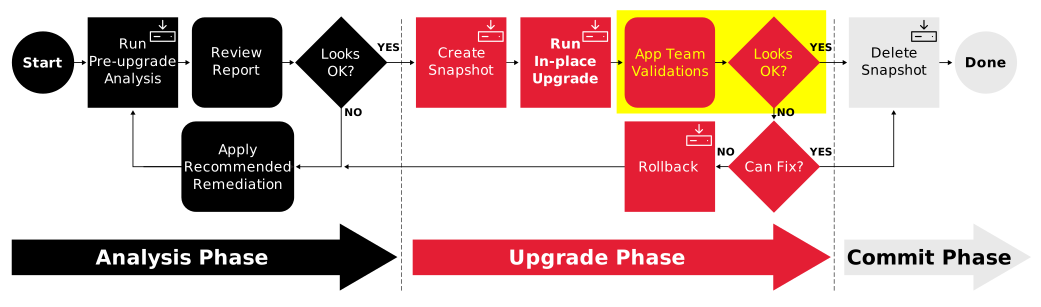
Let’s get started!
Step 1 - Review the Upgrade Playbook Job Log
The first thing we want to do is see if the job running the upgrade playbooks has finished successfully.
-
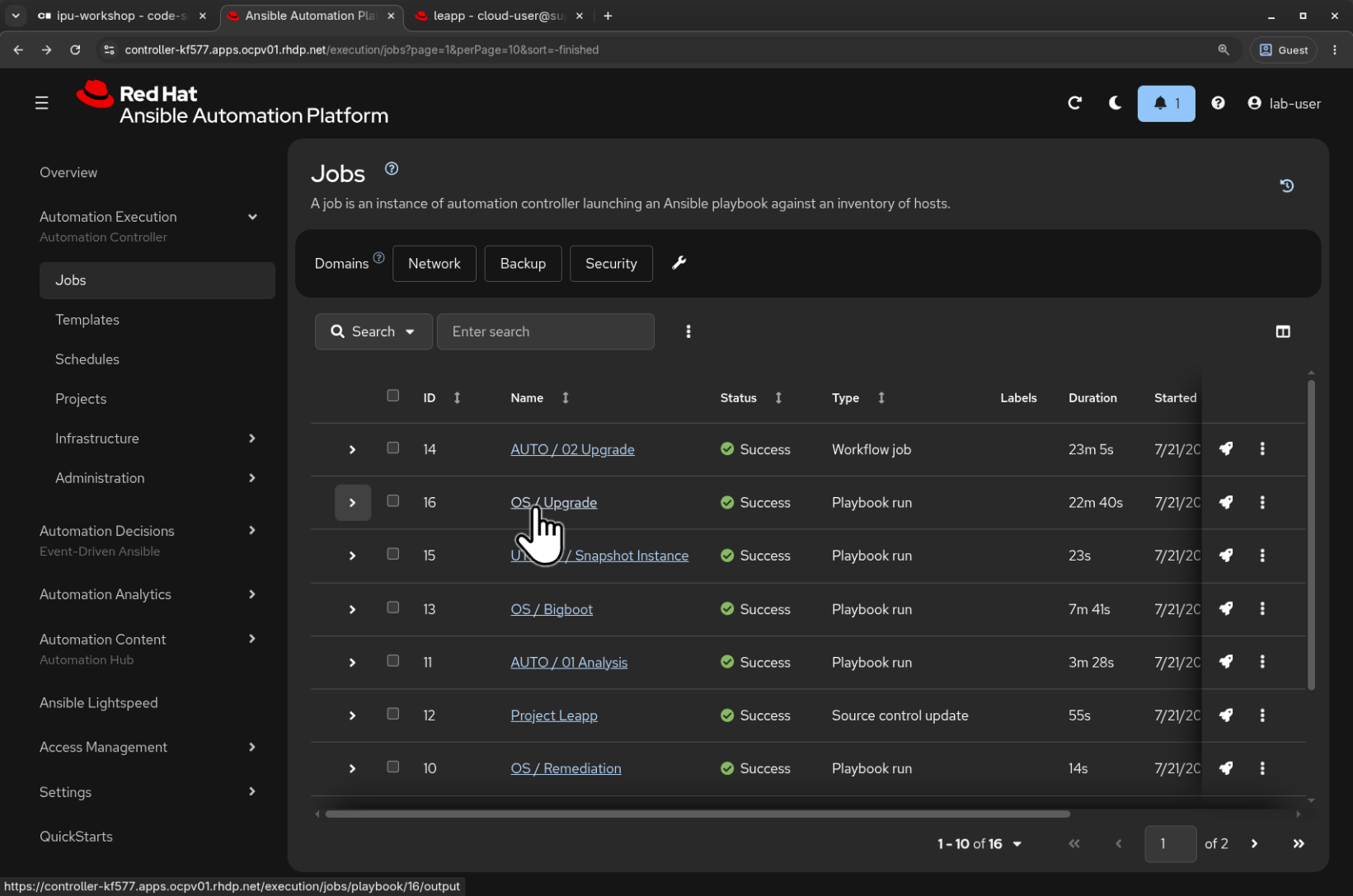
Return to the AAP Web UI tab in your web browser. Navigate to Views > Jobs and then open the "OS / Upgrade" playbook run entry to see the log output from the upgrades.
Note
You will also see an entry for the "AUTO / 02 Upgrade" workflow job. Workflow jobs launch a number of playbook runs. To see the playbook log output, we need to open the playbook run entry, not the workflow job entry.
For example:
-
If the playbook run finished without any failed tasks, you should see "Successful" displayed with a green checkmark.
-
Note that in our lab environment, there’s a chance the upgrade playbook shows failed due to the infrastructure. We will review this in more detail shortly.
Note
If you see "Running" with spinning arrows, the playbook is still running. Wait for the playbook run to finish before moving on with this exercise.
Scroll down to the end of the log output to see the "PLAY RECAP" indicating the success or failure status for the playbook run executed on each host. Here is what you should expect to see:
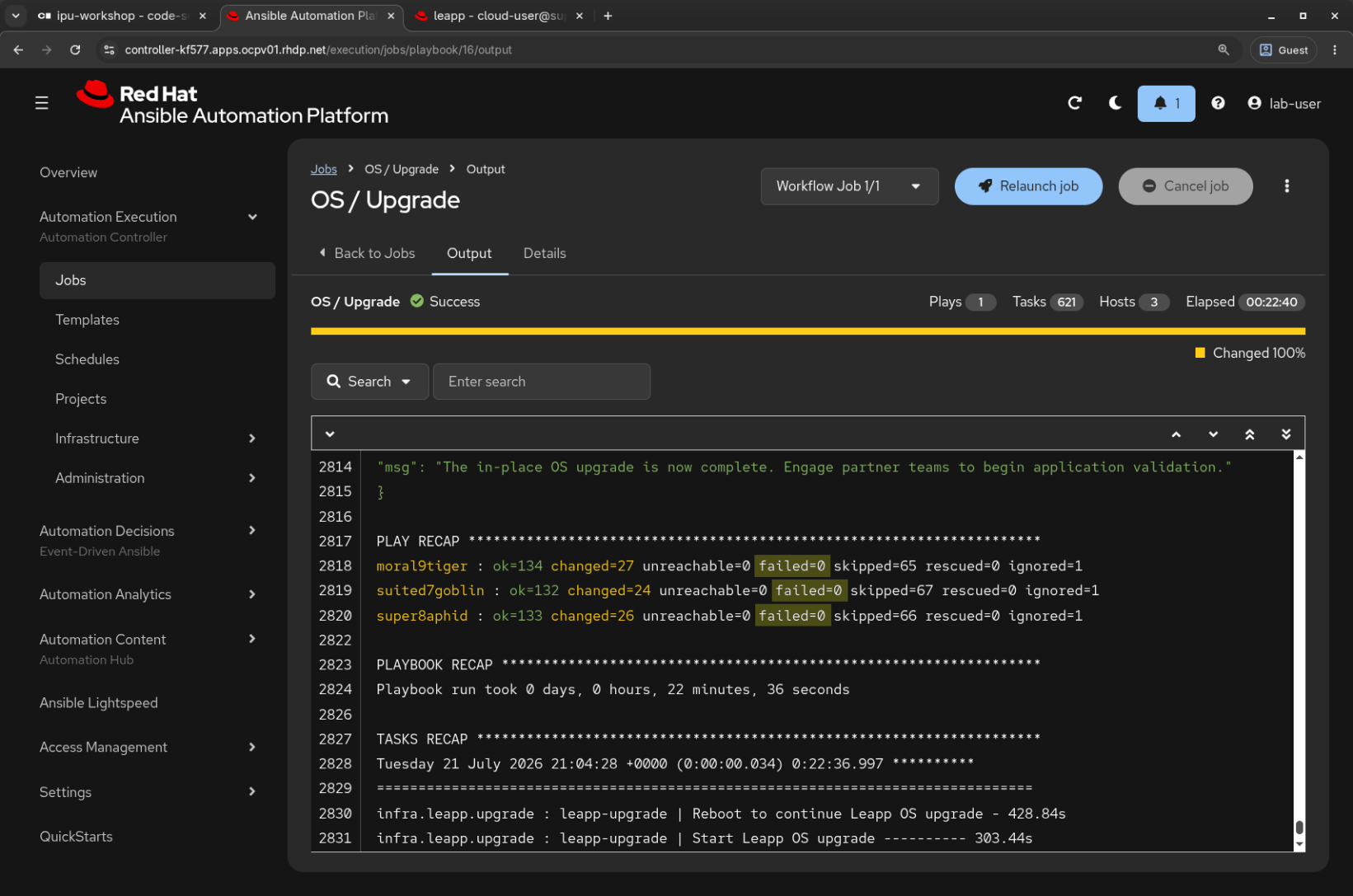
If there are no failed runs, the RHEL in-place upgrade is done on all of our pet app servers.
Step 2 - Verify the Hosts are Upgraded to Next RHEL Version
Now let’s make sure our pet app servers are actually upgraded to the next RHEL version.
-
In Exercise 1.3: Step 2, you used the RHEL Web Console to check the installed RHEL versions on your pet app servers. Let’s repeat those steps to see the RHEL versions reported after our upgrades.
Return to your RHEL Web Console browser tab and use the remote host menu to navigate to the web consoles of each of your pet app servers. The RHEL Web Console system overview page should now show the upgraded versions.
Note
You may need to refresh the browser using Ctrl-R to see the newly reported RHEL version.
For example, this pet app server that previously had RHEL8 is now reporting RHEL9:
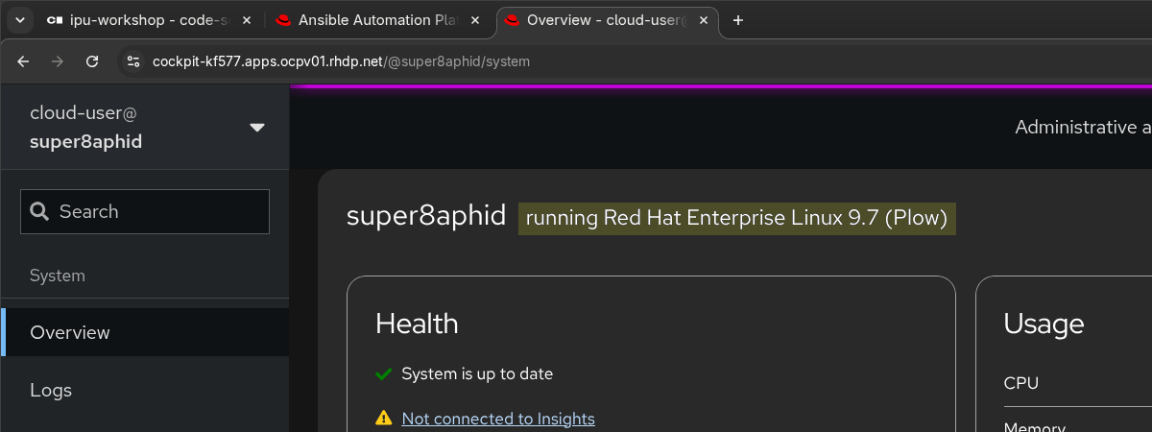
Here is an example of one that was previously RHEL7 now running RHEL8:
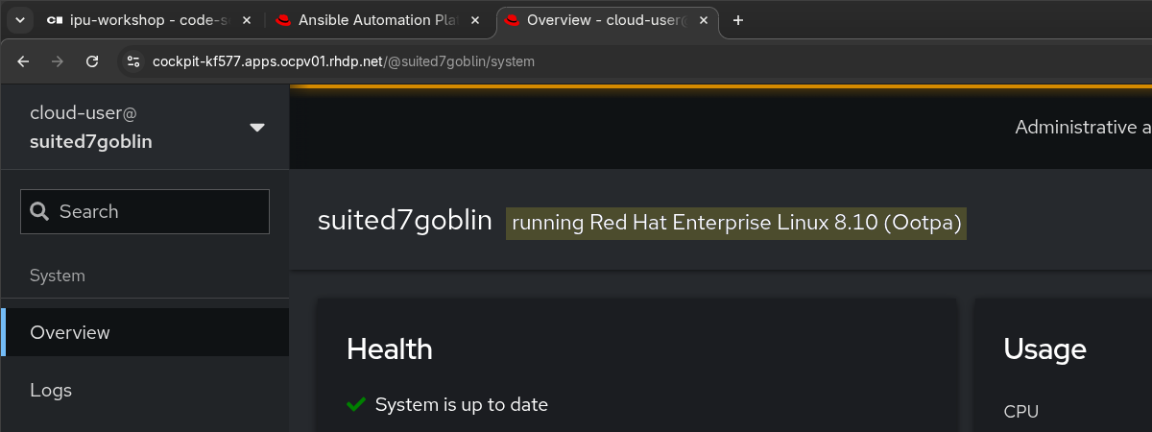
And here is our RHEL9 server now running RHEL10:
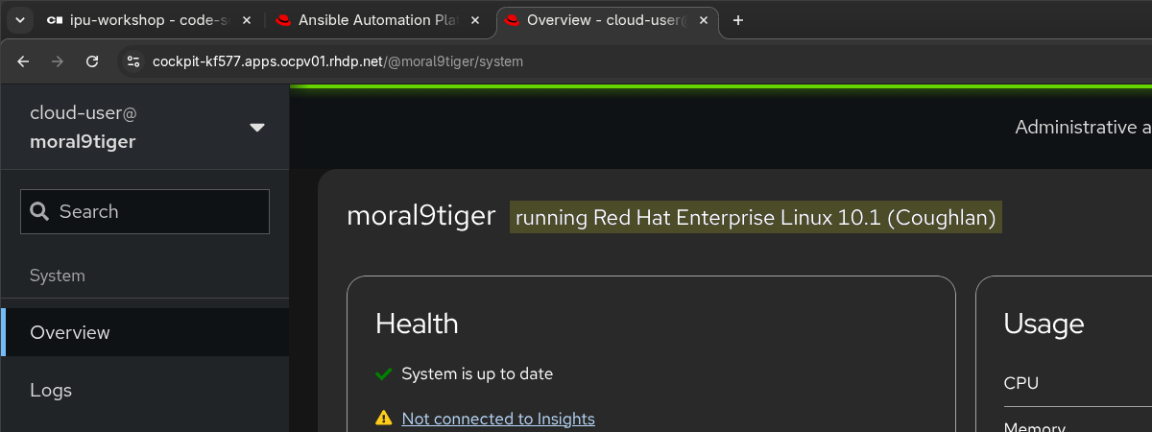
-
You can also check the RHEL and kernel versions from the command line following the steps you used with Exercise 1.1: Step 2.
At the shell prompt of your pet app servers, use the
cat /etc/redhat-releaseanduname -rcommands. Here’s an example showing the pet app server that was upgraded to RHEL10: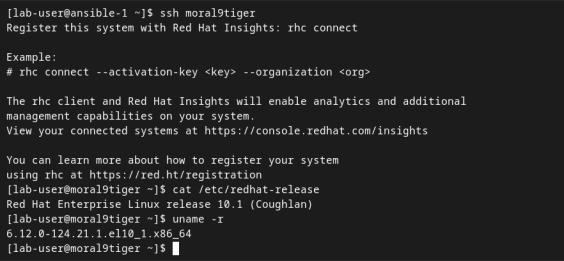
We can also use the
last -w rebootcommand to demonstrate that the host had been previously booting the kernel version from the old RHEL major version: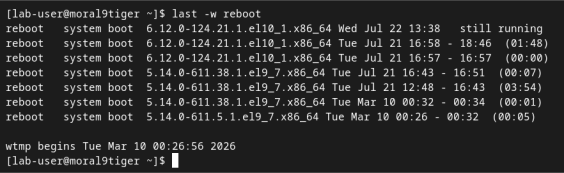
Conclusion
In this exercise, we observed that the upgrade playbook runs completed successfully. We then used the RHEL Web Console and the command line to verify the new RHEL versions were installed.
If you deployed a sample pet application in the previous optional exercise, continue here to verify the pet application is still functioning as expected after the RHEL upgrades:
Otherwise, you may skip ahead to the next section of the workshop where we will demonstrate rolling back the RHEL upgrade, starting with these exercises: