Resource Management of Virtual Machines
Introduction
Overcommit occurs when the allocated virtual resources exceed the physical resources available on the host. Overcommit allows users to enable higher workload density by leveraging the fact that Virtual Machines (VMs) rarely use their full allocated capacity simultaneously.
In this module, you will perform two overcommit tasks:
-
Understand and Overcommit CPU on a Virtual Machine
-
Understand, Enable, and Overcommit Memory on a Virtual Machine
Accessing the OpenShift Cluster
Your OpenShift cluster console is available {openshift_cluster_console_url}[here^].
Your console login is available with:
-
User: {openshift_cluster_admin_username}
-
Password: {openshift_cluster_admin_password}
You can login to your OpenShift cluster on the provided terminal by copying and pasting the following syntax:
oc login -u {openshift_cluster_admin_username} -p {openshift_cluster_admin_password} --server={openshift_api_server_url}Understanding CPU Overcommit
In OpenShift Virtualization, compute resources assigned to Virtual Machines (VMs) are backed by either Guaranteed CPUs or time-sliced CPU shares.
Guaranteed CPUs, also known as CPU reservations, dedicate CPU cores or threads to a specific workload, making them unavailable to any other workload. Assigning guaranteed CPUs to a VM ensures sole access to a reserved physical CPU. You enable dedicated resources for VMs to use guaranteed CPUs.
Time-sliced CPUs dedicate a slice of time on a shared physical CPU to each workload. You can specify the slice size during VM creation or when the VM is offline. By default, each vCPU receives 100 milliseconds (1/10 of a second) of physical CPU time.
With time-sliced CPUs, the Linux kernel’s Completely Fair Scheduler (CFS) manages how VMs share physical CPU cores. CFS rotates VMs through available cores, giving each VM a proportional slice of CPU time based on its configured CPU requests.
By default OpenShift Virtualization has a 10:1 overcommit ratio. To achieve CPU overcommit, each VM’s virt-launcher pod will define 100m of CPU requests or 1/10th of a CPU from a Kubernetes resource and scheduling perspective, per vCPU requested by the VM.
The default 10:1 overcommit ratio can be reconfigured to the desired overcommit level by changing the vmiCPUAllocationRatio on the hyperconverged Custom Resource. Changing this ratio will influence the CPU requests for each vCPU that is allocated by default, which enforces the maximum level of CPU overcommit through Kubernetes based request scheduling.
| Resource assignments are made at virt-launcher pod scheduling time, so any VMs will need to be live migrated or stopped and restarted to change CPU allocation behavior after a ratio change as been made. |
Verifying CPU Overcommit Ratio
-
Ensure that you are logged into both the OpenShift console and the provided Terminal as the Admin account before proceeding with this lab module.
-
To understand CPU overcommit, you must first identify how many physical CPU cores are available on your worker nodes, lets start by listing all of the worker nodes in your cluster:
oc get nodes -l node-role.kubernetes.io/worker=OutputNAME STATUS ROLES AGE VERSION control-plane-cluster-bj7mh-1 Ready control-plane,master,worker 25h v1.34.6 worker-cluster-bj7mh-1 Ready worker 4h21m v1.34.6 worker-cluster-bj7mh-2 Ready worker 4h21m v1.34.6 -
Now lets run another command to show the available CPU resources on a specific node:
oc describe node $(oc get nodes -o custom-columns=":metadata.name" --no-headers | grep worker | head -n 1) | grep -A 9 "Capacity:"OutputCapacity: cpu: 8 devices.kubevirt.io/kvm: 1k devices.kubevirt.io/tun: 1k devices.kubevirt.io/vhost-net: 1k ephemeral-storage: 104266732Ki hugepages-1Gi: 0 hugepages-2Mi: 0 memory: 24600612Ki pods: 250 -
The
cpuvalue shows the number of physical CPU cores (or threads if hyper-threading is enabled) available on the node. -
Alternatively, you can check the CPU allocatable resources (physical CPUs minus system reservations) with the following command:
oc get node $(oc get nodes -o custom-columns=":metadata.name" --no-headers | grep worker | head -n 1) -o jsonpath='{.status.allocatable.cpu}{"\n"}'Output7500m -
Using the left side navigation menu in the OpenShift Console, you can navigate to Compute → Nodes to view their key specifications.
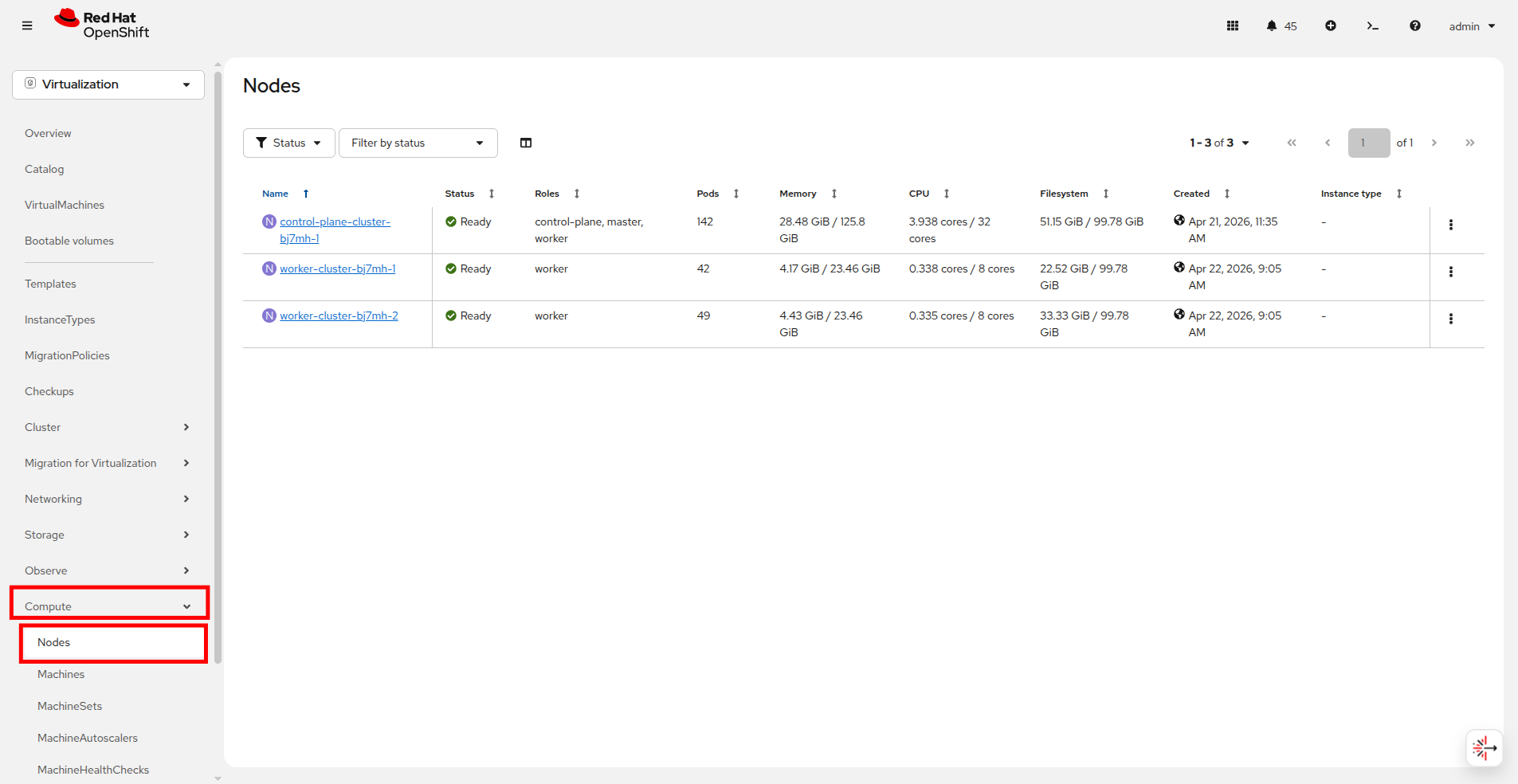 Figure 1. Confirm number of CPUs
 -
Now lets take a look at all of the vCPU allocations in our over-commit project.
oc get vms -n over-commit -o custom-columns=\ NAMESPACE:.metadata.namespace,\ NAME:.metadata.name,\ vCPUs:.spec.template.spec.domain.cpu.cores,\ STATUS:.status.printableStatusOutputNAMESPACE NAME vCPUs STATUS over-commit overcommit-vm-1 16 Stopped -
For a specific VM, say the overcommit-vm-1 virtual machine, you can check the vCPU configuration with the following command:
oc get vm overcommit-vm-1 -n over-commit -o jsonpath='{.spec.template.spec.domain.cpu.cores}{"\n"}'Output16 -
This is all useful information to have when exploring the resources available in your cluster.
-
Now, lets start the overcommit-vm-1 Virtual Machine, you can do this via the OpenShift Console by selecting the VM and pressing the Play button in the corner.
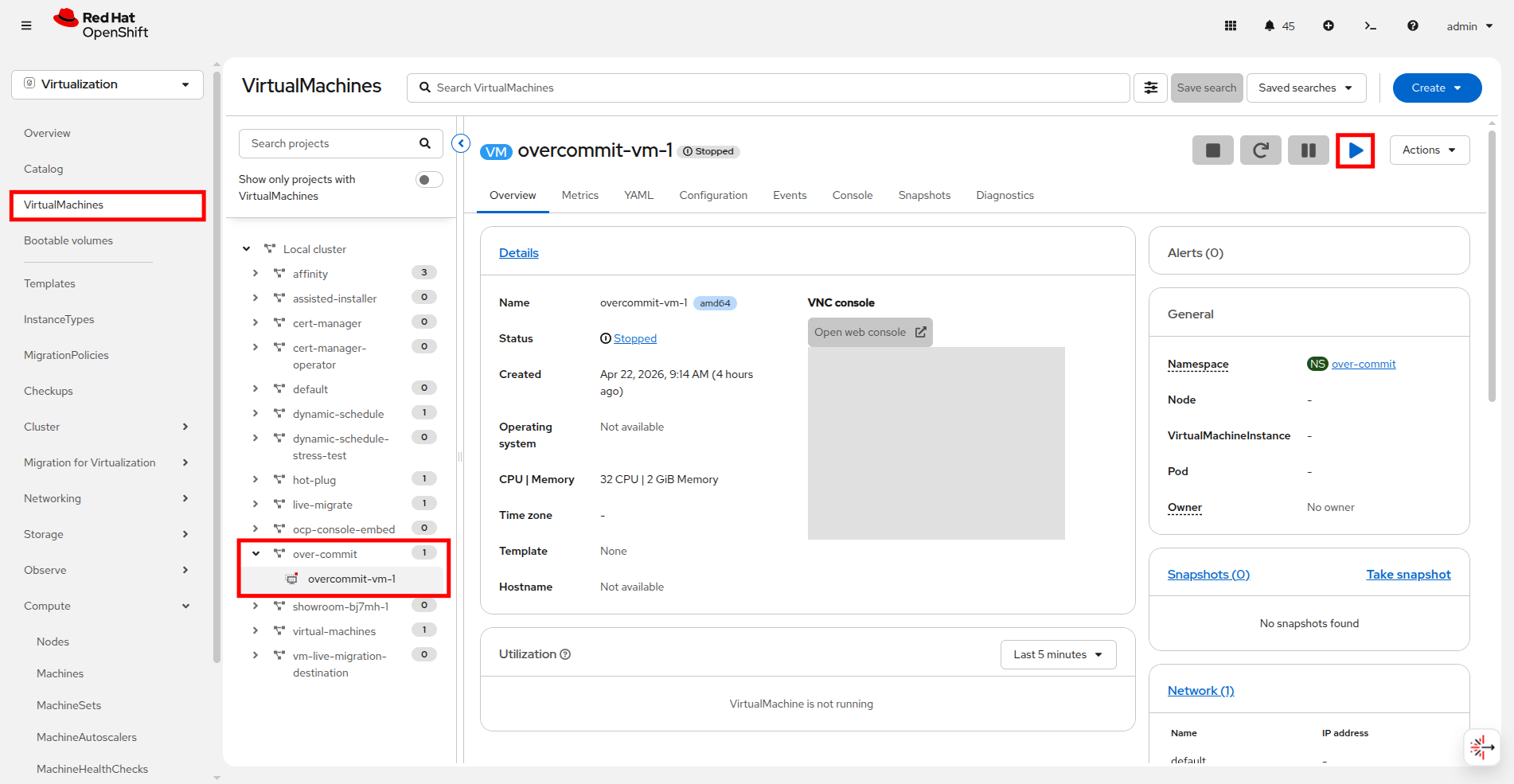 Figure 2. Start VM
 -
View CPU requests and limits for the running VM:
oc get vmi overcommit-vm-1 -n over-commit -o jsonpath='{.spec.domain.cpu}{"\n"}'Output{"cores":16,"maxSockets":8,"model":"Icelake-Server-v2","sockets":2,"threads":1} -
Lets compare the output of the CLI command to what we see in the OpenShift console. Select the over-commit namespace and select the overcommit-vm-1 VM to view the current CPU/Memory allocation.
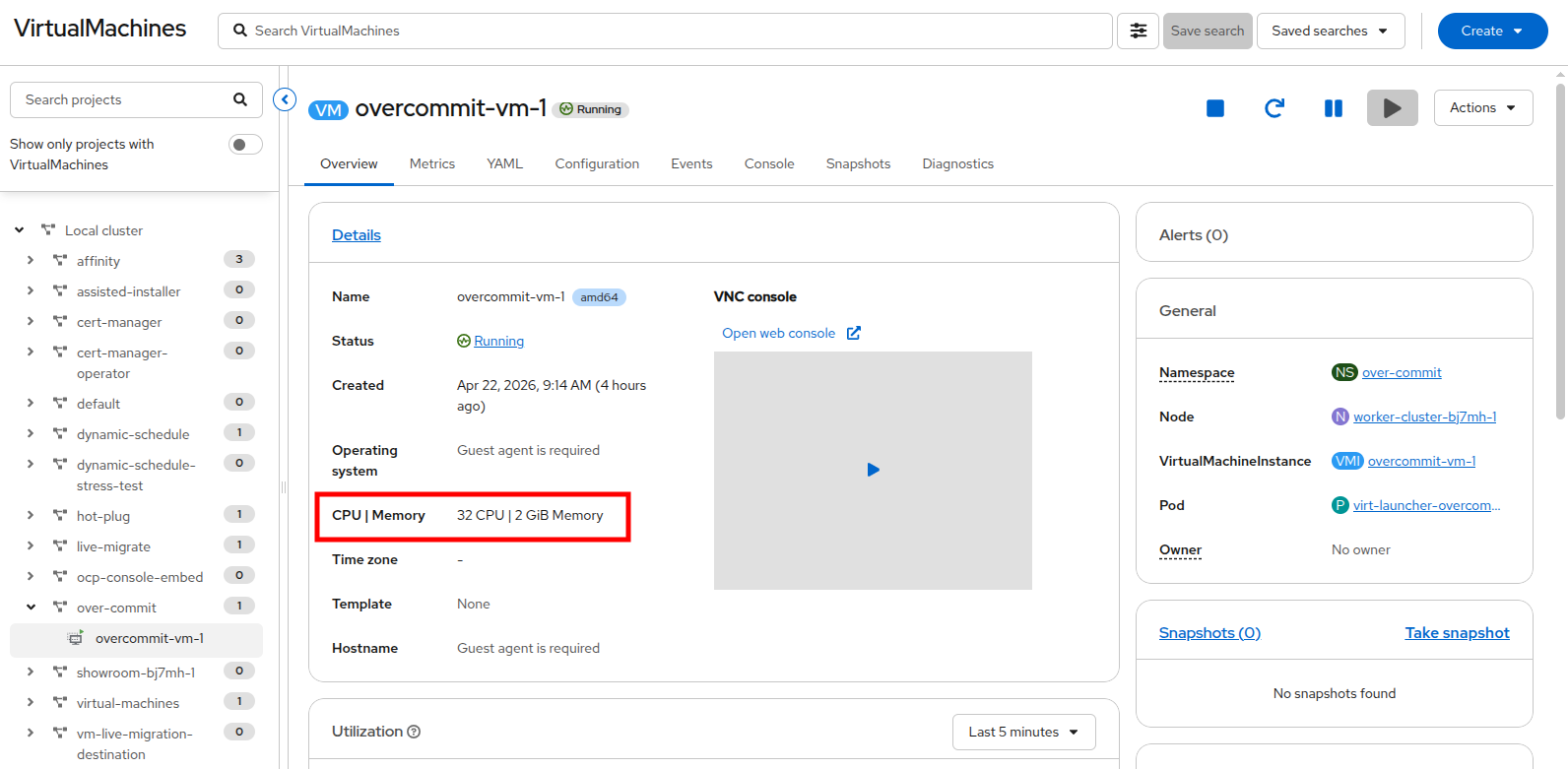 Figure 3. Confirm number of CPUs
 -
Now that we can see what the OpenShift console is reporting, lets confirm the number of CPUs from inside the guest.
-
Click on the Console tab and login to the Virtual Machine using Copy to clipboard and Paste to console with the User name and Password credentials provided.
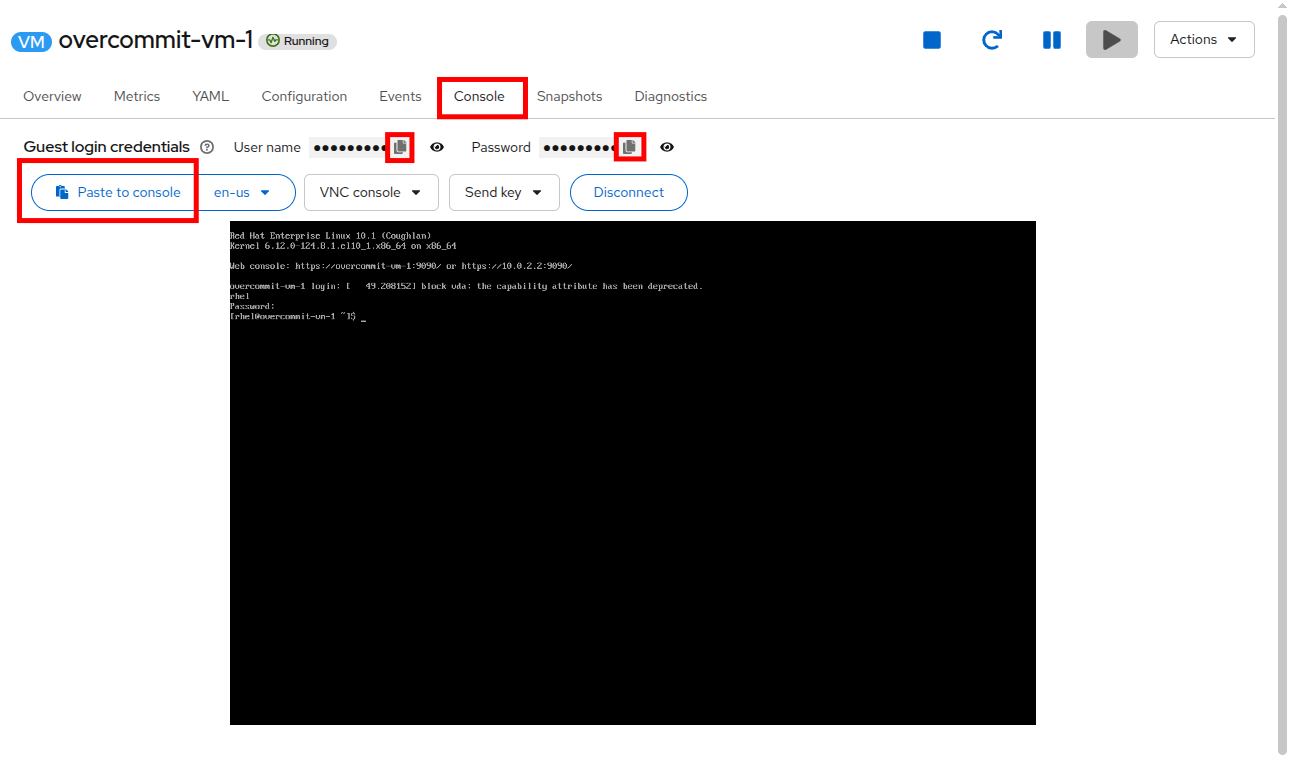 Figure 4. Login to VM console
 -
From the virtual machine console, run the following command to verify the number of CPUs:
nprocOutput32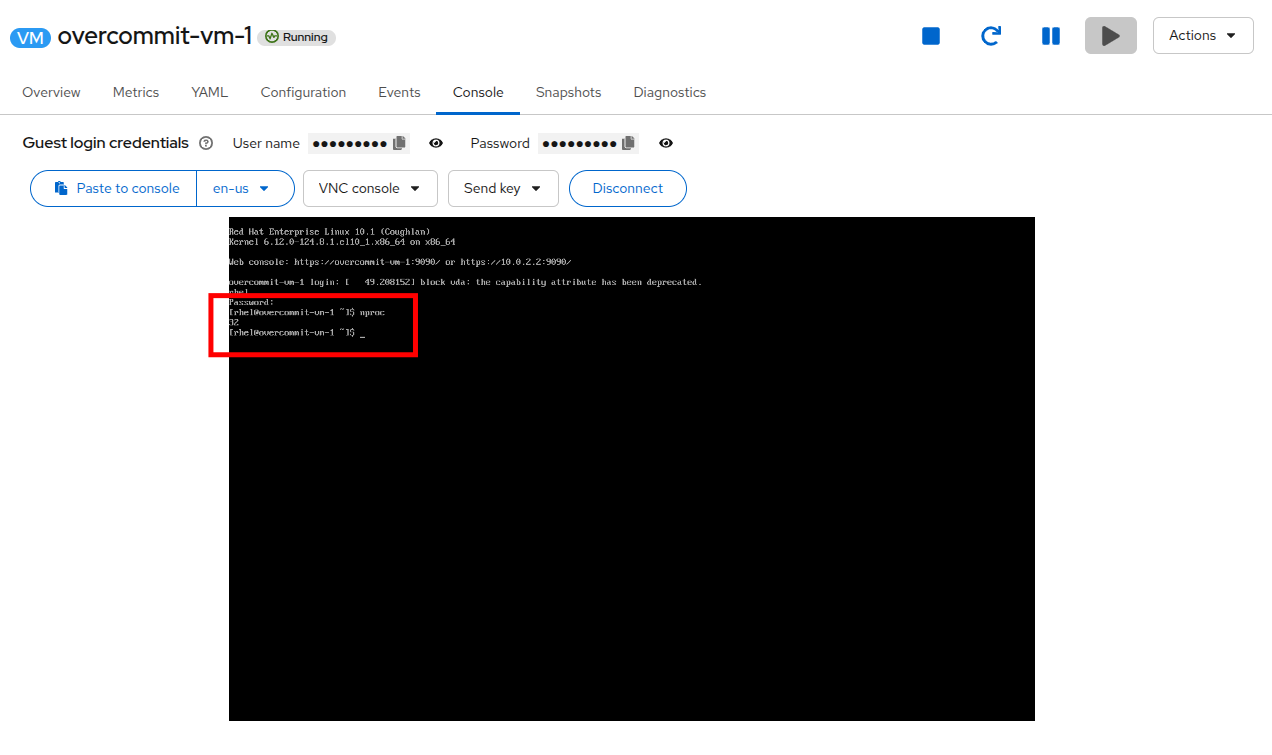 Figure 5. Confirm number of CPUs
 -
To calculate the overcommit ratio on a specific node you must identify all of the VMs running on the node:
oc get vmi -A -o wide | grep $(oc get vmi overcommit-vm-1 -n over-commit -o json | jq -r '.status.nodeName')OutputNAME AGE PHASE IP NODENAME READY LIVE-MIGRATABLE overcommit-vm-1 16m Running 10.234.0.52 worker-cluster-bj7mh-1 True True -
In order to figure out our current overcommit ratio, we need to sum the CPUs for all of the VMs currently running on the node.
NODE=$(oc get nodes -o custom-columns=":metadata.name" --no-headers | grep $(oc get vmi overcommit-vm-1 -n over-commit -o json | jq -r '.status.nodeName')) oc get vmi -A -o json | \ jq -r --arg NODE "$NODE" \ '.items[] | select(.status.nodeName == $NODE) | { name: .metadata.name, total_vcpus: ((.spec.domain.cpu.sockets // 1) * (.spec.domain.cpu.cores // 1) * (.spec.domain.cpu.threads // 1)) }' | \ jq -s 'map(.total_vcpus) | add'Output32You should at least see "32" here, but your answer may differ if there are additional VMs running in the lab environment and on the same node. -
Knowing the number of currently running CPUs, its simple enough to determine the overcommit ratio by dividing the number of allocated CPUs, by the number of physical CPU cores on the node.
Overcommit Ratio = Total vCPUs allocated / Physical CPU cores

Example:
- Physical CPU cores: 8 (Available capacity from step 3.b)
- Total vCPUs allocated: 32
- Overcommit ratio: 32 / 8 = 4:1
Understanding the Default 10:1 CPU Overcommit Ratio
OpenShift Virtualization applies a default 10:1 CPU overcommit ratio when you don’t explicitly specify CPU requests. This means that if a VM has multiple vCPUs, the actual CPU request on the virt-launcher pod will be 1/10th of the total cpu requested by the VM.
-
First lets check virt-launcher pod CPU Requests with the following command:
oc get pods -n over-commit -l vm.kubevirt.io/name=overcommit-vm-1OutputNAME READY STATUS RESTARTS AGE virt-launcher-overcommit-vm-1-vn868 2/2 Running 0 25mRecall that in OpenShift Virtualization, all virtual machines are actually running within Kubernetes Pods on the cluster. -
The amount of CPU being requested for a virtual machine can be easily located in the pod defintion of the VM. To find this information we can select the pod name from the General field on the Overview of our VM in the OpenShift console.
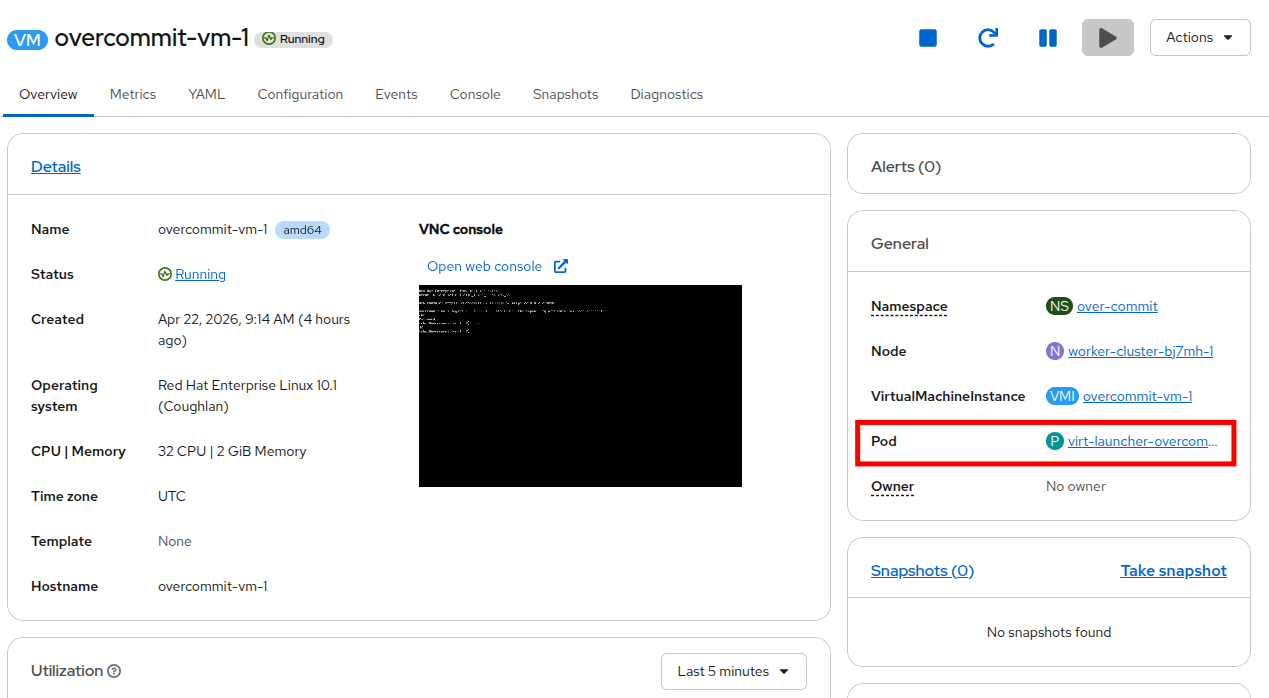 Figure 6. VM Pod
 -
When you click on the pod name, you load the Pod details page. Click on the YAML tab and scroll down to the spec:containers:resources:requests:cpu field.
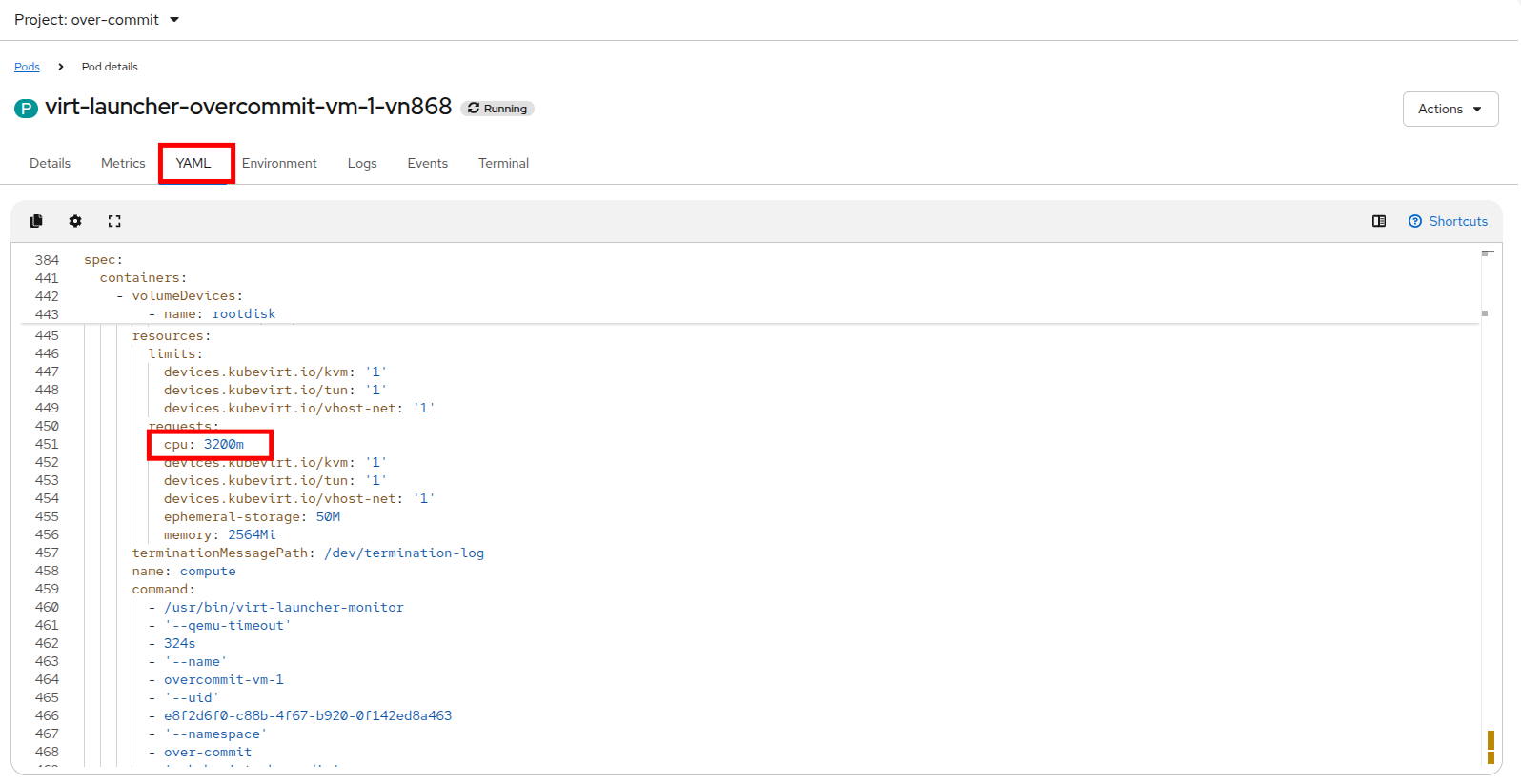 Figure 7. Confirm number of CPUs
 -
Notice that a VM with 32 vCPUs only requests
3200m(0.1 * 32 = 3.2 CPU) by default!
Understanding Memory Overcommit
Prior to the release of OpenShift 4.21, based on Kubernetes 1.21, there was not a generally available native SWAP implementation in Kubernetes. In earlier releases OpenShift Virtualization worked around this lack of feature availability by utilizing the wasp-agent add-on.
Refer to the wasp-agent component documentation for more information.
Memory oversubscription without use of swap is hazardous because if the amount of memory required by processes running on a node exceeds the amount of RAM available, processes will be killed. That’s not desirable, particularly for VMs where the workloads will be go offline if the VM is killed.
The memoryOvercommitPercentage parameter on the hyperconverged Custom Resources tells OpenShift Virtualization how to scale the memory requests for each VM. When set to the default, 100, it calculates memory requests based on the full amount of memory declared by the VM. When it’s set to a higher value, the request is set to a proportionally smaller value than the VM requested, allowing for memory overcommit.
For example, think of a VM assigned 16GiB of memory. If the overcommit percentage is set to its default value of 100%, the memory request on the pod will be defined as 16 GiB, plus an extra allocation for the qEMU process running the VM.
If it’s set to 200%, the request on the pod will be set to 8GiB, plus the additional overhead, with the VM still seeing 16GiB.
This can be very important when managing workloads effecting and determining what our cluster can actually support workload wise.
|
To calculate the requested value when overcommitting memory, you can use the following formula: requested memory = VM memory * (100 / memoryOvercommitPercentage) 16 * (100 / 200) = 8GiB or, with 150% overcommit 16 * (100 / 150) = 10.66GiB |
|
Memory overhead per virtual machine ≈ (0.002 × requested memory) + 218 MiB + 8 MiB × (number of vCPUs) + 16 MiB × (number of graphics devices) + (additional memory overhead) Please see the section on virtual machine memory overhead in the OpenShift Virtualization docs. |
Verifying Memory Overcommit
-
Using the Openshift console, select the overcommit-vm-1 virtual machine in the overcommit namespace, and verify the current amount of memory assigned to the guest in the Overview pane.
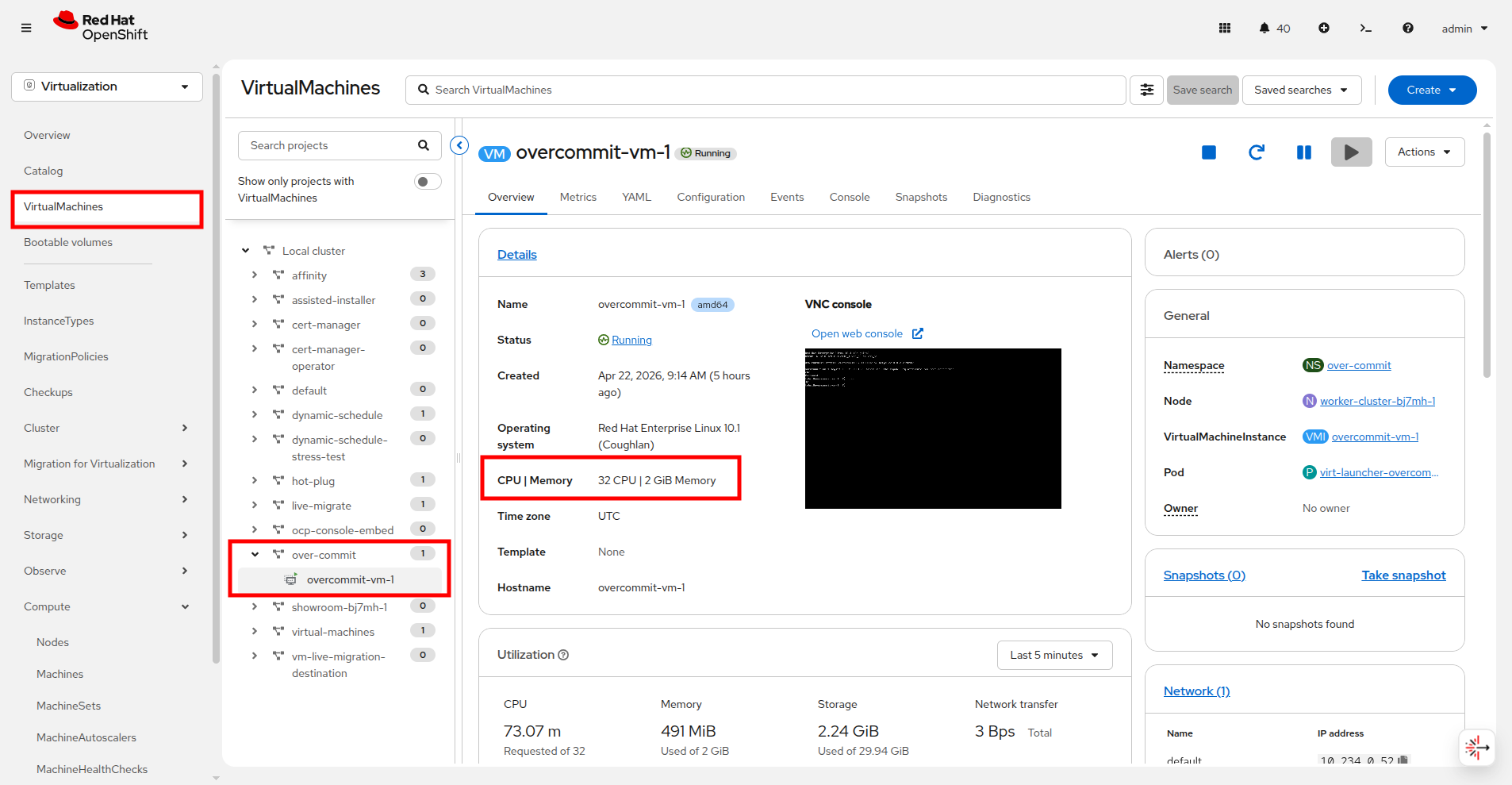 Figure 8. VM Memory Assigned
 -
We can also verify this in the terminal to the right by running the following command:
oc get vm -n over-commit overcommit-vm-1 -o json | jq .spec.template.spec.domain.memoryOutput{ "guest": "2Gi" } -
Just like we did with CPU in the previous section, the amount of memory requested for a virtual machine can be located easily in the pod defintion of the VM. To find this information we can select the pod name from the General field on the Overview of our VM in the OpenShift console.
Figure 9. VM Pod -
When you click on the pod name, you load the Pod details page. Click on the YAML tab and scroll down to the spec:containers:resources:requests:memory field.
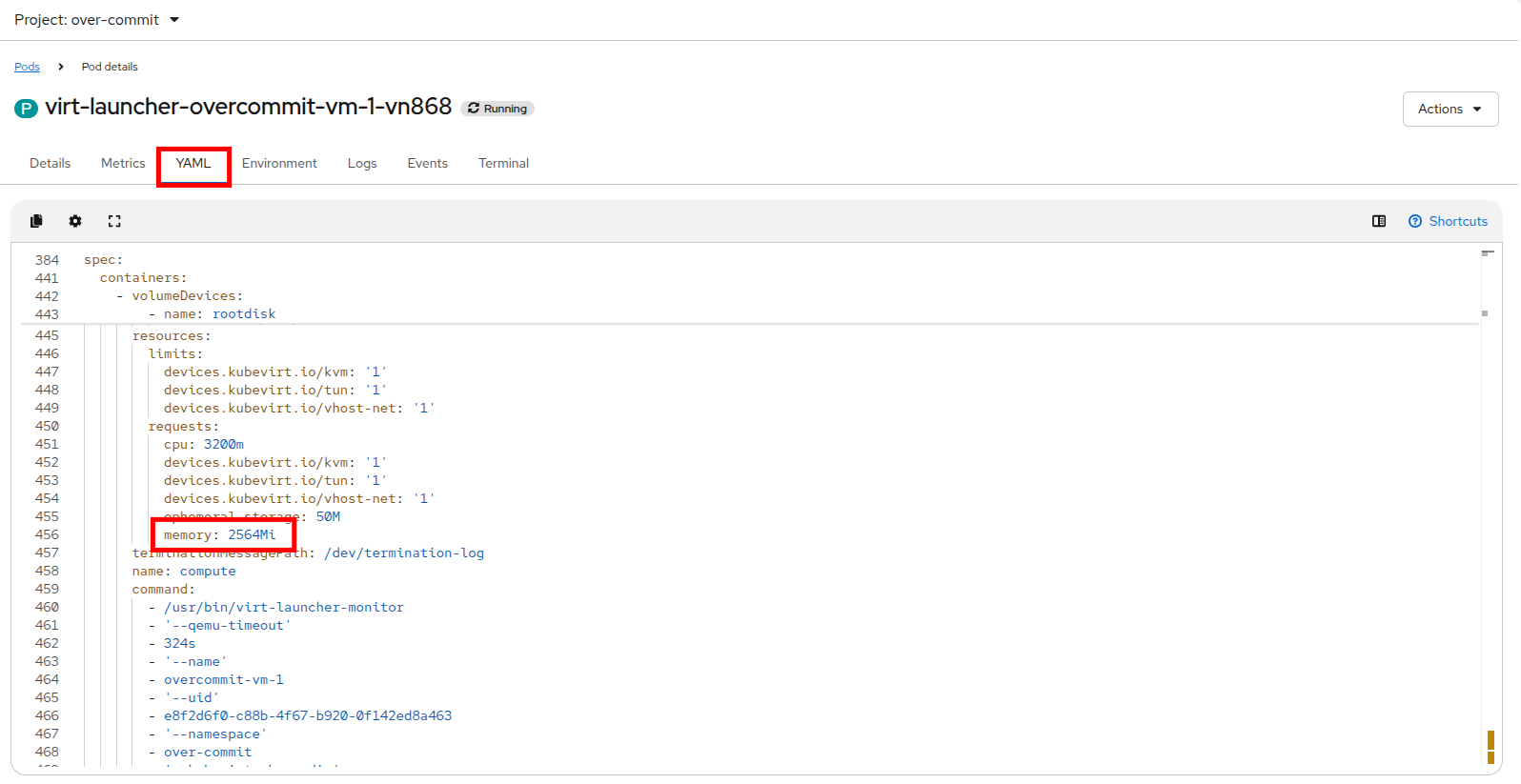 Figure 10. Virt-Launcher Memory Request
 -
This can also be verified on the on the terminal to the right by running the following command:
oc get pod -n over-commit -l vm.kubevirt.io/name=overcommit-vm-1 -o json | jq '.items[0].spec.containers[0].resources.requests.memory'Output"2564Mi"The virt-launcher pod is requesting 2564MiB which is 2048MiB + overhead required to run the VM.
Enable Memory Overcommit
Now lets turn on Memory Overcommit for virtual machine workloads and see how that changes things.
-
In the left side navigation menu in the OpenShift Console click on Overview followed by the Settings tab. Expand the section for General Settings and finally expand the section for Memory Density.
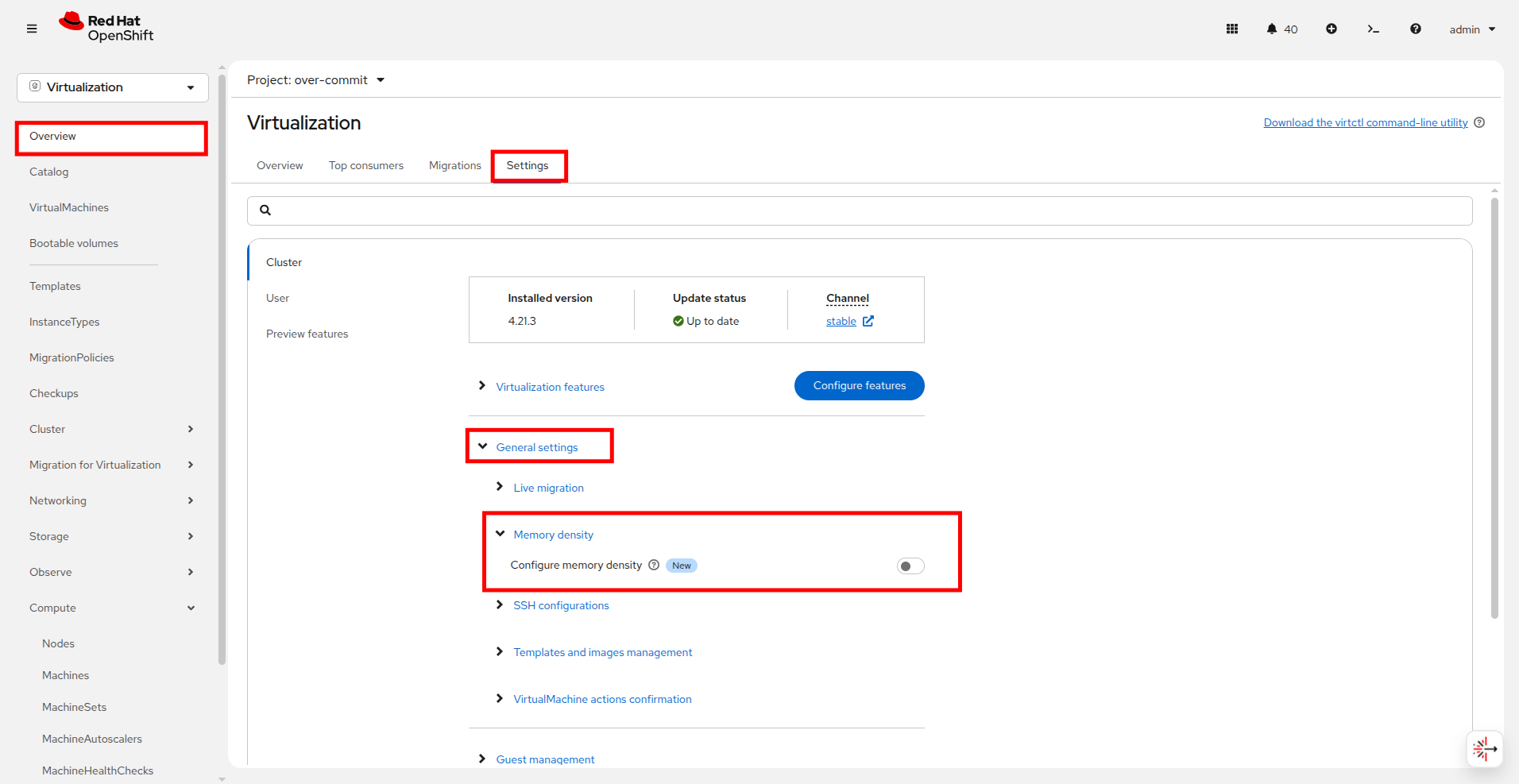 Figure 11. Enable Memory Overcommit
 -
Click the toggle for Configure memory density to enable it, use the slider to set it to 200%, and click the Save button.
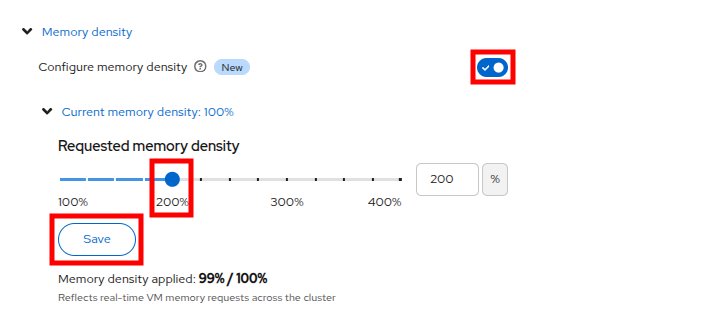 Figure 12. Enable Memory Overcommit
 -
We can now confirm memory overcommit is enabled by checking the hyperconverged CR using the CLI:
oc get hyperconverged -n openshift-cnv kubevirt-hyperconverged -o json | jq '.spec.higherWorkloadDensity.memoryOvercommitPercentage'Output200This means that the memory overcommit ratio is 200% which is 2:1! -
Now let’s restart the VM and observe the memory request on the virt-launcher pod compared to the memory allocated to the VM.
 Figure 13. VM Restart
 -
Return to the Pod details page by clicking on the pod name from the General field on the Overview of our VM in the OpenShift console.
Figure 14. VM Pod -
Click on the YAML tab and scroll down to the spec:containers:resources:requests:memory field as we did before.
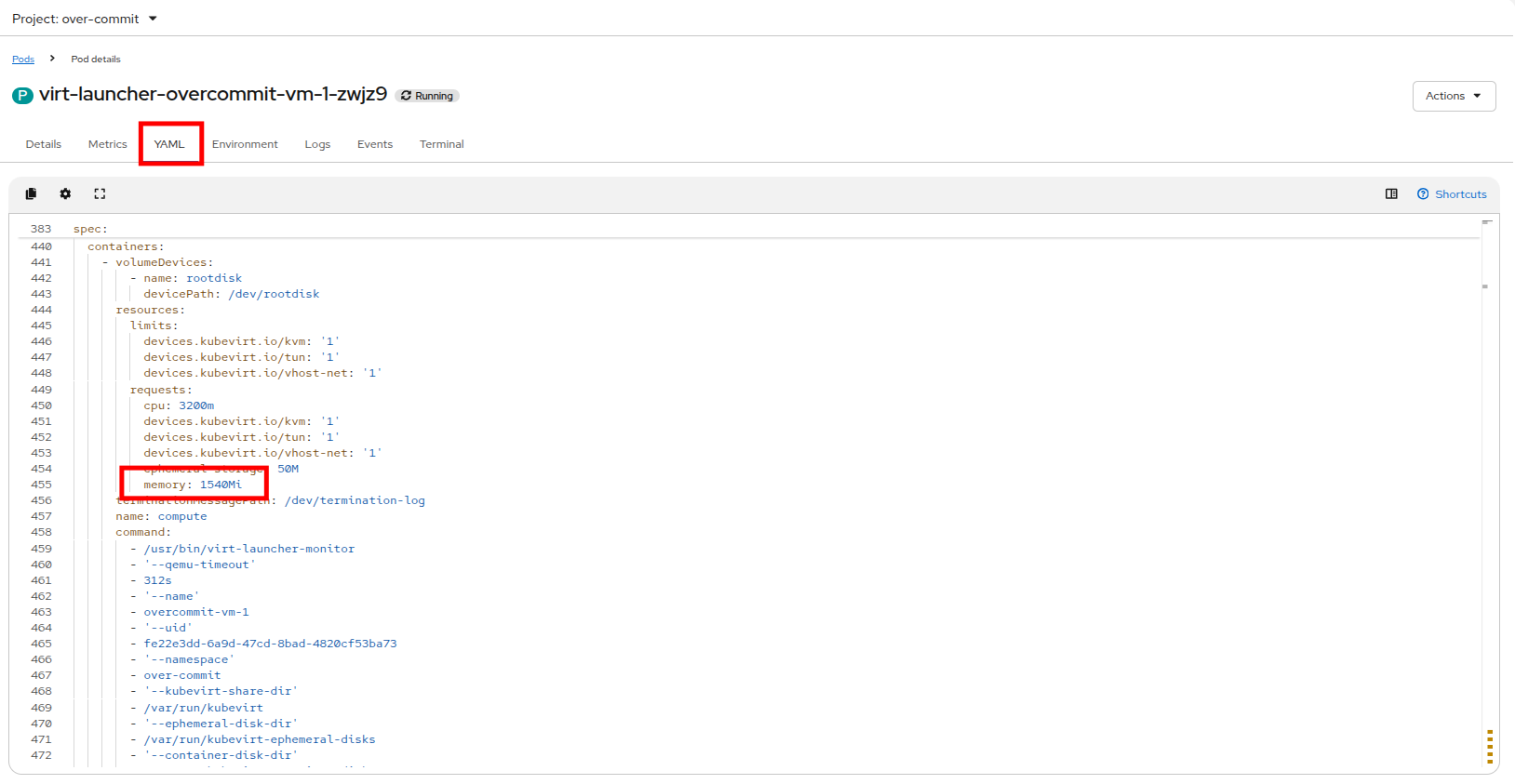 Figure 15. Virt-Launcher Memory Request 1.5x
 -
The virt-launcher pod is now only requesting 1540Mi which is 1.5GiB!
This is less than the 2048MiB utilized by the VM, and is basically 1/2 of the requested memory 1024MiB + overhead required to run the VM. -
We can also increase the memory overcommit ratio by patching the hyperconverged custom resource on the command line.
-
Using the embedded terminal, use the following command to set the overcommit ratio to 400%:
oc patch hyperconverged -n openshift-cnv kubevirt-hyperconverged --type merge -p '{"spec":{"higherWorkloadDensity":{"memoryOvercommitPercentage":400}}}'Outputhyperconverged.hco.kubevirt.io/kubevirt-hyperconverged patched -
Now run the following command to validate that the change was effective.
oc get hyperconverged -n openshift-cnv kubevirt-hyperconverged -o json | jq '.spec.higherWorkloadDensity.memoryOvercommitPercentage'Output400This means that the memory overcommit ratio is now 400% which is 4:1. -
Since we are already using the terminal, you can restart the VM and observe the memory request on the virt-launcher pod compared to the 2GiB allocated to the VM without having to change back to the OpenShift console. Restart the VM with the following command:
virtctl restart overcommit-vm-1 -n over-commitOutputVM overcommit-vm-1 was scheduled to restart -
Once the VM has restarted, you can see what the current memory resource request is set to by running the following command:
oc get pod -n over-commit -l vm.kubevirt.io/name=overcommit-vm-1 -o json | jq '.items[0].spec.containers[0].resources.requests.memory'Output"1028Mi"This is less than the 2048MiB being utilized by the VM, and is basically 1/4 of the requested memory 512MiB + overhead required to run the VM.
Congratulations, you have completed this module!
IMPORTANT
Prior to moving on and to prevent any unexpected issues in the remainder of this lab use the following command to reset the memory overcommit percentage back to 100%
oc patch hyperconverged -n openshift-cnv kubevirt-hyperconverged --type merge -p '{"spec":{"higherWorkloadDensity":{"memoryOvercommitPercentage":100}}}'Also, please shut down the overcommit-vm-1 virtual machine using the Stop button or the Actions menu in order to conserve lab resources.
Summary
In this module we explored overcommitment options for both CPU and Memory in OpenShift in order to support higher density virtualization workloads. Understanding default CPU overcommitment ratios, and understanding how to configure higher memory density can help to ensure that virtual machines do not cause compute nodes to run out of resources, and are not killed by Kubernetes should a node run out of available physical resources.