Tools and Agents
So far, we’ve seen how we can query a given model within the Llama Stack Playground and receive static information based on the model’s training data. For many use cases, such as troubleshooting a broken CI/CD pipeline, we would like the model to provide real-time information by accessing external systems such as the web or the CI/CD runtime. The technical capability that allows a model to interact with a given system is called a tool, and the ability to use tools in order to achieve a given objective is considered a core feature of an AI agent.
For our use case, we’ll need the following tools:
-
Read container logs: fetch the logs of a given container, which contained the failing pipeline step,
-
Web search: query a web search engine with a given search string and receive the content of matching web sites,
-
Create Github issue: open a new issue within a given Github repository with a given issue description.
Llama Stack simplifies managing and providing tools for agentic use cases. There are three different ways to use tools in conjunction with Llama Stack:
-
Implement the tool on the client side and pass it to Llama Stack and the model for invocation. This approach can be used during early development if tools are not available otherwise, but it’s generally not recommended since it does not allow re-use of tool definitions.
-
Use an existing built-in (inline) tool provider that Llama Stack offers. One example is websearch, which uses the Tavily online search engine. Built-in tools are a good option for quickly getting started with tool usage while minimizing maintenance overhead.
-
Integrate an MCP server as a remote tool provider. We will cover MCP integration for accessing OpenShift and Github at a later step.
To get started, we’ll enable the built-in websearch tool with our own Tavily API keys after reviewing how to configure Llama Stack.
Configuring Llama Stack
As part of Red Hat AI, a Llama Stack instance is represented by the LlamaStackDistribution custom resource (CR) that defines the Llama Stack server configuration including:
-
Server Configuration: Which distribution to use (including built-in tools etc.)
-
Container Specifications: Port, environment variables, resource limits
There is a unique instance of Llama Stack distribution deployed for each lab user.
-
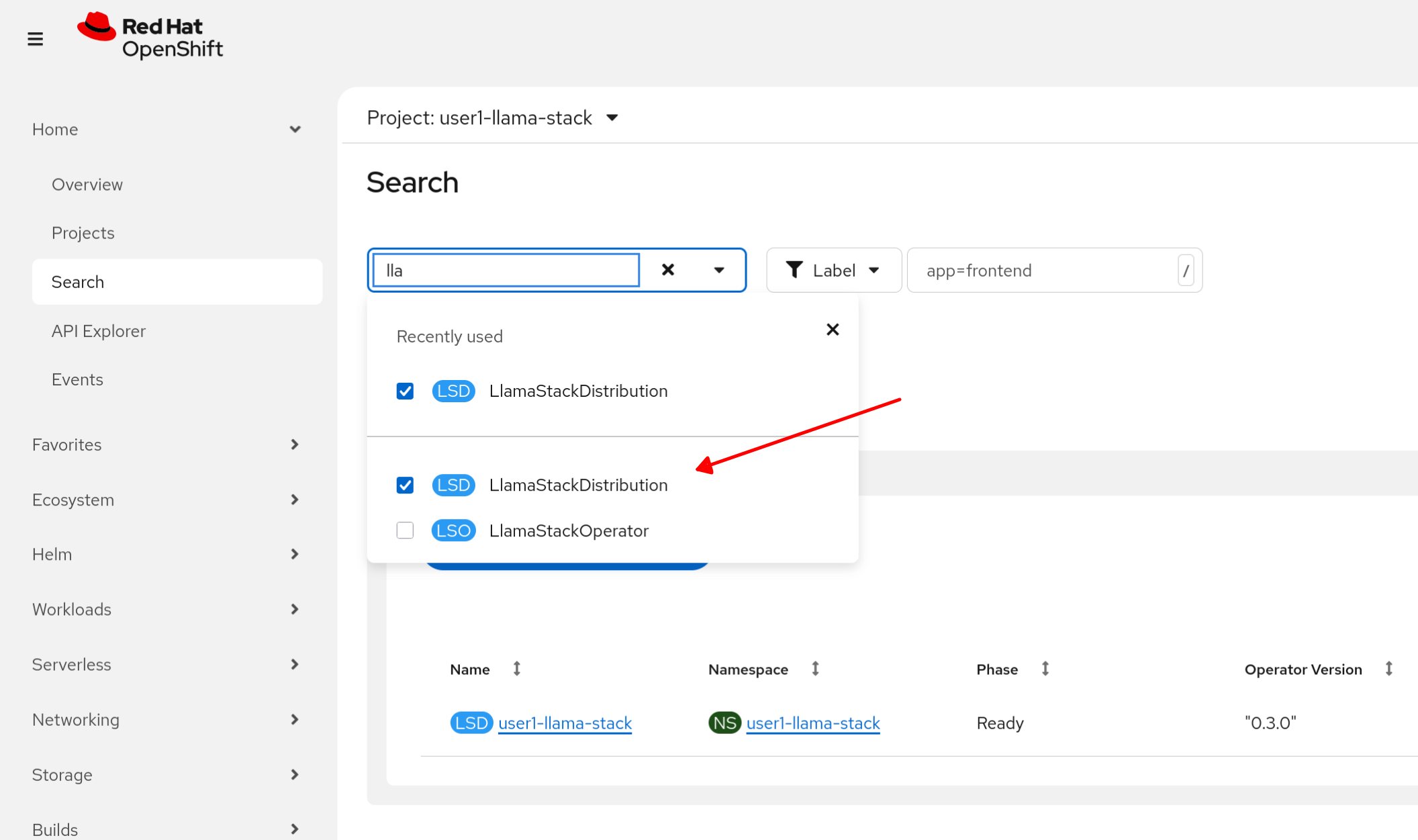
Locate the Llama Stack distribution.
-
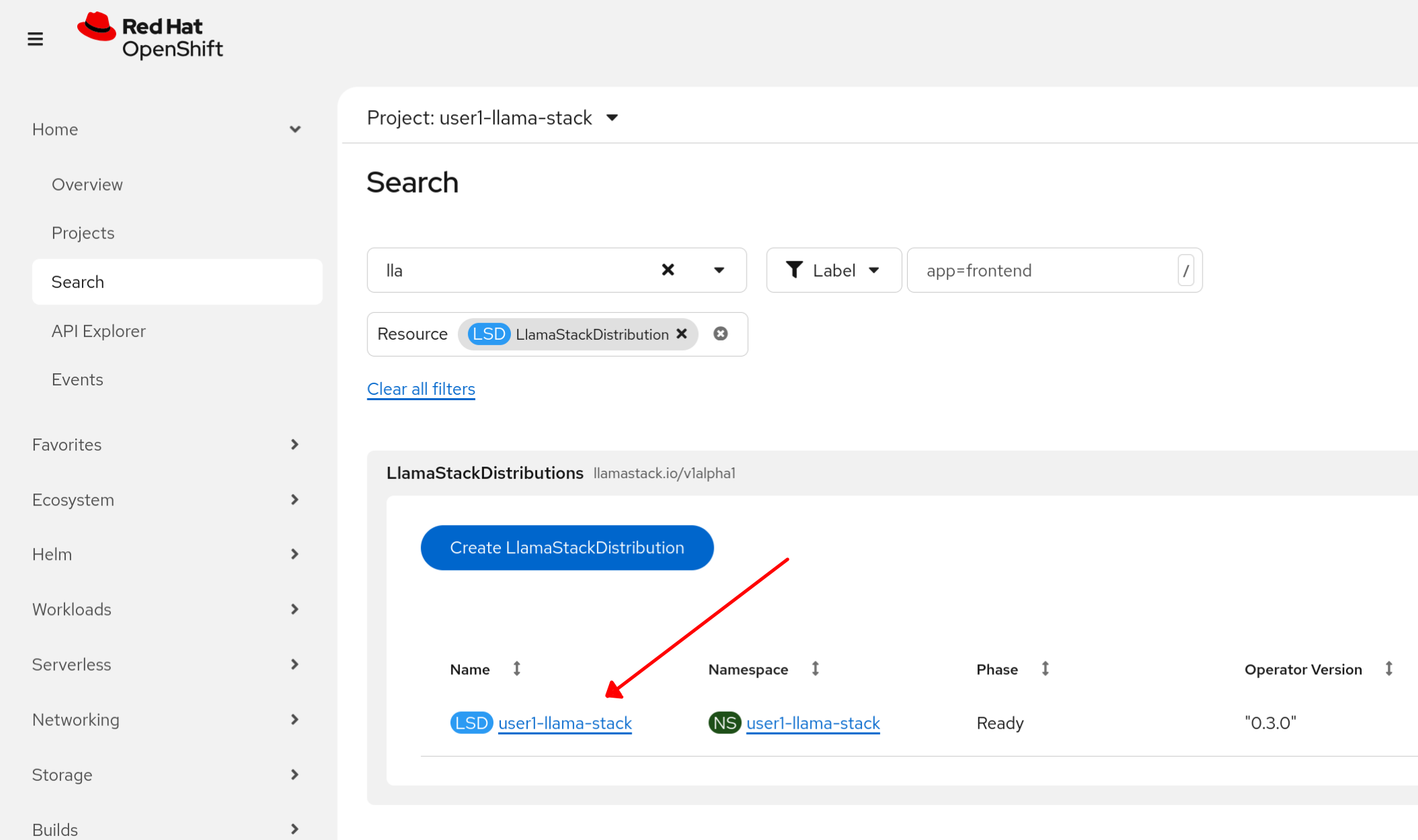
Click on the existing distribution.
-
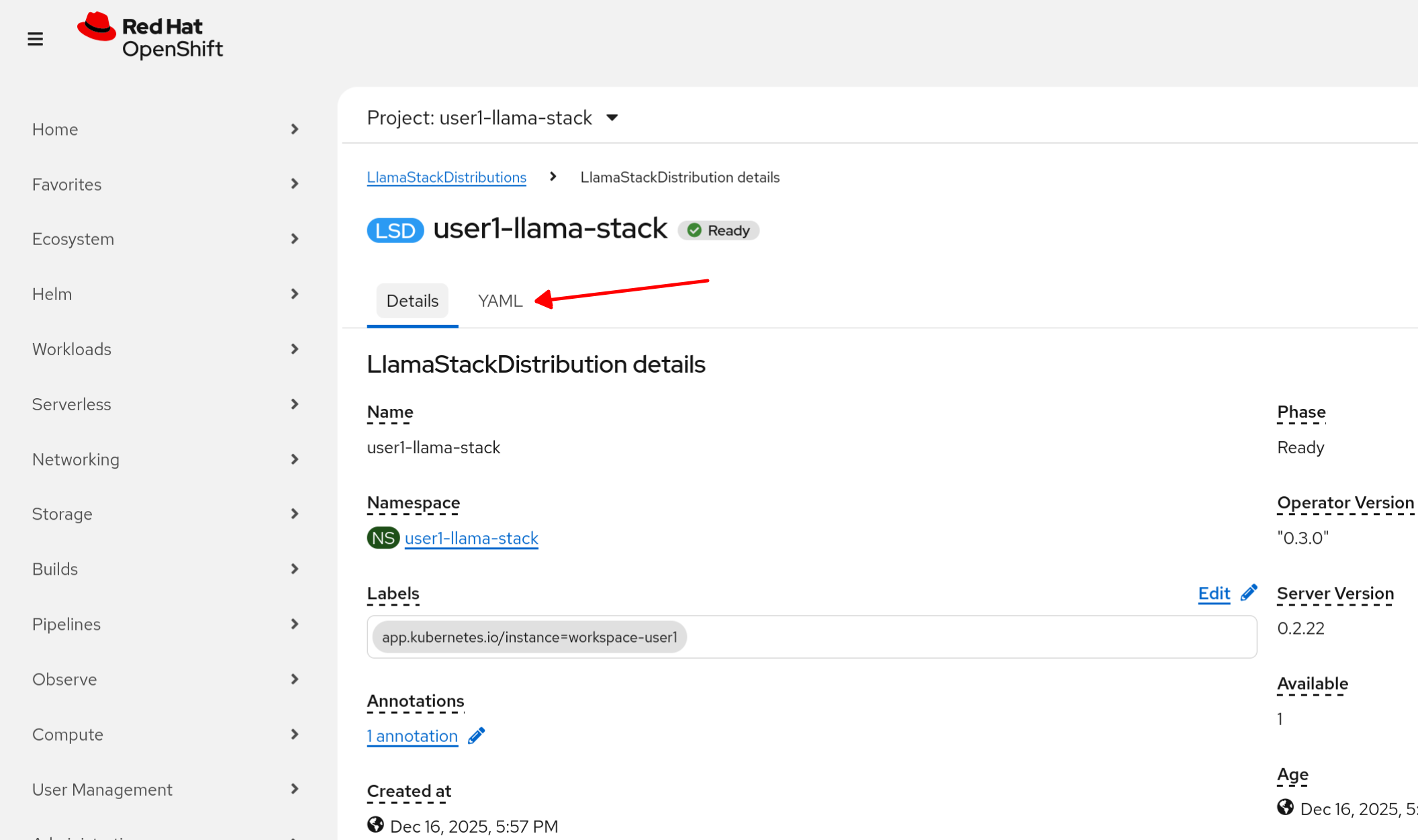
Click on the YAML tab
-
Review the Llama Stack Distribution we’re using for this lab.
apiVersion: llamastack.io/v1alpha1
kind: LlamaStackDistribution
metadata:
  name: user1-llama-stack
spec:
  replicas: 1
  server:
    containerSpec:
      env:
        - name: TELEMETRY_SINKS
          value: 'console, sqlite, otel_trace, otel_metric'
        - name: OTEL_EXPORTER_OTLP_ENDPOINT
          value: 'http://otel-collector-collector.observability-hub.svc.cluster.local:4318'
        - name: OTEL_SERVICE_NAME
          value: user1-llamastack
        - name: DEFAULT_MODEL_API_TOKEN   # [1]
          valueFrom:
            secretKeyRef:
              key: apiKey
              name: granite-3-2-8b-instruct
        - name: TAVILY_API_KEY            # [2]
          valueFrom:
            secretKeyRef:
              key: tavily-search-api-key
              name: tavily-search-key
      name: llama-stack
      port: 8321
    distribution:
      name: rh-dev
    userConfig:                           # [3]
      configMapName: llama-stack-config
As you can see, we’ve specified the secrets for the services that’ll be interacting with the Llama Stack server:
-
[1] MaaS API
-
[2] Tavily search API. We will update this API key in a moment.
Also listed is [3] the user configuration used with this distribution (ConfigMap: llama-stack-config). Let’s review this configuration before updating the Tavily search key.
Llama Stack User Config
The user config configmap can be used to store the run.yaml configuration for each Llama Stack distribution. Updates to the ConfigMap will restart the Pod to load the new data.
Your current Llama Stack config should like the following. Reference the ConfigMap resource in the UI or terminal, your preference. Refer to the Llama Stack documentation for details and customization options.
kind: ConfigMap
apiVersion: v1
metadata:
  name: llama-stack-config
data:
  run.yaml: |
    # Llama Stack configuration
    version: '2'
    image_name: rh
    apis:
    - inference
    - tool_runtime
    - agents
    - safety
    - vector_io
    models:
      - metadata: {}
        model_id: granite-3-2-8b-instruct
        provider_id: vllm
        provider_model_id: granite-3-2-8b-instruct
        model_type: llm
      - metadata: {}
        model_id: Llama-Guard-3-1B
        provider_id: vllm
        provider_model_id: Llama-Guard-3-1B
        model_type: llm
    providers:
      inference:
      - provider_id: vllm
        provider_type: "remote::vllm"
        config:
          url: https://litellm-prod.apps.maas.redhatworkshops.io/v1
          context_length: 4096
          api_token: ${env.DEFAULT_MODEL_API_TOKEN}
          tls_verify: true
      tool_runtime:
      - provider_id: tavily-search
        provider_type: remote::tavily-search
        config:
          api_key: ${env.TAVILY_API_KEY}
          max_results: 3
      agents:
      - provider_id: meta-reference
        provider_type: inline::meta-reference
        config:
          persistence_store:
            type: sqlite
            db_path: ${env.SQLITE_STORE_DIR:=~/.llama/distributions/rh}/agents_store.db
          responses_store:
            type: sqlite
            db_path: ${env.SQLITE_STORE_DIR:=~/.llama/distributions/rh}/responses_store.db
    server:
      port: 8321
    tools:
      - name: builtin::websearch
        enabled: true
    tool_groups:
    - provider_id: tavily-search
      toolgroup_id: builtin::websearch
Set Up Websearch
Let’s now create our own Tavily key and update the Llama Stack distribution to use this key for our websearch tool calls.
Tavily search token: Gather your Tavily web search API Key.
-
Set up a Tavily api key for web search. Log in using a Github account of one of your team members.
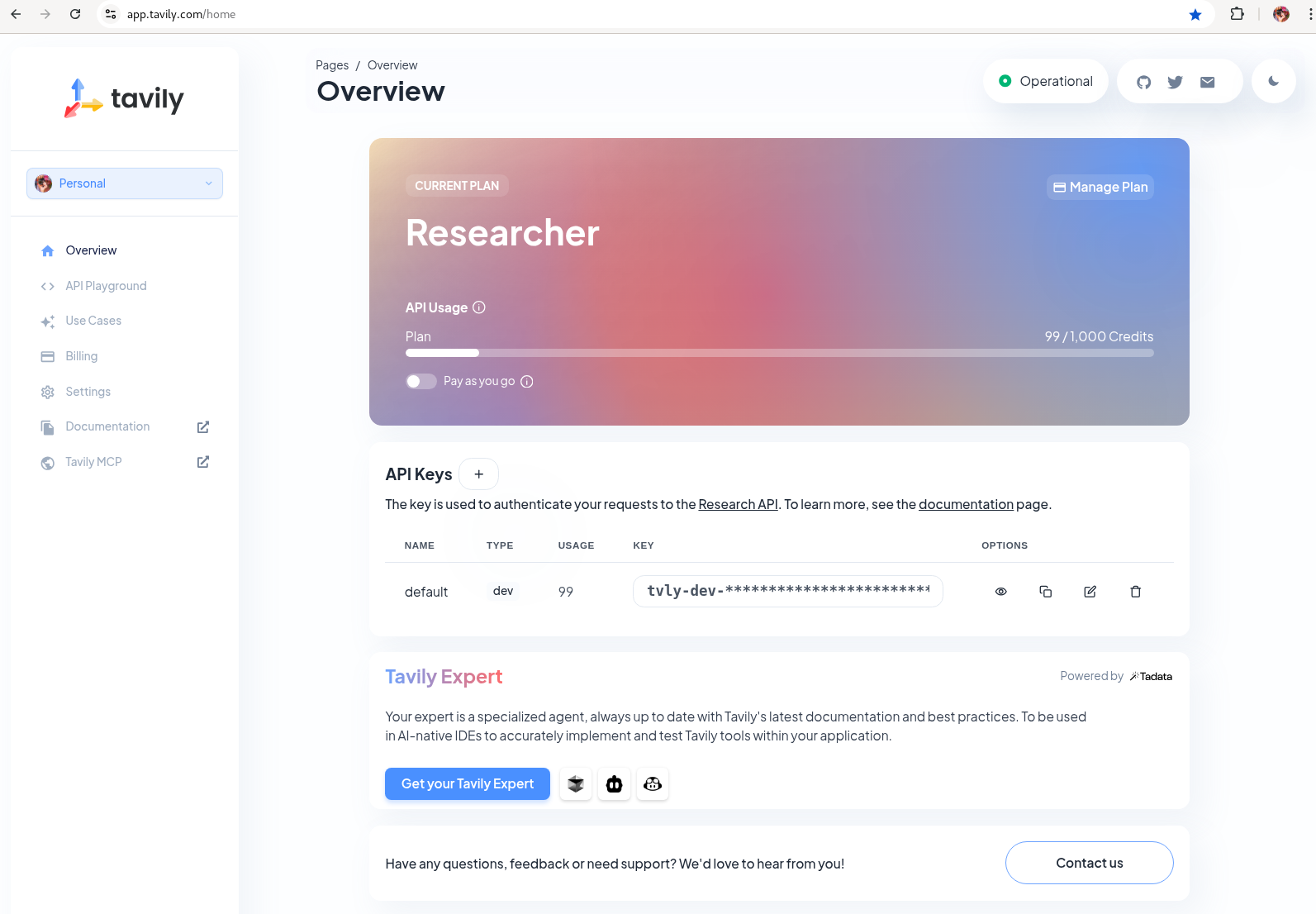 Figure 1. Tavily API Key
 -
Create a new secret object using this specification while replacing the PLACEHOLDER with your Tavily key. Use the
+icon in the UI or use your terminal to apply the new object.kind: Secret apiVersion: v1 metadata: name: new-tavily-search-key namespace: userX-llama-stack stringData: tavily-search-api-key: {PLACEHOLDER} type: Opaque -
Now, via CLI update the Llama Stack distribution to reference this new secret instead of the old one. You must do this with
oc editoroc patchand you cannot update in the UI.Edit command to open local editor:
oc edit llamastackdistribution/userX-llama-stack -n userX-llama-stackReplace
tavily-search-keywith:new-tavily-search-keySee below for placement reference:
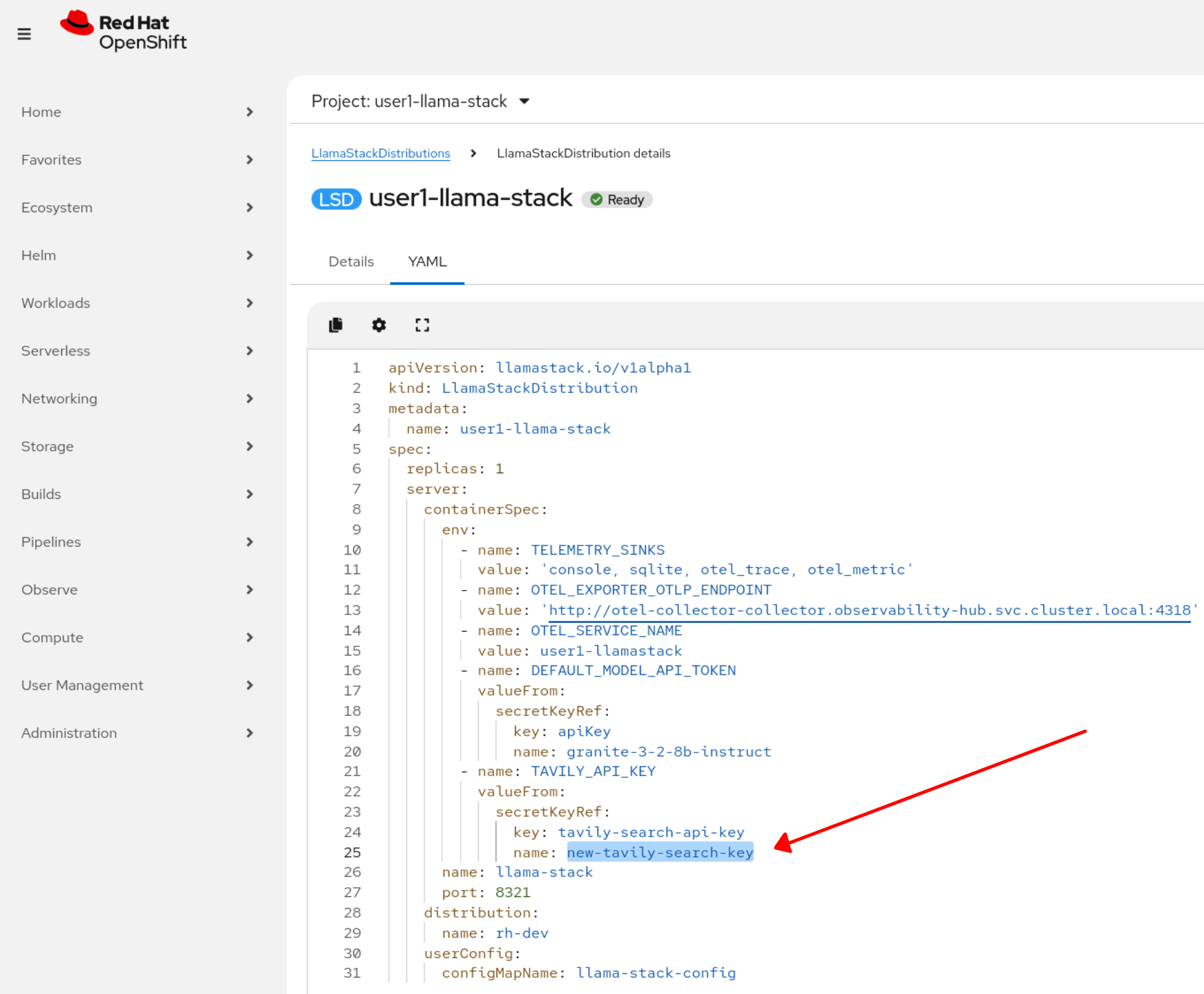 Figure 2. Updated Llama Stack Distribution
 -
Restart the playground by deleting its pod (starting with
llama-stack-playground) in the userX-llama-stack namespace. Wait until it’s Ready and Running.
Test Websearch integration
-
Let’s now try out the websearch tool! Navigate back to the Llama Stack Playground UI.
-
In the left menu, choose
Agent-based. Then, select the built-inwebsearchtool.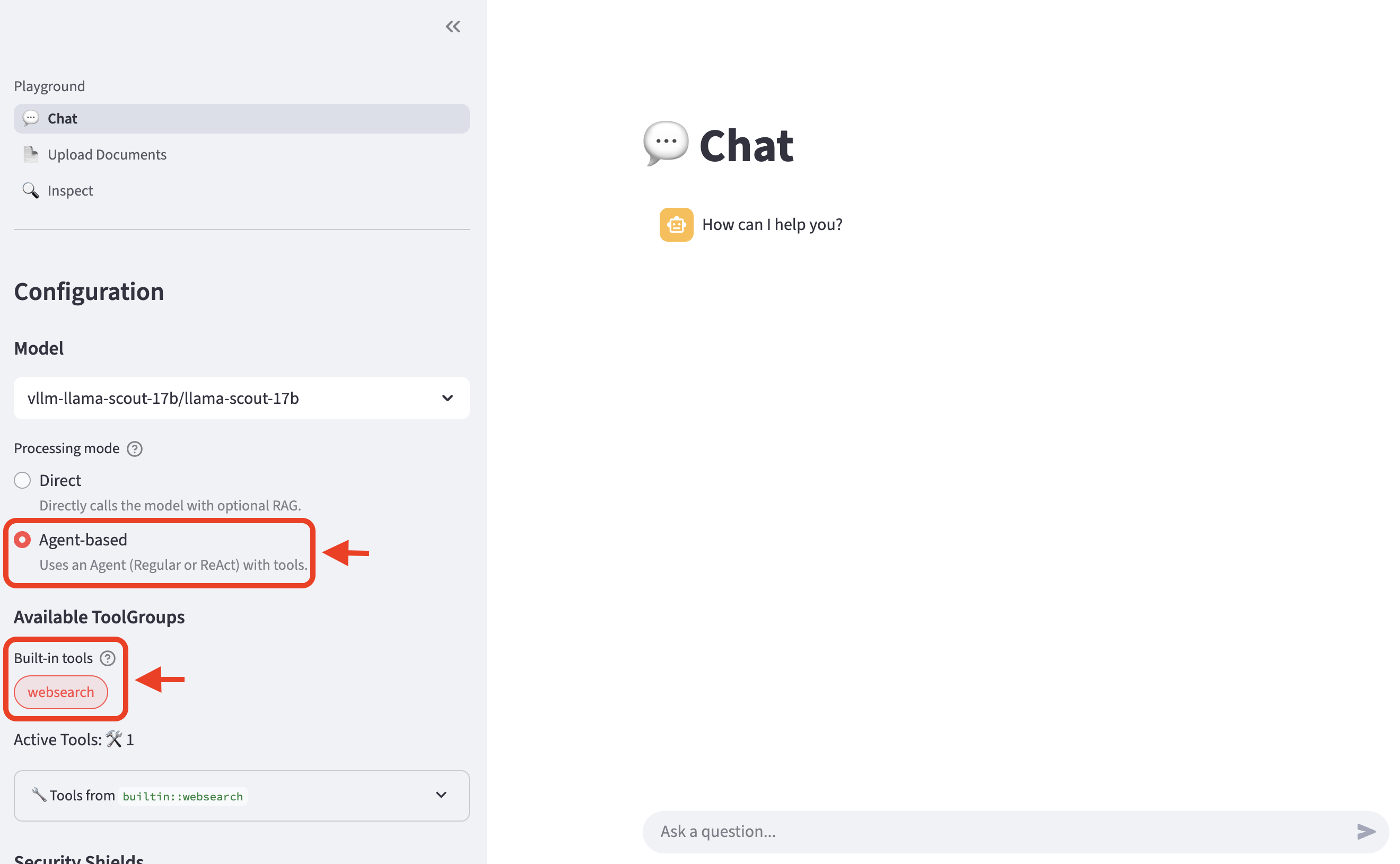
-
Now, let’s ask LLM the same question again:
What is the weather today in Brisbane?The LLM is now able to the answer with realtime data provided by the websearch tool.
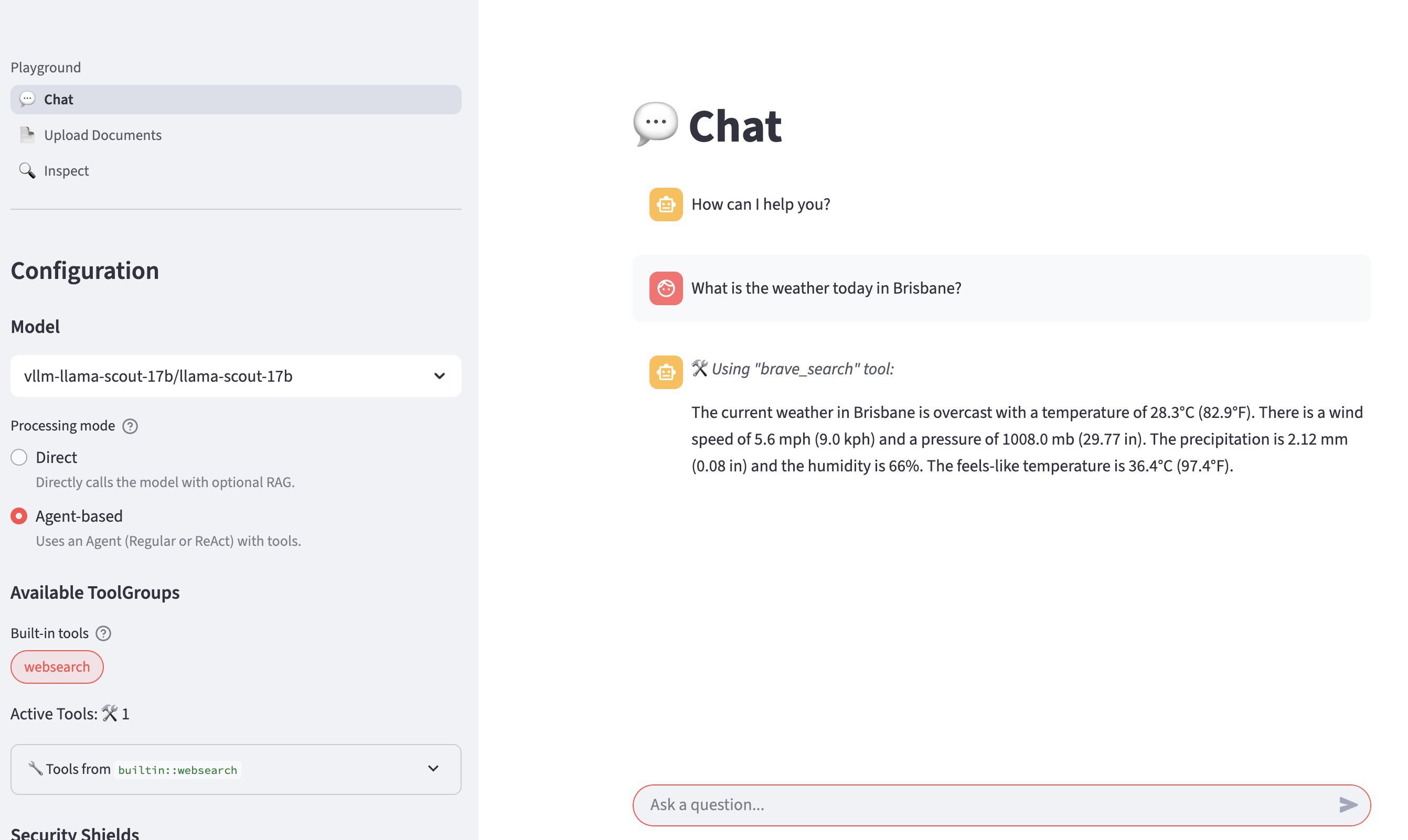
Agent Types
As you noticed, under the Agent-based selection you can see Uses an agent (Regular or ReAct) with tools. What is the difference?
Regular Agents
In the previous example, once we enabled the websearch tool for our Regular agent, it invoked the tool to perform an online search to provide an up-to-date answer to our question.
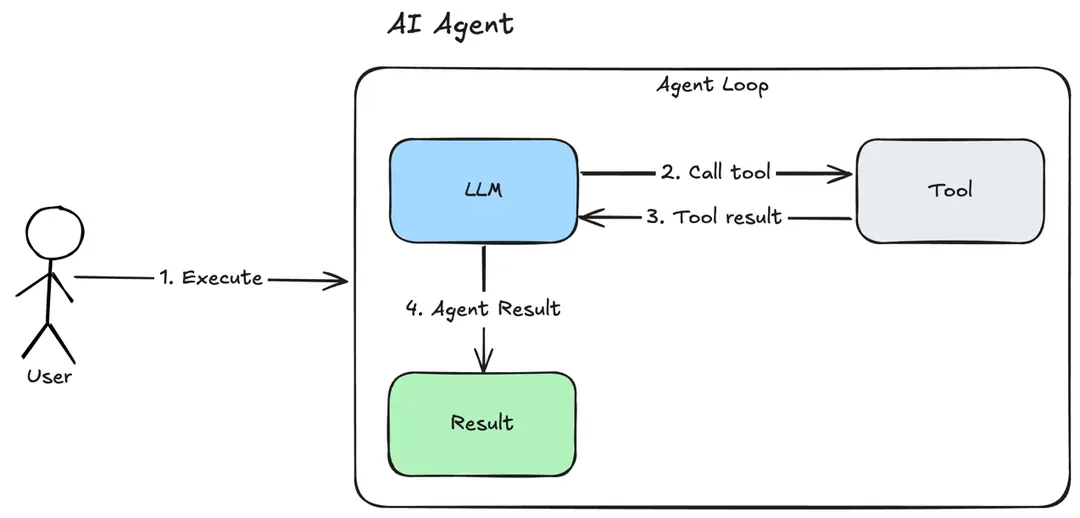
The Regular agent apply the most basic and straightforward strategy for processing user queries with tools (see diagram):
-
When a user query is provided, the agent processes the input and determines whether a tool is required to fulfill the request.
-
Because the query involves retrieving current information, the agent invokes the websearch tool.
-
The tool interacts with the online web search backend, which returns a list of matching results.
-
The agent processes the tool response and generates a response to the user prompt.
This workflow ensures that the agent can handle a wide range of queries effectively.
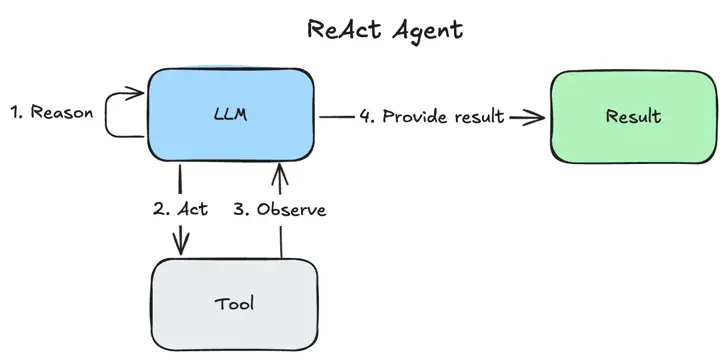
ReAct Agents
-
A ReAct agent will use Thinking, Action and Observation steps in its processing. These steps are performed in order for each user prompt, and this sequence may be repeated if deemed necessary by the agent. This separation of Reasoning (Thinking) and Acting is the hallmark of the ReAct strategy.
For a given user query, the ReAct workflow includes the following steps (see diagram):
-
Reason that a particular tool (such as websearch) may be needed to answer the user query.
-
Act by calling that tool.
-
Observe the tool response and conclude that it is sufficient to answer the user query. Alternatively, the agent may reason that more information is required, for which it may need additional tool calls.
-
The agent processes the tool response and generates a response to the user prompt.
Unlike the regular agent approach, ReAct dynamically breaks down tasks and adapts its approach based on the results of each step. This makes it more flexible and capable of handling complex, real-world queries effectively.
Now that we explored agent types with a simple built-in tool, let’s dive into MCP integration for enabling more powerful capabilities!