Onboard Your Application
Estimated time: 15 minutes
In this module you register your pre-provisioned GitLab sample application with Konflux. You create a Konflux Application and Component, link the Component to your GitLab repository, and wire up Pipelines-as-Code so that every push or merge request automatically triggers a build pipeline. By the end, the Konflux UI shows your Component linked to the repository and a PipelineRun is running or has completed in your tenant namespace.
Learning Objectives
By the end of this module, you will be able to:
-
Create a Konflux Application and Component linked to your pre-provisioned GitLab repository.
-
Configure Pipelines-as-Code integration so that GitLab merge request and push events automatically trigger Konflux build pipelines.
-
Verify the onboarding by observing the first PipelineRun created in your tenant namespace.
1. Create a Konflux Application
A Konflux Application is the top-level grouping for one or more related components. Think of it as the logical boundary around a service or product you own. You create the Application first, then add the Component that points at your source code.
-
Switch to the Konflux tab. In the left navigation, click Namespaces.
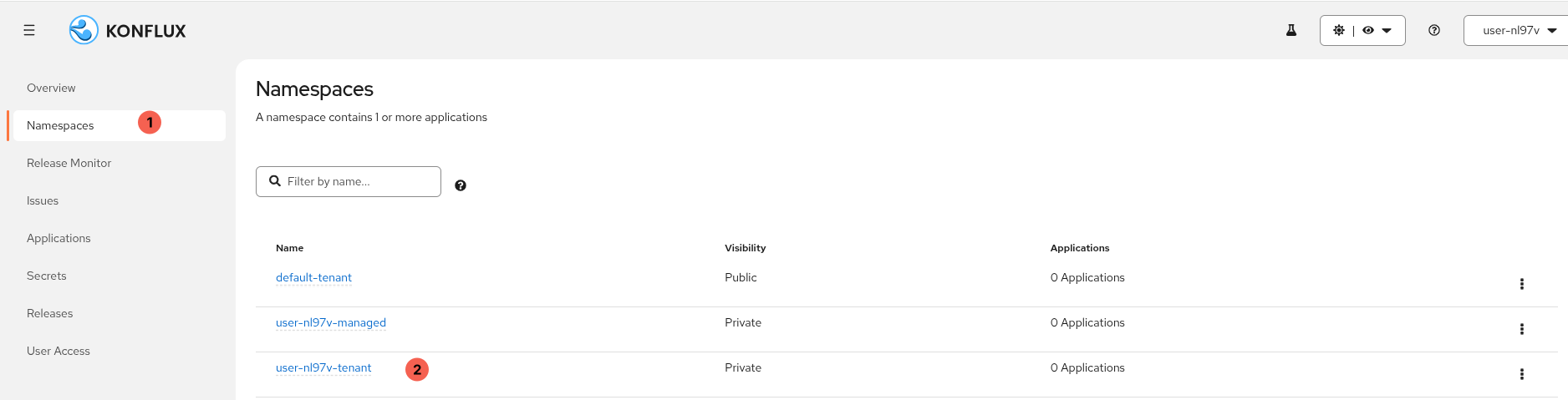 Figure 1. Konflux Namespaces page
The username shown in the screenshot will differ from yours. Your namespaces are named after your assigned username ({openshift_username}), which Showroom substitutes automatically wherever you see it in this guide.
|
-
Click your tenant namespace (
{openshift_username}-tenant) to enter it.You will see multiple namespaces listed — default-tenant,{openshift_username}-managed, and{openshift_username}-tenant. Always work in the-tenantnamespace for this lab. The-managednamespace is controlled by the release pipeline and should not be modified directly. -
Clicking your tenant namespace takes you directly to the Applications page. Click Create application.
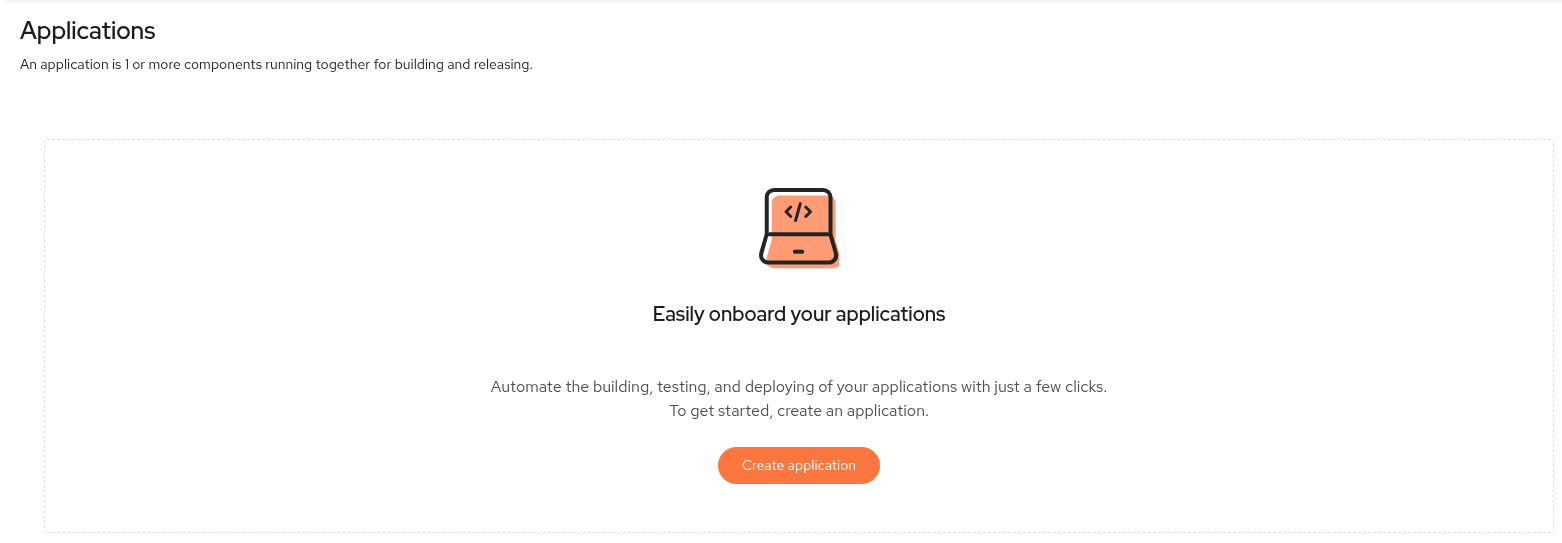 Figure 2. Konflux Applications page inside your tenant namespace
 -
In the Application name field, enter
my-sample-app.Record this name — you will reference it in later modules.
-
Leave all other fields at their defaults and click Create application.
-
After creation, Konflux takes you directly to the new Application page.
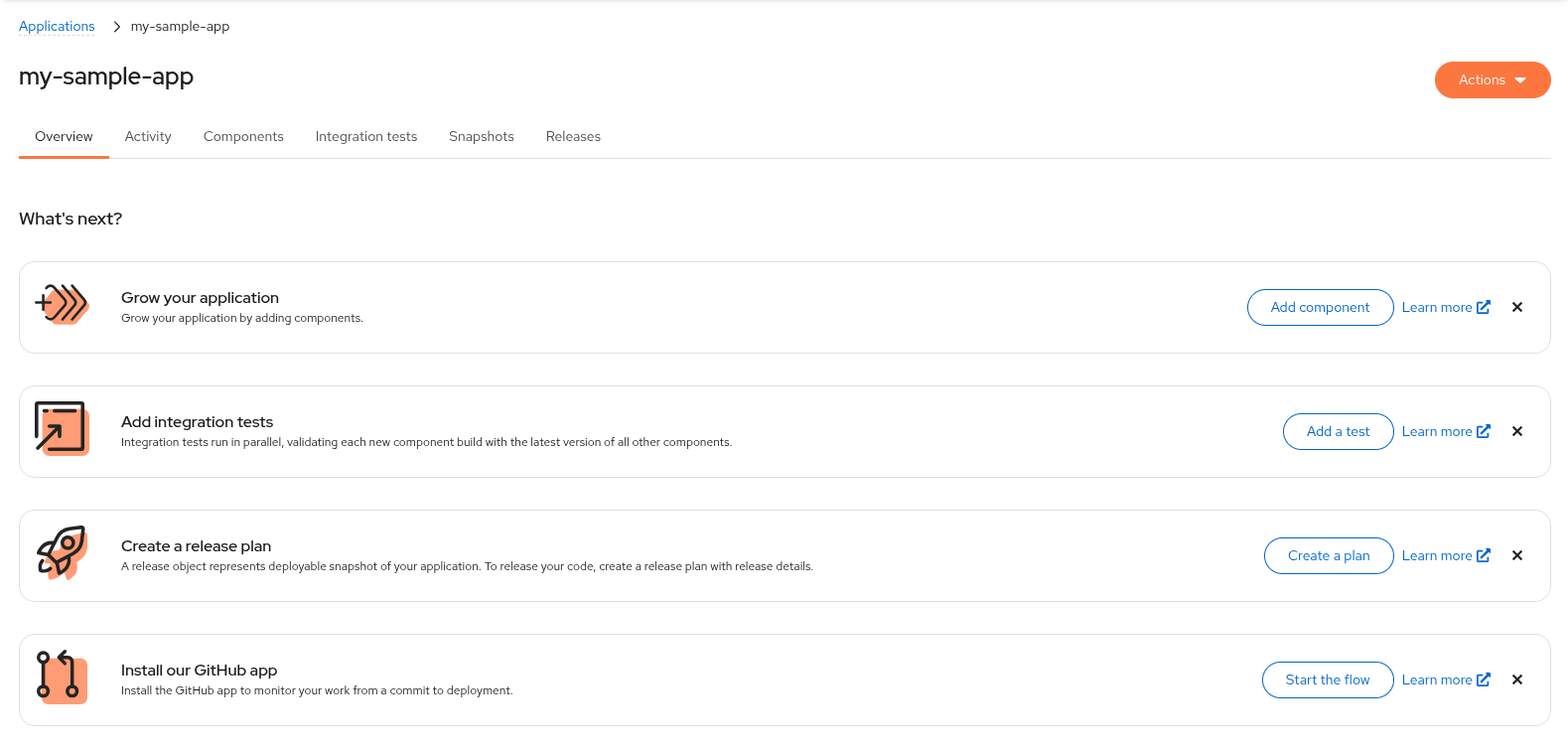 Figure 3. Konflux Application page after creation
2. Add the Component and Connect GitLab
A Konflux Component represents a single buildable unit — in this case, the Go sample application in your GitLab repository.
When you create the Component, Konflux opens a merge request against your repository that adds a .tekton/ directory containing Tekton PipelineRun definitions.
Merging that commit completes the Pipelines-as-Code wiring.
Before adding the Component, you must give Konflux permission to open merge requests on your GitLab repository. This requires a GitLab Personal Access Token (PAT) stored as a Kubernetes secret in your tenant namespace.
-
Switch to the GitLab tab. In the top-right corner, click your avatar and select Preferences. In the left sidebar, navigate to Access → Personal access tokens.
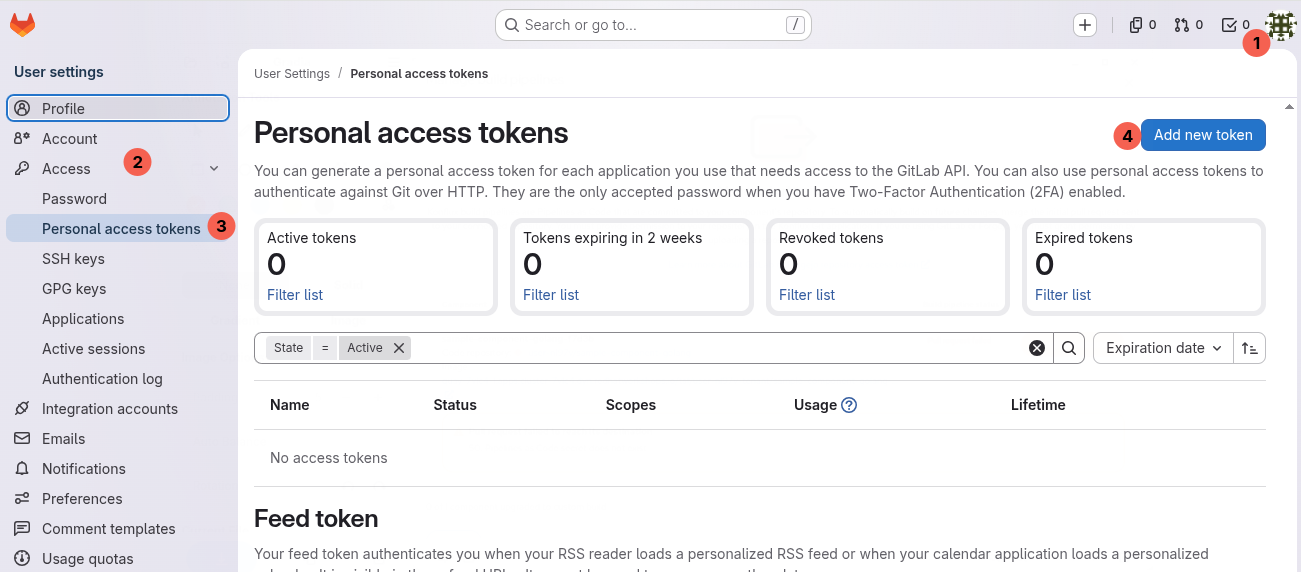 Figure 4. GitLab Personal access tokens page
 -
Click Add new token.
-
Fill in the form:
-
Token name:
konflux-pac -
Expiration date: leave default
-
Scopes: select api
-
-
Click Generate token and copy the generated token.
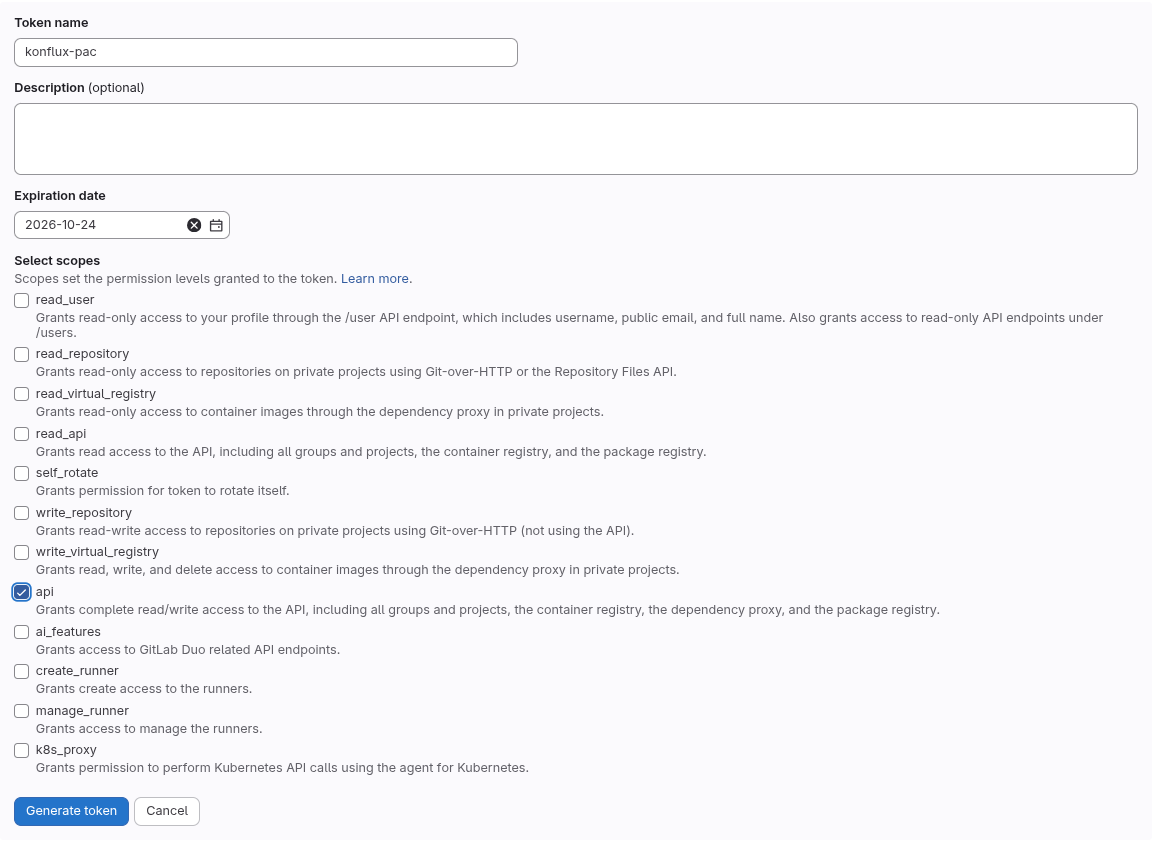 Figure 5. GitLab Generate token button and resulting token
Copy the token now using the copy icon next to the token value — GitLab will not show it again after you leave this page.  Figure 6. GitLab PAT created — use the copy icon to copy the token value
 -
Click the >_ Terminal tab in the right-hand panel.
-
Store the token in a shell variable (replace
<YOUR_TOKEN>with the token you just copied):export GITLAB_PAT=<YOUR_TOKEN> -
Extract your GitLab hostname from the lab URL:
export PAC_GITLAB_HOST=$(echo "{gitlab_url}" | sed 's|https://||; s|/.*||') -
Create the Pipelines-as-Code secret in your tenant namespace:
oc apply -f - <<EOF apiVersion: v1 kind: Secret metadata: name: pipelines-as-code-secret namespace: {openshift_username}-tenant labels: appstudio.redhat.com/credentials: scm appstudio.redhat.com/scm.host: ${PAC_GITLAB_HOST} type: kubernetes.io/basic-auth stringData: password: ${GITLAB_PAT} EOF -
Confirm the secret was created:
oc get secret pipelines-as-code-secret -n {openshift_username}-tenantExpected output: one secret named
pipelines-as-code-secret. -
Inside the
my-sample-appApplication detail page, click Add component.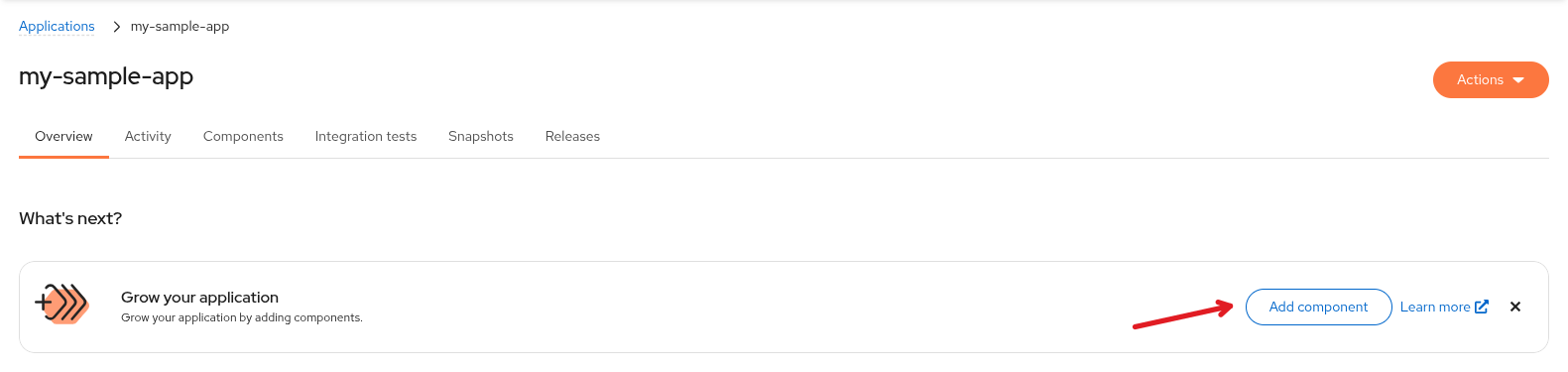 Figure 7. Konflux Add component page
 -
In the Git repository url field, paste your GitLab repository URL:
{gitlab_url}/{gitlab_username}/sample-component-golang -
In the Git provider annotation field, select gitlab.
-
In the Git url annotation field, confirm the value is pre-filled with your base GitLab URL:
{gitlab_url}If it is not already set, enter it now.
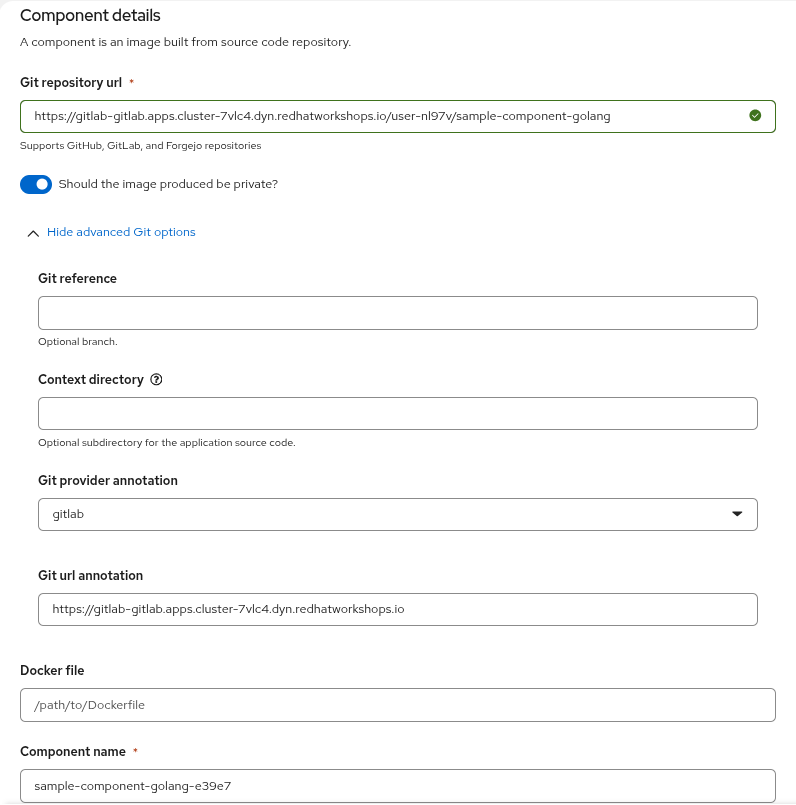 Figure 8. Add component form — top section
 -
Leave the Dockerfile path field blank — Konflux will look for a
Dockerfilein the repository root, which is where the sample app’sDockerfilelives. -
Review the Component name — it is pre-filled based on the repository name. Accept the default or change it to
sample-component-golang. -
In the Pipeline field, select
docker-build-oci-ta-min.This pipeline is optimised for shared-cluster tenant namespaces and is required for this lab. 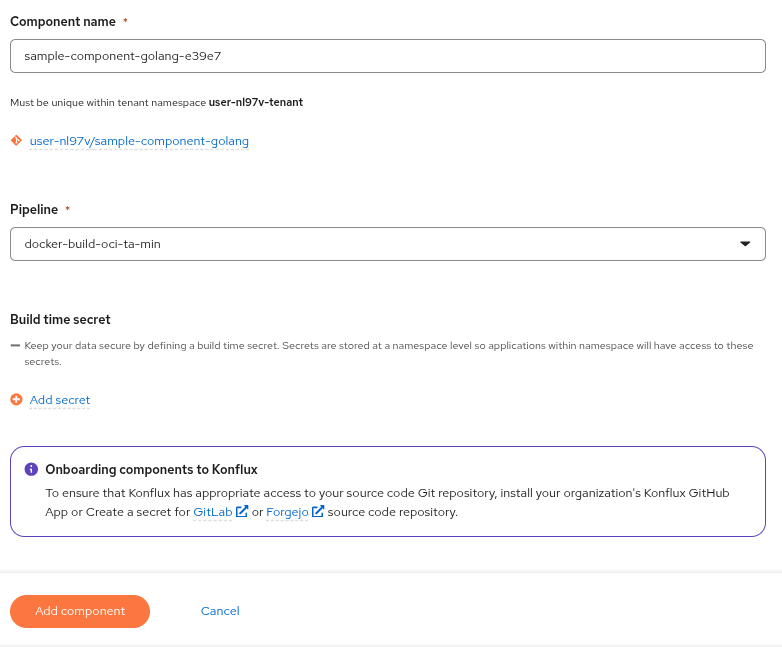 Figure 9. Add component form — bottom section showing pipeline selection
 -
Click the orange Add component button.
Konflux now opens a merge request against your GitLab repository that adds the
.tekton/directory. This step may take 15–30 seconds. -
Switch to the GitLab tab. Navigate to your repository (
{gitlab_username}/sample-component-golang) and click Merge Requests. -
Locate the merge request opened by Konflux. The title reads Konflux update sample-component-golang-XXXX, where
XXXXmatches the generated suffix in your component name.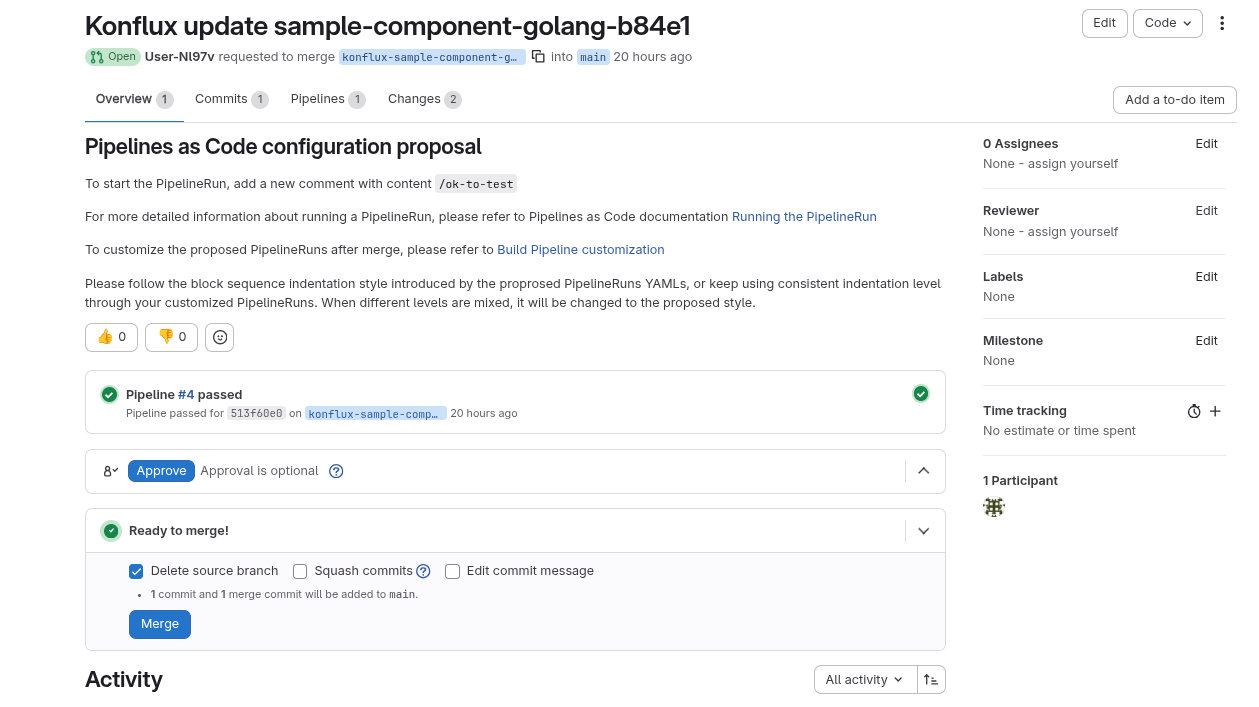 Figure 10. GitLab merge request created by Konflux
 -
Click the merge request title to open it.
-
Click the Changes tab to view the files added by this merge request.
You will see files under the
.tekton/directory. These are the Tekton PipelineRun definitions that Pipelines-as-Code will execute on future push and merge-request events.Do not merge this MR yet. You will use it in Module 3 to trigger additional builds on the feature branch before merging to main.
3. Observe the First PipelineRun on the MR Branch
Creating the Component triggers Pipelines-as-Code immediately — before merging the MR.
Konflux creates a PipelineRun on the MR source branch (named konflux-sample-component-golang-XXXXX).
This first build tests the .tekton/ configuration on the feature branch before it reaches main.
You now confirm that the run was created and is progressing.
-
Return to the Konflux UI. Inside
my-sample-app, click the Activity tab. -
Observe that a PipelineRun appears automatically — triggered by the MR creation, not a merge.
The PipelineRun name will contain
on-pull-request(e.g.,sample-component-golang-c5684-on-pull-request-xhjxj). This indicates the build is running on the MR branch.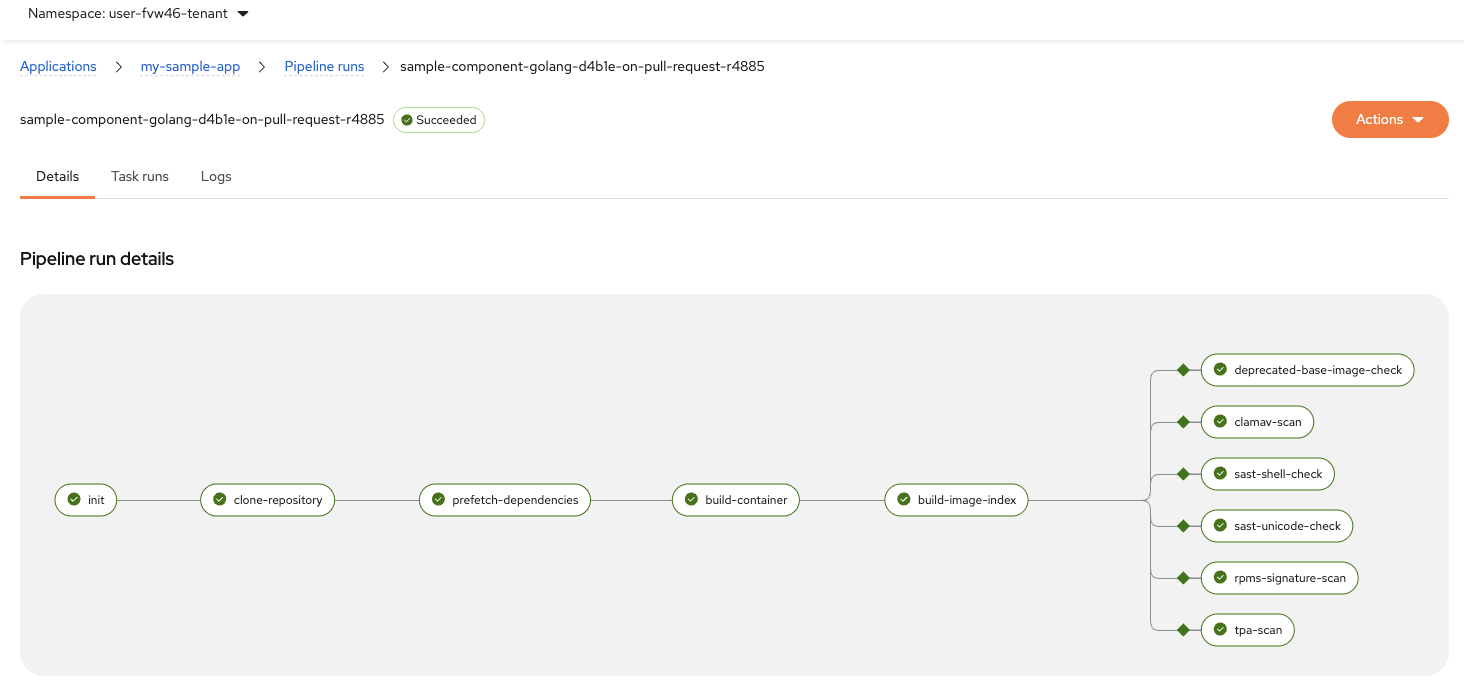 Figure 11. Konflux Activity tab showing the first PipelineRun
If viewing the Latest commits tab, the Branch column shows maineven though this commit is on the MR branch. This is a Konflux UI quirk — it displays the merge target branch, not the source branch. To confirm this is an MR build (not a main branch build), look foron-pull-requestin the pipeline name on the Pipeline runs tab. -
Click the Terminal tab in the right-hand panel. List the PipelineRuns in your tenant namespace:
oc get pipelineruns -n {openshift_username}-tenantExpected output: one PipelineRun with a name containing
on-pull-requestand aRunningorSucceededstatus. -
In the Konflux UI, click the commit entry in the Activity tab to open its detail view. Observe the events progression — it shows two stages: the build (
sample-component-golang-XXXX-build) and an enterprise contract check (my-sample-app-enterprise-contract), both showing Succeeded.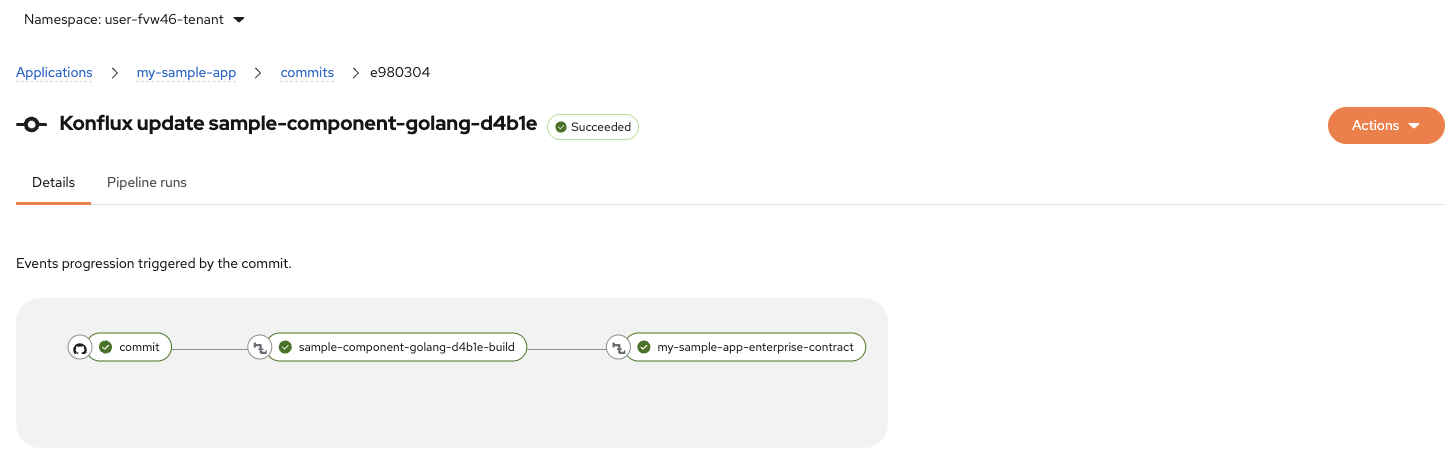 Figure 12. Konflux commit detail showing build and enterprise contract stages
 -
Wait for the PipelineRun to reach Running or Succeeded before moving to Module 3.
A first build typically takes 3–8 minutes. Use the time to review the stage breakdown in the UI. If you see two Cancelledpipelines in the Activity tab, this is a race condition when the MR is first created. To retrigger: switch to the GitLab tab, navigate to your open MR, click Close merge request, then immediately click Reopen merge request. This will trigger a newon-pull-requestpipeline.If the run fails, read the task logs displayed in the UI and report the error to the instructor. Do not proceed to Module 3 with a failed PipelineRun — later modules depend on artifacts produced by this run.
-
Return to the Applications view and confirm the
sample-component-golangComponent card shows the linked GitLab repository URL.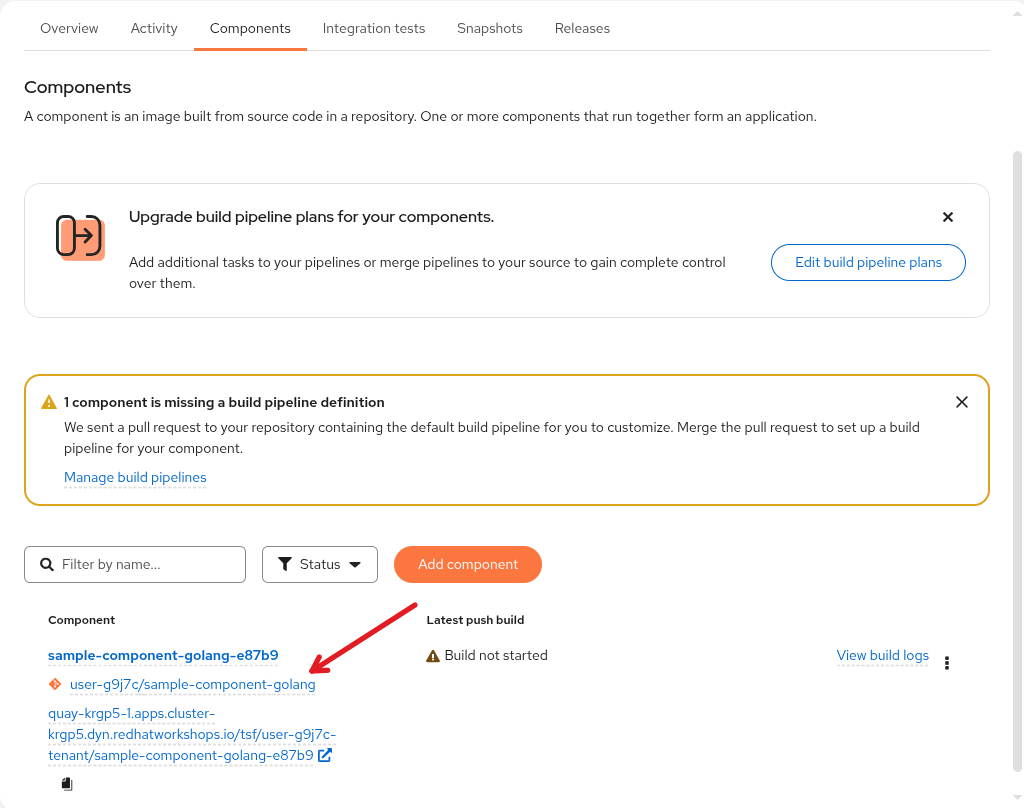 Figure 13. Component card showing the linked GitLab repository URL
 -
In Quay, navigate to the tsf organization and search for
{openshift_username}-tenant.Locate the repository named
sample-component-golang-XXXXX(whereXXXXXis a generated suffix matching your component) and click into it. -
Check the Tags tab. You will see multiple tags for this build:
-
on-pr-<commit-hash>— The versioned tag for this merge request build (this is the one to use) -
sample-componen<hash>-build-container— An intermediate tag from the build pipeline (ignore this) -
sha256-<digest>— The manifest digest (internal reference)The
on-pr-*tag is what identifies this specific build. You will reference this tag pattern when working with images in later modules.
-
Verify
-
oc get pipelineruns -n {openshift_username}-tenantreturns one PipelineRun withon-pull-requestin the name. -
The PipelineRun status in the Konflux UI is
RunningorSucceeded. -
The Component card in the Applications view shows the linked GitLab repository URL.
-
Quay shows tags including
on-pr-<commit-hash>. -
The GitLab MR is still OPEN (not merged).
Learning Outcomes Checkpoint
Before moving on, check that you can answer the following:
How does Konflux wire up Pipelines-as-Code without manual webhook configuration?
When you create a Component, Konflux commits PipelineRun manifests into your GitLab repository via a merge request.
Pipelines-as-Code reads those manifests from the .tekton/ directory and registers the webhook automatically.
From that point on, every push and merge-request event triggers a new run — no manual pipeline invocation needed.
Where does the build pipeline send its output?
Konflux reads the image push credentials attached to the pipeline service account in your tenant namespace.
Those credentials point to the lab’s shared Quay instance and determine the target registry.
Konflux then derives the image repository path automatically from your namespace and component name:
{quay_url}/tsf/{openshift_username}-tenant/<component-name>
You can confirm the exact image path Konflux assigned by running:
oc get component -n {openshift_username}-tenant -o jsonpath='{.items[0].spec.containerImage}{"\n"}'You will inspect the image and its attestations in Module 3 and Module 4.
Why is your view of PipelineRuns isolated from other participants?
Each participant has their own tenant namespace ({openshift_username}-tenant).
Pipelines-as-Code creates PipelineRuns in that namespace, so your runs and artifacts do not appear in anyone else’s view — and vice versa.
Key Takeaways
-
Konflux uses a GitOps model for onboarding: creating a Component causes Konflux to commit Tekton PipelineRun manifests directly into your source repository.
-
Pipelines-as-Code reads those manifests from the
.tekton/directory and triggers runs on push and merge-request events — no manual pipeline execution is required. -
The target image registry (Quay) is declared at the Component level; the build pipeline pushes all images and attestations there automatically.
-
Each participant’s PipelineRuns run in their own tenant namespace, keeping workloads and artifacts isolated across the shared cluster.