Integration Testing and Policy
Estimated time: 15 minutes
Producing a signed, attested image is only half the story. Before Konflux allows an artifact to be released, it runs the Snapshot through an Integration pipeline and evaluates it against a Conforma policy set. In this module you examine the policy rules governing your artifact, walk through the Integration pipeline results for your Component, and observe what happens when a policy check fails — seeing how a single violation prevents the Snapshot from advancing to production.
Learning Objectives
By the end of this module, you will be able to:
-
Analyze the Conforma policy rules applied to your Konflux Application and understand what each rule enforces.
-
Observe how the Integration pipeline evaluates policy checks against the signed artifact produced in earlier modules.
-
Troubleshoot a policy check failure by reading the
ecCLI violation output and identifying which supply chain evidence is missing. -
Verify that a policy-passing artifact is marked as eligible for promotion while a failing artifact is blocked.
1. Examine the Conforma Policy
Conforma evaluates artifacts against a policy bundle — a versioned set of Rego rules that inspect the evidence attached to an image. That evidence includes the cryptographic signature, the SBOM, and the SLSA provenance attestation you examined in Module 4. Before running any policy checks, retrieve the policy object from your namespace and understand its structure.
-
In the Konflux UI, navigate to your
my-sample-appApplication and click the Integration tests tab.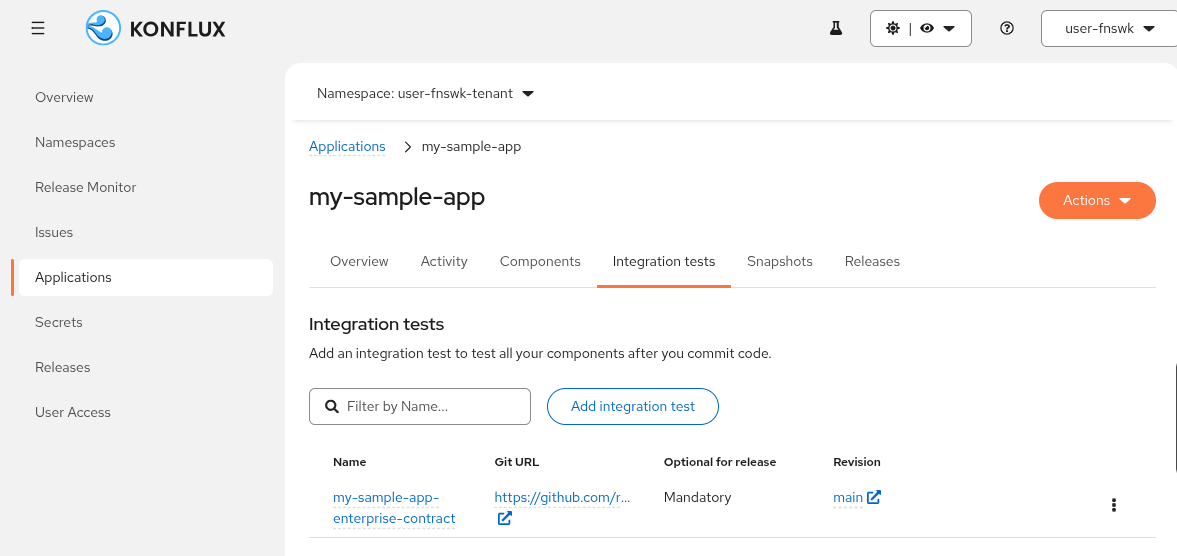 Figure 1. Konflux Integration tests tab showing the configured IntegrationTestScenario
 -
Locate the
IntegrationTestScenariolisted for your Application. Note that it references an enterprise contract check as the integration pipeline that runs against every new Snapshot. -
In the terminal, retrieve the lab’s
EnterpriseContractPolicyobject:oc get enterprisecontractpolicy lab-policy -n enterprise-contract-service -o yaml -
In the YAML output, locate
spec.sources[0]. Each source entry has two key sub-fields:Field What it contains policy[]An OCI image reference (
oci::quay.io/conforma/release-policy:latest@sha256:…) containing the Rego rules Conforma applies to your artifact.configincludeandexcludelists that control which rule categories are active. The lab policy includes specific rules such asslsa_provenance_availableandsbom_cyclonedx, and excludes rules that are not applicable in this environment. -
Extract the policy bundle OCI reference and store it in a shell variable:
export EC_POLICY=$(oc get enterprisecontractpolicy lab-policy \ -n enterprise-contract-service \ -o jsonpath='{.spec.sources[0].policy[0]}') echo "Policy bundle: ${EC_POLICY}" -
Recover the image reference from your Component if you no longer have
$IMAGEset in your terminal. The reference must include the digest (@sha256:…) —ecrequires it to locate the attestations:if [ -z "${IMAGE_BASE}" ] || [ -z "${IMAGE_DIGEST}" ]; then export IMAGE_BASE=$(oc get component -n {openshift_username}-tenant \ -o jsonpath='{.items[0].spec.containerImage}' | cut -d: -f1) export IMAGE_DIGEST=$(oc get snapshot -n {openshift_username}-tenant \ --sort-by=.metadata.creationTimestamp \ -o jsonpath='{.items[-1].spec.components[0].containerImage}' | cut -d@ -f2) fi export IMAGE="${IMAGE_BASE}@${IMAGE_DIGEST}" echo "Image: ${IMAGE}" -
Run the
ecCLI to evaluate your image against the policy:ec validate image \ --image "${IMAGE}" \ --policy enterprise-contract-service/lab-policy \ --certificate-identity-regexp 'https://kubernetes.io/namespaces/.*/serviceaccounts/build-pipeline-.*' \ --certificate-oidc-issuer https://kubernetes.default.svc \ --rekor-url https://rekor-server-tsf-tas.apps.cluster-%GUID%.example.com \ --output yamlExpected output:
success: truewith noviolationsentries undercomponents, confirming no violations were found against the artifact from Module 3.
Verify
-
oc get enterprisecontractpolicy lab-policy -n enterprise-contract-servicereturns the lab policy object. -
spec.sources[0].policy[]contains anoci::image reference to the Conforma release policy bundle. -
spec.sources[0].configcontainsincludeandexcluderule lists. -
ec validate imageagainst your Module 3 image returns an empty violations array.
2. Review Integration Pipeline Results
When your PipelineRun from Module 3 succeeded, Konflux automatically created a Snapshot — an immutable record of the set of images produced by that run. The Integration pipeline then ran against that Snapshot, executing the Conforma check you just examined. Walk through the Integration pipeline results now in both the UI and the CLI.
-
In the Konflux UI, navigate to your
my-sample-appApplication and click the Snapshots tab. -
Locate the Snapshot associated with your Module 3 build. Look for the entry whose Commit message column reads Merge branch 'konflux-sample-component-golang-XXXXX' into 'main' — that is the snapshot Konflux created when your merge request landed on the main branch.
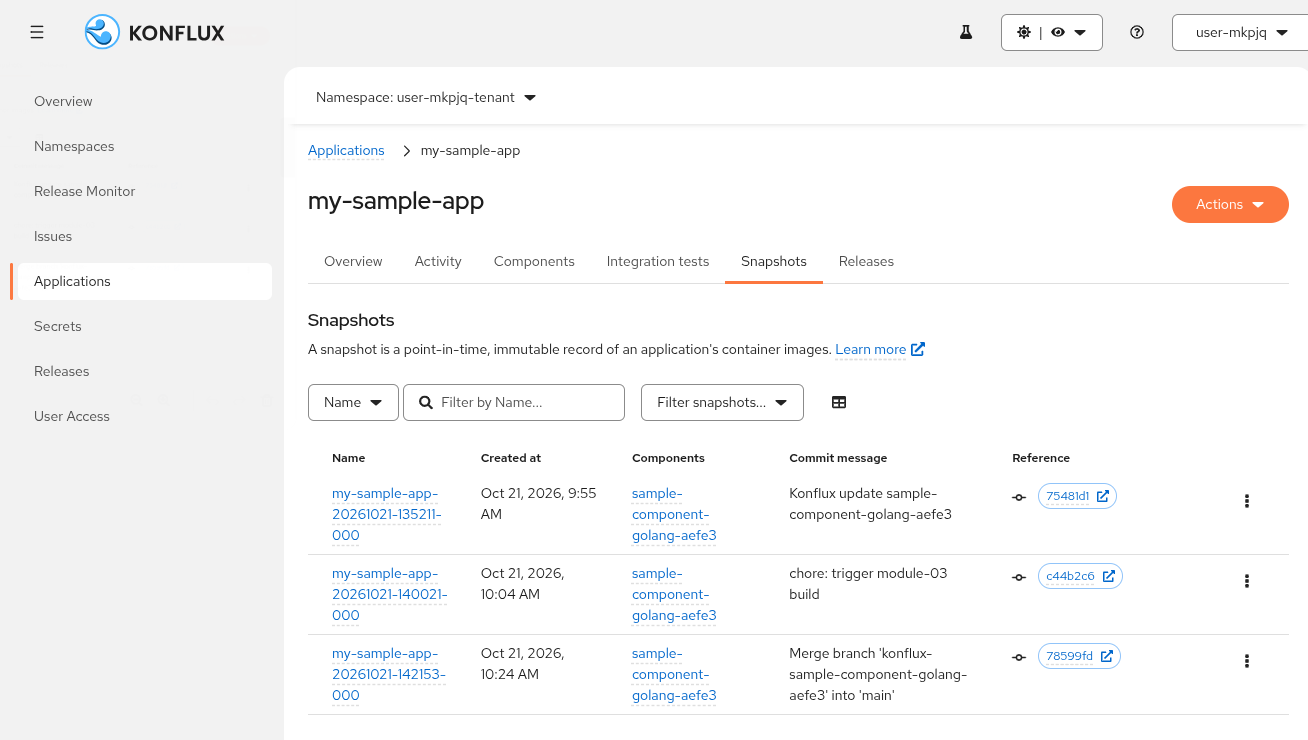 Figure 2. Konflux Snapshots tab showing the Module 3 build Snapshot
 -
Click the Snapshot name to open its detail view.
-
In the Snapshot detail view, locate the list of Integration pipeline runs. The default integration pipeline includes a Conforma check task labelled enterprise-contract.
-
Click the enterprise contract integration test run to open the Pipeline run detail view. Confirm the pipeline status shows Succeeded. In the Results section at the bottom of the page, locate the
TEST_OUTPUTentry. Its value is a JSON object — confirm it shows"result":"SUCCESS"and"failures":0:{"successes":18,"failures":0,"warnings":0,"result":"SUCCESS"}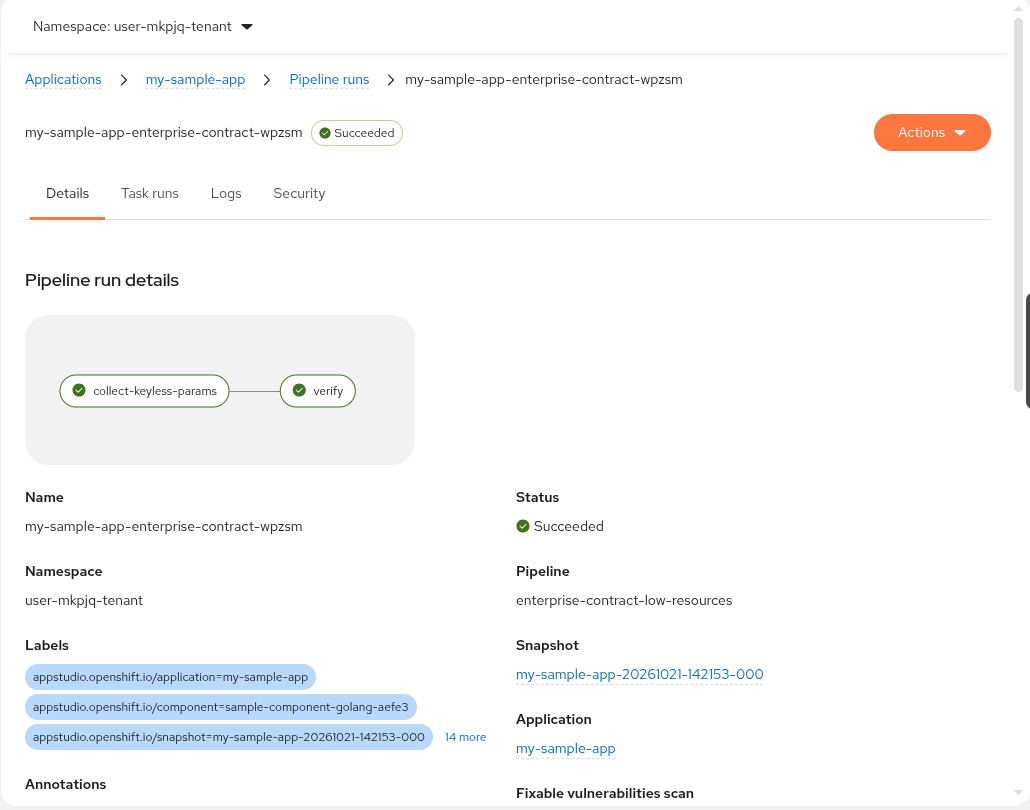 Figure 3. Conforma check Pipeline run showing Succeeded status and TEST_OUTPUT result
 -
In the terminal, list the
IntegrationTestScenarioresources in your tenant namespace:oc get integrationtestscenario -n {openshift_username}-tenantNote the pipeline bundle reference in the output — this is the integration pipeline Konflux ran against your Snapshot.
-
List the Snapshots in your tenant namespace:
oc get snapshots -n {openshift_username}-tenantExpected output: at least one Snapshot resource. Note the name of the Snapshot for your latest build — you will use it in Section 4.
-
Store the Snapshot name in a shell variable. The command below retrieves the most recently created Snapshot automatically:
export SNAPSHOT=$(oc get snapshots \
  -n {openshift_username}-tenant \
  --sort-by=.metadata.creationTimestamp \
  -o jsonpath='{.items[-1].metadata.name}')
echo "Snapshot: ${SNAPSHOT}"
Verify
-
oc get integrationtestscenario -n {openshift_username}-tenantreturns the integration test scenario formy-sample-app. -
oc get snapshots -n {openshift_username}-tenantreturns at least one Snapshot. -
The enterprise contract Pipeline run shows Succeeded status and
TEST_OUTPUTcontains"result":"SUCCESS"with"failures":0. -
$SNAPSHOTis set in your terminal session.
3. Observe a Policy Failure
The Integration pipeline passes your artifact because it carries a valid signature, SBOM, and SLSA provenance attestation. Now see what happens when an artifact lacks that evidence. The lab provides a pre-built unsigned image for this exercise.
-
Set the unsigned image reference in your terminal:
export BAD_IMAGE={quay_url}/lab-examples/unsigned-sample:latest echo "Testing against: ${BAD_IMAGE}" -
Run the
ecCLI against the unsigned image:ec validate image \ --image "${BAD_IMAGE}" \ --policy enterprise-contract-service/lab-policy \ --certificate-identity-regexp 'https://kubernetes.io/namespaces/.*/serviceaccounts/build-pipeline-.*' \ --certificate-oidc-issuer https://kubernetes.default.svc \ --rekor-url https://rekor-server-tsf-tas.apps.cluster-%GUID%.example.com \ --output yamlThe YAML output shows
success: falseand aviolationslist undercomponents. You will see violations similar to these:components: - success: false violations: - metadata: code: builtin.image.signature_check msg: 'Image signature check failed: no signatures found' - metadata: code: builtin.attestation.signature_check msg: 'Image attestation check failed: no matching attestations' success: falsesuccess: falseis the signal Conforma sends to the Integration pipeline to block promotion. An artifact with any violation is never eligible for release — not partially, not conditionally. The check is fail-closed.ecalso printsError: success criteria not metto stderr — that is expected, not a command error. -
Compare the two artifacts side by side:
Evidence Your artifact (Module 3/4) Unsigned sample Signature
Present — signed by Trusted Artifact Signer
Absent
SLSA attestation
Present — SLSA Level 3 provenance
Absent
SBOM
Present — CycloneDX format
Absent
Conforma result
success: truesuccess: falseIn a real release pipeline, the falseresult stops the image push entirely. The artifact never reaches the production registry, and the violation details are recorded in the audit trail.
Verify
-
$BAD_IMAGEis set in your terminal session. -
ec validate imageagainst$BAD_IMAGEreturns a non-empty violations array. -
At least one of the following violation codes appears:
builtin.image.signature_checkorbuiltin.attestation.signature_check. -
The top-level
successfield in the output isfalse.
4. Confirm the Passing Artifact Status
With the policy failure observed, use the CLI to confirm your Module 3 Snapshot is in a state that qualifies for release. A Snapshot in passing state is the prerequisite for the ReleasePlan in Module 6 to trigger.
-
In the terminal, describe the Snapshot and check its conditions:
oc get snapshot ${SNAPSHOT} -n {openshift_username}-tenant -o yaml | grep -A 10 'conditions:' -
In the output, locate a condition entry with
type: AppStudioIntegrationStatus. Confirm itsstatusisTrueand itsreasonindicates the integration passed. -
Retrieve the full conditions block in JSON for a clearer view:
oc get snapshot ${SNAPSHOT} -n {openshift_username}-tenant \
  -o jsonpath='{.status.conditions}' | jq .
Expected output: a conditions array that includes an entry with
type: AppStudioIntegrationStatusandstatus: "True". -
Note that a Snapshot in passing state is the prerequisite for the ReleasePlan in Module 6. The release pipeline reads this status before accepting a release request. A Snapshot that did not pass integration cannot be released through the controlled pipeline — regardless of who requests the release.
Learning Outcomes Checkpoint
Before moving on, check that you can answer the following:
What evidence does Conforma inspect when it evaluates an image?
Conforma reads four types of evidence attached to the image: the cryptographic signature, the SLSA provenance attestation, the SBOM attestation, and the pipeline metadata that identifies the builder. All four must be present and valid. If any one is missing or fails verification, the entire Snapshot is blocked.
Why does failing a single policy rule block the whole Snapshot?
Conforma uses fail-closed enforcement. A Snapshot represents a coherent set of images built together. If any image in the Snapshot violates any rule, promoting the Snapshot would allow non-compliant software to reach production. The entire Snapshot is held until every image meets every rule — there is no partial pass.
How is the policy bundle itself version-controlled?
The policy bundle is referenced as an OCI image digest or a Git ref in the EnterpriseContractPolicy object.
Changing the policy requires updating that reference — an auditable, reviewable change tracked in version control.
A new vulnerability rule that blocks a category of builds is a committed record, not an ad hoc configuration edit.
What must be true before you can trigger a release in Module 6?
The Snapshot must be in a passing state — meaning the Integration pipeline ran, the Conforma check found no violations, and the AppStudioIntegrationStatus condition is True.
The ReleasePlan in Module 6 reads this status before accepting any release request.
Key Takeaways
-
Conforma evaluates Rego policy rules against the evidence attached to an image: signature, SBOM, and SLSA provenance attestation.
-
Policy checks run automatically inside the Integration pipeline — no human intervention is required, making enforcement consistent and auditable.
-
A single failing rule blocks the entire Snapshot from promotion, regardless of how many other rules pass. This is fail-closed policy enforcement.
-
The difference between a passing and failing artifact is visible in the Konflux UI and queryable with
oc get snapshot. -
Policy rules are versioned — the policy bundle is itself an OCI image or Git ref. Changing the policy is an auditable, reviewable change.
-
The Snapshot model decouples what was built from what is allowed to release: teams can iterate on builds without triggering releases until the policy is satisfied.