Build and Scan
Estimated time: 20 minutes
With your application onboarded and the first pipeline run complete from Module 2, you are ready to see the full build cycle in action. In this module, you push a small code change to your GitLab repository, watch Konflux respond automatically with a new pipeline run, and then examine the artifacts it produces: a container image, an SPDX Software Bill of Materials (SBOM), and a SLSA provenance attestation. By the end, you will know what the pipeline produces, where those artifacts land, and how to inspect them.
Learning Objectives
By the end of this module, you will be able to:
-
Build a container image by pushing a source change to GitLab and observing the resulting Konflux PipelineRun.
-
Analyze the automatically generated SPDX SBOM to identify its packages, licenses, and vulnerability data.
-
Observe how the pipeline scan tasks report findings and how results surface in the Konflux UI.
-
Verify that the built image and its associated SBOM and attestation artifacts are present in the Quay registry after the pipeline completes.
1. Trigger a Build on the MR Branch, Then Merge
You still have the open merge request from Module 2.
In this section you will edit a file on the MR source branch, triggering a second on-pull-request build.
After verifying that build, you will merge the MR to main, triggering a third build with the on-push- tag.
-
Switch to the GitLab tab and navigate to Merge Requests.
-
Locate the open MR titled Konflux update sample-component-golang-XXXX and click it.
-
At the top of the MR detail page, note the Source branch field. The branch name follows the pattern:
konflux-sample-component-golang-XXXXX -
Click the source branch name to browse files on that branch.
Verify the branch selector at the top shows
konflux-sample-component-golang-XXXXX. -
Click
README.mdto view the file. -
Click the Edit dropdown button and select Edit single file.
-
Scroll to the bottom of the file and add a new line:
# Lab update - module 03
-
Commit the change:
-
Commit message:
chore: trigger module-03 build -
Target branch: (keep the MR branch selected)
-
Click Commit
-
-
Switch to the Konflux tab. Navigate to Applications → my-sample-app → Activity.
-
Within 30–60 seconds, the new commit appears on the Latest commits tab with the message
chore: trigger module-03 build.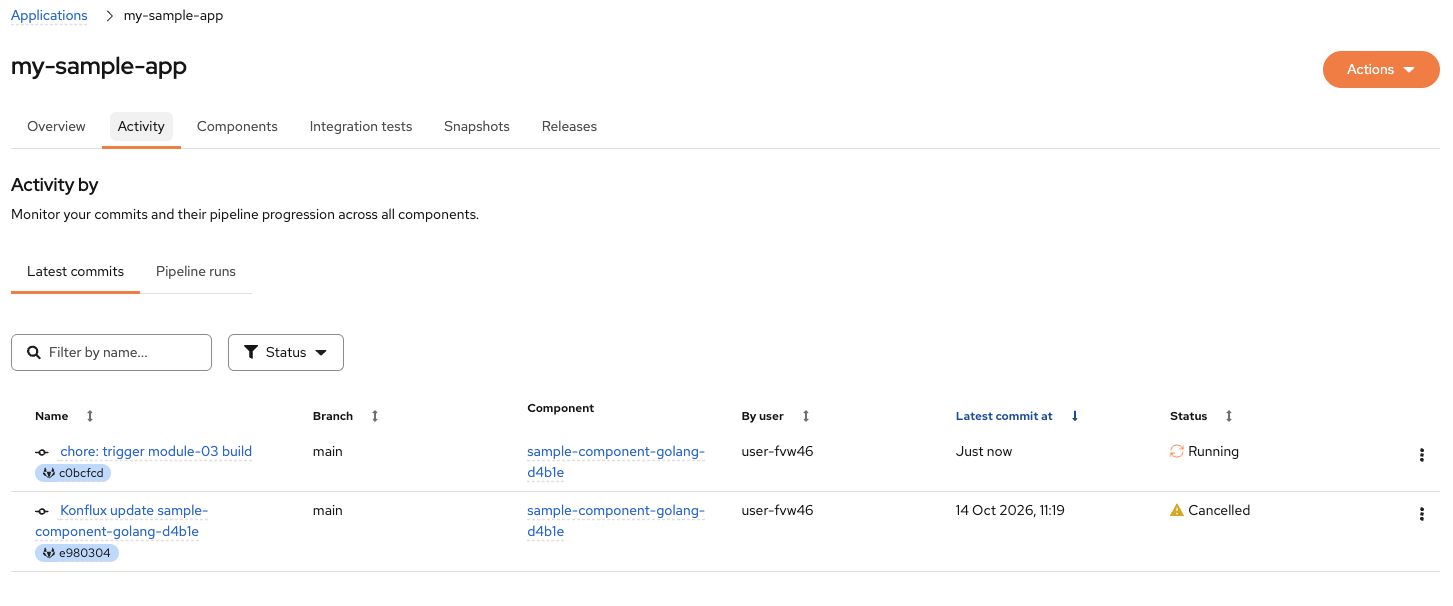 Figure 1. Konflux Activity tab - Latest commits showing the new commit
The Branch column shows maineven though you committed to the MR branch. This is a Konflux UI quirk — it displays the merge target branch, not the source branch where the commit actually lives. To confirm this is an MR build, check the Pipeline runs tab for theon-pull-requestpipeline name. -
Click the Pipeline runs tab to see the corresponding
on-pull-requestPipelineRun withon-pull-requestin the Name column and Running status.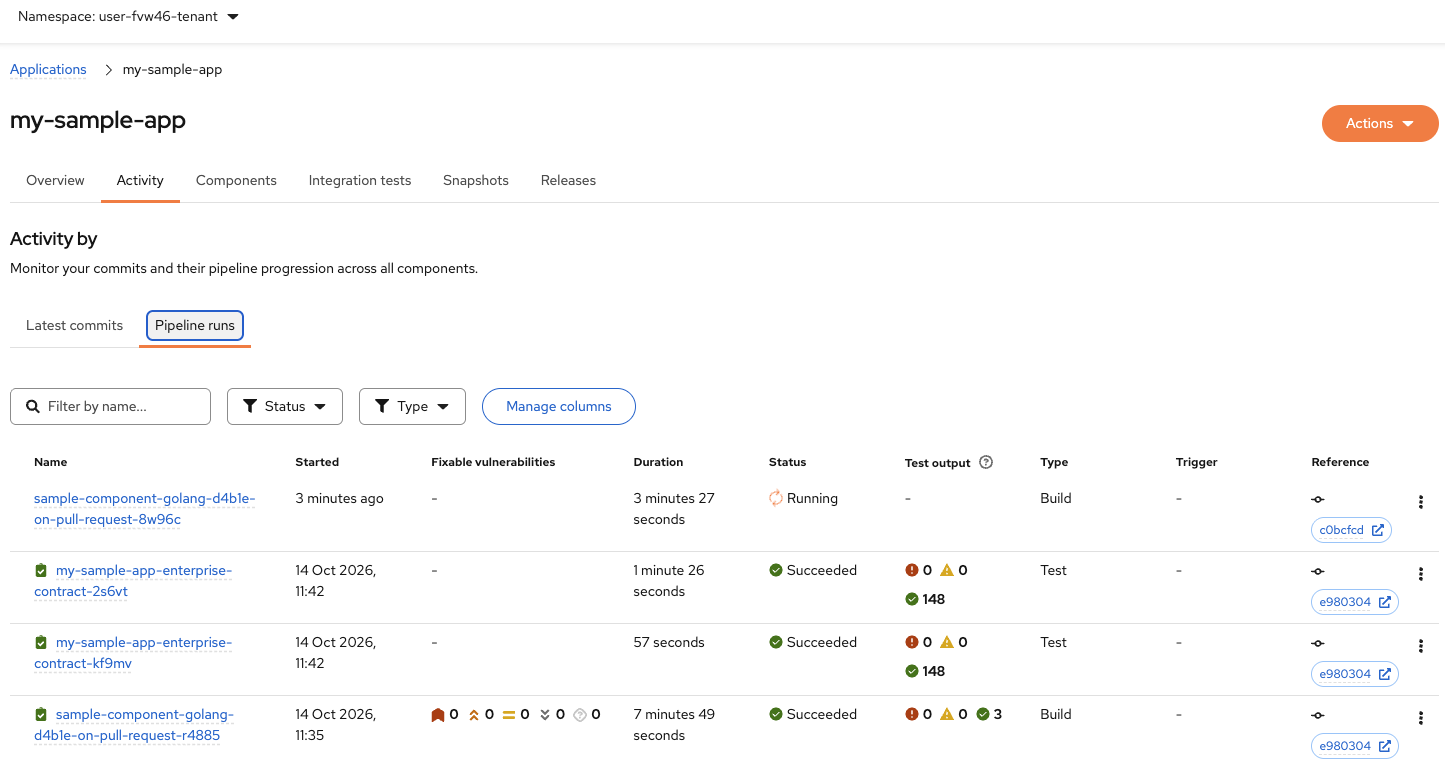 Figure 2. Konflux Activity tab - Pipeline runs showing the on-pull-request build
 -
Wait for the PipelineRun to complete (12-15 minutes).
-
Return to GitLab and merge the MR:
Navigate back to the MR detail page and click Merge.
Use the default merge strategy. Do not squash or rebase — Pipelines-as-Code reads the merge commit to identify the triggering event. -
After merging, return to Konflux Activity. On the Latest commits tab, a merge commit appears with the message
Merge branch 'konflux-sample-component-golang-XXXX' into 'main'and Running status.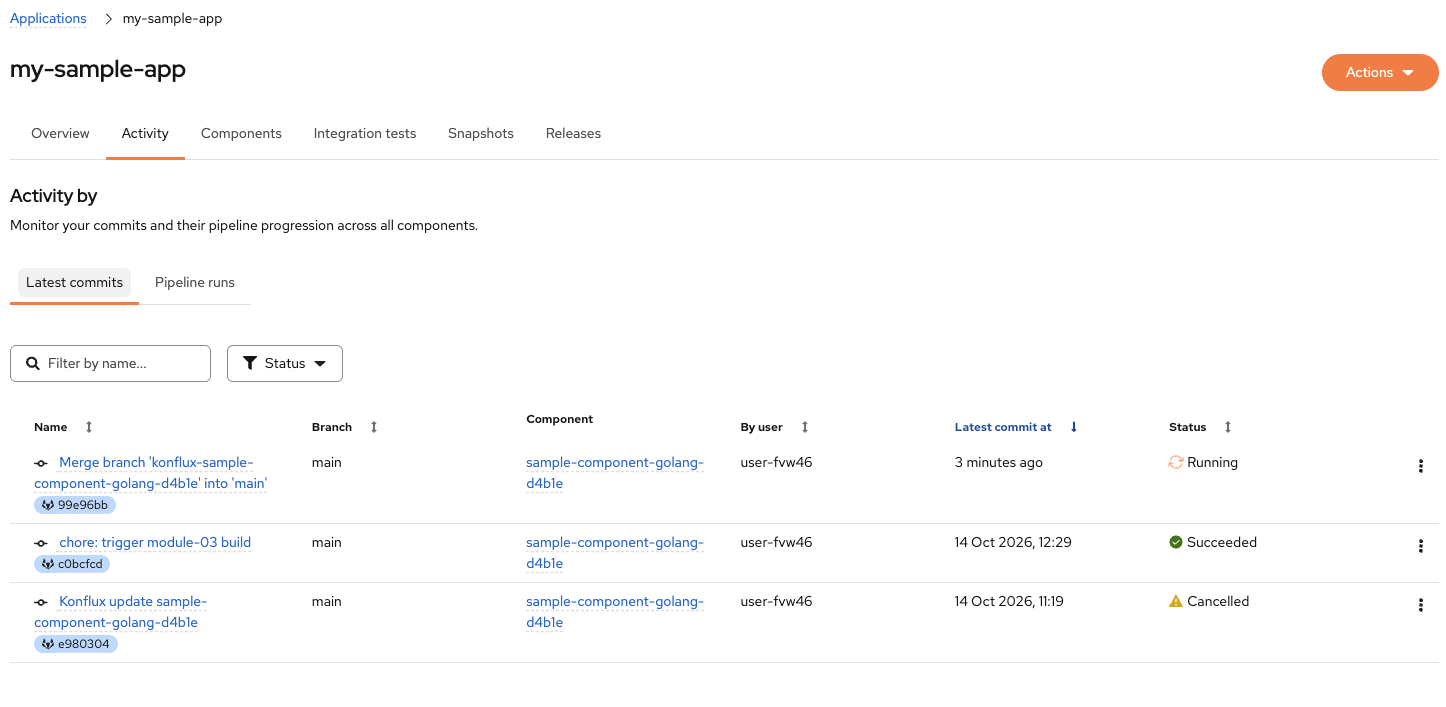 Figure 3. Konflux Activity - Latest commits showing the merge commit
 -
Click the Pipeline runs tab. A THIRD PipelineRun appears — this time with
on-pushin the Name column (noton-pull-request) andPushin the Trigger column.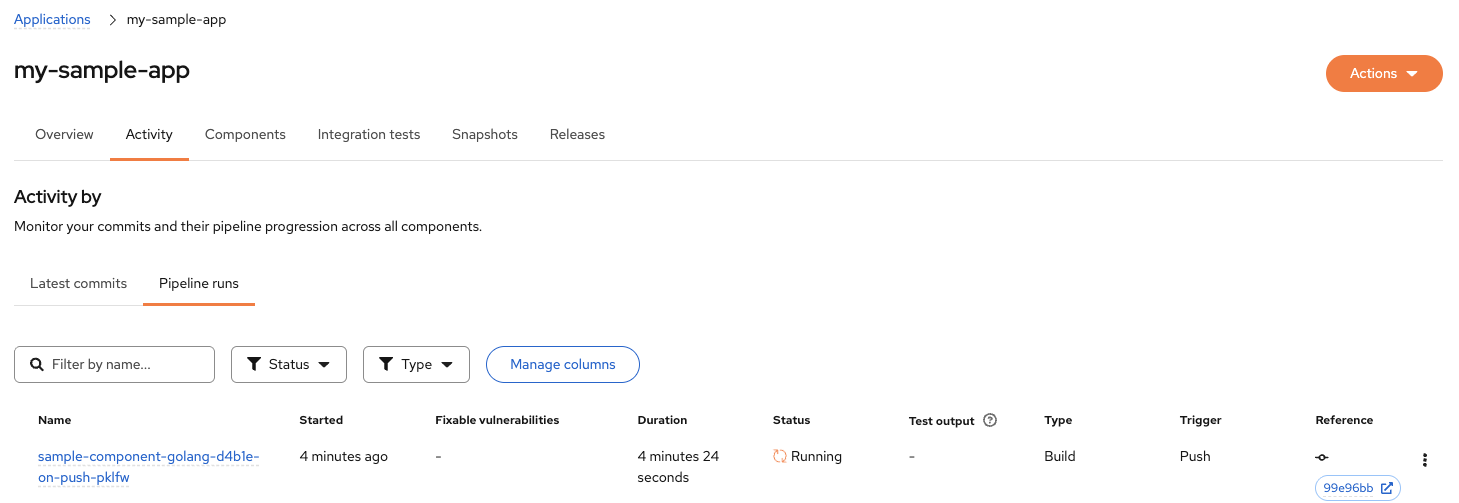 Figure 4. Konflux Activity - Pipeline runs showing the on-push build
This is the
mainbranch build, triggered by the merge. -
Wait for this
on-pushbuild to complete (12-15 minutes). -
Once it succeeds, click the PipelineRun entry and navigate to the
build-containertask results. Copy theIMAGE_DIGESTvalue (thesha256:…string) — you will use thison-pushimage in Modules 4-6.Store it in your terminal:
export IMAGE_DIGEST="sha256:..."
2. Trace the Pipeline Stages
The Konflux UI shows the full task graph for each PipelineRun.
You will walk through the stages of the docker-build-oci-ta-min pipeline to understand what each task does and where the image digest comes from.
-
In the Konflux Activity tab, locate the merge commit (titled Merge branch 'konflux-sample-component-golang-…' into 'main') and click it to open its detail view.
-
Click the Pipeline runs tab to see the pipeline runs linked to this merge commit. You will see two runs: a Build run (
sample-component-golang-…-on-push-…) and a Test run (my-sample-app-enterprise-contract-…).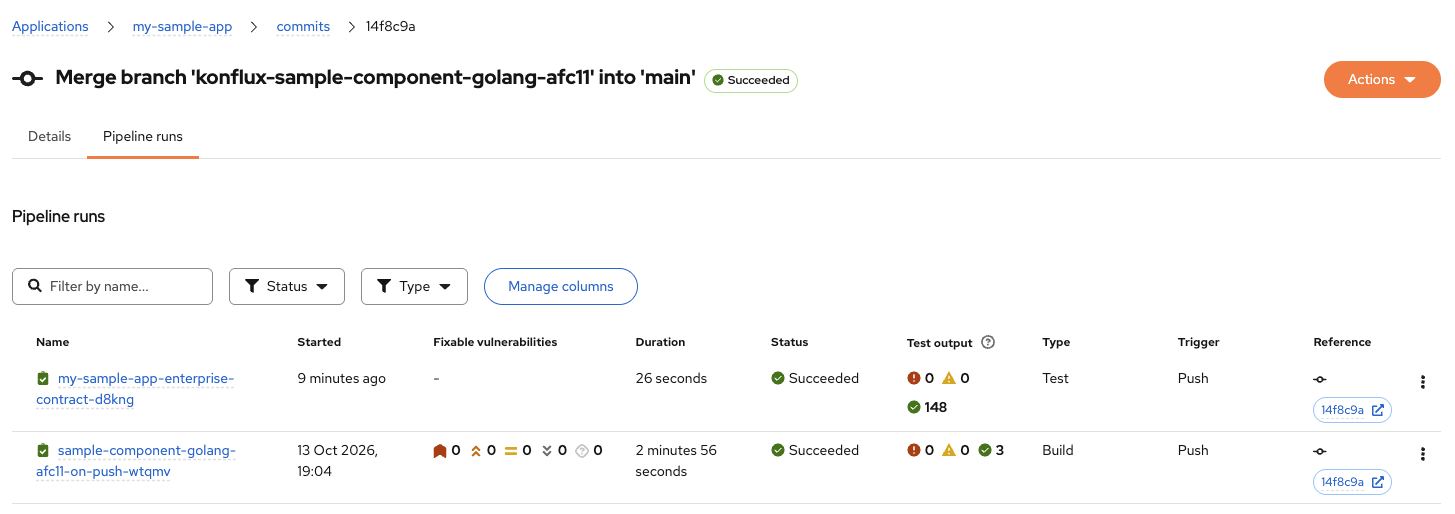 Figure 5. Konflux commit detail — Pipeline runs tab showing the build and enterprise contract runs
 -
Click the Build PipelineRun name (the one with
on-pushin the name) to open the full task graph. Do not click the enterprise contract Test run — that is covered in a later module.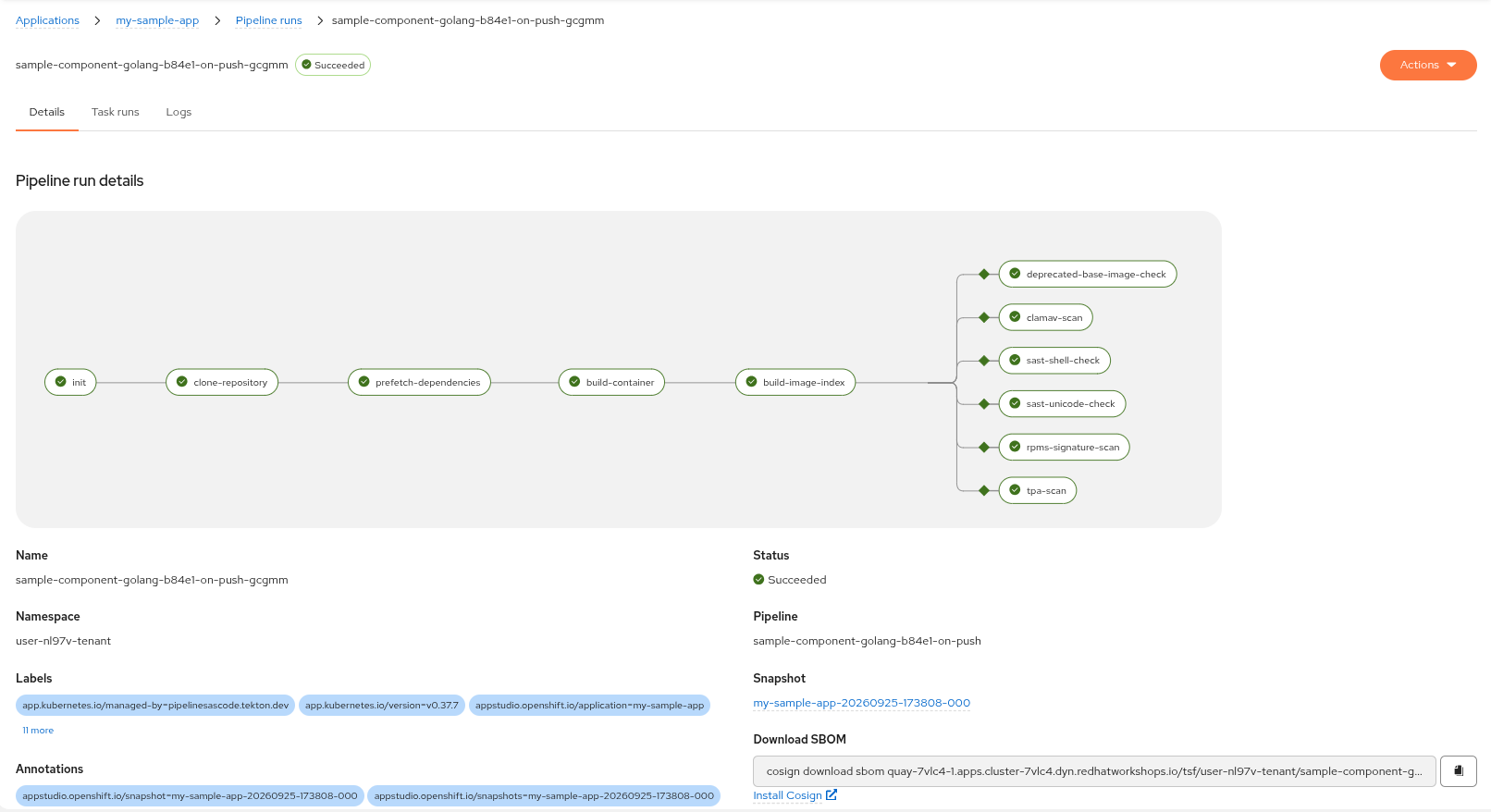 Figure 6. Konflux PipelineRun detail showing the task graph
 -
Review the task stages. The build pipeline runs the following tasks:
Task What it does initSets up the pipeline workspace and resolves build credentials.
clone-repositoryClones the exact source commit from GitLab into the pipeline workspace.
prefetch-dependenciesPre-fetches Go module dependencies into the trusted artifact store so the build has no outbound network access.
build-containerBuilds the container image using Buildah and pushes it to Quay.
build-image-indexCreates a multi-architecture image index pointing to the built image manifest.
deprecated-base-image-checkFlags any base images that have been marked deprecated in the Red Hat container catalog.
clamav-scanScans the image filesystem for known malware signatures using ClamAV.
sast-shell-checkRuns ShellCheck static analysis on any shell scripts found in the image layers.
sast-unicode-checkDetects bidirectional Unicode control characters that could hide malicious code.
rpms-signature-scanVerifies that all RPM packages in the image are signed with a trusted Red Hat GPG key.
tpa-scanSubmits the image to Trusted Profile Analyzer for supply chain analysis.
-
Click the
build-containertask node. A side panel opens on the right with two tabs: Details and Logs.On the Details tab, look for the Results section. It lists
IMAGE_DIGEST,IMAGE_REF,IMAGE_URL, andSBOM_BLOB_URLdirectly — no log-scrolling needed. Copy theIMAGE_DIGESTvalue (it looks likesha256:03359…).Click the Logs tab if you want to see what Buildah actually did — it shows each layer being pushed and is useful for troubleshooting slow or failed builds. Save the digest in a text editor now — you will need it in the next section and again in Module 4. If you lose it, click back into this task node’s Details tab to retrieve it. -
Wait for the PipelineRun to reach Succeeded. This typically takes 3–6 minutes.
-
In the terminal, confirm the run status:
oc get pipelineruns -n {openshift_username}-tenantExpected output: the most recent PipelineRun shows
SUCCEEDEDin theREASONcolumn.
3. Inspect the SBOM
Every successful docker-build-oci-ta-min pipeline run pushes an SPDX SBOM alongside the container image.
The SBOM is stored in Quay as an OCI artifact attached to the image via cosign.
You will download and examine it using the cosign CLI in the terminal.
-
Set up registry credentials for cosign. Konflux creates an image-pull secret in your tenant namespace when your component is registered. Extract it to the standard Docker credential store so cosign can authenticate automatically:
COMPONENT=$(oc get component -n {openshift_username}-tenant -o jsonpath='{.items[0].metadata.name}')
mkdir -p ~/.docker
oc get secret ${COMPONENT}-image-pull -n {openshift_username}-tenant \
  -o jsonpath='{.data.\.dockerconfigjson}' | base64 -d > ~/.docker/config.json
echo "Credentials configured for: ${COMPONENT}"
Expected output:
Credentials configured for: sample-component-golang-… -
Retrieve the base image path that Konflux assigned to your component:
export IMAGE_BASE=$(oc get component -n {openshift_username}-tenant \ -o jsonpath='{.items[0].spec.containerImage}' | cut -d: -f1) echo "Base image path: ${IMAGE_BASE}" -
Construct the full image reference using the digest you set in Section 1:
export IMAGE_REF="${IMAGE_BASE}@${IMAGE_DIGEST}" echo "Full image ref: ${IMAGE_REF}" -
Set the cosign environment variable needed for this lab’s self-signed TLS certificate:
export COSIGN_INSECURE_SKIP_TLS_VERIFY=trueSkip TLS verification is required here because the lab Quay instance uses a self-signed certificate. Do not use this setting in production environments. -
Download and pretty-print the SBOM:
cosign download sbom "${IMAGE_REF}" | jq .The output is an SPDX 2.3 JSON document generated by syft. The top-level
packagesarray lists every package found in the image layers.You will see two warnings. The first says SBOM attachments are deprecated — this is expected; the cosign download sbommechanism is being phased out in favour of attestations, which you will use in Module 4. The second warns that this download does not ensure authenticity — also expected, and also addressed in Module 4 when you usecosign download attestationto retrieve a cryptographically signed version. For now, the goal is simply to inspect what the SBOM contains.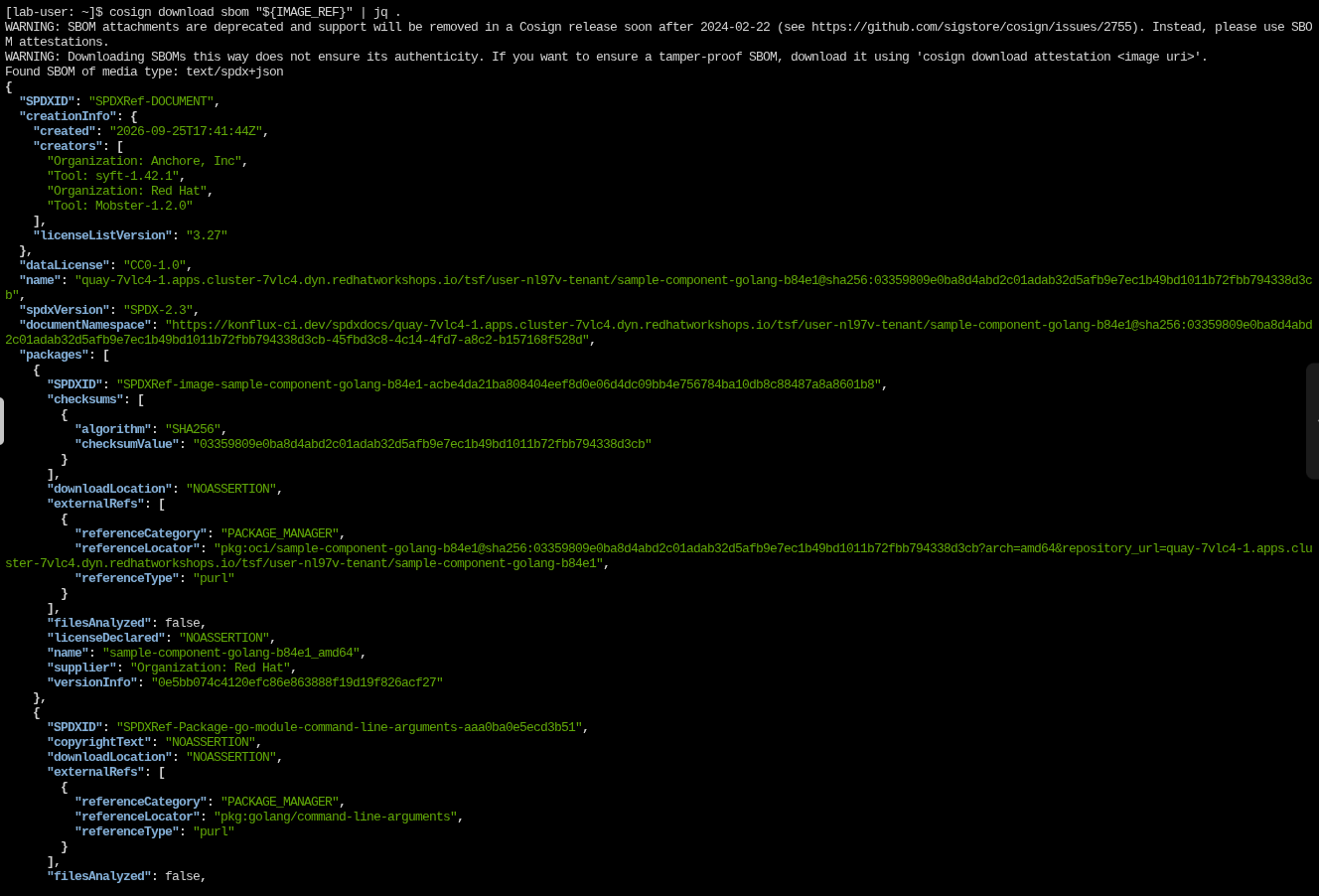 Figure 7. cosign SBOM output in the terminal
 -
Count the total number of packages in the SBOM:
cosign download sbom "${IMAGE_REF}" | jq '.packages | length'For this minimal Go sample application you will see a small number of packages — typically under ten. The exact count can vary as the base image or application dependencies are updated, so do not be concerned if your number differs slightly. This list is the complete dependency inventory that downstream policy engines and security teams use to evaluate the image.
-
Inspect a single package entry to see the fields tracked for each dependency:
cosign download sbom "${IMAGE_REF}" | jq '.packages[1] | {name, versionInfo, licenseDeclared}'Each package entry includes at minimum:
name,versionInfo, andlicenseDeclared. Most entries also include anexternalRefsarray containing apurl(Package URL), which uniquely identifies the package across ecosystems and is the format used by vulnerability scanners such as Grype and Trivy.Some entries show UNKNOWNorNOASSERTIONfor version or license — this is normal for internal build artifacts. Try incrementing the index (packages[2],packages[3], etc.) to find entries with richer metadata such as a real version string and a declared license likeBSD-3-Clause.Konflux tags images based on the triggering event: -
on-pr-<commit-hash>— merge request builds (before merge) -
-on-push--build-container— main branch builds (after merge) -
production— release builds created in Module 6The main branch build tag format is:
{component-name}-{id}-on-push-{pipelinerun-id}-build-container.For Modules 4-6, you will use the image with the
on-pushtag (from the build triggered after merging tomain).
-
4. Review Artifacts in Quay
Konflux pushes the container image and its provenance artifacts to Quay for every successful build. You will confirm the image is present, verify the digest, and review the source provenance labels embedded in the image before moving to Module 4.
-
Switch to the Quay tab and navigate to the tsf organization. Search for
{openshift_username}-tenant.Locate your component repository:
sample-component-golang-XXXXX(whereXXXXXis the generated suffix)Print the exact path from your terminal: echo "${IMAGE_BASE}". -
In the Tags view, locate the tag containing
on-push(for example,sample-component-golang-xxxxx-on-push-yyyyy-build-container).You will see multiple tags again (similar to Module 2), but the tag containing
on-pushidentifies the main branch build.Click the tag containing
on-pushto open the image detail page.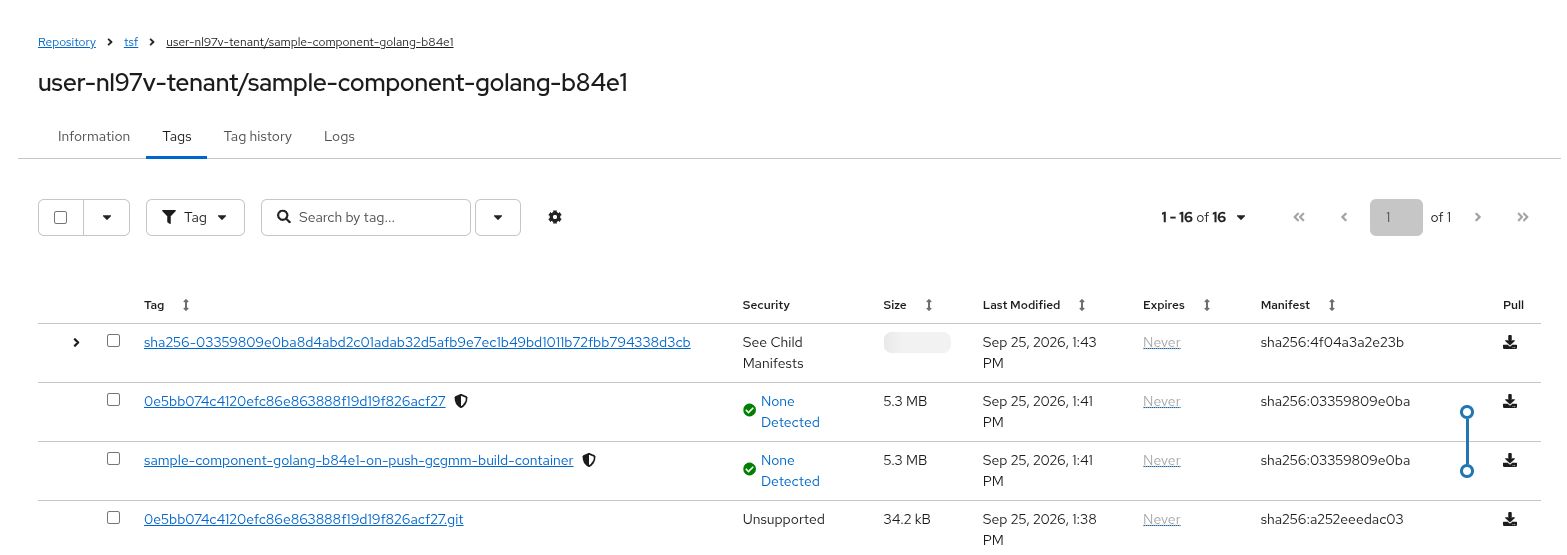 Figure 8. Quay image repository showing the pipeline build tag and the associated attestation artifact
 -
On the image detail page, confirm the following:
Field What to check Digest
Matches the
sha256:…value you copied from thebuild-containertask results — the same bytes the pipeline signed and attested.Vulnerabilities
Shows None Detected — the ClamAV and RPM signature scan tasks found no issues.
Labels
Expand the Labels section and look for
org.opencontainers.image.source(the GitLab repository URL) andvcs-ref(the exact commit SHA that triggered the build). These OCI standard labels make the image’s origin verifiable without reading pipeline logs. -
Return to the repository’s tag list. Alongside the image tag, you will see an artifact tag ending in
.git(for example,0e5bb074…c27.git). This is the SLSA provenance attestation stored as an OCI artifact — an in-toto statement that records which source commit, which pipeline, and which cluster produced this image. You will retrieve and verify it in Module 4.
Verify
-
The Quay repository for your component shows the
<component>-on-push-…-build-containerimage tag. -
The image digest shown in Quay matches the digest you copied from the pipeline logs.
-
The image labels include
org.opencontainers.image.sourceandvcs-refconfirming the source commit. -
A
<commit-sha>.gitartifact tag is listed alongside the container image tag.
Learning Outcomes Checkpoint
Before moving on, check that you can answer the following:
What artifacts does Konflux push to Quay for every successful build, and why are they kept separate?
The pipeline produces multiple artifacts stored in Quay.
The container image is what runs in production.
The SLSA provenance attestation — visible in Quay as a <commit-sha>.git OCI artifact — is a cryptographically verifiable record of which source commit, which pipeline, and which cluster produced the image.
The SPDX SBOM is stored as an OCI artifact and retrieved via cosign download sbom rather than appearing as a named tag in the Quay UI.
Keeping them separate means each artifact can be verified, stored, and consumed independently by different tools and teams.
What provenance information is embedded directly in the image labels, and why does that matter?
Every image Konflux builds carries OCI standard labels baked into the image manifest: org.opencontainers.image.source links back to the exact GitLab repository URL, and vcs-ref records the exact commit SHA that triggered the build.
These labels are visible directly in Quay without retrieving any attestation — anyone can verify at a glance which source produced the image, independent of the build system.
In Module 4 you will see how the SLSA attestation provides a cryptographically signed version of this same claim.
What makes the image digest important for later modules?
The image digest (sha256:…) is an immutable, content-addressed identifier.
It uniquely identifies the specific byte sequence of the image — changing even one byte produces a different digest.
Signing (Module 4) and policy checks (Module 5) operate on this digest, not on a mutable tag.
That means you can prove that the artifact you sign, test, and release is the exact same artifact the build pipeline produced — nothing more, nothing less.
What format is the SBOM in, and why does that matter for downstream tooling?
The pipeline generates SPDX 2.3-format SBOMs using syft. SPDX is an ISO-standardised open standard (ISO/IEC 5962:2021) supported by the majority of vulnerability scanners, software composition analysis platforms, and regulatory frameworks. Using a standard format means the SBOM you downloaded today is directly consumable by tools such as Grype, Trivy, or Red Hat Advanced Cluster Security without any conversion step.
Key Takeaways
-
The Konflux build pipeline runs entirely in-cluster on OpenShift Pipelines (Tekton) — no external CI system is required.
-
Every successful build produces multiple artifacts in Quay: the container image, an SPDX SBOM (accessible via cosign), and a SLSA provenance attestation stored as a
<commit-sha>.gitOCI artifact. -
OCI image labels (
org.opencontainers.image.source,vcs-ref) embed source provenance directly in the image manifest — verifiable in Quay without reading any attestation. -
SPDX SBOMs enumerate all packages in the image, giving security teams a complete dependency inventory without re-scanning the running container.
-
The image digest is immutable and content-addressed — it is the stable reference used for signing and policy gating in later modules.
-
Pipelines-as-Code makes build triggers automatic and auditable: every build traces back to the exact source commit that started it.