Signing and Provenance
Estimated time: 20 minutes
The build pipeline does more than produce a container image — it signs that image and attaches a provenance attestation that traces it back to the exact source commit and build environment. In this module you verify those cryptographic guarantees directly. You use cosign to check the image signature created by Red Hat Trusted Artifact Signer, inspect the SLSA Level 3 provenance attestation embedded in the image’s OCI metadata, and examine the Rekor transparency log entry that makes the signing event tamper-evident and auditable.
Learning Objectives
By the end of this module, you will be able to:
-
Verify the cryptographic signature on the built container image using cosign and Red Hat Trusted Artifact Signer.
-
Analyze the SLSA Level 3 provenance attestation to confirm it references the correct source commit, build pipeline, and builder identity.
-
Explore the Rekor transparency log entry to demonstrate that the signing event is tamper-evident and publicly auditable.
-
Explain the difference between a signed image with verifiable provenance and one without, and why this matters for supply chain security.
1. Verify the Image Signature
Konflux signs every successfully built image through Red Hat Trusted Artifact Signer using keyless Sigstore signing. No long-lived private key is involved — the signature is tied to the OIDC identity of the build pipeline service account at the moment of signing, and a short-lived certificate is issued by Fulcio and logged in Rekor. In this section you recover the image reference and run cosign verify to confirm the signature is valid.
-
Set the environment variable required for this lab’s self-signed TLS certificate:
export COSIGN_INSECURE_SKIP_TLS_VERIFY=true -
Initialize cosign with the lab’s private Trusted Artifact Signer root. By default cosign uses the public sigstore.dev infrastructure — this step points it at the lab’s self-hosted Rekor and Fulcio instances:
curl -sSLk https://tuf-tsf-tas.apps.cluster-%GUID%.example.com/root.json -o /tmp/tuf-root.json
cosign initialize --mirror https://tuf-tsf-tas.apps.cluster-%GUID%.example.com --root /tmp/tuf-root.json
Expected output:
Root status:followed by a JSON block listing the trusted Rekor and Fulcio endpoints for this cluster. -
Confirm your image digest is set from Module 3. If you are continuing in the same terminal session it will already be present. If not, paste the digest you copied from the
build-containertask results:if [ -z "${IMAGE_DIGEST}" ]; then echo "IMAGE_DIGEST not set — enter the sha256 digest from Module 3:" read -r IMAGE_DIGEST export IMAGE_DIGEST fi echo "Digest: ${IMAGE_DIGEST}" -
Retrieve the base image path and construct the full digest-pinned reference:
export IMAGE_BASE=$(oc get component \
  -n {openshift_username}-tenant \
  -o jsonpath='{.items[0].spec.containerImage}' | cut -d: -f1)
export IMAGE="${IMAGE_BASE}@${IMAGE_DIGEST}"
echo "Image: ${IMAGE}"
Expected output: a full image reference ending in
@sha256:…. -
Run cosign verify using the build pipeline service account identity pattern and the cluster OIDC issuer:
cosign verify \
  --certificate-identity-regexp 'https://kubernetes.io/namespaces/.*/serviceaccounts/build-pipeline-.*' \
  --certificate-oidc-issuer https://kubernetes.default.svc \
  ${IMAGE}
Expected output: a
Verification for <image> --header line followed by three validation checks, then a JSON array:Verification for <image> -- The following checks were performed on each of these signatures: - The cosign claims were validated - Existence of the claims in the transparency log was verified offline - The code-signing certificate was verified using trusted certificate authority certificates [{"critical":{"identity":...},"optional":{"Issuer":"https://kubernetes.default.svc","Subject":"https://kubernetes.io/namespaces/..."}}]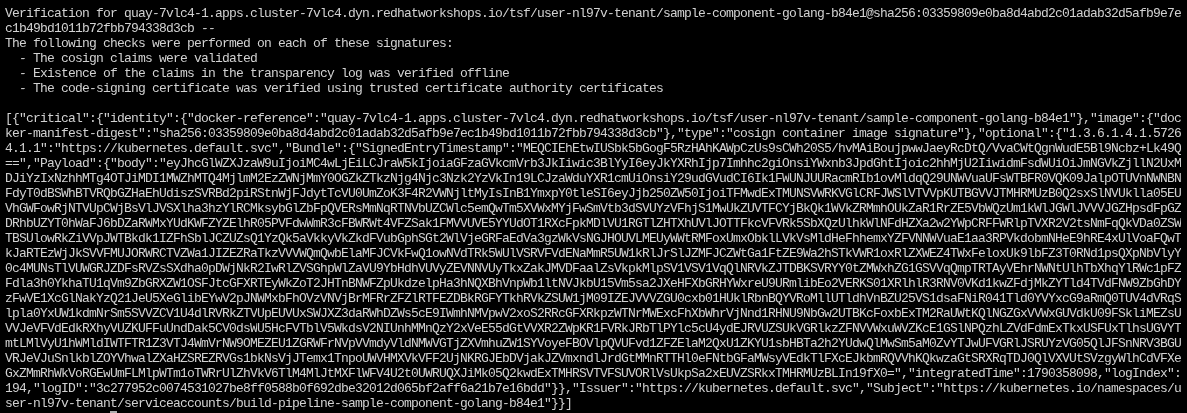 Figure 1. cosign verify — successful signature verification
The
optional.Subjectfield in the JSON confirms the Kubernetes service account identity that signed the image. If the command returns an error, confirm that$IMAGEcontains the full digest reference (@sha256:…). -
Confirm the subject shown contains your tenant namespace and component name. The format is
https://kubernetes.io/namespaces/{openshift_username}-tenant/serviceaccounts/build-pipeline-<component>;— this is the Kubernetes service account identity the Tekton pipeline ran as when it signed the image. -
Inspect what cosign verified by re-running with
--output jsonand piping to jq:cosign verify \ --certificate-identity-regexp 'https://kubernetes.io/namespaces/.*/serviceaccounts/build-pipeline-.*' \ --certificate-oidc-issuer https://kubernetes.default.svc \ ${IMAGE} \ --output json | jq '.[0] | { subject: .optional.Subject, issuer: .optional.Issuer }' -
Note that no
--keyflag was used. Keyless signing relies on the OIDC identity of the Tekton build service account rather than a static key pair. The Kubernetes API server (https://kubernetes.default.svc) acts as the OIDC issuer — it authenticates the service account at signing time and issues the short-lived certificate recorded in Rekor.
Verify
-
cosign verifyreturnsVerification for <image> — Verified OKfor your image. -
The certificate subject contains your tenant namespace and
build-pipeline-service account. -
The issuer is
https://kubernetes.default.svc— the cluster’s Kubernetes OIDC provider. -
No
--keyflag was used — this is keyless signing.
2. Inspect the SLSA Provenance Attestation
Alongside the signature, the build pipeline attaches an SLSA provenance attestation to the image. This attestation is a signed statement that describes what was built, who built it, and from what source. Konflux produces SLSA Level 3 provenance — meaning the attestation was generated by the build system itself in an isolated environment, not self-reported by the developer.
-
Count the attestations attached to your image.
cosign download attestationoutputs a stream of JSON objects — use the-sflag to slurp the stream into an array first:cosign download attestation ${IMAGE} | jq -s 'length'Expected output:
4— three SLSA provenance attestations (one per signed build artifact) and one SPDX Document containing the SBOM. -
Identify the SLSA predicate version used by your cluster’s build pipeline. The
predicateTypefield determines which field paths to use when extracting metadata:cosign download attestation ${IMAGE} | jq -r '.payload | @base64d | fromjson | .predicateType'You will see multiple lines —
https://slsa.dev/provenance/v0.2(SLSA v0.2) orhttps://slsa.dev/provenance/v1(SLSA v1) repeated for each signed artifact, plushttps://spdx.dev/Documentfor the SBOM attestation. Use the matching extraction command in the next step. -
Run the extraction command that matches the
predicateTypeyou saw in the previous step.In Konflux’s Tekton Chains implementation, the materialsarray records build tooling images — not the git source. The git repository URL and commit SHA are stored in PipelineRun-level annotations underpredicate.invocation.environment.annotations. ThepipelineRunfield resolves to the full Konflux UI URL for the run — you can open it directly to cross-reference the build.SLSA v0.2 —https://slsa.dev/provenance/v0.2cosign download attestation ${IMAGE} | jq -s ' map(select(.payload | @base64d | fromjson | .predicateType == "https://slsa.dev/provenance/v0.2")) | .[0].payload | @base64d | fromjson | { repo: .predicate.invocation.environment.annotations["pipelinesascode.tekton.dev/repo-url"], commit: .predicate.invocation.environment.annotations["build.appstudio.redhat.com/commit_sha"], builder: .predicate.builder.id, pipelineRun: .predicate.invocation.environment.annotations["pipelinesascode.tekton.dev/log-url"] }'SLSA v1 —https://slsa.dev/provenance/v1(run this only if step 2 returnedv1)cosign download attestation ${IMAGE} | jq -s ' map(select(.payload | @base64d | fromjson | .predicateType == "https://slsa.dev/provenance/v1")) | if length == 0 then "No SLSA v1 attestations — your cluster uses v0.2 (run the command above)" else .[0].payload | @base64d | fromjson | { repo: .predicate.buildDefinition.resolvedDependencies[0].uri, commit: .predicate.buildDefinition.resolvedDependencies[0].digest.gitCommit, builder: .predicate.runDetails.builder.id, pipelineRun: .predicate.runDetails.metadata.invocationId } end' -
Confirm the
repofield matches your GitLab repository URL from Module 2. -
Confirm the
commitfield matches the commit SHA from your code push in Module 3. Open GitLab and navigate to the commit history for your repository to verify the SHA.The
pipelineRunfield is a direct Konflux UI link to the build run that produced this attestation. Open it to cross-reference the pipeline tasks and the image digest. Figure 2. GitLab commit history showing the commit SHA that matches the provenance attestation
 -
Note the
builderfield. This is the Konflux pipeline service account identity that performed the build. The attestation was signed by that identity — meaning it is as trustworthy as the signing certificate, which is backed by the OIDC issuer you verified in Section 1.The attestation proves that a specific builder, running on a trusted build platform, took specific source code at a known commit and produced this exact image digest. Any alteration to the attestation content invalidates the signature, making tampering detectable.
Verify
-
cosign download attestation ${IMAGE} | jq 'length'returns a number greater than zero. -
The
predicateTypefield identifies eitherhttps://slsa.dev/provenance/v1orhttps://slsa.dev/provenance/v0.2. -
The
repofield in the attestation matches your GitLab repository URL from Module 2. -
The
commitfield matches the commit SHA from your Module 3 code push. -
The
builderfield ishttps://tekton.dev/chains/v2— the Tekton Chains signing identity. -
The
pipelineRunfield is a Konflux UI URL that links to the build run that produced this image.
3. Explore the Rekor Transparency Log
Every cosign signing event creates an entry in the Rekor transparency log — an append-only, tamper-evident record that cannot be deleted or modified. This entry is what makes the signing event publicly auditable: even if an attacker replaces the image in the registry, the original Rekor entry proves what the image looked like when it was signed.
-
Retrieve the Rekor log entry for your image. The log entry is embedded in the cosign verification JSON output:
cosign verify \ --certificate-identity-regexp 'https://kubernetes.io/namespaces/.*/serviceaccounts/build-pipeline-.*' \ --certificate-oidc-issuer https://kubernetes.default.svc \ ${IMAGE} \ --output json | jq '.[0].optional.Bundle | { logIndex: .Payload.logIndex, integratedTime: .Payload.integratedTime, signedTimestamp: .SignedEntryTimestamp }' -
Note the
logIndexvalue. This is a monotonically increasing integer — each entry added to the log receives the next available integer. Any gap in the sequence would be detectable by independent log monitors. -
Note the
integratedTimevalue. This is a Unix timestamp for when the entry was added to the log. Confirm it is close to when your PipelineRun completed in Module 3. -
Switch to the Rekor tab. Select the hash attribute, enter the digest portion of
$IMAGE(thesha256:…value, without the registry prefix), and search.You will see multiple log entries — one for each signing event associated with this image: the SLSA provenance attestations and the SBOM attestation. The image signature entry (from step 1) uses a different hash key internally and may not appear in this search — that is expected. What matters is that signing events are recorded and cannot be removed.
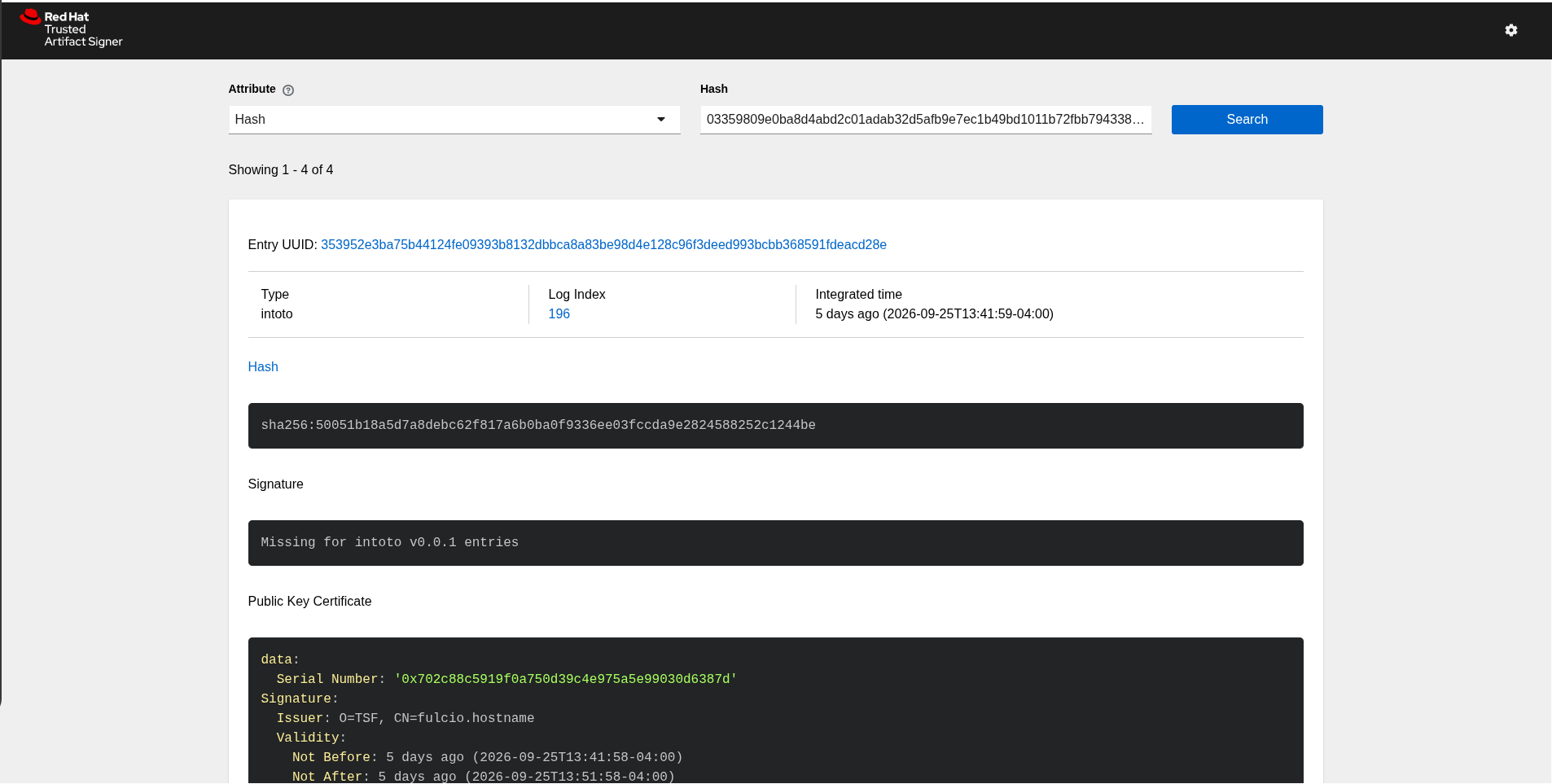 Figure 3. Rekor Search UI showing transparency log entries for the signed image
 -
Reflect on the tamper-evident property: if an attacker compromised the image registry and replaced the image bytes, the digest in the registry would change. Any consumer running
cosign verifywould see a signature mismatch — the signature covers the original digest, not the replacement. The Rekor entries remain, proving what the original image contained and when it was signed.
Verify
-
cosign verify --output jsonreturns anoptional.Bundlewith a non-nulllogIndexandintegratedTime. -
The
integratedTimetimestamp is close to the completion time of your Module 3 PipelineRun. -
The Rekor Search UI returns multiple log entries when searching for your image digest — confirming all signing events are recorded.
-
Each log entry has a unique, increasing
logIndexvalue.
Learning Outcomes Checkpoint
Before moving on, check that you can answer the following:
What does cosign verify actually check?
cosign verify performs three checks, exactly as the output confirmed:
-
Cosign claims validated — the signature is mathematically valid for the image digest. Any change to the image bytes produces a different digest and invalidates the signature.
-
Existence in the transparency log verified offline — the signing event was recorded in Rekor and the log entry matches the signature. This step works without contacting Rekor directly, using the signed timestamp embedded in the cosign bundle.
-
Code-signing certificate verified — the short-lived certificate was issued by a trusted certificate authority (Fulcio) for the expected OIDC identity. This confirms the signer was the legitimate Tekton Chains service account, not an impostor.
All three must pass. A signature by the wrong identity or one that covers a different digest both result in a verification failure.
Why does keyless signing not require a long-lived private key?
With keyless Sigstore signing, the build pipeline authenticates to Fulcio using its OIDC identity at build time. Fulcio issues a short-lived certificate tied to that identity. cosign uses this certificate to sign the image and logs both the certificate and the signature in Rekor. There is no persistent key to store, rotate, or revoke — the signing event is fully captured in Rekor at the moment it happens.
What is the relationship between the signature and the SLSA provenance attestation?
They are separate artifacts, both attached to the image in the OCI registry by digest. The signature proves that a trusted builder produced the image. The provenance attestation provides a detailed, signed record of what was built and how: the source repository, the source commit, the build pipeline, and the build environment. Together they answer two different questions: "Is this image authentic?" (signature) and "Where did this image come from?" (provenance).
How does the Rekor transparency log protect against registry compromise?
The Rekor log entry is append-only and cannot be deleted or modified.
It records the image digest, the signing certificate, and the timestamp at the moment of signing.
If an attacker replaces the image in the registry, the digest changes — and cosign verify fails because the signature on record covers the original digest, not the replacement.
The Rekor entry remains as evidence of both what the original image contained and when it was signed.
What must be true before Conforma can evaluate this image in Module 5?
The image must carry a valid signature and a SLSA provenance attestation that references a trusted builder identity and OIDC issuer. Conforma reads both in its policy evaluation. An unsigned image or one with a missing attestation fails the Conforma check immediately, blocking promotion regardless of how many other rules pass.
Key Takeaways
-
cosign with keyless Sigstore signing produces a cryptographic signature tied to the build identity — no long-lived keys to manage or rotate.
-
SLSA Level 3 provenance attestations provide a machine-verifiable record of what was built, by whom, from what source, and in what build environment.
-
The Rekor transparency log creates an immutable, auditable record of every signing event — the image signature and each attestation each get their own log entry. Registry compromise cannot erase any of them.
-
The combination of image signature, provenance attestations, and transparency log entries gives downstream consumers the evidence they need to trust an image.
-
cosign verify is the primary tool for consuming this evidence. Conforma in Module 5 automates this verification at scale with policy-encoded rules.