Section 1 — Verify ZTA Components and AAP Integration
|
In NIST SP 800-207 terms, Ansible Automation Platform (AAP) is the Policy Enforcement Point (PEP): operational change flows through it. Open Policy Agent (OPA) is a Policy Decision Point (PDP): it answers allow/deny from identity (IdM), state (NetBox), and context encoded in Rego. Vault supplies short-lived, least-privilege secrets instead of long-lived passwords in CMDBs or disks. SPIFFE/SPIRE (later sections) binds actions to a verified workload, not only a human username. Why this matters: Zero Trust assumes breach and removes implicit trust. You’ll see verify then act, deny by default, least privilege, and auditability throughout—not as buzzwords but as concrete gates in the automation path. |
Lab environment reference
These hostnames assume workshop DNS (*.zta.lab) is configured. Replace with instructor-provided values if different.
| System | URL / address | Credentials |
|---|---|---|
Automation controller (AAP 2.6) |
|
|
Event-Driven Ansible controller (AAP 2.6) |
Same platform as automation controller (EDA UI / route per deployment) |
|
IdM (FreeIPA) |
|
|
OPA |
No auth (lab) |
|
Vault |
|
|
NetBox |
API token and |
|
Gitea |
|
|
Splunk |
|
|
Wazuh Dashboard (If available) |
|
|
Application (Global Telemetry Platform) |
No auth (dashboard) |
| Username | Groups | Role in exercises |
|---|---|---|
|
|
General admin — can patch and deploy |
|
|
Network admin — VLAN exercises |
|
|
App developer — deployment pipeline |
|
(none) |
Often denied (wrong user scenarios) |
All IdM user passwords for workshop accounts: ansible123!
Overview
Connect Ansible Automation Platform to the Zero Trust stack. Workshop credentials are pre-created; you’ll verify Vault lookups and related objects, then configure inventory, project, templates, and run checks against IdM, Vault, OPA, NetBox, and Gitea.
|
Why this section exists
Until AAP is wired to the same identity, policy, secrets, and inventory truth the rest of the architecture uses, automation would be a shadow admin path—easy to bypass Zero Trust intent. Here you’ll make AAP a first-class citizen of the ZTA fabric: it authenticates like other services, reads policy from OPA, pulls secrets from Vault, and builds inventory from NetBox so what you run jobs against matches what the organization says exists. |
Exercise 1.1 — Verify AAP credentials (pre-configured, Vault-sourced)
To save time, workshop credentials have been created already. You’ll confirm Vault KV data and controller objects match the requirements for this lab.
|
Zero Trust: secrets on the platform
Machine and Arista passwords are not stored in AAP: the controller holds Vault paths and resolves them at job time. Only the bootstrap Vault lookup (and NetBox token) behave like classic "stored" secrets in the platform database. In production, tighten that with AppRole, TLS, and policy. |
Step 1 — Confirm Vault paths
Navigate to the Terminal tab. This terminal is directly connected to a machine called central. You can ssh into other machines from here. Let’s connect to our vault machine.
[rhel@central ~]$ ssh vault
The authenticity of host 'vault (<no hostip for proxy command>)' can't be established.
ED25519 key fingerprint is SHA256:JPJTTwXUvveQE493zZAr5/BYBIl96r8u11YdmuEUYI8.
This key is not known by any other names
Are you sure you want to continue connecting (yes/no/[fingerprint])? yes
Warning: Permanently added 'vault' (ED25519) to the list of known hosts.
rhel@vault's password:
Authenticate with the rhel user’s password: ansible123! Next, view the vault details. You’ll need to unlock the vault and login.
export VAULT_ADDR=http://vault.zta.lab:8200
vault login -method=userpass username=admin password=ansible123!

vault kv get secret/machine/rhel
vault kv get secret/network/arista
vault kv get secret/db/admin
Key Value
--- -----
token XXXXXXXXXXXXXXX
token_accessor Nv2UgHzhMWjAruTIS8Nji8bw
token_duration 768h
token_renewable true
token_policies ["default"]
identity_policies ["admin-policy.hcl"]
policies ["admin-policy.hcl" "default"]
token_meta_username admin
[rhel@vault ~]$ vault kv get secret/machine/rhel
vault kv get secret/network/arista
vault kv get secret/db/admin
====== Secret Path ======
secret/data/machine/rhel

======= Metadata =======
Key                Value
---                -----
created_time       2026-04-14T09:31:06.20779958Z
custom_metadata    <nil>
deletion_time      n/a
destroyed          false
version            1

========= Data =========
Key                Value
---                -----
become_password    ansible123!
password           ansible123!
======= Secret Path =======
secret/data/network/arista
======= Metadata =======
Key Value
--- -----
created_time 2026-04-14T09:27:13.133465998Z
custom_metadata <nil>
deletion_time n/a
destroyed false
version 1
====== Data ======
Key Value
--- -----
password admin
transport eapi
username admin
==== Secret Path ====
secret/data/db/admin
======= Metadata =======
Key Value
--- -----
created_time 2026-04-14T09:27:13.68491866Z
custom_metadata <nil>
deletion_time n/a
destroyed false
version 1
====== Data ======
Key Value
--- -----
host db.zta.lab
password postgres123!
port 5432
username postgres|
Why verify Vault before anything else
In later sections, AAP will request short-lived database credentials and signed SSH certificates from Vault at job time. Before relying on that chain, confirm it’s wired correctly. This is the ZTA principle of never trust, always verify applied to your own infrastructure. AAP credential objects store Vault paths, not passwords. The actual secrets live in Vault and are resolved at runtime. That indirection is deliberate: AAP is the Policy Enforcement Point that consumes secrets, not a password store. If a credential is compromised, you rotate it in one place (Vault) and every job template picks up the change automatically. By inspecting both sides—Vault KV data and AAP lookup metadata—you’re practicing the audit discipline Zero Trust demands: for any credential you should be able to answer where it comes from, who can read it, and what its scope is. |
Step 2 — Confirm credentials in the controller
Navigate to the Automation controller tab and login using the supplied credentials: 'admin/ansible123!'
Open Automation Execution → Infrastructure → Credentials and verify these names exist.
-
ZTA Vault Credential— Vault URL and v2; bootstrap auth present. -
ZTA Machine Credential— userrhel, sudo; Password and Become use lookups tosecret/data/machine/rhel(password,become_password). -
ZTA Arista Credential— lookups onsecret/data/network/arista. -
ZTA NetBox Credential— URL and token match NetBox. -
ZTA Vault SSH Credential— present (AppRole / signed SSH).
Do not change lookup paths unless an instructor is troubleshooting.
Test our HashiVault lookup!
We use Hashivault in this workshop so we can lookup credentials and keep credentials out of AAP. We should test that this lookup is actually working correctly.
Edit the 'ZTA Vault Credential', you will see there is a 'Test' button next to the save at the bottom. Click 'Test'
This allows us to test the lookup provided we give the correct details. These are the details we received earlier in the exercise.
====== Secret Path ======
secret/data/machine/rhel
======= Metadata =======
Key Value
--- -----
created_time 2026-04-14T09:31:06.20779958Z
custom_metadata <nil>
deletion_time n/a
destroyed false
version 1
========= Data =========
Key Value
--- -----
become_password ansible123!
password ansible123!Name of Secret |
secret |
Path to Secret |
/machine/rhel |
Path to Auth |
userpass |
Key Name |
password |
Click 'Run' to see if the lookup is working. You can now attempt with the other two credential sets.
| Credential | Type | Source |
|---|---|---|
ZTA Vault Credential |
Vault lookup |
Bootstrap (stored in AAP) |
ZTA Machine |
Machine |
KV |
ZTA Arista |
Network |
KV |
ZTA NetBox |
NetBox |
Token in AAP |
ZTA Vault SSH |
Vault Signed SSH |
AppRole + |
Exercise 1.2 — IdM LDAP (Authentication Methods UI)
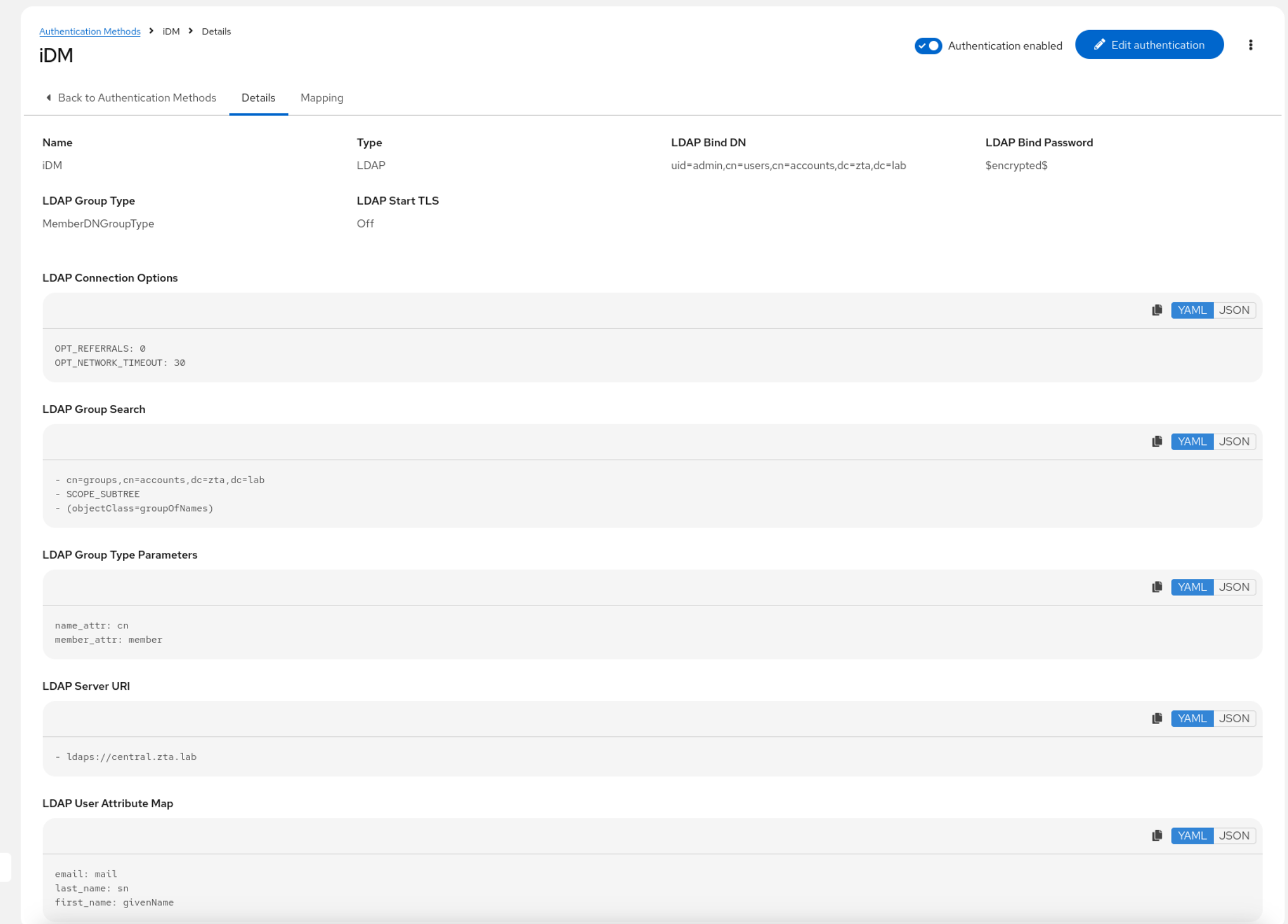
Create LDAP authentication:
-
On the platform as admin. Navigate to Access Management → Authentication Methods → Create authentication.
-
Set Authentication type to LDAP.
-
Fill the top fields:
Field Value (workshop defaults) Name
IdM LDAP(or any label)LDAP Server URI
ldaps://central.zta.labLDAP Bind DN
uid=admin,cn=users,cn=accounts,dc=zta,dc=labLDAP Bind Password
IdM
adminpassword (ansible123!unless overridden)LDAP Group Type
MemberDNGroupTypeLDAP User DN Template
Leave empty
LDAP Start TLS
Off (LDAPS already encrypts the connection)
-
LDAP Connection Options (YAML):
OPT_REFERRALS: 0 OPT_NETWORK_TIMEOUT: 30 -
LDAP Group Type Parameters (required).
name_attr: cn member_attr: member -
LDAP Group Search (YAML list — three elements):
- cn=groups,cn=accounts,dc=zta,dc=lab - SCOPE_SUBTREE - (objectClass=groupOfNames) -
LDAP User Attribute Map (required; YAML):
first_name: givenName last_name: sn email: mail -
LDAP User Search (YAML list — three elements):
- cn=users,cn=accounts,dc=zta,dc=lab - SCOPE_SUBTREE - (uid=%(user)s) -
Enable Enabled (and Create objects). Save (Create Authentication Method).
Click 'Save Authentication Method', then navigate to 'Mapping'.
Organisation and team mapping
Why authenticator mapping matters for Zero Trust
In a Zero Trust model, authentication alone is insufficient. Proving identity (LDAP bind succeeds) doesn’t grant any permissions—that’s by design. Authenticator maps translate a verified external identity into scoped, least-privilege access within AAP:
-
Without maps: An IdM user logs in successfully but sees an empty platform—no organization membership, no teams, no templates. Authentication happened, but authorization didn’t.
-
With maps: LDAP group membership (e.g.
team-security) flows into an AAP team assignment, which controls which job templates that user can see and execute. The external identity provider (IdM) remains the single source of truth—no parallel local accounts to maintain, and offboarding in IdM immediately removes AAP access on next login. -
Least privilege by construction: Each map grants the minimum role needed. Organization members can view; team members can execute their team’s templates; only
zta-adminsreceive org-admin or superuser. There’s no "everyone gets everything" default. -
Auditability: Every job execution traces back through the map chain: IdM user → LDAP group → AAP team → template permission → job run. This is the audit trail Zero Trust demands.
Which groups you reference (by DN)
These are the IdM groups the workshop uses in Group triggers (dc=zta,dc=lab). Use the full DN in the Groups list for each map (one DN per entry).
IdM group (cn) |
Full DN (paste into Groups) |
|---|---|
|
|
|
|
|
|
|
|
|
|
|
|
|
Login vs role grants
You are not "allowing" only these users to log in unless you add a separate Allow map that lists those DNs. Organization, Team, Superuser, and similar maps mean: if the authenticated user is in that LDAP group, then grant the mapped organisation role, team membership, or superuser flag. Everyone else can still log in if LDAP authentication itself permits them; they simply will not receive those grants without a matching map. |
Required Mapping
Use Mapping on your LDAP authenticator and click on 'Create mapping' to create each of these maps in order:
-
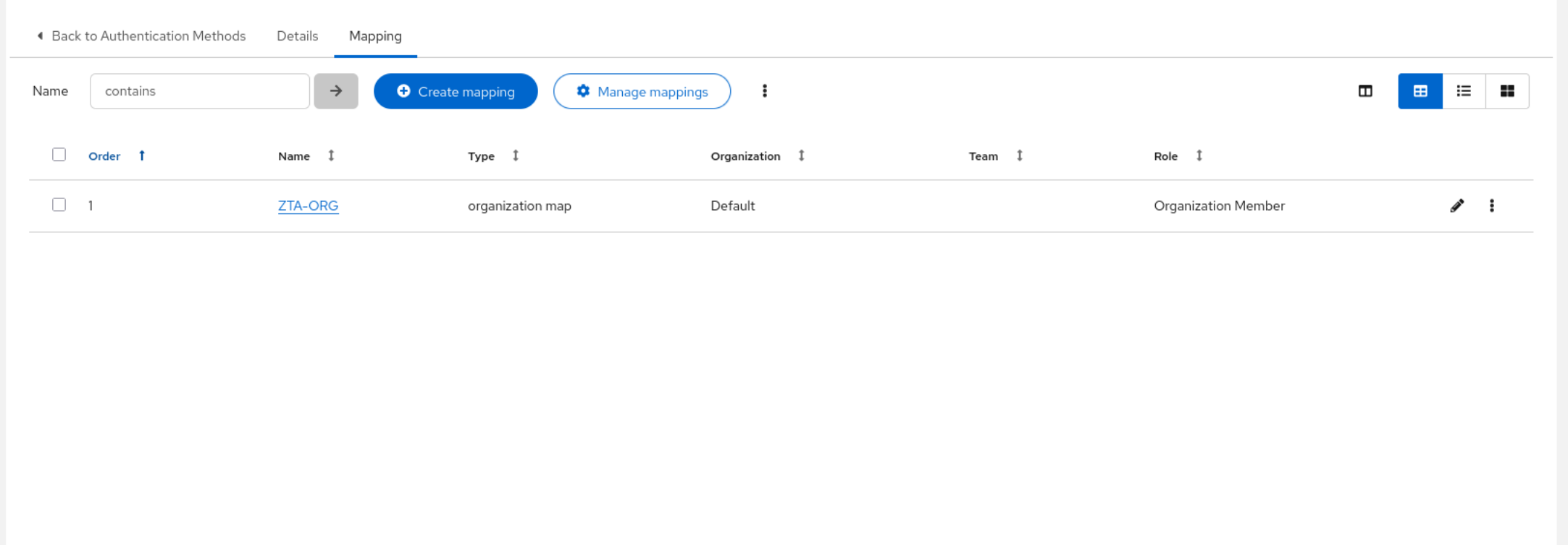
Organisation → Member (Always) — ensures every LDAP-authenticated user becomes a member of the Default organisation. Without this map, users log in but see an empty platform with no resources.
Field Value Authentication mapping
Organisation
Name
ZTA-ORG
Trigger
Always
Organization
Default
Role
Organization Member
Click 'Save mapping' to view the details and create the next one. Click on 'Mapping' to get back to the mapping page. Continue with the rest of the mappings.
-
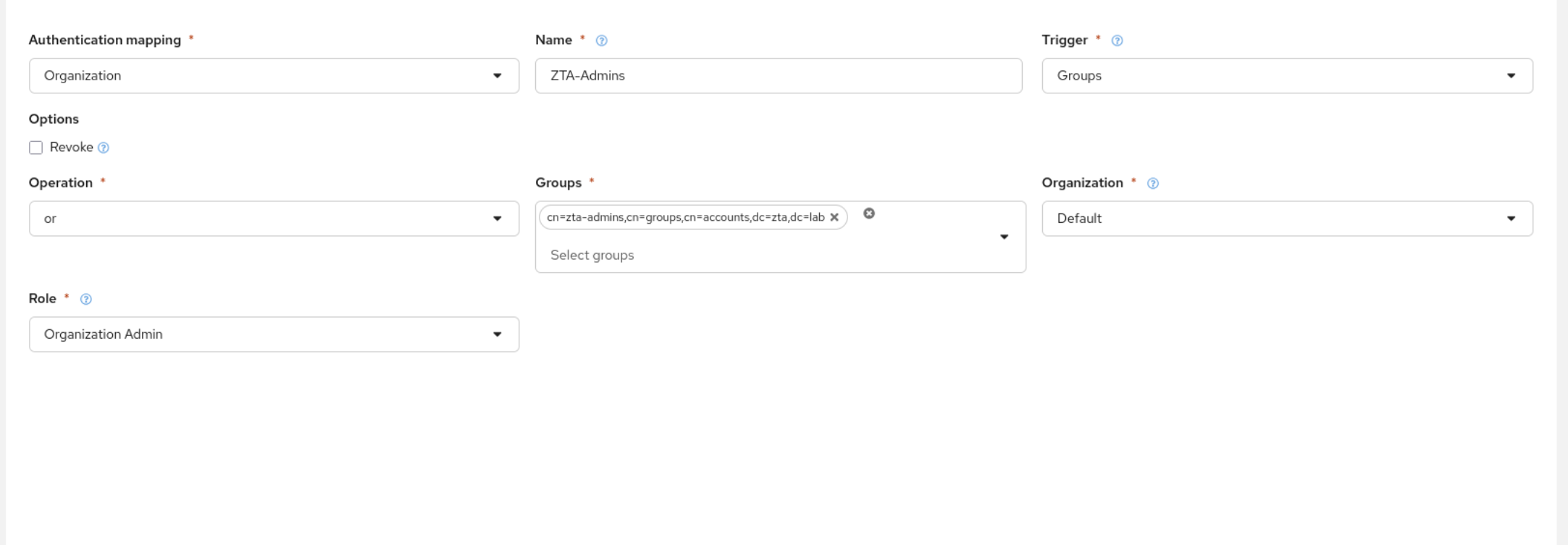
Organisation → Admin (Group) — grants organisation admin to
zta-admins:Field Value Authentication mapping
Organisation
Name
ZTA-Admins
Trigger
Groups
Operation
or
Groups
cn=zta-admins,cn=groups,cn=accounts,dc=zta,dc=labOrganisation
Default
Role
Organization Admin
-
Superuser (Group) — grants superuser flag to
zta-admins:Field Value Authentication mapping
Superuser
Name
ZTA-SuperUser
Trigger
Groups
Operation
or
Groups
cn=zta-admins,cn=groups,cn=accounts,dc=zta,dc=lab
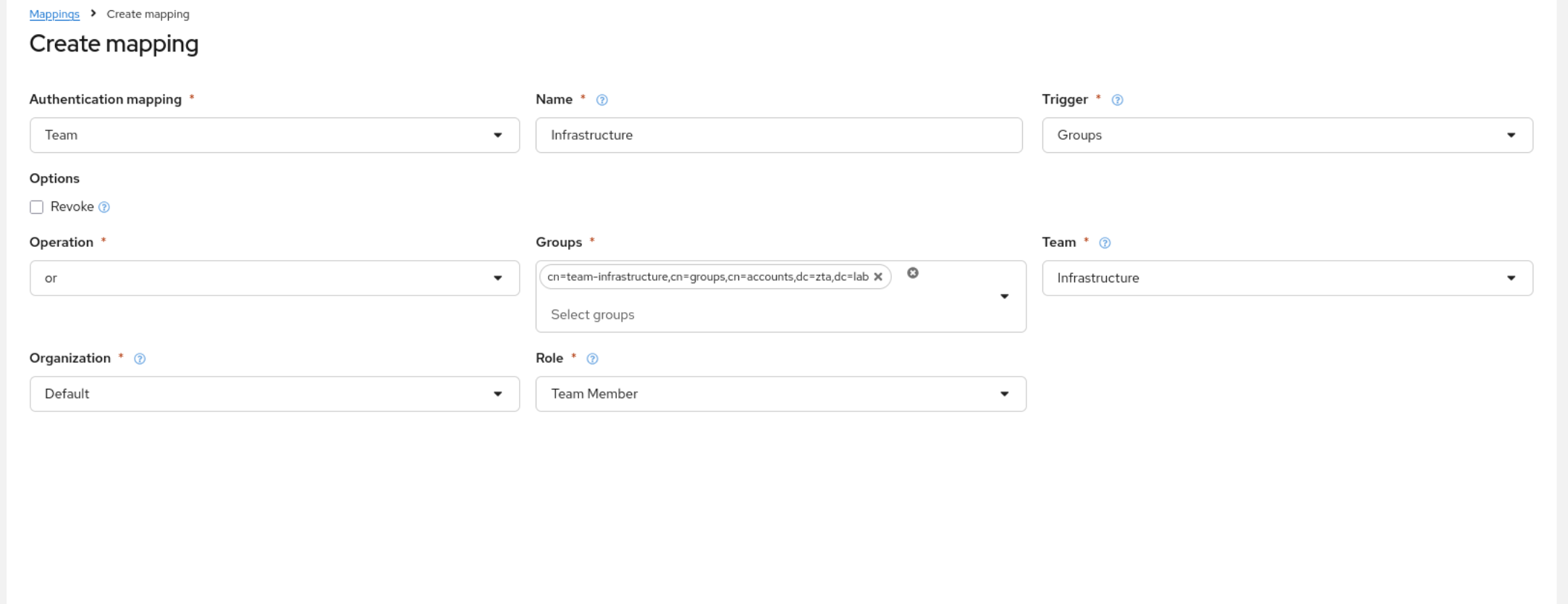
Below is an example for the Infrastructure team. Create this and continue with the remaining teams referenced below.
-
Team (Group) — one map per team, each mapping an IdM group to an AAP team in Default:
IdM group ( cn)AAP team name (Default org) team-infrastructureInfrastructure
team-devopsDevOps
team-securitySecurity
team-applicationsApplications
team-readonlyReadonly
-
Infrastructure (Group) — example team mapping:
Field Value Authentication mapping
Team
Name
Infrastructure
Trigger
Groups
Operation
or
Groups
cn=team-infrastructure,cn=groups,cn=accounts,dc=zta,dc=labTeam
Infrastructure
Organization
Default
Role
Team Member
Verify
-
In the AAP tab, select the 'admin' user in the top right and sign out. Log in as
ztauser/ansible123!. -
Confirm the user lands on a populated dashboard.
-
Check that team membership is visible under Access Management → Users →
ztauser→ Teams.
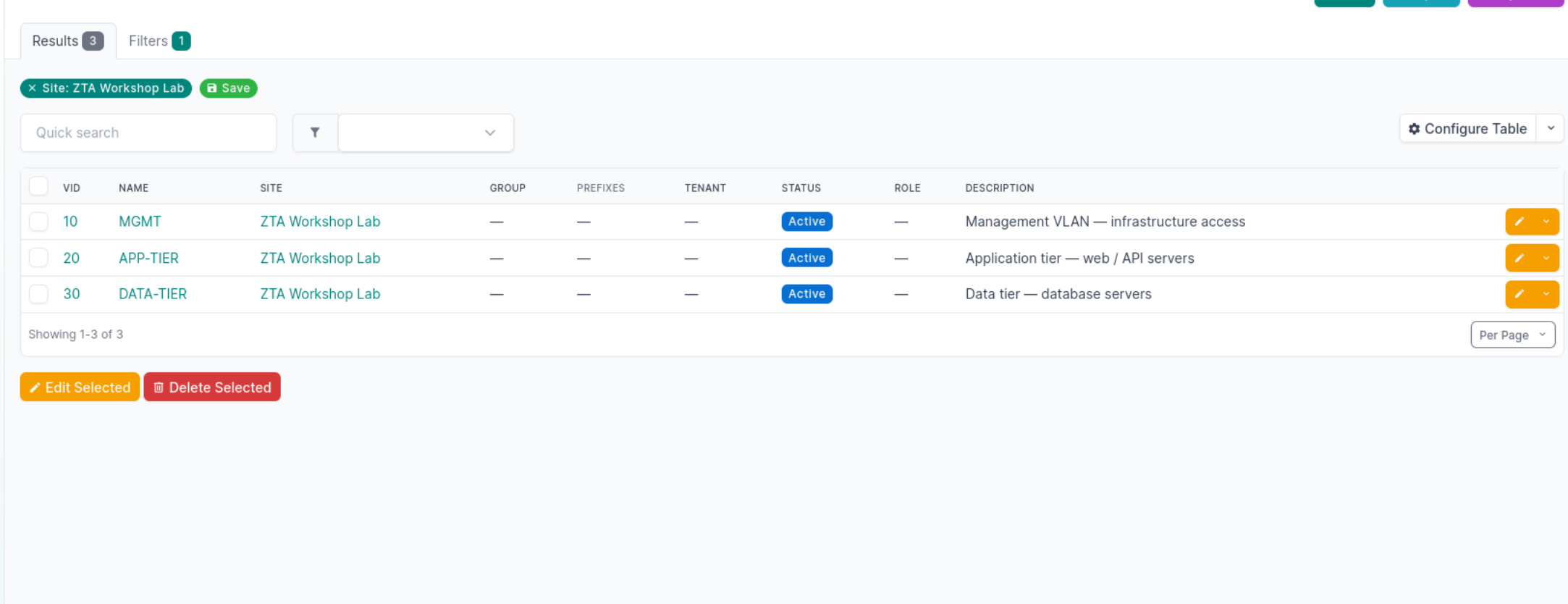
This workshop also has a CMDB as a source of truth, If you navigate to the Netbox tab and login with the credentials 'admin/netbox'. Navigate to 'Sites' → 'Sites' and select 'ZTA Workshop Lab'. You will be able to view the devices and configurations of the VLANS. Clicking on VLANs we can see we have three VLANS configured on our network. App-tier, Data-tier and a Management VLAN. We will interact with this later in the workshop.
|
Source of truth and GitOps
NetBox is the infrastructure source of truth in this workshop: if a host is decommissioned there, it should disappear from automation inventory on sync—reducing "ghost" targets attackers or operators could hit. Gitea holds intent (playbooks); together they separate what exists (CMDB) from what we want to do (code), both subject to policy in later sections. |
Exercise 1.3 — Verify ZTA services
|
Never trust, always verify
Service checks are the operational face of "never trust, always verify": you do not assume IdM or OPA is up because yesterday it was. For the workshop, this mirrors continuous diagnostics on which policy decisions and secret issuance depend. |
Navigate back to AAP and to Automation Execution → Templates on the automation platform. There are a number of templates available. Run Verify ZTA Services by clicking on the rocket on the right of the template.
Inspect the output. At the bottom there’s a summary of the checks. If successful, you can proceed.
Exercise 1.4 — Test Vault integration
|
Short-lived database identities
Dynamic DB users with a TTL limit how long a leaked credential is useful—core assume breach hygiene. Vault revokes the lease so the database role disappears without a human running |
Next, execute Test Vault Integration. Observe short-lived PostgreSQL users (unique name per run, TTL, revoke at end).
TASK [Display Vault integration results] ***************************************
ok: [vault] => {
"msg": [
"Vault integration test — results",
"KV secret read: PASS (secret/network/arista)",
"Dynamic DB username: v-userpass-ztaapp-s-anmlwAfJij4NVbUPFDjj-1776239621",
"Dynamic DB TTL: 300s",
"Lease ID: database/creds/ztaapp-short-lived/OmVYG5cQm5PqMdPe7Wh6fd4v",
"Short-lived DB user expires after TTL (Zero Trust / least privilege)."
]
}
Exercise 1.5 — Test Vault SSH certificates
|
Cryptographic proof of permission to log in
The certificate encodes who may act as which principal and for how long. Hosts only need to trust the CA once; they don’t need network reachability to Vault at login time. That separation is useful in segmented networks and matches the ZTA idea that access is explicitly granted and expires. |
In this workshop we will use a SSH CA key pair to connect to systems. The CA has been deployed with Ansible to all hosts in this environment already. When AAP needs to run a template, instead of using a password or static key it will ask vault "sign this public key for principal rhel please" - Vault will check the ssh-signer role to check if rhel is an allowed principal and if the TTL is valid.
Vault will sign the key and returns a short lived credential for AAP to use. AAP will sign in with this certificate to ssh into the system and checks it against the trusted CA to get access to the host.
Once the TTL has expired the certificate is no longer valid to use.
Navigate to the 'Terminal' tab and make sure you are on the vault machine still, or ssh back in, and we can check vault for the requirements.
This will provide the public key:
vault read ssh/config/caThis will provide the details of the signer role:
vault read ssh/roles/ssh-signerNavigate back to AAP and run Test Vault SSH Certificates. Observe CA-signed cert, TTL, principals, successful SSH to app/db.
|
Vault SSH CA vs static keys
Signed SSH certificates are the Zero Trust answer to shared static keys. |
Exercise 1.6 — Test OPA policy
|
Deny by default (PDP)
OPA returns allow only when Rego rules fire; everything else is implicit deny. IdM groups supply role-like attributes the PDP can use, but unlike a static RBAC matrix in one app, the same policy can be versioned, tested, and shared across AAP and other PEPs. You’re seeing central policy backing distributed enforcement. |
Lastly, run Test OPA Policy. Expect allow/deny scenarios for patching, VLAN, and DB access per group membership.
TASK [OPA policy test summary] *************************************************
ok: [central] => {
"msg": [
"OPA policy test — summary",
"Test 1 — Patch (authorised): ALLOW",
"Test 2 — Patch (wrong group): DENY",
"Test 3 — VLAN (network-admin): DENY",
"Test 4 — VLAN (no group): DENY",
"Test 5 — DB (app-deployer): ALLOW",
"Zero Trust: deny-by-default, policy-driven access."
]
}
If all tests were successful, you can move on to the next exercise.