Module 2: Red Hat OpenShift AI configuration
Red Hat OpenShift AI running on Single Node OpenShift provides the complete AI/ML platform for model training, serving, pipelines, and monitoring. This module reviews the pre-configured Red Hat OpenShift AI environment optimized for edge deployments.
Learning objectives
By the end of this module, you will be able to:
-
Access the Red Hat OpenShift AI Dashboard
-
Navigate data science projects and understand how they organize AI/ML resources
-
Review DataConnections linking RHOAI to robot storage
Exercise 2.1: Access the Red Hat OpenShift AI web interface
The Red Hat OpenShift AI operator is installed and pre-configured in the Single Node OpenShift cluster.
Access the Red Hat OpenShift AI console
Access the Red Hat OpenShift AI dashboard:
-
Open the RHOAI dashboard and login with credentials:
https://rhods-dashboard-redhat-ods-applications.apps.cluster.example.comCredential Value Username
adminPassword
password -
Click Allow selected permissions if prompted
-
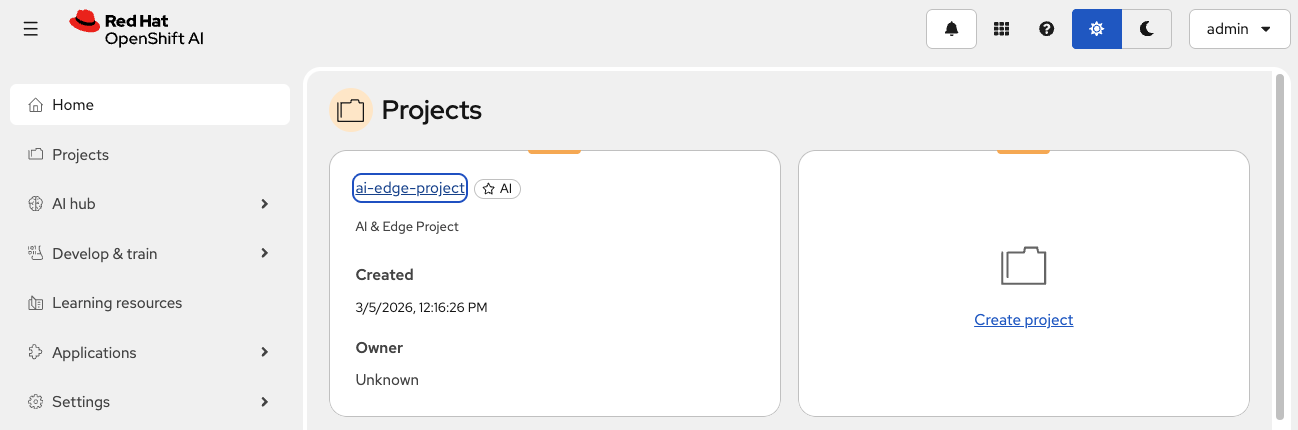
You’ll see the RHOAI landing page
Exercise 2.2: Review data science project
Data Science Projects in Red Hat OpenShift AI organize users and AI/ML resources in a single namespace. For our battery monitoring solution, the ai-edge-project contains all necessary components: workbenches, data connections, model servers, and pipelines.
Access the ai-edge-project
-
Ensure you’re in the Red Hat OpenShift AI Dashboard
-
Click Projects in the left navigation
-
Locate and click on
ai-edge-projectthat has been pre-created
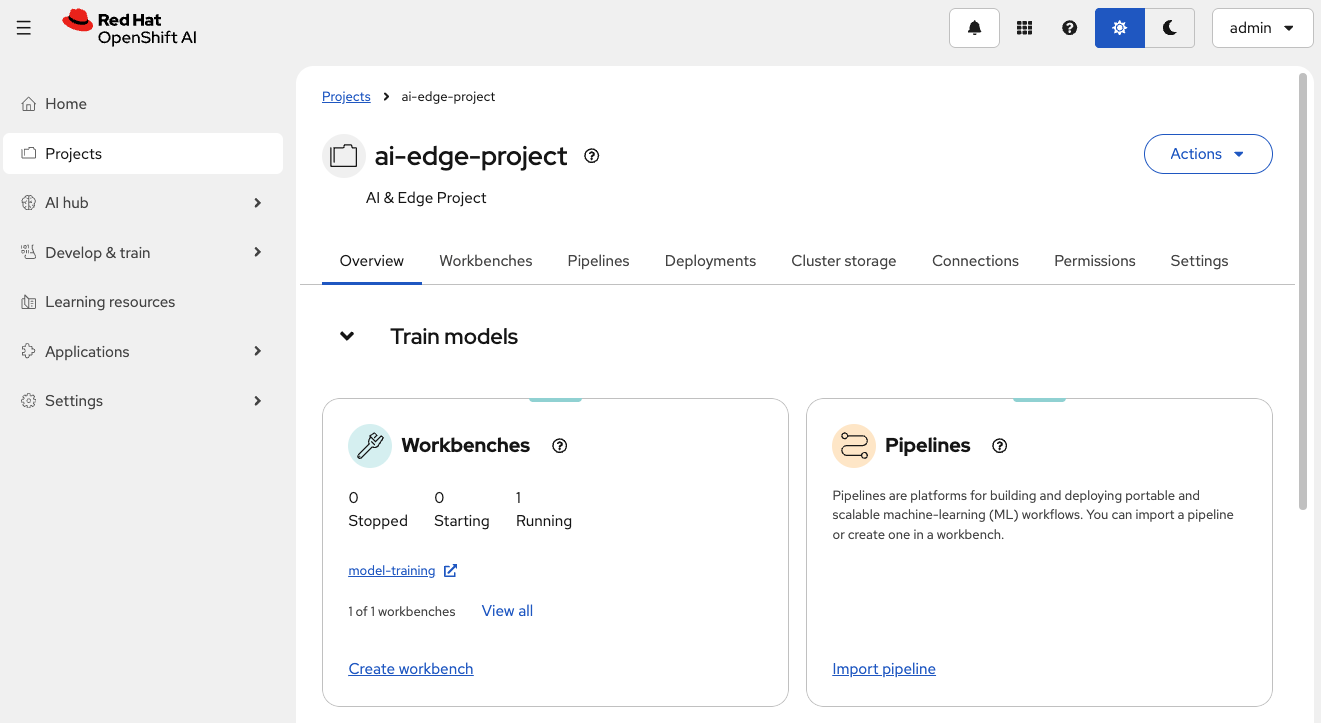
The project dashboard shows multiple tabs for managing AI/ML resources.
Explore project components
Review the project dashboard tabs:
-
Overview - Project details and quick access to resources
-
Workbenches - JupyterLab development environments
-
Pipelines - Automated ML workflows
-
Deployments - Deployed model servers for inference
-
Connections - External storage and data sources
-
Permissions - User access control
These tabs organize all resources for the battery monitoring AI solution.
Exercise 2.3: Review data connection
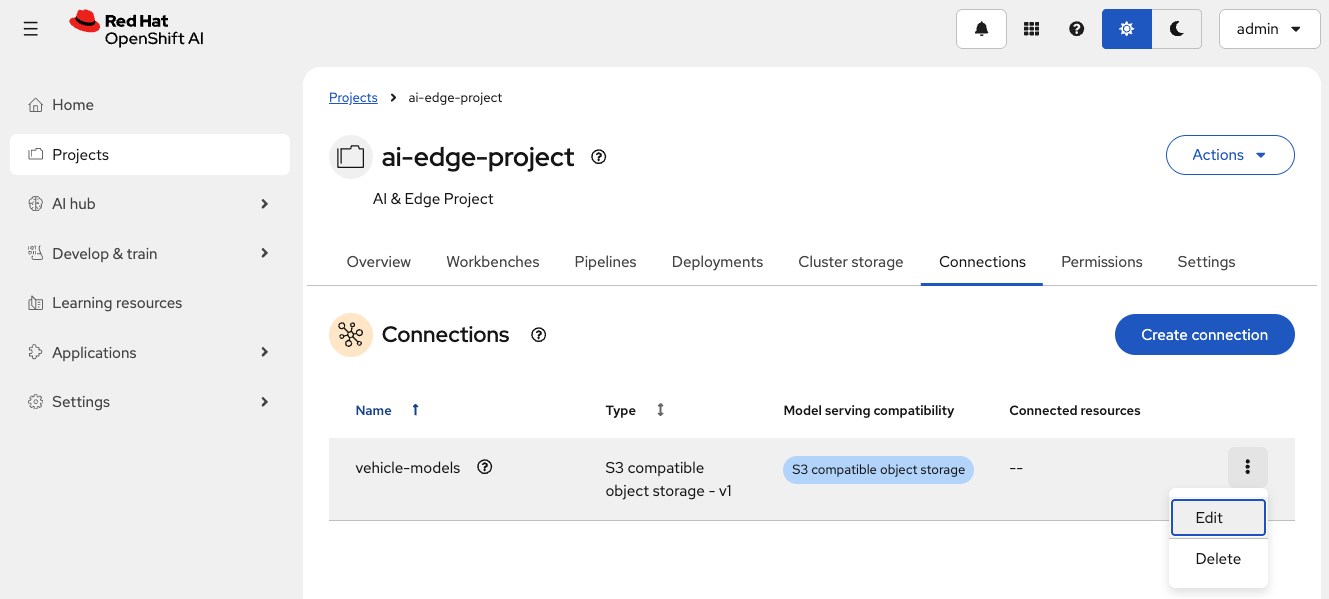
Data connections link Red Hat OpenShift AI to external object storage. The vehicle-models connection provides access to the robot’s MinIO storage where AI models are stored. The connection bridges the SNO training environment and robot’s edge storage.
Review the vehicle-models data connection
-
Ensure you’re in the RHOAI Dashboard inside the
ai-edge-projectproject -
Navigate to the Connections tab
-
Locate the existing connection:
vehicle-models -
Click on the three vertical dots (⋮) on the right and click Edit
Understand connection parameters
The vehicle-models connection is configured with:
| Parameter | Value | Purpose |
|---|---|---|
Connection type |
S3 compatible object storage - v1 |
Standard S3 protocol compatible with MinIO |
Connection name |
|
Identifier for this data connection |
Access key |
|
MinIO access credential |
Secret key |
|
MinIO access password |
Endpoint |
|
Robot’s MinIO storage service URL |
Region |
|
Default S3 region, required but unused by MinIO |
Bucket |
|
Contains AI models in the robot |
Close (x) the configuration view
Data connections are stored as Kubernetes Secrets. The secret contains base64-encoded S3 credentials:
-
AWS_ACCESS_KEY_ID- MinIO username -
AWS_SECRET_ACCESS_KEY- MinIO password -
AWS_S3_ENDPOINT- MinIO API endpoint -
AWS_DEFAULT_REGION- S3 region -
AWS_S3_BUCKET- Target bucket name
| All values are base64-encoded for security. Red Hat OpenShift AI components automatically decode them when using the connection. |
Summary
You have reviewed the pre-configured Red Hat OpenShift AI environment on Single Node OpenShift:
✓ Red Hat OpenShift AI Dashboard - Web interface accessible and operational
✓ ai-edge-project - Data Science Project organizing all battery monitoring AI resources
✓ vehicle-models data connection - S3 connection linking SNO to robot’s MinIO storage
What You’ve Learned:
-
Red Hat OpenShift AI provides a complete AI/ML platform on SNO
-
Data Science Projects organize resources in namespaces
-
Data connections link Red Hat OpenShift AI to external storage (robot’s MinIO)
-
Secrets store S3 credentials securely
-
The SNO server can access robot storage over the factory network
The Red Hat OpenShift AI environment is ready for model training and automated retraining workflows.
Next, you’ll explore the pre-configured workbench where data scientists train battery health prediction models.
Navigate to Module 3: Model training.