Module 3: Model training
This module explores the model training infrastructure on the Single Node OpenShift (SNO) server. You’ll access a Jupyter notebook environment, import training notebooks from Git, and execute the complete model training workflow for battery health prediction models.
Learning objectives
By the end of this module, you will be able to:
-
Access and configure Jupyter workbench environments in Red Hat OpenShift AI
-
Import training notebooks from Git repositories using JupyterLab
-
Execute model training workflows for Stress Detection and Time to Failure prediction
-
Understand the training pipeline from data collection through model export
-
Export trained models to OpenVINO format for edge deployment
Exercise 3.1: Review and access workbench
Red Hat OpenShift AI provides Jupyter workbench environments for data scientists to develop and train machine learning models. The workbench includes pre-configured runtimes with necessary libraries and tools.
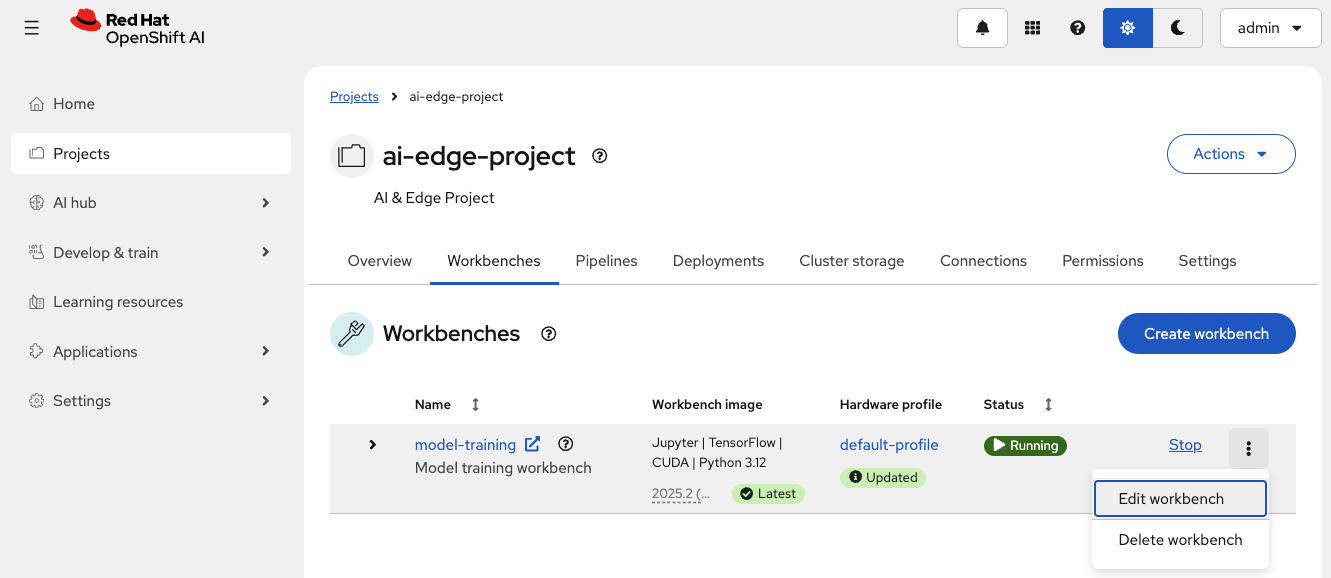
Review the model-training workbench
-
Ensure you’re in the
ai-edge-projectproject in the Red Hat OpenShift AI Dashboard -
Navigate to the Workbenches tab
-
Locate the
model-trainingworkbench -
Click on the three vertical dots (⋮) on the right and click Edit workbench
Understand Workbench configuration
The Workbench is configured with:
| Parameter | Value | Purpose |
|---|---|---|
Name |
|
Workbench identifier for model training |
Image selection |
|
Development environment with ML frameworks |
Version selection |
|
Latest version available |
Hardware profile |
|
2 CPUs and 4 GiB of memory |
Attach DataConnection
Connect the Workbench to the existing DataConnection that contains the credentials to access the MinIO instance in the transportation robot.
-
Select Attach existing connections
-
Verify that the
vehicle-modelsconnection is selected -
Click Attach
-
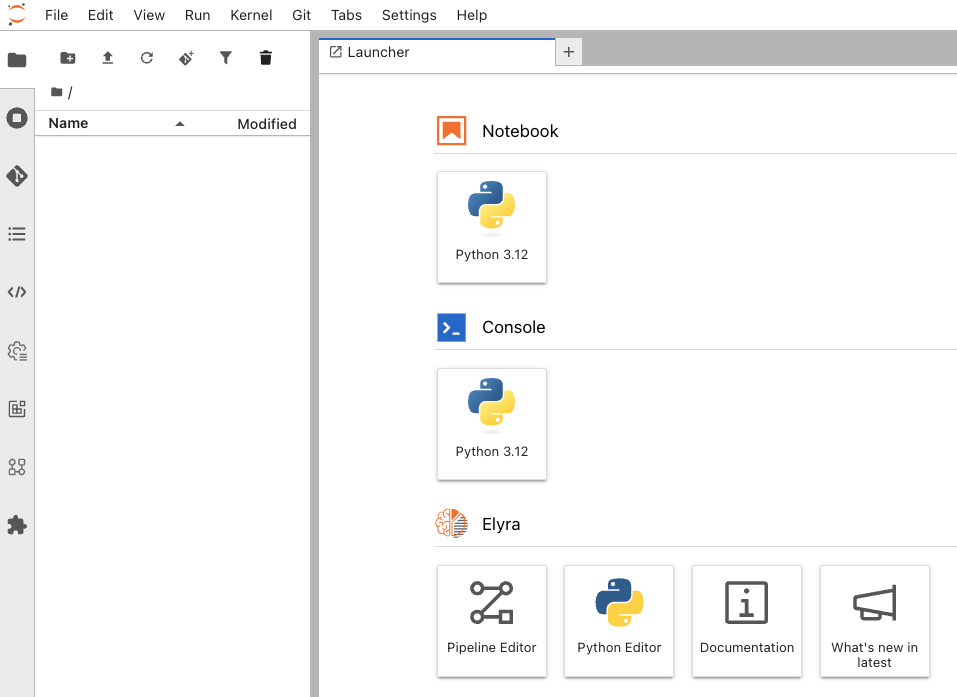
To apply the configuration, click Update workbench
Exercise 3.2: Import training notebooks
The training notebooks are stored in a Git repository. You’ll clone the repository directly into your JupyterLab environment to access the complete training workflow.
Clone the Git repository
-
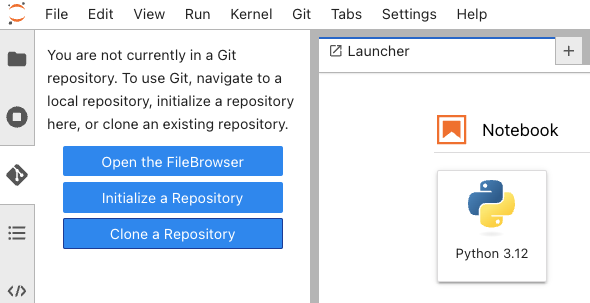
In JupyterLab, click the Git icon in the left sidebar (looks like a branching diagram)
-
Click Clone a Repository
-
Enter the repository URL:
https://github.com/rhpds/ai-lifecycle-edge-automation.git -
Click Clone
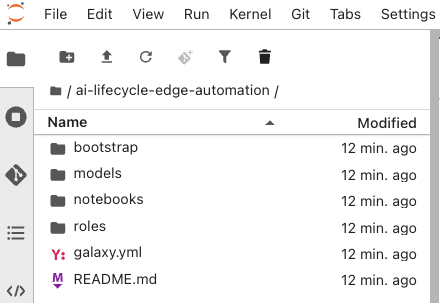
JupyterLab clones the repository and creates an ai-lifecycle-edge-automation folder in your workspace.
Exercise 3.3: Execute training notebooks
Run the training notebooks to train both battery health prediction models. The notebooks demonstrate the complete ML workflow from data collection to model export.
Understand the training workflow
-
In the file browser, expand the
ai-lifecycle-edge-automationfolder -
Navigate to
notebooks/training/ -
Verify you see the training notebooks:
-
retrieve-influx-data.ipynb - Retrieve battery telemetry from InfluxDB on robots
-
prepare-data.ipynb - Clean, normalize, and prepare training datasets
-
bms-stress-training.ipynb - Trains the Stress Detection model and saves it locally
-
predict-stress.ipynb - Validates the Stress Detection model performance with new data
-
bms-ttf-training.ipynb - Trains the Time to Failure model and saves it locally
-
predict-ttf.ipynb - Validates the Time to Failure model performance with new data
-
save-models.ipynb - Store in MinIO instance in MicroShift for distribution to robots
-
-
Open in order each file and press the Play button at the top to manually run each cell or the Double Play icon to run the entire file
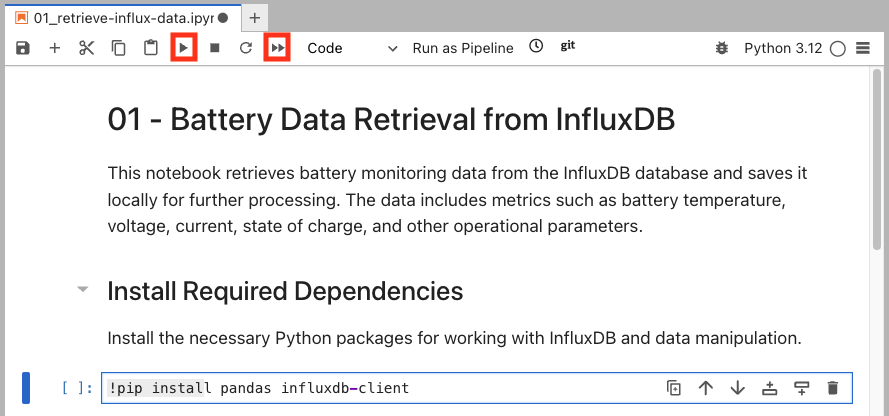
At this point, you can follow the instructions contained in each Notebook. Those will explain each step in detail. Pay attention to some of the variables used during the execution. You will need to replace some of them based on your environment. For example, in the first notebook you will need to replace the InfluxDB URL with yours:
https://influx-db-microshift-001.apps.cluster.example.comOnce you have run all of them, the new AI models should have been uploaded to the vehicle’s MinIO storage and are now being used by the Battery Monitoring System for real-time stress detection and time-to-failure predictions.
Verify model export
After all notebooks complete, check that models were exported to OpenVINO format and MinIO contains updated models:
-
Open MinIO dashboard:
https://minio-microshift-001.apps.cluster.example.comCredential Value Username
minioPassword
minio123 -
Navigate to
inferencebucket -
Verify
stress-detection/1/containsmodel.xmlandmodel.bin -
Verify
time-to-failure/1/containsmodel.xmlandmodel.bin -
Check file timestamps show recent updates
Verify
✓ Notebook executes all cells without errors
✓ Data collection retrieves telemetry from InfluxDB
✓ Training shows loss decreasing over epochs
✓ Upload confirms storage to MinIO
✓ stress-detection/1/model.xml exists with recent timestamp
✓ stress-detection/1/model.bin exists with recent timestamp
✓ time-to-failure/1/model.xml exists with recent timestamp
✓ time-to-failure/1/model.bin exists with recent timestamp
Summary
You have successfully trained battery health prediction models using Red Hat OpenShift AI:
✓ Workbench Access - Launched Jupyter environment with pre-configured Python runtime
✓ Git Integration - Cloned training notebooks from repository
✓ Stress Detection Training - Trained binary classification model for battery stress
✓ Time to Failure Training - Trained regression model for remaining battery life
✓ Model Export - Converted models to OpenVINO IR format for edge deployment
✓ Model Storage - Uploaded trained models to MinIO for distribution
What You’ve Learned:
-
How to access and use RHOAI Jupyter workbench environments
-
Git integration in JupyterLab for notebook management
-
Complete ML training workflow from data to deployment
-
TensorFlow model training and evaluation techniques
-
OpenVINO model conversion for edge optimization
-
S3 storage integration for model distribution
The models are now trained and ready for serving.
Next, you’ll explore the model serving infrastructure that loads these models and exposes inference endpoints for real-time predictions.
Navigate to Module 4: Model serving.