Module 4: Model serving
This module explores the model serving infrastructure that provides real-time inference capabilities. You’ll create two complementary model servers, configure their endpoints, and test inference to verify predictions.
Learning objectives
By the end of this module, you will be able to:
-
Understand model serving architecture using KServe and OpenVINO
-
Deploy single-model serving platforms in Red Hat OpenShift AI
-
Create and configure Stress Detection and Time to Failure model servers
-
Query model endpoints using REST API protocol
-
Interpret model predictions (stress scores and time estimates)
-
Understand why SNO model servers validate before robot deployment
Exercise 4.1: Deploy Stress Detection model server
Model servers provide real-time inference capabilities by loading trained models and exposing REST API endpoints. You’ll deploy the Stress Detection server to validate newly trained models before deployment to robots.
Although models run on robots for production inference, the SNO environment also serves models for:
-
Validation - Test newly trained models before deploying to robots
-
Comparison - Benchmark new models against existing ones
-
Development - Quick testing during model development
Configure the Stress Detection model server
-
Ensure you’re in the
ai-edge-projectproject in the Red Hat OpenShift AI Dashboard -
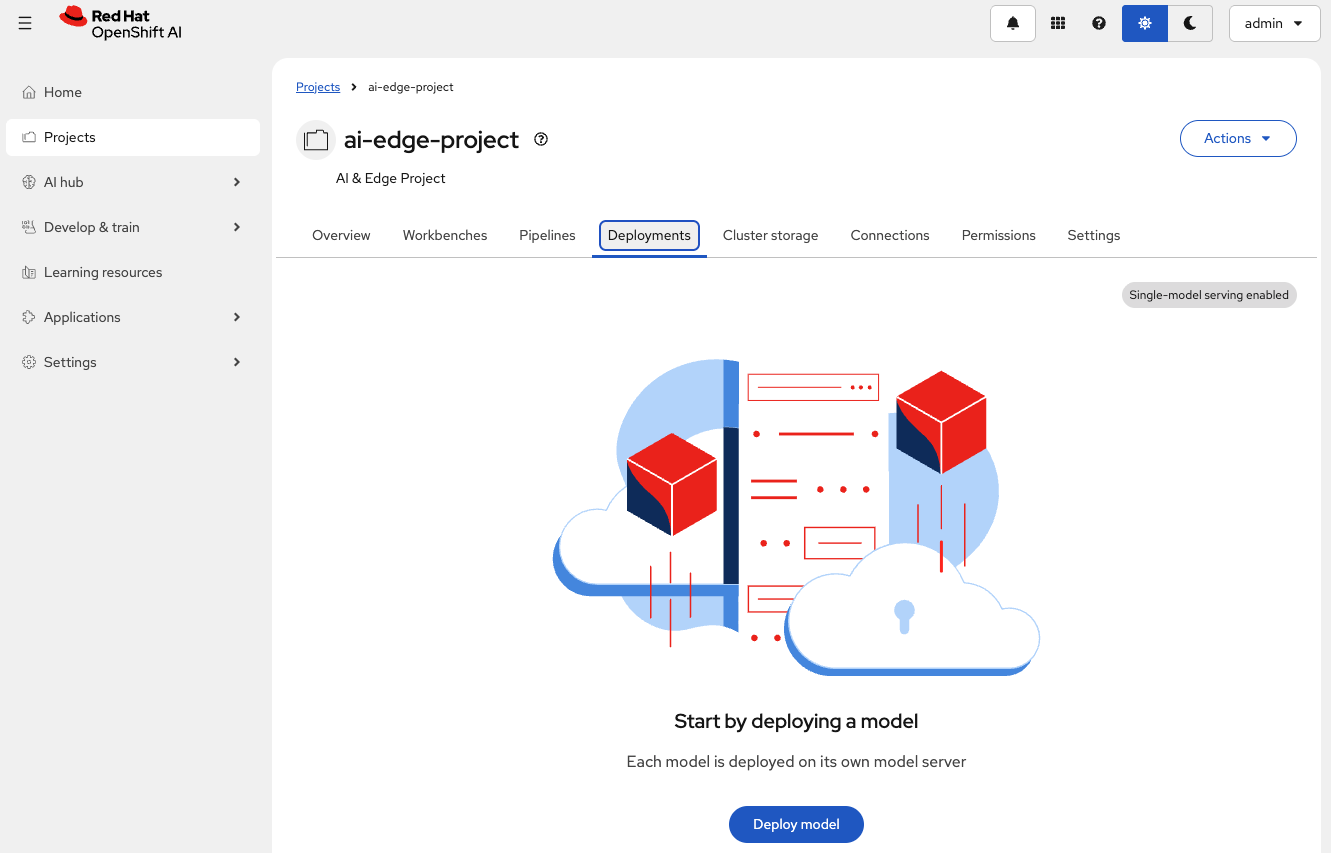
Click the Deployments tab
-
Click Deploy model
-
Complete the deployment form with the following configuration (click Next between sections to complete the entire form):
Table 1. Stress Detection model deployment configuration Parameter Value Purpose Model location
Existing connectionUses the Robot MinIO DataConnection
Connection
vehicle-modelsShould be detected automatically
Path
stress-detectionModel directory (KServe auto-detects
/1/subdirectory)Model type
Predictive modelStandard inference model type
Model deployment name
Stress DetectionIdentifier for the deployed model
Model framework
openvino_ir - opset13Matches exported model format from training
Serving runtime
OpenVINO Model ServerOptimized for Intel architectures and edge devices
Number of replicas
1Single instance for testing purposes
Deployment strategy
Rolling updateZero-downtime deployment updates
-
Click on Next to jump to the Review section and then select Deploy model
-
Once the Status shows
Running, check the Internal Endpoint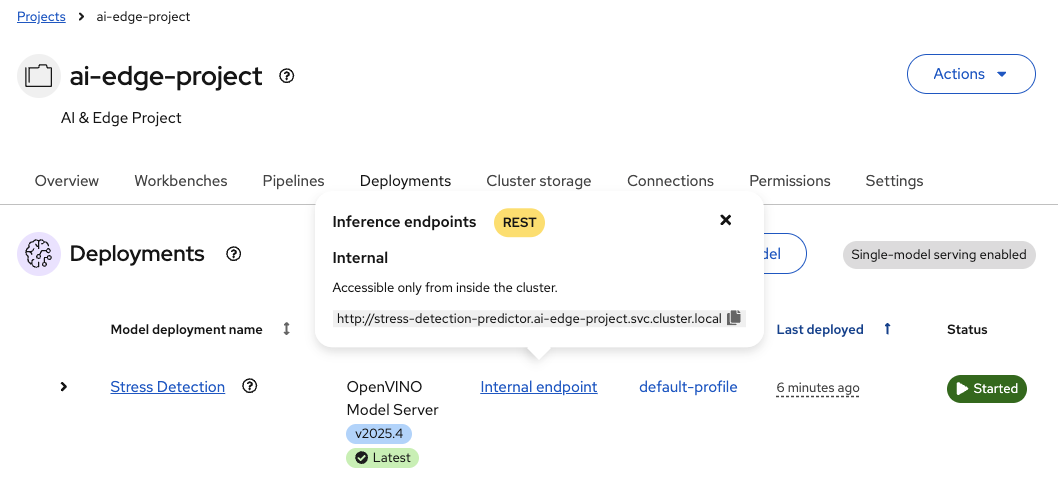
Exercise 4.2: Deploy Time to Failure model server
The Time to Failure server predicts the remaining operational life of robot batteries. You’ll deploy this second model server using the same process, demonstrating how multiple models can share infrastructure while maintaining independent configurations.
Configure the Time to Failure model server
-
Ensure you’re in the Deployments tab
-
Click Deploy model to add a second model server
-
Complete the deployment form with the following configuration (click Next between sections to complete the entire form):
Table 2. Time to Failure model deployment configuration Parameter Value Purpose Model location
Existing connectionUses the Robot MinIO DataConnection
Connection
vehicle-modelsShould be detected automatically
Path
time-to-failureDifferent path for independent versioning
Model type
Predictive modelStandard inference model type
Model deployment name
Time to FailureIdentifier for the deployed model
Model framework
openvino_ir - opset13Same format as Stress Detection model
Serving runtime
OpenVINO Model ServerOptimized for Intel architectures and edge devices
Number of replicas
1Single instance for testing purposes
Deployment strategy
Rolling updateZero-downtime deployment updates
-
Click on Next to jump to the Review section and then select Deploy model
-
Once the Status shows
Running, check the Internal Endpoint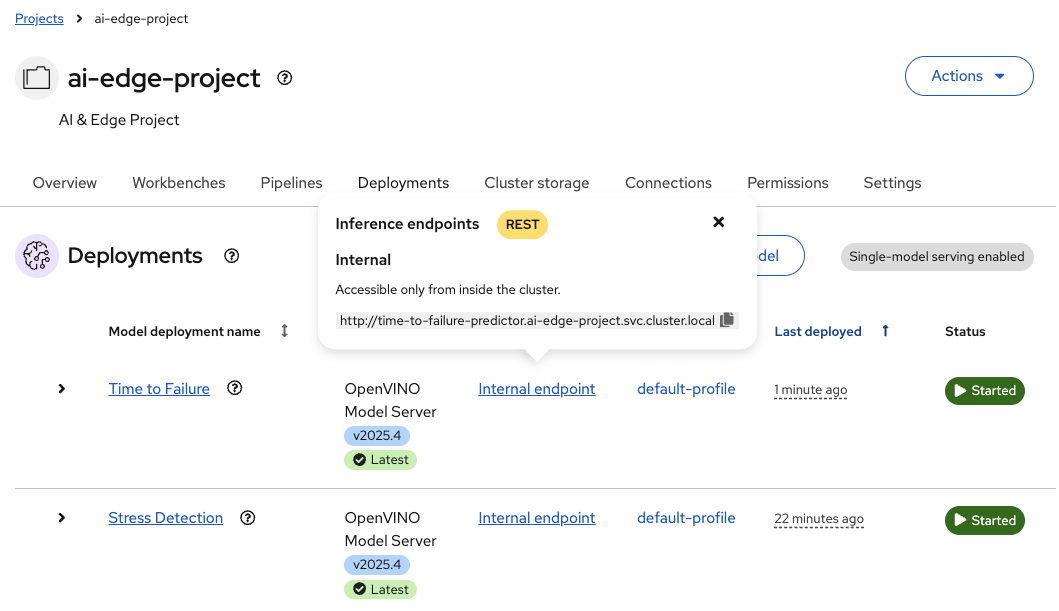
Both models share the same infrastructure (runtime and connection) but maintain independent configurations and storage paths.
Exercise 4.3: Query model endpoints
Test the model inference endpoints to verify they respond correctly to prediction requests. You’ll use a Jupyter notebook to send test data and receive predictions.
Access the query notebook
-
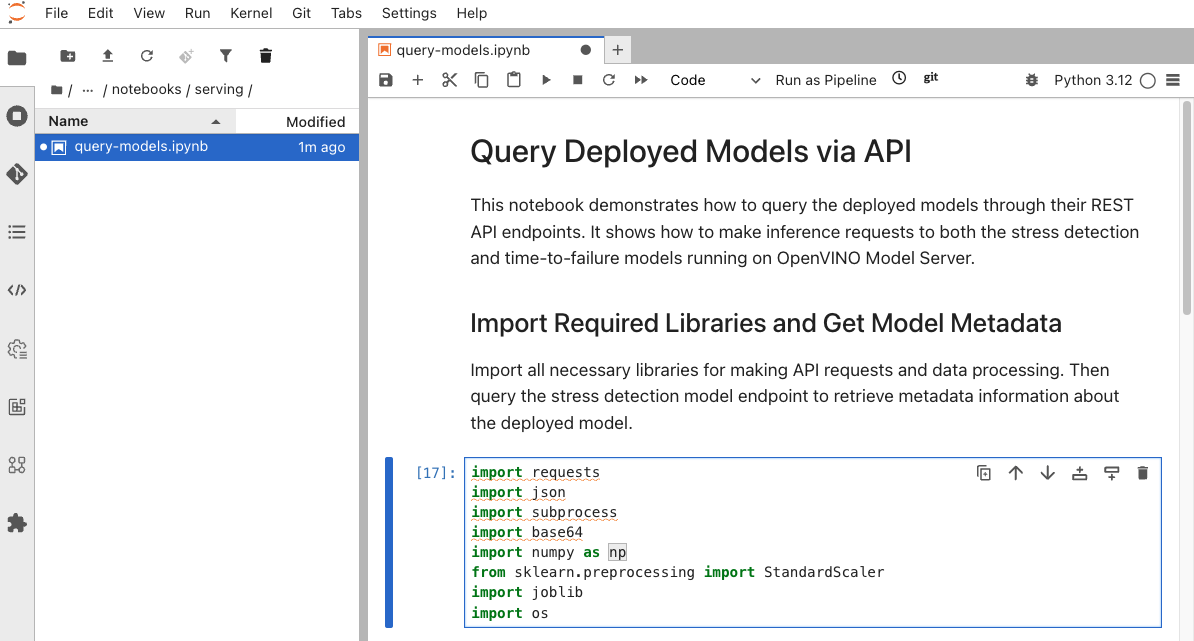
Return to the JupyterLab environment (model-training workbench)
-
Navigate to
ai-lifecycle-edge-automation/notebooks/serving/ -
Open the
query_models.ipynbnotebook
Query Stress Detection model
The notebook contains code to test the Stress Detection endpoint.
-
Verify the endpoint URL in the first cell**
BASE_URL = "http://stress-detection-predictor.ai-edge-project.svc.cluster.local:8888" -
Execute the cells to:
-
Define the inference endpoint
-
Prepare test input data (9 normalized feature values)
-
Send POST request with test data
-
Receive and display prediction
-
-
The model returns a stress score between 0 and 1. The notebook interprets:
-
Score > 0.5 → STRESSED
-
Score ≤ 0.5 → NORMAL
-
Query Time to Failure model
Scroll down in the notebook to the Time to Failure section.
-
Verify the Time to Failure endpoint URL
BASE_URL = "http://time-to-failure-predictor.ai-edge-project.svc.cluster.local:8888" -
Execute the cells to:
-
Define the TTF inference endpoint
-
Prepare test input data (5 feature values)
-
Send POST request
-
Receive and display time-to-failure prediction
-
-
The model returns the predicted number of hours until battery failure.
Summary
You have successfully deployed and tested the model serving infrastructure:
✓ Stress Detection Server - Deployed OpenVINO Model Server for stress detection inference
✓ Time to Failure Server - Deployed complementary model server with separate storage path
✓ Single-Model Serving - Configured two independent model servers sharing infrastructure
✓ Inference Endpoints - Tested both models using KServe v2 REST API protocol
✓ Predictions Verified - Confirmed stress scores and time estimates are valid
What You’ve Learned:
-
How to deploy single-model serving platforms in Red Hat OpenShift AI
-
Configuring model servers with OpenVINO runtime for edge-optimized inference
-
Using data connections to link model servers to S3-compatible storage
-
RawDeployment mode for predictable resources in edge environments
-
KServe v2 protocol for REST API inference
-
How to query model endpoints with JSON payloads
-
Interpreting model outputs (classification scores and regression predictions)
The model serving infrastructure is fully operational and validated.
Next, you’ll explore the automated pipeline system that retrains models every 10 minutes using fresh data from the robot fleet.
Navigate to Module 5: Pipeline automation.