Module 5: Pipeline automation
This module explores the automated pipeline system that continuously retrains machine learning models. You’ll review the pipeline infrastructure, execute a manual pipeline run, and configure scheduled automation to enable self-improving AI models.
Learning objectives
By the end of this module, you will be able to:
-
Understand Kubeflow Pipelines architecture on Red Hat OpenShift AI
-
Import and execute model retraining pipelines manually
-
Monitor pipeline execution stages in real-time
-
Configure scheduled pipeline runs for continuous automation (every 10 minutes)
-
Understand how scheduling enables self-improving edge AI systems
-
Verify conditional deployment logic (only deploy improved models)
Exercise 5.1: Review pipeline infrastructure
Kubeflow Pipelines provides workflow automation for machine learning. The pipeline server orchestrates the complete model lifecycle from data collection through deployment, ensuring Consistency, Auditability, Scalability and Reliability.
Machine learning workflows involve multiple steps that must execute in sequence:
-
Data Collection - Retrieve fresh telemetry from robots
-
Data Preparation - Process and normalize training datasets
-
Model Training - Train models using updated data
-
Model Validation - Compare new models against existing ones
-
Conditional Deployment - Deploy only if new models outperform
Review pipeline server deployment
-
In the Red Hat OpenShift AI (RHOAI) Dashboard, navigate to the
ai-edge-projectproject -
Click the Pipelines tab
-
Verify the pipeline server is pre-configured and shows Import pipeline
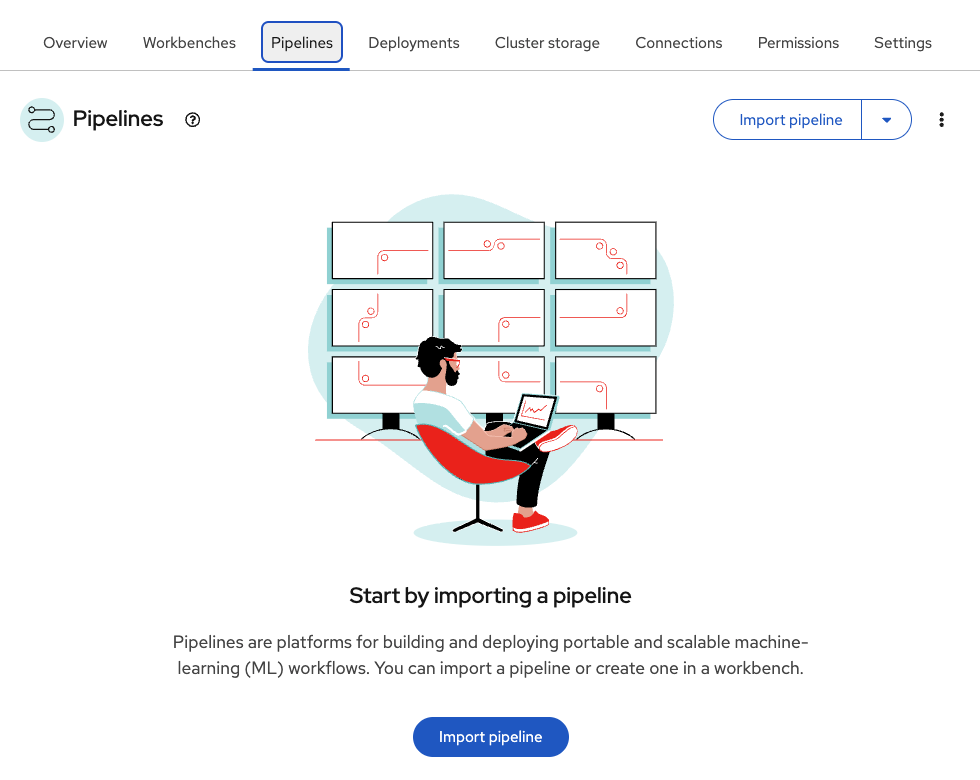
The pipeline server was automatically deployed when the project was created with pipeline support enabled.
Understand pipeline server configuration
-
In the upper right corner, click on the three vertical dots (⋮)
-
In the drop down menu, select Manage pipeline server configuration
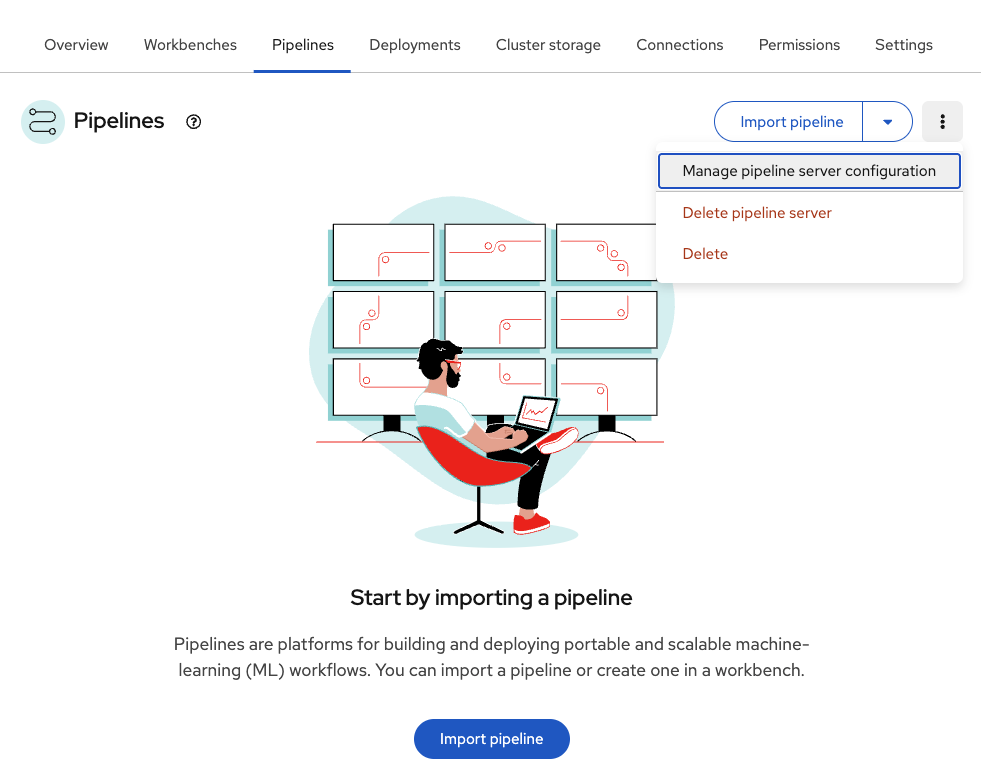
-
Review the Pipeline server configuration
Table 1. Pipeline server configuration Parameter Value Purpose Access key
minioSNO MinIO user credential
Secret key
minio123SNO MinIO password
Endpoint
http://minio-service.minio.svc.cluster.local:9000SNO MinIO service endpoint
Bucket
pipelineStores pipeline artifacts and execution metadata
Close (x) the configuration view
Exercise 5.2: Execute retraining pipeline
The retraining pipeline automates the complete model lifecycle: data collection → preprocessing → training → validation → conditional deployment. This workflow ensures models stay accurate as robot battery behavior evolves.
Import the retraining pipeline
Instead of creating the pipeline from scratch, import a pre-built definition.
-
Ensure you’re in the Pipelines tab in
ai-edge-project -
Click Import pipeline
-
Fill in the form:
Table 2. Pipeline import configuration Parameter Value Purpose Pipeline name
Model retrainingIdentifier for the pipeline definition
Import by URL
Ensure this option is checked
Import from GitHub repository
URL
Direct link to pipeline YAML file
-
Click Import pipeline
The pipeline graph displays, showing nodes and their connections.
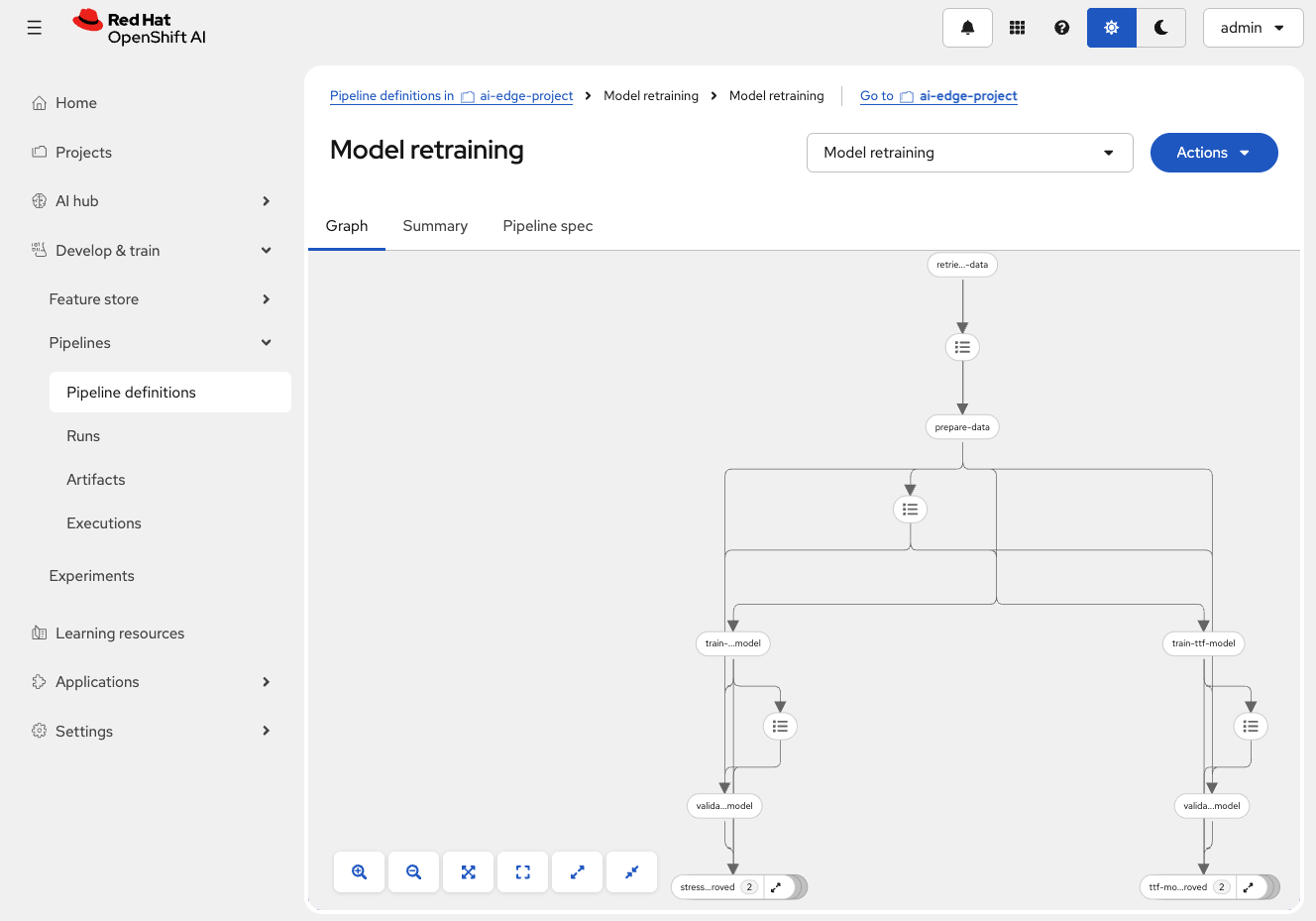
Create a pipeline run
Execute the pipeline manually to test the automation workflow.
-
Click the blue Actions button (top-right corner of pipeline graph)
-
Select Create run from dropdown
-
Configure the pipeline run:
Table 3. Pipeline run configuration Parameter Value Purpose Project
ai-edge-projectTarget project for pipeline execution
Experiment
DefaultGroups related pipeline runs together
Name
First runIdentifier for this specific execution
Pipeline
Model retrainingPipeline definition to execute
Pipeline version
Model retrainingSpecific version of the pipeline
-
Review pipeline parameters (scroll down):
Table 4. Pipeline execution parameters Parameter Value Purpose aws_access_key_idminioRobot MinIO access credential
aws_s3_bucketinferenceBucket where trained models are deployed
aws_s3_endpointhttp://minio-microshift-vm.microshift-001.svc.cluster.local:30000Robot’s MinIO service URL
aws_secret_access_keyminio123Robot MinIO password
influxdb_bucketbmsInfluxDB bucket containing battery telemetry
influxdb_orgredhatInfluxDB organization identifier
influxdb_tokenadmin_tokenAuthentication token for InfluxDB
influxdb_urlhttps://influx-db-microshift-001.apps.cluster.example.comRobot’s InfluxDB endpoint URL
You will only need to update the influxdb_urlvalue. -
Click Create run
Watch the pipeline execute in real-time and wait for all nodes to complete.
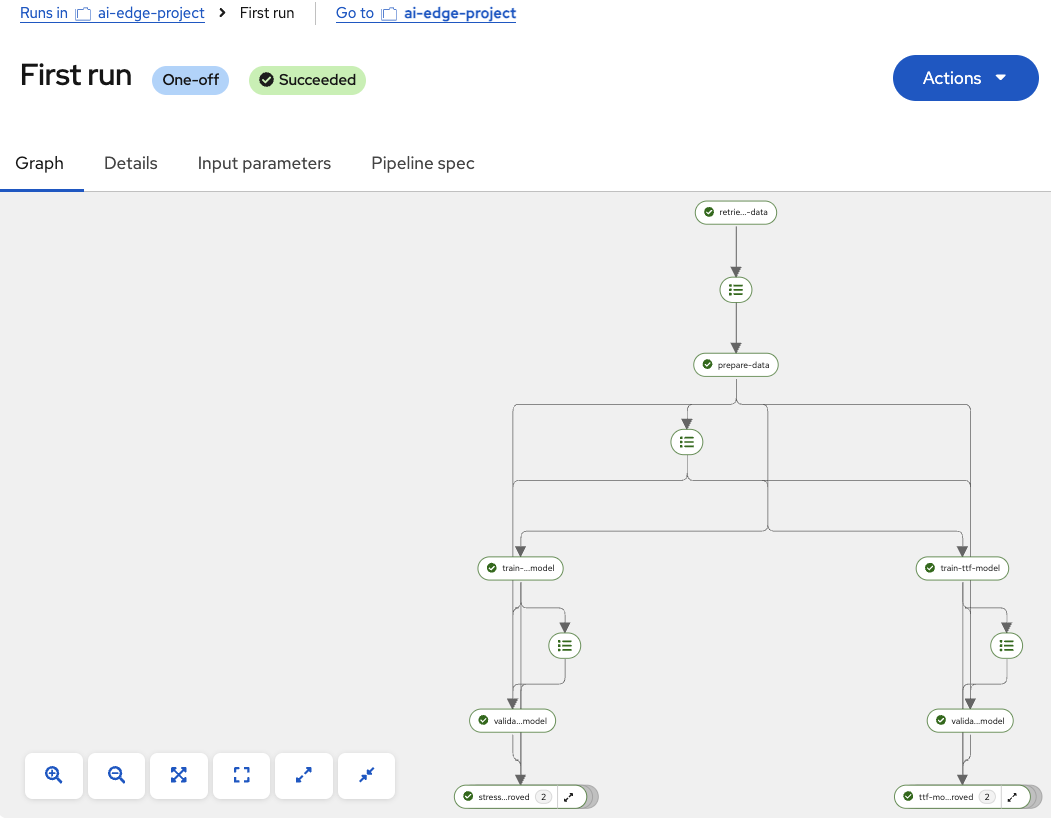
Check new models
If new models outperformed existing ones, verify they were uploaded to MinIO:
-
Open the MinIO dashboard and login with credential:
https://minio-microshift-001.apps.cluster.example.comCredential Value Username
minioPassword
minio123 -
Navigate to the
inferencebucket -
Check model files in
stress-detection/1/andtime-to-failure/1/ -
File timestamps show recent updates (within last few minutes)
Exercise 5.3: Schedule pipeline automation
Scheduled pipelines enable fully automated model retraining. Configure the pipeline to run every 10 minutes, ensuring models continuously improve without manual intervention, reducing model drift and reliability.
Create a scheduled pipeline run
Configure the pipeline to execute automatically every 10 minutes.
-
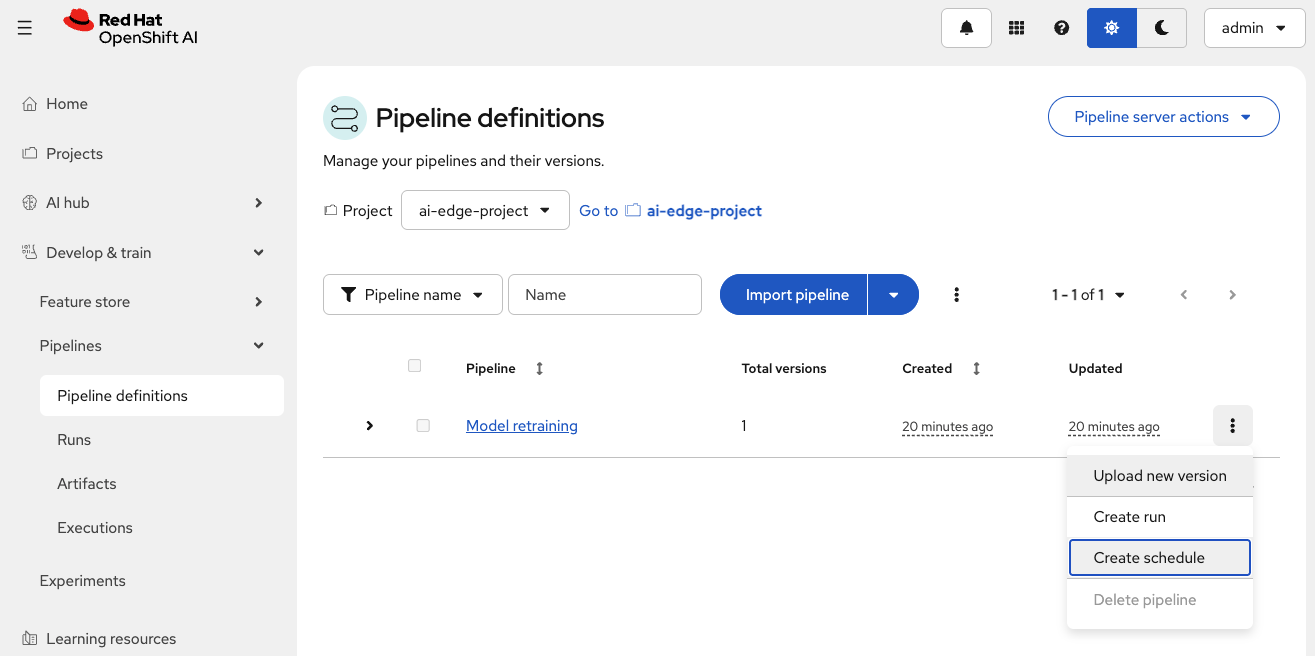
In the Red Hat OpenShift AI (RHOAI) Dashboard, navigate to the Pipeline definitions tab
-
Locate the
Model Retrainingpipeline -
Click the three dots (⋮) at the far right of the pipeline row
-
Select Create schedule from the dropdown
-
Fill in the schedule configuration:
Table 5. Pipeline schedule configuration Parameter Value Purpose Experiment
DefaultGroups related scheduled runs together
Name
Scheduled runIdentifier for this schedule
Trigger type
Select Periodic
Runs at regular intervals
Run every
10minutesFrequency of automated execution
Maximum concurrent runs
10Maximum simultaneous pipeline executions (selected by default)
Pipeline
Model RetrainingPipeline definition to schedule (automatically selected)
-
Scroll down to verify the pipeline parameters (same as manual run):
Table 6. Scheduled pipeline parameters Parameter Value Purpose aws_access_key_idminioRobot MinIO access credential
aws_s3_bucketinferenceBucket where trained models are deployed
aws_s3_endpointhttp://minio-microshift-vm.microshift-001.svc.cluster.local:30000Robot’s MinIO service URL
aws_secret_access_keyminio123Robot MinIO password
influxdb_bucketbmsInfluxDB bucket containing battery telemetry
influxdb_orgredhatInfluxDB organization identifier
influxdb_tokenadmin_tokenAuthentication token for InfluxDB
influxdb_urlRobot’s InfluxDB endpoint URL
Again, you will only need to update the influxdb_urlvalue. -
Click Create schedule
Every 10 minutes, the scheduled pipeline runs.This creates a self-improving system where models get better over time without human intervention.
Summary
You have configured fully automated pipeline scheduling for continuous model retraining:
✓ Pipeline Infrastructure - Reviewed pipeline server deployment and configuration
✓ Pipeline Import - Loaded Model retraining pipeline definition from YAML
✓ Manual Execution - Ran pipeline to test all stages (data → training → validation → deployment)
✓ Scheduled Automation - Configured periodic runs every 10 minutes
✓ Continuous Improvement - Verified automated model retraining workflow
What You’ve Learned:
-
Kubeflow Pipelines architecture on Red Hat OpenShift AI
-
How to import and execute ML pipelines
-
Real-time pipeline monitoring and log analysis
-
Scheduled pipeline configuration for automation
-
Conditional deployment logic to prevent model degradation
-
Complete MLOps workflow from training to deployment
Next, you’ll explore the alerting and monitoring system to ensure battery health is good.
Navigate to Module 6: Test alerts.