Introduction
Azure Red Hat OpenShift (ARO) provides fully-managed cluster upgrades. These upgrades can be triggered from inside the OpenShift Web Console, or scheduled in advance by utilizing the Managed Upgrade Operator. The ARO Site Reliability Engineering (SRE) Team will monitor and manage all ARO cluster upgrades.
During ARO upgrades, one node is upgraded at a time. This is done to ensure customer applications are not impacted during the update, when deployed in a highly-available and fault-tolerant method.
Upgrade using the OpenShift Web Console
-
Return to your tab with the OpenShift Web Console.
-
Using the menu on the left Select Administration -> Cluster Settings.
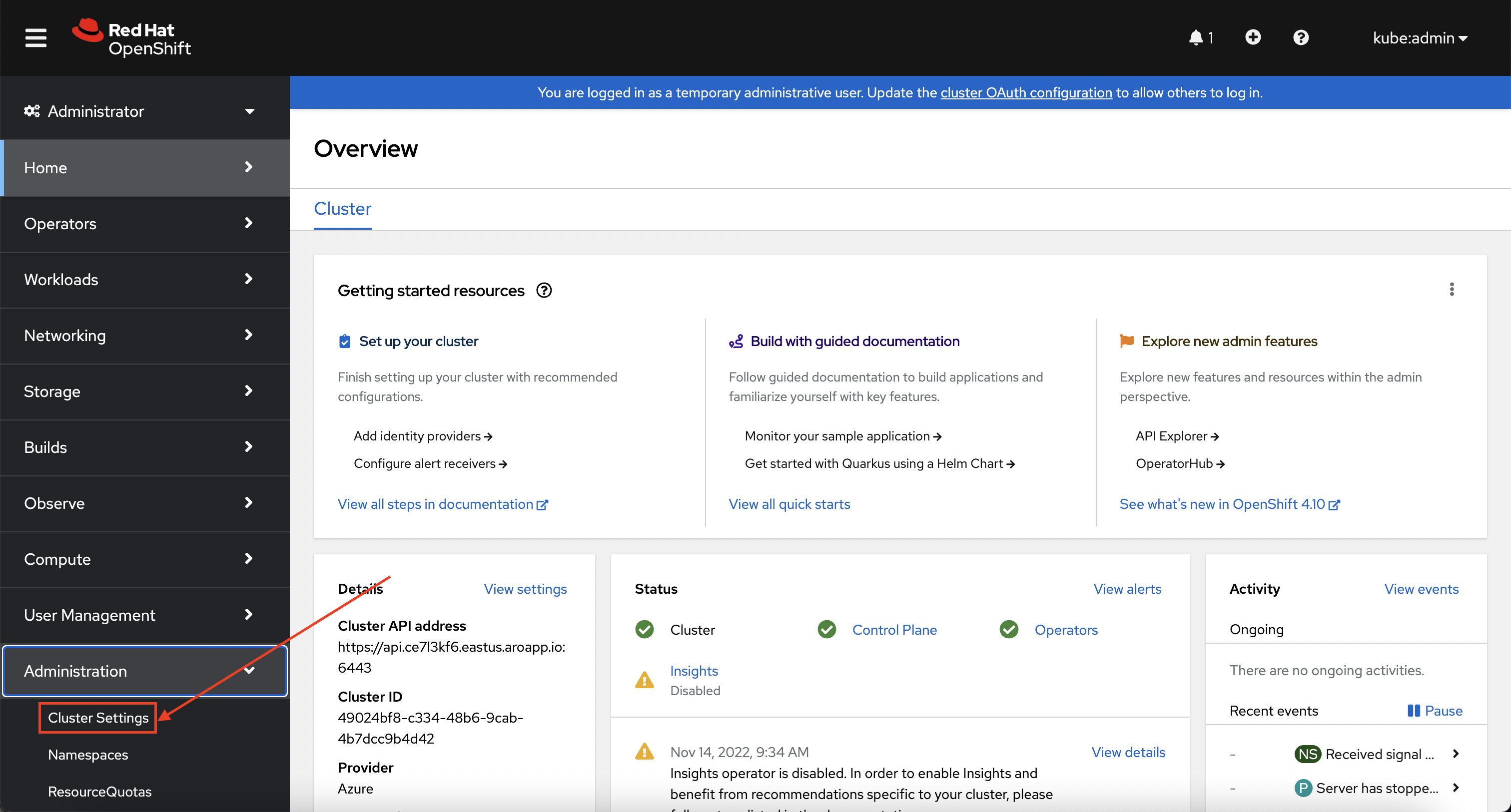
-
Click on the Not Configured link under the Upgrade Channel heading.
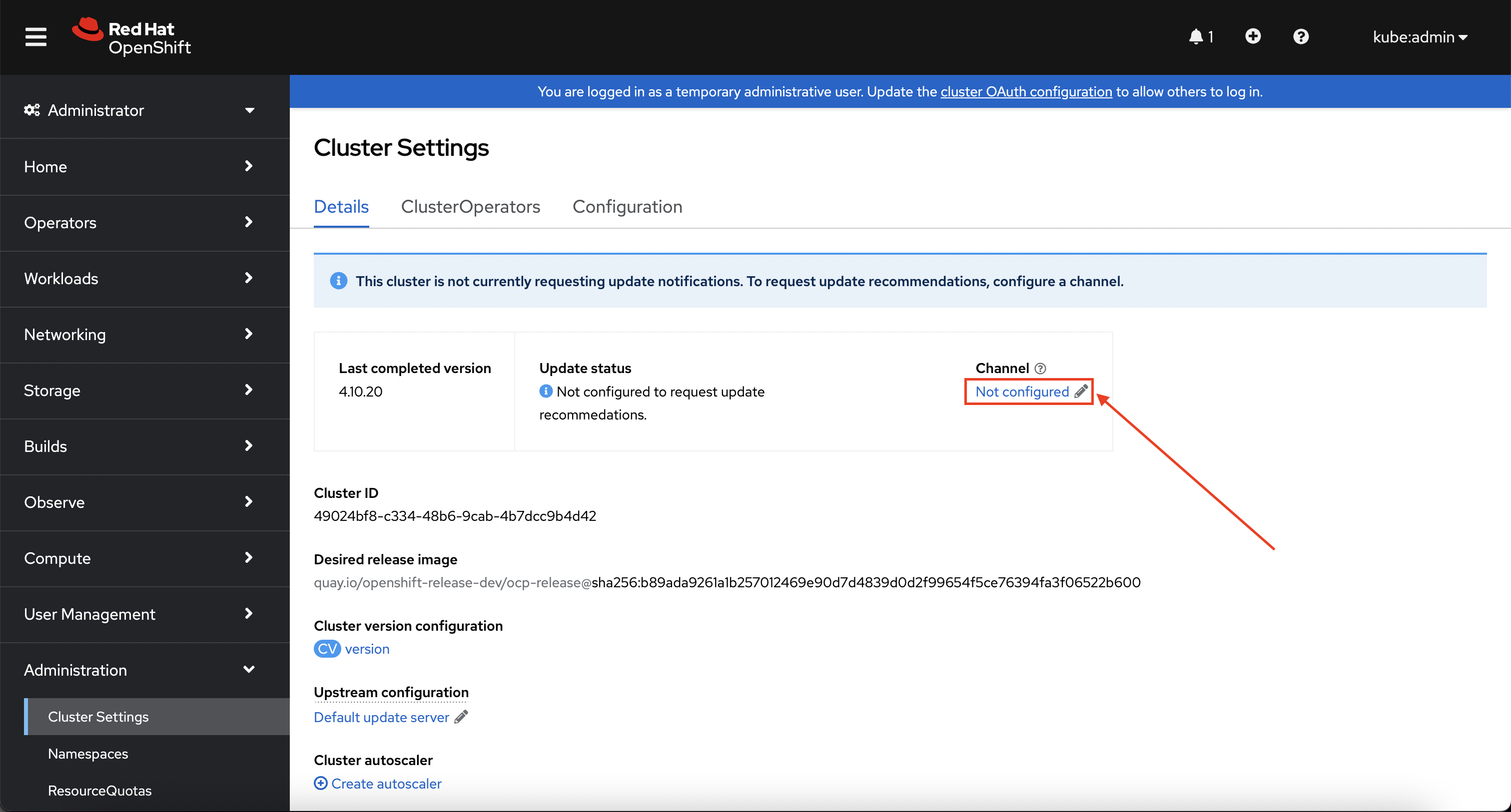
Upgrade channel is not configured by default
By default, the upgrade channel (which is used to recommend the appropriate release versions for cluster updates), is not set in ARO.
-
In the Channel field, enter
stable-4.15to set the upgrade channel to the stable releases of OpenShift 4.15 and click Save.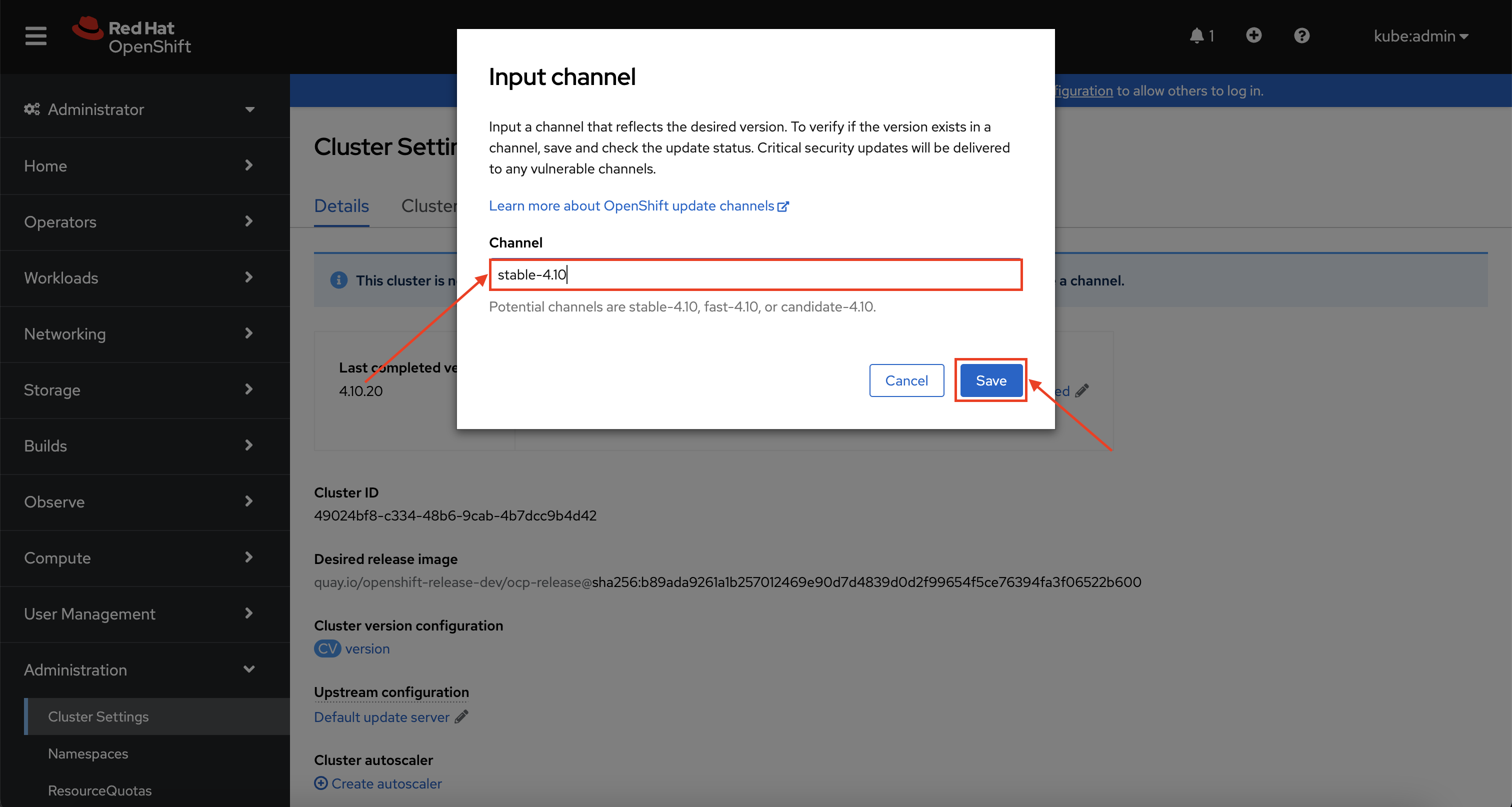
-
In a moment, you’ll begin to see what upgrades are available for your cluster. From here, you could click the Select a version button and upgrade the cluster. But don’t do that yet! Instead, follow the instructions below to use the Managed Upgrade Operator.
Again, do not perform an upgrade at this stage!
Upgrade using the Managed Upgrade Operator
The Managed Upgrade Operator has been created to manage the orchestration of automated in-place cluster upgrades.
Whilst the operator’s job is to invoke a cluster upgrade, it does not perform any activities of the cluster upgrade process itself.
This remains the responsibility of OpenShift.
The operator’s goal is to satisfy the operating conditions that a managed cluster must hold, both pre- and post-invocation of the cluster upgrade.
Examples of activities that are not core to an OpenShift upgrade process but could be handled by the operator include:
-
Pre- and post-upgrade health checks.
-
Providing additional worker capacity during the upgrade period to ensure you have sufficient capacity when nodes are updated.
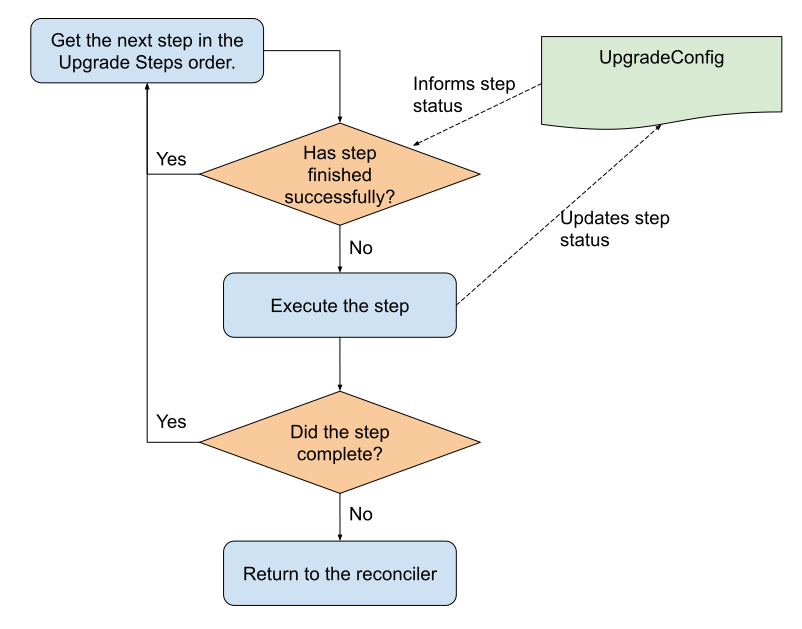
Configuring the Managed Upgrade Operator for ARO ensures that your cluster functions as you need it to during upgrades. The process of executing upgrades is shown here:
-
First, let’s check for available upgrades on your current upgrade channel. To do so, run the following command:
oc get clusterversion version -o \
  jsonpath='{.status.availableUpdates[*].version}'; echo
Sample Output4.15.31If the output of the command is
parse error: Invalid numeric literal at EOF at line 1, column 5you may not have set thestable-4.15channel as instructed earlier, or there are no available upgrades and you should skip the rest of these steps. -
Next, let’s use that information to populate a manifest for the Managed Upgrade Operator to use. To do so, run the following command:
OCP_UPGRADE_TO=$(oc get clusterversion version -o \
   jsonpath='{.status.availableUpdates[0].version}')

cat <<EOF | oc apply -f -
---
apiVersion: upgrade.managed.openshift.io/v1alpha1
kind: UpgradeConfig
metadata:
  name: managed-upgrade-config
  namespace: openshift-managed-upgrade-operator
spec:
  type: "ARO"
  upgradeAt: $(date -u --iso-8601=seconds --date "+1 day")
  PDBForceDrainTimeout: 60
  capacityReservation: true
  desired:
    channel: "stable-4.15"
    version: "${OCP_UPGRADE_TO}"
EOF
Sample Outputupgradeconfig.upgrade.managed.openshift.io/managed-upgrade-config createdThis manifest will schedule an upgrade to the latest available version available in the
stable-4.13channel for 1 day from now, allow nodes which are blocked by PodDisruptionBudgets to drain for 60 minutes before a drain is forced, and sets a capacity reservation so that workloads are not interrupted during an upgrade. -
Once created, we can see that the update is pending by running the following command:
oc -n openshift-managed-upgrade-operator get \
  upgradeconfig.upgrade.managed.openshift.io/managed-upgrade-config
Sample OutputNAME DESIRED_VERSION PHASE STAGE STATUS REASON MESSAGE managed-upgrade-config 4.15.31 Pending
Congratulations!
You’ve successfully scheduled an upgrade of your cluster for tomorrow at this time. While the workshop environment will be deleted before then, you now have the experience to schedule upgrades in the future.
Additional Resources
Red Hat OpenShift Upgrade Graph Tool
Occasionally, you may be not be able to go directly from your current version to a desired version. In these cases, you must first upgrade your cluster from your current version, to an intermediary version, and then to your desired version. To help you navigate these decisions, you can take advantage of the Red Hat OpenShift Upgrade Graph Tool. Please note: you’ll need your Red Hat login to access this tool.
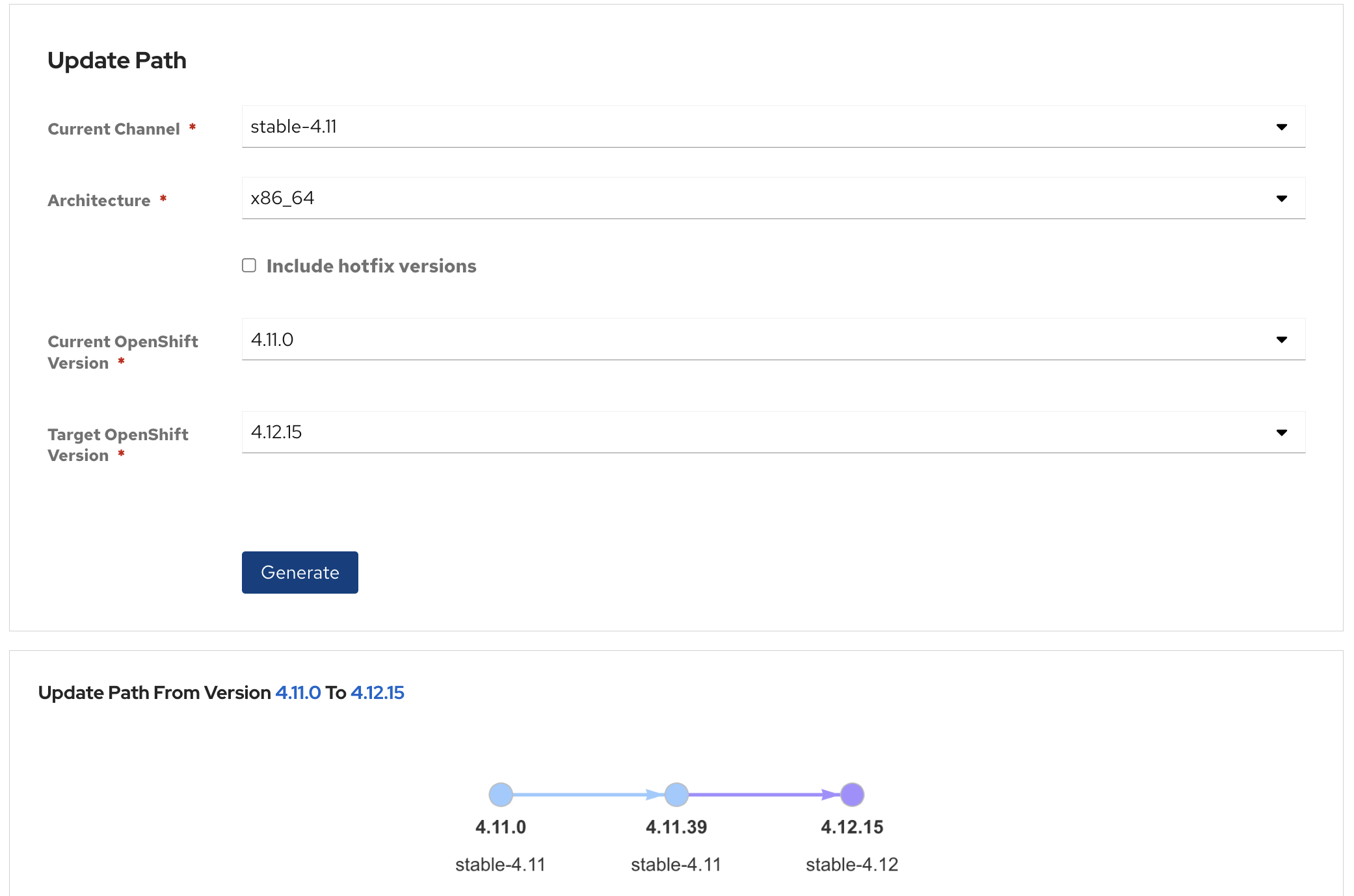
In this scenario to upgrade your cluster from version 4.11.0 to 4.12.15, you must first upgrade to 4.11.39, then you can upgrade to 4.12.15. The ARO Upgrade Graph Tool helps you easily see which version you should upgrade to.