Getting Connected
Before the workshop modules start, you log in to your Red Hat AI Enterprise lab environment, get oriented in the OpenShift console and the OpenShift AI dashboard, and verify that the platform is ready.
Console URL
Your lab environment is a dedicated OpenShift cluster. Open the OpenShift web console — or use the OpenShift Console tab in the workshop interface.
Login credentials
Log in to the OpenShift console, the OpenShift AI dashboard, and the terminal with the lab credentials provided for your environment:
Username: lab-user1
Password: %password%
These credentials are scoped to your lab environment — do not share them.
Log in from the terminal
-
Switch to the Terminal tab (or use the web terminal in the right panel).
-
Log in to the cluster API with the
ocCLI:oc login https://api.cluster.example.com:6443 -u lab-user1 -p %password% --insecure-skip-tls-verify=true
Cluster environment
Your environment runs OpenShift with Red Hat OpenShift AI (RHOAI) 3.6 installed and configured for this workshop:
-
RHOAI 3.6 — includes EvalHub for evaluations, Model-as-a-Service (MaaS) governance with subscription tiers and API keys, and the observability dashboard.
-
Your own project — you work in your assigned project (namespace) throughout the workshop; other attendees cannot see or modify your resources.
-
GPU worker node — an NVIDIA L4 (24 GB) GPU worker node is attached to the cluster and schedulable for model serving workloads.
-
No models pre-deployed — the environment starts empty; you build the full serving lifecycle from scratch across the six modules.
Navigating the console
Most workshop steps happen in the OpenShift AI dashboard. To reach it from the OpenShift console, click the Application Launcher (waffle menu, in the masthead) and select Red Hat OpenShift AI. You can also use the OpenShift AI tab in the workshop interface. If prompted, choose Log in with OpenShift and enter your lab credentials.
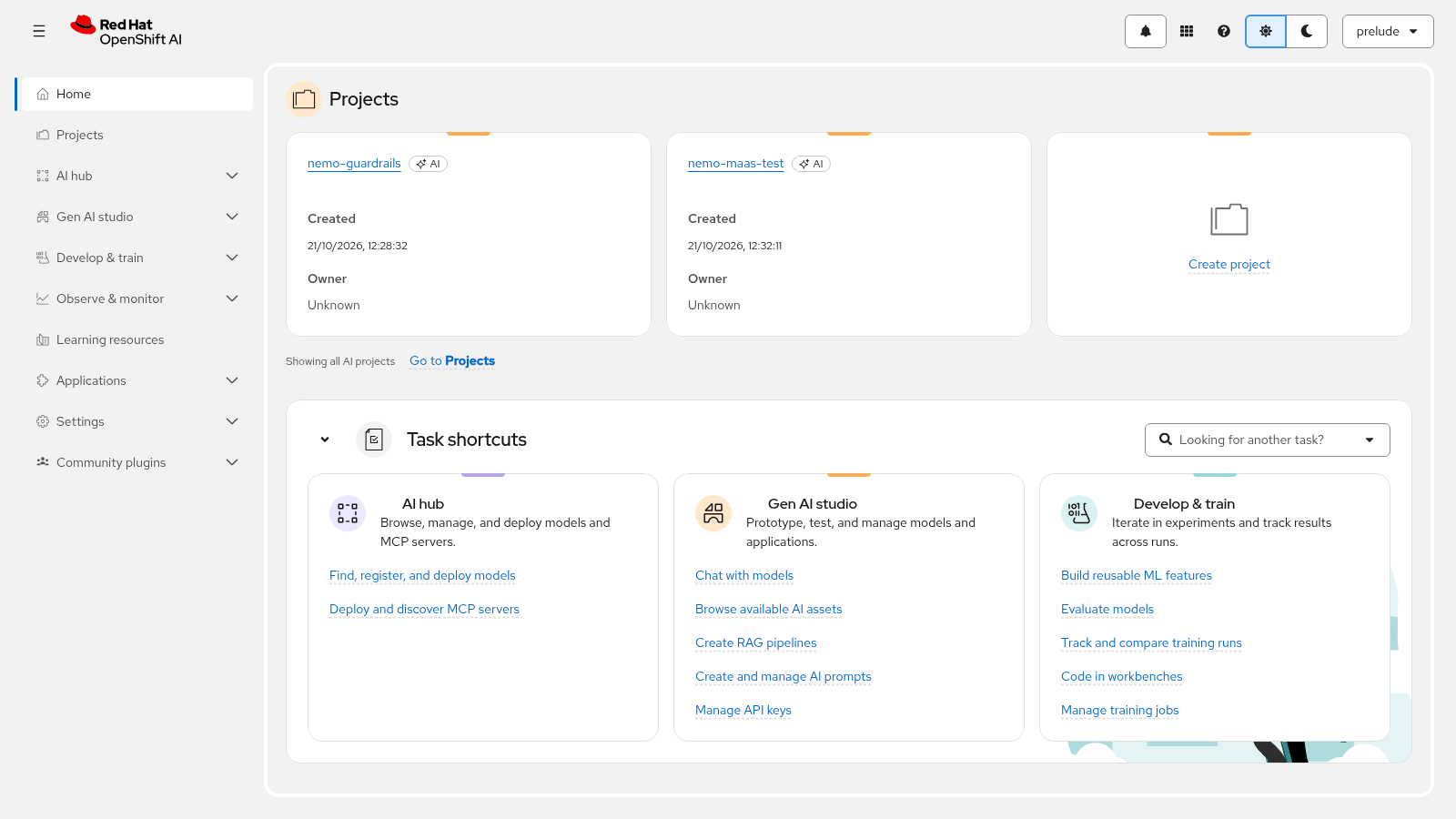
The OpenShift console itself has two perspectives, switched from the perspective selector in the masthead:
-
Administrator — use this perspective during the workshop; it exposes the cluster resources, workloads, and logs you inspect in later modules.
-
Developer — a simplified view for application developers; it hides many of the resources used in this workshop.
Console tabs in Showroom
The workshop interface embeds your environment in the right panel with three tabs:
| Tab | What you use it for |
|---|---|
Terminal |
Run the |
OpenShift Console |
The OpenShift web console — model serving, workloads, and cluster administration tasks. |
OpenShift AI |
The OpenShift AI dashboard — EvalHub, model serving, MaaS configuration, and the observability dashboard. |
Use the view switcher at the top of the page to move between full-page instructions, a split view, and a full-page environment.
Verify your environment
Confirm you are connected to the cluster and that OpenShift AI is ready before starting Module 1.
-
Switch to the Terminal tab. If the terminal is not already authenticated, log in with your lab credentials.
-
Confirm you are logged in and working in your project:
oc whoami oc project -
Verify that the OpenShift AI platform is installed and ready — the
DataScienceClusterresource reports the platform status. Wait until it reportsReady:oc get dsc
|
If |
Workshop layout
The workshop is strictly sequential — each module’s outputs are the next module’s inputs, and the model you deploy in Module 1 carries forward to the end. Budget about two hours end-to-end (including this introduction).
| Module | Title | Duration |
|---|---|---|
1 |
10 min |
|
2 |
20 min |
|
3 |
20 min |
|
4 |
20 min |
|
5 |
20 min |
|
6 |
20 min |
Continue to Module 1: Deploy a Model → to deploy your first model.