Module 3: Expose the Model as a Model-as-a-Service
Overview
A model that only one team can reach is not production. In this module you transform the single-team deployment from Module 1 into a shared, scalable Model-as-a-Service (MaaS): a stable, externally reachable API endpoint governed by subscription-based access control — subscription tiers, API keys with expiry, token rate limits — and scaling policies.
The endpoint URL and API credentials you create here are the explicit handoff to Module 4, where the sample application consumes them. The scaling configuration you set here carries forward to Module 6.
Modules 1–2 complete — the model is deployed and serving inference requests, and its performance has been benchmarked with EvalHub.
20 minutes (3 min review / 7 min configure shared service / 5 min access controls and endpoints / 5 min scaling)
Learning objectives
By the end of this module you will be able to:
-
Configure a deployed model as a Model-as-a-Service for shared, scalable consumption
-
Manage access controls and API endpoint configuration for the model service
Exercise 1: Review the Model-as-a-Service approach
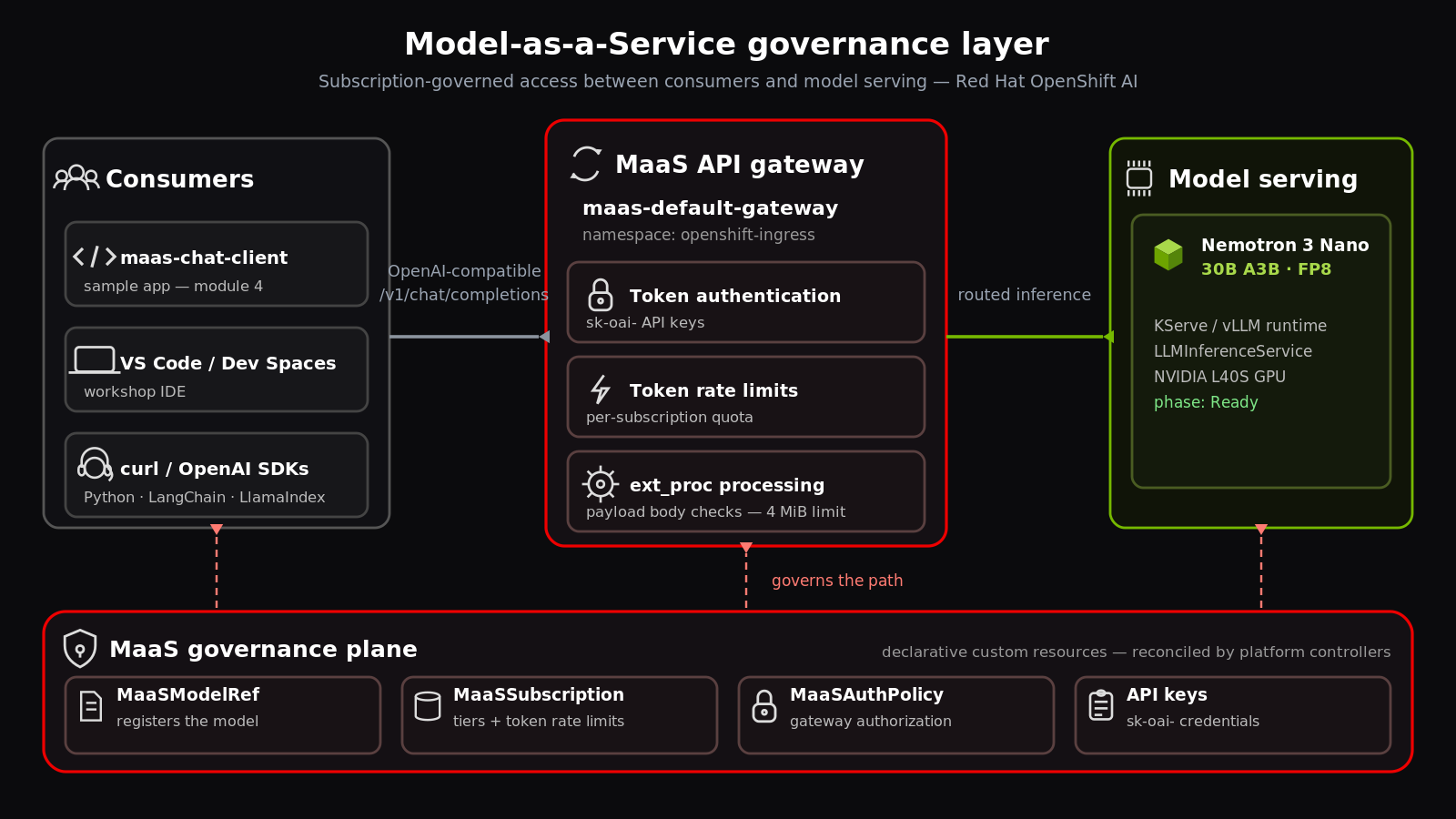
Models-as-a-Service (MaaS) provides subscription-based governance for large language model serving across your organization. It acts as a governance layer between users and the model serving infrastructure: consumers call a single, managed API endpoint, and the platform enforces centralized policies — authentication, token rate limits, quota — without modifying the underlying model serving components.
This is what changes from Module 1:
| Module 1 — direct deployment | Module 3 — Model-as-a-Service |
|---|---|
One team reaches the model directly through its inference endpoint |
Multiple teams consume the model through a shared, governed API endpoint |
No per-team quota or usage tracking |
Subscriptions enforce token rate limits and track consumption per group |
Access controlled by OpenShift project membership |
Access controlled by subscriptions, API keys with expiry, and authorization policies |
|
Use MaaS when centralized governance across multiple teams is required; standard model serving is sufficient for single-team or single-user use cases. MaaS also prefers declarative configuration via GitOps — every governance object in this module is a Kubernetes custom resource, so it is version-controlled and automatically reconciled by the platform controllers. |
Three custom resources do the governing:
-
MaaSModelRef— references the model and registers it with MaaS. Publishing a model to MaaS creates this object in the model’s project namespace. -
MaaSSubscription— defines subscription-based quota: which groups have quota for which models, with configurable token rate limits and a priority level that decides which subscription applies when a user belongs to several. -
MaaSAuthPolicy— authorizes groups to access model endpoints through the API gateway. Subscriptions control token limits; authorization policies grant gateway access. Both are required for each model: aMaaSAuthPolicywithout a matchingMaaSSubscriptionreturns HTTP 429 (no token quota is defined), and aMaaSSubscriptionwithout aMaaSAuthPolicyreturns HTTP 403 (no gateway access).
Consumers authenticate with an API key carrying the sk-oai- prefix and call
the model through the standard OpenAI-compatible /v1/chat/completions endpoint
with the model name in the request body — drop-in compatible with
OpenAI-compatible SDKs and clients such as the Python openai library,
LangChain, and LlamaIndex without requiring custom URL paths.
|
The subscription model replaced the tier-based model used in OpenShift AI 3.3, starting with OpenShift AI 3.4. MaaS APIs are evolving across releases, so verify API names against your installed version. |
Exercise 2: Configure the model as a shared service
Now that you have reviewed the MaaS governance layer, you will publish the model to the shared gateway.
The model you deployed in Module 1 — redhatainvidia-nemotron-nano-9, serving on the
NVIDIA L4 GPU node in your project — was deployed as an
LLMInferenceService attached to the direct-serving gateway
(openshift-ai-inference) for single-team access. Models published for MaaS
use the LLMInferenceService architecture, which integrates with the MaaS
gateway for subscription-based quota enforcement. Publishing the model
re-attaches the router to the shared MaaS gateway (maas-default-gateway) —
that gateway wiring, not a per-team route, is what makes the deployment
shared.
Publishing changes the router gateway section of the LLMInferenceService
from the direct-serving gateway to the MaaS gateway:
router:
  gateway:
    refs:
      - name: maas-default-gateway
        namespace: openshift-ingress
    route: {}
With the router attached to the shared gateway, the model is served through
the MaaS gateway at
https://maas.apps.<cluster-domain>/{project-namespace}/redhatainvidia-nemotron-nano-9.
Review the serving configuration for the deployed model:
-
In the OpenShift AI console, navigate to Projects and open your project.
-
Click the Deployments tab and locate
redhatainvidia-nemotron-nano-9. -
Confirm the model row shows Ready in the Status column.
Publishing registers the model with MaaS through a MaaSModelRef in the
model’s project namespace:
apiVersion: maas.opendatahub.io/v1alpha1
kind: MaaSModelRef
metadata:
  name: redhatainvidia-nemotron-nano-9
  namespace: {project-namespace}
spec:
  modelRef:
    kind: LLMInferenceService
    name: redhatainvidia-nemotron-nano-9
tenantRef: models-as-a-service|
The explicit |
Verify the model is registered with MaaS:
oc get maasmodelref -n {project-namespace}The output lists a MaaSModelRef named redhatainvidia-nemotron-nano-9 — the
model is registered with MaaS. Its RuntimeReady, GovernanceAttached, and
Ready conditions report True once registration completes; Exercise 4
checks them explicitly.
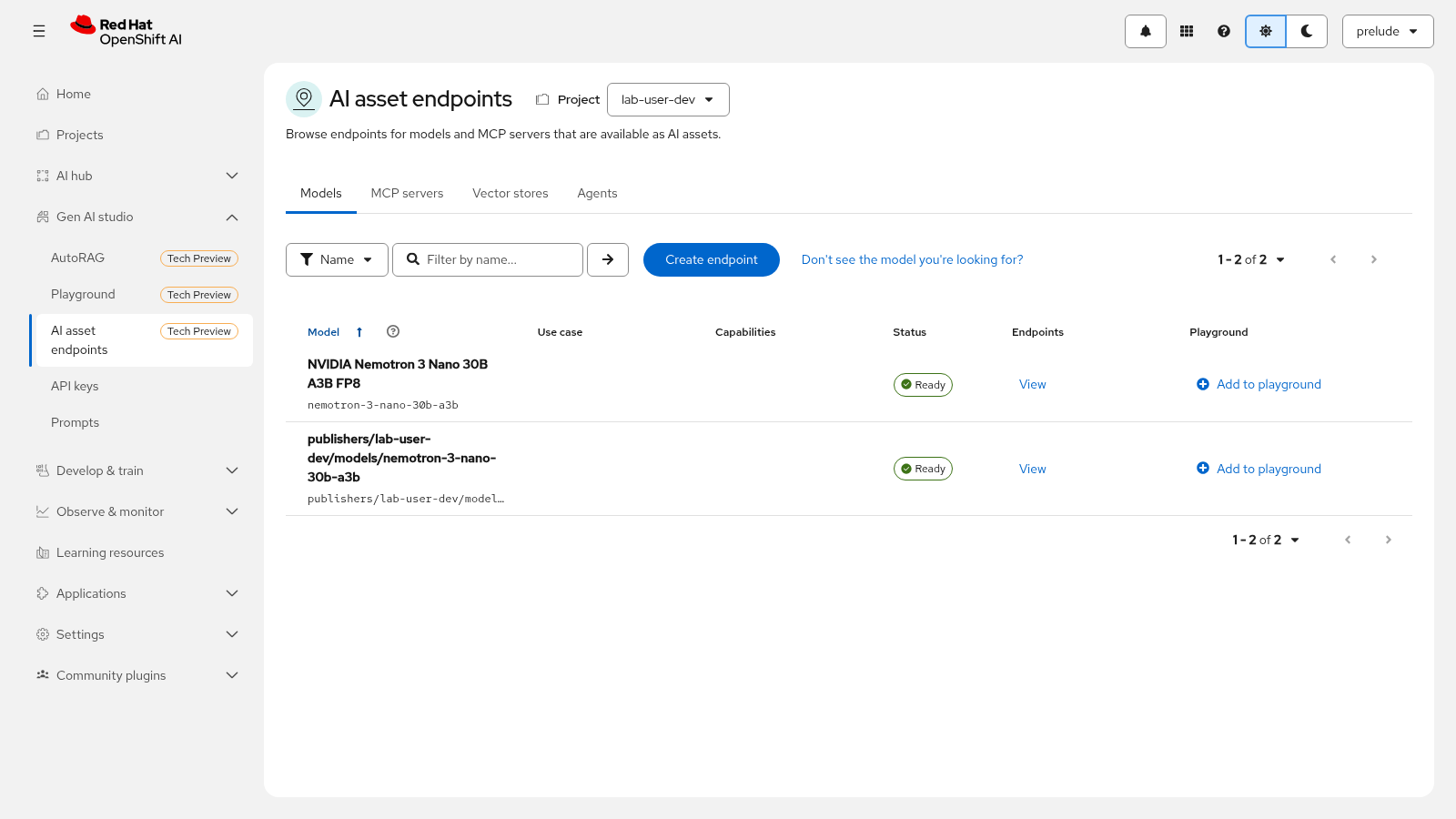
The model also appears on the shared service surface consumers use:
-
In the console, navigate to Gen AI studio → AI asset endpoints.
-
On the Models tab, locate
redhatainvidia-nemotron-nano-9. The model row shows a Ready status with View in the Endpoints column. -
Click View to open the Endpoints dialog. Confirm the dialog shows a Model as a Service badge and your subscription assignment.
|
AI asset endpoints is a Technology Preview feature in Red Hat OpenShift AI 3.6. |
Exercise 3: Configure access controls and API endpoints
Now that the model is published to the shared gateway, you will configure who can consume it and with which credentials.
Access to the model service is governed by subscription tiers. This environment has two tiers, each backed by OpenShift owner groups:
| Subscription | Owner group | Priority | Token rate limits |
|---|---|---|---|
|
|
10 |
20,000 tokens/min and 1,000 tokens/sec |
|
|
20 |
1,000,000 tokens/min and 20,000 tokens/sec |
The priority level decides which subscription is selected when creating an API key without specifying one — higher numbers win, so users who belong to both groups default to the premium tier. Specifying the subscription explicitly bypasses priority selection.
Each tier is provisioned as a MaaSSubscription and a matching
MaaSAuthPolicy in the models-as-a-service namespace — the only namespace
the MaaS API reads subscriptions from. Review the free-tier pair:
apiVersion: maas.opendatahub.io/v1alpha1
kind: MaaSSubscription
metadata:
  name: maas-free-subscription
  namespace: models-as-a-service
spec:
  owner:
    groups:
      - name: system:authenticated
  modelRefs:
    - name: redhatainvidia-nemotron-nano-9
      namespace: {project-namespace}
      tokenRateLimits:
        - limit: 20000
          window: 1m
        - limit: 1000
          window: 1s
  priority: 10
A matching MaaSAuthPolicy binds API-key authentication to the published model
at the gateway:
apiVersion: maas.opendatahub.io/v1alpha1
kind: MaaSAuthPolicy
metadata:
  name: maas-free-subscription-policy
  namespace: models-as-a-service
spec:
  modelRefs:
    - name: redhatainvidia-nemotron-nano-9
      namespace: {project-namespace}
  subjects:
    groups:
- name: system:authenticated|
Governance pairing needs an active subscription AND a matching authorization policy for the model. The subscription defines the token quota; the authorization policy grants gateway access. Without both, requests fail at the gateway: HTTP 429 when no subscription quota matches, HTTP 403 when no authorization policy grants your group access. |
Verify both resources exist:
oc get maassubscription,maasauthpolicy -n models-as-a-service|
In this workshop the subscription tiers are pre-provisioned by automation. You
can create additional subscriptions in the console under Settings → MaaS
governance, or manage them as custom resources through GitOps. A subscription
must include the model in its |
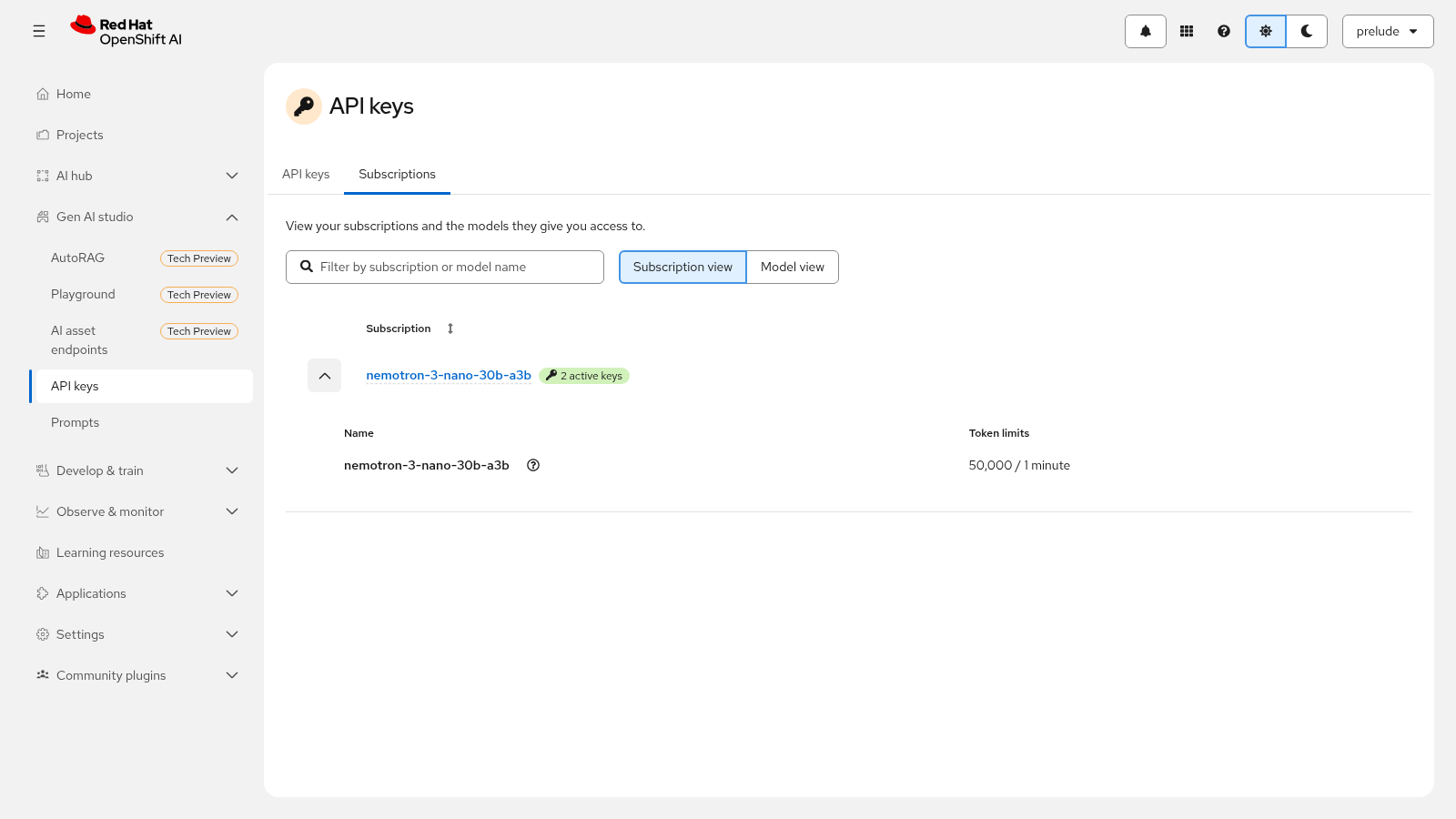
Review your own subscription assignments from the consumer view:
-
Navigate to Gen AI studio → API keys. In RHOAI 3.6 this page (
/maas/keys-and-subs) combines API keys and subscriptions — the subscription tiers are on the same page rather than a separate tab. -
Expand a subscription row to see the models it includes, with their token rate limits formatted as the number of tokens per time window.
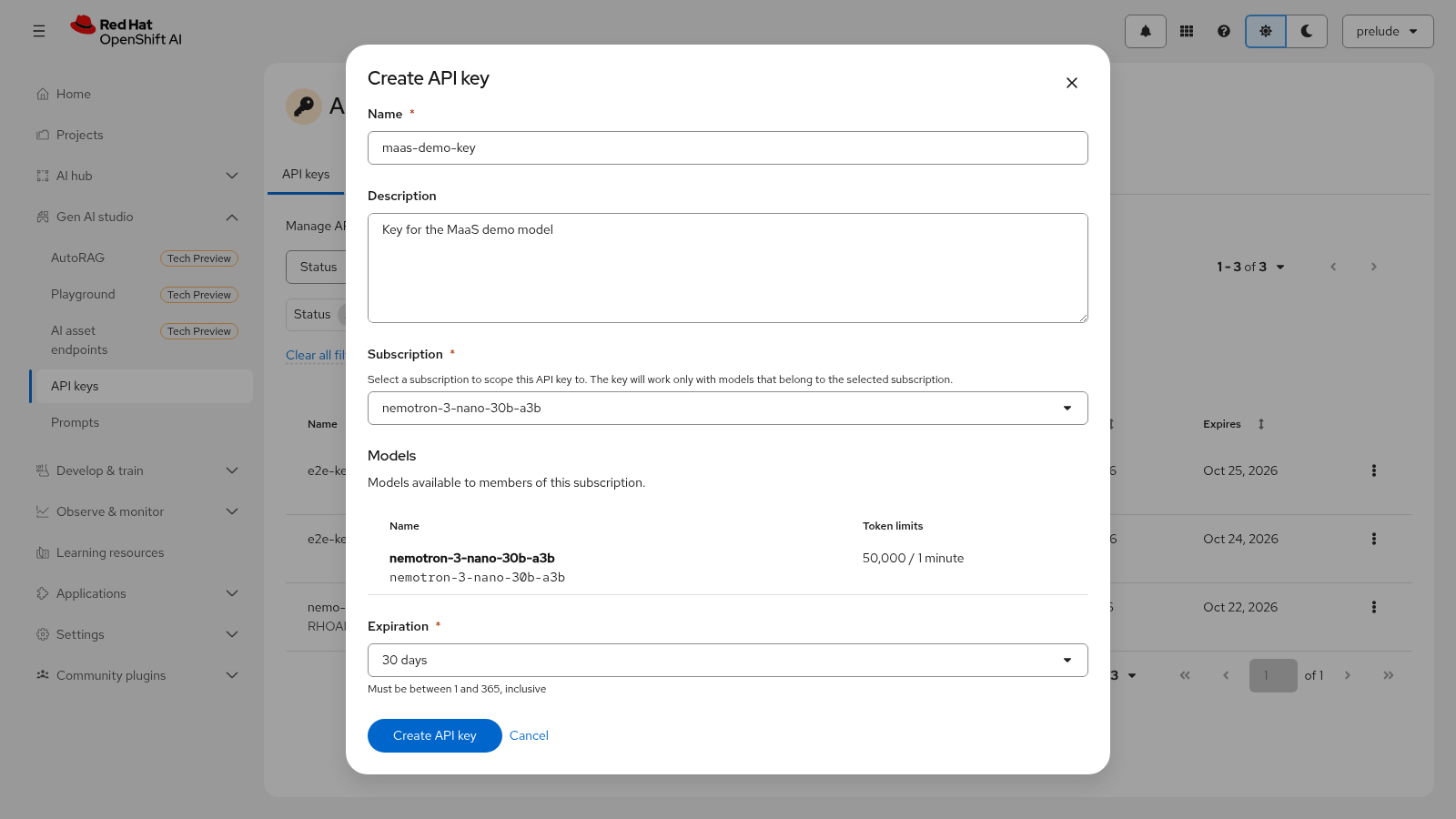
Create an API key scoped to the premium subscription:
-
On the API keys page, click Create API key.
-
In the Create API key dialog, enter
Workshopin the Name field. -
From the Subscription dropdown, select
maas-premium-subscription. The Models section displays the included model and its configured token limits — 1,000,000 tokens/min and 20,000 tokens/sec. -
From the Expiration dropdown, select 30 days.
-
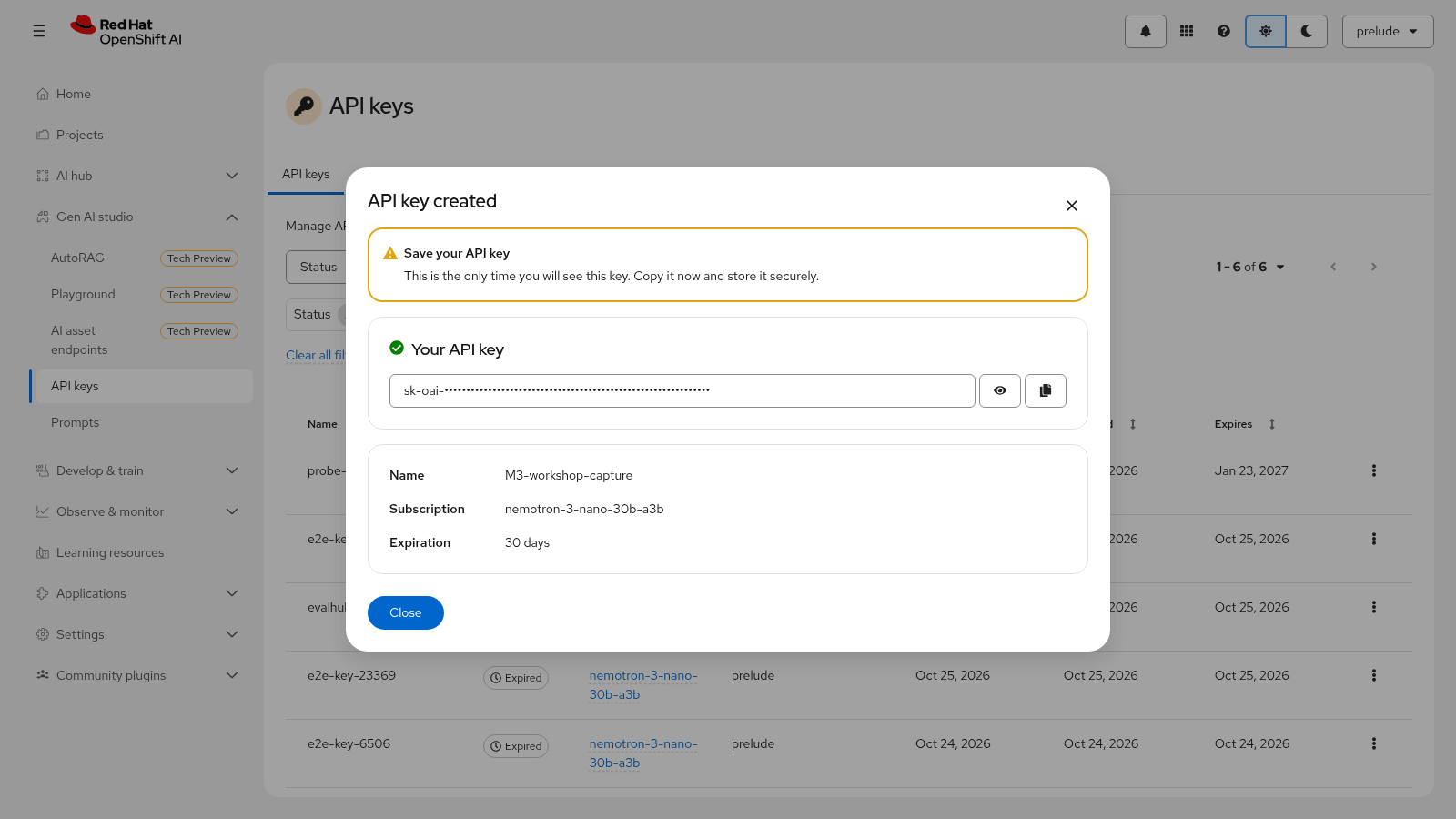
Click Create. The API key created dialog displays the generated key with a
sk-oai-prefix.
|
The plaintext key is displayed only during creation and cannot be retrieved later. Click the copy icon next to the API key field and save the key in a secrets manager or a secure local file before closing the dialog. If you lose it, you must revoke the key and create a new one. |
-
Click Close. The new key appears in the table with Status = Active and the Expires date you selected.
Retrieve the external endpoint URL:
-
Navigate to Gen AI studio → AI asset endpoints.
-
On the Models tab, locate
redhatainvidia-nemotron-nano-9and click View in the Endpoints column. -
In the Endpoints dialog, copy the external API endpoint URL and store it with your API key.
Record both values now — you will use them in Module 4:
| Value | Source |
|---|---|
External API endpoint URL |
Endpoints dialog on the AI asset endpoints page (shape: |
API key ( |
Copied from the one-time API key created dialog |
|
Your group membership is captured at API key creation time. If your group membership changes after the key is created, the key retains the original group associations — revoke the existing key and create a new one to reflect updated groups. |
Exercise 4: Configure scaling policies
Now that you hold a working API key, you will scale the service and confirm it is ready for concurrent consumers.
Module 1 deployed the model with a single replica — the deployment wizard default. One replica serves light, single-team traffic, but a shared endpoint with concurrent consumers needs headroom. For production workloads, deploy at least 2 replicas so the service survives pod restarts and absorbs concurrent requests.
Scale the model to two replicas:
oc patch llminferenceservice redhatainvidia-nemotron-nano-9 -n {project-namespace} --type merge \
  -p '{"spec":{"replicas":2}}'
Wait for the second model pod to come up:
oc get pods -n {project-namespace} -wExpected output:
NAME                                            READY   STATUS    RESTARTS   AGE
redhatainvidia-nemotron-nano-9-kserve-7d9f8b6c5-xr2kp   1/1   Running   0        5m
redhatainvidia-nemotron-nano-9-kserve-7d9f8b6c5-t4mzn   1/1   Running   0        30s
Pod names vary; press Ctrl+C to stop watching once both pods report
Running.
|
The scaling configuration set here carries forward to Module 6, where you monitor serving behavior under load and connect metrics to scaling decisions. Use the premium-tier key (1,000,000 tokens/min) for load generation so the subscription limit does not throttle the test. |
Before testing the endpoint, confirm the model finished MaaS governance
pairing — the MaaSModelRef status conditions must all report True:
oc get maasmodelref redhatainvidia-nemotron-nano-9 -n {project-namespace} -o json \
  | jq -r '.status.conditions[] | "\(.type)=\(.status)"'
Expected output:
Ready=True
GovernanceAttached=True
RuntimeReady=True
ModelIdentityUnique=True
GovernanceAttached confirms the subscription and authorization policy
pairing from Exercise 3 is active, RuntimeReady confirms the model serving
runtime is up, and Ready=True reports the model phase is Ready — the model
is serving through the MaaS gateway.
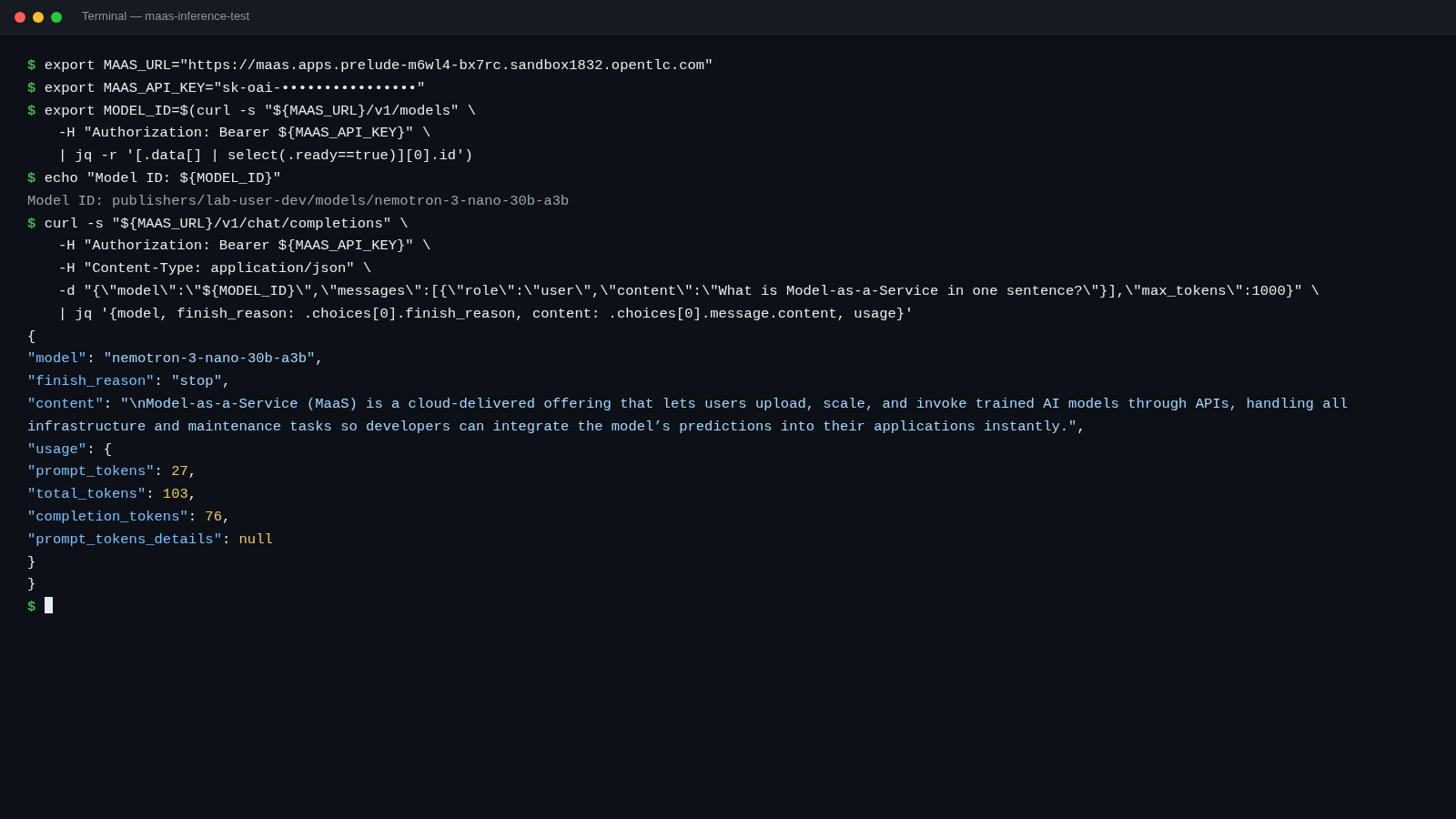
Verify the endpoint is externally reachable. Set the values you recorded in Exercise 3 as environment variables (run these in the same terminal session so the variables remain available):
export MAAS_URL="{maas_url}"
export MAAS_API_KEY="{maas_api_key}"
curl -s "${MAAS_URL}/v1/models" -H "Authorization: Bearer ${MAAS_API_KEY}" | jq .
The response lists the models accessible through your subscription in OpenAI-compatible JSON format:
{
    "object": "list",
    "data": [
      {
        "id": "publishers/{project-namespace}/models/redhatainvidia-nemotron-nano-9",
        "object": "model",
        "created": 1761250000,
        "owned_by": "{project-namespace}",
        "ready": true
      }
    ]
}
Export the model ID from the catalog — request bodies must use the full ID
returned by /v1/models:
export MODEL_ID=$(curl -s "${MAAS_URL}/v1/models" \
  -H "Authorization: Bearer ${MAAS_API_KEY}" \
  | jq -r '[.data[] | select(.ready==true)][0].id')
echo "Model ID: ${MODEL_ID}"
Send a test inference request through the MaaS endpoint using body-based routing — the standard OpenAI-compatible surface:
curl -s "${MAAS_URL}/v1/chat/completions" \
  -H "Authorization: Bearer ${MAAS_API_KEY}" \
  -H "Content-Type: application/json" \
  -d "{\"model\":\"${MODEL_ID}\",\"messages\":[{\"role\":\"user\",\"content\":\"What is Model-as-a-Service in one sentence?\"}],\"max_tokens\":100}" \
  | jq .
A successful response returns HTTP 200 with a completion in OpenAI-compatible format:
{
    "id": "chatcmpl-abc123",
    "object": "chat.completion",
    "created": 1761250100,
    "model": "publishers/{project-namespace}/models/redhatainvidia-nemotron-nano-9",
    "choices": [
      {
        "index": 0,
        "message": {
          "role": "assistant",
          "content": "Model-as-a-Service exposes a model through a governed, externally reachable API gateway..."
        },
        "finish_reason": "stop"
      }
    ],
    "usage": {
      "prompt_tokens": 14,
      "completion_tokens": 21,
      "total_tokens": 35
    }
}
|
Troubleshooting: 401 Unauthorized means the API key is invalid, expired, or revoked; 429 Too Many Requests means the subscription’s token limit was reached — wait for the token limit window to reset and retry; 403 Forbidden means the authorization policy does not grant your group gateway access. Keep request payloads small: the MaaS gateway enforces a 4 MiB request body limit (RHOAIENG-99765), so large payloads routed through the gateway — long prompts, batched requests, or attached files — must stay below roughly 3.8 MB. |
Module summary
What you accomplished:
-
Reviewed the Model-as-a-Service approach and how it differs from direct deployment.
-
Configured the model as a shared service published through the MaaS gateway.
-
Configured access controls and API endpoints, and scaled the model for concurrent consumers.
Key takeaways:
-
Model-as-a-Service transforms a single-team model deployment into a shared, scalable resource available across the organization.
-
Access controls and API credentials govern who can consume the model service.
-
Scaling policies ensure the service can handle concurrent requests from multiple consumers.
-
The endpoint URL and API key you recorded here are the handoff to Module 4 — reuse them there without re-deriving.
Next steps:
The endpoint URL and API key you recorded are ready to be consumed: continue to Module 4 to connect the sample application to the endpoint.