Module 2: Evaluate and Benchmark Model Performance with EvalHub
Overview
With a model deployed, you need to measure how well it performs before exposing it to consumers. A model that has never been measured is a risk: you cannot make serving decisions — expose, scale, or tune — without quality and performance baselines. This module introduces EvalHub — a feature of Red Hat AI Enterprise for running evaluations against deployed models. You run benchmark evaluations, analyze the results, and configure a repeatable evaluation workflow to track performance over time.
Module 1 completed — model deployed and serving inference requests.
20 minutes (3 min explore / 7 min run / 5 min analyze / 5 min repeatable workflow)
Learning objectives
-
Analyze model inference performance using EvalHub for evaluations
-
Configure a repeatable evaluation workflow for tracking model performance over time
Exercise 1: Explore EvalHub
EvalHub is an evaluation orchestration service for large language models
(LLMs) on Red Hat OpenShift AI. It provides a versioned REST API for
submitting evaluation jobs, managing benchmark providers, and tracking
results through MLflow experiment tracking. Each evaluation runs as an
isolated job, enabling parallel execution and horizontal scalability across
namespaces and tenants. EvalHub consists of three components: the EvalHub
Server (a REST API service for evaluation workflows, job orchestration, and
provider management), the EvalHub SDK and CLI (the evalhub command-line
tool and Python client library), and providers (evaluation framework
adapters that translate job requests into framework-specific commands and
report results back to the server).
Four concepts are central to how EvalHub organizes evaluations:
Concept |
What it means |
Provider |
An evaluation framework such as |
Benchmark |
A specific evaluation task within a provider — for example, |
Collection |
A grouping of benchmarks from one or more providers into a reusable evaluation suite. Built-in collections correspond to the benchmark suites shown in the OpenShift AI dashboard. |
Pass criteria and thresholds |
The minimum score a benchmark or job must achieve to pass, set at benchmark,
collection, or provider level. Each benchmark declares a primary score metric
(such as |
Navigate to the Evaluations page
-
In the OpenShift AI dashboard, click Develop & train → Evaluations.
-
Review the evaluations list. From the Project dropdown menu you can filter the list to show only evaluations from a selected project namespace.
|
Evaluations is a Technology Preview feature in Red Hat OpenShift AI 3.6. |
If the Evaluations page is not visible, an administrator must enable it by
setting disableEvalHub to false in the OdhDashboardConfig custom
resource (CR). Using the evaluation functionality also requires the TrustyAI
component to be enabled and MLflow experiment tracking to be configured for
EvalHub — the comparison view you use later in this module is part of the
embedded MLflow interface.
Review the available evaluation types and benchmark datasets
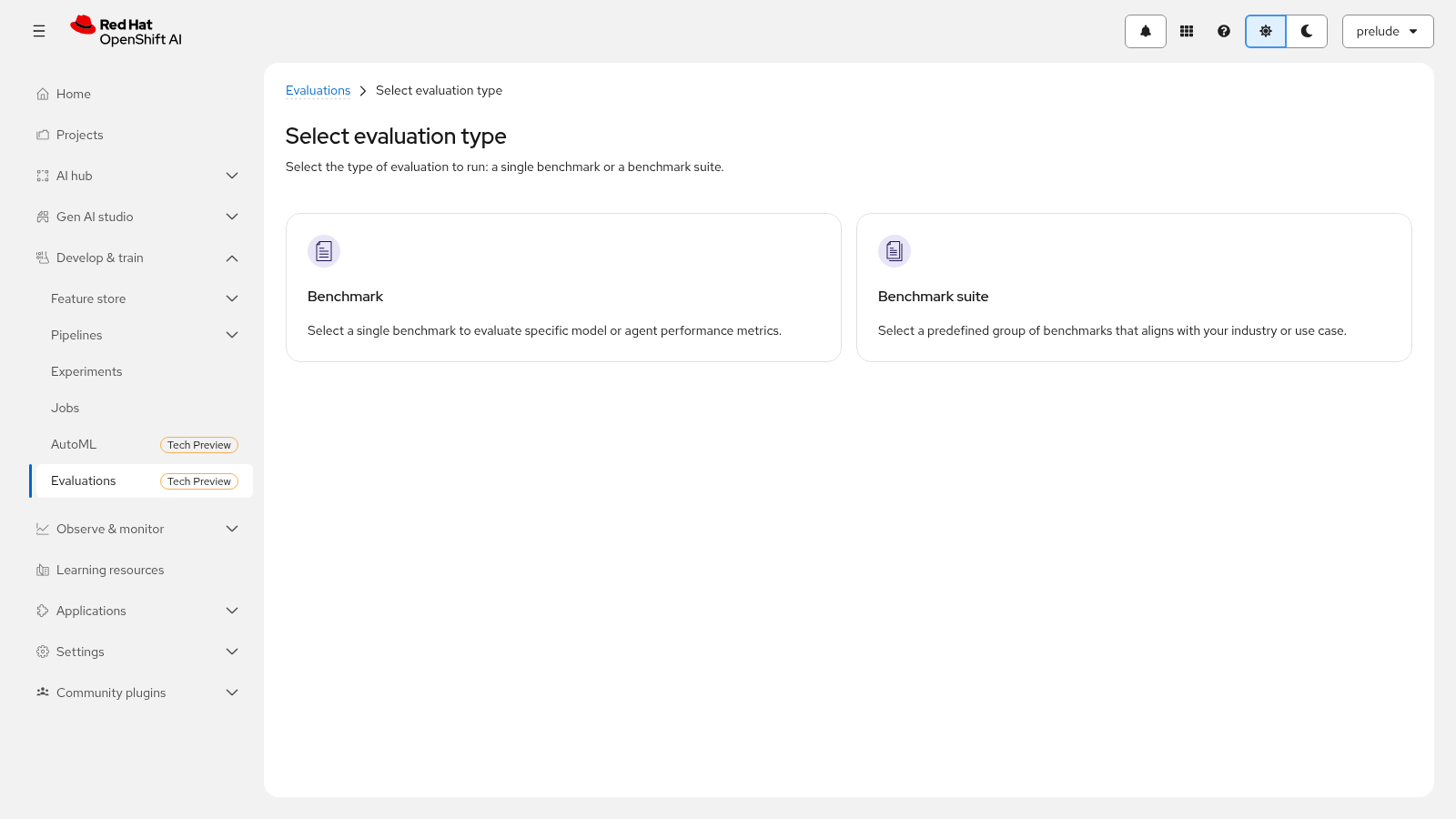
The dashboard offers two evaluation types. A Benchmark is an individual benchmark selected to evaluate a specific capability or task. A Benchmark suite is a predefined collection of related benchmarks that evaluates multiple aspects of model performance. You can evaluate a model, an agent, or pre-recorded responses as the evaluation Source; in this workshop you evaluate the model you deployed in Module 1.
The benchmark datasets are pre-loaded in the lab environment. The built-in providers available in EvalHub include:
Provider |
Benchmarks |
Description |
|
167 |
General-purpose LLM evaluation: MMLU, HellaSwag, ARC, TruthfulQA, GSM8K, and more across 12 categories. |
|
8 |
Security vulnerability scanning: OWASP LLM Top 10, AVID taxonomy, CWE. |
|
7 |
Performance benchmarking provider. |
|
24 |
Lightweight evaluation framework. |
Built-in collections — exposed as benchmark suites in the dashboard — include
leaderboard-v2 (Open LLM Leaderboard v2), safety-and-fairness-v1 (model
safety, bias, and fairness), and toxicity-and-ethical-principles (toxic
content generation, false or misleading information, and ethical principles).
You can also explore providers and benchmarks from the terminal with the
evalhub CLI (every CLI step has an equivalent REST API call). List the
registered providers with evalhub providers list, and get details about a
specific provider with evalhub providers describe — the output lists each
benchmark with its ID, category, and metrics:
evalhub providers describe lm_evaluation_harnessExercise 2: Run a benchmark evaluation
Now that you have explored EvalHub and its providers, you will run a benchmark evaluation against the model you deployed in Module 1, either from the OpenShift AI dashboard or from the EvalHub CLI.
Submit an evaluation job from the dashboard
-
In the OpenShift AI dashboard, click Develop & train → Evaluations.
-
From the Project dropdown menu, select the project namespace with the model you deployed in Module 1.
-
Click the Start evaluation run button and select the benchmarks to run: either an individual Benchmark to evaluate a specific capability, or a predefined Benchmark suite to evaluate multiple aspects of model performance. You can select multiple benchmarks or benchmark suites; each selection appears as a tag below the field.
-
Configure the basic evaluation parameters:
-
Evaluation name: enter a unique name, such as
{model-name}-baseline. By default, the name is the evaluation timestamp. This name identifies the job in the evaluations list and in MLflow experiments. -
MLflow experiment: select an existing experiment from the dropdown menu. Results are logged as runs within the selected experiment.
-
Source: select what to evaluate — a model, an agent, or pre-recorded responses. Select the model you deployed in Module 1.
-
Enter additional parameters, such as the source name, Endpoint URL, or Dataset URL, depending on the selected source. Use the inference endpoint of your Module 1 model — the URL must be accessible from within the cluster — and the pre-loaded benchmark dataset.
-
-
Optional: change the evaluation threshold by dragging the slider to a value between 0 and 100 — equivalent to the 0.0-1.0 threshold used in the API. Thresholds define pass or fail criteria: if you set a threshold, the results include a pass or fail status based on whether the overall score meets the value.
-
Optional: click Benchmark parameters to expand the section and configure benchmark-specific parameters, for example:
{ "num_examples": 10, "limit": 5, "tokenizer": "google/flan-t5-small" } -
Click Evaluate. The job is submitted and the page returns to the evaluations list.
Alternative: submit the job from the CLI
Most providers expect the model URL to point to an OpenAI-compatible inference endpoint; the required URL format can vary by provider, so use the internal endpoint URL from your Module 1 deployment:
evalhub eval run \
  --name {model-name}-baseline \
  --model-url http://{model-name}.{project-namespace}.svc.cluster.local/v1 \
  --model-name {model-name} \
  --provider lm_evaluation_harness \
  -b mmlu -b hellaswag
The server accepts the job and returns a job ID that you use to track
results. You can also submit the job from a YAML config file with
evalhub eval run --config evaljob.yaml — you will build exactly that
reusable config file in Exercise 4.
Wait for the evaluation to complete
-
On the Evaluations page, verify that the Status column shows
Runningwhile the job executes. The job progresses toCompletedwhen all benchmarks finish successfully, orFailedif an error occurs. -
Alternatively, watch the job from the terminal: the
--watchflag polls the job at regular intervals and displays benchmark progress until the job reaches a terminal state:
evalhub eval status --watch {job_id}Under the hood, EvalHub creates an isolated Kubernetes Job for each benchmark in the tenant namespace — an adapter container runs the evaluation framework, and a sidecar proxy container forwards status events and results. You can see the underlying benchmark jobs from the CLI:
oc get jobs -n {project-namespace}The job record itself is tracked by the EvalHub service — not as a Kubernetes
custom resource — so evalhub eval status <job_id> is the source of truth
for job state. When the job completes, click the evaluation name in the
evaluations list to view detailed results.
Exercise 3: Analyze evaluation results
Now that the evaluation run has completed, you will analyze its results.
The results object contains benchmark scores, metrics, and pass/fail
outcomes. If pass criteria are configured, the results include a test field
with the overall score, the threshold, and the pass/fail status.
On the Evaluations page, click the evaluation name to view detailed
results, including benchmark scores and the pass or fail status if you
configured a threshold. Retrieve formatted results from the terminal with
the evalhub CLI:
evalhub eval results {job_id} --format tableBENCHMARK PROVIDER METRIC VALUE mmlu lm_evaluation_harness acc 0.65 mmlu lm_evaluation_harness acc_norm 0.68 hellaswag lm_evaluation_harness acc 0.72 hellaswag lm_evaluation_harness acc_norm 0.75
The --format flag supports table, json, yaml, and csv. The
equivalent REST API call is
curl -s -H "Authorization: Bearer $TOKEN" -H "X-Tenant: {project-namespace}" $EVALHUB_URL/api/v1/evaluations/jobs/<job_id> | jq .results.

Key metrics
The metrics in the results depend on the benchmarks you selected. Each benchmark declares a primary score metric that its threshold is applied to:
Metric |
What it measures |
Direction |
|
Multiple-choice accuracy — for example, MMLU (knowledge), HellaSwag and ARC (reasoning). |
Higher is better |
|
Exact-answer accuracy for math tasks — for example, GSM8K. |
Higher is better |
Safety and vulnerability scores (for example, |
Safety-category benchmarks and |
Check the benchmark’s |
A benchmark passes when its primary score is greater than or equal to the
threshold, unless lower_is_better is true, in which case it passes when
the score is less than or equal to the threshold. At the job level, EvalHub
computes a weighted average of all benchmark primary scores and compares it
against the job-level threshold for an overall pass or fail result.
Latency and throughput
For serving performance, EvalHub includes guidellm — the performance
benchmarking provider — whose benchmarks measure how the model serves
requests. The latency concepts you track across this workshop are:
-
Response latency — the total time from when the request is sent to when the complete response is received.
-
Time to first token (TTFT) — the time from when the inference request is sent to the inference server until the first token of the response is received; measured server-side and only for streaming responses.
-
Throughput — the volume of tokens served over time.
Module 6 monitors serving latency and throughput under load through the observability dashboard. In this module, focus on the quality baseline.
Interpret the metric values
The values in the sample output above (0.65, 0.68, 0.72, 0.75) are documentation examples — not target numbers. There is no universal pass value for a benchmark. Interpret results with this method:
-
Compare against the threshold you set. If you configured a threshold, the results include an explicit pass or fail status against it — that is your quality gate before exposing the model as a Model-as-a-Service in Module 3.
-
Compare against a baseline run. The run you just completed becomes the baseline. After any change — a new model version, different runtime arguments, a different serving configuration — re-run the same evaluation and compare the two runs side by side (Exercise 4).
-
Check each benchmark’s metric direction. The comparison view does not indicate whether a higher or lower metric value is better, so you must interpret metric changes based on your knowledge of each benchmark. Use
evalhub providers describe <provider>to review each benchmark’s category and metrics.
Exercise 4: Configure a repeatable evaluation workflow
A one-off benchmark is a data point; a repeatable evaluation workflow is a baseline. This section turns the evaluation you ran into a workflow you can re-trigger to track performance over time.
Save the evaluation as a YAML config file
The job you submitted from the console can be expressed as a YAML config file, which captures the model endpoint, the benchmarks, and the MLflow experiment. Save it alongside your project so it can be versioned and re-run:
# evaljob.yaml — repeatable evaluation configuration
name: {model-name}-baseline
model:
  url: http://{model-name}.{project-namespace}.svc.cluster.local/v1
  name: {model-name}
benchmarks:
  - provider_id: lm_evaluation_harness
    benchmark_id: mmlu
  - provider_id: lm_evaluation_harness
    benchmark_id: hellaswag
experiment:
  name: {model-name}-eval
Re-triggering the identical evaluation after any change is then a single command:
evalhub eval run --config evaljob.yamlYou can set benchmark-level thresholds per benchmark in a job submission or
collection definition; a benchmark-level threshold overrides collection- and
provider-level defaults. If MLflow is configured for EvalHub, EvalHub
automatically logs the benchmark metrics of each run within the experiment,
and the results include an mlflow_experiment_url linking to the experiment
in the MLflow UI — for example,
https://mlflow.example.com/#/experiments/42.
Group benchmarks into a reusable collection
Collections group benchmarks from one or more providers into a reusable
evaluation suite. Built-in collections are read-only, but you can create a
custom collection from your own benchmarks — for example, a safety suite
combining a lm_evaluation_harness benchmark with a garak vulnerability
scan — with evalhub collections create --file <collection>.yaml, and then
submit evaluation jobs that reference the collection by its ID. Use either
benchmarks or a collection reference in a job submission, not both.
Collections you create are also usable as benchmark suites from the
dashboard.
Re-trigger the workflow and compare runs over time
-
Re-run the saved config after each configuration or model change.
-
In the OpenShift AI dashboard, click Develop & train → Evaluations.
-
In the evaluations list, select the checkbox next to each completed evaluation run that you want to compare — for example, the baseline run and the run after a change. You can select two or more runs.
-
Click Compare. The embedded MLflow comparison view opens and displays the parameters and metrics for the selected runs in a side-by-side layout.
-
Review the comparison results: in the Visualizations section, use the available plot types, such as parallel coordinates or contour plots, to compare how parameter combinations affect evaluation metrics; in the Run details section, expand each run to view its configuration, status, and metadata. Use the filter to show only parameters or metrics that differ between runs. The comparison view provides a shareable URL that you can send to team members for review.

The comparison view has limitations to keep in mind: it does not indicate whether a higher or lower metric value is better, it does not display the pass/fail thresholds configured in EvalHub, metrics from benchmark suites are shown as a flat list of key-value pairs, and comparison results cannot be exported to a file — to share them, use the comparison view URL. Record your baseline values and interpret changes using your knowledge of each benchmark.
Troubleshooting
If an evaluation run ends in the failed state, check the job failure
message code in the response:
-
RUNTIME_FAILURE— the evaluation runtime encountered an error during benchmark execution. -
queue_error— the specified Kueue queue could not be resolved: the LocalQueue does not exist in the namespace, or the backing ClusterQueue is stopped or unavailable.
|
MaaS gateway 4 MiB request-body limit (known issue RHOAIENG-99765) — the MaaS gateway enforces a 4 MiB request body limit. Evaluation payloads routed through the gateway — for example, when the evaluation Endpoint URL points at the model through the gateway with a large prompt dataset or many few-shot examples — must stay under ~3.8 MB (the 4 MiB limit minus protocol overhead). Symptom: requests through the gateway fail with an opaque, empty HTTP 500
response body even though the model is healthy and serves smaller requests
normally, and the evaluation run shows the How to confirm: check the MaaS gateway logs for the rejected request — the log entry shows the request body size at or above the 4 MiB limit for the failing call, while the model pod logs show no corresponding error. Fix: keep evaluation payloads below ~3.8 MB — reduce |
Module summary
What you accomplished:
-
Explored EvalHub — its providers, benchmarks, collections, and pass criteria.
-
Ran a benchmark evaluation against the deployed model from the dashboard and the CLI.
-
Analyzed the evaluation results and configured a repeatable evaluation workflow.
Key takeaways:
-
EvalHub provides a structured way to benchmark and evaluate model inference performance directly within Red Hat AI Enterprise.
-
Evaluation results surface latency, throughput, and quality metrics that inform serving decisions.
-
A repeatable evaluation workflow enables teams to track model performance as configurations or models change.
Next steps:
With a measured quality baseline in hand, continue to Module 3 to expose the model as a shared Model-as-a-Service.