Module 4: Integrate the Model into an Application
Overview
The MaaS endpoint only creates value when applications consume it. In this
module you connect the endpoint you exposed in Module 3 to a consuming
application using standard API patterns — REST calls against the
OpenAI-compatible /v1 endpoint — with no custom, model-specific integration
code. You configure it with the endpoint URL and API credentials recorded in
Module 3, deploy it to the cluster, and watch inference responses flow — then
register the same endpoint as a custom language model in VS Code Chat.
The running application you produce here is the workload that Module 5 validates end-to-end and Module 6 monitors under load.
Module 3 complete — the model is exposed as Model-as-a-Service with a
reachable API endpoint, and you recorded the endpoint URL and the sk-oai-
API key (the Module 3 → 4 handoff).
20 minutes (3 min review the application / 7 min configure / 5 min deploy / 5 min send requests)
Learning objectives
By the end of this module you will be able to:
-
Integrate a model service into an application using standard API patterns
-
Configure application-side settings to consume the Model-as-a-Service endpoint
Exercise 1: Review the sample application
The lab workspace ships with a sample application: maas-chat-client, a
minimal chat client that sends OpenAI-compatible Chat Completions requests to
the MaaS endpoint and prints the model’s responses. The point of this module
is the integration pattern, not the application logic.
You review and run the application from OpenShift Dev Spaces — the cloud IDE running on your cluster:
-
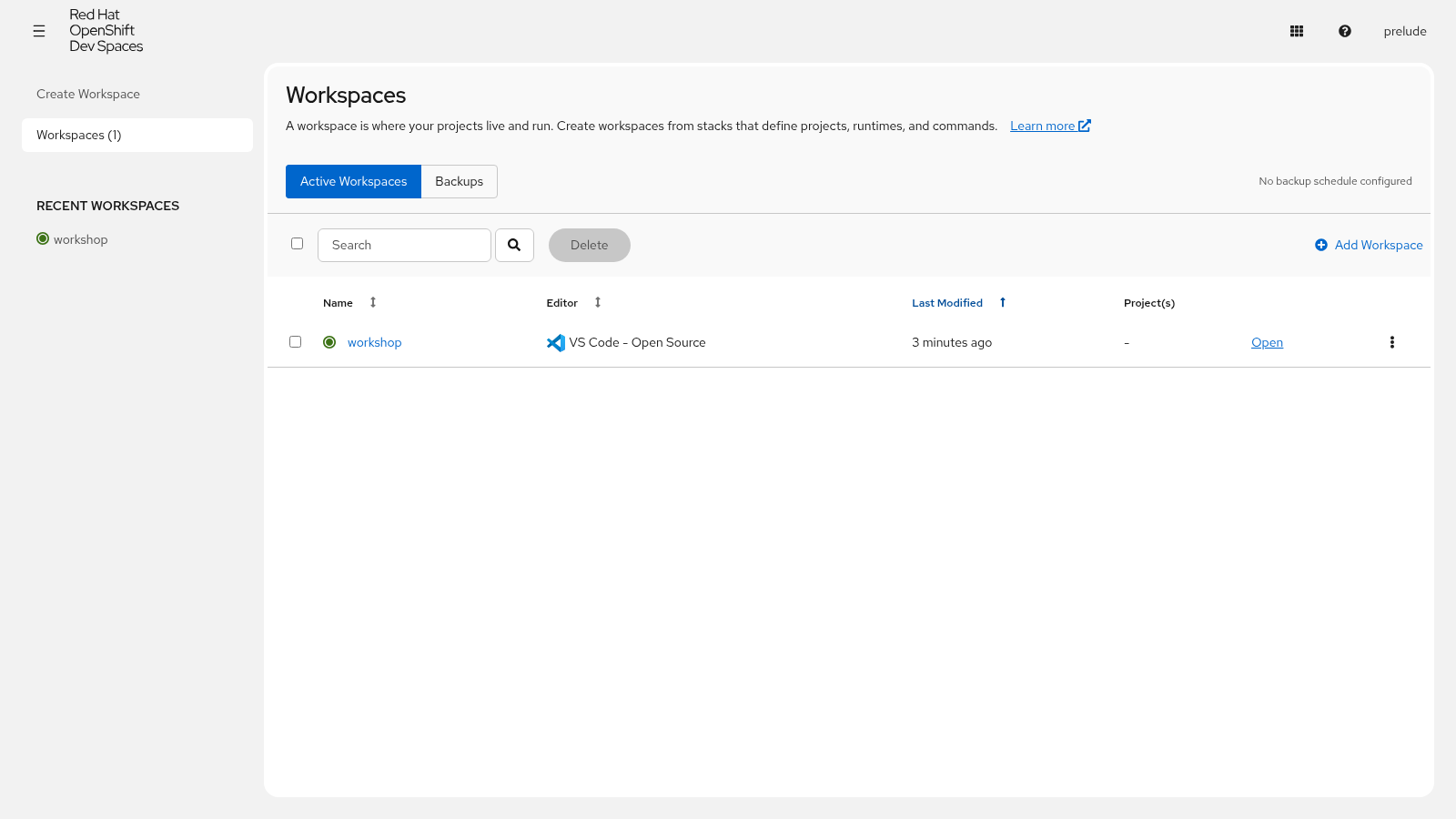
From the OpenShift console, click the Application Launcher (waffle menu in the masthead) and select Red Hat OpenShift Dev Spaces, logging in with the same lab credentials if prompted.
-
On the Dev Spaces dashboard, locate the prepared workshop workspace — a pre-cloned VS Code workspace with dependencies configured — and click Open.
-
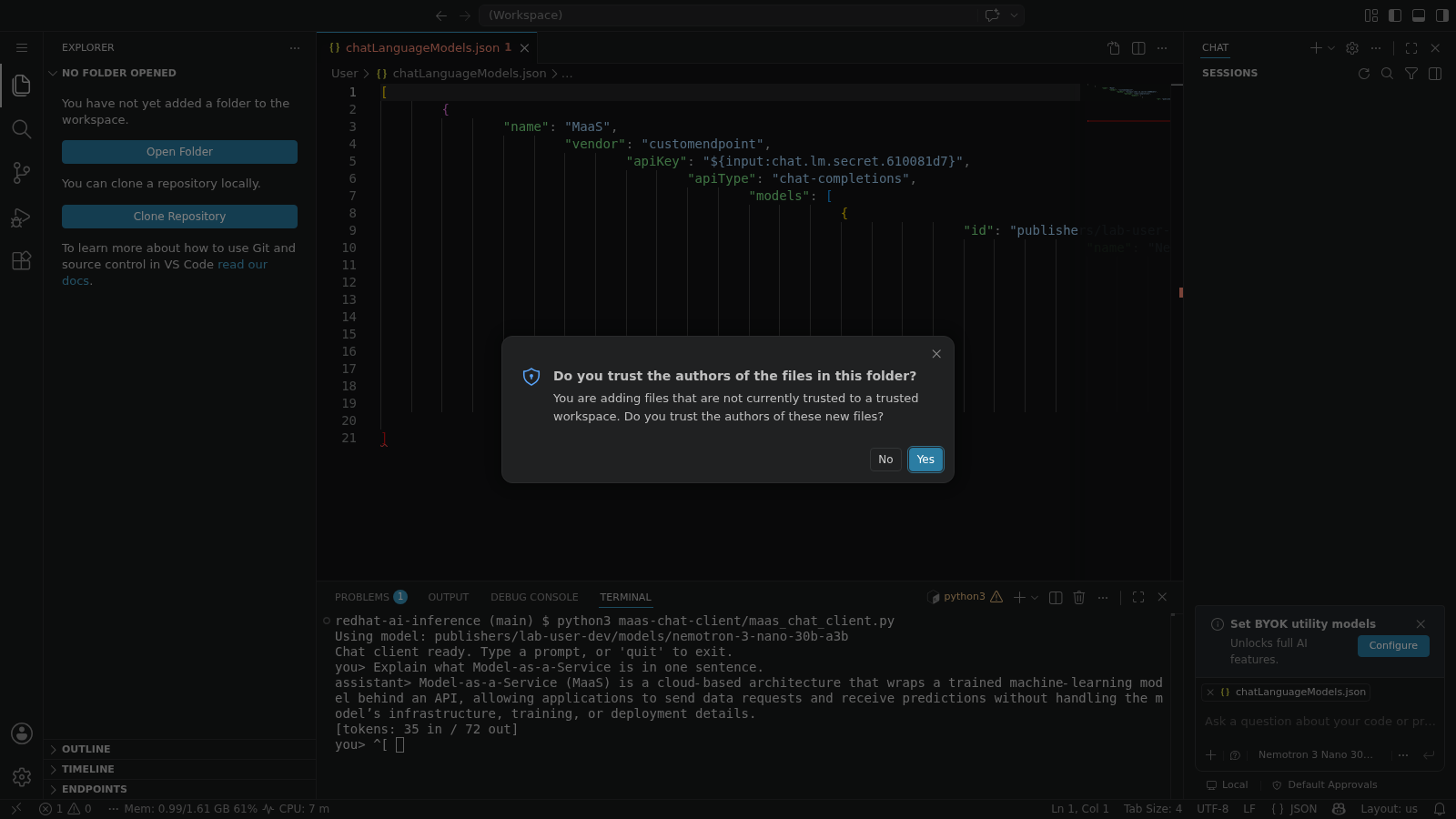
When the VS Code interface opens in your browser, accept the Trust the authors prompt if it appears.
|
If your workspace shows a warning that it failed to start, it was idled to free resources — clicking Open again restarts it. |
From the file explorer, open the maas-chat-client directory in the cloned
repository. It contains maas_chat_client.py — the complete chat client, a
single Python file with no third-party dependencies — and deploy/deployment.yaml,
the Deployment that runs the client on the cluster in Exercise 3.
The client is Python 3 and uses only the standard library — urllib for HTTP
and json for payloads — so there is nothing to install and no SDK lock-in.
The same file runs two ways:
-
Interactive (default) — a chat loop in your terminal. You type prompts and the client prints the model’s responses. You use this mode in Exercise 4.
-
Request loop — set the
MAAS_INTERVALvariable to a positive number of seconds and the client repeatedly sends a fixed prompt and logs each completion. The pod in Exercise 3 uses this mode to keep consuming the endpoint steadily — the traffic Module 6 monitors.
All configuration is read from environment variables at startup:
| Variable | Required | Meaning |
|---|---|---|
|
Yes |
Base URL of the MaaS endpoint — the external API endpoint URL you recorded in Module 3. |
|
Yes |
Your |
|
No |
Full model ID. When unset, the client discovers the first ready model from the |
|
No |
Prompt sent by the request loop (deployed mode). |
|
No |
Seconds between requests. |
The entire integration is one function: chat_completions() in the source
below. It sends an HTTP POST to {MAAS_URL}/v1/chat/completions with the API
key as a bearer token and the model name in the request body. That is the
standard OpenAI-compatible surface: call models with the model name in the
request body, enabling drop-in compatibility with OpenAI-compatible SDKs and
clients such as the Python openai library, LangChain, and LlamaIndex,
without custom URL paths or model-specific integration code. Everything else
in the file is ordinary client code.
#!/usr/bin/env python3
"""A minimal chat client for the Model-as-a-Service endpoint from Module 3."""
import json, os, sys, time
import urllib.error
import urllib.request

API_URL = os.environ.get("MAAS_URL", "").rstrip("/")
API_KEY = os.environ.get("MAAS_API_KEY", "")
MODEL = os.environ.get("MAAS_MODEL", "")
PROMPT = os.environ.get("MAAS_PROMPT", "Explain Model-as-a-Service in one sentence.")
INTERVAL = int(os.environ.get("MAAS_INTERVAL", "0"))
SYSTEM = "You are a concise assistant."

def chat_completions(model, messages, max_tokens=256):
    """POST one Chat Completions request and return the parsed response."""
    payload = json.dumps({"model": model, "messages": messages, "max_tokens": max_tokens}).encode("utf-8")
    request = urllib.request.Request(
        f"{API_URL}/v1/chat/completions", data=payload, method="POST",
        headers={"Authorization": f"Bearer {API_KEY}", "Content-Type": "application/json"})
    with urllib.request.urlopen(request, timeout=120) as response:
        return json.loads(response.read().decode("utf-8"))

def discover_model():
    """Return the first ready model ID from the /v1/models catalog."""
    request = urllib.request.Request(f"{API_URL}/v1/models", headers={"Authorization": f"Bearer {API_KEY}"})
    with urllib.request.urlopen(request, timeout=30) as response:
        catalog = json.loads(response.read().decode("utf-8"))
    ready = [m for m in catalog.get("data", []) if m.get("ready", True)]
    if not ready:
        raise RuntimeError("no ready models in the catalog — check Module 3")
    return ready[0]["id"]

def print_completion(completion):
    """Print one completion and its token usage."""
    choice = completion["choices"][0]
    usage = completion.get("usage", {})
    print(f"assistant> {choice['message']['content'].strip()}")
    print(f"[tokens: {usage.get('prompt_tokens', '?')} in / {usage.get('completion_tokens', '?')} out]")

def run_interactive(model):
    """Chat loop: read prompts from the terminal until you type quit."""
    print("Chat client ready. Type a prompt, or 'quit' to exit.")
    history = []
    while True:
        try:
            user_input = input("you> ").strip()
        except (EOFError, KeyboardInterrupt):
            break
        if not user_input or user_input.lower() in ("quit", "exit"):
            break
        messages = [{"role": "system", "content": SYSTEM}] + history + [{"role": "user", "content": user_input}]
        try:
            completion = chat_completions(model, messages)
        except urllib.error.HTTPError as exc:
            print(f"HTTP {exc.code}: {exc.reason} — check your endpoint URL and API key")
            continue
        except urllib.error.URLError as exc:
            print(f"endpoint unreachable: {exc}")
            continue
        print_completion(completion)
        history += [{"role": "user", "content": user_input},
                    {"role": "assistant", "content": completion["choices"][0]["message"]["content"]}]
    print("Bye!")

def run_request_loop(model):
    """Deployed mode: send PROMPT every INTERVAL seconds and log results."""
    print(f"Request loop started — one completion every {INTERVAL}s.")
    while True:
        messages = [{"role": "system", "content": SYSTEM}, {"role": "user", "content": PROMPT}]
        try:
            completion = chat_completions(model, messages)
            print_completion(completion)
        except urllib.error.HTTPError as exc:
            print(f"HTTP {exc.code}: {exc.reason} — check your endpoint URL and API key")
        except urllib.error.URLError as exc:
            print(f"endpoint unreachable: {exc}")
        time.sleep(INTERVAL)

def main():
    if not API_URL or not API_KEY:
        sys.exit("Set MAAS_URL and MAAS_API_KEY before starting the client.")
    model = MODEL or discover_model()
    print(f"Using model: {model}")
    if INTERVAL > 0:
        run_request_loop(model)
    else:
        run_interactive(model)

if __name__ == "__main__":
    main()
Exercise 2: Configure the application
Now that you have reviewed the application and its configuration surface, you will wire in your endpoint URL and API key.
The application needs exactly two values from Module 3 — the external API
endpoint URL and the sk-oai- API key. You provide them as environment
variables for the client in your workspace, and as a Secret for the on-cluster
deployment in Exercise 3. Configuration is the only integration work.
Configure the application
In the Dev Spaces terminal, set the endpoint URL and API key you recorded in Module 3. Replace the placeholders with your values:
export MAAS_URL="{maas_url}"
export MAAS_API_KEY="{maas_api_key}"-
{maas_url}— the external API endpoint URL copied from the Endpoints dialog in Module 3 (shape:https://maas.apps.<cluster-domain>/). Do not add/v1here — the client appends it. -
{maas_api_key}— thesk-oai-API key you created in Module 3.
|
Run these commands in the same terminal session you plan to use in section 4.4, so the variables remain available. If you open a new terminal, re-run the export block first. |
Validate both values before moving on — a healthy endpoint returns HTTP 200
(401 means the key is wrong or expired; 403 means your group has no
gateway access — both point back to Module 3’s access controls):
curl -s -o /dev/null -w "%{http_code}\n" "${MAAS_URL}/v1/models" \
  -H "Authorization: Bearer ${MAAS_API_KEY}"
The on-cluster deployment reads its configuration from a Secret rather than plain environment variables. Create it from the same exported values — this avoids re-typing the endpoint URL and key, which is where typos creep in:
oc create secret generic maas-credentials \
  --from-literal=MAAS_URL="${MAAS_URL}" \
--from-literal=MAAS_API_KEY="${MAAS_API_KEY}"|
The Secret lives in your current project alongside the application. Never commit the API key to a repository or paste it into the deployment manifest — the Secret is the only place the key is stored. |
Optional: use the model as your AI assistant
You can also register the endpoint as a language model in VS Code Chat — the same endpoint, consumed from your editor instead of from the application.
-
Open the Command Palette (
Ctrl+Shift+Pon Linux,Cmd+Shift+Pon Mac) and runChat: Manage Language Models, then click + Add Models → Custom Endpoint. -
Name the model group
MaaS, paste your API key when prompted, and select Chat Completions API as the API type. -
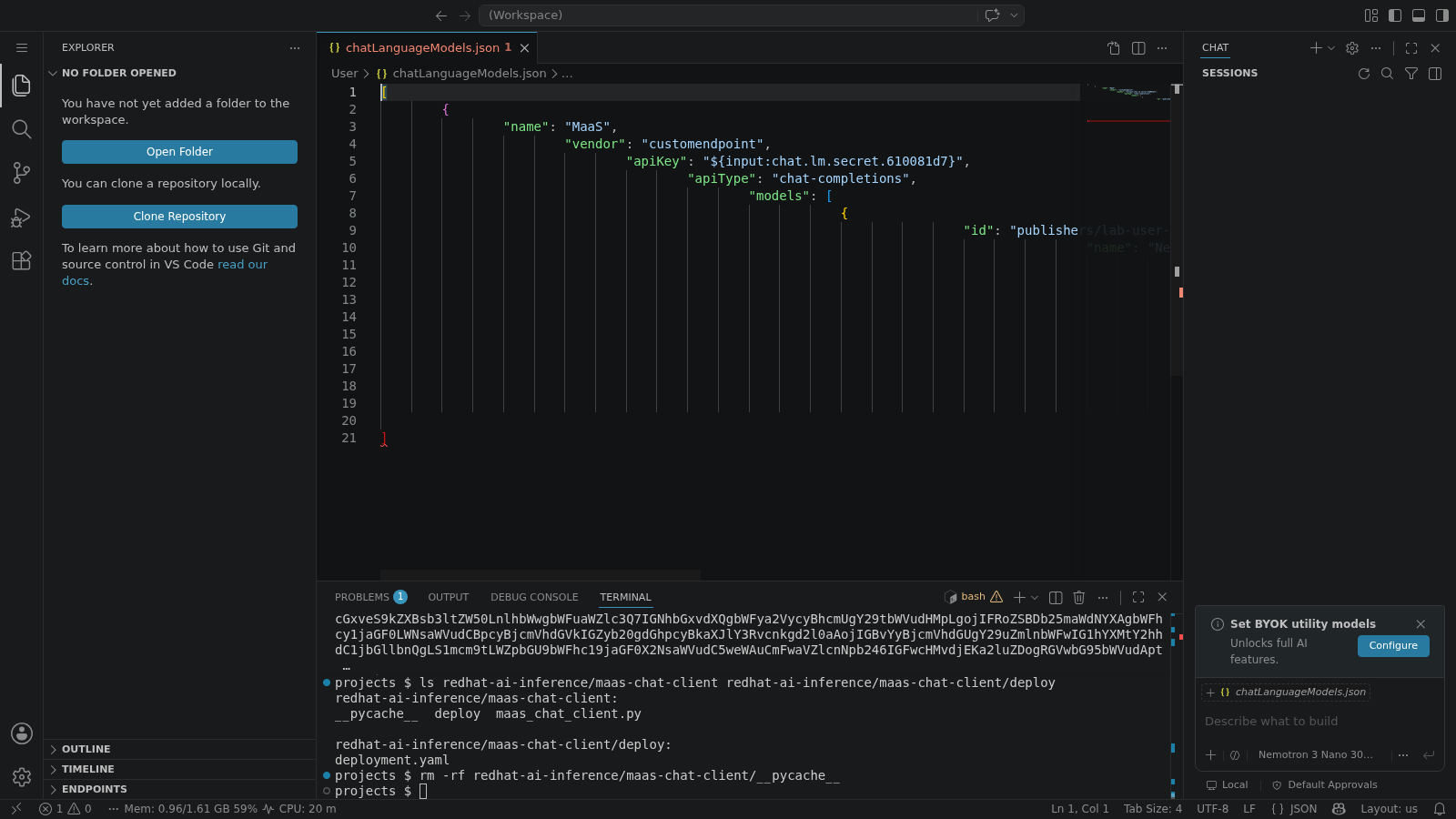
VS Code opens a
chatLanguageModels.jsonfile. Register the model:
{
  "id": "publishers/{project-namespace}/models/nemotron-3-nano-30b-a3b",
  "name": "Nemotron 3 Nano 30B A3B",
  "url": "{maas_url}/v1",
  "toolCalling": true,
  "vision": false,
  "maxInputTokens": 131072,
  "maxOutputTokens": 16384
}
-
urlis the base URL ending in/v1— do not append/chat/completions. -
idmust exactly match your model’s ID, case-sensitive, including the namespace prefix — the same ID/v1/modelsreturned in Module 3. -
toolCallingandvisionmust match what the model actually supports. This deployment supports tools but not vision; wrong values make agent mode misbehave.
|
The API key entered in the form is stored separately, and a reference to it
is placed above the JSON snippet in the file. Do not change that reference.
If you do, go back to |
|
This VS Code configuration is client-side only — it wires your editor to the endpoint. It is separate from the on-cluster application deployment in Exercise 3, even though both consume the same endpoint and the same API key. |
Exercise 3: Deploy the application
With configuration in place, deploy the client to the OpenShift cluster. The pod runs in your own project and reaches the MaaS endpoint over the cluster network — the endpoint you verified in Module 3 is reachable in-cluster too.
The deploy/deployment.yaml manifest in the workspace mounts the client code
from a ConfigMap and injects configuration from the maas-credentials Secret
you created in Exercise 2:
apiVersion: apps/v1
kind: Deployment
metadata:
  name: maas-chat-client
spec:
  replicas: 1
  selector:
    matchLabels:
      app: maas-chat-client
  template:
    metadata:
      labels:
        app: maas-chat-client
    spec:
      containers:
        - name: chat-client
          image: registry.access.redhat.com/ubi9/python-311:latest
          command: ["/bin/bash", "-c", "python3 /opt/client/maas_chat_client.py"] (1)
          envFrom:
            - secretRef:
                name: maas-credentials (2)
          env:
            - name: MAAS_PROMPT
              value: "Explain Model-as-a-Service in one sentence." (3)
            - name: MAAS_INTERVAL
              value: "30"
          volumeMounts:
            - name: client-code
              mountPath: /opt/client (4)
              readOnly: true
      volumes:
        - name: client-code
          configMap:
name: maas-chat-client (5)| 1 | Entry point — Runs the client script mounted from the ConfigMap below, so no image build is required. |
| 2 | Credential injection — Injects MAAS_URL and MAAS_API_KEY from the maas-credentials Secret as environment variables. |
| 3 | Request-loop mode — MAAS_PROMPT and MAAS_INTERVAL switch the client from the interactive chat loop to sending one request every 30 seconds. |
| 4 | Read-only code mount — Mounts the client code at /opt/client; readOnly prevents the pod from modifying it. |
| 5 | Code source — The ConfigMap that the oc create configmap command in the next step populates with the client script. |
There is nothing model-specific in the manifest: the image is a plain Python
runtime, and all environment-specific values — endpoint URL and API key — come
from the Secret. The MAAS_PROMPT and MAAS_INTERVAL variables switch the
client into request-loop mode, so the pod sends one inference request every
30 seconds and keeps the endpoint under steady, observable load.
Deploy it:
oc create configmap maas-chat-client \
  --from-file=maas_chat_client.py
oc apply -f deploy/deployment.yaml
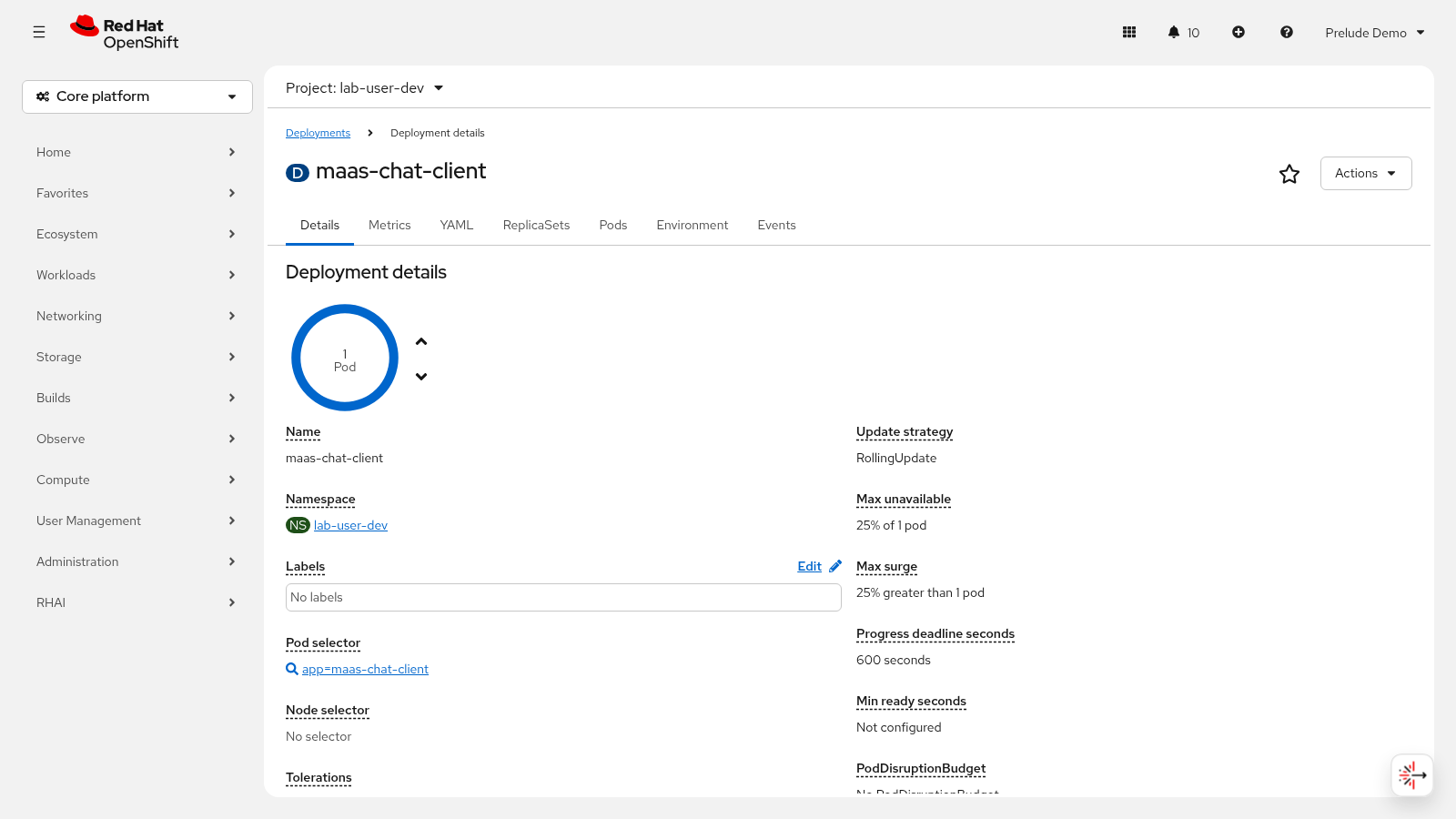
Wait for the pod to become ready:
oc get pods -l app=maas-chat-client -wExpected output:
NAME                               READY   STATUS    RESTARTS   AGE
maas-chat-client-7d9f8b6c5-kq9xz   1/1     Running   0          25s
Pod names vary; press Ctrl+C once the pod reports Running 1/1.
|
You could instead build a container image from the same directory with
|
Exercise 4: Send requests and observe responses
The integration is live. Exercise it from three surfaces and watch the same inference flow through each: the chat client in your workspace, the deployed pod on the cluster, and your VS Code assistant.
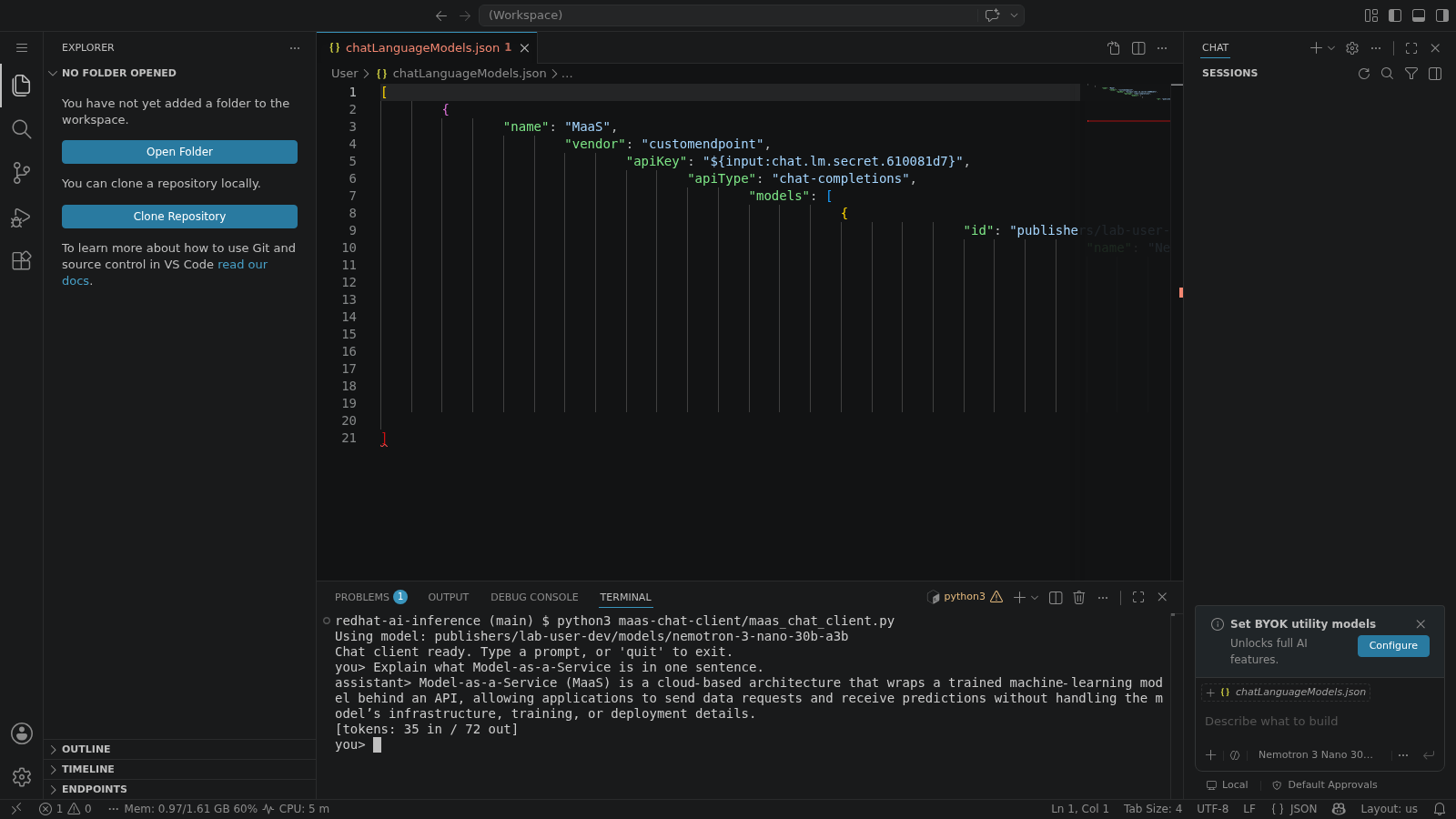
Send requests through the chat client
In the Dev Spaces terminal (with MAAS_URL and MAAS_API_KEY still exported
from Exercise 2), start the client in interactive mode:
python3 maas-chat-client/maas_chat_client.pyThe client prints the model it discovered from the /v1/models catalog, then
prompts you. Type a request and observe the response:
you> Explain what Model-as-a-Service is in one sentence.
assistant> Model-as-a-Service exposes a deployed model through a governed API endpoint, so multiple teams can consume it with standard API calls and centralized quotas.
[tokens: 16 in / 25 out]
Every exchange is a Chat Completions request against the MaaS endpoint, and
every response reports its token usage. Type quit to exit.
Observe the deployed pod consuming the endpoint
The pod in Exercise 3 has been sending its own requests every 30 seconds. Watch its log to confirm the on-cluster integration works:
oc logs -f deployment/maas-chat-clientExpected output:
Request loop started — one completion every 30s.
assistant> Model-as-a-Service publishes a deployed model as a shared, subscription-governed API endpoint on the cluster.
[tokens: 12 in / 21 out]
This confirms the application successfully consumes the MaaS endpoint from inside the cluster: the request left the pod, passed the MaaS gateway, was served by the model, and the completion came back in the standard OpenAI-compatible response format. Module 5 traces exactly this path.
Use the model from your editor
If you registered the model with VS Code Chat in Exercise 2, the same endpoint now powers your AI assistant:
-
Open the AI chat panel in VS Code (focus the editor, then press
Ctrl+Alt+Ion Linux orCmd+Ctrl+Ion Mac), select Nemotron 3 Nano 30B A3B — the model you registered — and switch the chat to Ask mode. -
Highlight a few lines of
maas_chat_client.pyin the editor. The selection appears as a context chip on the chat input. Right-click the selection and choose Explain, or ask directly:Explain what this code does. -
The response streams back from your MaaS endpoint — the same subscription and token accounting as the application’s requests.

|
[env] This capture is pending a platform change: the MaaS gateway’s payload processing passes the whole conversation (system messages included) into the NeMo guardrails' forbidden-word scan, and the VS Code chat system prompt always contains scanned terms — so every editor chat request is blocked with 403 regardless of the key. Scope the guards off the model path or ship input rails that scan only the last user message, then re-capture this image. |
Switching the chat to Agent mode unlocks file-editing actions: the
toolCalling: true setting you configured in Exercise 2 is what lets the
model call the editor’s tools.
|
Every completion — from the chat client, the pod, or your editor — reports prompt and completion token usage, and every token counts against your subscription’s rate limits from Module 3. The pod’s request loop adds steady traffic for the observability dashboard in Module 6. |
Module summary
What you accomplished:
-
Reviewed the sample application and its OpenAI-compatible integration pattern.
-
Configured the application with the MaaS endpoint URL and API key.
-
Deployed the application to the cluster and observed inference responses flow.
Key takeaways:
-
Standard API patterns (REST/OpenAI-compatible endpoints) make model services consumable by any application without custom integration code.
-
Application-side configuration requires the MaaS endpoint URL and valid API credentials.
-
The integration pattern used here is reusable for connecting any application to a model service on Red Hat AI Enterprise.
-
One endpoint serves many consumers — the deployed application and your own AI assistant in VS Code — and the running pod is the input to Module 5 validation and Module 6 monitoring.
Next steps:
The application is running and consuming the endpoint: continue to Module 5 to validate the end-to-end request flow.