Module 6: Monitor Model Performance through Observability
Overview
A production AI service needs ongoing visibility: latency, throughput, error rate, and resource utilization under real usage — not just a one-time evaluation. This module introduces the observability dashboard in Red Hat AI Enterprise and closes the loop with the scaling configuration you set in Module 3.
You explore the Dashboard and Infrastructure tabs, review the model serving metrics that reflect the traffic your application has been sending since Module 4, generate load against the MaaS endpoint and watch the metrics respond, and analyze how request rate, latency, and resource utilization relate — connecting those metrics to scaling policies, capacity planning, and alerting thresholds.
Modules 1–5 complete — the end-to-end workflow is validated, the application is actively sending requests to the model service, and you still have the MaaS endpoint URL and premium-tier API key you recorded in Module 3.
20 minutes (5 min explore / 5 min monitor metrics / 5 min generate load / 5 min analyze trends)
Learning objectives
By the end of this module you will be able to:
-
Monitor model serving metrics through the observability dashboard
-
Analyze serving behavior under load to identify performance trends
Along the way you also review the metric pipelines behind the dashboard — MaaS per-subscription token telemetry and vLLM engine metrics collected through user workload monitoring — and note baselines for latency, throughput, and error rate before generating load.
Exercise 1: Explore the observability dashboard
The observability dashboard is part of the OpenShift AI dashboard, backed by the platform’s observability stack: the Cluster Observability Operator provides the dashboard and metrics storage, and Prometheus scrapes metrics from the MaaS gateway components and the model server.
-
Open the OpenShift web console at https://console-openshift-console.apps.cluster.example.com and launch Red Hat OpenShift AI from the application menu, as in Module 1.
-
Select Observe & monitor → Dashboard from the left-side navigation menu.
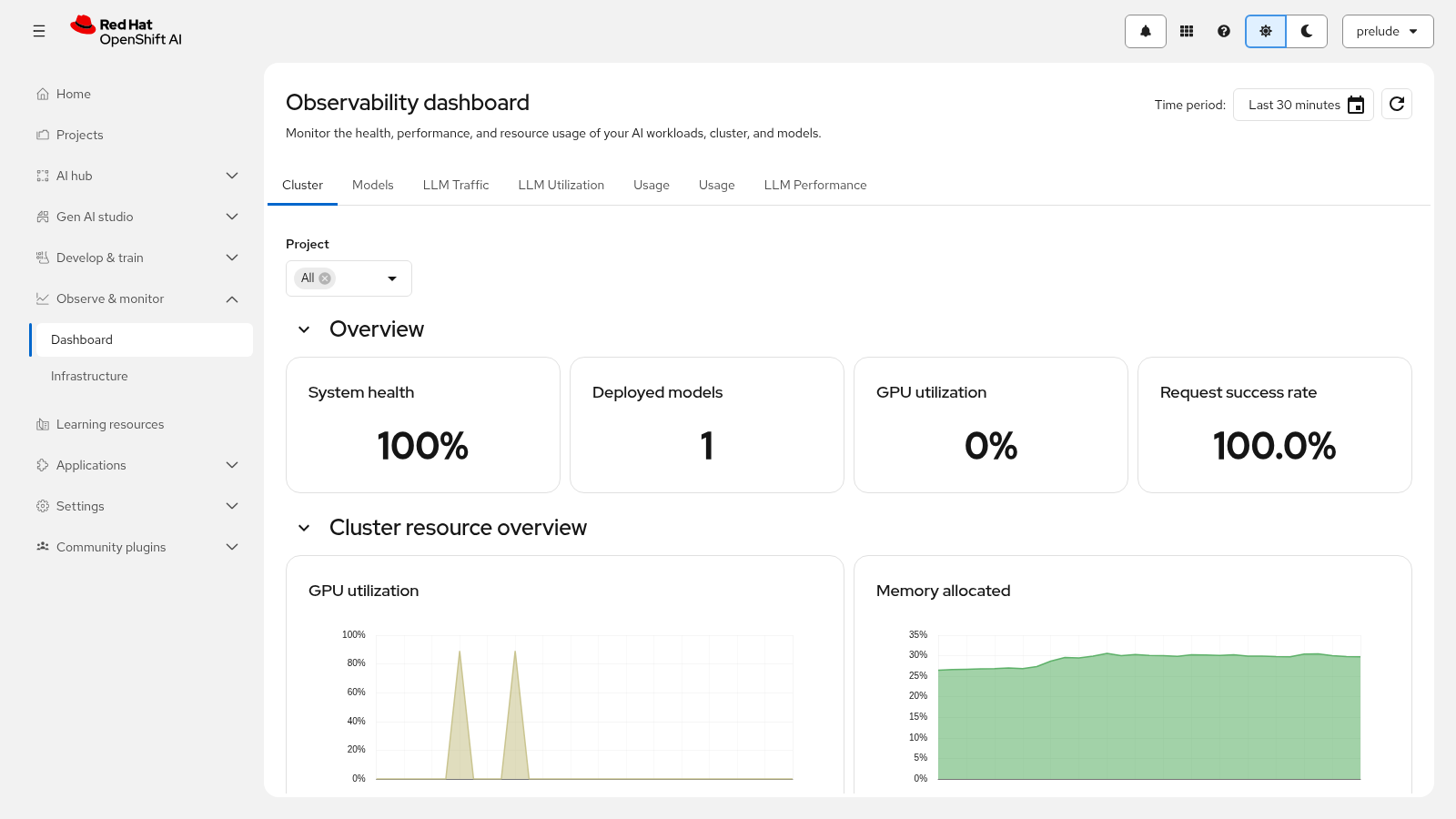
The default view is the Dashboard tab. This shows the health, performance, and resource usage of AI workloads, highlighting basic GPU usage up front:
-
Platform health — overall serving platform status; for example, a healthy deployment shows 100% health
-
Deployed models — the count of models serving on the cluster; one model is deployed in this workshop
-
Resource charts — GPU, CPU, memory, and inbound traffic over the selected time window (for example, the last 30 minutes)
-
Latency chips — time to first token (TTFT) and response latency at a glance
The dashboard also surfaces the model serving metrics you review throughout this module:
-
Request rate
-
Latency (p50, p95, p99)
-
Throughput — tokens served over time
-
Error rate — failed and rate-limited requests
-
Resource utilization (CPU, memory, GPU)
MaaS usage analytics — the subscription-level token accounting this module focuses on in Exercise 2 — live on this same Dashboard tab, the default observability view in RHOAI 3.6; the second tab, Infrastructure, shows node and infrastructure metrics. (The dashboard also supports a Models tab in full deployments; your lab user has permissions to see the Dashboard and Infrastructure tabs only.)
|
RHOAI 3.6 renamed and reorganized the observability tabs: the former Cluster and Usage tabs are now Dashboard and Infrastructure. |
|
The usage analytics on the Dashboard tab show aggregated data from all users on the shared workshop cluster — you will see other participants' usage too, assuming they have completed earlier modules. This demonstrates multi-tenant observability: in production you would scope visibility with role-based access control to team or project boundaries. |
|
For per-model detail, open your project from Projects, select the Deployments tab, and open the Endpoint performance tab for your model. It graphs number of requests, average response time, and CPU and memory utilization per model replica, with selectable time range and refresh interval. |
Exercise 2: Monitor key model serving metrics
Now that you have located the observability dashboard, you will review the model serving metrics it reports.
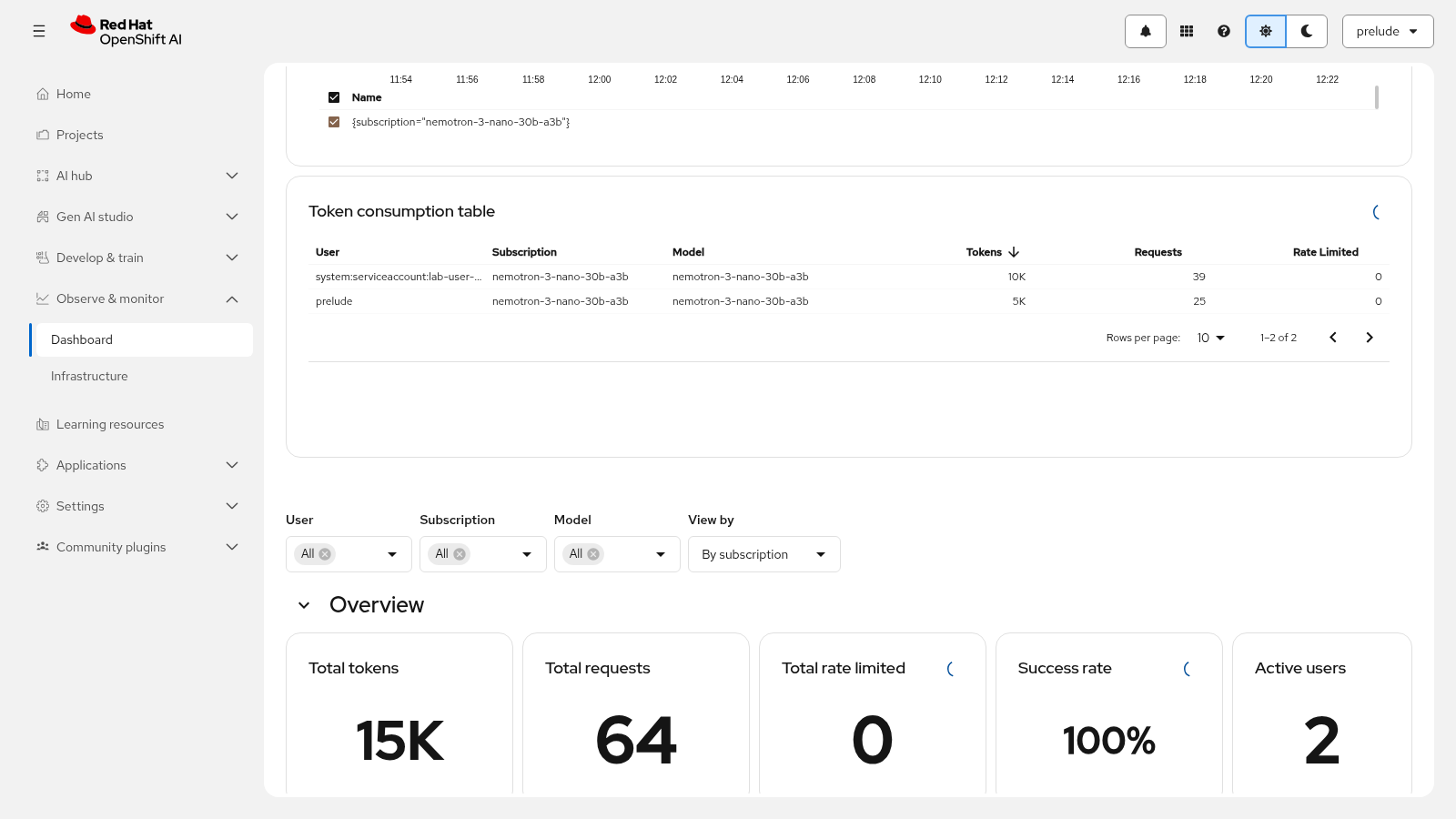
The Dashboard tab reports five overview metrics for the selected time period, plus a per-user token consumption table. For example, over a 6-hour window you might see roughly 844K total tokens, 57 requests, 3 rate-limited, a 95% success rate, and 2 active users — your values depend on how much traffic the workshop cluster has seen.
| Metric | What it tells you |
|---|---|
Total tokens |
Total tokens consumed across all authorized requests in the selected period — input tokens (prompts) and output tokens (responses) combined. |
Total requests |
Number of individual API requests made to the model. Each call through an agentic process — tool call results, follow-up turns — counts as one request. |
Total rate limited |
Requests rejected with HTTP 429 because the user reached the rate limit for their subscription. This is evidence that the rate limits you configured in Module 3 are applied. |
Success rate |
Percentage of successful requests out of all requests in the period. The dashboard calculates this from vLLM success and latency counters; HTTP 429 rate-limited requests are excluded from the calculation. |
Active users |
Unique users who made at least one request to the model in the selected period. |
Under the overview cards, the Token Consumption by User table breaks usage down per user, subscription, and model, with columns for tokens, requests, and rate-limited requests. Click a column header to sort by that column.
Where the metrics come from
Two metric pipelines feed the dashboard:
- MaaS usage telemetry
-
The MaaS gateway records per-subscription usage in Limitador counters —
authorized_hits_total(tokens consumed),authorized_calls_total(requests that passed rate limiting and authentication), andlimited_calls_total(HTTP 429 rejections) — plus request latency at the API gateway (istio_request_duration_milliseconds_bucket) and time spent in Authorino authentication (auth_server_authconfig_duration_seconds). Prometheus scrapes these from the Limitador, Authorino, and gateway components. - Model serving engine metrics
-
The vLLM runtime exposes engine metrics such as
vllm:request_success_total— the number of successful inference requests for a model deployed with the vLLM runtime — collected through user workload monitoring (UWM), which the platform requires for MaaS metrics collection. The serving runtime advertises its metrics endpoints through theprometheus.io/pathandprometheus.io/portannotations. Certain vLLM metrics appear only after the model has processed an inference request.
Verify that the metric pipelines are active for your model server:
oc get namespace openshift-user-workload-monitoringNAME STATUS AGE openshift-user-workload-monitoring Active 26d
If the namespace exists, user workload monitoring is enabled and the platform can collect engine and usage metrics for your model server. If it is not found, the MaaS deployment shows a Degraded status. Confirm the observability dashboard flag is enabled on the platform:
oc get odhdashboardconfig odh-dashboard-config -n redhat-ods-applications \
  -o jsonpath='{.spec.dashboardConfig.observabilityDashboard}'
true
|
These checks read platform-level resources. If your lab user cannot read them, ask your instructor to run them — a dashboard that renders live data is itself the signal that metrics collection is active. |
With traffic flowing from the application, record your baseline values for comparison in Exercise 3:
-
Baseline latency (p50, p95, p99) and TTFT from the dashboard chips
-
Baseline throughput — tokens served over the selected window
-
Baseline success rate and error behavior
|
The MaaS observability dashboard is designed for internal usage tracking and showback reporting — it is not a billing-grade metering system. For production chargeback workflows that require precise billing data, access the Limitador metrics endpoint directly rather than relying on the dashboard or its CSV export. |
Exercise 3: Generate load and observe metric changes
The application has been sending requests since Module 4 — that traffic is your baseline. Now generate a measurable spike through the same MaaS endpoint the application uses.
Use the premium-tier API key (1,000,000 tokens/min) you recorded in Module 3 so the subscription limit does not throttle the load run.
Set the MaaS values as environment variables (reuse the terminal session from Module 3, or set them again), then export the model ID:
export MAAS_URL="{maas_url}"
export MAAS_API_KEY="{maas_api_key}"
export MODEL_ID=$(curl -s "${MAAS_URL}/v1/models" \
  -H "Authorization: Bearer ${MAAS_API_KEY}" \
  | jq -r '[.data[] | select(.ready==true)][0].id')
Send a burst of 30 requests, spaced half a second apart, and record the HTTP status and response time of each request:
RESULTS=$(mktemp)
PROMPT="In one sentence, why is observability critical for a production AI service?"

for i in $(seq 1 30); do
  (
    curl -s -o /dev/null -w "%{http_code} %{time_total}\n" \
      "${MAAS_URL}/v1/chat/completions" \
      -H "Authorization: Bearer ${MAAS_API_KEY}" \
      -H "Content-Type: application/json" \
      -d "{\"model\":\"${MODEL_ID}\",\"messages\":[{\"role\":\"user\",\"content\":\"${PROMPT}\"}],\"max_tokens\":80}"
  ) >> "${RESULTS}" &
  sleep 0.5
done
wait

echo "Total requests    : $(wc -l < "${RESULTS}")"
echo "HTTP 200 (ok)     : $(grep -c '^200 ' "${RESULTS}")"
echo "HTTP 429 (limited): $(grep -c '^429 ' "${RESULTS}" || true)"
echo "Slowest response  : $(awk '{print $2}' "${RESULTS}" | sort -rn | head -1)s"
rm -f "${RESULTS}"
Total requests : 30 HTTP 200 (ok) : 30 HTTP 429 (limited): 0 Slowest response : 4.213s
|
The values above are examples — your numbers depend on cluster load, prompt length, and the model. HTTP 429 responses mean the subscription’s token limit was hit during the burst — the rate limiting you configured in Module 3 working as intended. For example, a 6-hour window might show 3 rate-limited requests out of 57. |
While the loop runs, watch the dashboards:
-
Keep the observability dashboard open in a second browser tab.
-
Filter by your username and set the time window to Last 5 minutes.
-
Refresh the dashboard data with the dedicated refresh button.
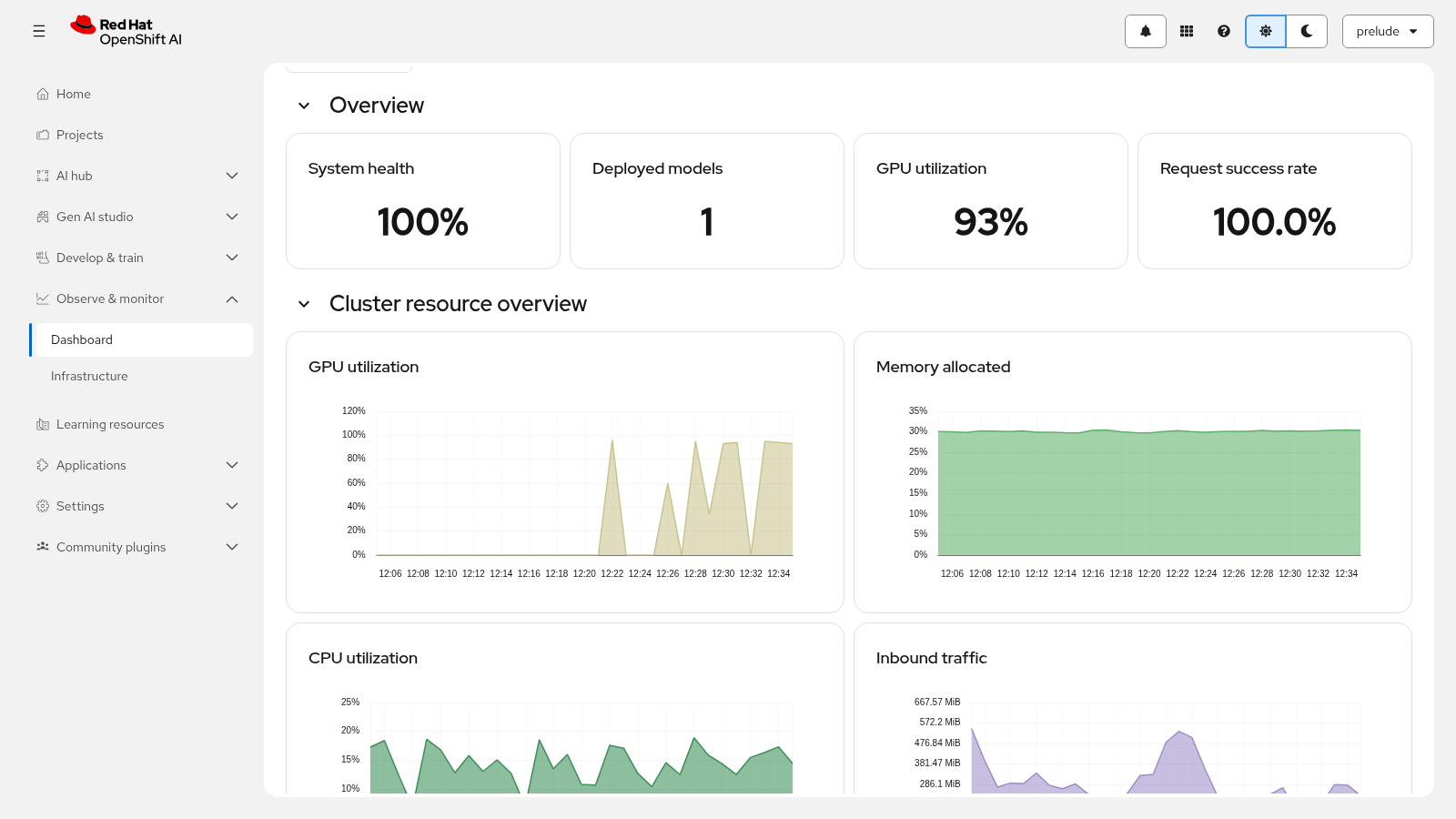
The load appears on the dashboard within 15–30 seconds (the scrape interval adds a short delay):
-
GPU utilization climbs while the burst is in flight — for example, a visible GPU spike at the burst’s timestamp under load
-
Request rate rises with the burst volume
-
Latency and TTFT chips drift upward as concurrent requests queue behind each other on the GPU
-
The token consumption chart peaks during the burst window — it is a rolling average that makes periods of high demand easy to spot
Confirm the model server stayed healthy under load:
oc get podsNAME READY STATUS RESTARTS AGE nemotron-3-nano-30b-a3b-predictor-7d9f8b6c5-k2p9q 1/1 Running 0 55m nemotron-3-nano-30b-a3b-predictor-7d9f8b6c5-t4mzn 1/1 Running 0 50m
|
The delay between a request and its appearance on the dashboard is the scrape interval — the time Prometheus needs to collect and expose the metrics. MaaS rate limits do not depend on this interval; only the visibility into consumption trails it by this small amount. |
Exercise 4: Analyze performance trends
With a baseline and a load spike recorded, analyze the relationship between request rate, latency, and resource utilization:
-
Correlate the load window with latency. Compare the TTFT and latency chips before, during, and after the burst. Identify the request rate where latency starts climbing — that point is a performance threshold where serving behavior changes.
-
Correlate the load window with resource utilization. The GPU spike shows how demand translates into infrastructure usage. If latency climbs while GPU utilization saturates, the model server needs more capacity; if latency climbs while GPU utilization stays low, the bottleneck is elsewhere — queueing, the gateway, or authentication.
-
Check the scaling behavior. Recall the scaling policies you configured in Module 3. If the load you just generated were normal production traffic, would the current policy scale fast enough to keep latency within your baseline? Serving metrics are the evidence for that decision.
Filter the usage analytics on the Dashboard tab to sharpen the analysis:
-
User — search for your username (for example,
lab-user) to isolate your own usage across Modules 3–6 -
Subscription — switch to the other workshop subscription to see how usage separates per tier
-
Model — only one model is deployed in this workshop, so this filter is less interesting for now
-
Time period — widen the window from the last 5 minutes to up to the last 14 days, or pick a custom range, to see trends over time
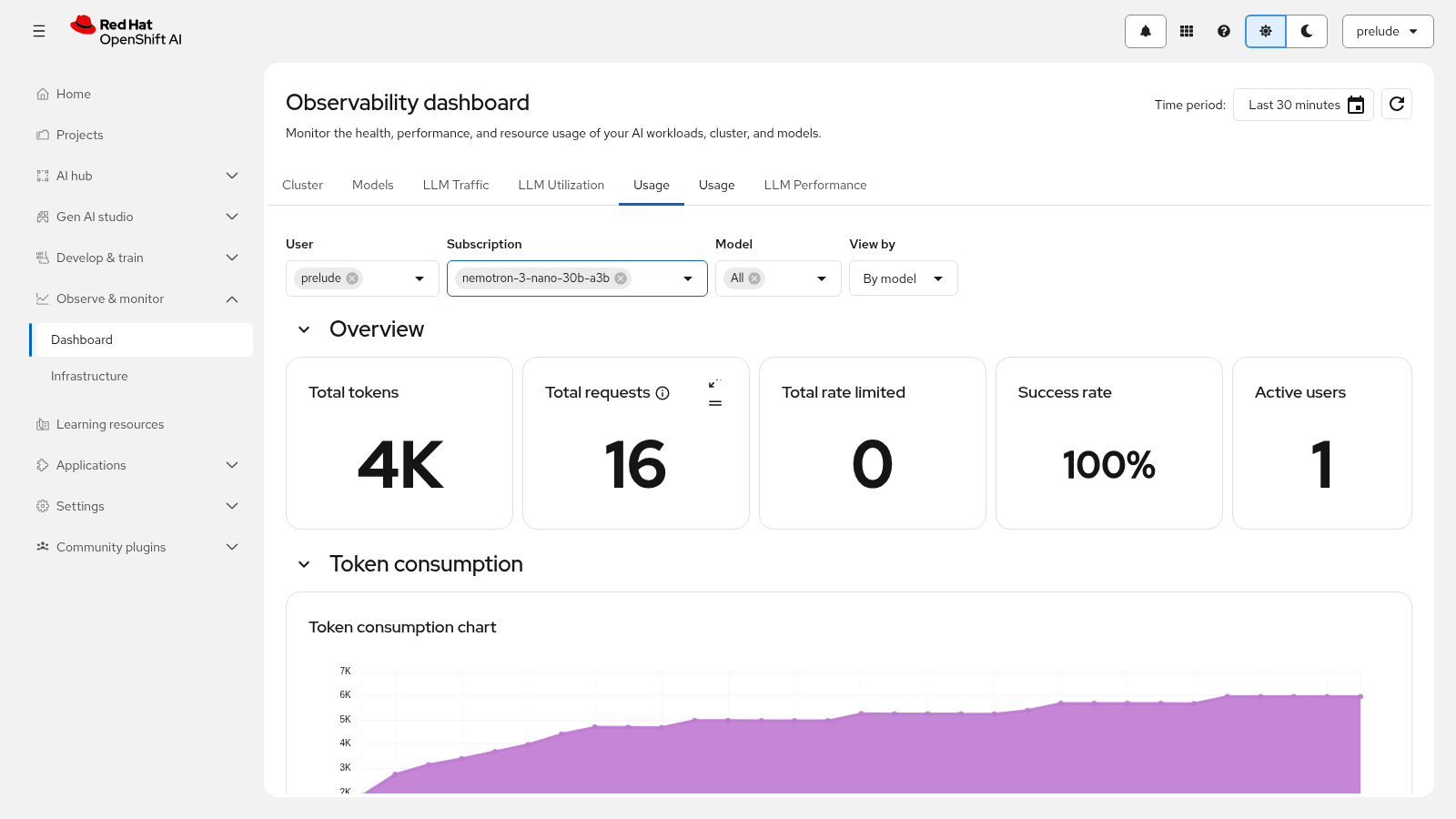
Record at least one trend or threshold observation from this load run — for example, the request rate where TTFT started climbing, or the GPU utilization level the burst reached. You will reference it in the conclusion.
The same metrics drive production operational decisions:
-
Capacity planning — if token usage doubles month over month, plan proportional GPU scaling. Identifying growth trends early prevents performance degradation and justifies infrastructure investment.
-
Cost attribution — per-user and per-subscription consumption is the data behind showback and chargeback reporting. If one team consumes 80% of the tokens on a subscription, that data justifies dedicated capacity allocation and budget decisions.
-
Alerting thresholds — pick metric values from this session as alert boundaries in production: for example, alert when the success rate drops below its baseline or when p95 latency exceeds the highest value you observed under load.
-
Optimization — hourly usage spikes indicate batch processing, inefficient prompting, or peak adoption periods; schedule resources accordingly.
Module summary
What you accomplished:
-
Explored the observability dashboard and the metric pipelines behind it.
-
Monitored the key model serving metrics and recorded a baseline.
-
Generated load against the MaaS endpoint and analyzed performance trends.
Key takeaways:
-
The observability dashboard provides real-time visibility into model serving behavior — latency, throughput, error rate, and resource utilization.
-
Monitoring under load reveals how the model service responds to increased demand and where performance thresholds exist.
-
Usage metrics attribute consumption to users and subscriptions — the data behind capacity planning, cost attribution, and showback reporting.
-
Serving metrics inform operational decisions: scaling policies, capacity planning, and alerting thresholds.
Next steps:
You have taken a model from an empty cluster to a monitored Model-as-a-Service endpoint: continue to the conclusion to review the workshop and clean up your resources.