Module 1: Deploy a Model on Red Hat AI Enterprise
Overview
In this module you deploy a model for inference on Red Hat AI Enterprise. You select a validated open-source model, configure a model server backed by an NVIDIA GPU, and verify the deployment is accepting inference requests. The model and runtime you configure here are the foundation for the rest of the lab: they carry forward unchanged through every subsequent module.
10 minutes (3 min explore / 5 min deploy / 2 min verify)
Module 0: Getting Connected — you are logged in to the Red Hat AI Enterprise console with your lab credentials and know how to reach the OpenShift AI dashboard.
Learning objectives
-
Deploy a model for inference on Red Hat AI Enterprise
-
Verify that the deployed model is running and accepting inference requests
Along the way you also review the available model server runtimes, select a model from the model catalog, configure model server parameters — runtime, replicas, and resource limits — and confirm the model responds to a test inference request.
Exercise 1: Explore the lab environment
Your lab environment is a Red Hat AI Enterprise cluster: OpenShift plus OpenShift AI, with an NVIDIA L40S 48 GB GPU worker node reserved for your model server. No models are pre-deployed — you build the full serving lifecycle from scratch.
-
Open the OpenShift web console at https://console-openshift-console.apps.cluster.example.com and log in with your lab credentials.
-
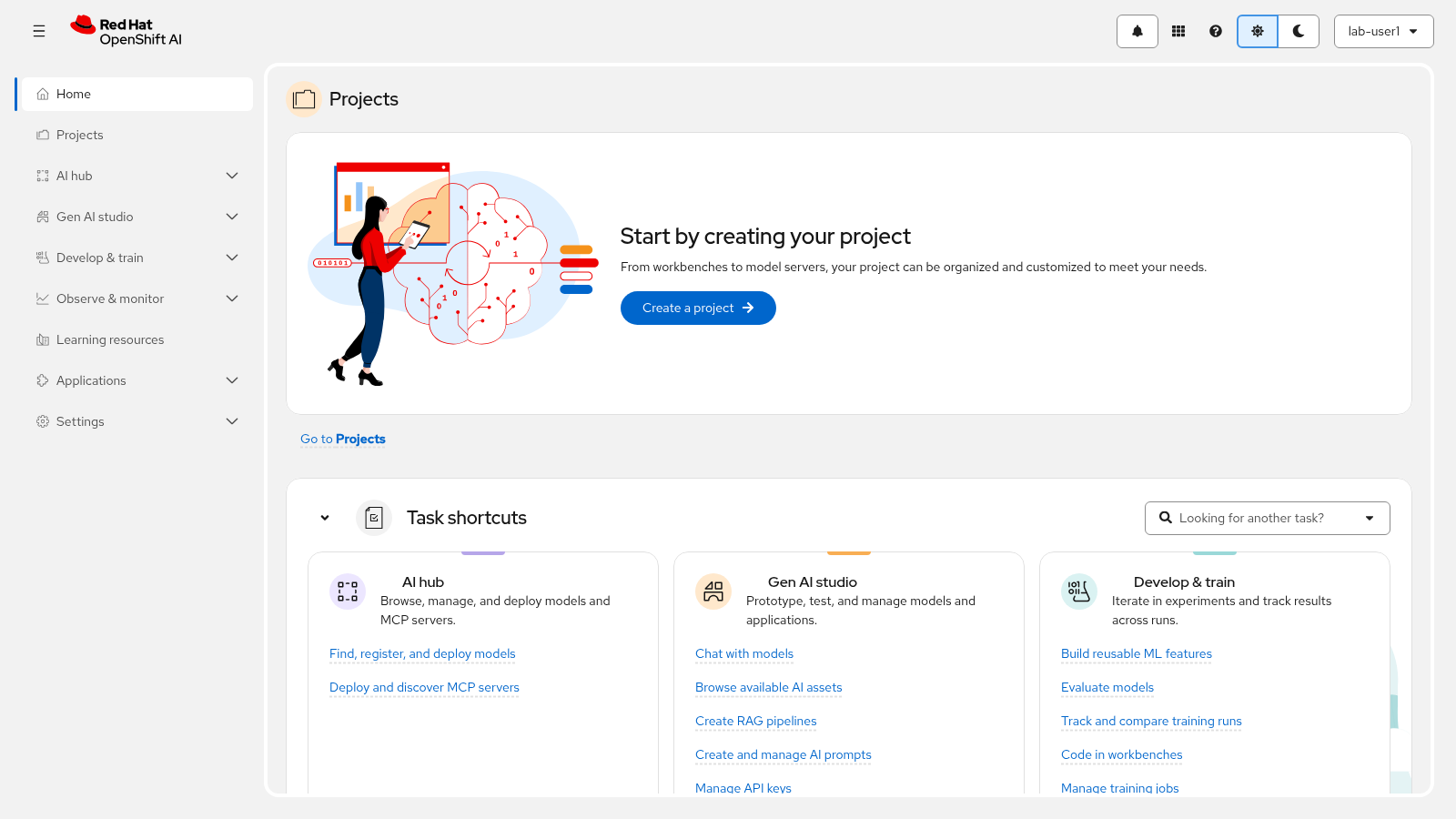
Open the application navigation menu in the web console and select Red Hat OpenShift AI. The OpenShift AI dashboard opens.
-
Explore the dashboard. The left navigation pane gives you access to Projects, Deployments, and the Gen AI Studio section (AI asset endpoints and API keys) that later modules use.
Check that the platform is healthy before deploying anything. Confirm the DataScienceCluster custom resource exists — it represents the OpenShift AI components installed on the cluster:
oc get dscNAME AGE default-dsc 26d
Next, confirm your GPU node is Ready and schedulable. List the cluster nodes, then filter for nodes that advertise NVIDIA GPUs:
oc get nodes -o wide
oc get nodes -L nvidia.com/gpu.product
NAME STATUS ROLES AGE VERSION INTERNAL-IP OS-IMAGE KERNEL-VERSION CONTAINER-RUNTIME control-plane-0 Ready control-plane 26d v1.33.4 10.0.0.10 RHCOS 5.14.0-570.14.1.el9_6 cri-o://1.33.4 control-plane-1 Ready control-plane 26d v1.33.4 10.0.0.11 RHCOS 5.14.0-570.14.1.el9_6 cri-o://1.33.4 control-plane-2 Ready control-plane 26d v1.33.4 10.0.0.12 RHCOS 5.14.0-570.14.1.el9_6 cri-o://1.33.4 worker-0 Ready worker 26d v1.33.4 10.0.0.21 RHCOS 5.14.0-570.14.1.el9_6 cri-o://1.33.4 worker-1 Ready worker 26d v1.33.4 10.0.0.22 RHCOS 5.14.0-570.14.1.el9_6 cri-o://1.33.4 gpu-worker-0 Ready worker 26d v1.33.4 10.0.0.31 RHCOS 5.14.0-570.14.1.el9_6 cri-o://1.33.4 NAME STATUS ROLES AGE VERSION NVIDIA.COM/GPU.PRODUCT control-plane-0 Ready control-plane 26d v1.33.4 control-plane-1 Ready control-plane 26d v1.33.4 control-plane-2 Ready control-plane 26d v1.33.4 worker-0 Ready worker 26d v1.33.4 worker-1 Ready worker 26d v1.33.4 gpu-worker-0 Ready worker 26d v1.33.4 NVIDIA-L40S
The nvidia.com/gpu.product label confirms gpu-worker-0 is the NVIDIA
L40S 48 GB GPU node. Your model server in this module requests one GPU, so
it schedules on this node.
Project and namespace layout
The model you deploy in this module runs in your own project, named after
your lab user — for example, lab-user-dev. Everything you create in the
next sections lives in that project:
-
The model server deployment and its
LLMInferenceServiceresource -
The pod that runs the vLLM serving image on the GPU node
-
The token secret generated for inference requests
Platform-level components — the serving runtime templates, operators, and the DataScienceCluster configuration — are managed by the cluster administrator and run outside your project.
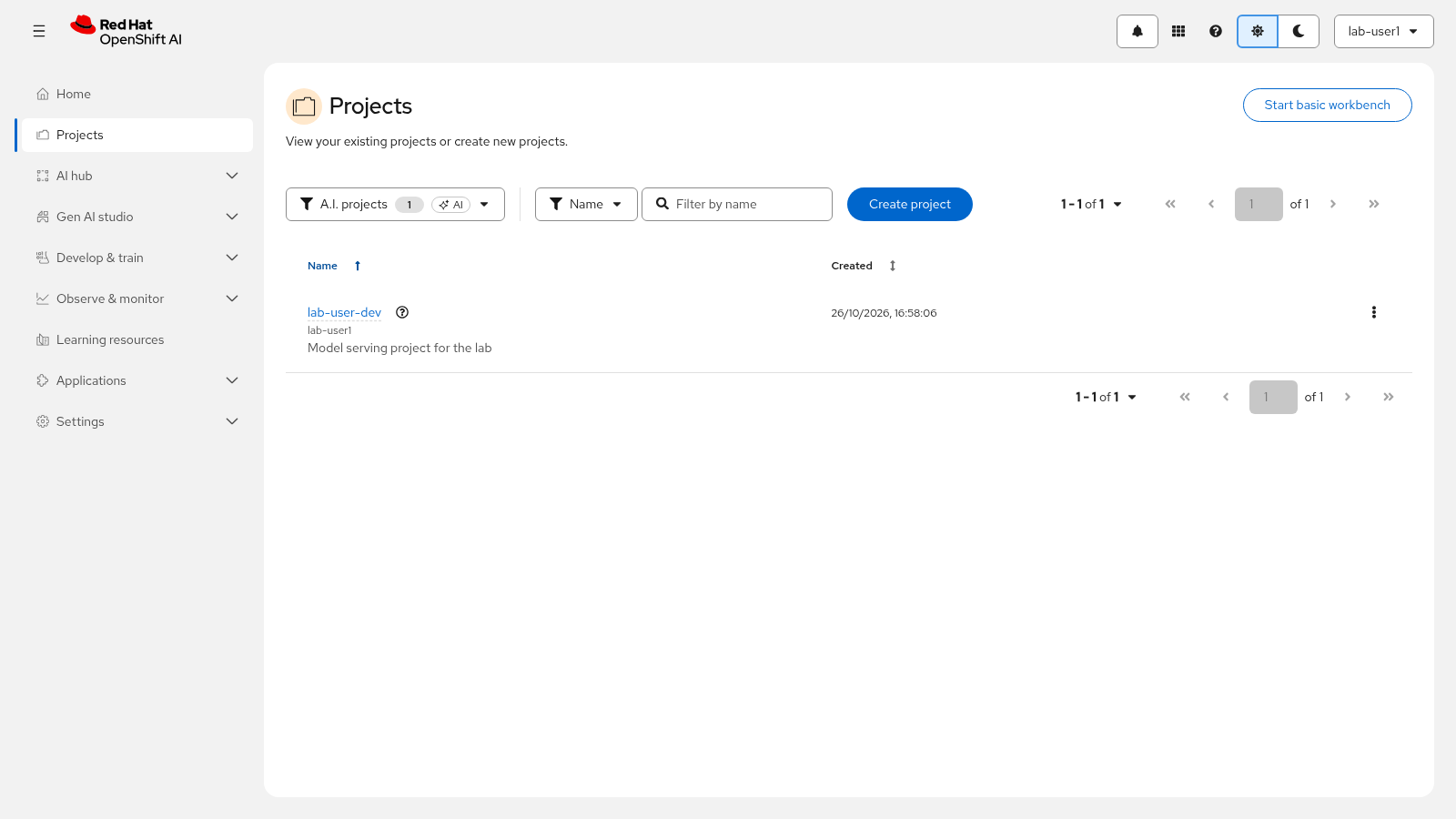
Your lab user has no project yet. Create it from the OpenShift AI dashboard:
-
In the dashboard left menu, click Projects. The Projects page opens with no projects listed.
-
Click Create project.
-
In the Name field, enter
lab-user-dev. -
Optional: enter a Description.
-
Click Create. Your project opens in the dashboard.
|
Create the project from the dashboard rather than with |
Exercise 2: Deploy the model for inference
Now that you have confirmed the environment is ready, you will deploy the model for inference.
Select the model
Red Hat AI ships models at two support levels: validated and enabled. Red Hat tests validated models with GuideLLM performance benchmarking and Language Model Evaluation Harness accuracy evaluations across specific OpenShift Container Platform, Red Hat OpenShift AI, and Red Hat AI Inference version combinations, and ships them with quantized variants in formats such as FP8 and BF16.
For this lab you use NVIDIA Nemotron 3 Nano 30B A3B FP8, a validated, instruction-tuned large language model designed for enterprise deployment. The FP8 quantization keeps the memory footprint low: the validated model support matrix lists a minimum of roughly 37.6 GB of VRAM, so the model fits on a single 48 GB NVIDIA L40S GPU node. It delivers production-grade inference performance for coding assistance, reasoning tasks, and tool-calling workflows, which makes it ideal for Model-as-a-Service architectures where multiple teams share centrally-managed model infrastructure.
You can discover and select verified generative AI models in the OpenShift AI model catalog — a curated, user-facing directory for finding models appropriate for your business use case.
Deploy through the AI hub deploy wizard
To deploy the model on the single-model serving platform (KServe), GPU support must be enabled on the cluster and the Node Feature Discovery Operator must be installed and configured. Both are already set up in the lab environment.
-
In the OpenShift AI dashboard left menu, click AI hub, then Models.
-
Click Deploy model. The Deploy a model wizard opens.
-
In the Preconfigure deployment step, select your project (
lab-user-dev) and click Next. -
In the Model details step, provide the model location:
-
From the Model location list, select OCI compliant registry.
-
From the Access type list, select Pull secret. The lab environment pre-pulls the model and serving images and provides the registry credentials through the project’s default pull secret, so you can leave the Secret details file upload empty.
-
In the Registry host field, enter
registry.redhat.io. -
In the Model URI field, enter
registry.redhat.io/rhai/modelcar-nvidia-nemotron-3-nano-30b-a3b-fp8:3.0. The wizard adds theoci://prefix, and the registry host in the URI must match the Registry host field. This URI points to the validated Nemotron 3 Nano 30B A3B FP8 modelcar — an OCI-compliant registry image whose filesystem holds the model weights, so the serving engine loads it directly from the image. -
With Create a connection to this location selected, enter
nemotron-modelcarin the Name field. -
From the Model type list, select Generative AI model (Example, LLM).
-
Click Next.
-
-
In the Model deployment step, configure the deployment:
-
Keep the LLM inference service deployment mode selected.
-
In the Model deployment name field, enter
nemotron-3-nano-30b-a3b. -
In the Description field, enter a short description of the deployment.
-
Keep the default-profile hardware profile. The profile provides the CPU and memory baseline; the GPU comes from the accelerator configuration in the next step.
-
From the Select an accelerator configuration list, select vLLM NVIDIA CUDA GPU LLMInferenceServiceConfig Single Node. The preset provisions the vLLM serving engine with one NVIDIA GPU on a single node.
-
In the Replica count field, enter
1. -
Click Next.
-
-
In the Advanced settings step:
-
Optional: select Add as AI asset endpoint (tech preview) to publish the model’s endpoint on the AI asset endpoints page and make it testable in the Playground.
-
Leave Publish as MaaS cleared — publishing the model through the MaaS gateway is covered in Module 3.
-
Keep Token authentication enabled and enter
model-testerin the Service account name field. The actual tokens are created and displayed when the model server is configured; you use the generated token in Exercise 3. -
Optional: expand Additional runtime arguments to add custom vLLM arguments such as the values listed in the configuration table below.
-
Click Next.
-
-
On the Review step, check the summary and click Deploy.
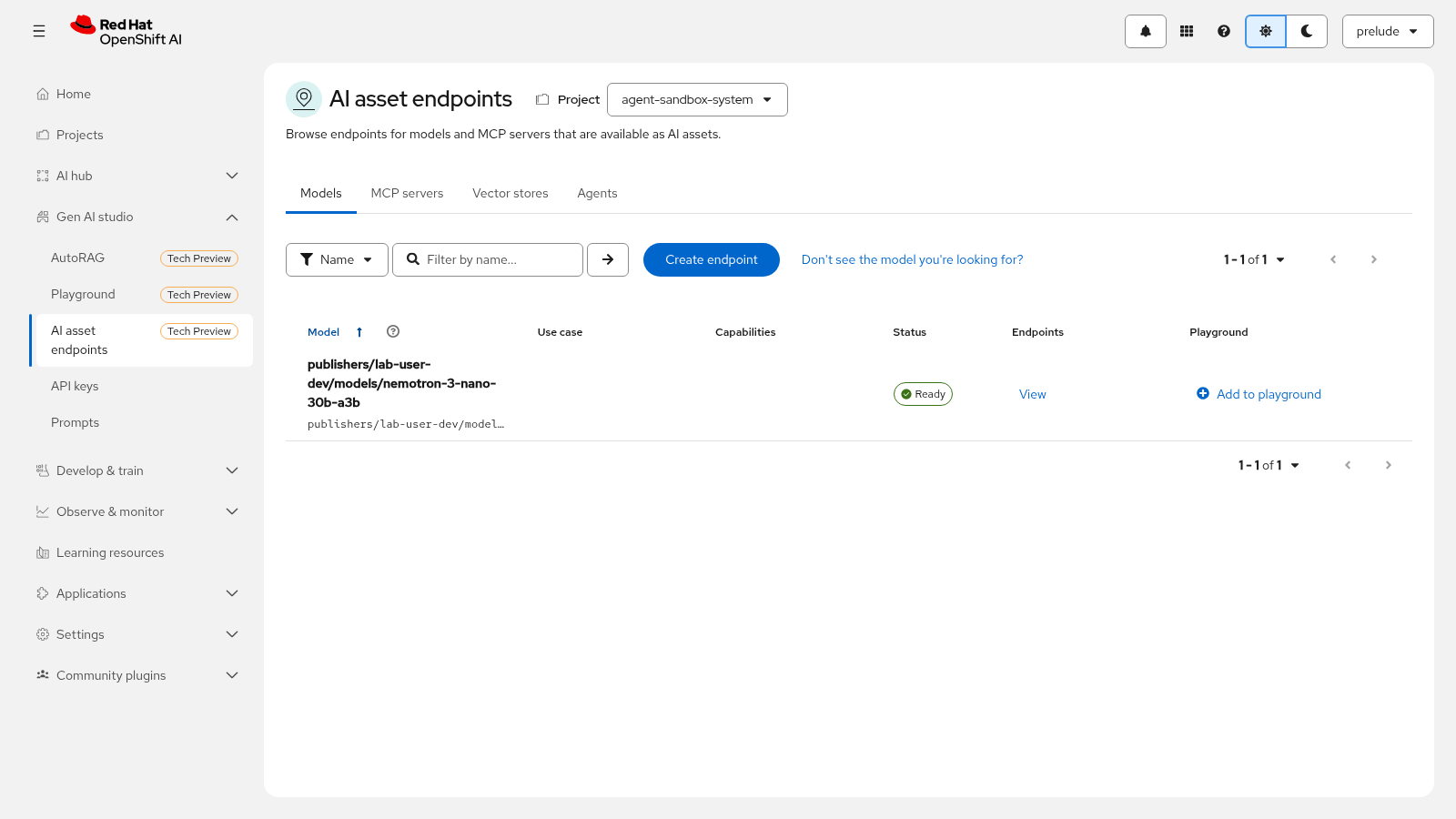
Verification: the deployed model appears with a Ready status on the Gen AI studio → AI asset endpoints page (if you selected Add as AI asset endpoint), and the model server pod shows Running in your project.
Watch the model server pod come up:
oc project lab-user-dev
oc get pods -w
NAME READY STATUS RESTARTS AGE nemotron-3-nano-30b-a3b-kserve-7d9f8b6c5-k2p9q 2/2 Running 0 4m
The pod transitions from Pending to Running once the model server is
up. On a first deployment the server also initializes the vLLM engine, so
give it a few minutes. The lab environment pre-pulls the model and serving
images, which keeps startup time short.
In the dashboard, the deployed model shows a Ready status on the Gen AI studio → AI asset endpoints page (if you selected Add as AI asset endpoint) once it finishes deploying.
What the wizard creates
Behind the scenes, the wizard creates an LLMInferenceService resource on
the single-model serving platform (KServe). The accelerator configuration
you selected (the vLLM NVIDIA CUDA GPU LLMInferenceServiceConfig Single
Node preset) provisions the serving engine image and the GPU resources,
and any custom runtime arguments you added in the Advanced settings appear
as the VLLM_ADDITIONAL_ARGS environment variable. The resource shown here
is the configuration used in this lab, simplified for readability:
apiVersion: serving.kserve.io/v1alpha2
kind: LLMInferenceService
metadata:
  name: nemotron-3-nano-30b-a3b
  namespace: lab-user-dev
  annotations:
    openshift.io/display-name: NVIDIA Nemotron 3 Nano 30B A3B FP8
    opendatahub.io/model-type: generative
    security.opendatahub.io/enable-auth: "true"
  labels:
    opendatahub.io/dashboard: "true"
    opendatahub.io/genai-asset: "true"
spec:
  model:
    name: nemotron-3-nano-30b-a3b
    uri: oci://registry.redhat.io/rhai/modelcar-nvidia-nemotron-3-nano-30b-a3b-fp8:3.0
  replicas: 1
  router:
    gateway:
      refs:
        - name: openshift-ai-inference
          namespace: openshift-ingress
    route: {}
  template:
    containers:
      - name: main
        image: registry.redhat.io/rhaiis/vllm-cuda-rhel9:3.3.1
        env:
          - name: VLLM_ADDITIONAL_ARGS
            value: >-
              --max-model-len=131072
              --enable-auto-tool-choice
              --tool-call-parser=qwen3_coder
              --trust-remote-code
              --reasoning-parser-plugin=/mnt/models/nano_v3_reasoning_parser.py
              --reasoning-parser=nano_v3
        resources:
          requests:
            cpu: "2"
            memory: 16Gi
            nvidia.com/gpu: "1"
          limits:
            cpu: "4"
            memory: 24Gi
            nvidia.com/gpu: "1"
    tolerations:
      - effect: NoSchedule
        key: nvidia.com/gpu
        operator: Equal
value: l40-gpu| Field | Purpose |
|---|---|
|
Points to the validated Nemotron 3 Nano 30B A3B FP8 modelcar. The model ships as a container image, so the serving engine loads it directly from the image filesystem instead of downloading from remote object storage. |
|
One model server replica, holding one GPU. Scaling replicas out for shared consumption is covered in Module 3. |
|
Attaches the deployment to the |
|
The serving image, |
|
Requests of 2 CPU / 16 Gi memory / 1 GPU and limits of 4 CPU / 24 Gi memory / 1 GPU, sized for the Nemotron model on a single L40S GPU node. |
custom runtime arguments ( |
Passed to vLLM through the |
|
Lets the pod schedule on the GPU node, which is tainted
|
|
The model name, serving runtime, and resource configuration you set in this module carry forward unchanged through all subsequent modules (Modules 2-6). Do not scale down, redeploy, or rename the model between modules. |
Exercise 3: Verify the deployment
Now that the model is deployed, you will verify that it is running and accepting inference requests.
Check the pod and model status
Confirm the model server pod is Running and the LLMInferenceService
reports ready:
oc get podsNAME READY STATUS RESTARTS AGE nemotron-3-nano-30b-a3b-predictor-7d9f8b6c5-k2p9q 1/1 Running 0 4m
oc get llminferenceservice nemotron-3-nano-30b-a3bNAME URL READY AGE nemotron-3-nano-30b-a3b https://nemotron-3-nano-30b-a3b-lab-user-dev.apps.cluster.example.com True 5m
When the READY column shows True, the model server pod is Running and
the model is ready to accept inference requests.
Locate the inference endpoint and token
-
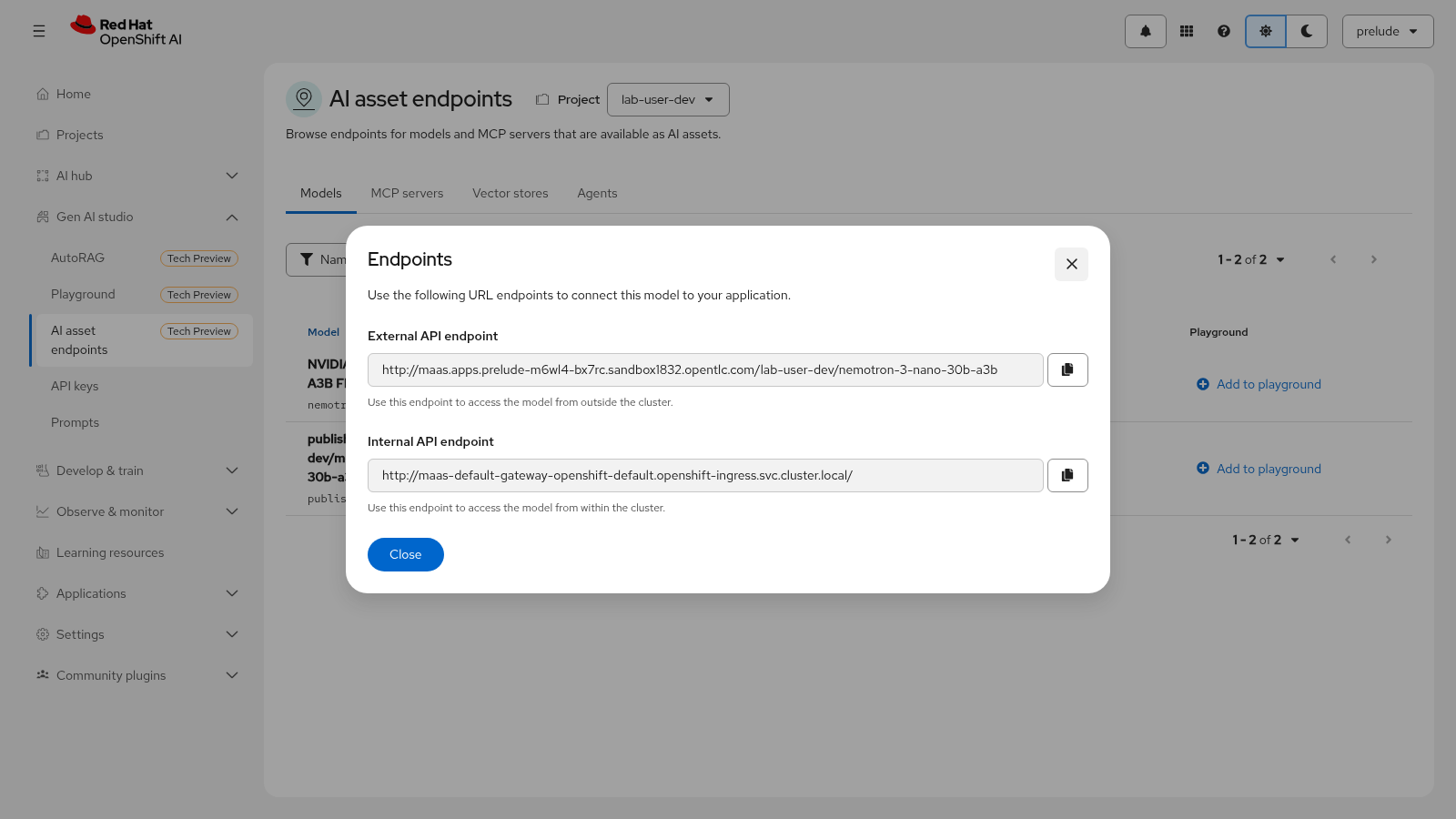
From the OpenShift AI dashboard, open Gen AI studio → AI asset endpoints. Locate the model’s row and click View in the Endpoints column — the dialog shows the external and internal API endpoint URLs. Copy the endpoint URL.
-
To authenticate requests, mint a token for the service account you named in Require token authentication by running
oc create token model-tester, and save the output. (Module 3 mints a subscription-scoped MaaS API key instead, with the sameAuthorization: Bearerheader pattern.)
Send a test inference request
The vLLM runtime is compatible with the OpenAI REST API, so the model
serves the /v1/chat/completions path. The model serving platform serves
external API requests over the HTTPS port of the OpenShift router (usually
port 443).
Store the endpoint and token as shell variables, then send a chat request:
MODEL_URL=https://nemotron-3-nano-30b-a3b-lab-user-dev.apps.cluster.example.com
TOKEN=paste-your-token-secret-here

curl -s $MODEL_URL/v1/chat/completions \
  -H "Content-Type: application/json" \
  -H "Authorization: Bearer $TOKEN" \
  -d '{
    "model": "nemotron-3-nano-30b-a3b",
    "messages": [
      {
        "role": "user",
        "content": "In one sentence, what is Model as a Service?"
      }
    ]
  }'
A successful response returns the assistant’s answer in the OpenAI-compatible chat completion format:
{
  "id": "chatcmpl-4f9c8b3e",
  "object": "chat.completion",
  "created": 1761321600,
  "model": "nemotron-3-nano-30b-a3b",
  "choices": [
    {
      "index": 0,
      "message": {
        "role": "assistant",
        "content": "Model as a Service (MaaS) is a deployment model that provides access to pre-trained AI models through APIs, so you can consume model capabilities without managing the underlying infrastructure."
      },
      "finish_reason": "stop"
    }
  ],
  "usage": {
    "prompt_tokens": 21,
    "completion_tokens": 38,
    "total_tokens": 59
  }
}
-
Confirm the response contains a
choicesarray with the assistant’s message inchoices[0].message.content. -
Keep the endpoint URL and token saved — you will reuse them when you expose the model as a Model-as-a-Service in Module 3.
Your model is now deployed, running, and accepting inference requests — the foundation for every module that follows.
Module summary
What you accomplished:
-
Explored the lab environment and confirmed the platform and GPU node were ready.
-
Created your own Data Science project,
lab-user-dev. -
Deployed the model for inference with the vLLM NVIDIA GPU ServingRuntime for KServe.
-
Verified the deployment and sent a test inference request through the OpenAI-compatible endpoint.
Key takeaways:
-
Red Hat AI Enterprise provides a streamlined workflow for deploying models to inference endpoints.
-
A deployed model must be verified before it can be evaluated or exposed to consumers.
-
Model server configuration — runtime, replicas, and resource limits — determines how the model serves inference requests.
Next steps:
Now that the model is deployed and accepting inference requests, continue to Module 2 to benchmark its performance with EvalHub.