Policy Enforcement
This chapter explores Ansible Automation Platform Policy Enforcement — the practice of using programmatic guardrails to ensure automation remains compliant, secure, and predictable. While standard automation focuses on how to perform a task, policy enforcement focuses on whether that task should be allowed to run based on environmental context.
|
Enforce policies to keep AI in check We are entering the era of AIOps, this basically means infusing AI inferences into automated IT actions. You need to ensure that your AI-driven automation will function within the boundaries of internal and external policies. With Ansible Automation Platform, you can enforce policies at automation runtime to ensure each AIOps action stays within boundaries. |
Policy Enforcement in AAP
Ready to give this feature a try? This is your setup:
-
On your bastion host, an Open Policy Agent (OPA) server runs as a Podman container.
-
You create policies and make them available to the OPA server.
-
You configure Automation Controller to validate actions before a job template runs.
|
We are running the OPA server here with no authentication, no TLS/HTTPS and no access controls. This is obviously only suitable for this lab, for using OPA in production your setup has to be more involved. Consider that you have to provide your own OPA server as it isn’t part of AAP. |
The flow when using Policy Enforcement is this:
-
Job Request: A user triggers a Job Template or an API call starts an automation task.
-
Policy Check: Before the playbook starts, the Automation Controller sends the job’s metadata (who is running it, what inventory is targeted, what variables are being used) to the Policy Engine (OPA).
-
Evaluation: The engine compares the request against rego policies (the language used by OPA).
-
Decision: If the decision is
allow: true, the job proceeds to execution. But withallow: falsethe job is blocked, and an error message is returned explaining which policy was violated.
As always it is better to see this in action, so let us get started. Log in to AAP as MYCTLUSER with password MYCTLPASSWORD and open a terminal (check how to access a terminal).
The first step concerns the rego policies. A set of policies has been prepared for you; clone the repository on the bastion host and copy the policies into the OPA server policy directory:
In your terminal run:
cd
git clone https://MYGITEAHOST.apps.ocpvdev01.rhdp.net/MYGITEAUSER/opa-policy-enforcement.git
cp opa-policy-enforcement/* /var/lib/opa/policies/
Copying the policies to the policy directory of the OPA server makes them available immediately.
Configuring AAP for Policy Enforcement
The first step for enabling Policy Enforcement in AAP is to configure the OPA Server. In this lab this has already been done for you, have a look at :
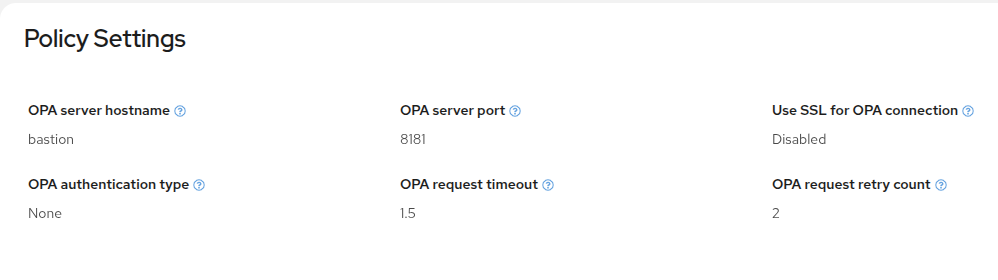
Add Policy Enforcement to a Job Template
Before configuring a policy, let’s have a look at the policy deny.rego which is very simple and just returns an allowed: false as a result, basically denying all requests to OPA:
deny.regopackage aap.deny
import rego.v1
allowed := false
violations := ["No job execution is allowed"]|
We will not go into the intricacies of the rego language here. Writing more involved policies is not easy, no sugar-coating here. But there are a lot of resources and examples to help you get started, we’ll list some at the end of the chapter. As a tip, the AI-coding assistants are pretty good with this, e.g. |
To actually use policies in Automation Execution you have to configure Policy Enforcement on one of the three objects Job Template, Inventory or Organization.
To keep it easy for now let’s just configure the deny policy for the Demo Job Template:
-
Open and edit Demo Job Template using the pencil icon.
-
Set Policy enforcement to
aap/deny. -
Click Save job template.
Now go ahead and launch the Job Template. It should return
This job cannot be executed due to a policy violation or error. See the following details:
{'Violations': {'Job template': ['No job execution is allowed']}}
No surprises here… the Template execution is not allowed and the message is the reason for the violation returned in the OPA result message.
Check Extra Vars Policy
Let’s try to do something more meaningful (I mean denying everything is not particular helpful… ;-). The second Policy looks like this:
extra_vars.regopackage aap.extravars
# =============================================================================
# EDIT THIS SECTION FOR THE LAB (allow-lists)
# =============================================================================
allowed_keys := {
"environment",
"color",
}
ok_environment := {"dev", "prod"}
ok_color := {"blue", "green"}
# =============================================================================
# Policy logic (usually leave as-is)
# =============================================================================
violations := array.concat(
array.concat(
[sprintf("Key %q is not allowed. Add it to allowed_keys if it should be permitted.", [k]) |
some k
ev := object.get(input, "extra_vars", {})
ev[k]
not allowed_keys[k]
],
[sprintf("For key \"environment\", use one of %v — you sent %v.", [ok_environment, v]) |
ev := object.get(input, "extra_vars", {})
ev["environment"]
v := ev["environment"]
not ok_environment[v]
],
),
[sprintf("For key \"color\", use one of %v — you sent %v.", [ok_color, v]) |
ev := object.get(input, "extra_vars", {})
ev["color"]
v := ev["color"]
not ok_color[v]
],
)
allowed := count(violations) == 0This policy reads the extra_vars that might be configured in the job template from the JSON input passed by Automation Controller. It will:
-
Check for allowed keys.
-
Check for allowed values for those keys.
Configure the Policy
If the input doesn’t match the allowed input it will deny the Template run. Let’s put this to the test:
-
Open Demo Job Template for editing again.
-
Set Policy enforcement to
aap/extravars. -
In Extra variables, enter
color: red. -
Click Save job template.
Test the Policy
What do you think will happen? Launch the Job Template and let’s see…
This job cannot be executed due to a policy violation or error. See the following details:
{'Violations': {'Job template': ['For key "color", use one of {"blue", '
'"green"} — you sent red.']}}
As to be expected from the policy, the key color is accepted, but the value red is not, so execution is denied. Open the Job Template again and change the value to blue or green and launch the template again.
This should now result in the template being executed, you won’t see any hints in the output that it was checked against a policy. This is because the policy enforcement happens outside Automation controller and the automation content by design.
You can now play around with the Extra variables of the Job Template, e.g. set them to the values below and see what happens:
color: blue
environment: test
Maintenance Window Policy
Here is another real-world example dealing with maintenance windows. Companies often have a certain time window where system maintenance like updates can happen. To make sure no conflicting automation is running, e.g. reconfiguration of an application, it would be very helpful to not allow running automation jobs other then the ones needed for maintenance.
Here our policy maintenance_window.rego comes to the rescue:
-
It checks whether the current time is inside a configured start and end time (the maintenance window).
-
It allows job templates to run in that window only when they have the label
maintenance. -
It blocks job templates that have the label
maintenanceoutside the maintenance window.
Configure the Policy
The policy file has already been copied to the policy directory. To place the current time inside the configured window:
-
Run
date -uin your terminal to get the current UTC time. -
Open
/var/lib/opa/policies/maintenance_window.regoin VS Code Server or your editor. -
Find the block with the time values:
# Window is [start, end) — includes start, excludes end (02:00–04:00 means 02:00 up to 03:59:59)
window_start_hour := 9
window_start_minute := 0
window_end_hour := 11
window_end_minute := 0
Take the output of the date command and define a time window where it would fall into. E.g. if your current time was Tue Apr 7 12:52:38 UTC 2026, the time window could be 12-14, resulting in this:
# Window is [start, end) — includes start, excludes end (02:00–04:00 means 02:00 up to 03:59:59)
window_start_hour := 12
window_start_minute := 0
window_end_hour := 14
window_end_minute := 0
Save the file. Configure AAP again using Demo Job Template:
-
Open Demo Job Template for editing.
-
Set Policy enforcement to
aap/maintenance. -
In Labels, type
maintenanceand press Enter. -
Click Save job template.
Test the Policy
To test your configuration, launch the job.
Since you have configured the current time to be inside our maintenance window and the Job Template has the label maintenance, the Job will just run.
In the next step , remove the label again:
-
Open Demo Job Template for editing.
-
In Labels, remove the
maintenancelabel using the remove control (x) beside it. -
Click Save job template.
You will be greeted by a policy violation:
This job cannot be executed due to a policy violation or error. See the following details:
{'Violations': {'Job template': ['Between 12:00 and 14:00 (UTC) only jobs with '
'label "maintenance" may run.']}}
Now:
-
Change the time window again so the current time is not inside the window
-
Add the
maintenancelabel to the Job Template again
When the Job Template is launched, you will get a policy violation again:
This job cannot be executed due to a policy violation or error. See the following details:
{'Violations': {'Job template': ['Jobs with label "maintenance" may only run '
'between 01:00 and 02:00 (UTC).']}}
As expected the maintenance Job is not allowed to run outside the maintenance window.
Conclusion
This chapter was meant to provide a brief introduction to Policy Enforcement in AAP. This might give you some ideas for more guardrails around your automation which go beyond the role based access control, by looking at the context of an automation job. To help you get started with creating rego policies, here a some pointers to more information: