Section 5 - Autonomous AIOps: Self-Healing RHEL with Splunk
Objective
Estimated time: 20-30 minutes
In this section, you will build and observe a fully autonomous AIOps workflow where Splunk detects a crond failure on a RHEL server, Event-Driven Ansible triggers a response, and an AI-powered routing agent analyzes the error, selects the correct fix from available job templates, and applies it. All without human intervention (after your initial approval).
After completing this section, you will be able to:
-
Build an end-to-end observability pipeline connecting Splunk alerting to Event-Driven Ansible, reducing mean time to remediation from hours to seconds
-
See how an AI routing agent analyzes syslog messages in real time, selects the correct fix from a catalog of job templates, and applies it — turning reactive firefighting into proactive self-healing infrastructure
-
Evaluate when to use autonomous AI-routed remediation versus human-in-the-loop workflows so you can adopt the right approach for your organization’s risk tolerance and maturity
|
This is a separate demo from Section 4 (Red Hat Lightspeed & Agentic IDE Workflow). Section 4 demonstrated a human-in-the-loop workflow where an AI agent assists you and asks for permission before acting. This module demonstrates a more autonomous approach where the detection-to-remediation pipeline runs with minimal human intervention using an AI routing agent that selects the correct fix automatically. |
How It Works
This module uses the same Splunk infrastructure from Section 2 (Network Automation) but applies it to RHEL system monitoring instead of Cisco router syslog.
RHEL Node (node1)
    --> rsyslog forwards system logs to Splunk (port 1514)
        --> Splunk detects crond error
            --> Splunk alert fires webhook to EDA
                --> EDA triggers Cron-AIOps-Workflow
                    --> AI Router analyzes error with Claude
                        --> Approval Gate (human reviews AI decision)
                            --> Dispatcher launches the correct fix
The key innovation is the AI routing agent. Instead of hard-coding a single fix for every cron alert, the AI analyzes the actual syslog message, queries AAP for available fix templates, and selects the right one. Two different cron failures get two different fixes, automatically.
Components
-
rsyslog on RHEL nodes forwards system logs to Splunk on TCP port 1514
-
Splunk indexes the logs, runs a saved search, and fires an alert when crond errors are detected
-
Event-Driven Ansible receives the Splunk webhook and triggers the Cron-AIOps-Workflow
-
AI Router (Claude Sonnet) analyzes the syslog message, queries the AAP job template catalog, and selects the correct fix
-
Approval Gate pauses the workflow so you can review the AI decision before applying
-
Dispatcher launches the AI-selected fix template against the affected host
Before You Begin: Switch EDA Rulebook Activations
This module uses a different EDA rulebook activation than the OSPF network module (Section 2). Both the OSPF and Cron rulebooks listen for Splunk webhooks on the same port (5000), so only one can be active at a time.
In a production environment, you would combine multiple rules into a single rulebook with different conditions for each alert type. For this lab, we kept the rulebooks separate so each module is self-contained and easier to follow.
-
Open Ansible Automation Platform
-
Navigate to Automation Decisions → Rulebook Activations
-
Disable the OSPF Neighbor activation:
-
Select the checkbox next to OSPF Neighbor
-
Click Disable rulebook activations
-
Confirm and close
-
-
Enable the RHEL Cron AIOps activation:
-
Click on RHEL Cron AIOps
-
Toggle it to Enabled
-
Wait for the status to show Running
-
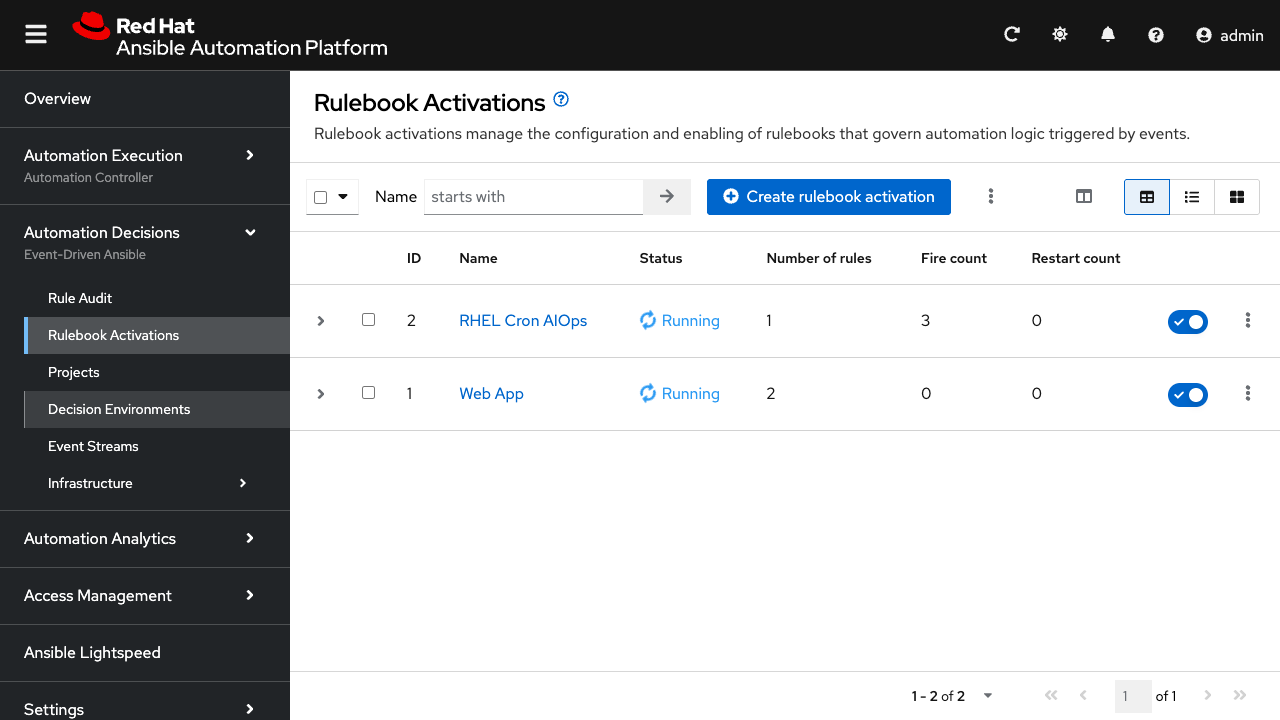
|
The RHEL Cron AIOps activation must show Running before you proceed. If it shows Failed, check that the OSPF Neighbor activation is fully disabled, then try enabling the Cron activation again. |
Accessing Splunk
| Component | Value |
|---|---|
Splunk URL |
|
Username |
|
Password |
|
-
Open Splunk using the above details ( use incognito window if needed )
-
Login using the credentials provided
Step 1: Verify Splunk Is Receiving RHEL Logs
-
Once logged in to Splunk
-
Go to Search & Reporting

-
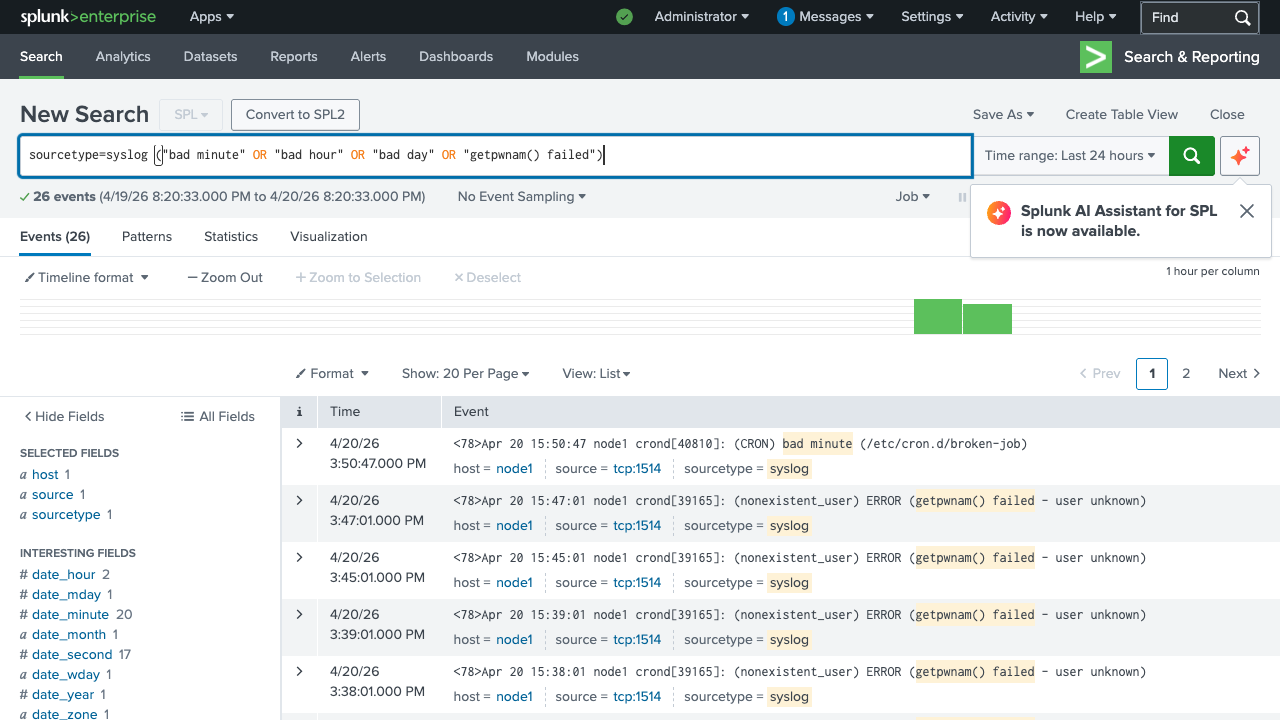
Search for:
sourcetype=syslog -
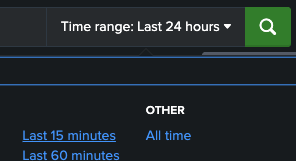
Set the time range to Last 24 hours
-
You should see syslog messages from node1, node2, and node3 arriving on
source = tcp:1514
If you see events, rsyslog forwarding is working. The RHEL nodes are sending system logs to Splunk.
Step 2: Create the Splunk Alert
You need to create a Splunk saved search that detects crond errors and sends a webhook to Event-Driven Ansible.
Find the right search
First, create the search that will detect cron failures:
sourcetype=syslog ("bad minute" OR "bad hour" OR "bad day" OR "getpwnam() failed")|
Run the search now. You should see no results yet — nothing is broken. This is expected. You are creating the search so it can be saved as an alert in the next step. |
This search will catch two types of crond errors:
-
Syntax errors: crond reports
bad minute,bad hour, orbad daywhen a crontab file has invalid scheduling syntax -
Invalid user errors: crond reports
getpwnam() failedwhen a crontab references a user that does not exist on the system
Save as alert
-
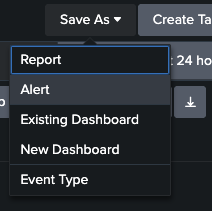
Click Save As → Alert
-
Configure the alert:
Setting Value Title
rhel-cron-failurePermissions
Shared in App
Alert type
Real-time
Trigger condition
Per-Result
Add Actions (first)
Add to Triggered Alerts
Add Actions (second)
Webhook
-
For the Webhook URL, enter your EDA webhook URL:
{eda_webhook_url}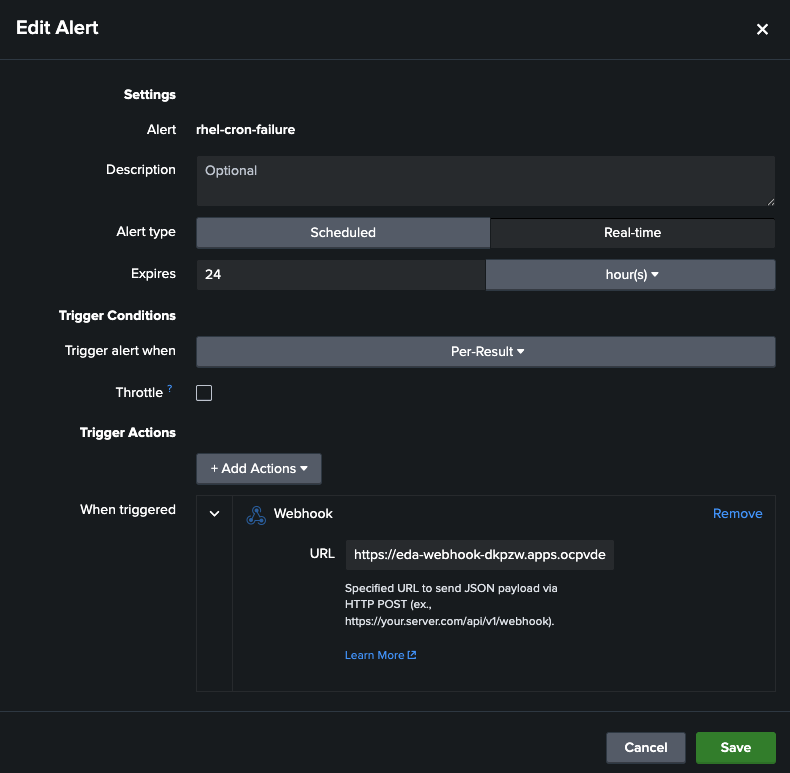
-
Click Save
|
The alert title must be exactly |
Accessing Ansible Automation Platform
| Component | Value |
|---|---|
AAP URL |
AAP is preloaded in the lab interface. Click to open in a full tab: AAP Web UI |
Username |
|
Password |
|
-
Open AAP using the above details or click the AAP tab in your lab interface
-
Login using the credentials provided
Step 3: Verify EDA and Workflow Are Ready
Before triggering failures, confirm the automation pipeline is in place:
-
Once logged in to Ansible Automation Platform
-
Navigate to Automation Decisions → Rulebook Activations
-
Verify that RHEL Cron AIOps shows Running status
-
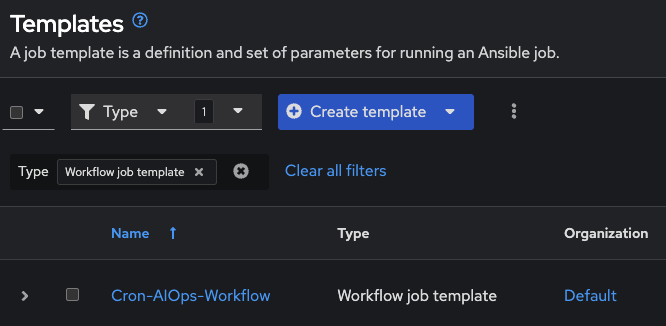
Navigate to Automation Execution → Templates
-
Verify that Cron-AIOps-Workflow exists
-
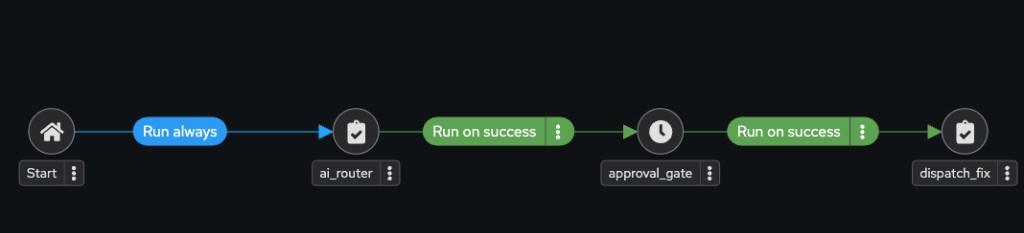
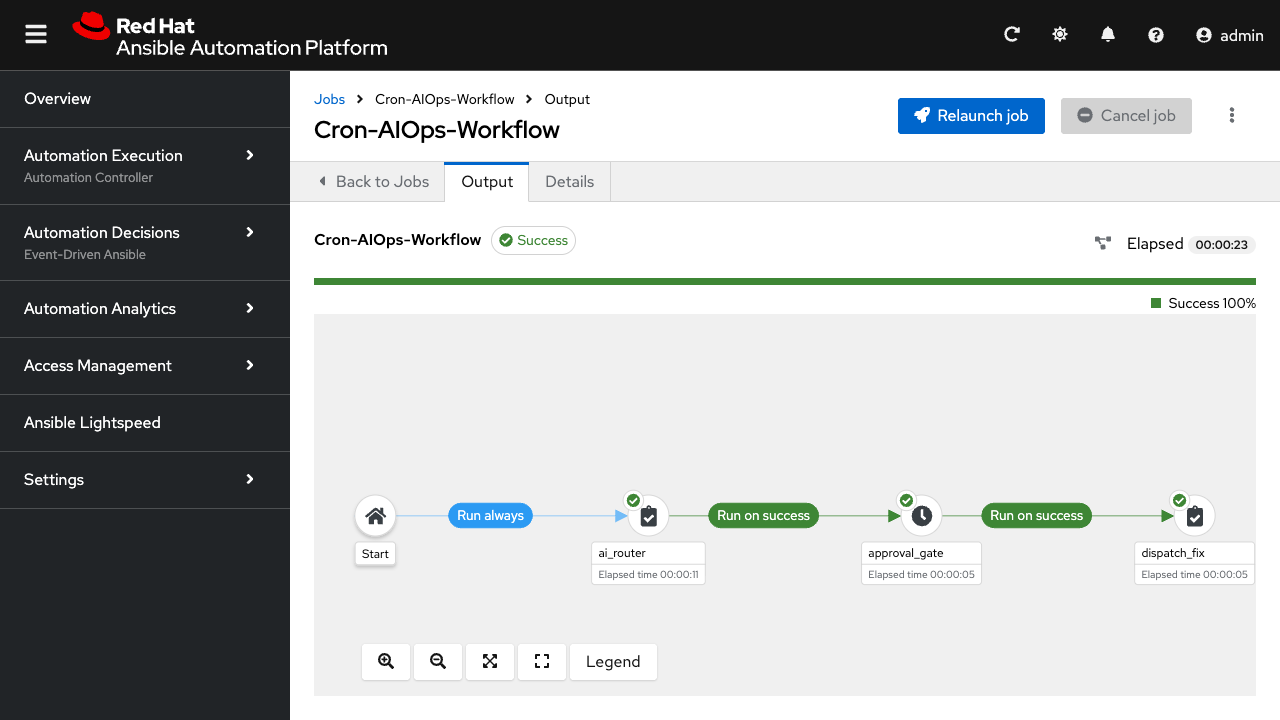
Click into the workflow and open the Visualizer. You should see three nodes:
-
ai_router: the AI routing agent
-
approval_gate: human review step
-
dispatch_fix: launches the selected fix
-
Challenge 1: Cron Syntax Error
In this challenge, you will introduce an invalid crontab entry that causes crond to log a syntax error. The AI will analyze the error and select the syntax fix.
Step 4.1: Break cron with bad syntax
-
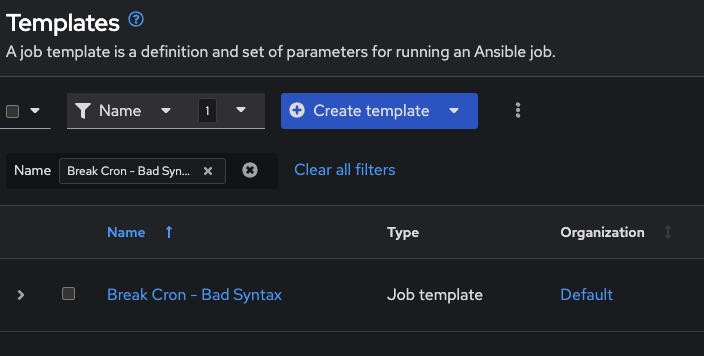
Navigate to Automation Execution → Templates
-
Find Break Cron - Bad Syntax and click the launch icon
-
Set the Limit to
node1as shown below, then click Next and Finish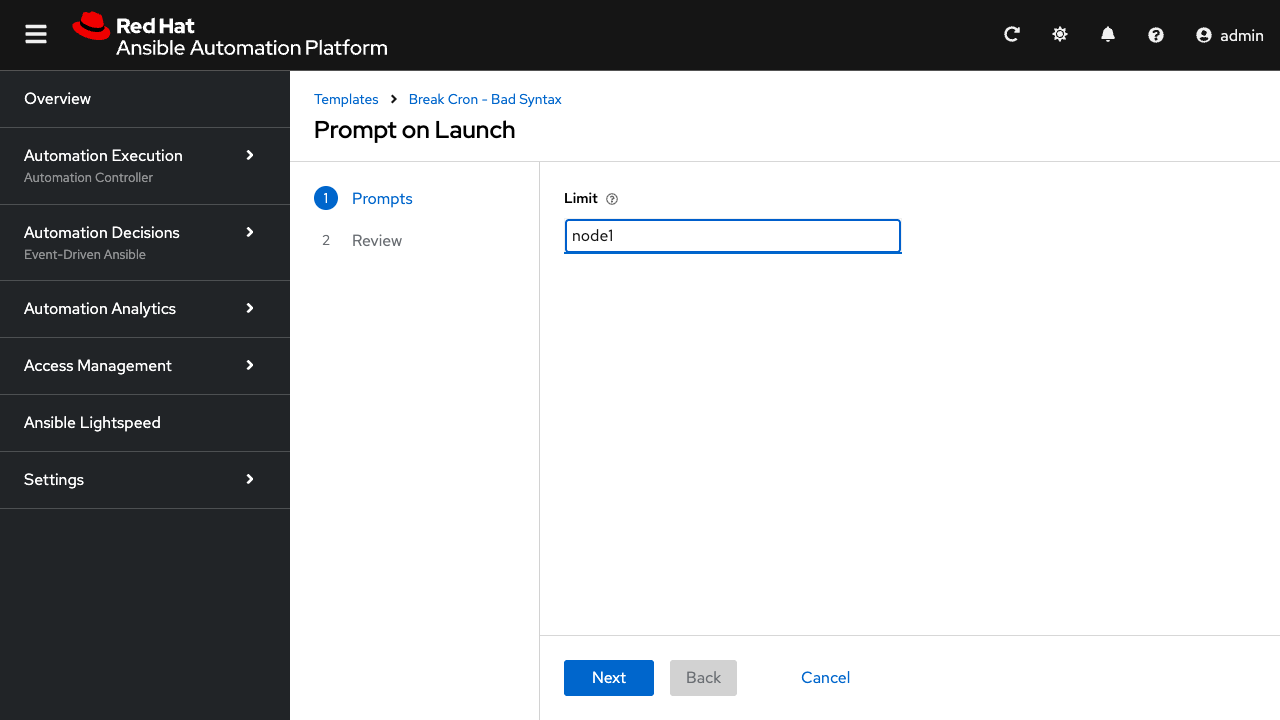
-
Wait for the job to complete
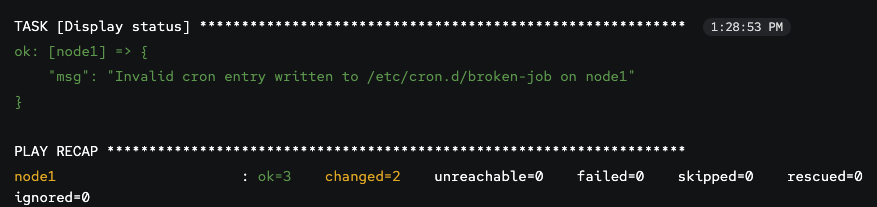
This writes an invalid crontab file to /etc/cron.d/broken-job on node1. When crond tries to parse it, it logs:
(CRON) bad minute (/etc/cron.d/broken-job)Step 4.2: Watch the chain
The automated response happens in this order:
-
rsyslog on node1 forwards the crond error to Splunk on port 1514
-
Splunk saved search matches
bad minuteand fires the webhook -
EDA receives the webhook and triggers the Cron-AIOps-Workflow
-
AI Router sends the syslog message to Claude, which analyzes the error and selects Fix Cron - Syntax Error from the job template catalog
-
Approval Gate pauses the workflow for your review
|
It may take 30-60 seconds for the full chain to execute. The sequence is: crond logs the error, rsyslog forwards to Splunk, Splunk indexes and fires the alert, the webhook reaches EDA, and the workflow launches. |
Step 4.3: Check Mattermost
Accessing Mattermost
| Component | Value |
|---|---|
Mattermost URL |
|
Username |
|
Password |
|
-
Open Mattermost using the above details
-
Click on "View in Browser" to open the console
-
Login using the credentials provided
-
Click on the team "Automators"
Once logged in, click on the Town Square channel from the left-hand navigation.
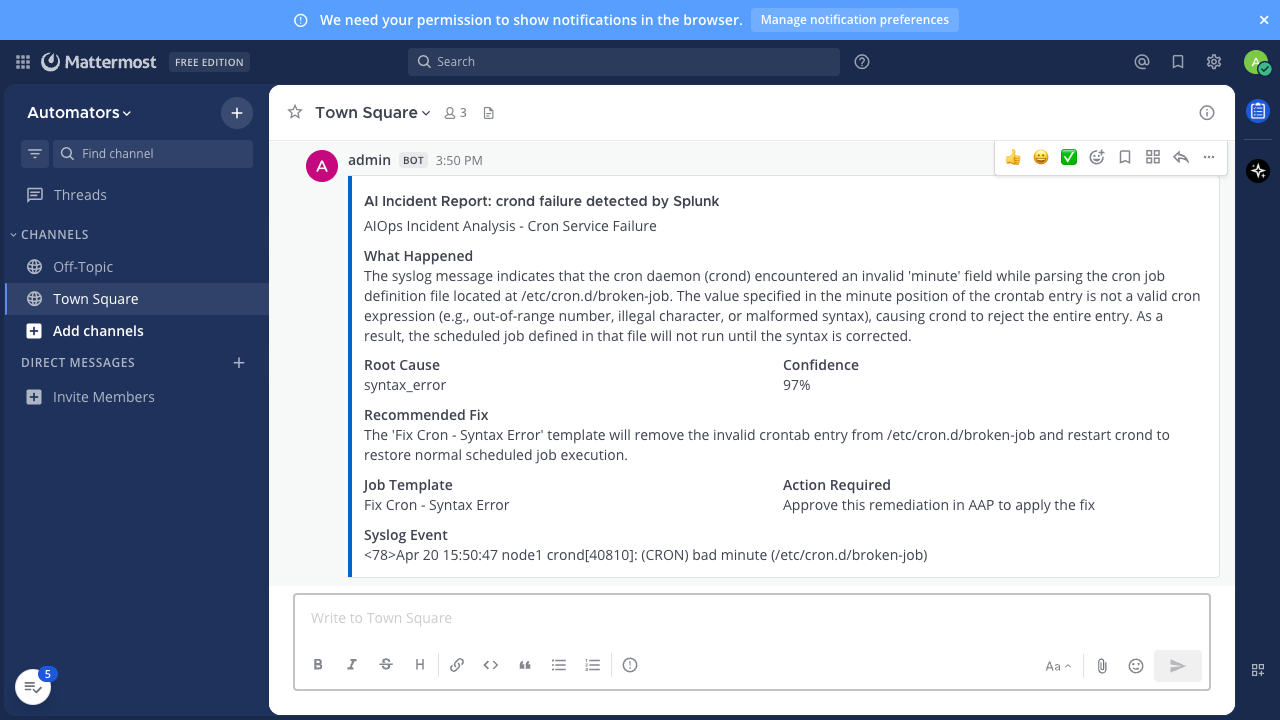
Look for the AI incident report. You should see a card with the following details:
| Field | Value |
|---|---|
What Happened |
The AI explains that crond encountered an invalid scheduling entry |
Root Cause |
|
Confidence |
Typically 95%+ |
Recommended Fix |
Remove the invalid crontab file and restart crond |
Job Template |
|
Action Required |
Approve in AAP |
|
Stop and consider what just happened. Less than a minute ago, this system had a silent failure — crond was broken and no one knew. Now you have a full incident report: root cause identified, confidence scored, and a recommended fix ready to approve. This is the power of AIOps. Even before the fix is applied, you already have automated ticket enrichment — the kind of context that normally takes an engineer 30 minutes of investigation was delivered in seconds. The gap between "something broke" and "here’s exactly what happened and how to fix it" just collapsed. |

Step 4.4: Understand what the AI selected
Before you approve the fix, take a moment to understand what the AI chose and why that matters.
The AI routing agent analyzed the syslog message and selected the job template Fix Cron - Syntax Error. This is not a random script the AI wrote on the fly. This is a pre-approved, curated job template that your organization has already reviewed, tested, and promoted to production. The AI’s job is to pick the right fix from a catalog of trusted automation — not to improvise.
This is a critical distinction. The AI is not running arbitrary shell commands, firing off untested API calls, or generating code at runtime. It is selecting from a library of vetted playbooks that your team controls. The automation only does what your organization has already approved.
Viewing the source code
If you want to inspect exactly what this fix does:
-
Navigate to Automation Execution → Templates
-
Open Fix Cron - Syntax Error and note the Project field
-
Click into the Project to see the Source Control URL — this is the Git repository containing the playbook source
The playbook itself is straightforward:
- name: Fix cron syntax error
  hosts: all
  become: true

  tasks:
    - name: Remove invalid crontab file
      ansible.builtin.file:
        path: /etc/cron.d/broken-job
        state: absent

    - name: Restart crond
      ansible.builtin.systemd:
        name: crond
        state: restarted
        enabled: true
Source: fix_cron_syntax.yml on GitHub
It removes the invalid crontab file and restarts crond. No surprises, no side effects. This is the kind of automation you can trust to run at 3 AM without waking anyone up.
|
This is how AIOps should work in production. In the real world, most remediations are not novel — they are well-known fixes applied to well-known problems. Engineers log into machines, make ad-hoc changes, and drift from the golden configuration. The fix is often just a config sync that brings the system back into compliance. Pre-approved automation captures that institutional knowledge in code, so the AI selects from a curated catalog of safe, tested, repeatable fixes rather than improvising solutions that could cause more harm than good. |
Step 4.5: Approve the fix
-
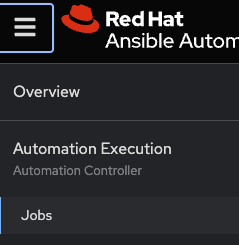
Navigate to Automation Execution → Jobs
-
Find the Cron-AIOps-Workflow job
-
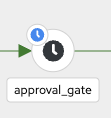
The workflow should be paused at the approval_gate node
-
Click Approve to allow the dispatcher to launch the fix

-
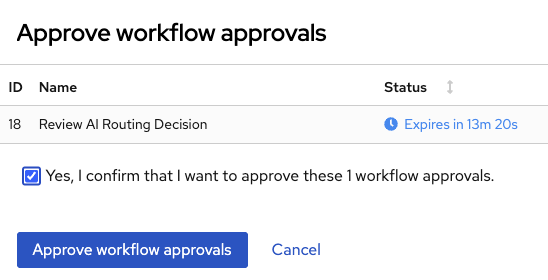
Check the confirmation box and click Approve workflow approvals to execute the fix
-
Wait for the workflow to complete. All nodes should show green
Step 4.6: Verify the fix
Now that you know what the playbook does, verify it worked:
-
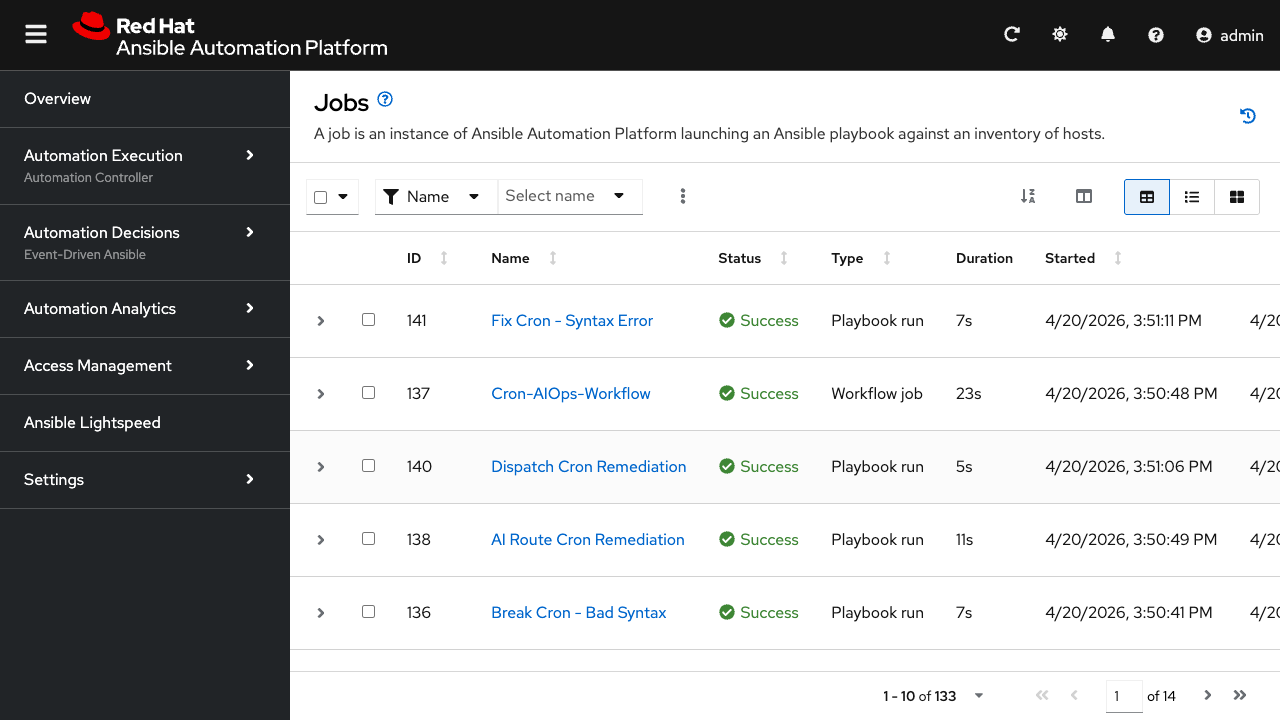
In AAP Jobs, confirm that Fix Cron - Syntax Error ran successfully on node1
-
The fix removed
/etc/cron.d/broken-joband restarted crond — exactly what you saw in the playbook source
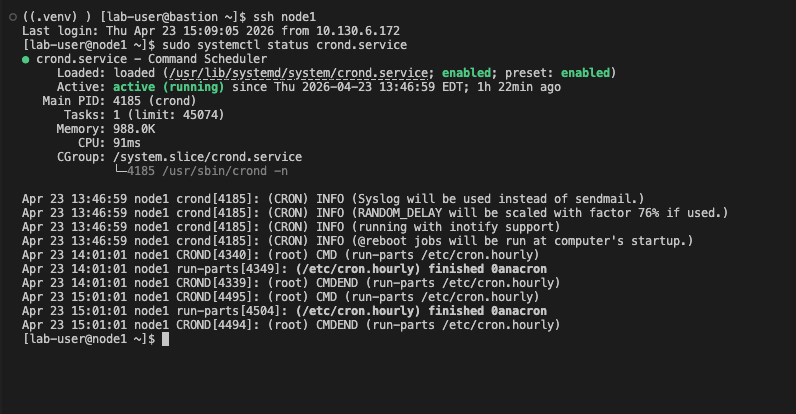
To confirm the fix directly on the host, SSH into node1 from the bastion terminal and check the crond service:
ssh node1
sudo systemctl status crond.service
You should see crond in an active (running) state with no errors in the recent log output. The invalid crontab file is gone and crond is back to its normal scheduling cycle.
Challenge 2: Cron Invalid User
In this challenge, you will create a crontab entry that references a user that does not exist. This produces a different syslog error, and the AI must route to a different fix.
Step 5.1: Break cron with invalid user
-
Navigate to Automation Execution → Templates
-
Find Break Cron - Invalid User and click the launch icon
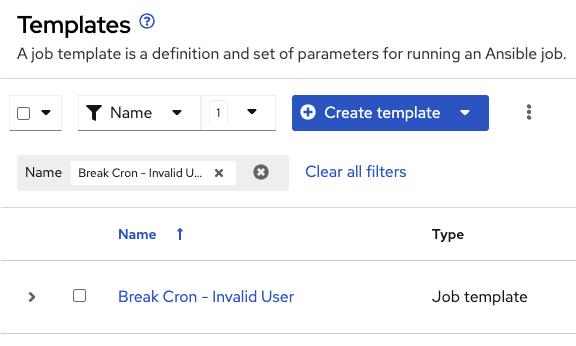
-
Set the Limit to
node1(same as Challenge 1), then click Next and Finish
-
Wait for the job to complete
This writes a crontab file to /etc/cron.d/bad-user-job with a nonexistent user. Every minute, crond tries to run the job and logs:
(nonexistent_user) ERROR (getpwnam() failed - user unknown)|
Unlike the syntax error which fires immediately, the invalid user error only appears when crond attempts to execute the job, once per minute. You may need to wait up to 60 seconds for the error to appear in Splunk. |
Step 5.2: Watch the chain
The same automated pipeline fires, but this time the AI sees a different error:

-
Splunk matches
getpwnam() failedand fires the webhook -
AI Router analyzes the error and selects Fix Cron - Invalid User (not the syntax fix)
-
Approval Gate pauses for your review

Step 5.3: Check Mattermost
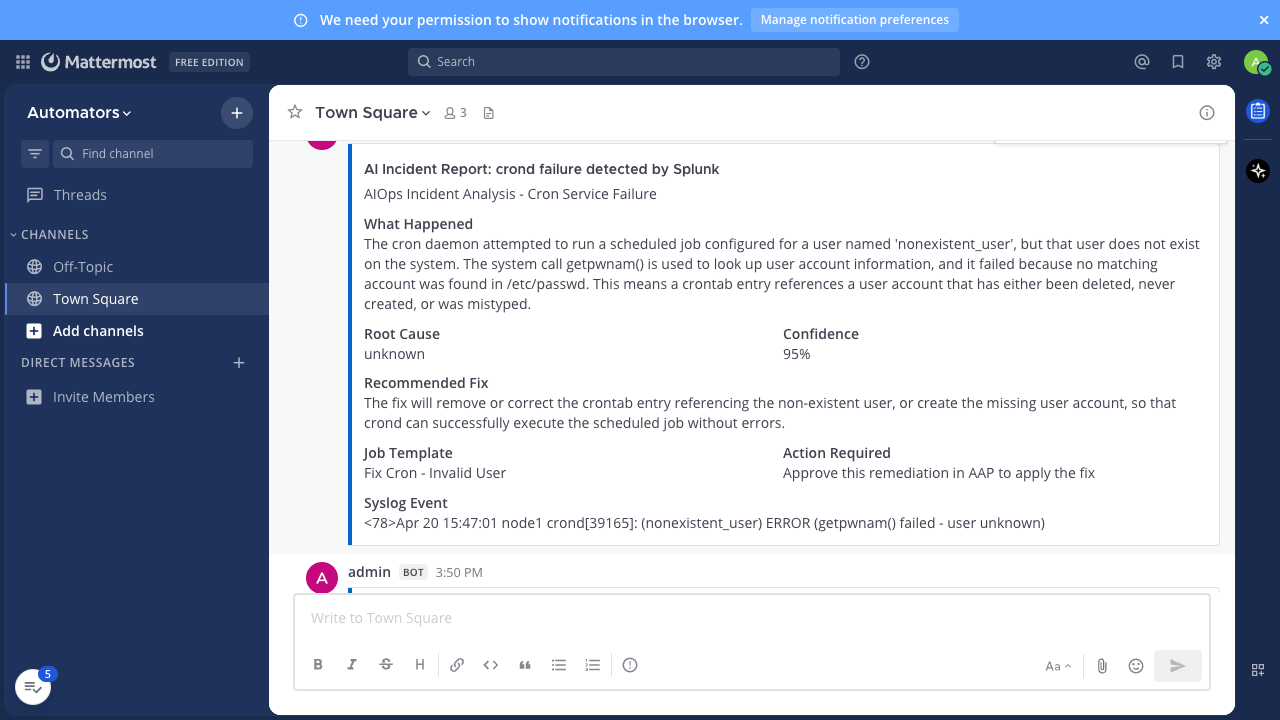
Open Mattermost and look for the new incident report. Compare it with the previous one — notice how the AI identified a completely different root cause and selected a different fix:
| Field | Value |
|---|---|
What Happened |
crond on node1 attempted to run a scheduled job for |
Root Cause |
|
Confidence |
97% |
Recommended Fix |
Remove the offending crontab file |
Job Template |
|
Action Required |
Approve this remediation in AAP |
This is the value of the AI routing agent: the same workflow handles both failures, but the AI selects a different fix based on what it reads in the syslog message.
Step 5.4: (Optional) See the error on the host
Before approving the fix, you can SSH into node1 to see what crond is actually reporting:
ssh node1
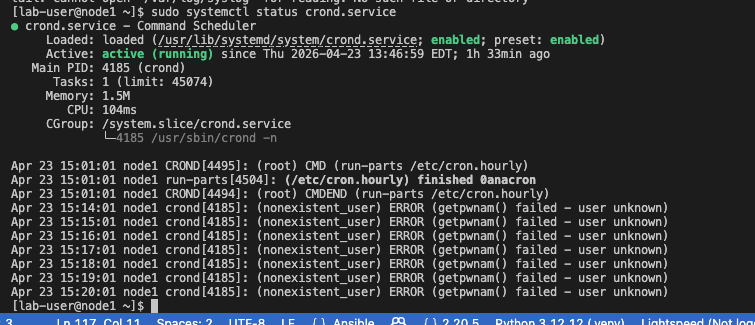
sudo systemctl status crond.service
You will see repeated ERROR (getpwnam() failed - user unknown) messages every minute as crond tries and fails to run the job for the nonexistent user. This is the exact error the AI analyzed in the Mattermost report above.
Step 5.5: Understand what the AI selected
Just like Challenge 1, the AI selected a pre-approved, curated job template — this time Fix Cron - Invalid User. The AI did not write a new script or guess at a fix. It analyzed the syslog message, recognized the getpwnam() failed pattern, and selected the correct template from the catalog.
Viewing the source code
The playbook for this fix is even simpler than the syntax error fix:
- name: Fix cron invalid user entry
  hosts: all
  become: true

  tasks:
    - name: Remove crontab with nonexistent user
      ansible.builtin.file:
        path: /etc/cron.d/bad-user-job
state: absentIt removes the offending crontab file. Once the file is gone, crond stops trying to run the job and the errors disappear. No restart needed — crond automatically picks up changes to /etc/cron.d/.
|
Two different failures, two different fixes, one workflow. This is the pattern that scales. Your team writes and tests a library of fix playbooks. The AI routing agent matches failures to fixes at runtime. As your catalog grows, the system handles more failure types without anyone writing new workflow logic. |
How the AI Routing Works
The AI routing agent is the key component that makes this workflow intelligent. Here is what happens inside the AI Route Cron Remediation job template:
-
Receives the Splunk payload: the full webhook payload including the raw syslog message
-
Queries AAP for available fix templates: fetches all job templates with "cron" in the name via the AAP API
-
Sends both to Claude: the syslog message and the template catalog go to Claude Sonnet with a prompt asking it to analyze the error and select the correct fix
-
Parses the AI response: Claude returns a JSON object with the selected template, confidence score, analysis, root cause, and recommendation
-
Posts to Mattermost: the AI analysis is formatted into a rich incident report
-
Passes the decision downstream: the selected template name flows through the approval gate to the dispatcher via workflow artifacts
The dispatcher then looks up the selected template by name in AAP and launches it with a limit set to the affected host.
| Syslog Error | AI Selects | Root Cause |
|---|---|---|
|
Fix Cron - Syntax Error |
|
|
Fix Cron - Invalid User |
|
Comparing Approaches
| Aspect | Section 4 (Human-in-the-loop) | Section 5 (AI-routed) |
|---|---|---|
Trigger |
Human types a prompt in Claude Code |
Splunk detects error automatically |
Decision maker |
AI proposes, human approves each step |
AI analyzes and selects fix, human approves once |
Flexibility |
Can handle any problem the human describes |
Handles known failure patterns with matching fixes |
Speed |
Interactive, depends on human response time |
Seconds from detection to fix recommendation |
Best for |
Ad-hoc investigation, novel problems |
Known failure modes with pre-tested remediation |
|
Most organizations use both approaches. Start with human-in-the-loop (Section 4) while building confidence in AI-driven analysis. Promote well-tested scenarios to AI-routed workflows (this module) once the failure patterns and fixes are validated. |
Key Takeaways
-
Mean time to remediation drops from hours to seconds. Across both challenges, the pipeline went from silent failure to root cause analysis to approved fix in under a minute — without an engineer manually logging in, reading logs, or guessing at a solution. That speed compounds across every incident your team would otherwise triage by hand.
-
AI selects from pre-approved automation, not improvised scripts. The AI routing agent chose the right fix from a curated catalog of tested playbooks. Your organization controls what goes into that catalog. This gives you the speed of AI-driven decisions with the safety of human-reviewed, production-hardened automation.
-
One workflow handles an expanding library of failure types. You saw two different cron failures routed to two different fixes without changing any workflow logic. As your team adds more fix templates to the catalog, the system handles more scenarios automatically — scaling your operations without scaling your headcount.

Complete
You have completed Section 5, Autonomous AIOps with Splunk and RHEL.
Across both challenges, you built an end-to-end self-healing pipeline: Splunk detected the failure, Event-Driven Ansible triggered the response, and an AI routing agent analyzed the error, selected the correct fix, and presented it for approval. You saw how pre-approved, curated automation gives your organization the confidence to let AI-driven decisions operate at machine speed while keeping humans in control of what gets deployed.
Continue to the Summary and Call to Actions to review everything you learned and explore next steps.