Module 2: Introduction to Automation Controller
An introduction to the automation controller web UI, including the dashboard, inventories, projects, and job templates.
Lab Briefing
This section provides an overview of the key components of the automation controller UI that you will be exploring in this lab.
Welcome to Ansible Automation Platform
In the following chapter, you will learn about the web UI dashboard and explore the Inventory, Projects, and Job Templates sections.
Automation Platform Overview
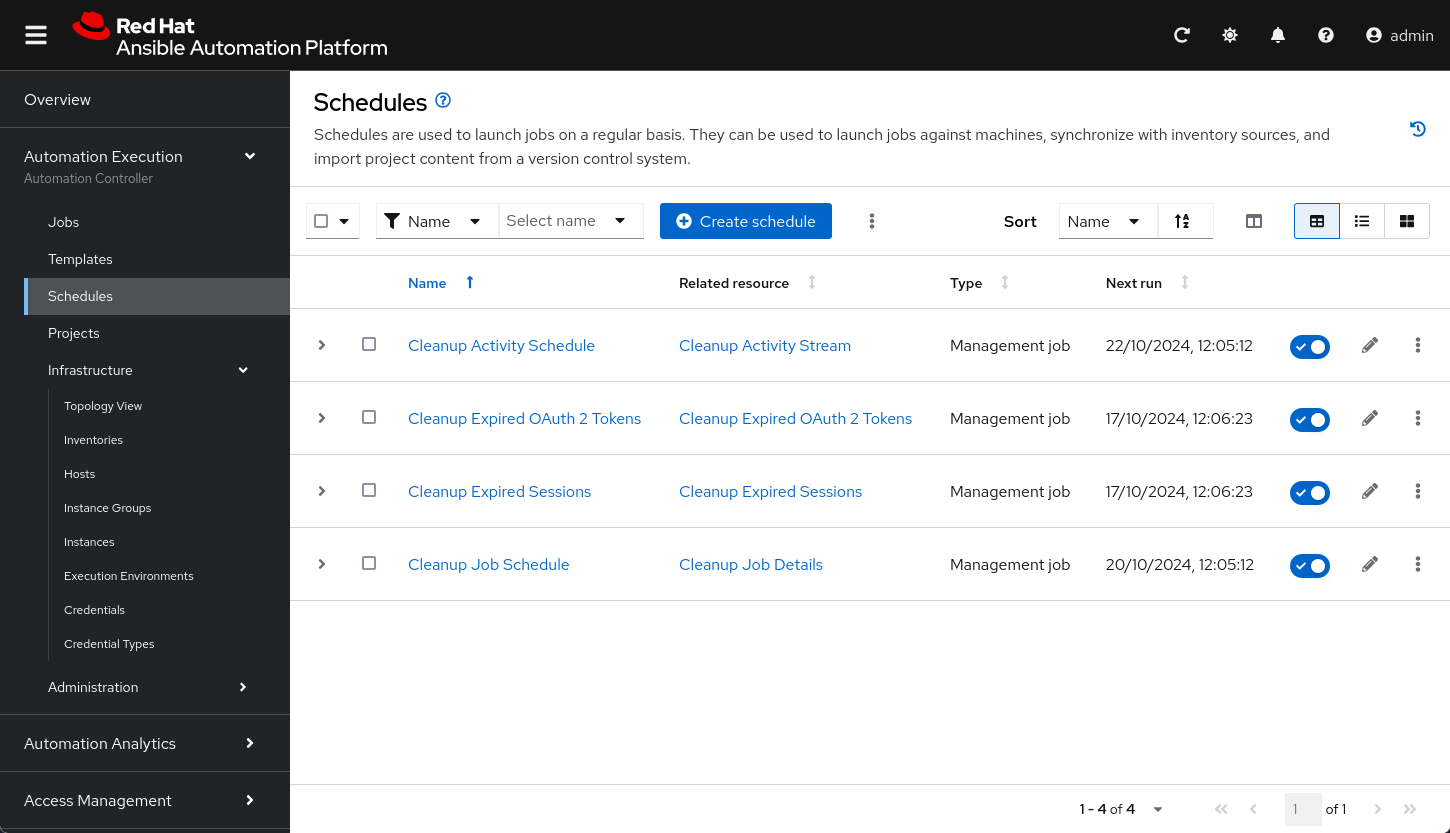
The Overview screen is the main dashboard. It shows a summary of your hosts, projects, and inventories, with each count being a direct link to the corresponding objects. Below the resource counts, you will find a Job Activity graph and a card-like summary of recent Jobs, Projects, and Inventories.
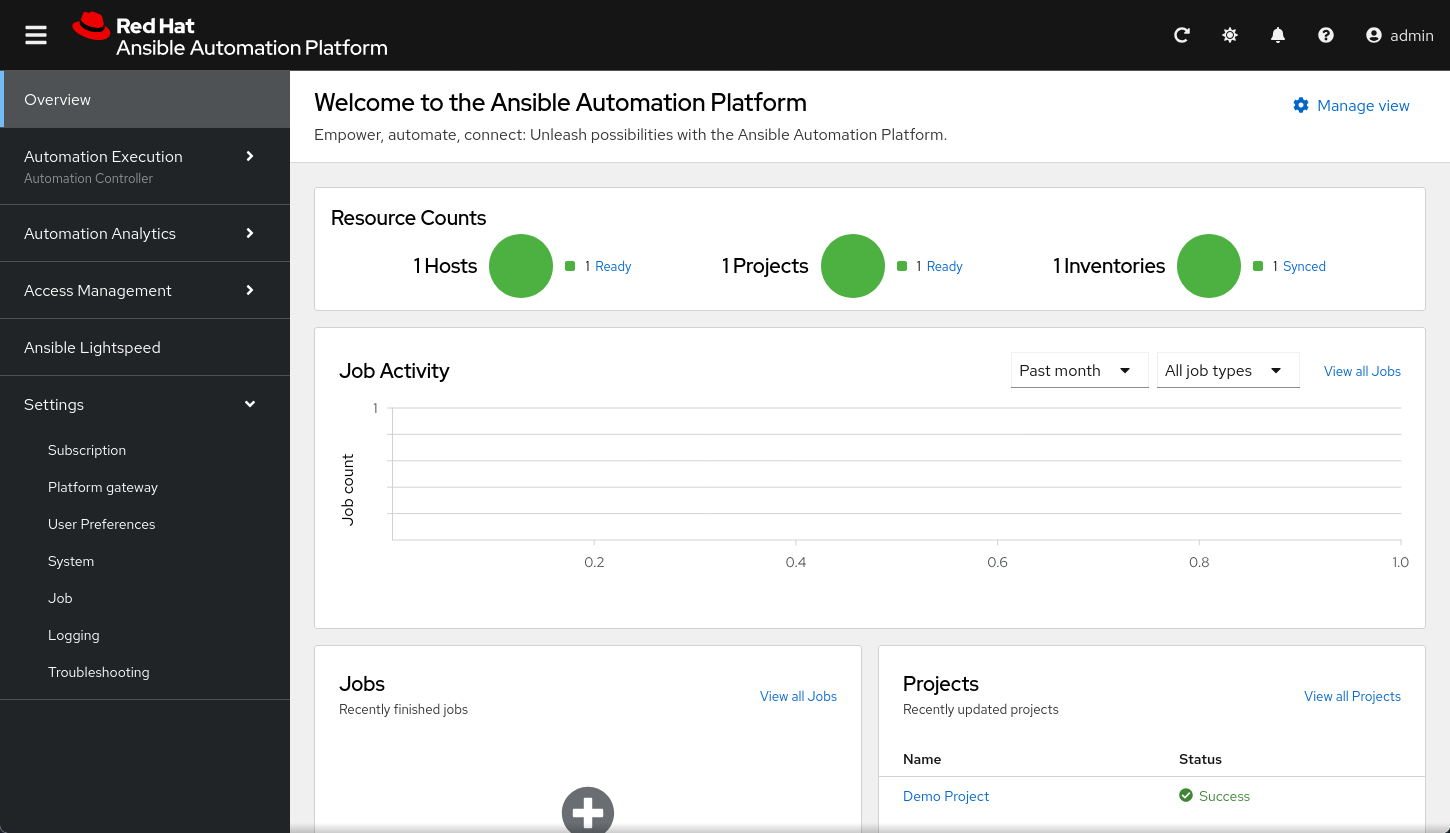
Automation Controller Jobs View
You can access the Jobs view by clicking Jobs from the left navigation bar. This view shows all the jobs that have run, including project syncs, SCM updates, playbook runs, and more.
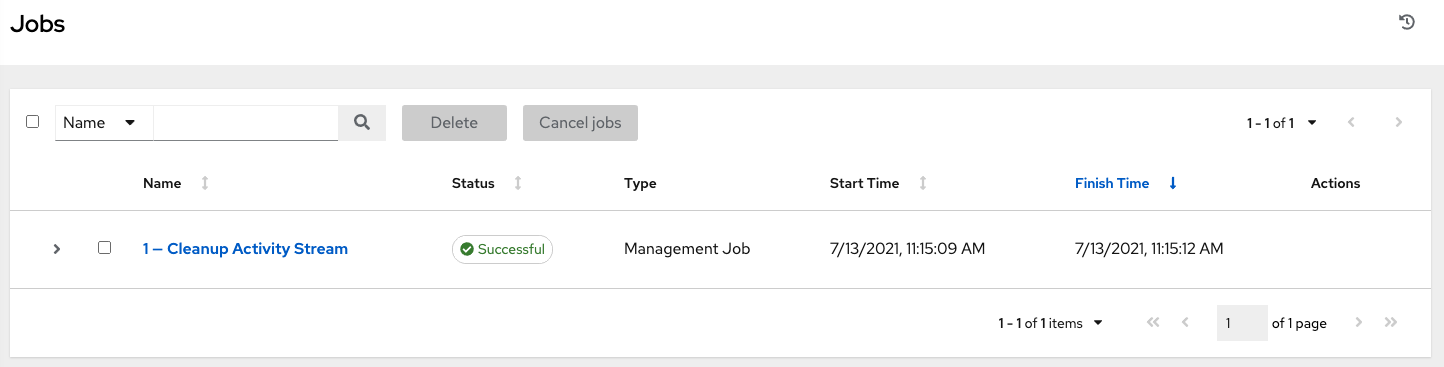
Schedules View
You can access the Schedules view by clicking Automation Execution → Schedules in the left navigation menu. This view shows all scheduled jobs that are configured to launch on a regular basis. They can be used to launch jobs, sync inventory sources, and import project content from version control.
Lab Guide
Welcome to the Introduction to automation controller lab. In the following challenges, you will learn how to run your Ansible Playbooks through the automation controller’s web UI — from creating inventories and importing projects to building job templates and workflows.
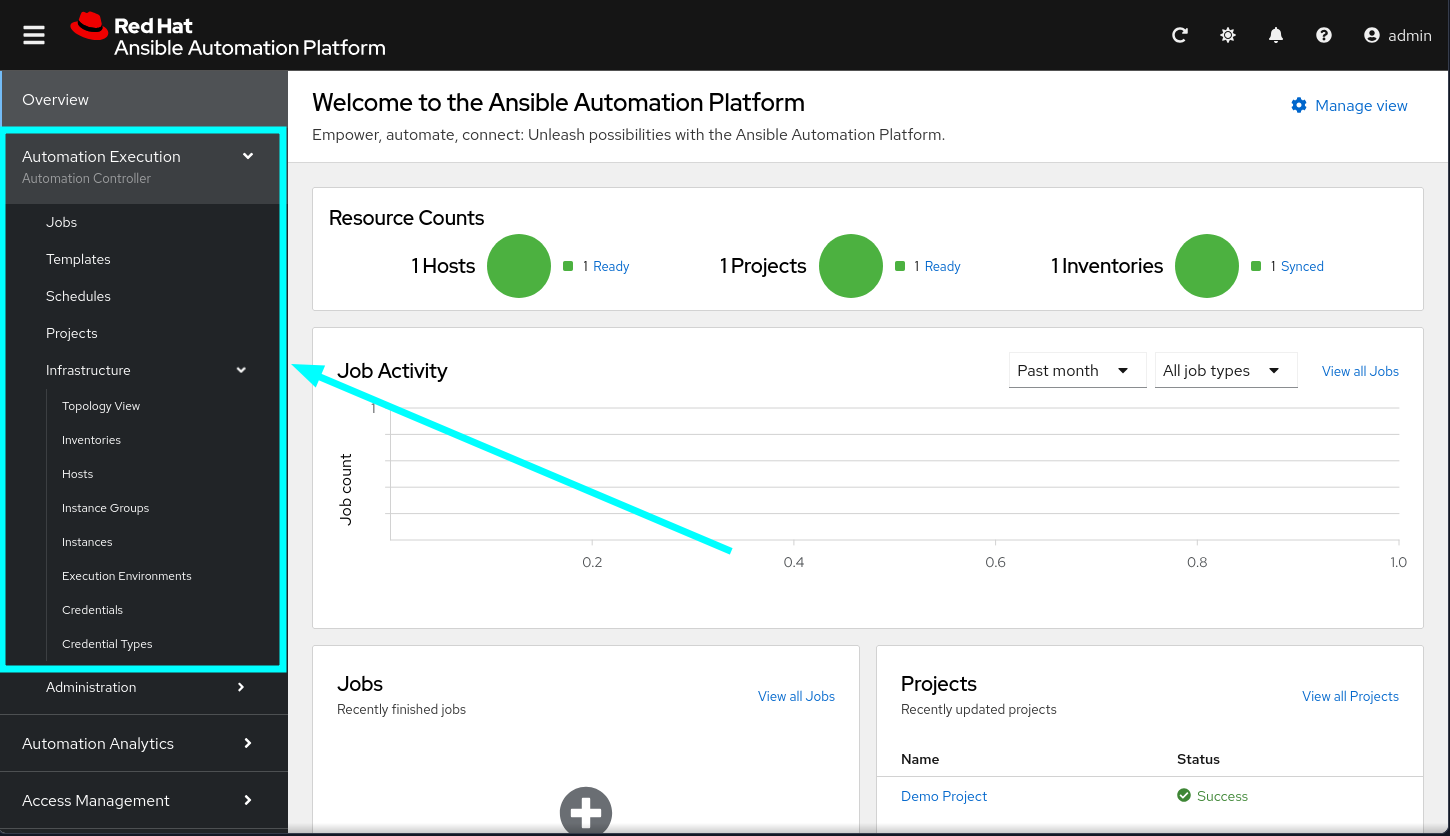
The new unified UI has several sections, but for this lab, we will focus on the Automation Execution (Automation controller) view.
The screen on the left shows the login page. Please log in with the following credentials to continue.
|
Task 1: Explore the Overview
Your first task is to explore the Overview dashboard. The initial screen will show little information due to the lack of recent activity, but you can compare it again after you finish the lab to see the difference.
You will find the following sections:
-
Resource counts: A summary of your hosts, projects, and inventories.
-
Job activity: A graph showing job runs from the past month.
-
Jobs: A list of recently run jobs.
-
Projects: A list of recently updated projects.
-
Inventories: A list of recently updated inventories.
A new feature in Ansible Automation Platform 2.5 is a section with quick start guides and interactive how-tos, which is very useful for getting started right after an installation.
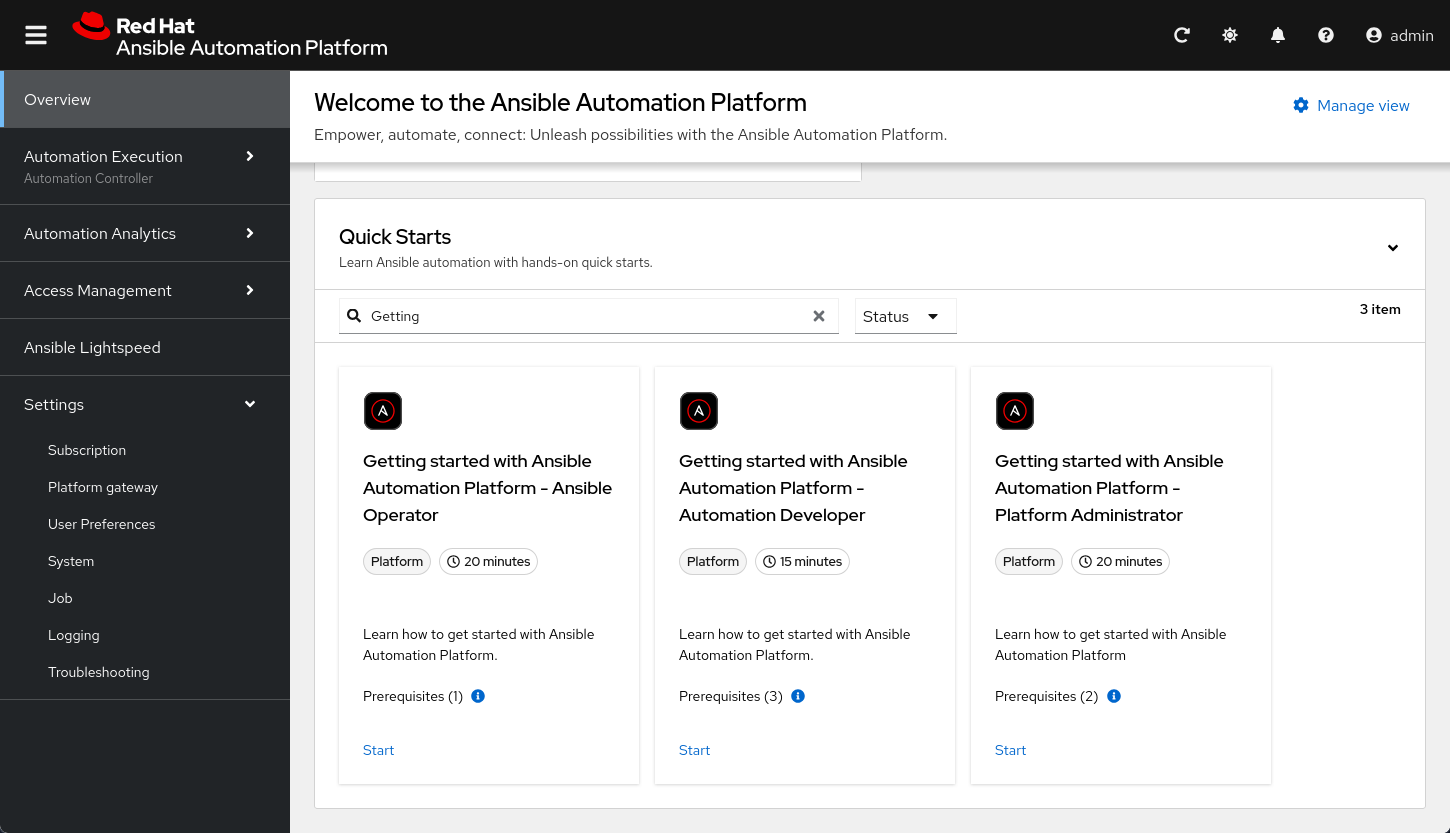
Feel free to click on any of the titles or "View all" links to explore the corresponding sections.
Task 2: Explore the Inventories Section
An inventory is a collection of hosts against which playbooks can be run. It’s the same concept as an inventory file you might be familiar with from the command line, but with added features and better reusability.
-
Navigate to the Inventories page.
Click on the Inventories link from the Overview page or from the left navigation menu under Automation Execution → Infrastructure → Inventories.
-
Explore the Demo Inventory.
Click on the Demo Inventory that comes pre-loaded. Explore the different tabs to familiarize yourself with the available fields. You will create your own inventory soon.
Task 3: Explore the Projects Section
A project is a logical grouping of Ansible Playbooks within the automation controller. These playbooks typically reside in a source code version control system like Git.
-
Navigate to the Projects page.
In the left navigation menu, go to Automation Execution → Projects.
-
Explore the Demo Project.
Click on the Demo Project that comes pre-loaded. Examine the different fields and tabs available.
Controller as Code Alternative
The Demo Inventory and Demo Project you explored in this challenge come pre-loaded with the automation controller. In a CaC approach, even these default objects can be managed declaratively. Starting from the next challenge, you will see how every object you create through the UI has an equivalent YAML representation using the infra.aap_configuration collection.
Next Steps
In the next challenge, you will create your own inventory and add hosts to manage. Press the blue Next button below to continue.
Troubleshooting
If you have encountered an issue or have noticed something not quite right, please open an issue on GitHub.