Module 7: Creating a second Project
A guide to importing a second repository into a new project in the automation controller.
Lab Briefing
You already know how to create a Project — you did it when you imported the Apache playbooks repository. In this challenge, you will repeat the process with a different Git repository containing additional playbooks for upcoming exercises.
Lab Guide
Your new project, Additional playbooks, will import a repository with playbooks to install extended services (extended_services.yml), set a message of the day (motd_facts.yml), and create multiple users (loop_users.yml). This reinforces the project creation workflow while setting up the content you will need in the next challenges.
|
Reminder that the credentials to log in to the automation controller are:
|
Task 1: Create the Second Project
First, you will create another new project that points to a different public Git repository.
-
Navigate to the Projects page.
In the left navigation menu, go to Automation Execution → Projects.
-
Create a new project.
Click the blue Create project button.
-
Enter the project details.
Fill out the form with the following information:
-
Name:
Additional playbooks -
Organization:
Default -
Source Control Type:
Git -
Source Control URL:
https://github.com/ansible-tmm/instruqt-wyfp-additional.git
-
-
Save the project.
Leave all other fields as they are and click the blue Create project button.
Task 2: Verify the Project Sync
After creating the project, the automation controller automatically initiates a sync process to download the playbooks from the Git repository.
-
Check the project status.
After saving, you will be taken to the Details page for the new project. The Last Job Status should initially display Running in blue.
-
Verify the sync was successful.
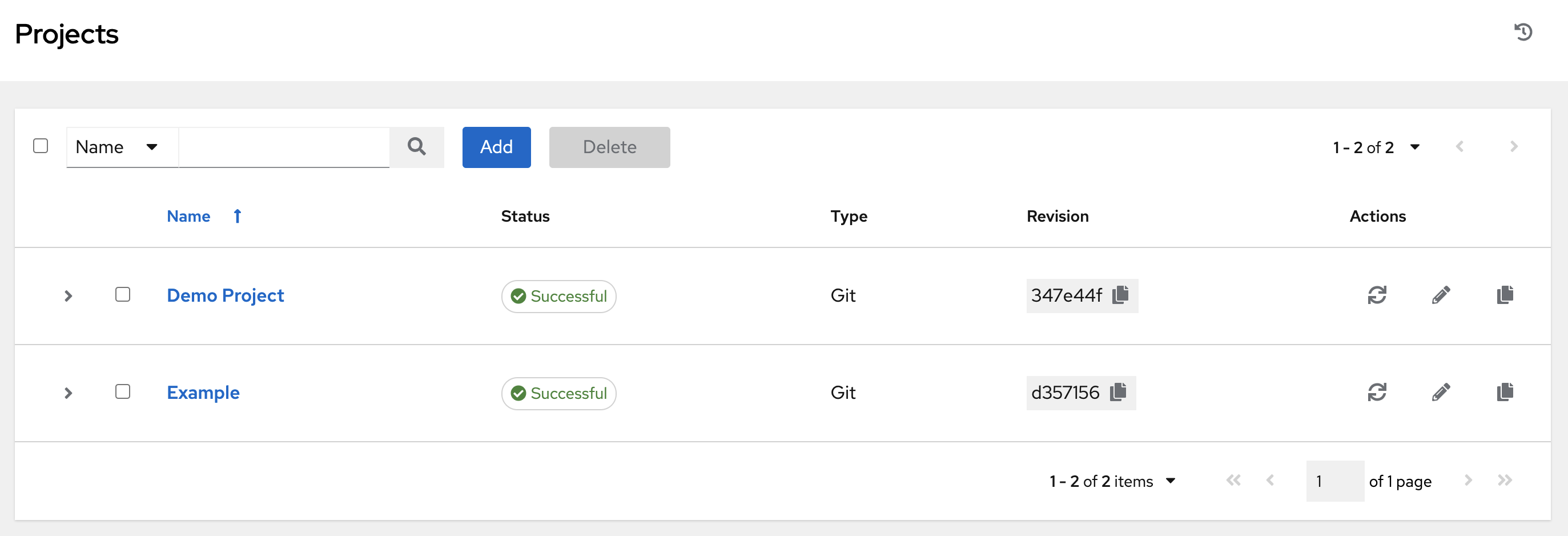
After a few seconds, the status should change to Successful and turn green. This indicates the project has synced correctly.
-
(Alternative) View status from the Projects list.
You can also verify the status by navigating back to the main Projects page (Automation Execution → Projects).
-
Check that the Status column for
Additional playbooksis green and reads Successful. -
Click on the Successful status text to review the output of the sync job.
-
Controller as Code Alternative
Adding a second project is simply another entry in a variable file. The dispatch role handles syncing automatically.
Troubleshooting
If you have encountered an issue or have noticed something not quite right, please open an issue on GitHub.