Module 5: Understanding Credentials
A guide to checking the authentication options of automation controller by exploring the Credentials section.
Lab Briefing
Credentials are used for authentication when launching jobs against machines, synchronizing with inventory sources, and importing project content from a version control system.
Lab Guide
Credentials are utilized by Ansible Automation Platform for authentication when launching jobs against devices, syncing with inventory sources, or importing projects from version control.
Credentials are imported and stored encrypted within the automation controller and are not retrievable in plain text by any user. You can grant users and teams the ability to use these credentials without actually exposing the sensitive information to them.
There are over 20 supported credential types, ranging from tokens to user/passwords or SSH keys. Today, you will explore the Machine credential type, which is used to connect to servers via SSH.
|
In this exercise, you are only observing. Please do not make any changes, as the credentials are pre-loaded for you. |
|
Reminder that the credentials to log in to the automation controller are:
|
Task 1: Explore the Credentials Section
First, you will navigate to the Credentials section and examine a pre-loaded credential.
-
Navigate to the Credentials page.
In the left navigation menu, go to Automation Execution → Infrastructure → Credentials.
-
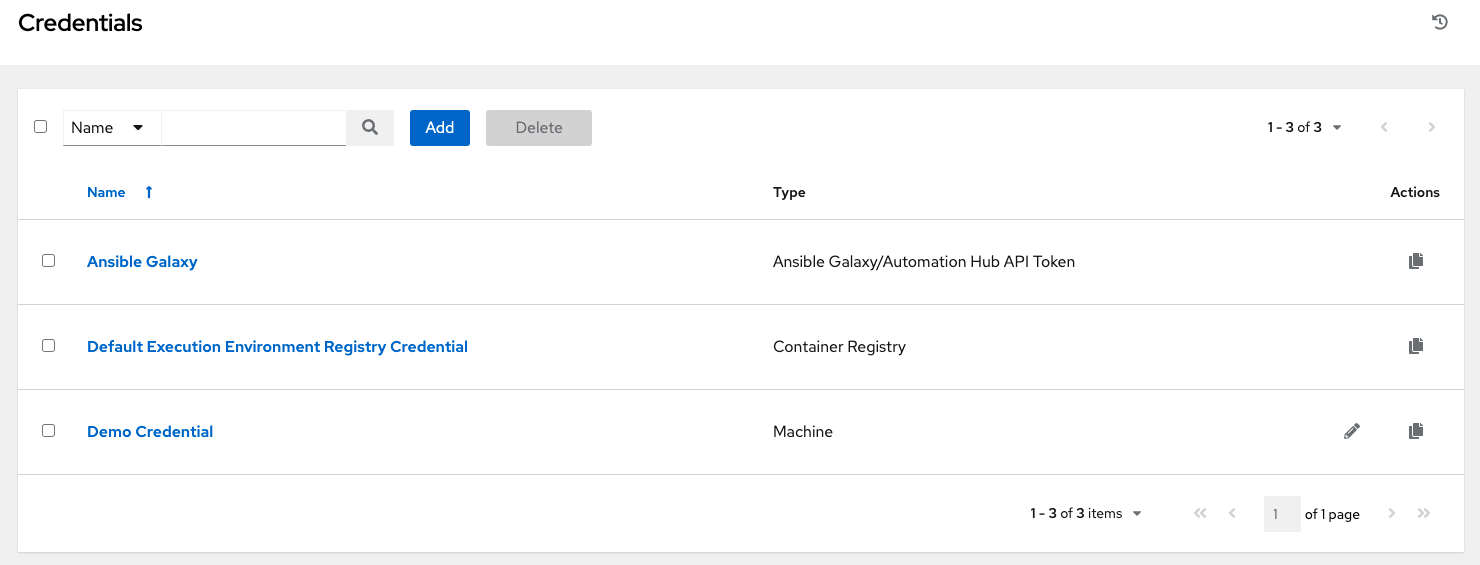
View the list of credentials.
This will display a searchable list of credentials, classified by name and type.
-
Open the lab credential.
Look for the
lab-credentialscredential, which is a Machine type, and click on its name. -
Examine the credential details.
On the Details tab, notice that the SSH Private Key field shows Encrypted.
-
Check credential access.
Click the Team Access and User Access tabs to see which automation controller users and teams have permission to use this credential.
-
Check credential usage.
Click the Job Templates tab. This tab shows which jobs are currently using this credential. It should be empty right now.
Task 2: Examine a Machine Credential
Next, you will enter the edit view for the credential to see the available fields.
-
Enter the credential edit view.
Go back to the Details tab for
lab-credentialsand click the Edit credential button. -
Observe the available fields.
Look at the different configuration options available for a Machine credential, but do not edit or change anything.
-
Note the encrypted key.
Notice that the SSH Private Key field only allows you to Reset the value. As mentioned before, the key is encrypted and not retrievable from the UI after it has been saved.
-
Exit the edit view.
Click the Cancel button to exit without making any accidental modifications.
Controller as Code Alternative
The lab-credentials credential you explored was pre-loaded for this workshop. In a CaC approach, credentials are defined as variables and applied automatically. The SSH private key is read securely using an Ansible lookup.
YAML Definition
From controller-as-code/configs/module-05/controller_objects.yml:
---
controller_credentials:
  - name: lab-credentials
    credential_type: Machine
    organization: Default
    inputs:
      username: rhel
      password: ansible123!
ssh_key_data: "{{ lookup('file', '/home/rhel/.ssh/id_rsa') }}"|
In production, sensitive values like passwords and SSH keys should be stored in Ansible Vault or an external secrets manager (e.g., HashiCorp Vault, CyberArk). The |
Troubleshooting
If you have encountered an issue or have noticed something not quite right, please open an issue on GitHub.