Module 8: Creating multiple Job Templates
A guide to creating a second and third Job Template to run different playbooks from your projects.
Lab Briefing
In this challenge, you will put your experience to work by creating two more Job Templates. Unlike the first one, these templates use playbooks from the Additional playbooks project and target different hosts and groups — including one that doesn’t exist yet in your inventory. You will also troubleshoot a common issue: what happens when a playbook expects a host that isn’t defined.
Lab Guide
You will create two new Job Templates using playbooks from the Additional playbooks project:
-
Extended serviceswill useextended_services.ymlto deploy a PostgreSQL database tonode3. -
Set motdwill usemotd_facts.ymlto set a message of the day onnode1.
| This exercise demonstrates how you can use different playbooks from the same Project in multiple Job Templates. |
|
Reminder that the credentials to log in to the automation controller are:
|
Task 1: Create the "Extended Services" Job Template
First, you will create the job template to deploy the database.
-
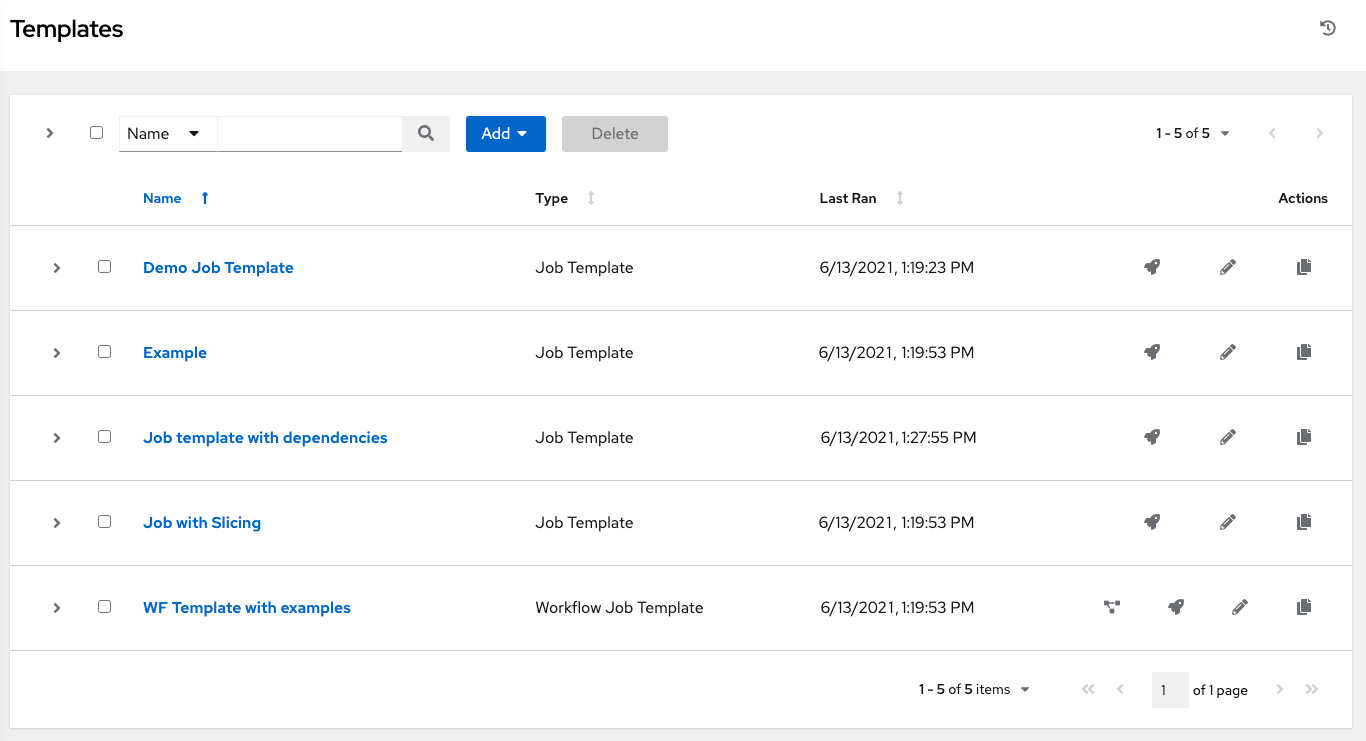
Navigate to the Templates page.
In the left navigation menu, go to Automation Execution → Templates.
-
Create a new job template.
Click the blue Create template button and select Create job template.
-
Enter the job template details.
Fill out the form with the following information:
-
Name:
Extended services -
Job Type:
Run -
Inventory:
Lab-Inventory -
Project:
Additional playbooks -
Playbook:
extended_services.yml -
Credentials: Select
lab-credentials. -
Privilege Escalation: Check this box to enable
become.
-
-
Save the job template.
Leave all other fields as they are and click the blue Create job template button.
|
Remember to set the Credentials field. It’s not a mandatory field in the UI, but if you don’t select the correct machine credentials, the job will fail. |
Task 2: Launch the "Extended Services" Job Template
Now, launch the template and troubleshoot the expected failure.
-
Launch the template.
Navigate to the Templates page and click the Launch icon (🚀) next to the
Extended servicesjob template. -
Observe and resolve the failure.
The job execution will fail. Read the output message to understand why. The playbook is trying to run on a host named
node3in a group named[database], but neither of these exist in yourLab-Inventory. -
Update the inventory.
Using what you learned in the inventory challenge, go back to your
Lab-Inventoryand perform the following actions:-
Create a new host named
node3. -
Create a new group named
database. -
Add the
node3host to thedatabasegroup.
-
-
Relaunch the job.
Launch the
Extended servicesjob template again and verify that it now succeeds.
Task 3: Create the "Set motd" Job Template
Now, apply what you’ve learned to create the third job template.
-
Navigate to the Templates page.
Go to Automation Execution → Templates.
-
Create a new job template.
Click the Create template button and select Create job template.
-
Enter the job template details.
Fill out the form with the following information:
-
Name:
Set motd -
Job Type:
Run -
Inventory:
Lab-Inventory -
Project:
Additional playbooks -
Playbook:
motd_facts.yml -
Credentials: Select
lab-credentials. -
Privilege Escalation: Check this box.
-
-
Save the job template.
Click the blue Create job template button.
Task 4: Launch the "Set motd" Job Template
Finally, launch the new template to set the message of the day.
-
Launch the template.
From the Templates list, click the Launch icon (🚀) next to the
Set motdjob template. -
Verify the execution was successful.
The job should complete with a Successful status.
Controller as Code Alternative
In this challenge you had to troubleshoot a failure caused by a missing host and group. With CaC, the inventory, hosts, groups, and job templates are all defined upfront, and the dispatch role ensures they are created in the correct dependency order — eliminating this class of errors entirely.
YAML Definition
From controller-as-code/configs/module-08/controller_objects.yml:
---
controller_hosts:
  - name: node3
    inventory: Lab-Inventory
    state: present

controller_groups:
  - name: database
    inventory: Lab-Inventory
    hosts:
      - node3

controller_templates:
  - name: Extended services
    organization: Default
    state: present
    inventory: Lab-Inventory
    become_enabled: true
    playbook: extended_services.yml
    project: Additional playbooks
    credential: lab-credentials

  - name: Set motd
    organization: Default
    state: present
    inventory: Lab-Inventory
    become_enabled: true
    playbook: motd_facts.yml
    project: Additional playbooks
    credential: lab-credentials
With CaC, the node3 host and database group are created before the Extended services job template, so the failure you experienced in the UI exercise would never occur.
Troubleshooting
If you have encountered an issue or have noticed something not quite right, please open an issue on GitHub.